
Synchronize feature enables you to sync HRMS payroll data with ERP Accounting. You can see the payroll details of the employee in the respective mapped accounts under Journal Ledger in ERP.
Prerequisites:
1. You have your Deskera HRMS application URL in place.
2. You are the administrator of the HRMS application
3. Ensure good internet connectivity
4. Make sure that the payroll components are mapped with GL accounts.
Step 1: Go to Process Payroll under Payroll widget in HRMS. 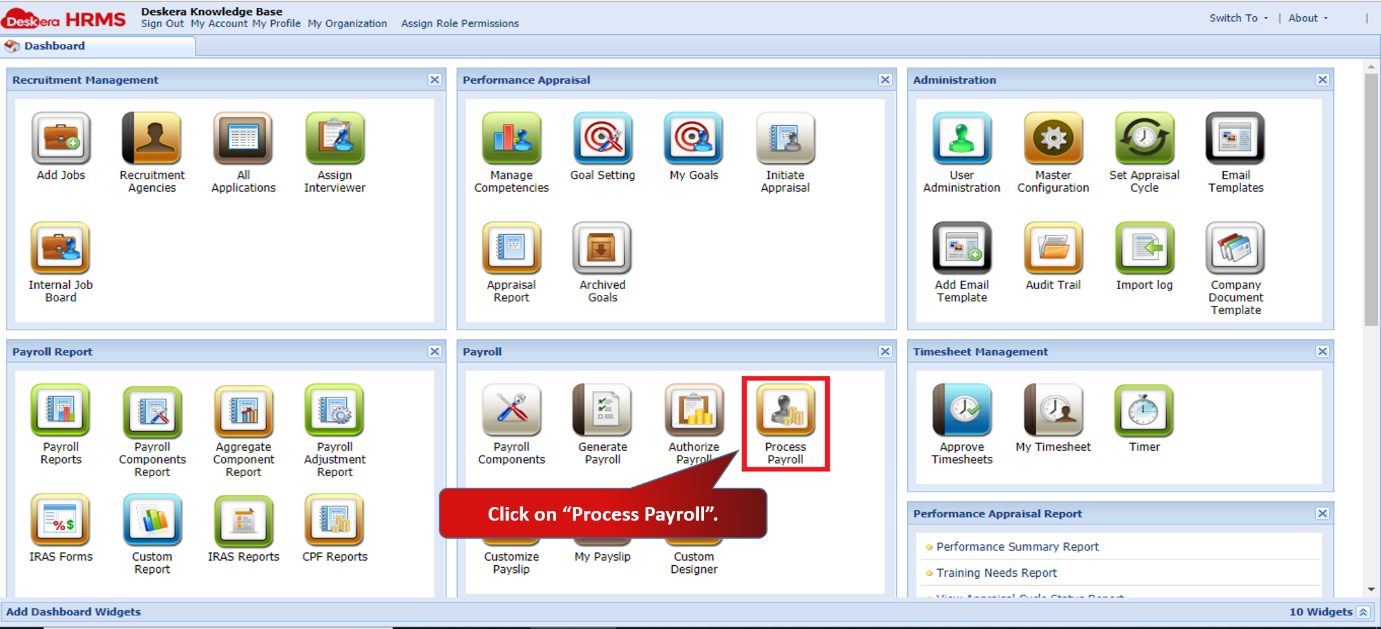 Fig 2.4.2.12.1 HRMS Dashboard
Step 2: Select the user and click on Process to Process the salary of the employee. 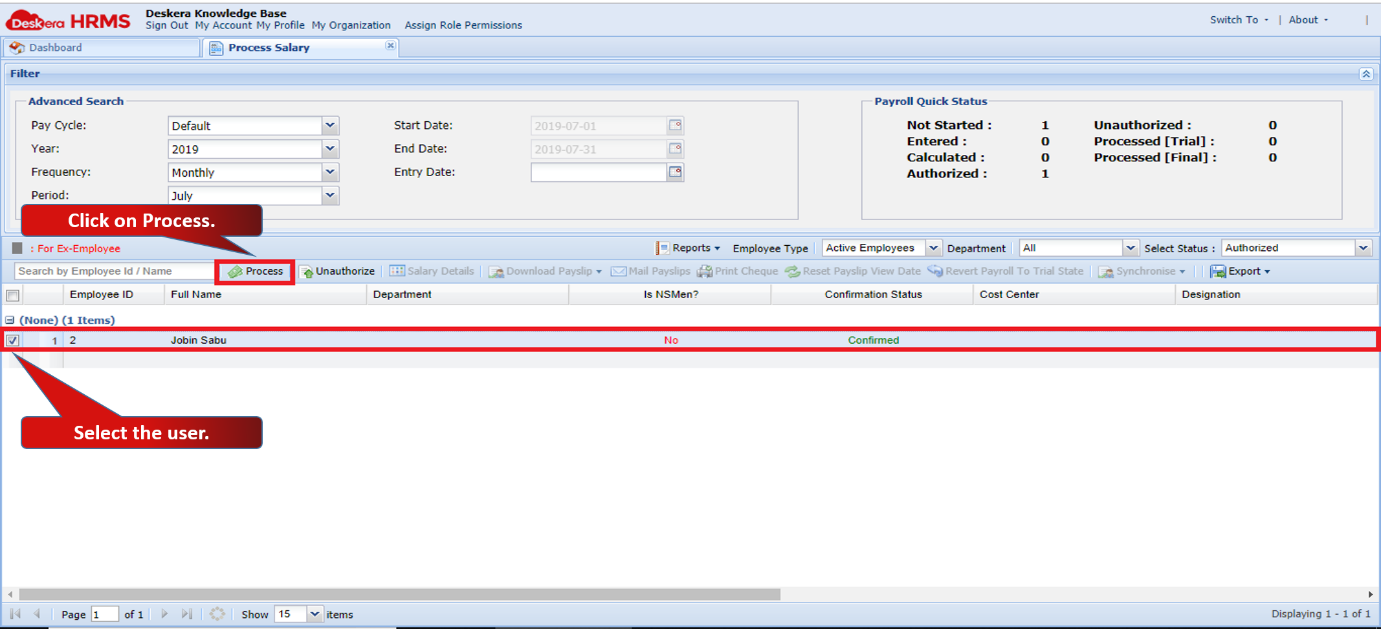 Fig 2.4.2.12.2 Process Payroll
Step 3: Select the Process as ‘Final’ and fill in the details. Click on OK to submit the details.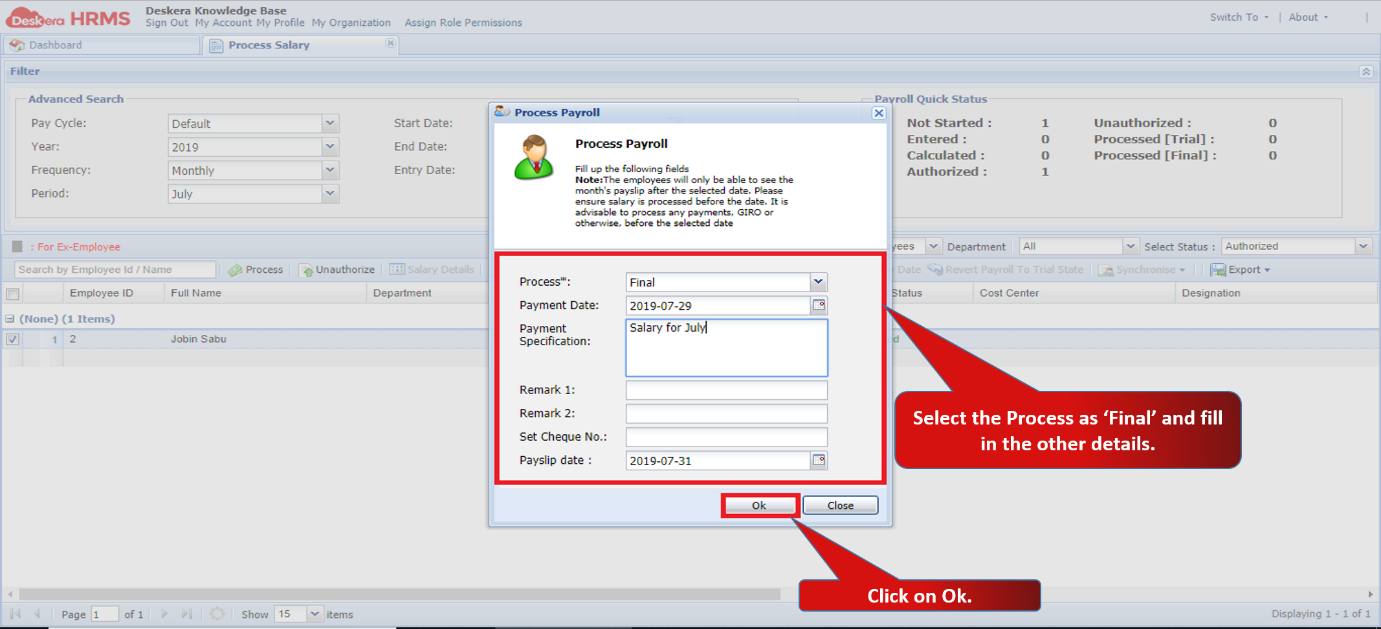 Fig 2.4.2.12.3 Process Payroll
Step 4: Change the ‘Selected Status’ to Processed [Final].
Select the user and go to Synchronize and click on Sync Selected.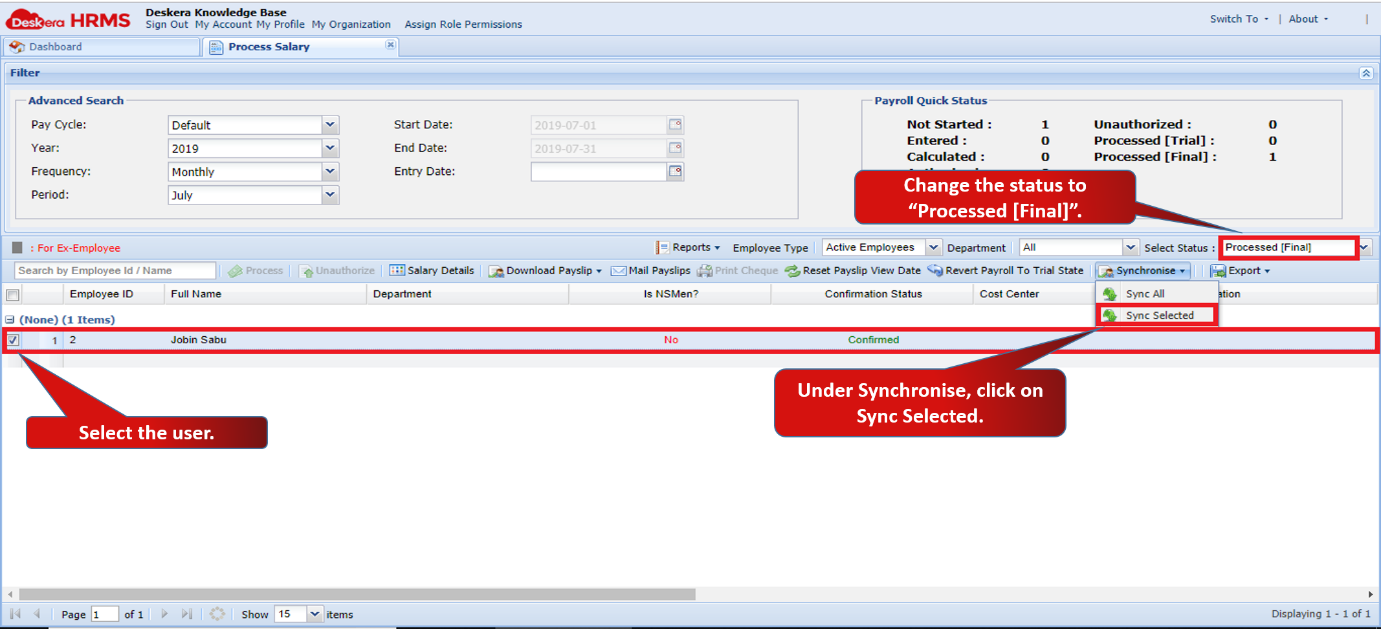 Fig 2.4.2.12.4 Synchronise
Click on Yes to confirm he sync with ERP.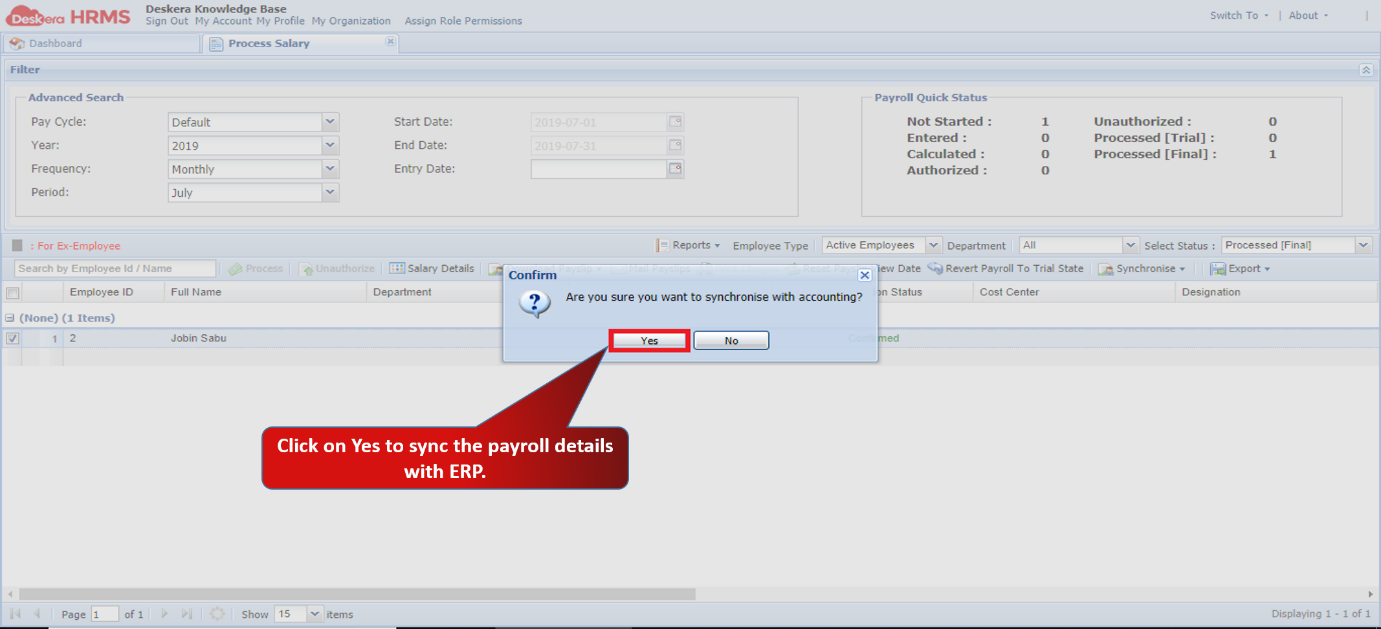 Fig 2.4.2.12.5 Synchronise
Step 5: Once you sync HRMS with ERP, the payroll data of the user will be reflected in ERP as well.
You can see the data under Journal Entry tab in ERP. All the transactions under the accounts mapped with the components can be seen under Journal Entry tab.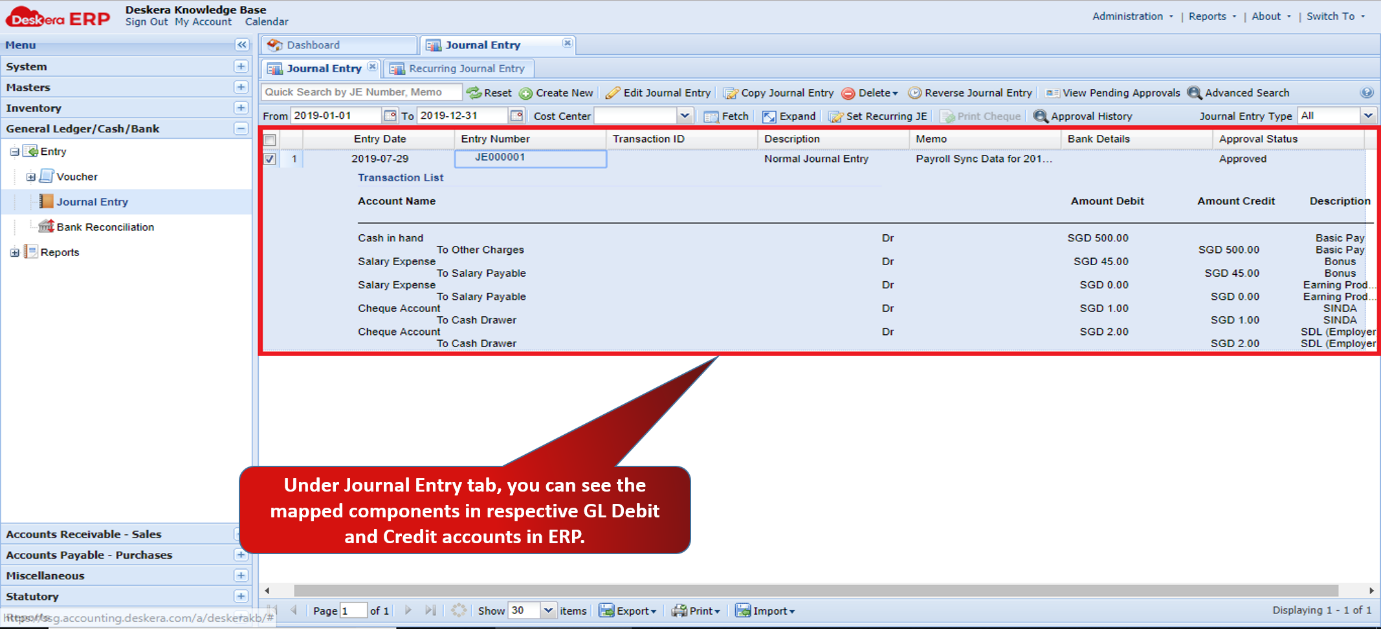 Fig 2.4.2.12.6 ERP Journal Entry
Comments
0 comments
Please sign in to leave a comment.