
This article describes the functionality of “Manage Amount” feature in HRMS. Manage Amount can be used for employees whose salaries are in the Entered stage and the Calculated stage. This feature is used as a part of the entire payroll processing cycle of employees.
Prerequisites:
- You have your Deskera HRMS application URL in place
- You are the administrator of the HRMS application
- Ensure a good internet connectivity
- Make sure the employee(s) is/are either in the Entered stage or Calculated stage of Payroll processing
Step 1: Click on Generate Payroll on HRMS Dashboard.
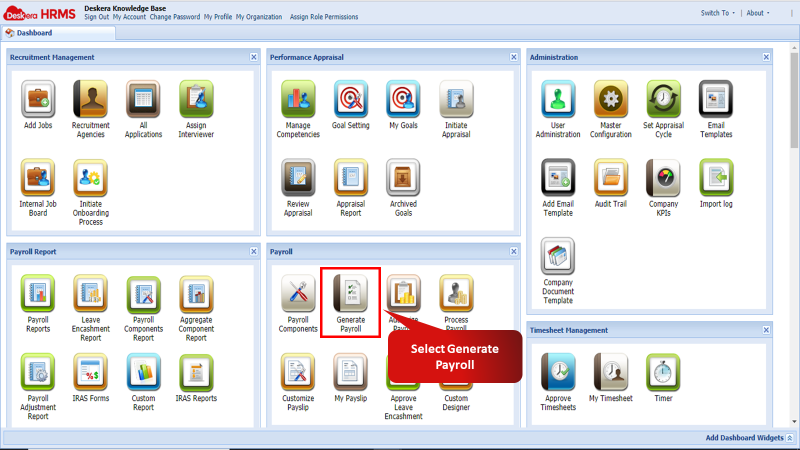
Fig 2.4.2.2.1 Generate Payroll
Entered Stage
Step 1: Enter the required details under the Advanced Search field in the Generate Salary Process window and make sure to select Entered under the Select Status drop-down field. A list of employees under the Entered stage of salary processing will be displayed.
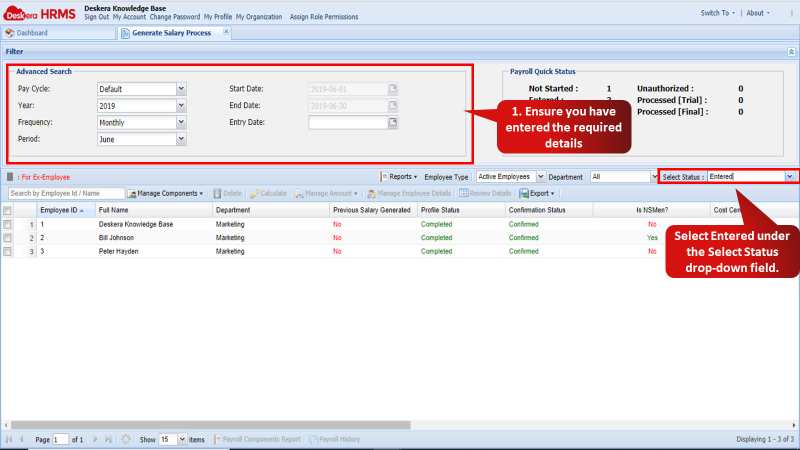
Fig 2.4.2.2.2 Entered Stage
Step 2: Select the employee for whom you wish to manage the component amounts. Then under the Manage Amount drop-down select Manage Amount.
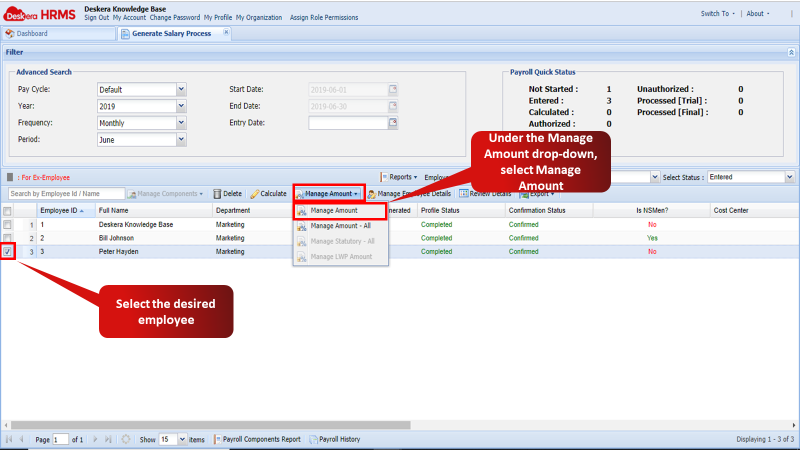
Fig 2.4.2.2.3 Manage Amount
Step 3: Under this window, manage the amount of the components for which the amount is adjustable. Configure the components as being applicable for LWP if needed.
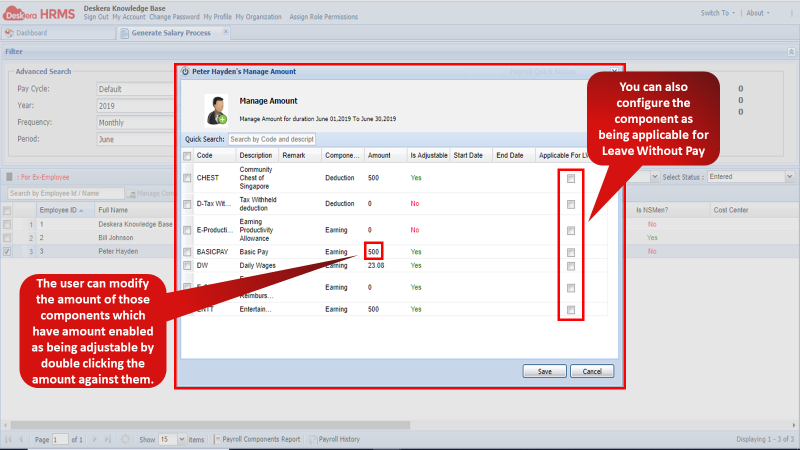
Fig 2.4.2.2.4 Manage Amount
Note: To manage the amount for multiple employees in one go, use the Manage Amount-All feature under the Manage Amount drop-down. The user can manage the component amounts of multiple employees in the same window.
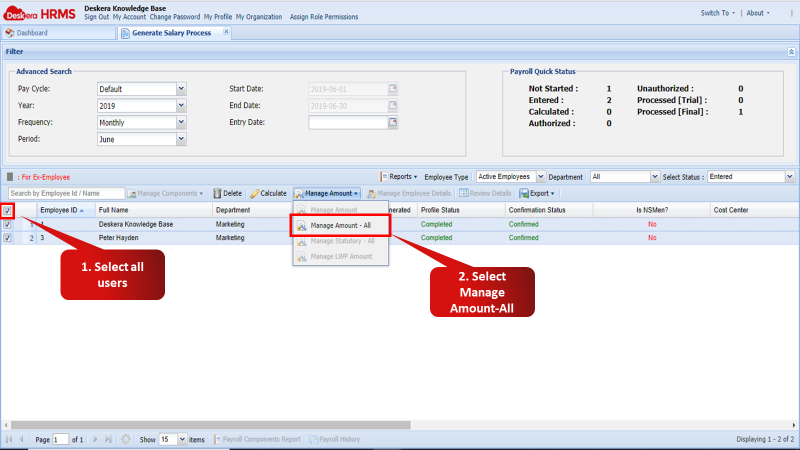
Fig 2.4.2.2.5 Manage Amount-All
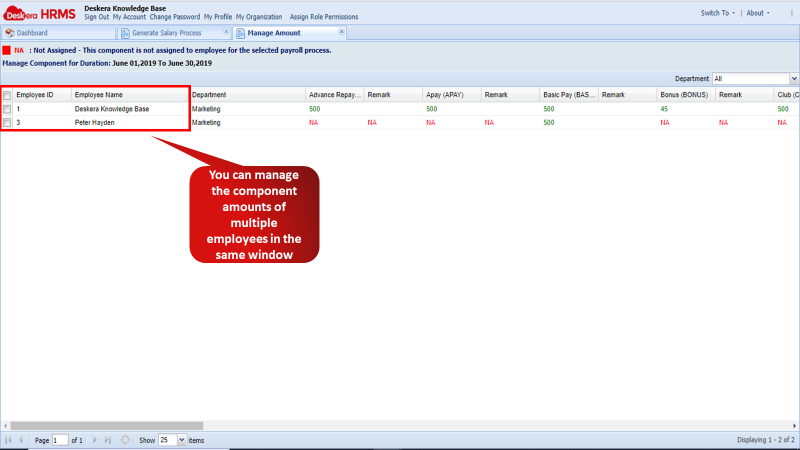
Fig 2.4.2.2.6 Manage Amount-All
Calculated Stage
Manage Statutory: In addition to the Manage Amount and Manage Amount-All functionalities as discussed under Entered stage, two additional features are available for the employees who are in the Calculated stage. The first is Manage Statutory-All.
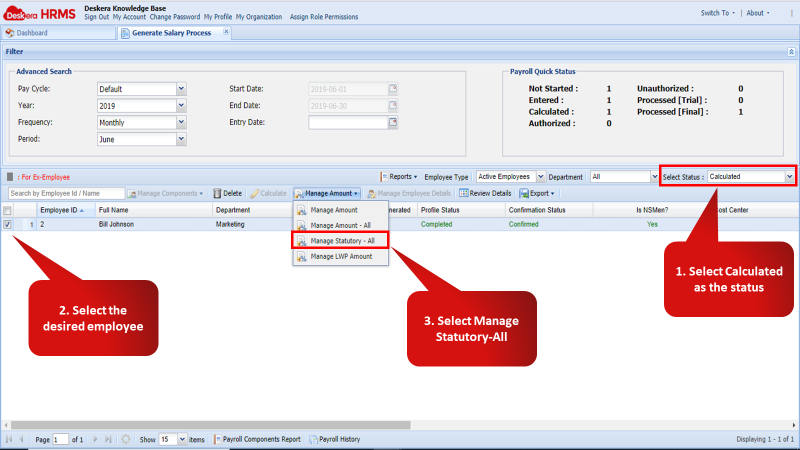
Fig 2.4.2.2.7 Manage Statutory-All
On this window the user can modify the statutory amounts that are applicable to the employee(s).
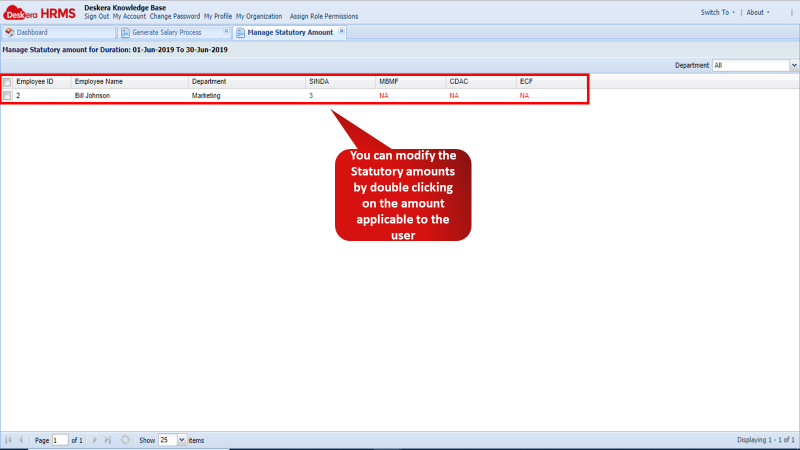
Fig 2.4.2.2.8 Manage Statutory-All
Manage LWP Amount: On this window the user can modify the LWP amount that is applicable to the employee(s). This is enabled only for those users who have had leaves entered in the Entered stage.
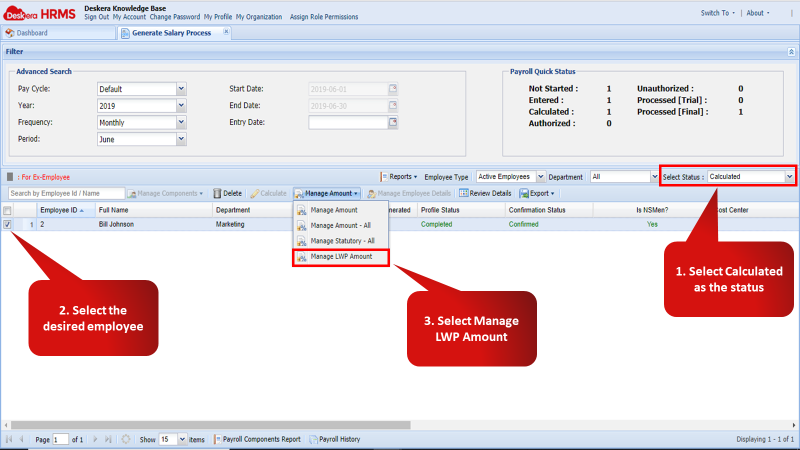
Fig 2.4.2.2.9 Manage LWP Amount
The user can now manually enter the LWP amount for the component that has LWP applicable to it.
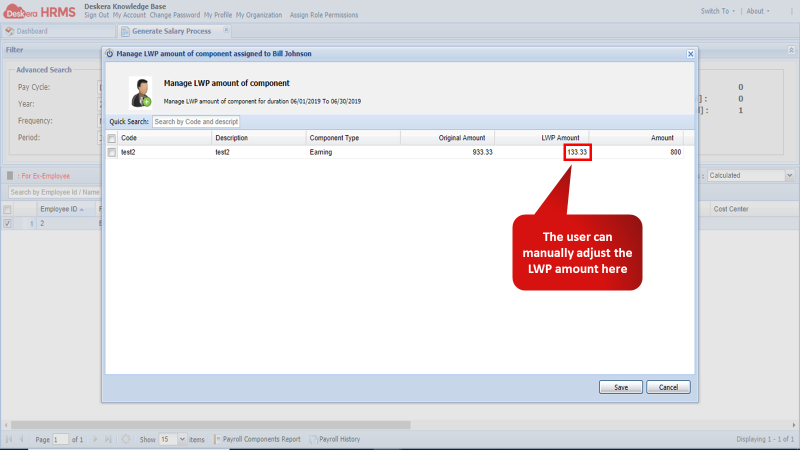
Fig 2.4.2.2.10 Manage LWP Amount Of Component
Comments
0 comments
Please sign in to leave a comment.