
Generate Payroll feature allows you to assign salary components, update employee’s unpaid leaves and calculate the salary of an employee. It is the initial step to process a payroll.
Prerequisites:
1. You have your Deskera HRMS application URL in place.
2. You are the administrator of the HRMS application
3. Ensure good internet connectivity
Step 1: Go to Generate Payroll under Payroll widget in HRMS.
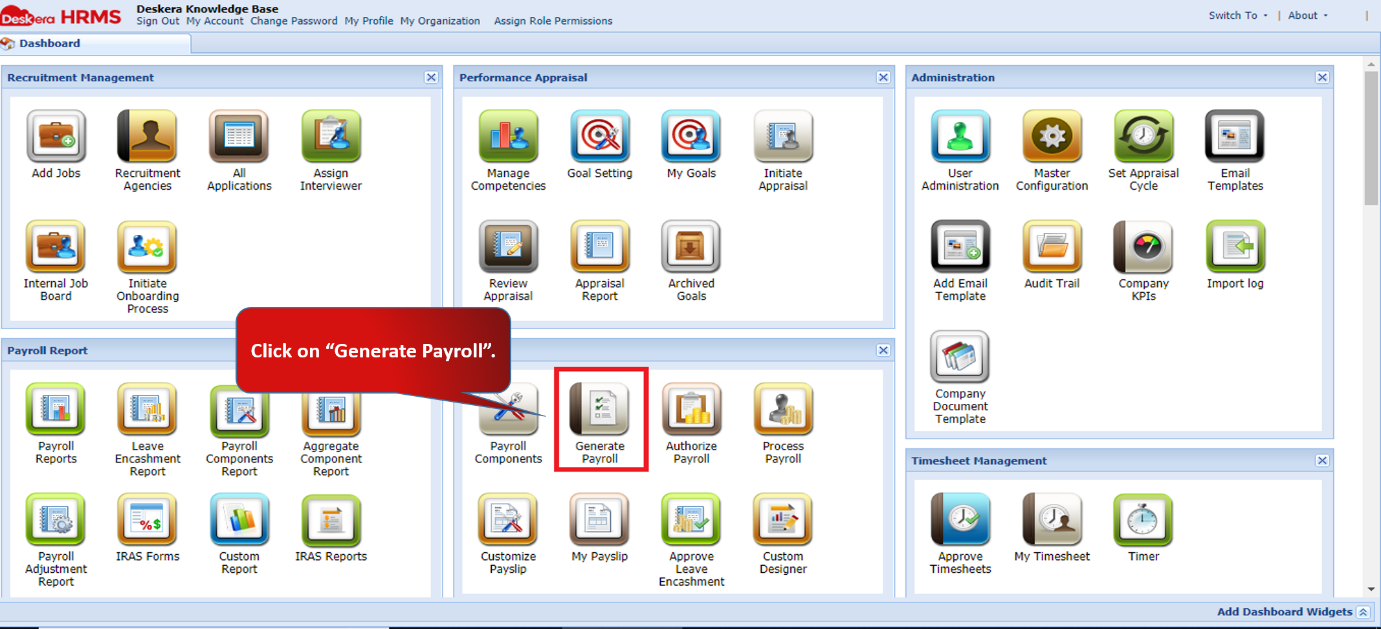
Fig 2.4.2.4.1 HRMS Dashboard
Step 2: Generate Salary Process tab is the first step to process a payroll.
Advanced Search feature contains Pay Cycle, Year, Frequency, Period, Start Date, End Date and entry date. Make sure that you have assigned the Pay Cycle to the user in Assign Payroll Settings under User Administration.
Payroll Quick Status gives you an overall summary of payroll processed at various stages.
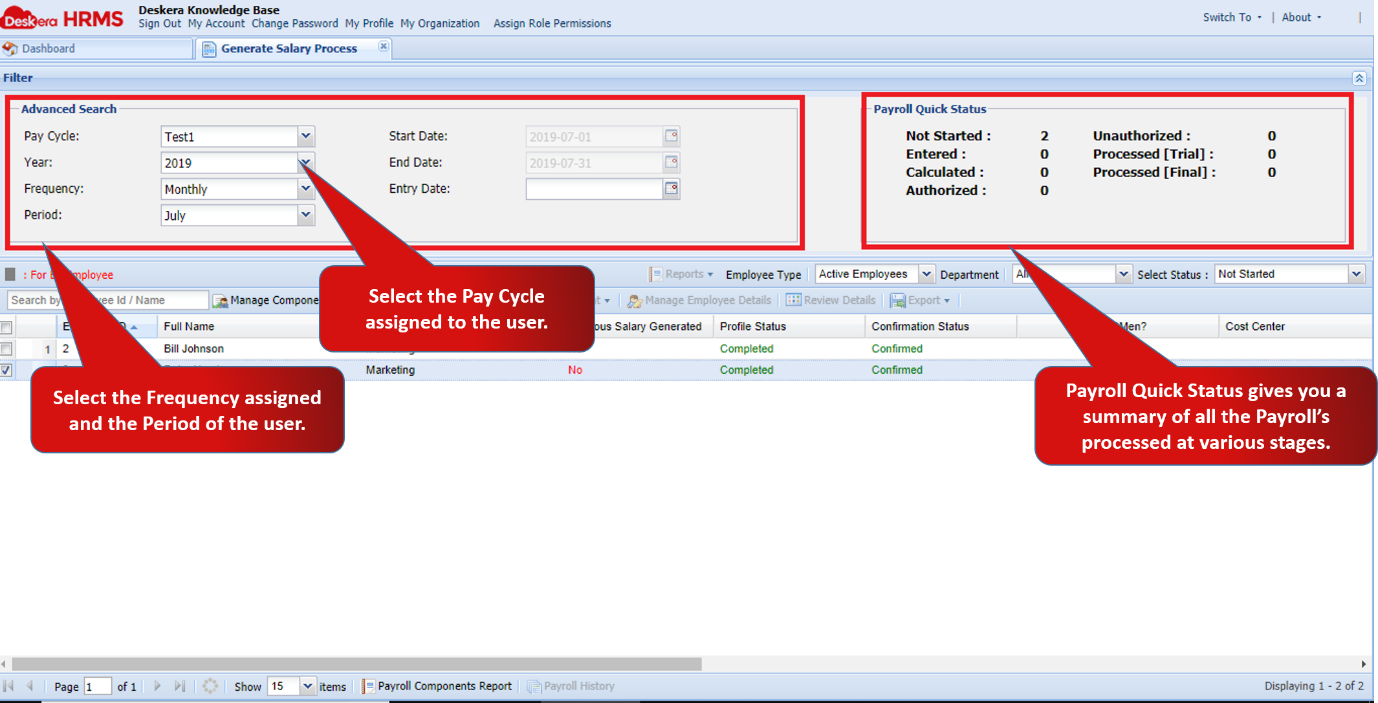
Fig 2.4.2.4.2 Generate Payroll
Step 3: Select the user after filling in the details in Advanced Search box. Go to Manage Components and click on Assign Default Components.
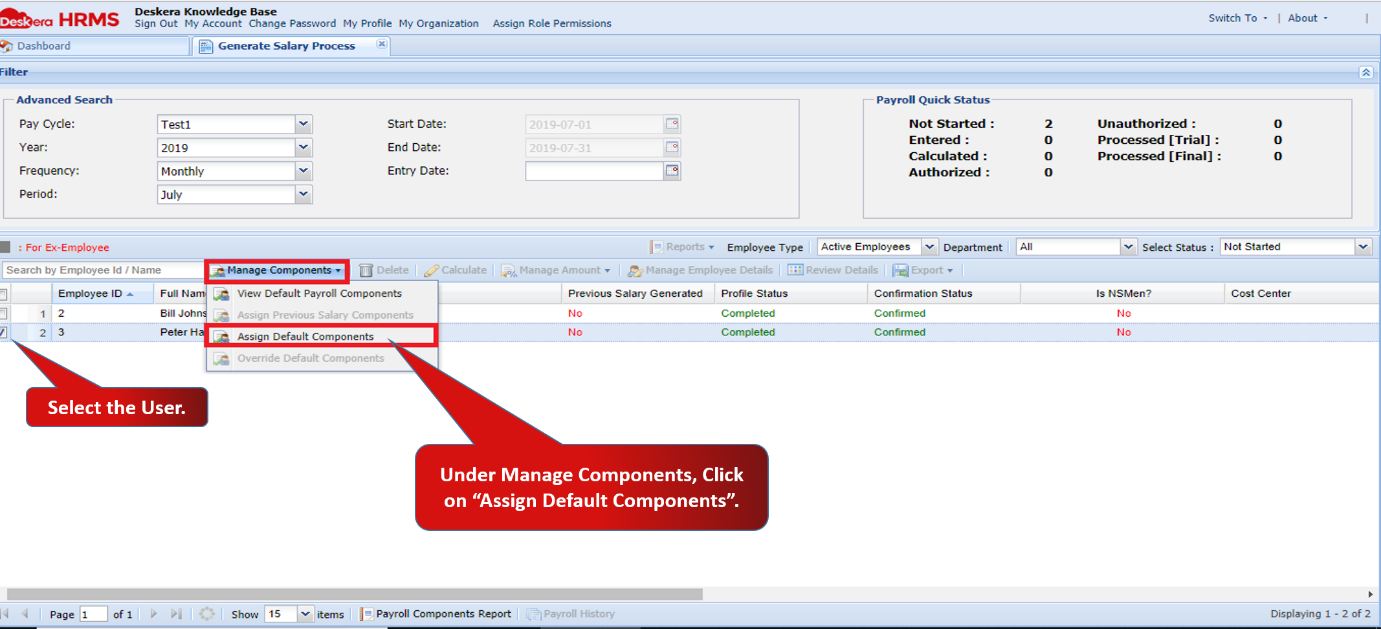
Fig 2.4.2.4.3 Generate Payroll
Step 4: A Default Components window will pop up. Select the component on the left you want to assign to the user and click on the arrow to shift it to the right hand side.
You can assign multiple components as well. Once assigned, click on Save.
Components will be assigned successfully.
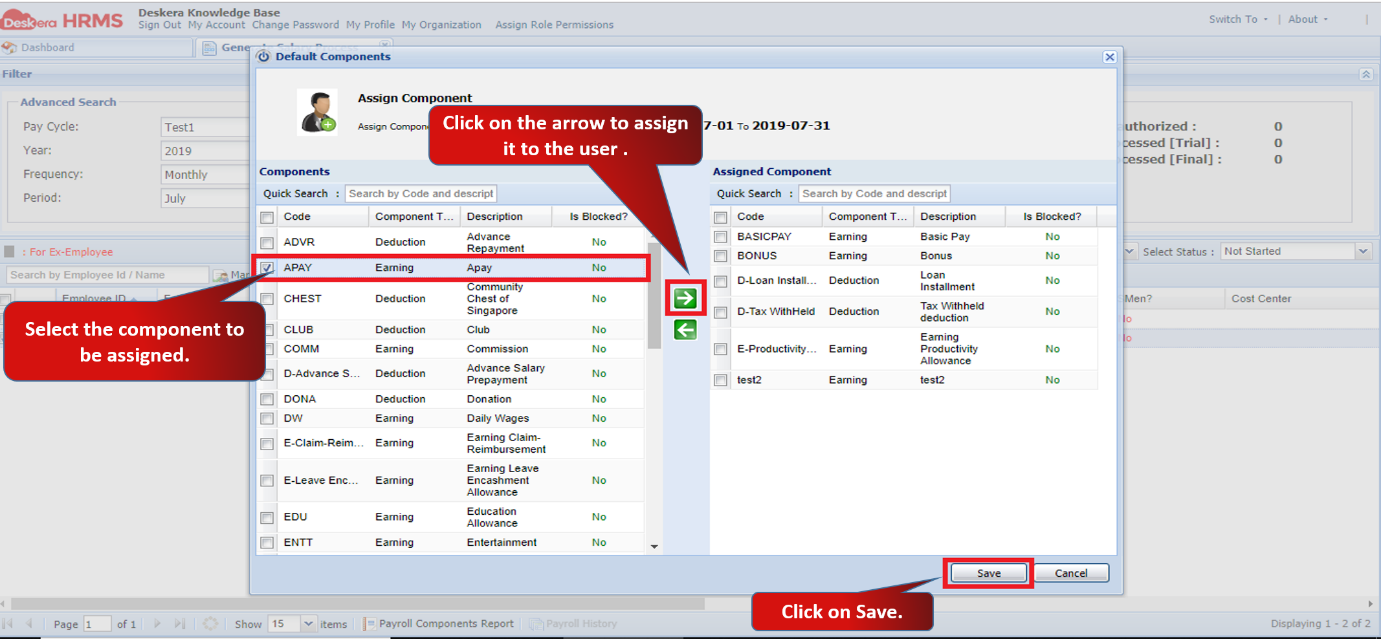
Fig 2.4.2.4.4 Assign Components
Step 5: You can proceed to next step once you select the status as “Entered”.
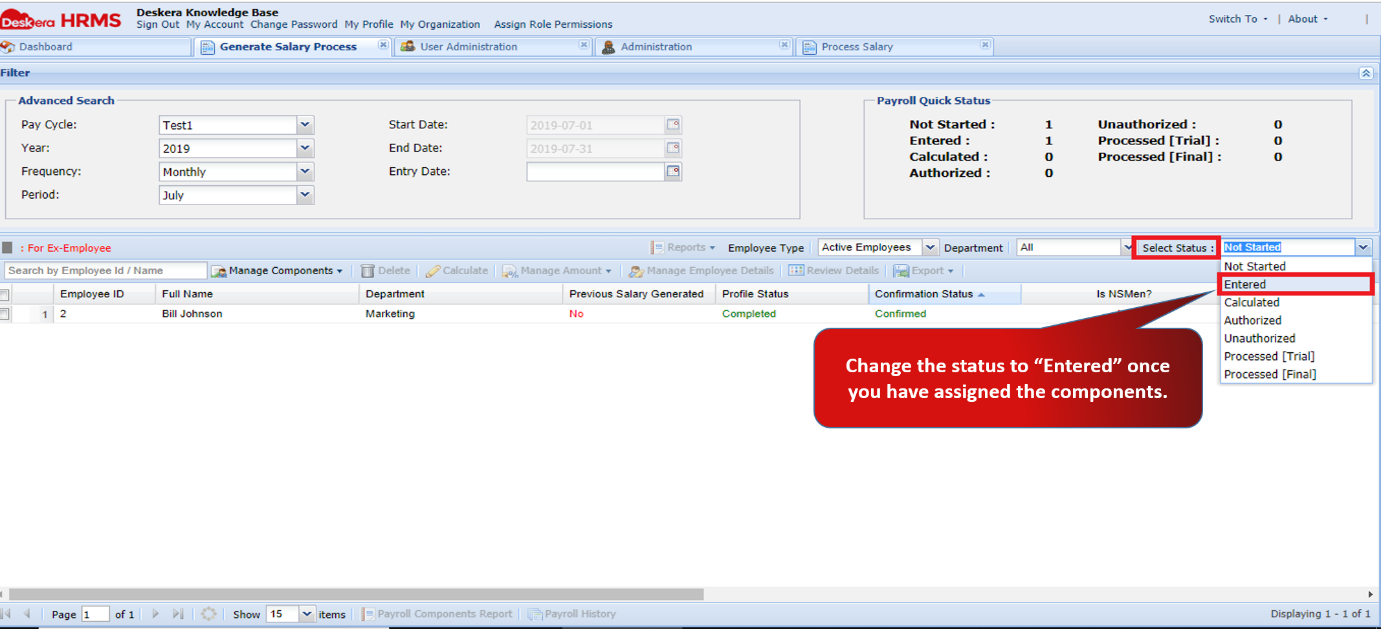
Fig 2.4.2.4.5 Generate Payroll
Step 6: Select the user and click on Calculate to calculate the salary according to the assigned components.
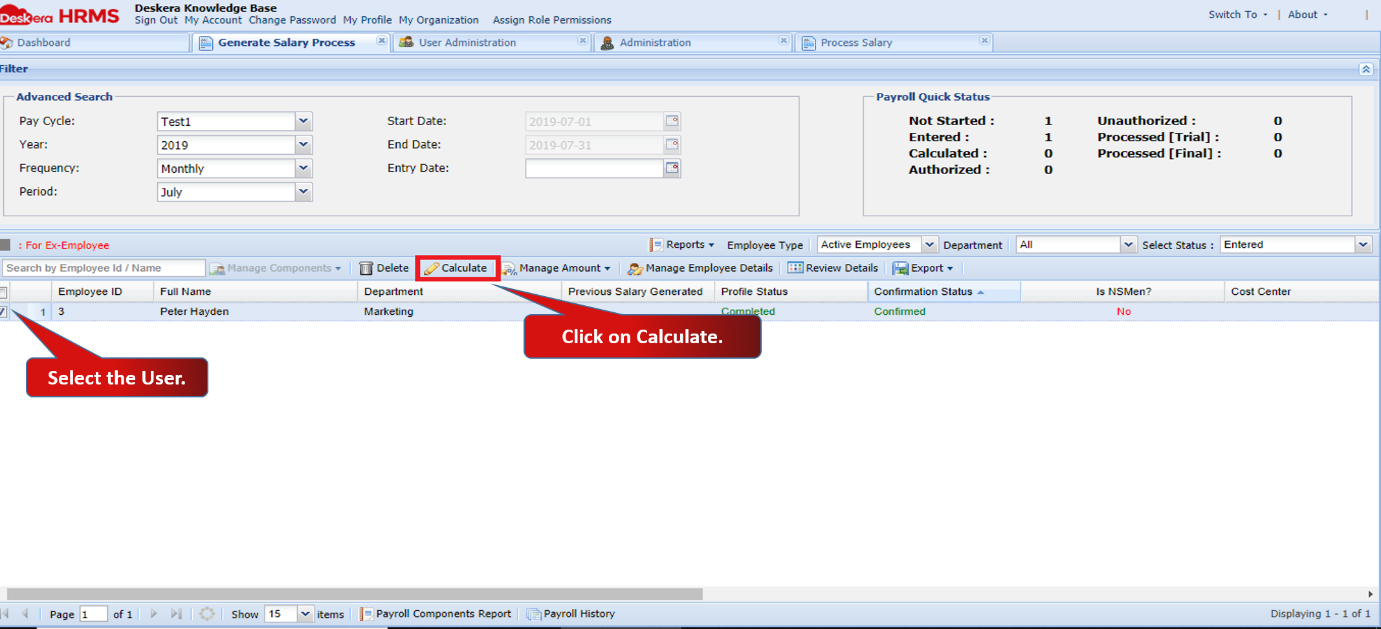
Fig 2.4.2.4.6 Generate Payroll
Step 7: Once you click on Calculate, an Unpaid Leaves window will pop up. Fill in the number of unpaid leaves of the user and click on Submit.
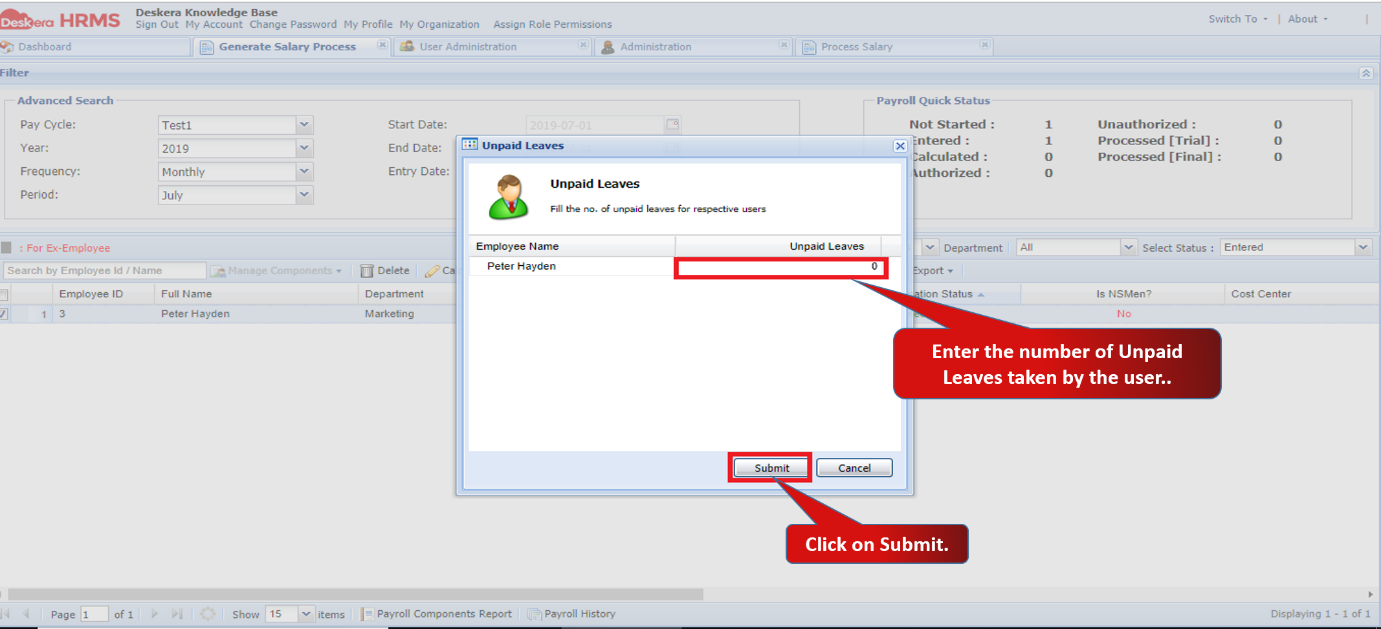
Fig 2.4.2.4.7 Generate Payroll
Step 8: You can proceed to next step once you select the status as “Calculated”.
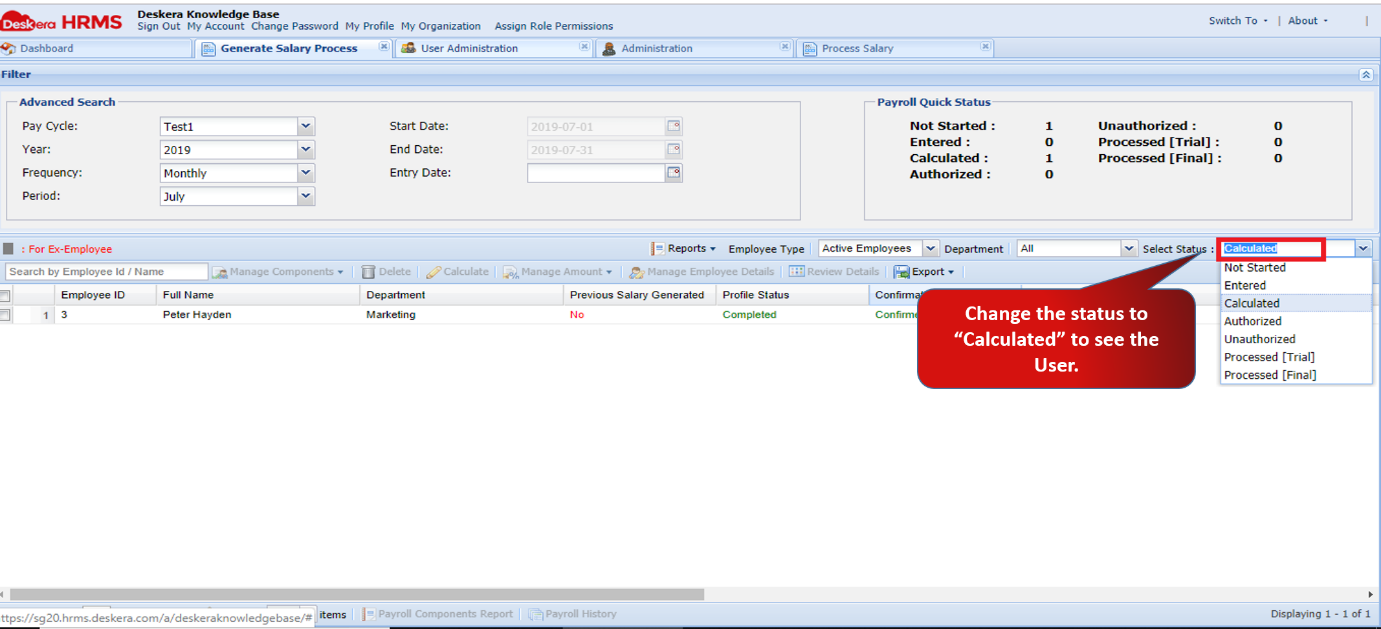
Fig 2.4.2.4.8 Generate Payroll
Step 9: Select the user and click on Review Details to see the calculated salary of the user.
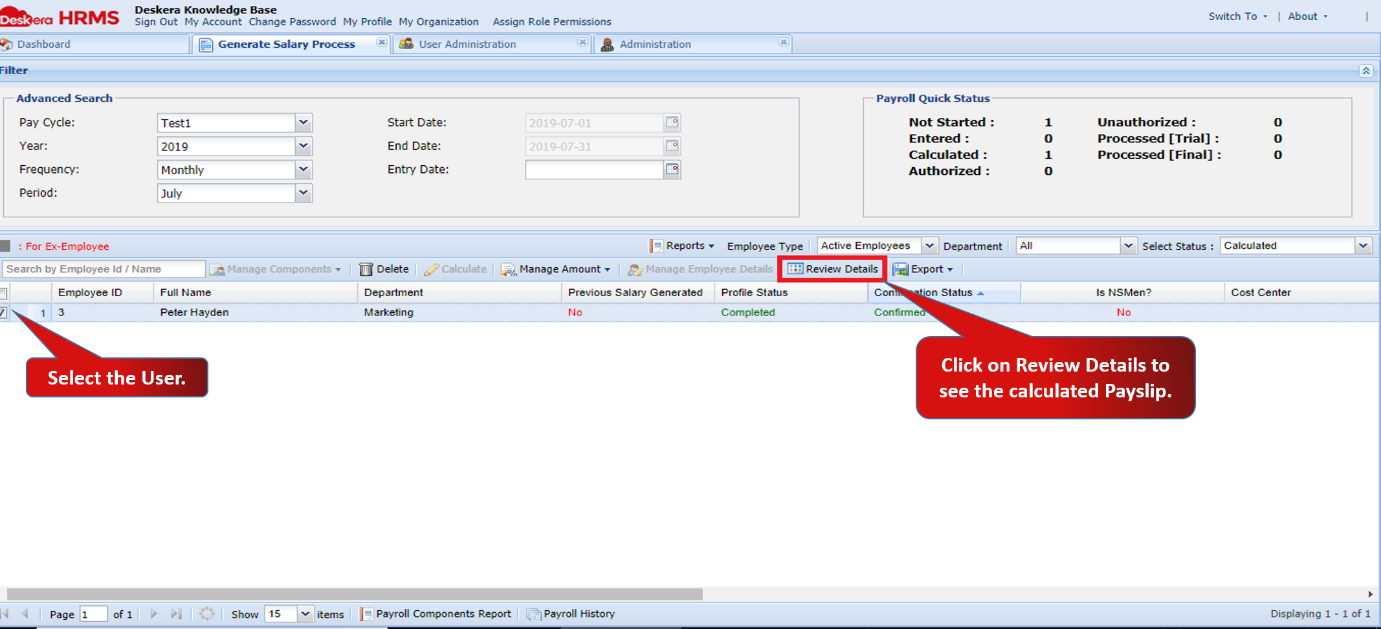
Fig 2.4.2.4.9 Generate Payroll
Step 10: Review Details feature allows you to see the user’s Pay Details, current salary status and gross salary of the user.
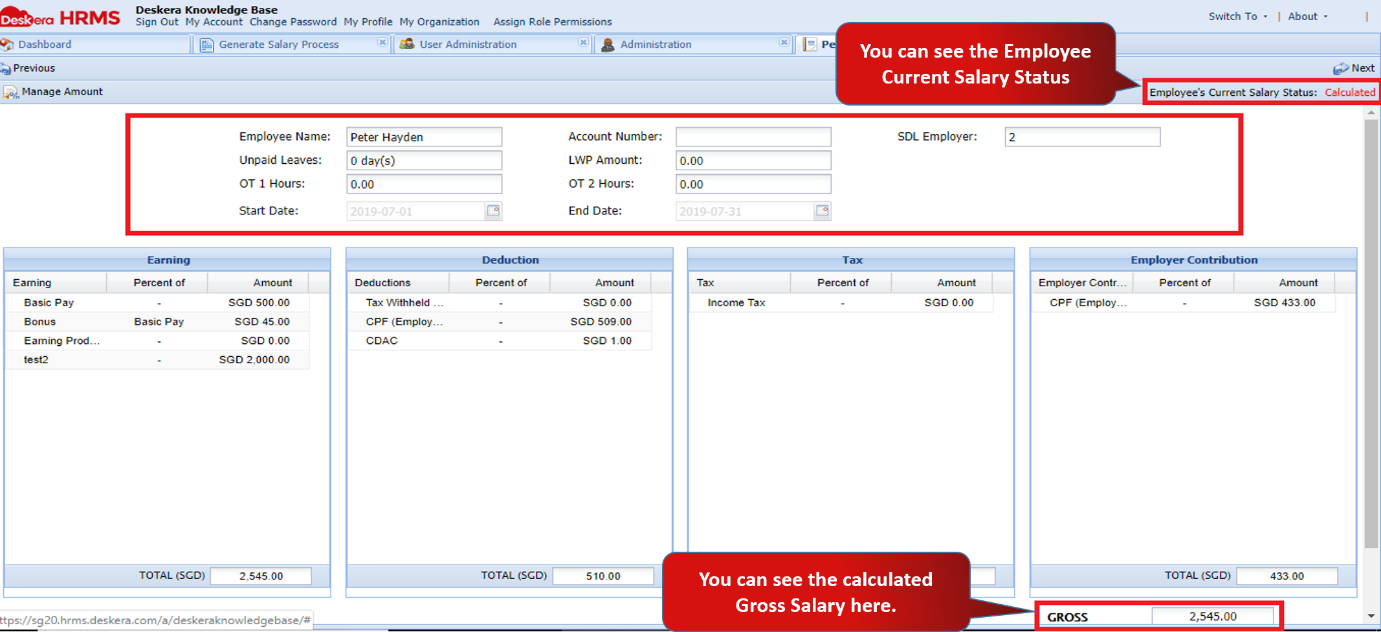
Fig 2.4.2.4.10 Generate Payroll
Comments
0 comments
Please sign in to leave a comment.