
Manage Components on the go 0includes editing the components as required by the company in the Deskera HRMS module while running the payroll for an employee.
Prerequisites:
- You have your Deskera HRMS application URL in place.
- You are the administrator of the HRMS application.
- Ensure Stable Internet Connectivity.
- For “Overriding Default Components”, pay cycle should be of Ad-Hoc type.
View default payroll components
Step 1: On the HRMS dashboard, Click on Generate payroll.
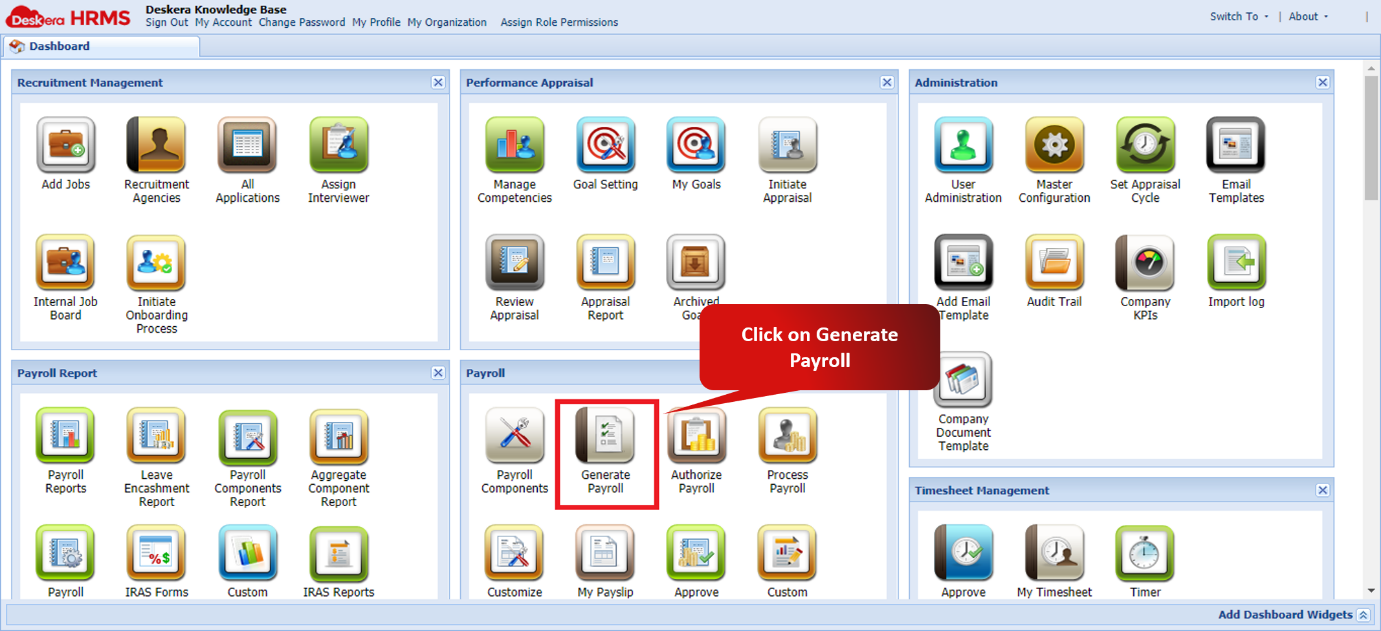
Fig 2.4.2.3.1 HRMS Dashboard
Step 2: Select a user and Click on manage components. Select “View default payroll components”. You can view components assigned to the selected user and related information.
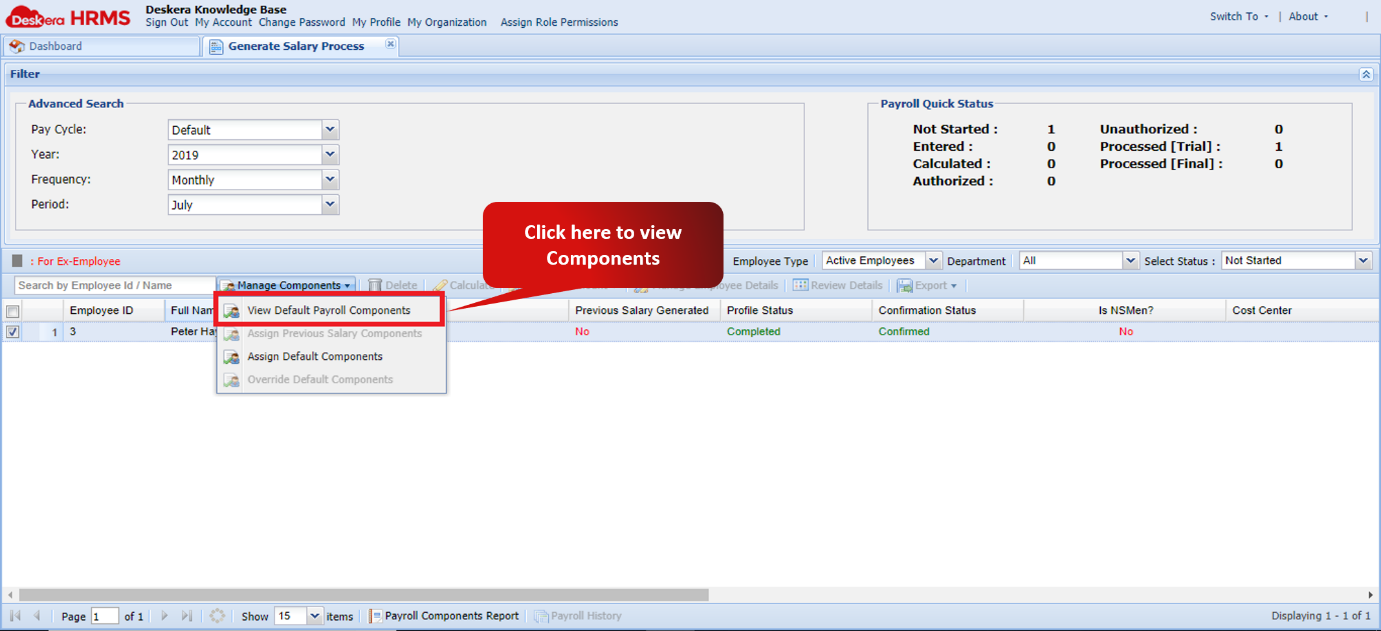
Fig 2.4.2.3.2 Generate Payroll Window
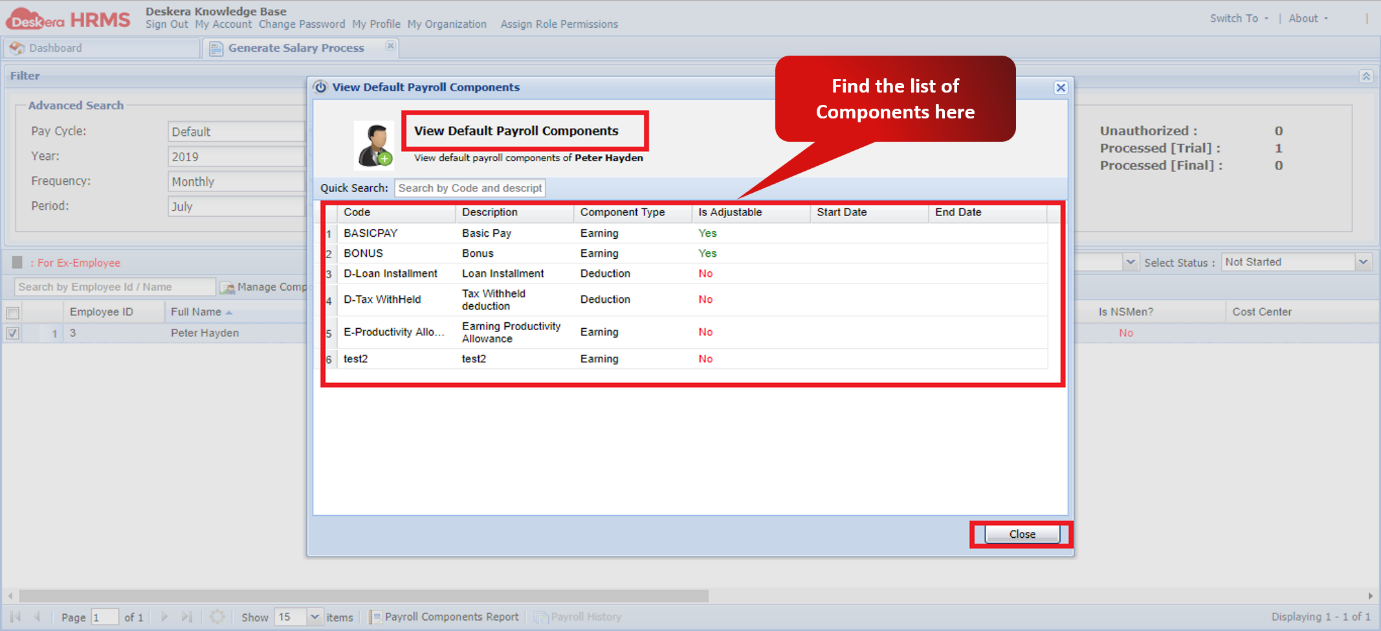
Fig 2.4.2.3.3 View Components Pop-up
Assign Previous Salary components
Step 1: On the HRMS dashboard, Click on Generate payroll.
Fig 2.4.2.3.4 HRMS Dashboard
Step 2: Select the user and click on manage Components. Select “Assign Previous Salary Components”. You can view all the components assigned in the previous month and also add or remove components for that month.
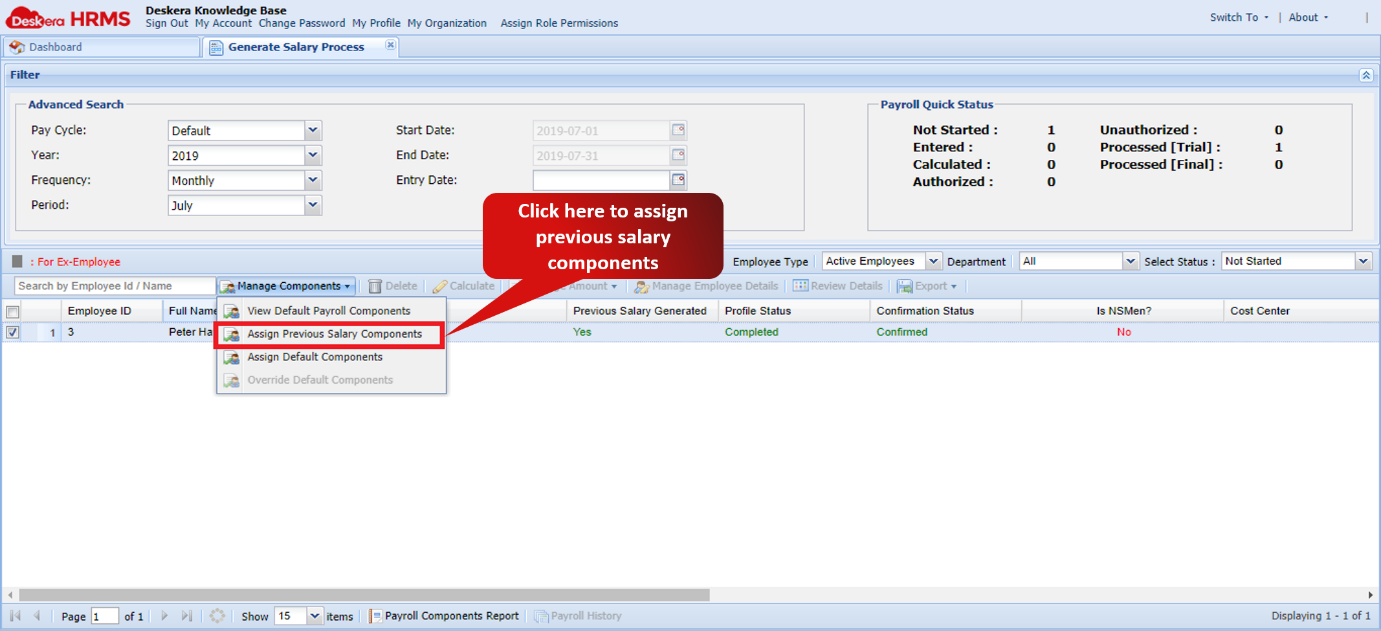
Fig 2.4.2.3.5 Generate Payroll Window
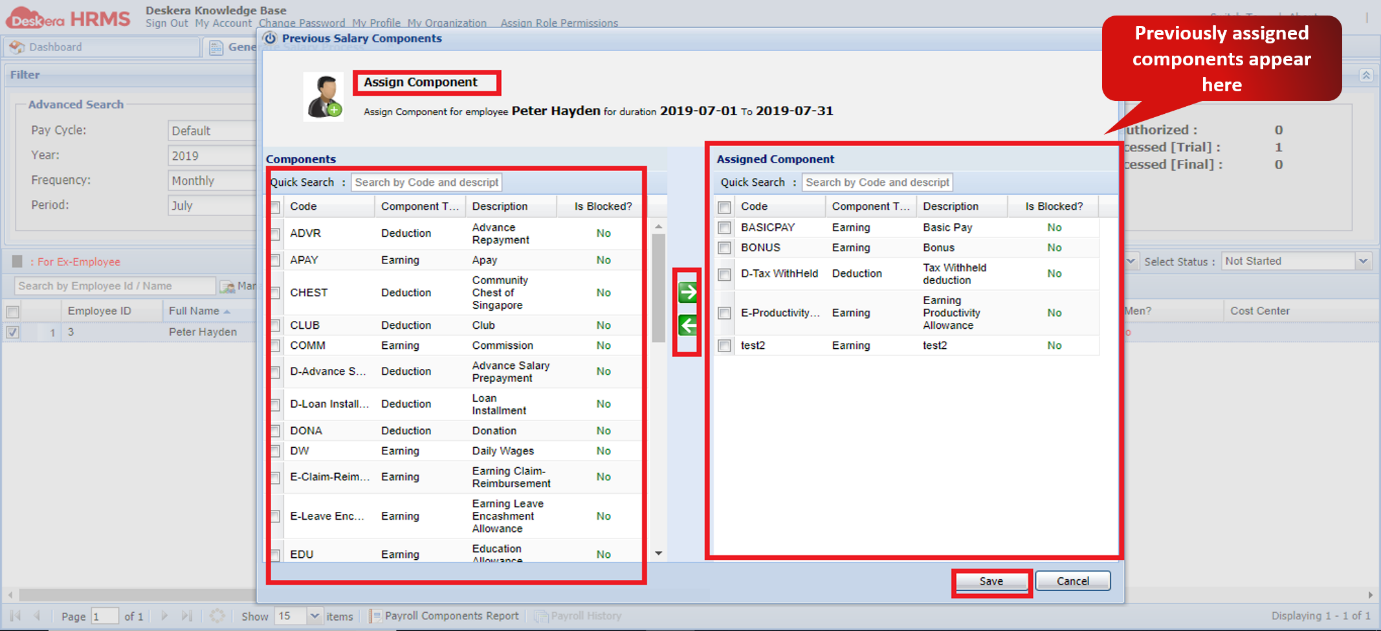
Fig 2.4.2.3.6 Assign Component pop-up
Assign Default components
Step 1: On the HRMS dashboard, Click on Generate payroll.
Fig 2.4.2.3.7 HRMS Dashboard
Step 2: Select the user and click on manage Components. Select “Assign Default Components”. You can view all the default components assigned and also add or remove components for that month.
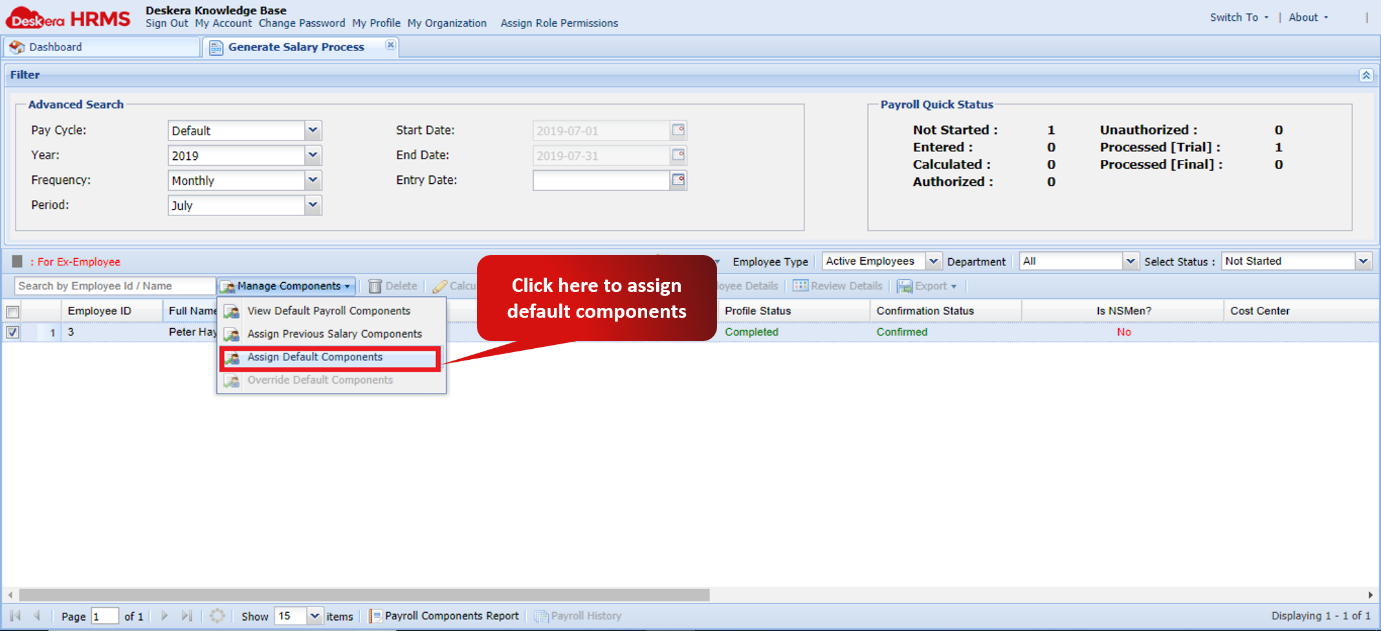
Fig 2.4.2.3.8 Generate Payroll Window
Fig 2.4.2.3.9 Assign Component Pop-up
Override Default components
Step 1: On the HRMS dashboard, Click on Generate payroll.
Fig 2.4.2.3.10 HRMS Dashboard
Step 2: Select the Ad-Hoc pay cycle to be run.
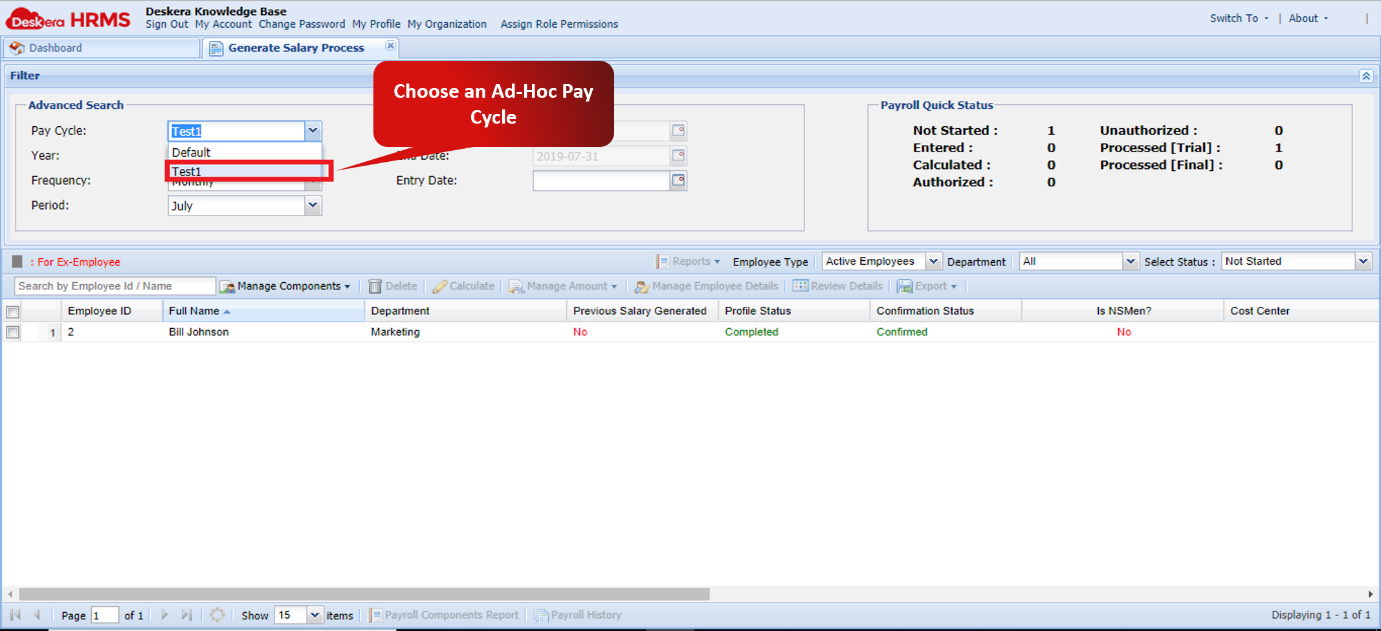
Fig 2.4.2.3.11 Generate Payroll Window
Step 3: Select the user and click on manage Components. Select “Override Default Components”. You can now assign any component as required for that pay cycle for that month.
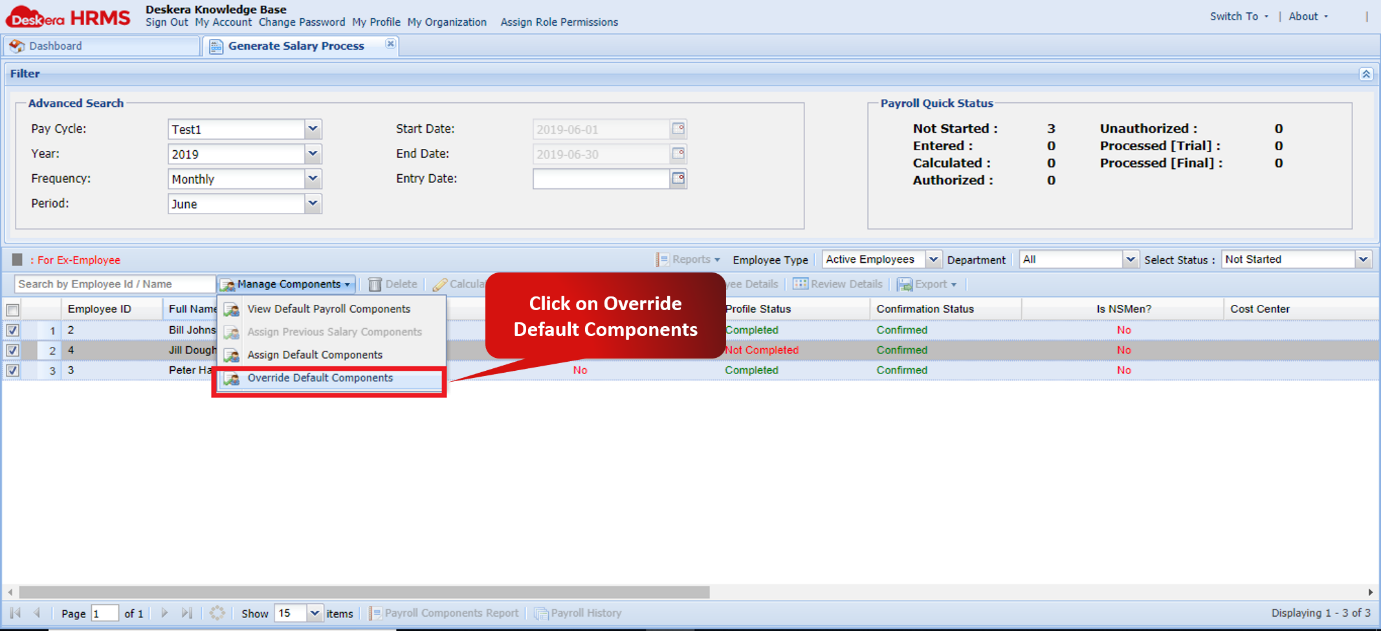
Fig 2.4.2.3.12 Generate Payroll Window
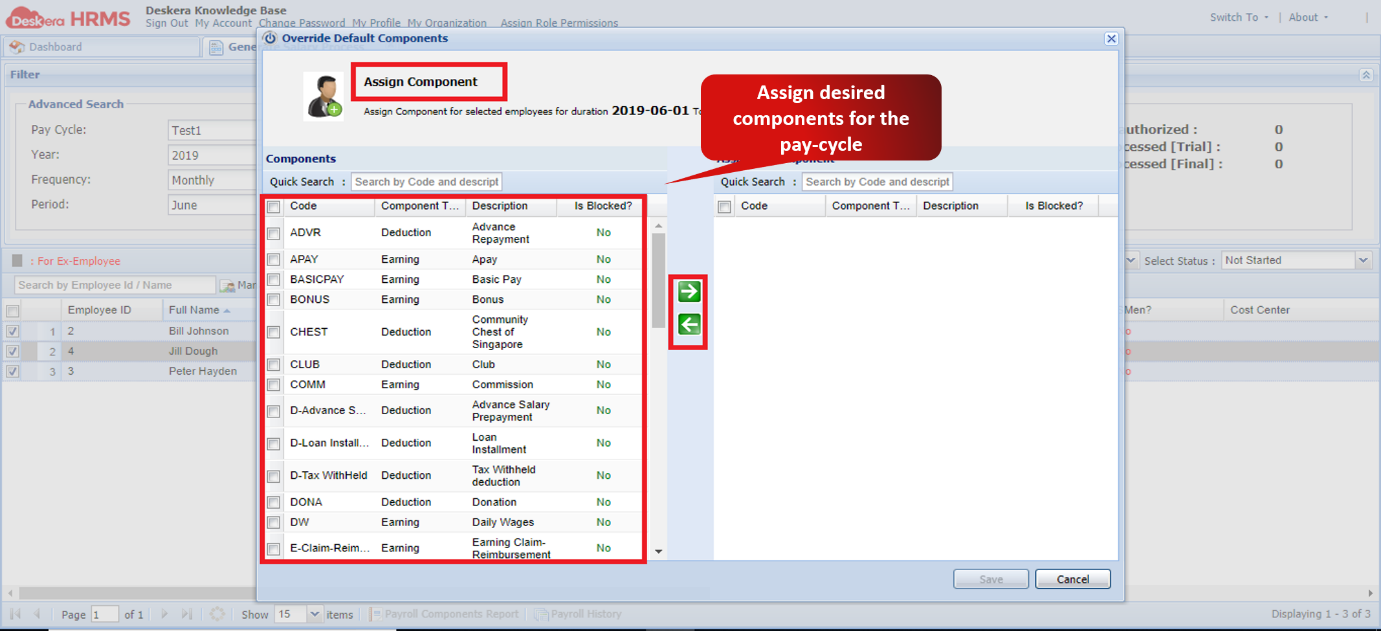
Fig 2.4.2.3.13 Assign Component Pop-up
Comments
0 comments
Please sign in to leave a comment.