
Custom Designer under the HRMS payroll is used to design the document template of the Pay slip using the Java Server Page (JSP page). There are a number of formatting and parametric tools that can used as a combination in creating a standard document template for Pay Slips.
Prerequisites:
1. You have your Deskera HRMS application URL in place.
2. You are the administrator of the HRMS application
3. Ensure a good internet connectivity
Step 1: Navigate to Custom Designer tab under Payroll widget on the HRMS Dashboard.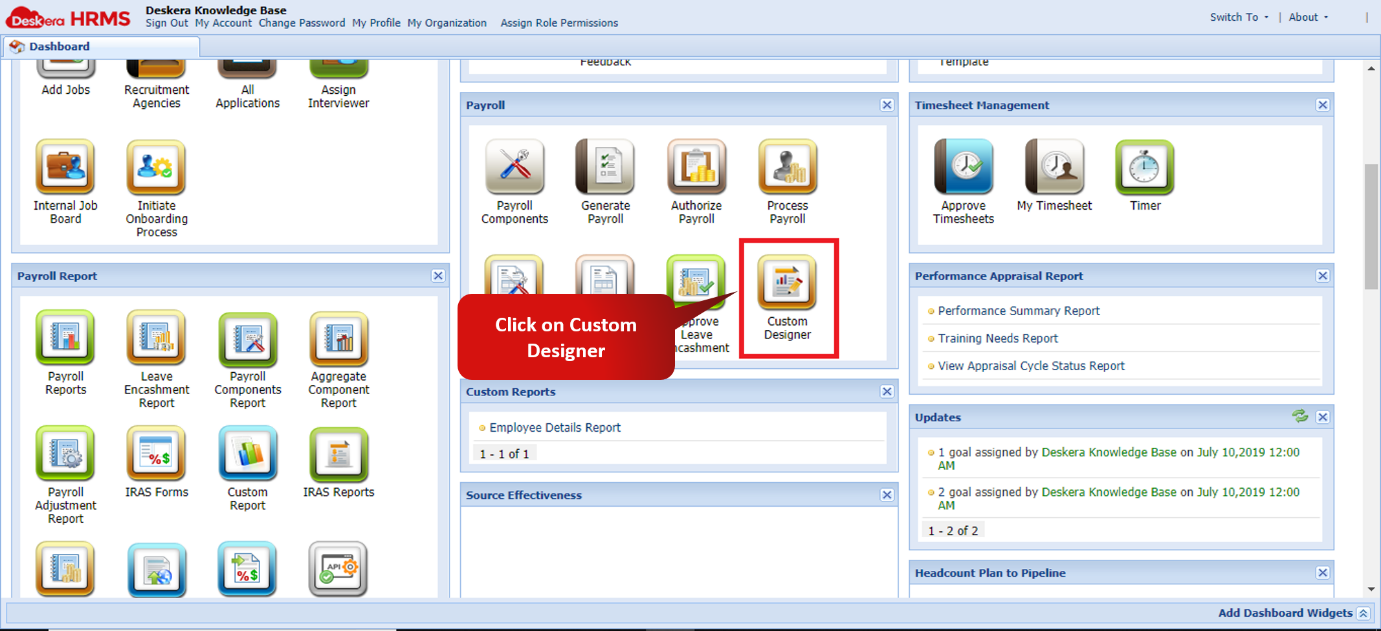 Fig 2.4.3.3.1 HRMS Dashboard
Step 2: Choose the payroll template to be edited and click on the name to open the edit window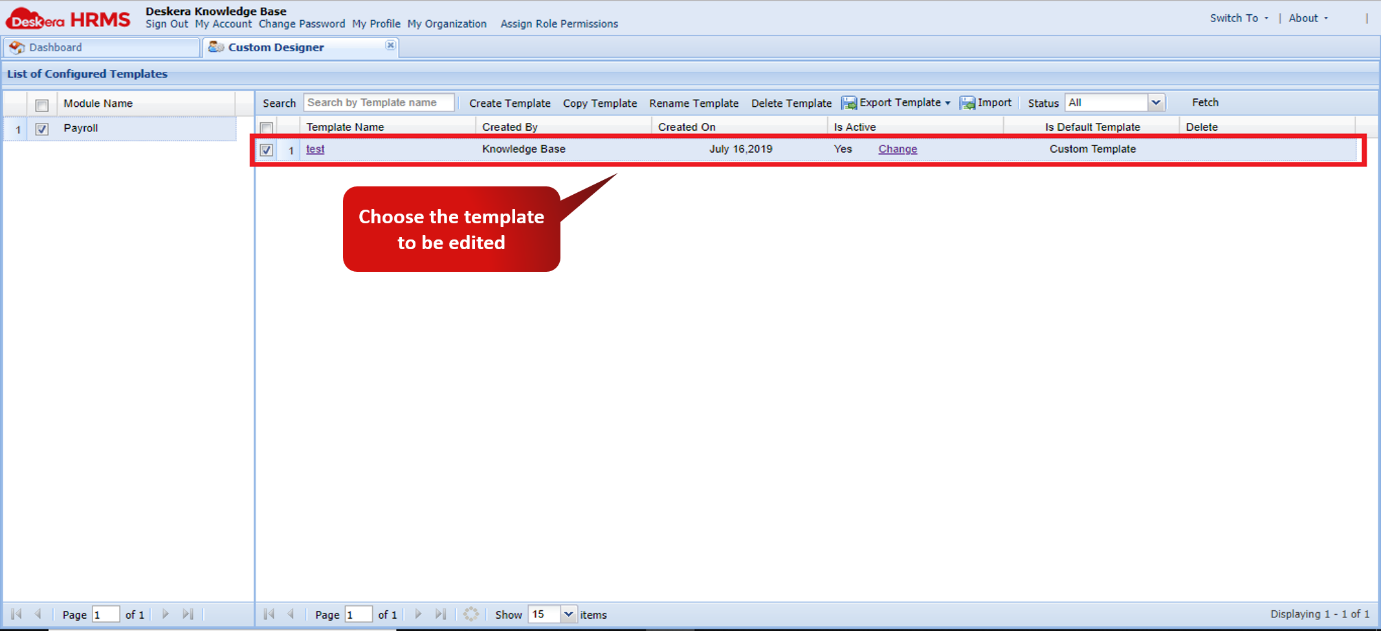 Fig 2.4.3.3.2 Custom Designer Window
Step 3: On Clicking the Template or on creating new template, it directs to a JSP page where the template can be customized.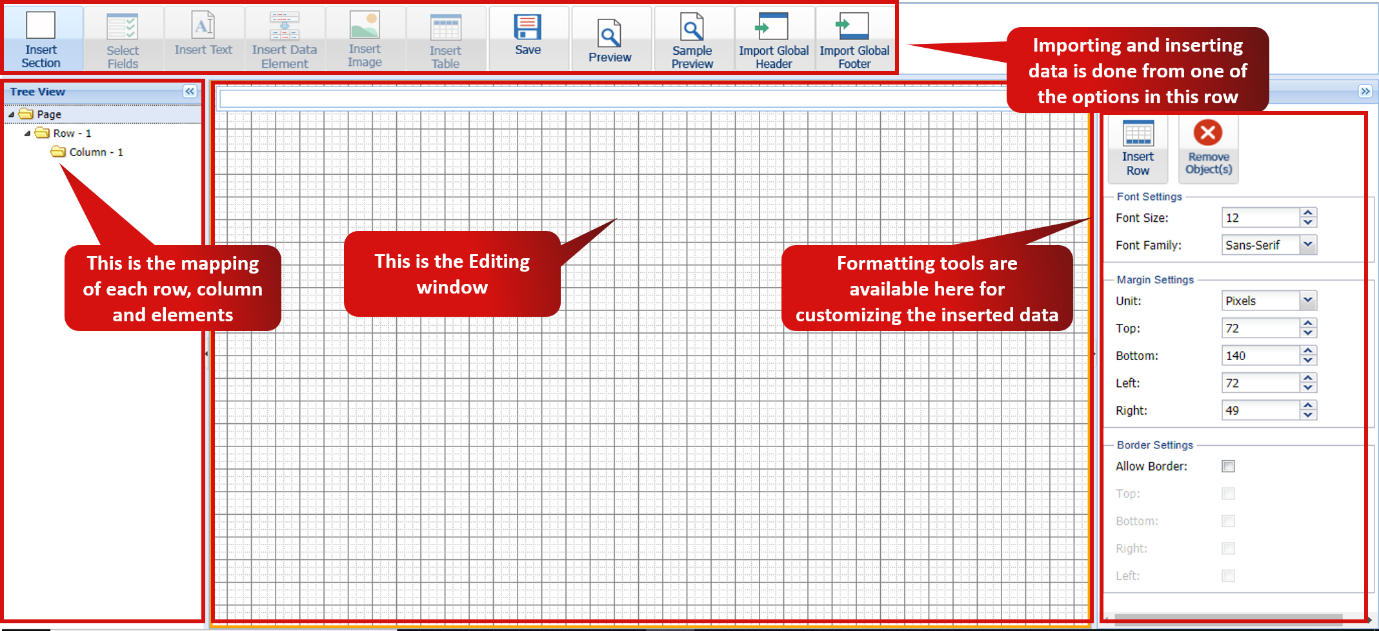 Fig 2.4.3.3.3 JSP page editing window
The Following are the features of custom designer:
- To the left side of the page is the tree view which is used to navigate to the data present on the page.
- By default when a section is inserted, it has only one row and one column.
- Each row can have multiple columns as required
- In order to insert a new row, click on insert section
- Insert Section inserts a new row into the page.
- Select Fields inserts fields that is either present in the system or custom field created.
- Insert text option insert only text content into the selected row
- Insert table inserts either line table or global table into a single section with multiple rows and columns
- Only upon clicking on save, any changes made to the page will be saved
- The design created can be viewed by clicking on either sample preview or preview
- Global header and Footer can be imported by clicking on respective icons
- To the right side of the window is the formatting window. The formatting window contains all the required tools to format the data to make it look aesthetically sound.
- A sample of a payslip designed using the custom designer is shown below
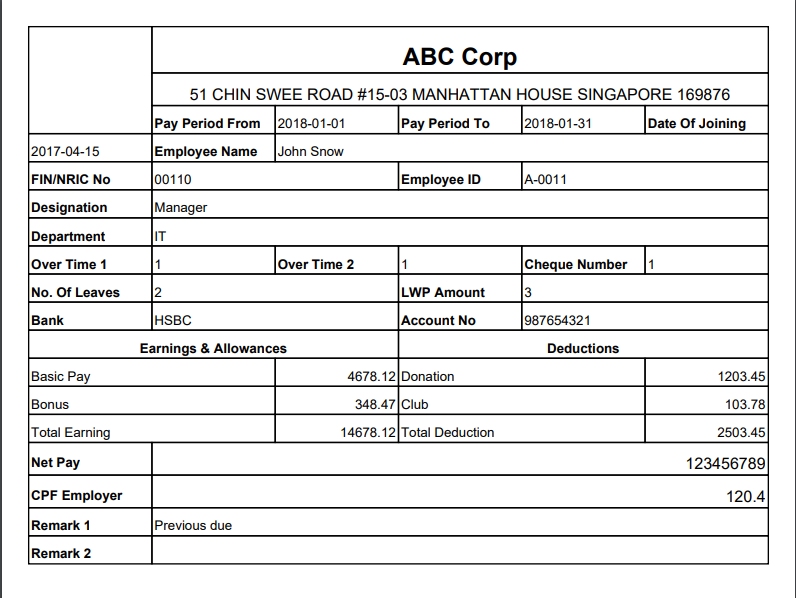 Fig 2.4.3.3.4 Sample payslip Template
Comments
1 comment
Hi, may I know where and how to use the custom template after customizing in custom designer in HRMs?
Please sign in to leave a comment.