
When there is an error in assigning components, calculating salary or managing amount for a selected user while running a payroll, the payroll can be unauthorized.
Prerequisites:
- You have your Deskera HRMS application URL in place.
- You are the administrator of the HRMS application.
- Ensure Stable Internet Connectivity.
For Calculated Payroll
Step 1: On the HRMS dashboard, Click on Authorize payroll.
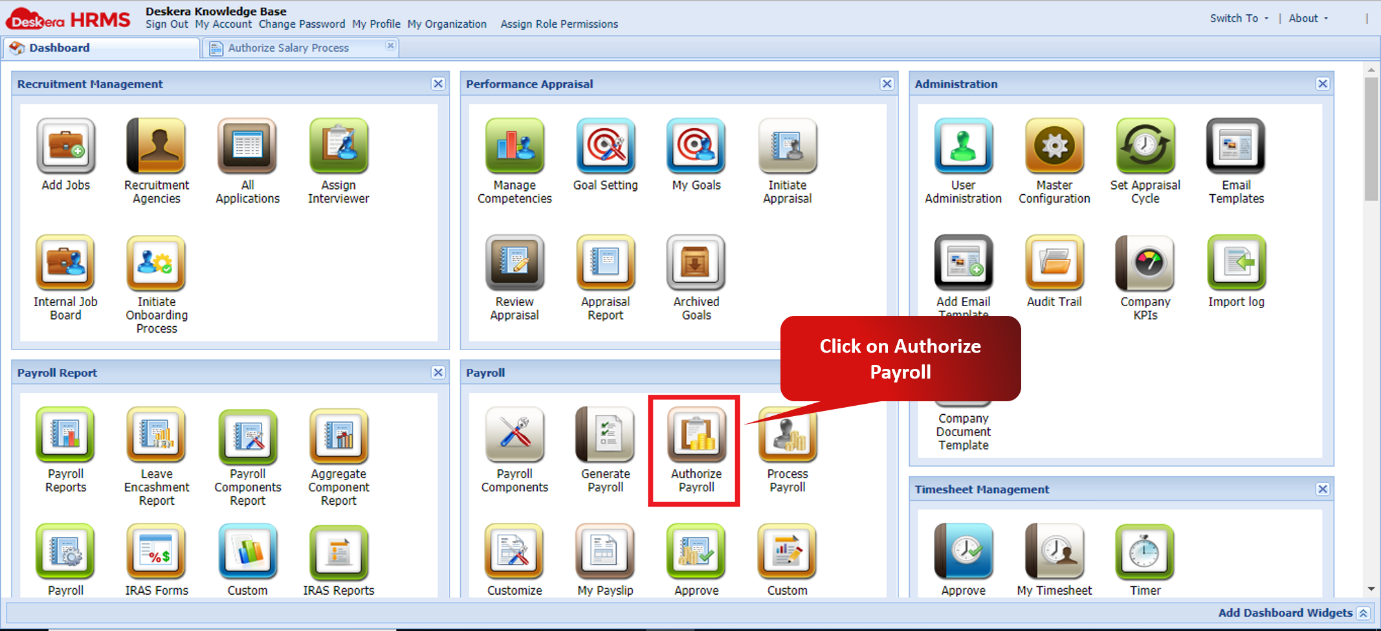
Fig 2.4.2.6.1 HRMS Dashboard
Step 2: Select the user whose payroll needs to be unauthorized and click on Unauthorize
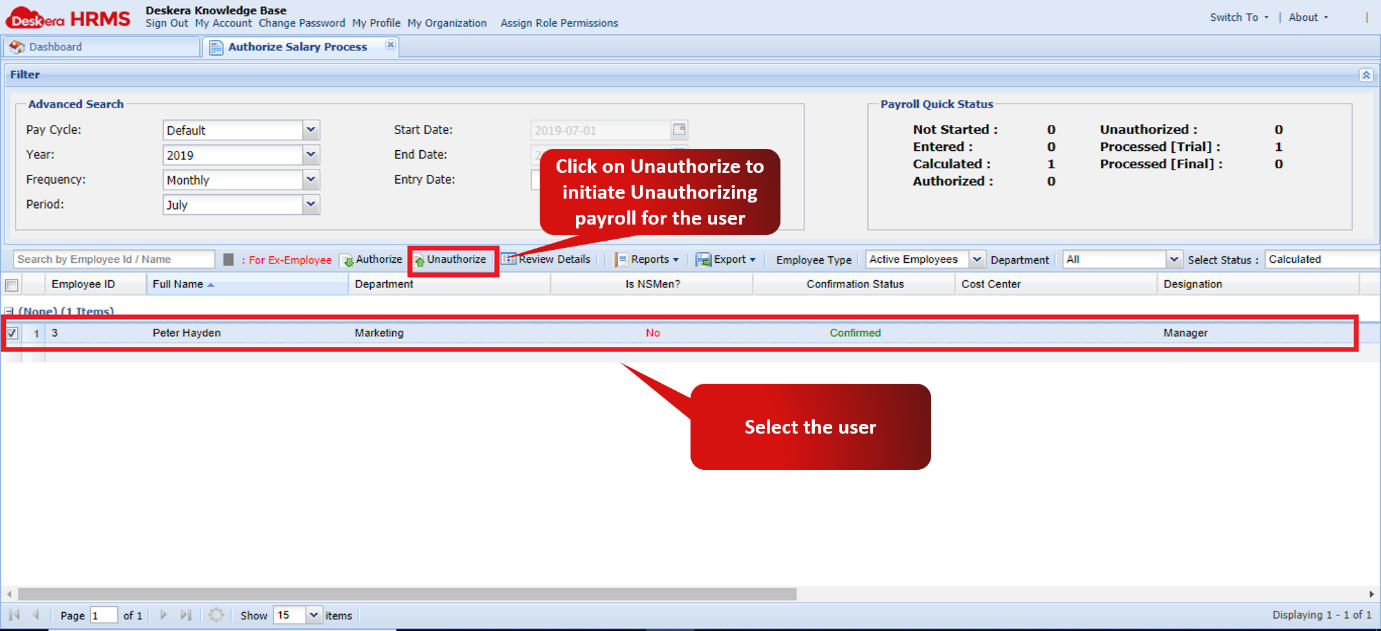
Fig 2.4.2.6.2 Authorize Payroll Window
Step 3: On the Unauthorize pop-up window, select the user add comment and save to finish unauthorizing.
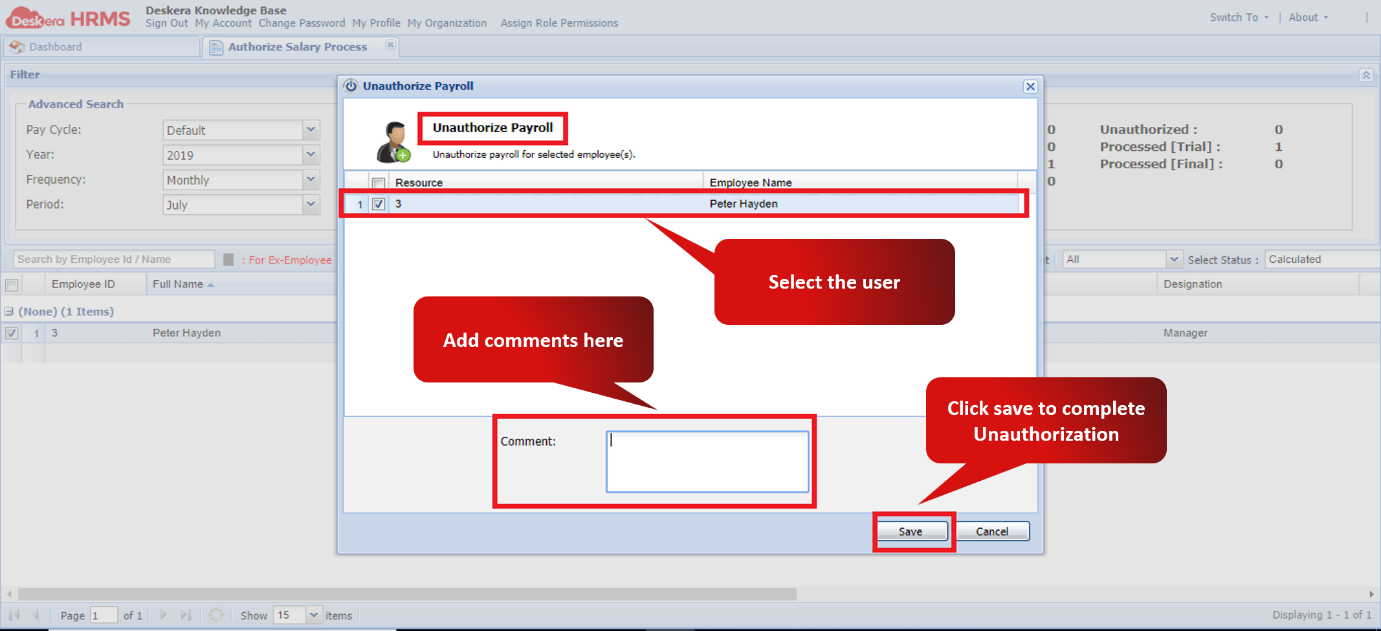
Fig 2.4.2.6.3 Unauthorize Payroll Pop-up
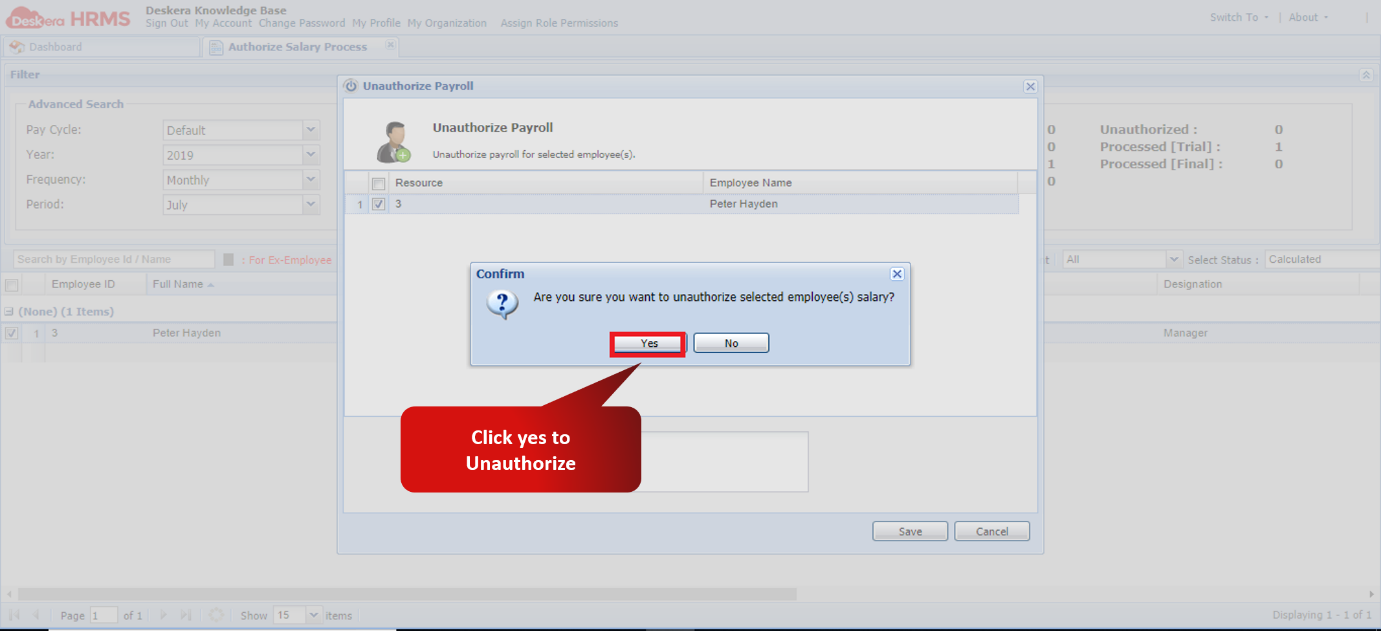
Fig 2.4.2.6.4 Unauthorize Payroll confirmation message
For Processed Payroll
Note: Only Payroll that are processed to trial state can be unauthorized. Payroll in Final state has to be reverted back to the trial state to unauthorize it
Step 1: On the HRMS dashboard, Click on Process payroll.
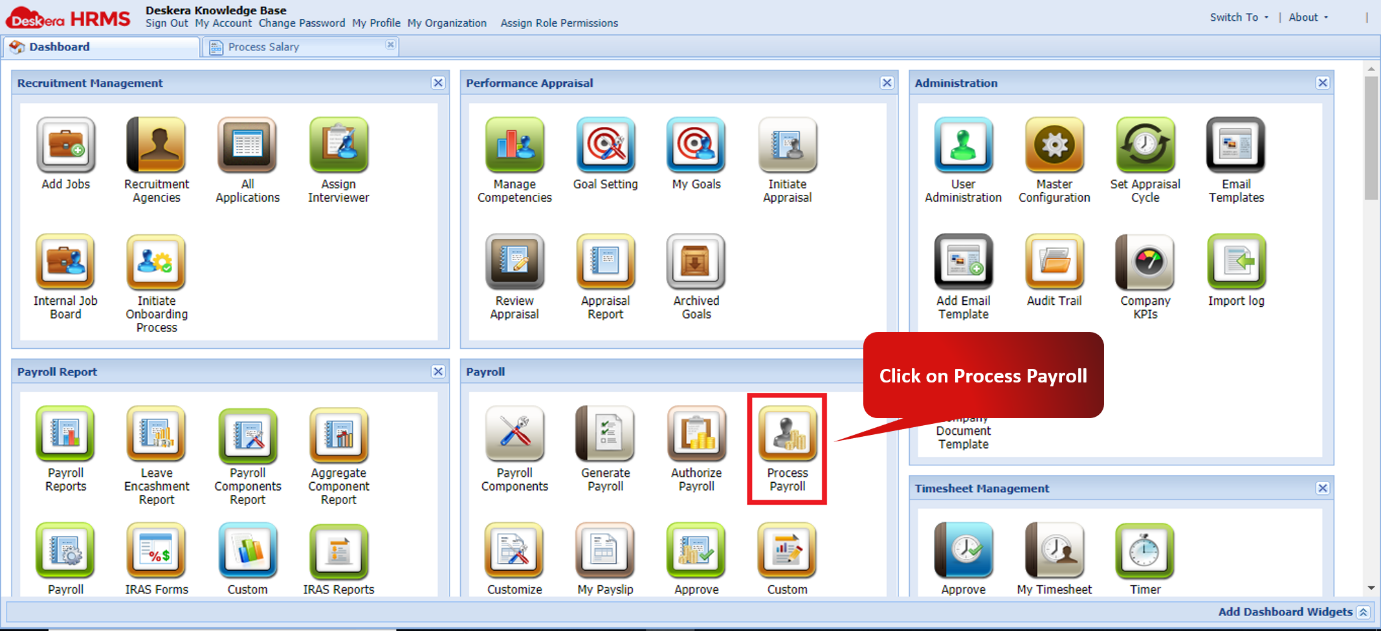
Fig 2.4.2.6.5 HRMS Dashboard
Step 2: Select the user whose payroll needs to be unauthorized and click on Unauthorize
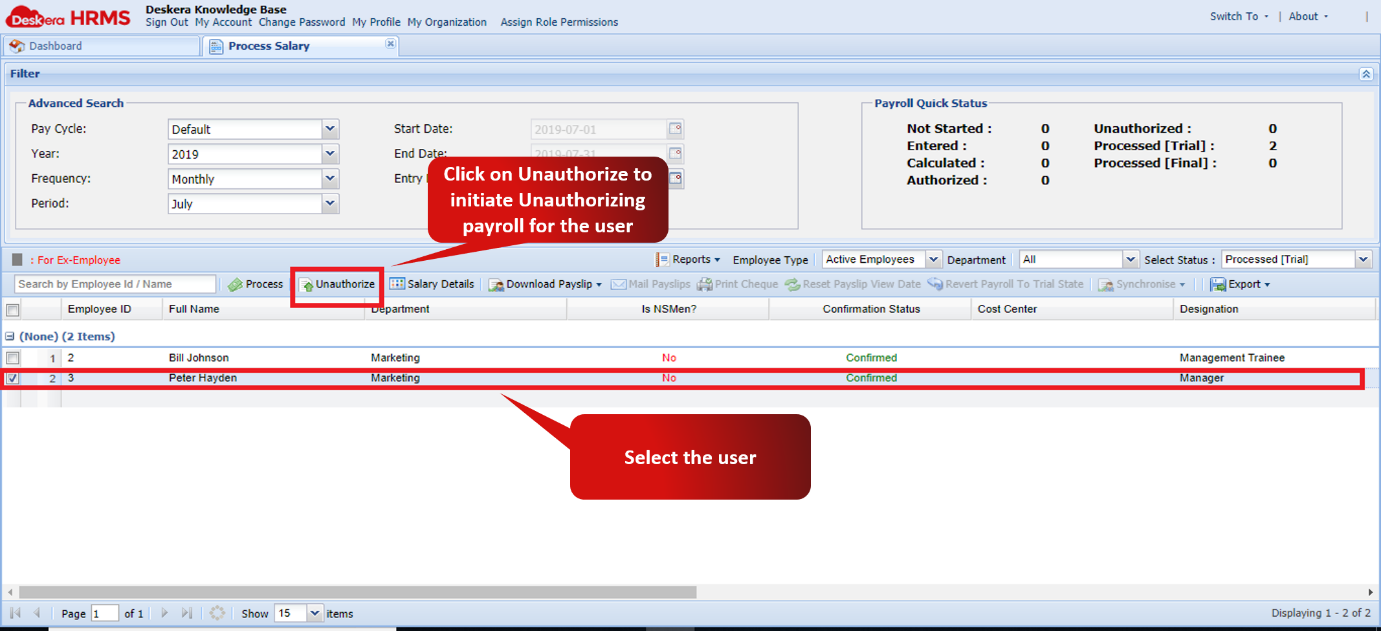
Fig 2.4.2.6.6 Process Payroll Window
Step 3: On the Unauthorize pop-up window, select the user add comment and save to finish unauthorizing.
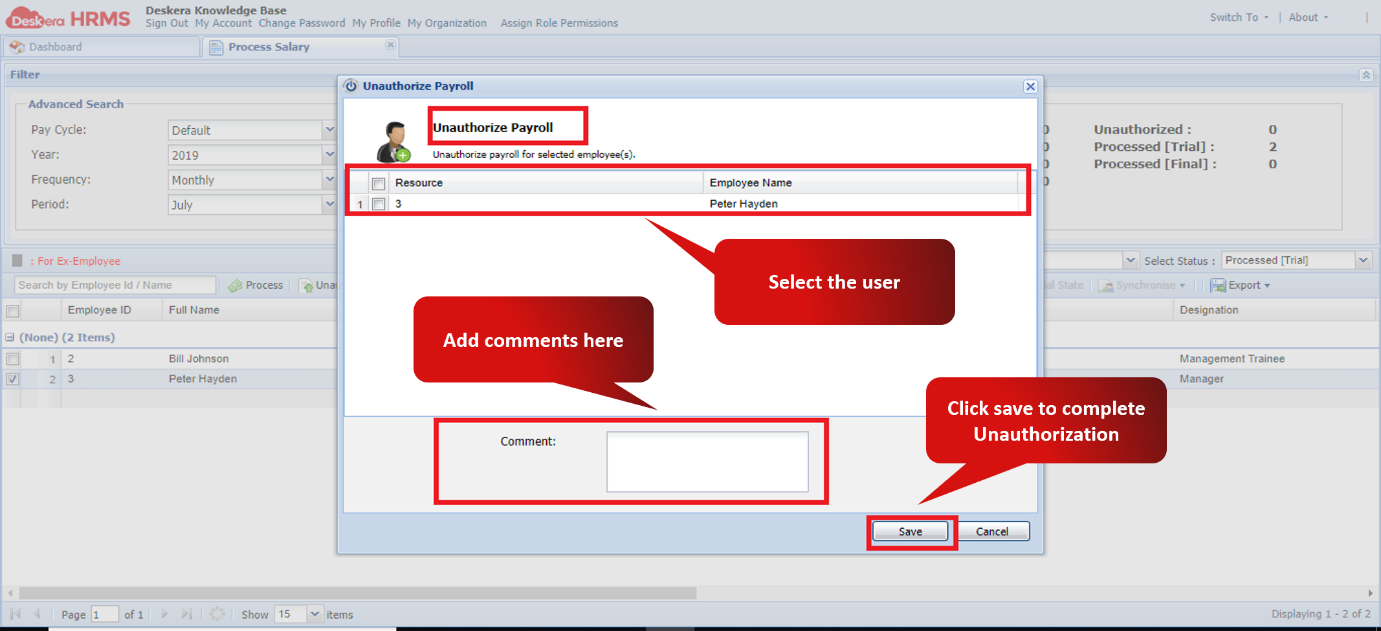
Fig 2.4.2.6.7 Unauthorize payroll pop-up
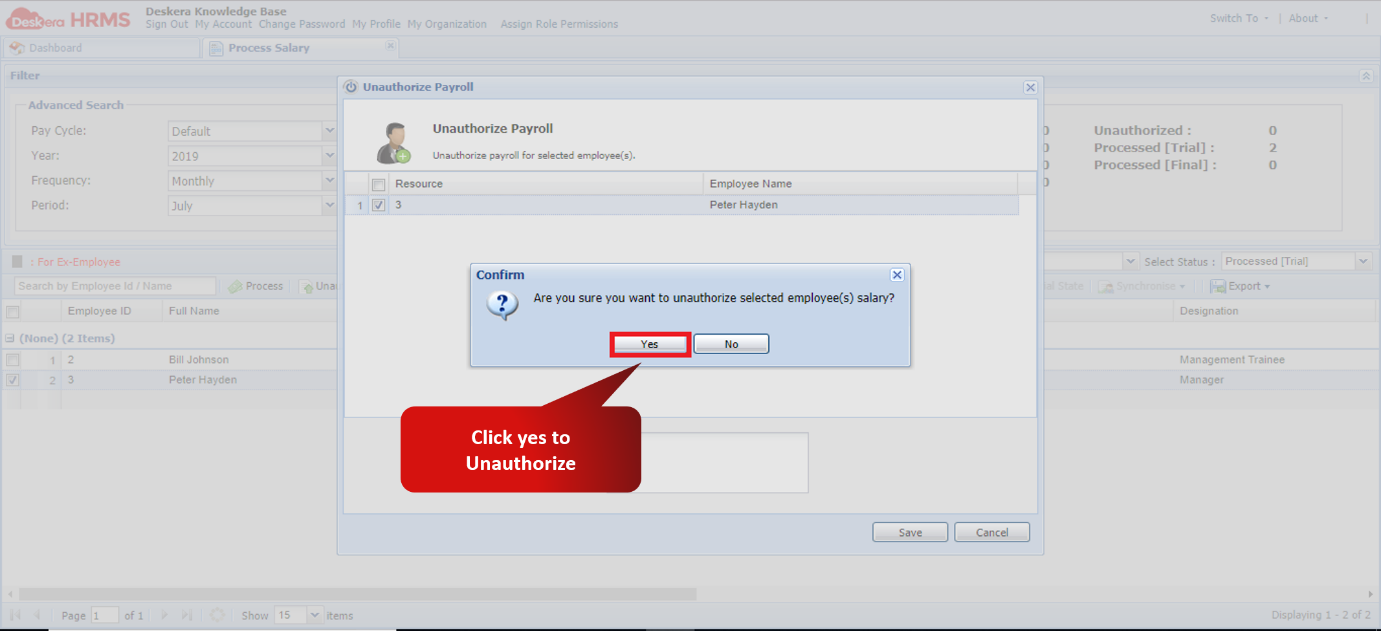
Fig 2.4.2.6.8 Unauthorize payroll confirmation message
Comments
0 comments
Please sign in to leave a comment.