
The rehired users can be viewed on the Deskera eLeave application by following the steps as described in this article.
Prerequisites:
- You have your Deskera eLeave application URL in place.
- You are the administrator of the eLeave application.
- Ensure Stable Internet Connectivity.
Step 1: On the eLeave Dashboard, click on User Administration under the Administration widget.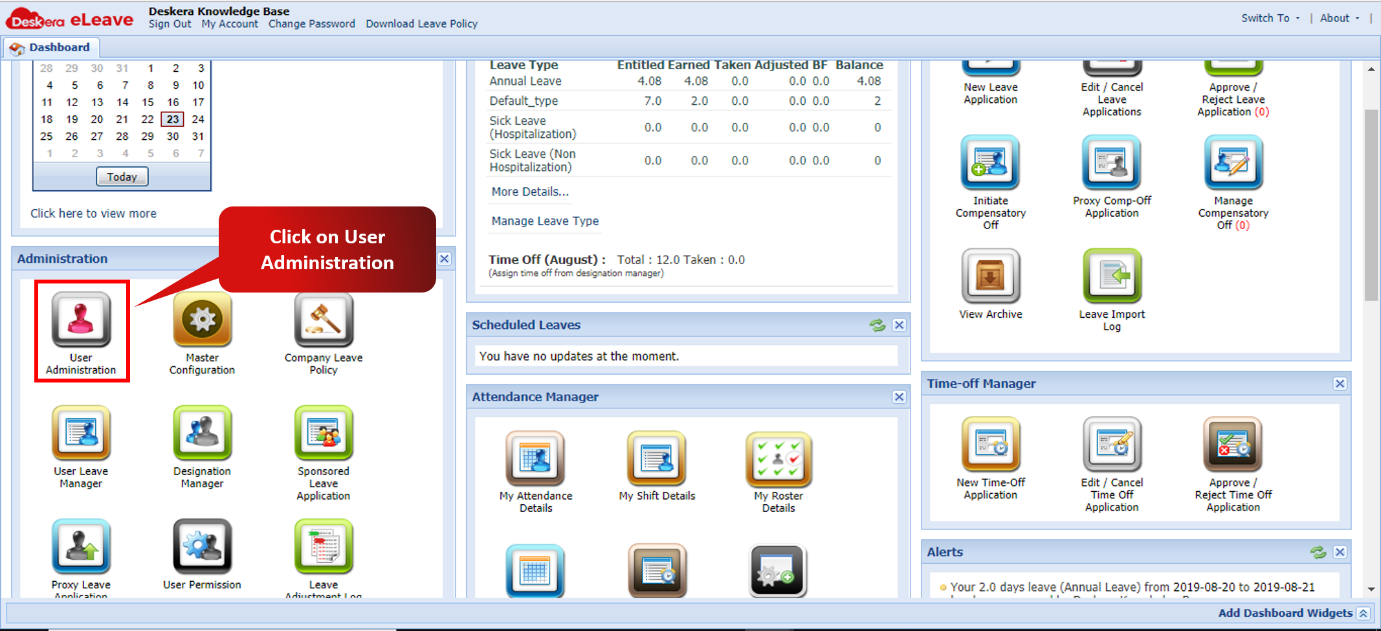 Fig. 3.1.1.9.1 eLeave Dashboard
Step 2: Click on Rehired Users.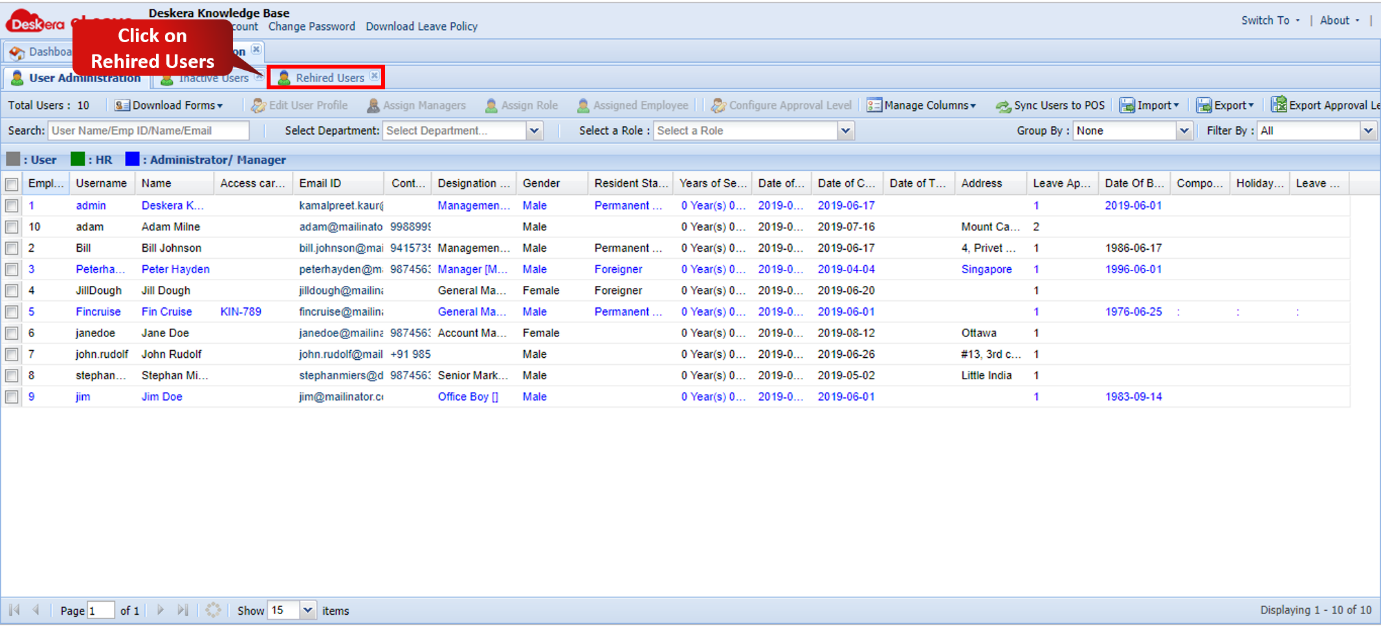 Fig. 3.1.1.9.2 User Management Window
Step 3: The users that had been terminated and have now been hired again will be reflected in this window.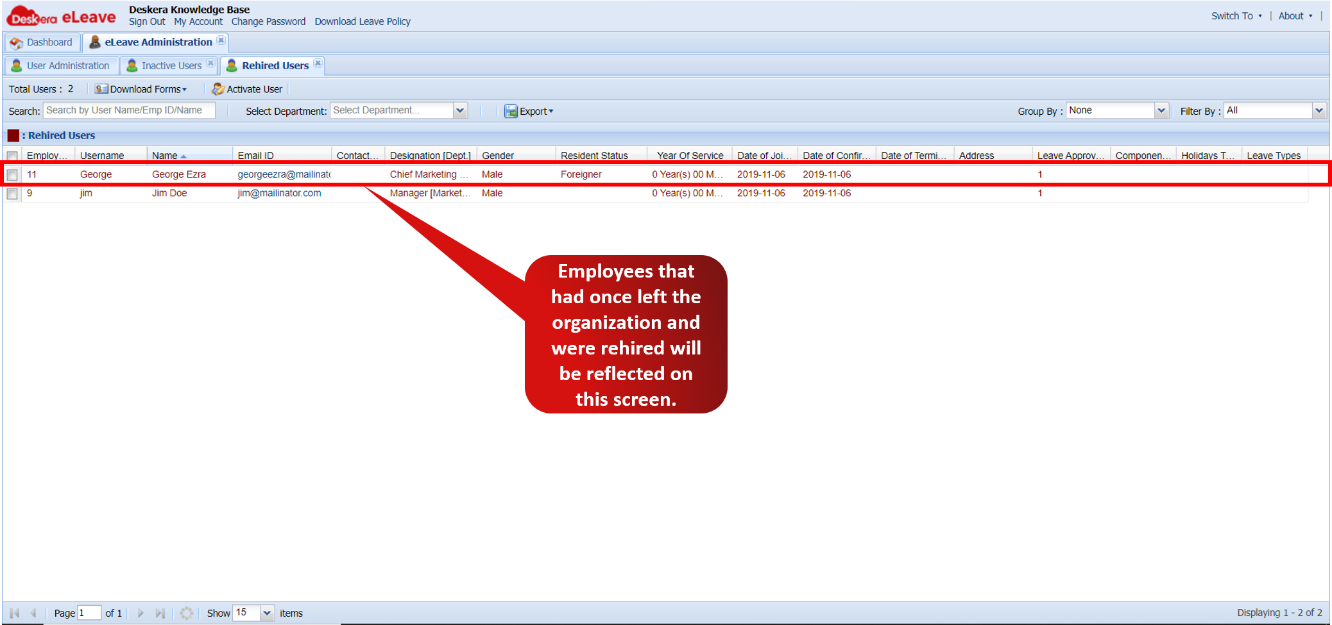 Fig. 3.1.1.9.3 Rehired User
Step 4: The user can be activated on eLeave by selecting the user and clicking on the Activate User feature.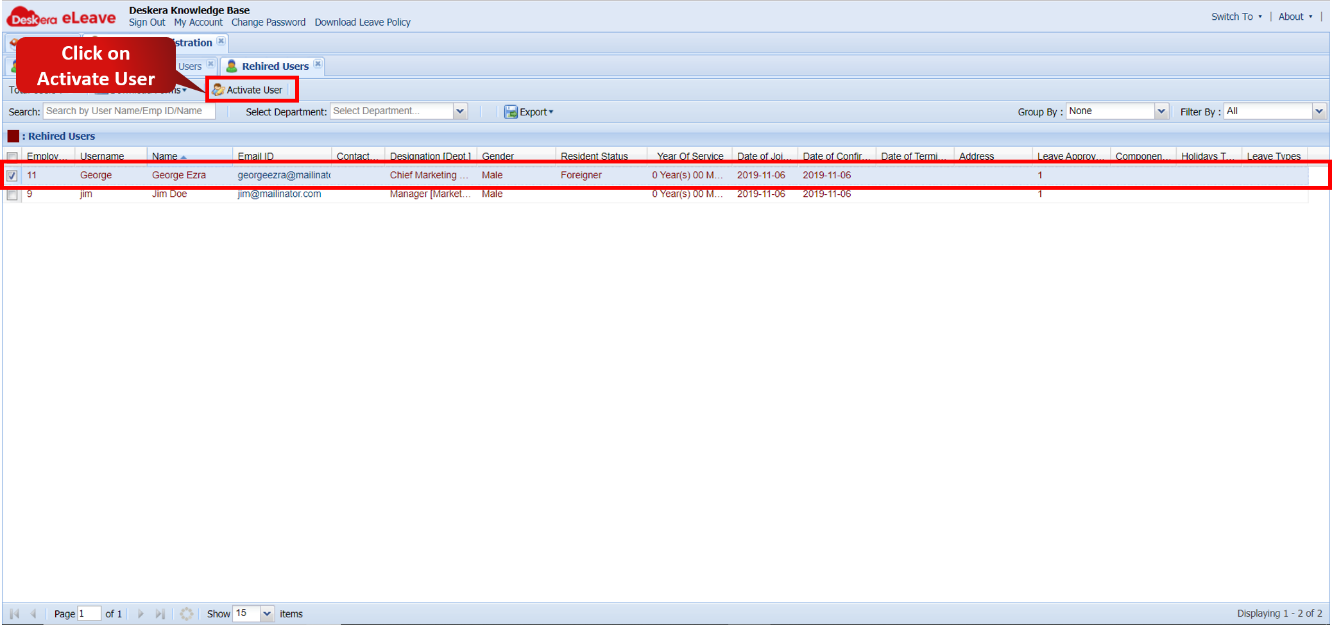 Fig. 3.1.1.9.3 Rehired User
Step 5: Click on Save to complete the process.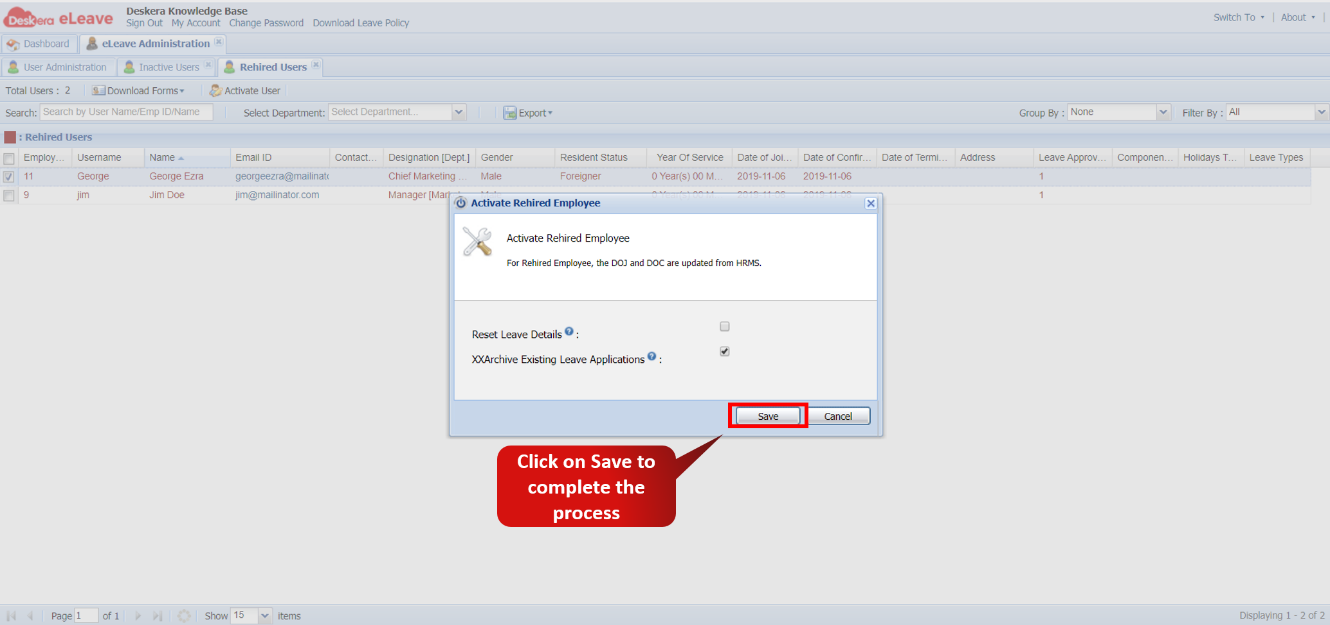 Fig. 3.1.1.9.5 Rehired User
Download Forms
Step 6: It is also possible to download various forms with past data of the employee related to Leaves and Time-Offs using the Download Forms feature.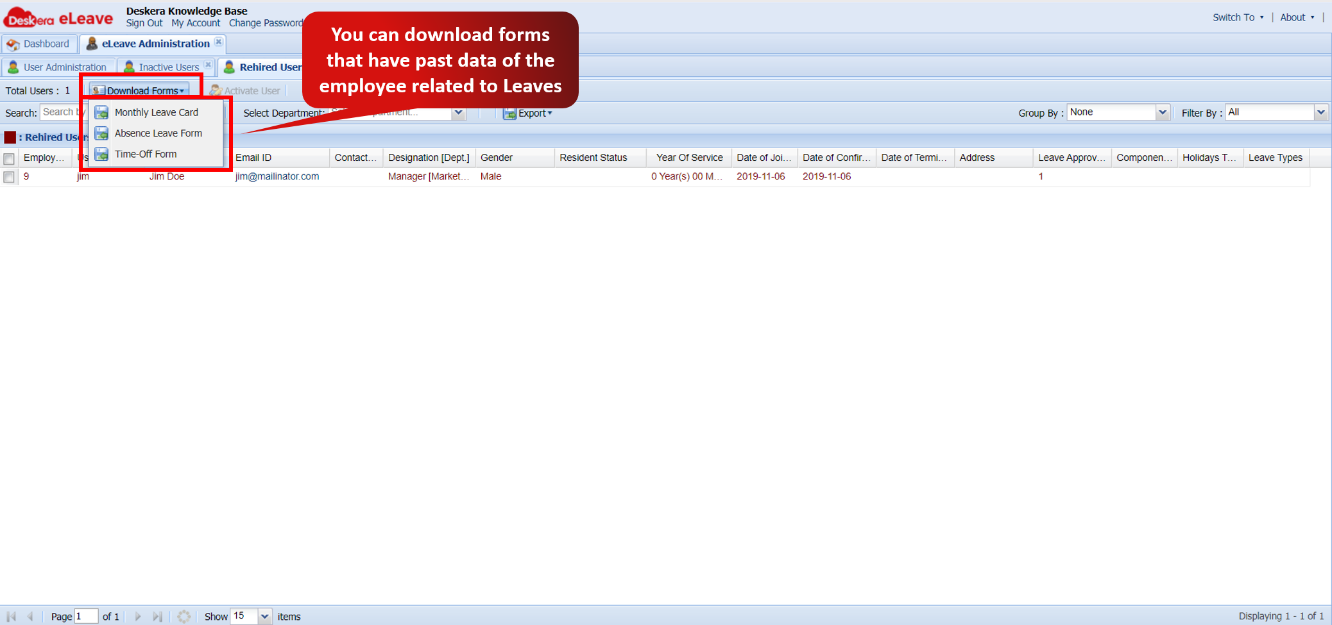 Fig. 3.1.1.9.6 Download Forms
Comments
0 comments
Please sign in to leave a comment.