
This article deals with the settings in the Master Configuration related to the Leave Management module of the Deskera eLeave application.
Prerequisites:
- You have your Deskera eLeave application URL in place.
- You are the administrator of the eLeave application.
- Ensure Stable Internet Connectivity.
Step 1: On the eLeave Dashboard, click on Master Configuration under the Administration widget.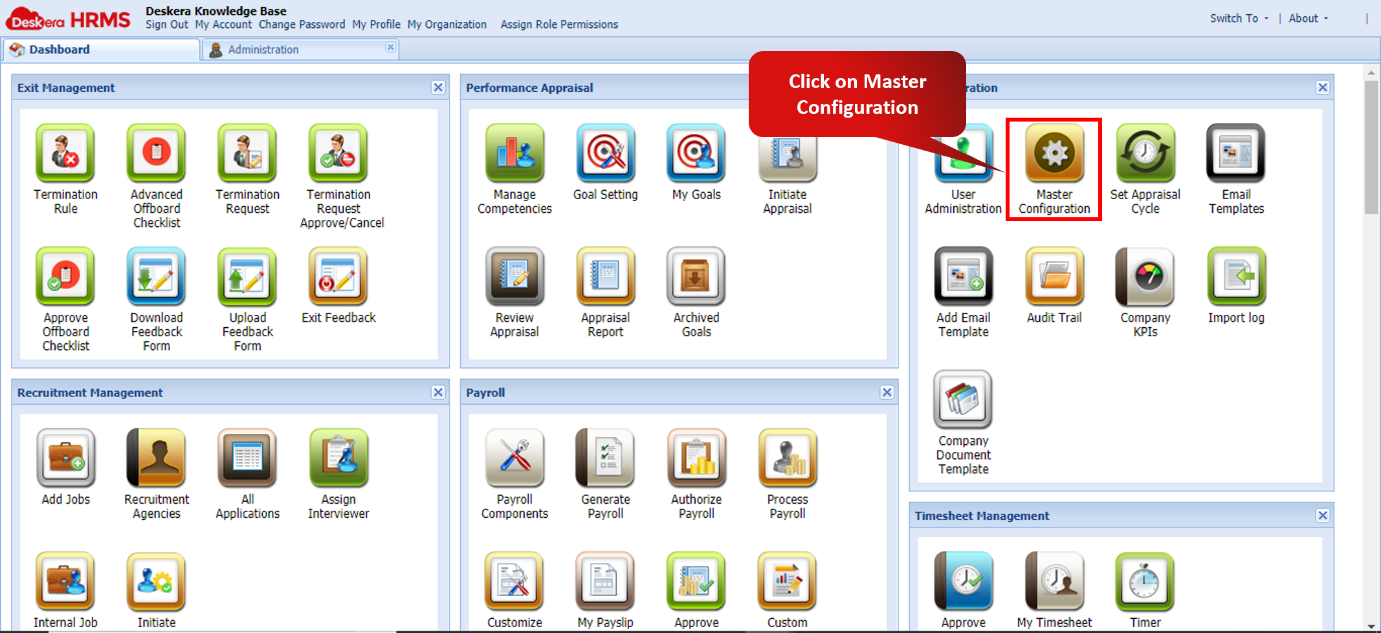 Fig. 3.1.2.2.1 eLeave Dashboard
Enable everyone seeing everyone’s leaves: As it suggests, everyone will be able to see everyone's leave in the Calendar.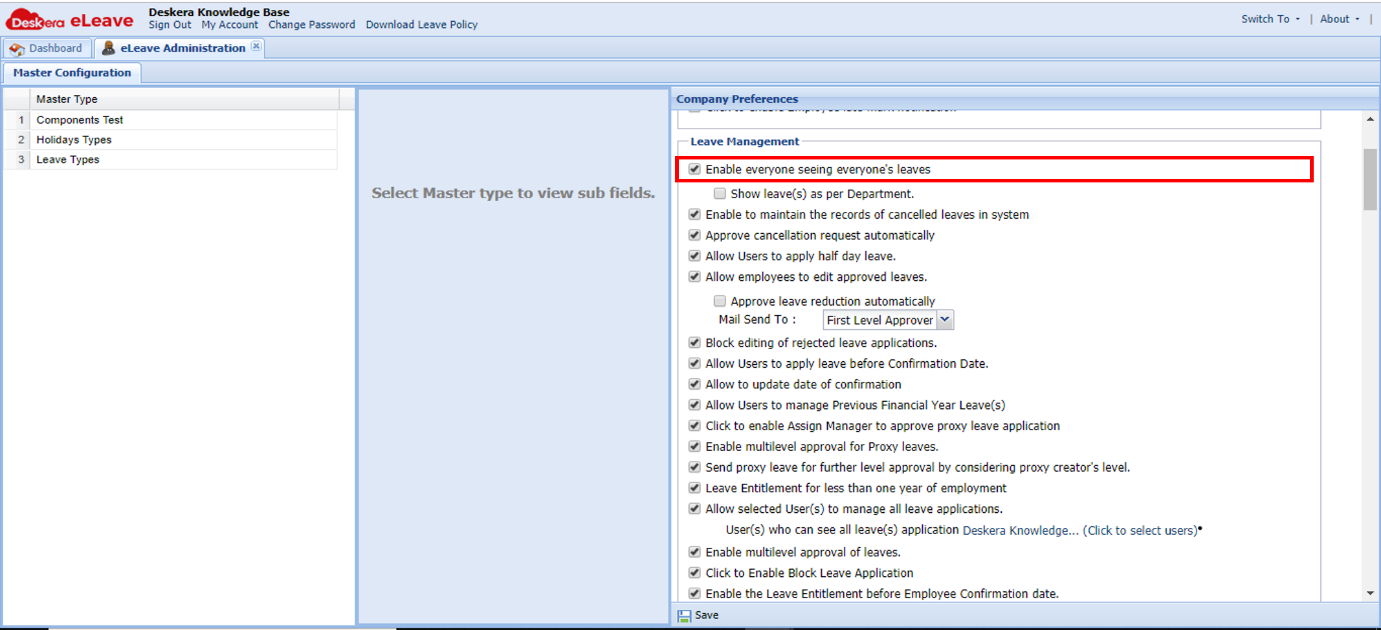 Fig. 3.1.2.2.2 Leave Management
Show Leave(s) as per Department: Based on this check, the user will be able to see leave of same Department employees with only leave dates and not their description. Also, department filter will be enabled for Manager, HR and Admin to filter out leaves based on department.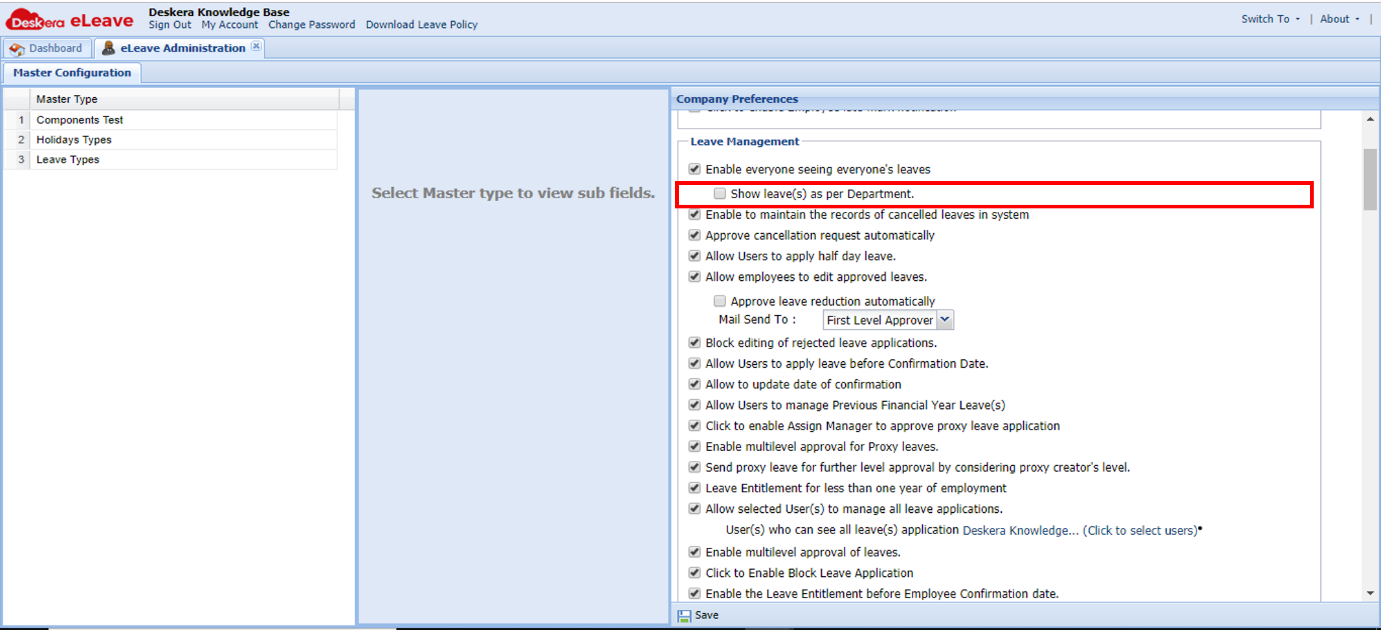 Fig. 3.1.2.2.3 Leave Management
Approve cancellation request automatically: As the description suggests, when the applied leave is cancelled, it gets approved for cancellation automatically instead of having its status changed to “Cancellation Requested” and going to the respective approver.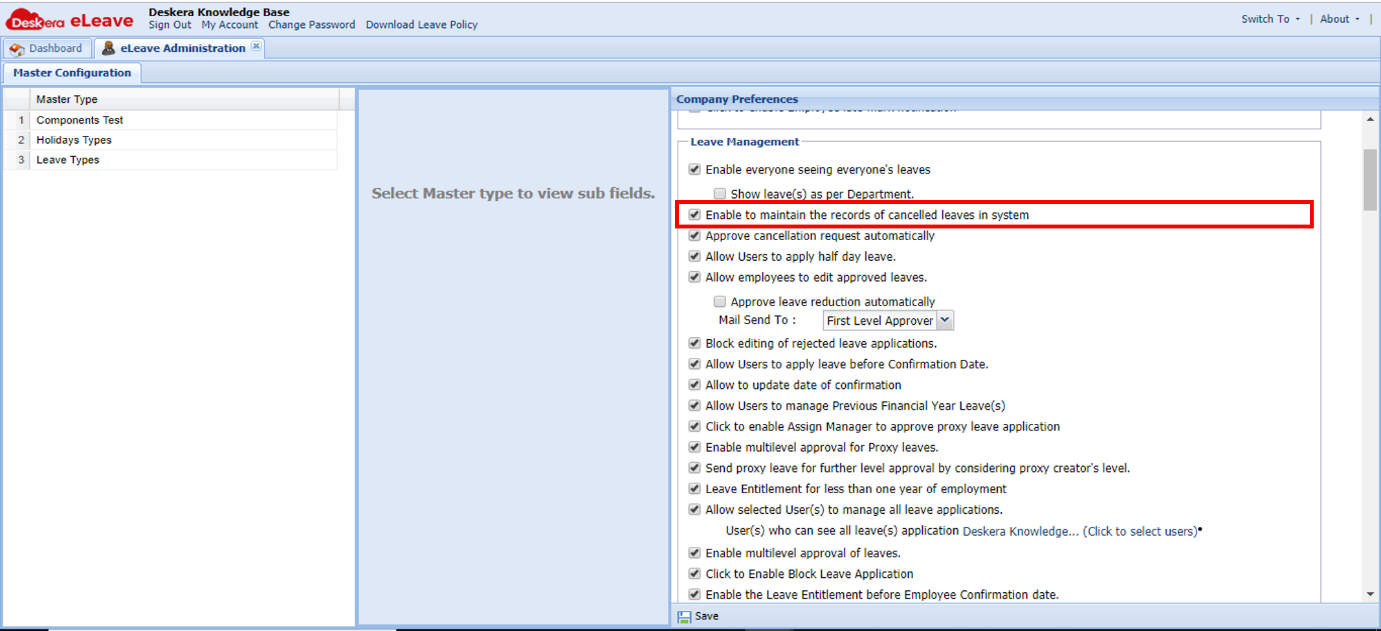 Fig. 3.1.2.2.4 Leave Management
Allow users to apply half day leave: As the description suggests, if this check is enabled the user is able to apply for a half-day leave. If this check is disabled then the half-day leave is restricted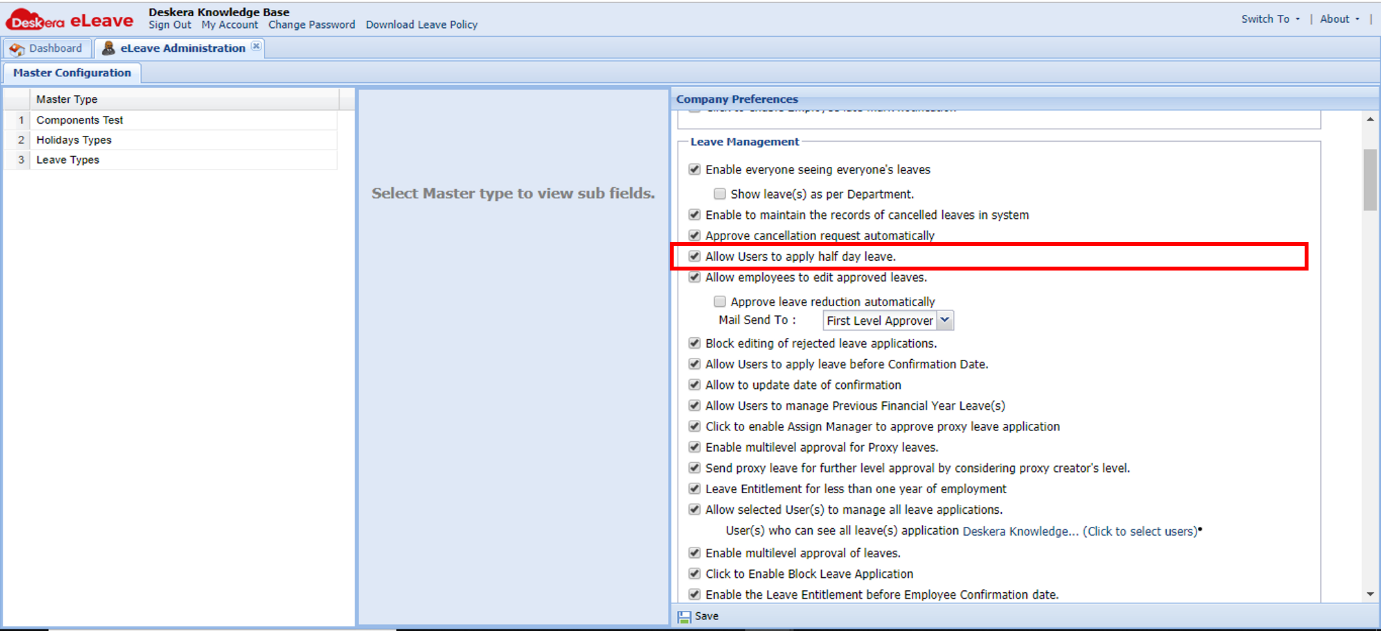 Fig. 3.1.2.2.5 Leave Management
Allow employees to edit approved leaves: Approved leaves of employees can be edited (Date/Duration/Leave type) if this check is enabled, and the status of approved leave becomes “Pending”.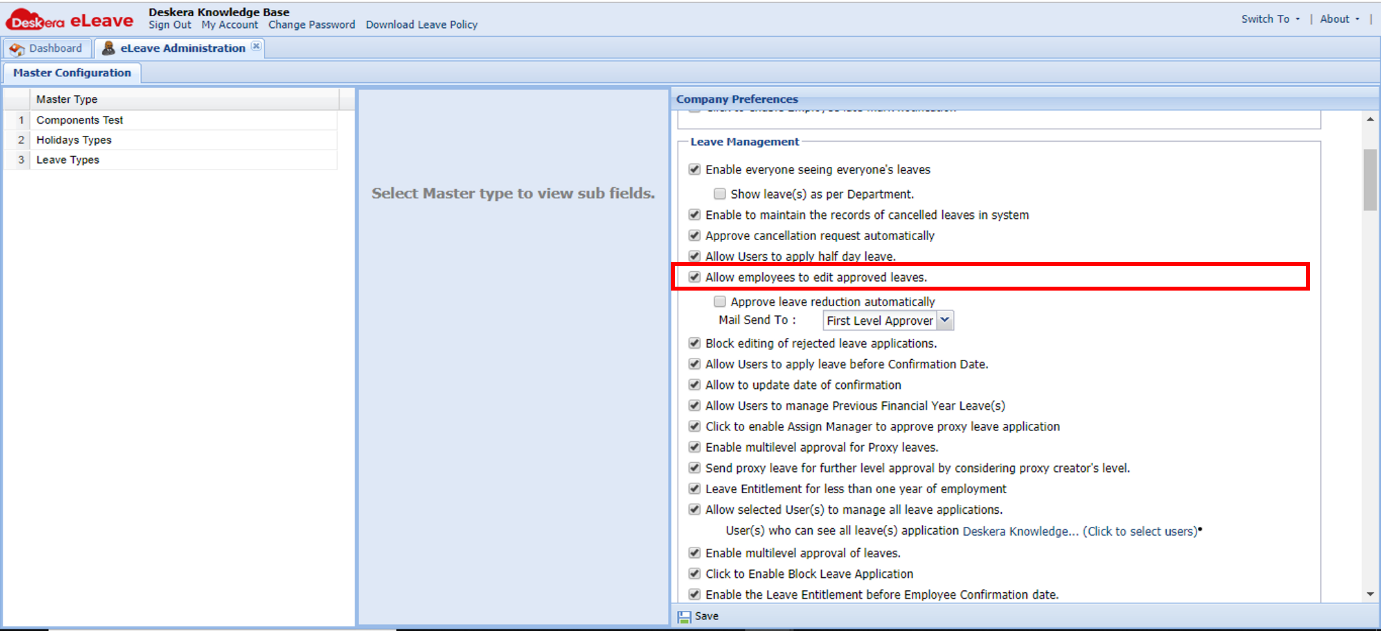 Fig. 3.1.2.2.6 Leave Management
Approve leave reduction automatically: If this setting is enabled, an approved leave can be edited such that only the duration can be reduced and there is no further need of approving the same.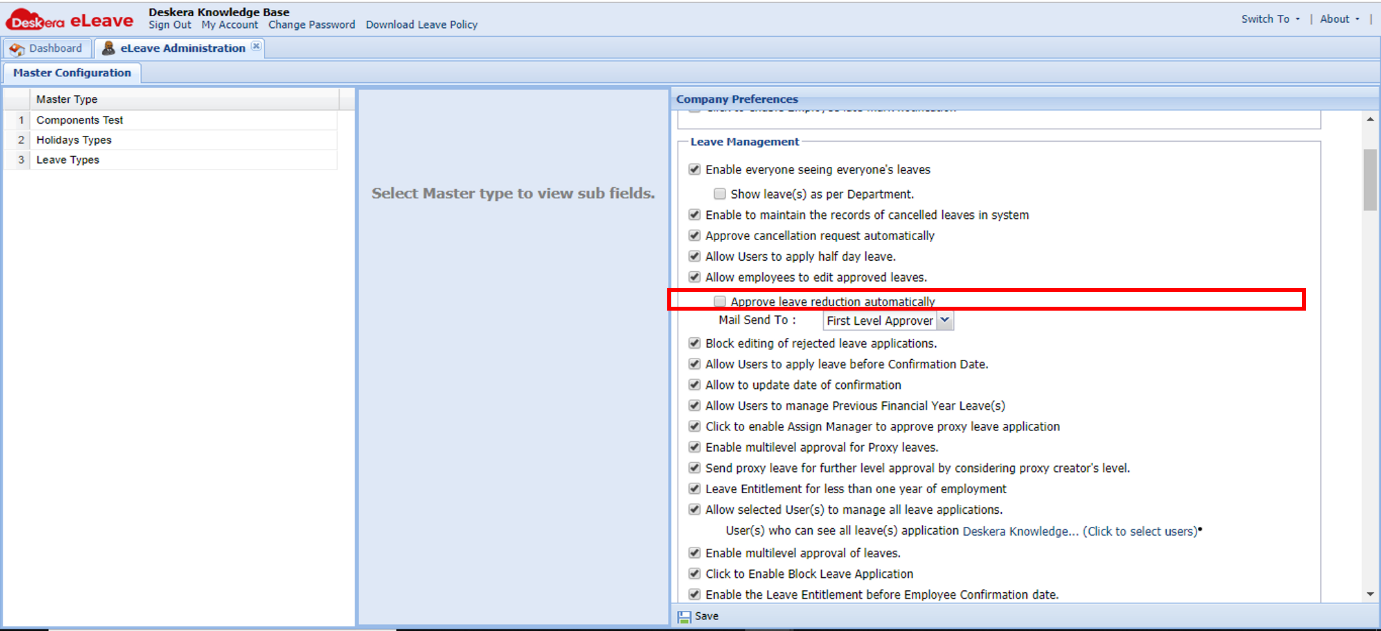 Fig. 3.1.2.2.7 Leave Management
Mail Send To: Based on the leave escalation flow, a notification stating that the approved leave has been is sent out based on the selected option which is either First Level Approver or All Approver.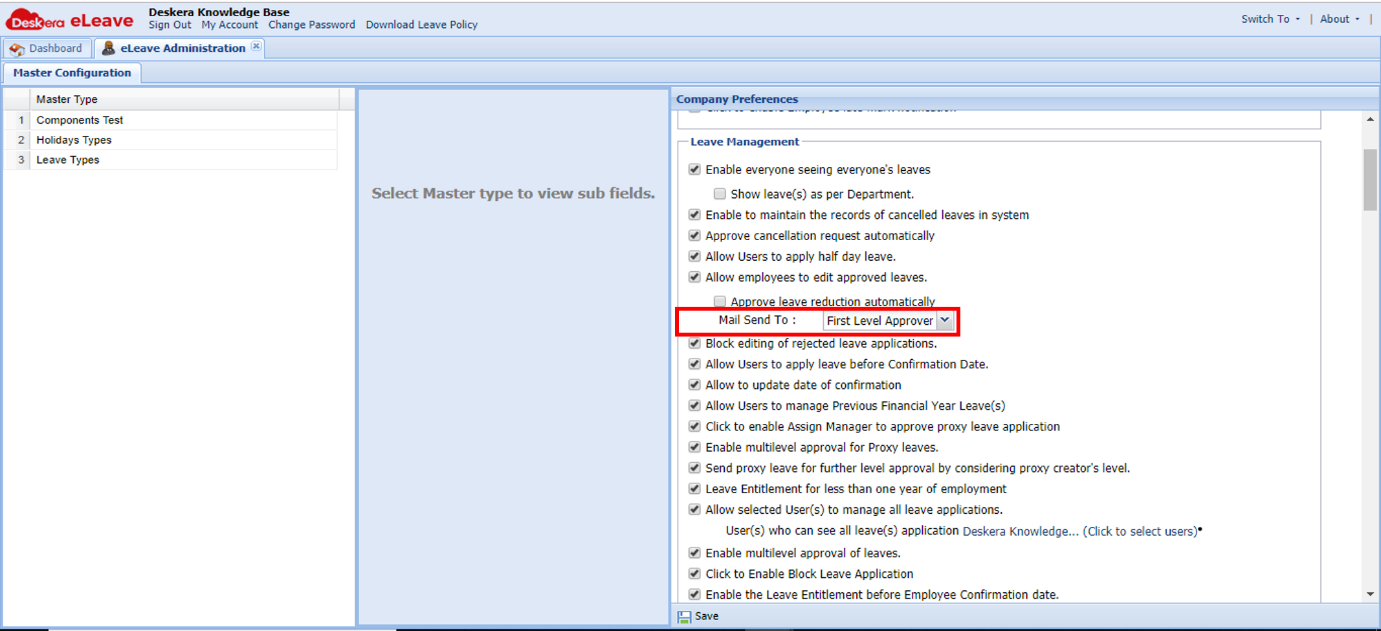 Fig. 3.1.2.2.8 Leave Management
Block editing of rejected leave applications: If this setting is enabled, changes made once cannot be un-changed, rejected leave cannot be edited and leaves can be reapplied on the rejected leave's date.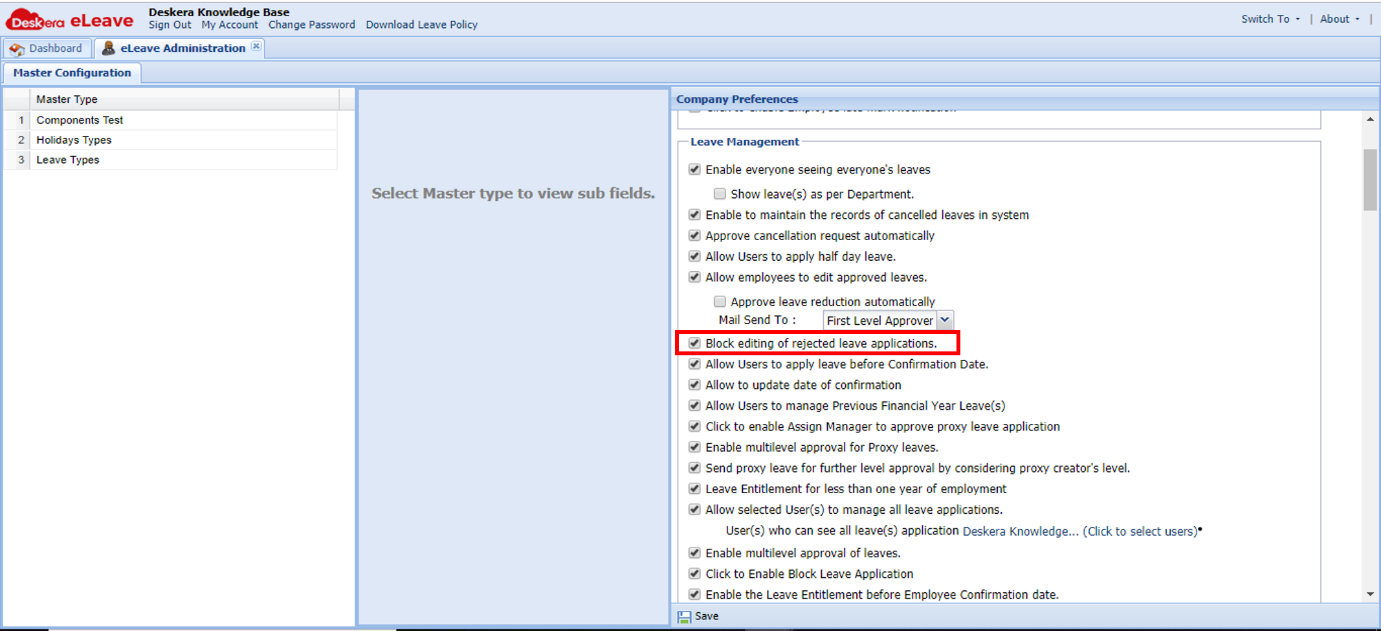 Fig. 3.1.2.2.9 Leave Management
Allow Users to apply leave before Confirmation Date: If this setting is enabled, all users can apply for leave before Date of Confirmation.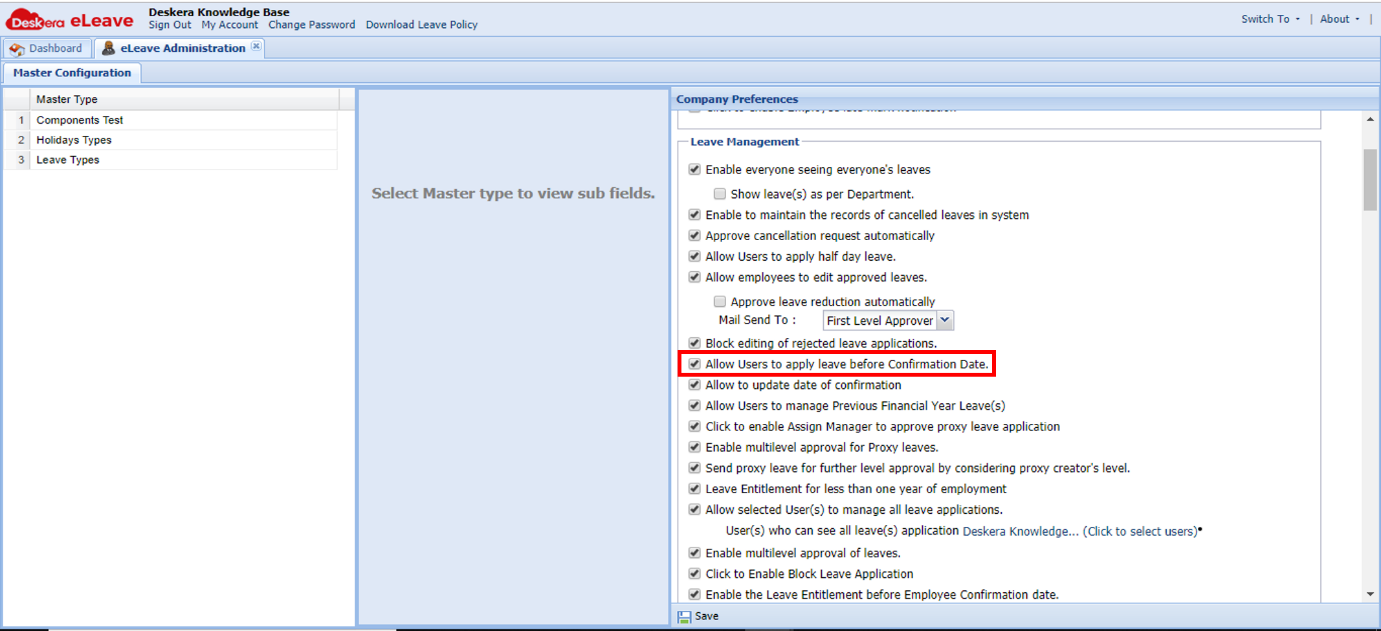 Fig. 3.1.2.2.10 Leave Management
Allow Users to manage Previous Financial Year Leave(s): If this setting is enabled, action can be taken on the leaves of the previous year for the user. There is no impact on the balance for the current financial year.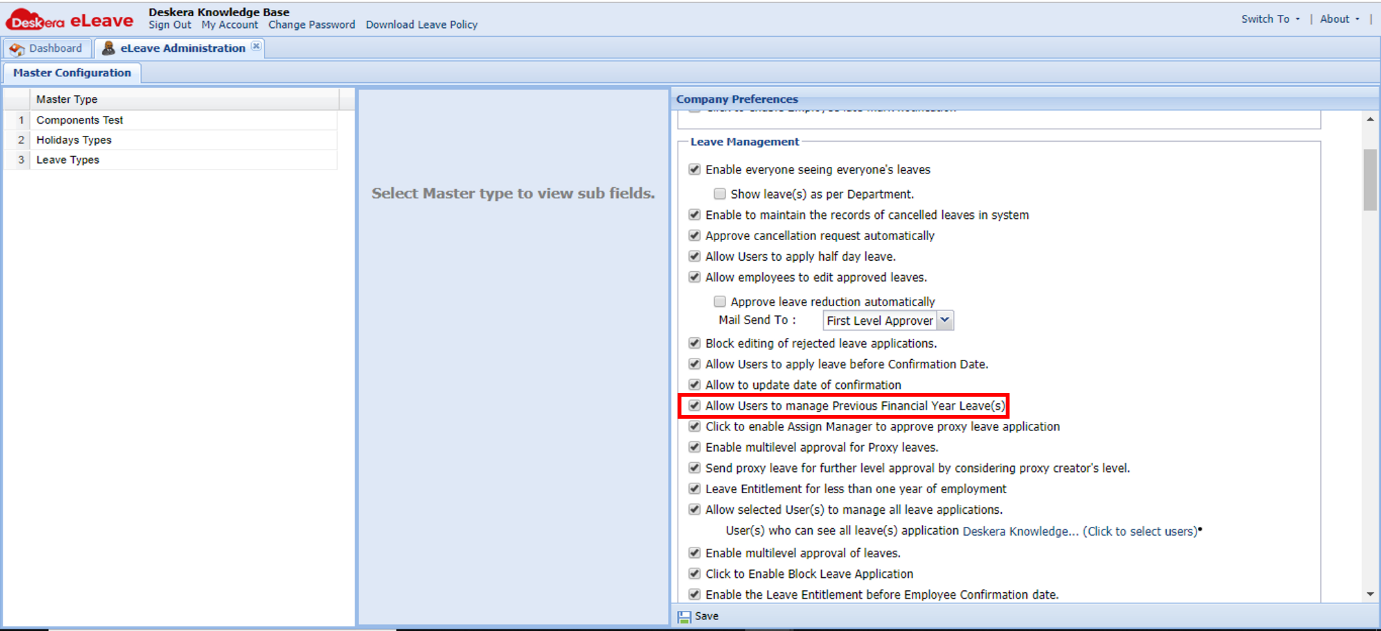 Fig. 3.1.2.2.11 Leave Management
Click to enable Assign Manager to approve proxy leave application: As the description suggests, if this setting is enabled then the proxy leave application is sent to the assigned manager for approval. If leave escalation flow is On and this check is Off, then the proxy leave is automatically approved.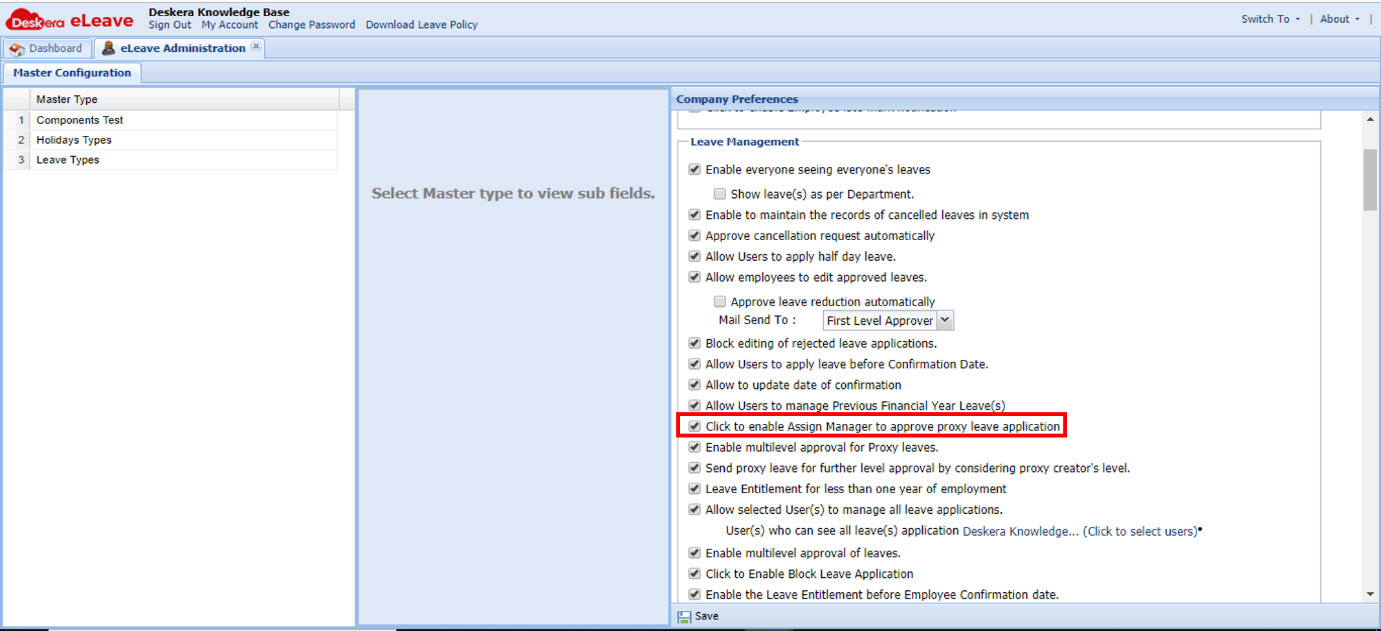 Fig. 3.1.2.2.12 Leave Management
Enable multilevel approval for Proxy leaves: When multilevel flow for proxy leave is enabled, the leave will move through the different approval levels configured for the users.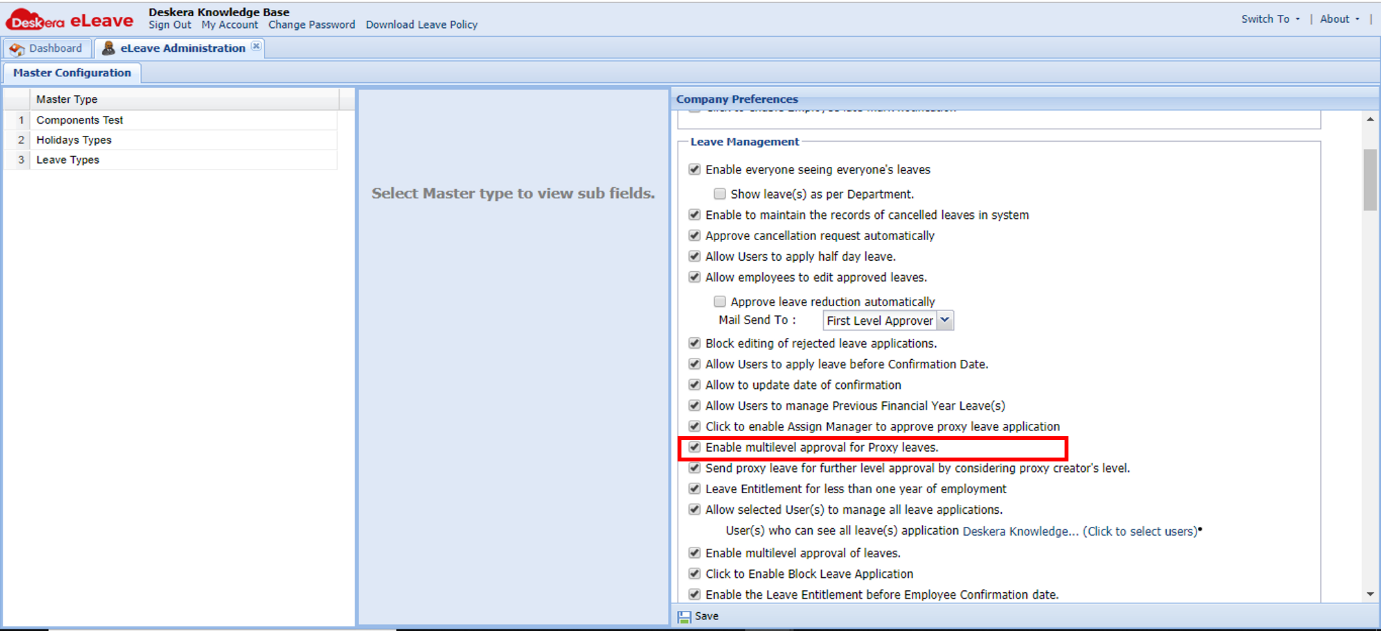 Fig. 3.1.2.2.13 Leave Management
Send proxy leave for further level approval by considering proxy creator's level: The proxy leave creator's level is considered while applying for a proxy leave. If the highest level of approving officer applies for the proxy leave, then it is approved. E.g. Level 1- Role- Manager, Level 2- Reporting Manager, and Level 3- Role – HR. If HR applies for the proxy leave for a user, since HR is the highest level of approver, the proxy leave will automatically be approved.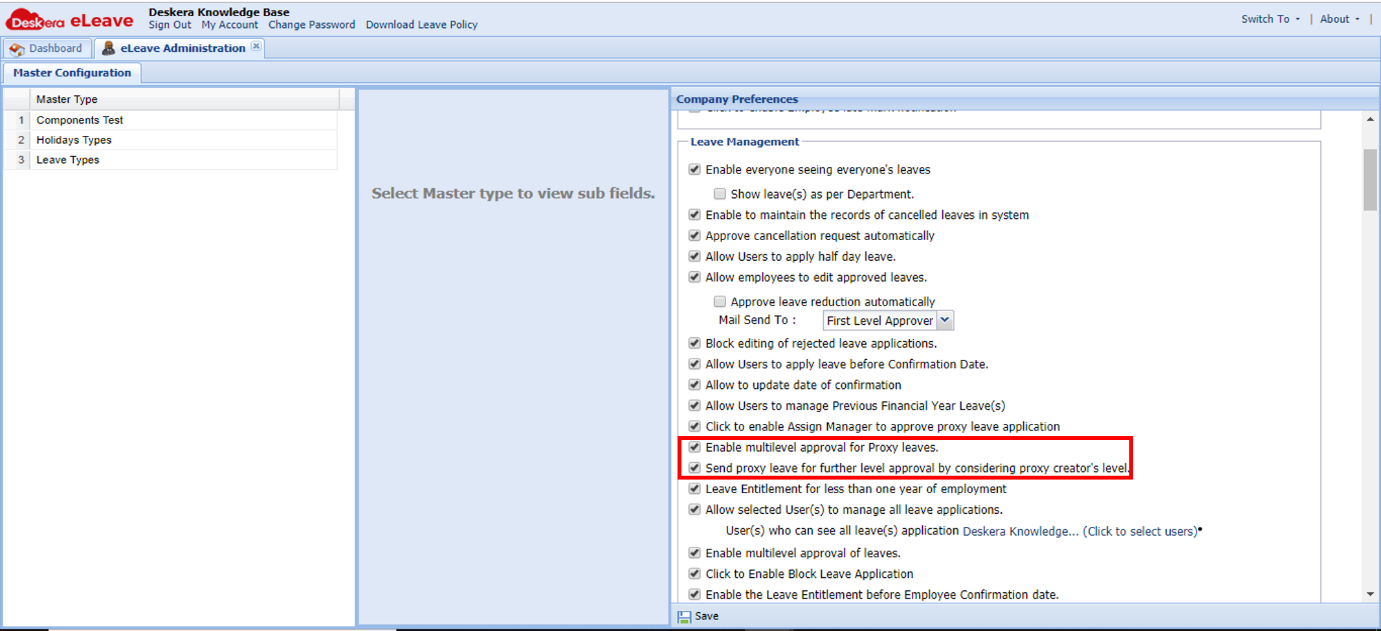 Fig. 3.1.2.2.14 Leave Management
Leave entitlement for less than one year of Employment (Singaporean Companies): This is only for Singaporean companies. If this setting is enabled, employees having Years of Service (YOS) less than one year can also be entitled to leaves.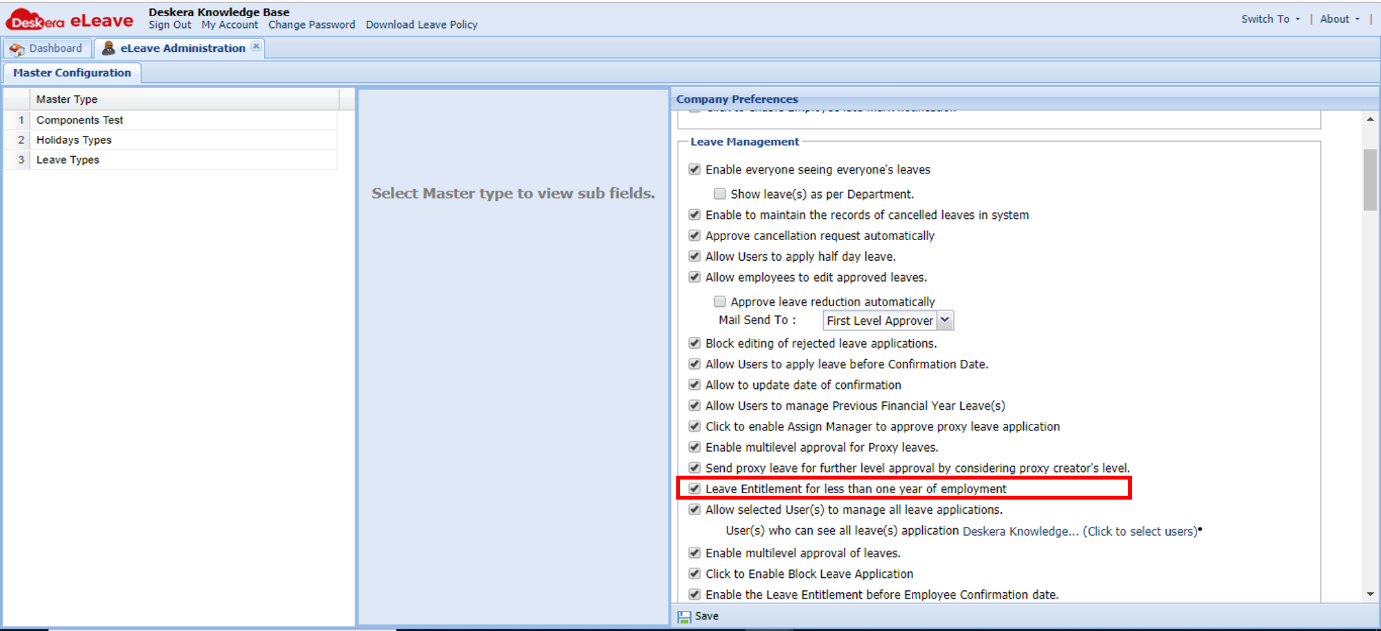 Fig. 3.1.2.2.15 Leave Management
Allow selected User(s) to manage all leave applications: When this setting is enabled, selected users can manage all leave applications for all users (Edit/Cancel/Approve/Reject/Cancellation Approve/Unauthorized).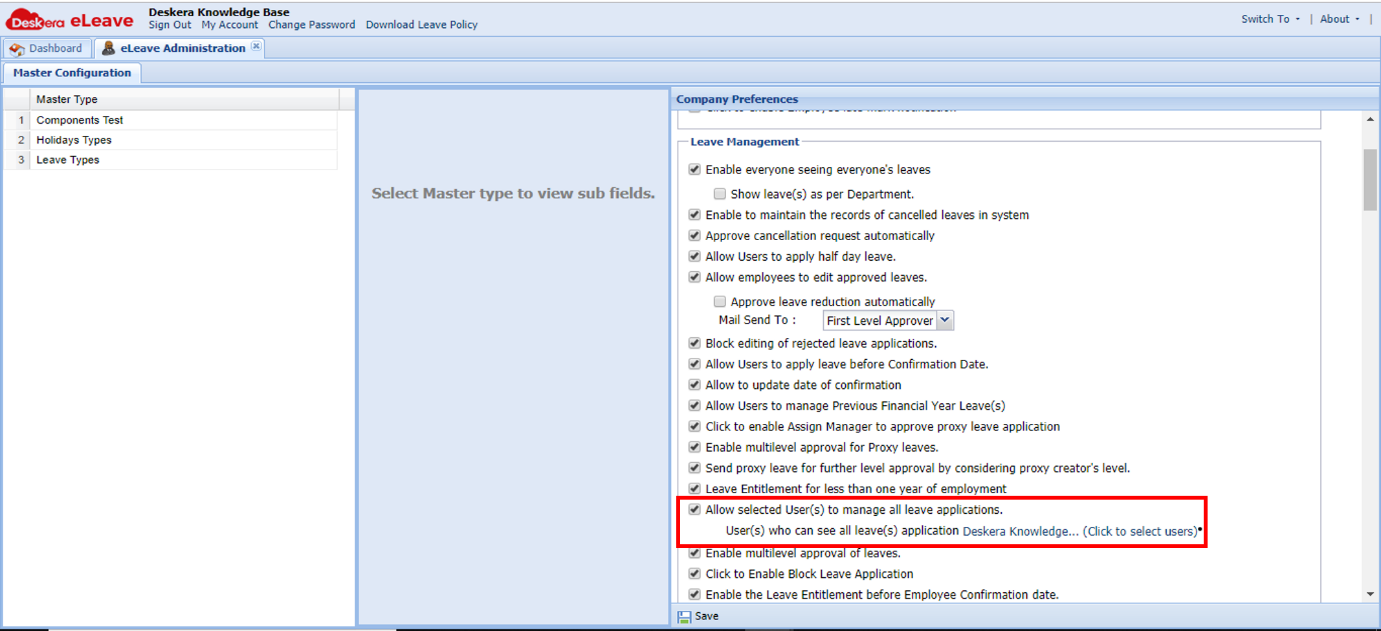 Fig. 3.1.2.2.16 Leave Management
Enable multilevel approval of leaves: When this setting is enabled, the leave passes through the approval levels set at User Administration-Configure Approval Levels which is set for the particular user.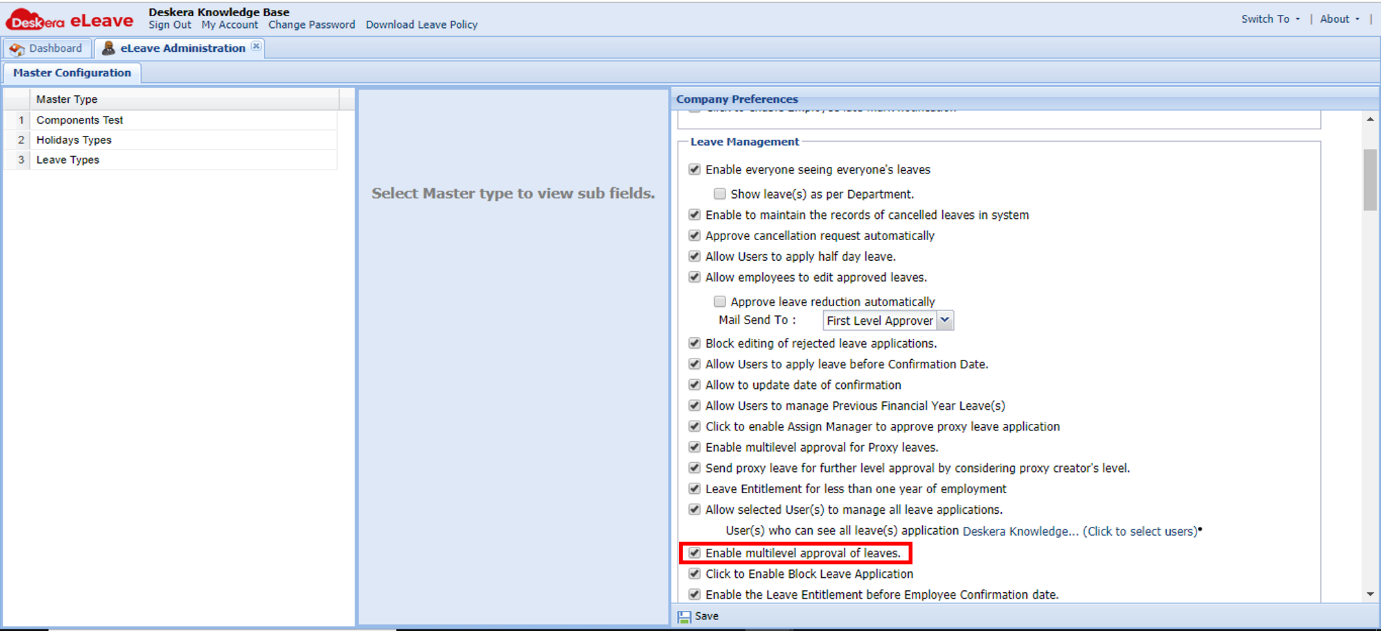 Fig. 3.1.2.2.17 Leave Management
Click to Enable Block Leave Application: If this check is On, the feature to block leave dates for multiple user is enabled. Block leaves are auto approved.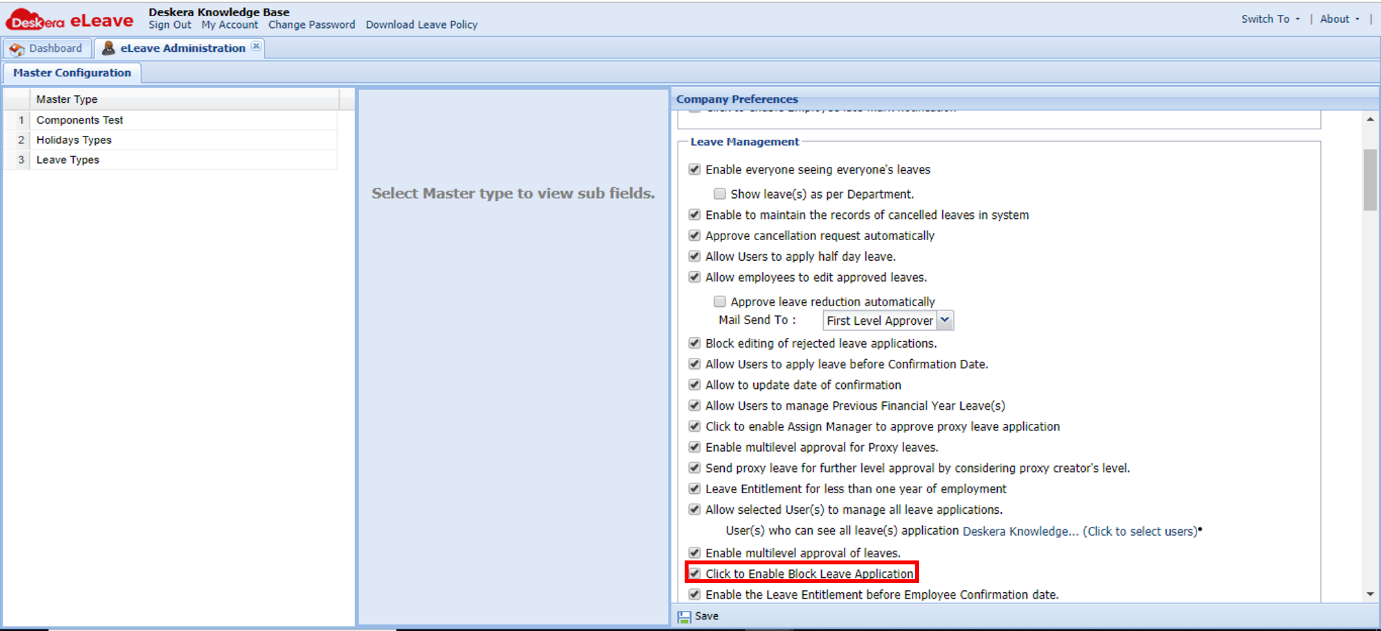 Fig. 3.1.2.2.18 Leave Management
Enable the Leave Entitlement before Employee Confirmation date: If this check is On, irrespective of Date of Confirmation of the employee, he/she can be entitled to leaves and apply for the same.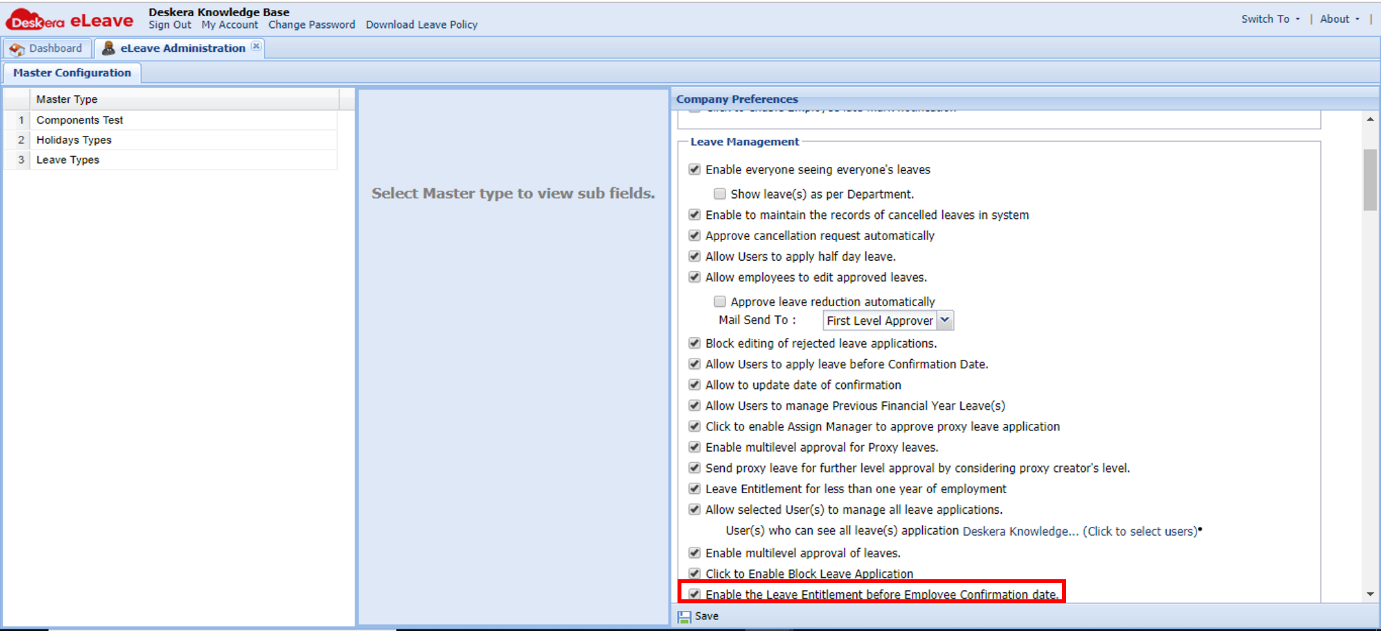 Fig. 3.1.2.2.19 Leave Management
Enable the Leave Entitlement before Employee Confirmation date: If this check is On, irrespective of Date of Confirmation of the employee, he/she can be entitled to leaves and apply for the same.Fig. 3.1.2.2.19 Leave Management
Public Holiday gross pay as per MOM (Singapore Companies): Public Holiday gross pay is applicable such that if a Public Holiday falls in between the leave duration, it is calculated in the leave duration.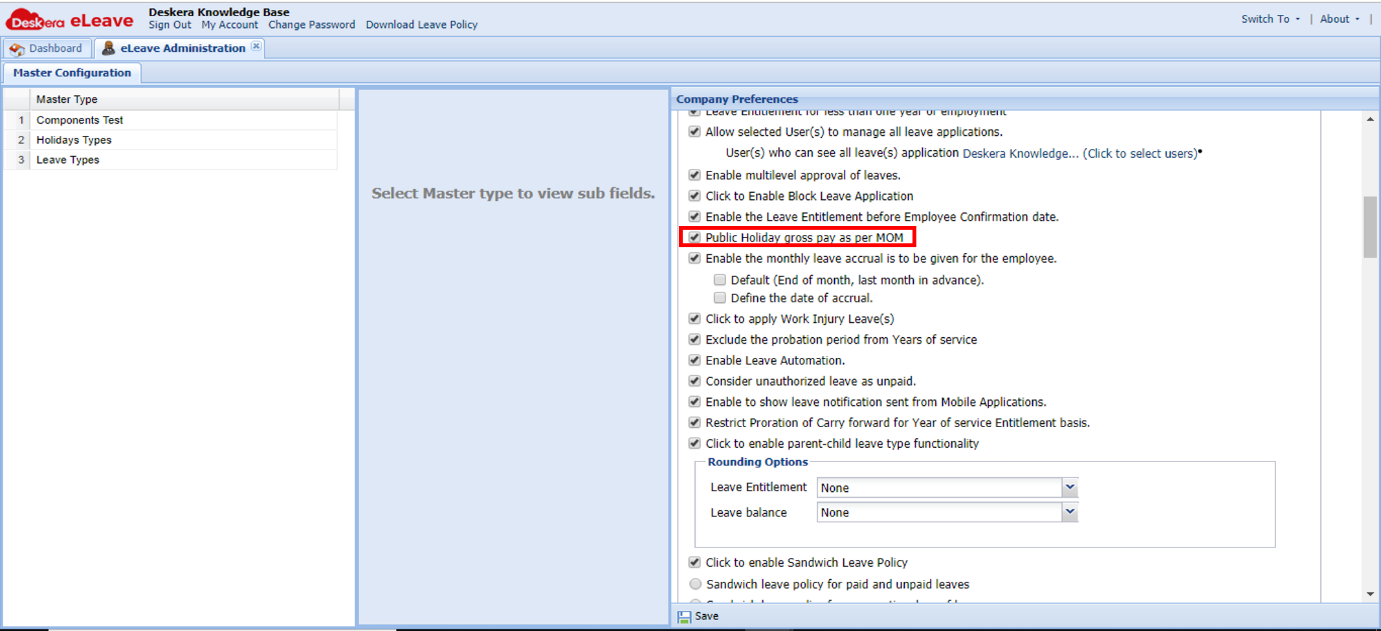 Fig. 3.1.2.2.20 Leave Management
Enable the monthly leave accrual is to be given for the employee: This is the default setting. However these can be edited until there are no leave applications in the system.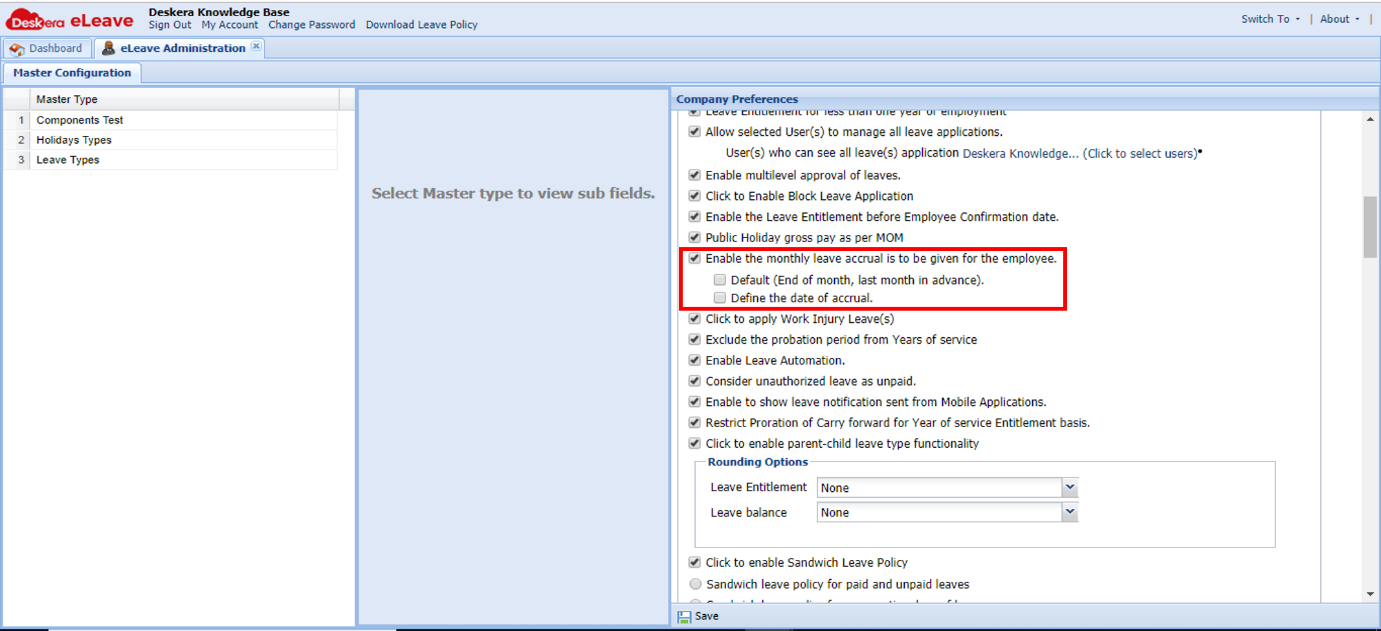 Fig. 3.1.2.2.21 Leave Management
Click to apply Work Injury Leave(s): If this check is enabled, then the check box for Work Injury is enabled on every leave application form. This is maintained in Work Injury Report too.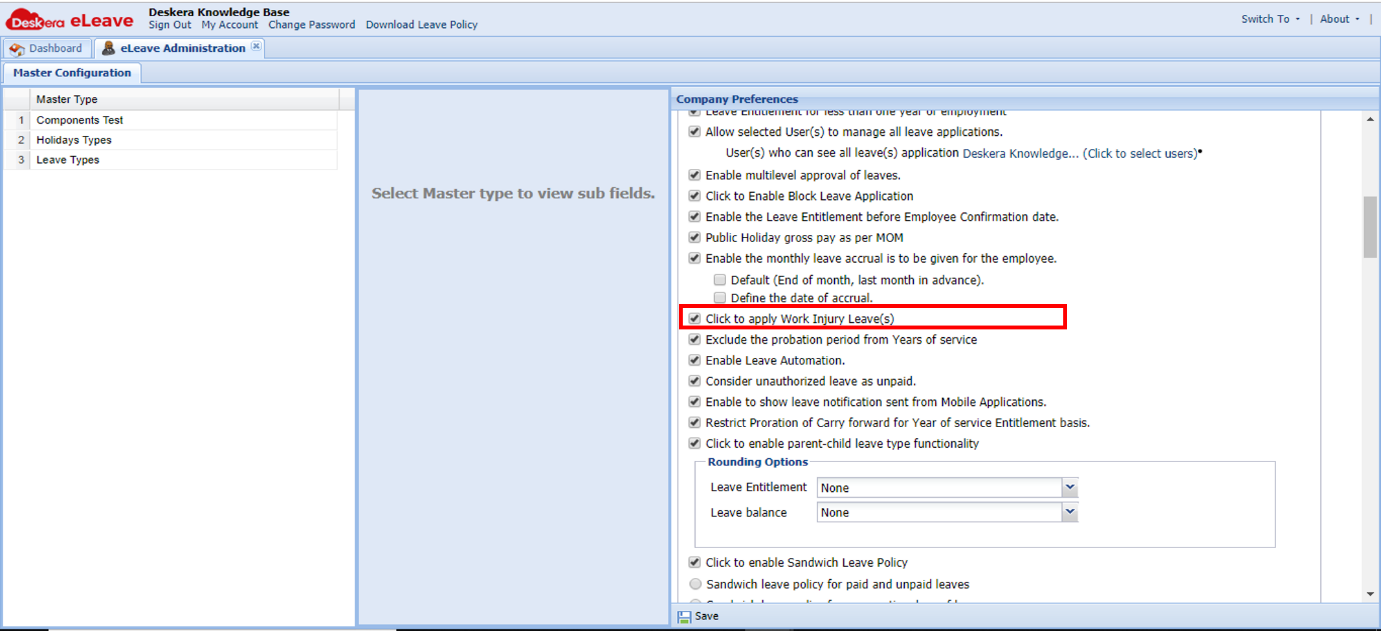 Fig. 3.1.2.2.22 Leave Management
Exclude the probation period from Years of service: While calculating leave entitlement, if this check is ON, probation period is excluded and experience is calculated from the Date of Confirmation.Fig. 3.1.2.2.22 Leave Management
Exclude the probation period from Years of service: While calculating leave entitlement, if this check is ON, probation period is excluded and experience is calculated from the Date of Confirmation.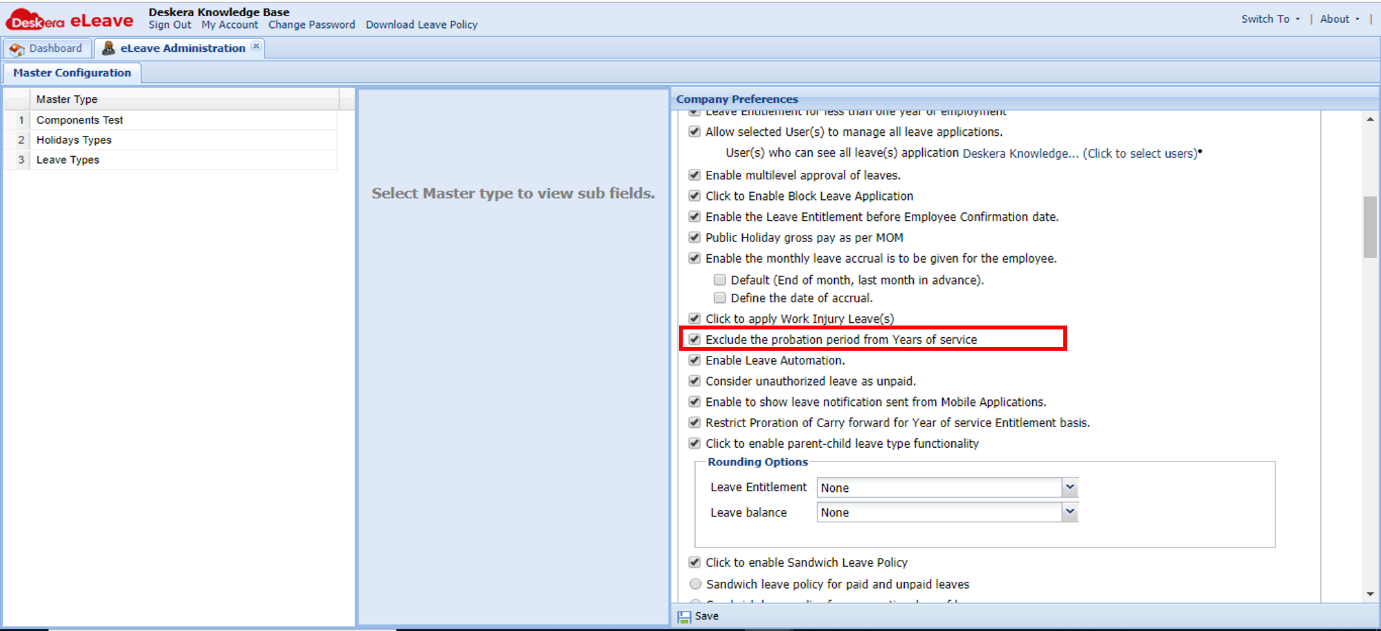 Fig. 3.1.2.2.23 Leave Management
Consider unauthorized leave as unpaid. If this check in enabled, an unauthorized leave will be treated as unpaid irrespective of the leave balance.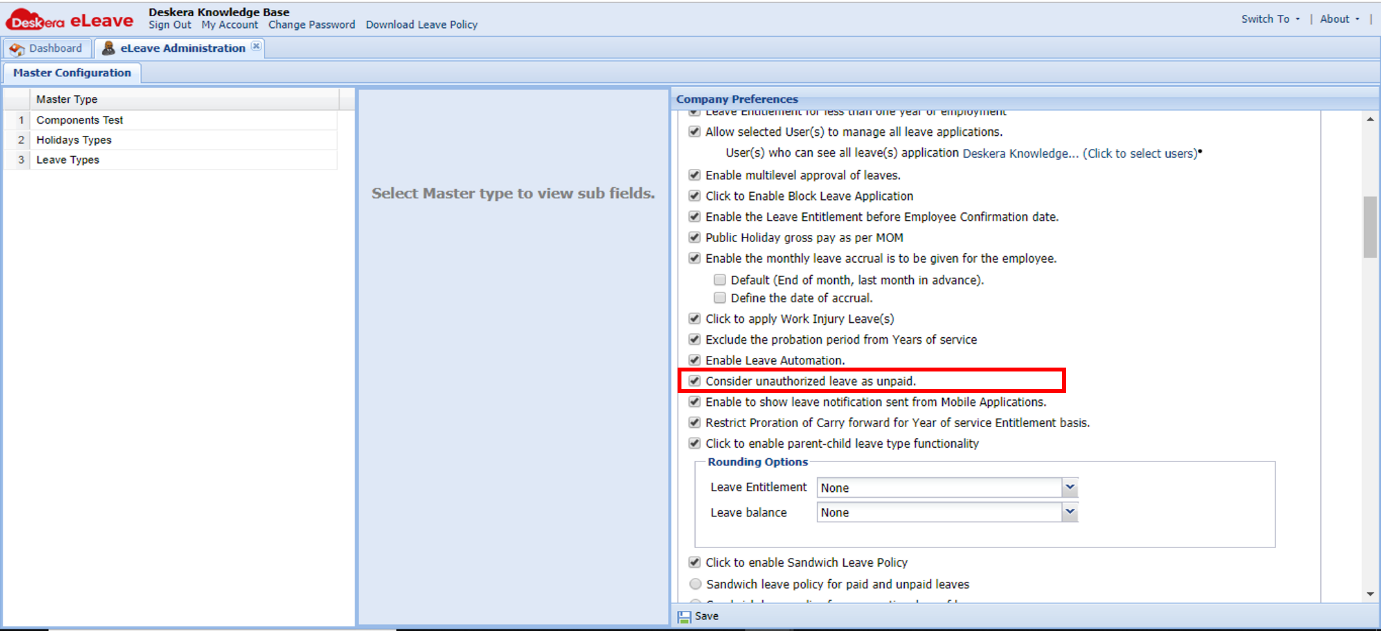 Fig. 3.1.2.2.24 Leave Management
Enable to show leave notification sent from Mobile Applications. When a message is notified from the mobile app using the Notify functionality, on enabling this check, Messages Icon is rendered in leave applications which will show all notified messages to the HR/Manager/Admin.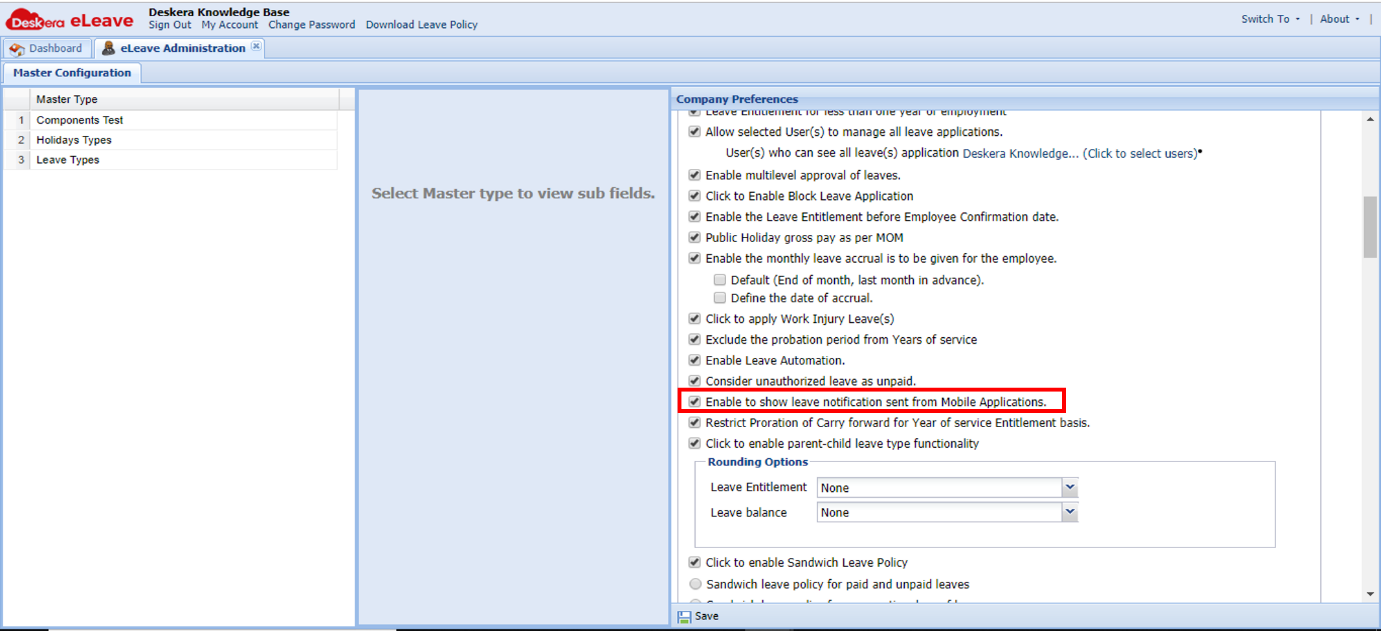 Fig. 3.1.2.2.25 Leave Management
Restrict Proration of Carry forward for Year of service Entitlement basis: While carry forward- it is not prorated based on two YOS ranges. It is taken as current range's YOS max carry forward.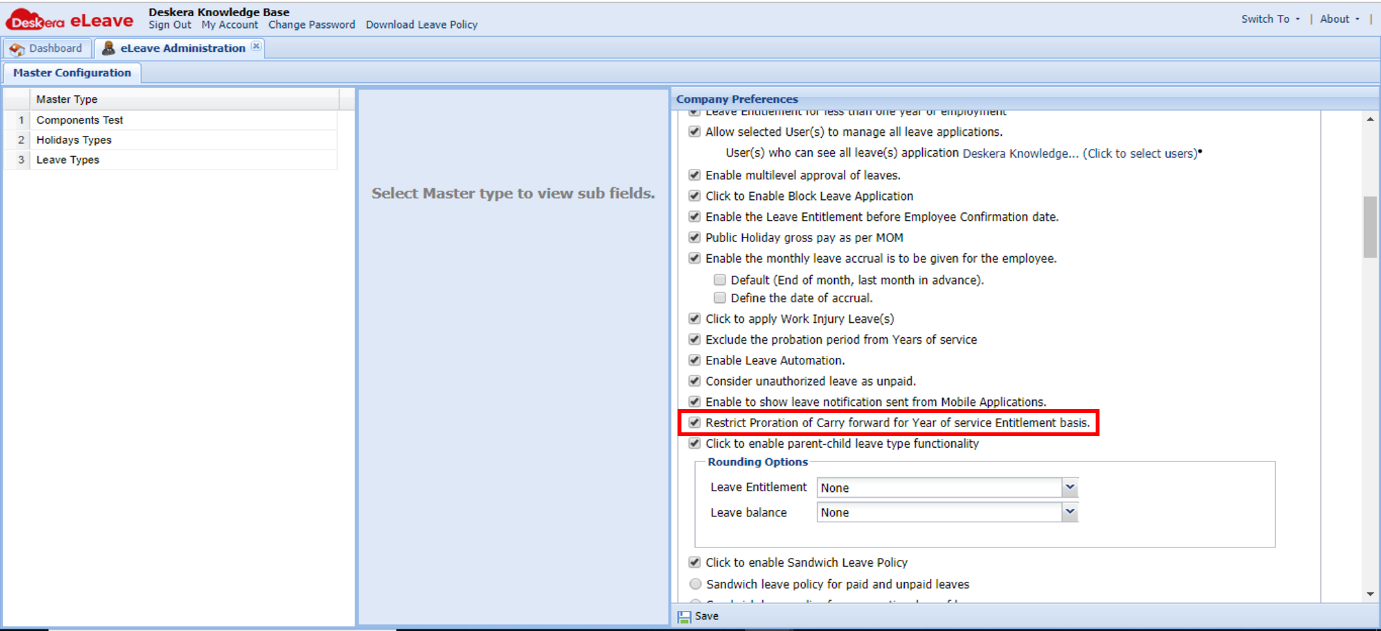 Fig. 3.1.2.2.26 Leave Management
Rounding Options: Rounding options are provided for Leave Entitlement and Leave Balances as shown in the following figure.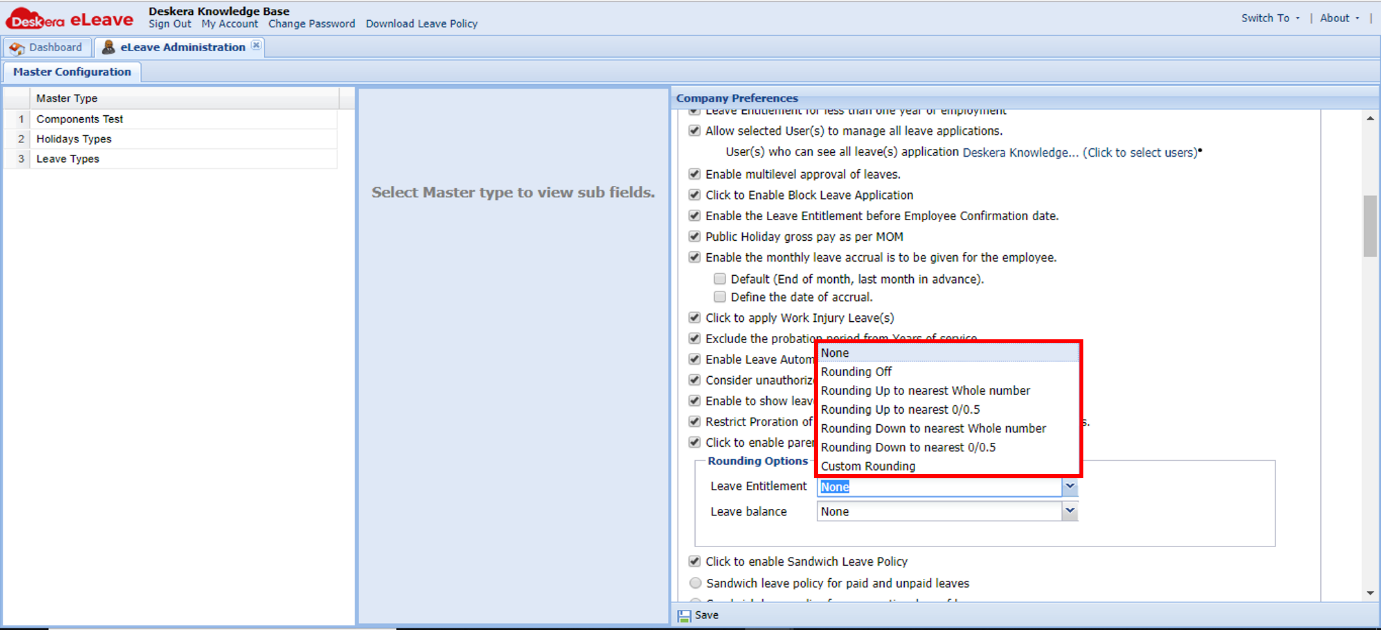 Fig. 3.1.2.2.27 Leave Management
Custom Rounding: Custom Rounding is provided so that the user can define custom ranges with custom values to round off to as shown in the figure below.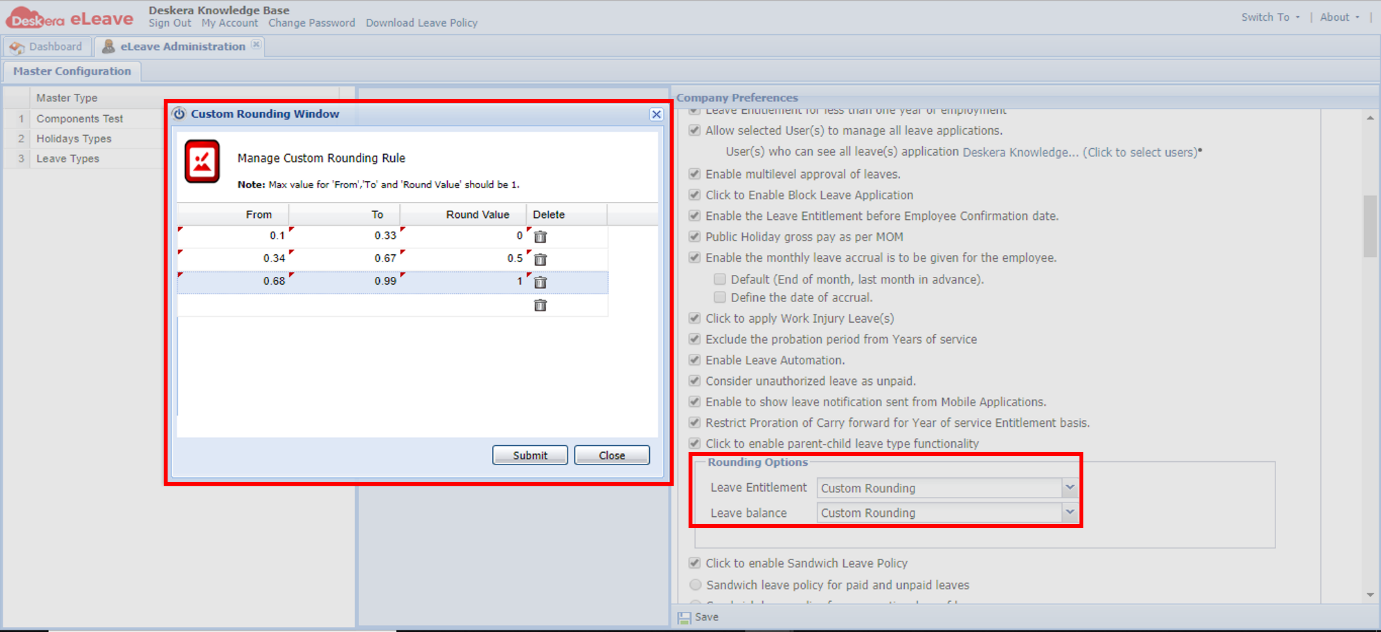 Fig. 3.1.2.2.28 Leave Management
Sandwich Leaves Policy: Custom Rounding is provided so that the user can define custom ranges with custom values to round off to as shown in the figure below.Fig. 3.1.2.2.28 Leave Management
Comments
0 comments
Please sign in to leave a comment.