
The Check Email Notification setting in the Master Configuration allows the user to enable and disable scenarios where an email notification could be sent to the concerned users such as in case of sending an email notification to the HR when the user applies for a Leave, email notification to the employee to consume his/her pending leaves etc.
Prerequisites:
- You have your Deskera eLeave application URL in place.
- You are the administrator of the HRMS application.
- Ensure Stable Internet Connectivity.
Step 1: On the eLeave Dashboard, click on Master Configuration under the Administration widget.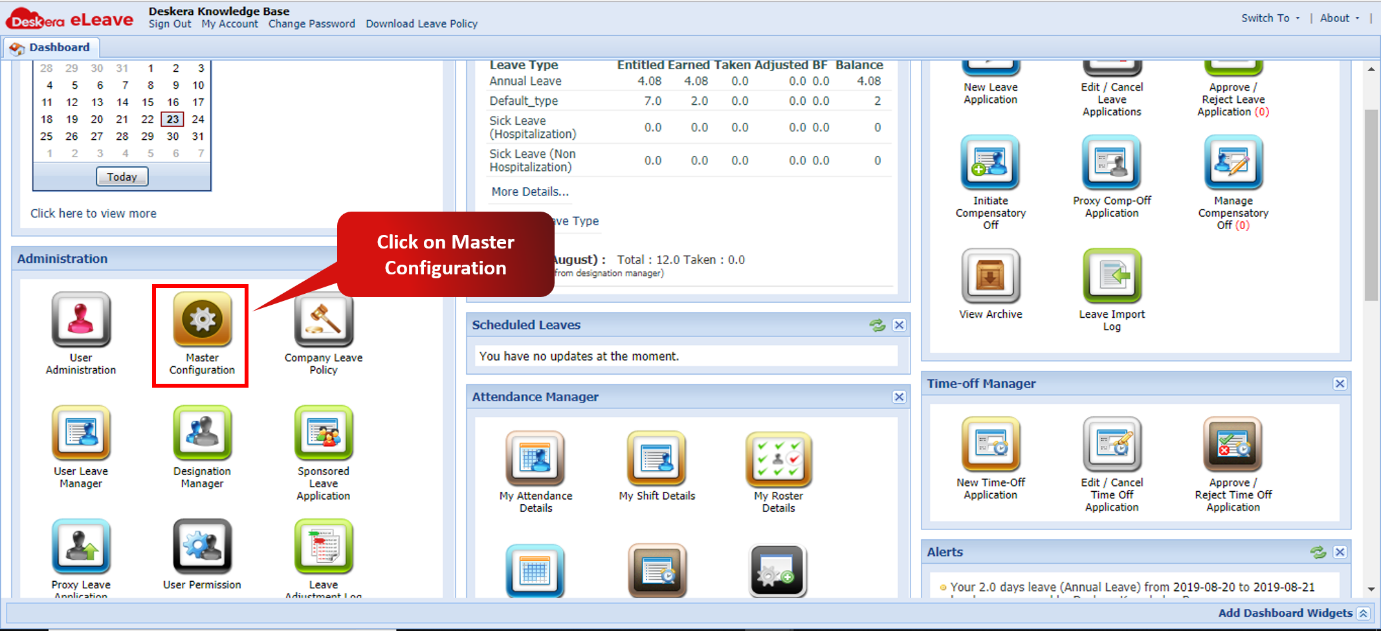 Fig. 3.1.2.1.1 eLeave Dashboard
Step 2: The panel of Check Email Notifications under Company Preferences is now visible with all the various settings available. 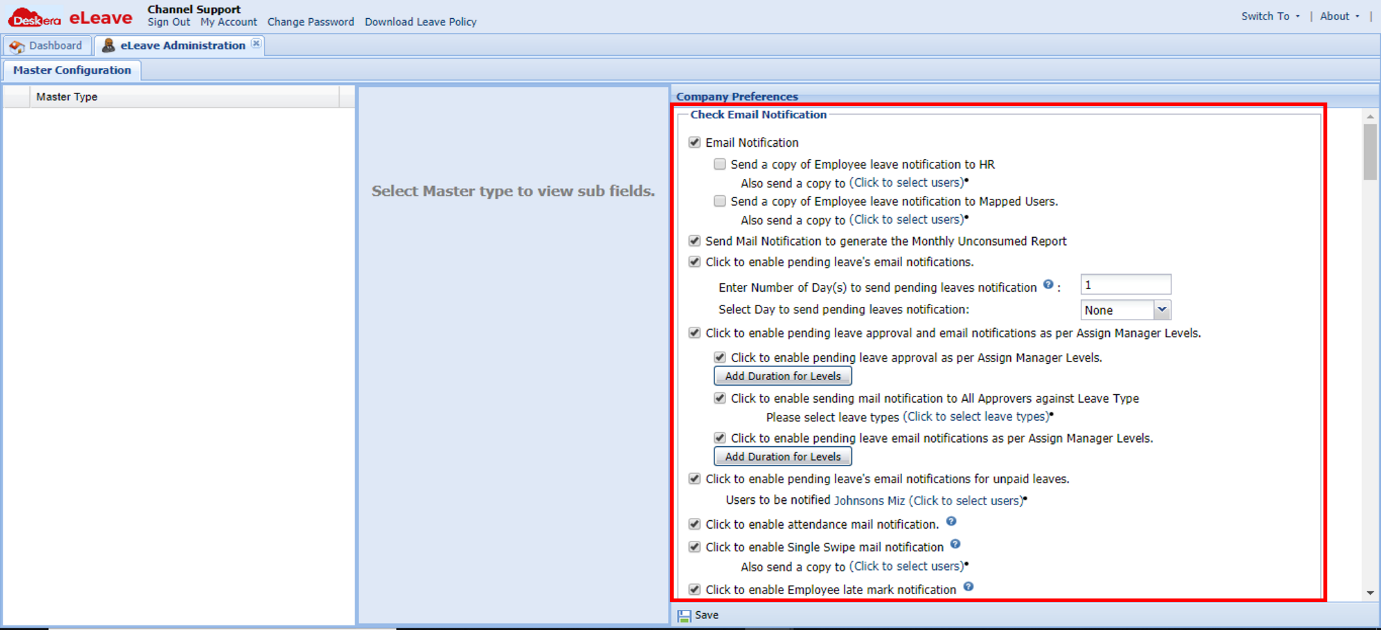 Fig. 3.1.2.1.2 Check Email Notification
Employee Leave Notification: The Email Notification checkbox allows notifications to be sent out to the HR and/or mapped users when an employee applies for a leave. Fig. 3.1.2.1.3 Email Notification
Monthly Unconsumed Report: This checkbox allows email notifications to be sent out as reminders to generate monthly unconsumed reports in the system.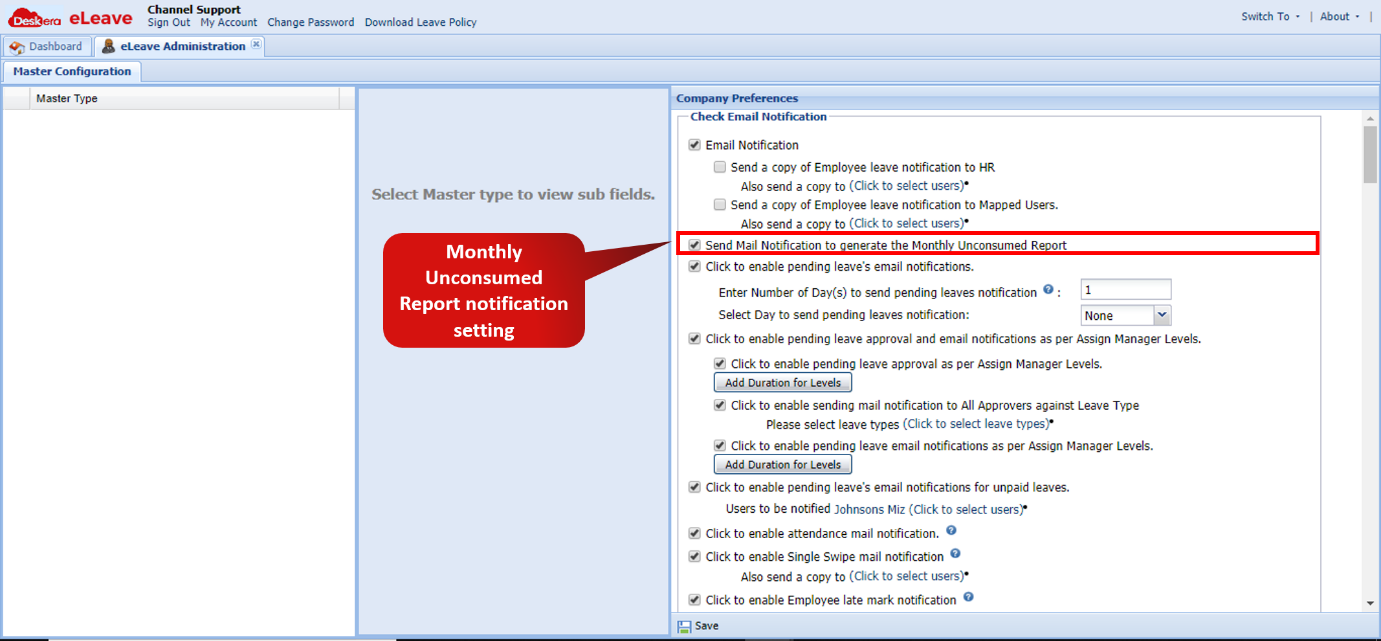 Fig. 3.1.2.1.4 Email Notification
Pending Leaves Notification: This checkbox allows reminder email notifications to be sent to the respective approving managers that a leave is pending for approval. The number of days sets the frequency of sending out the emails and the day selected from the drop down would configure the day of the week for the notification to be sent out. 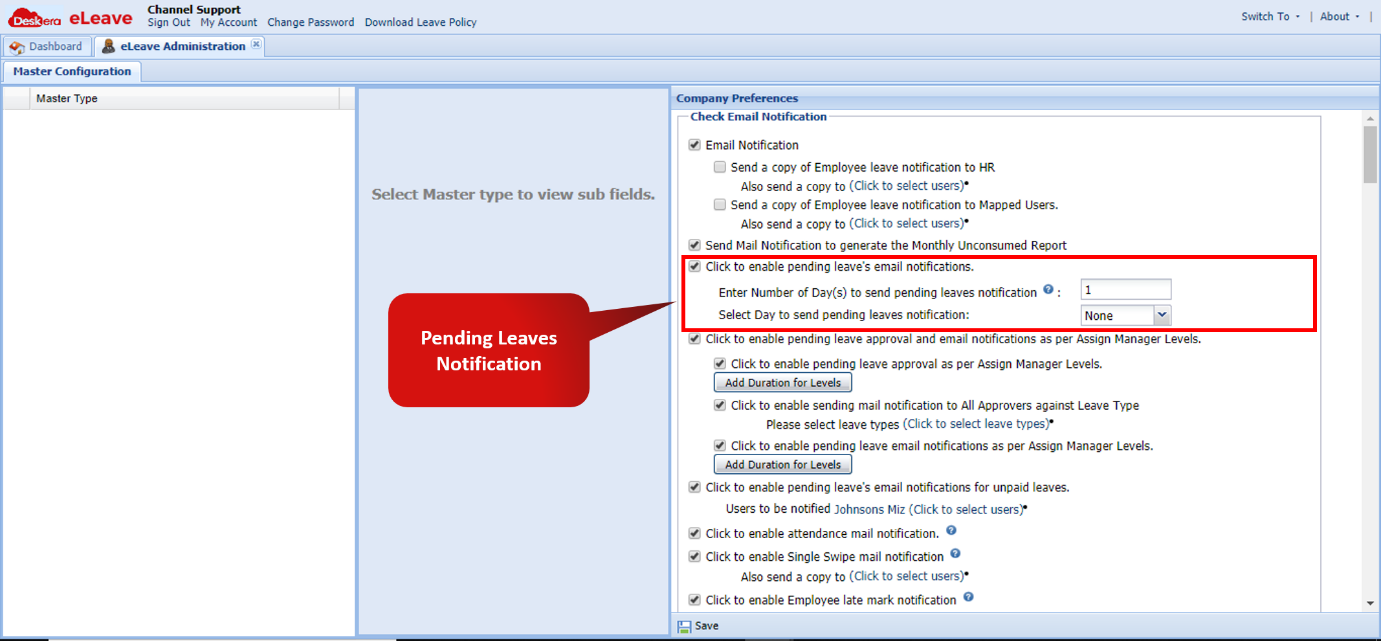 Fig. 3.1.2.1.5 Email Notification
Pending Leaves Approval notification as per Assign Manager Levels: This setting allows email notifications to be sent as per levels, both to the approving managers and to the user when his/her leave application has been approved. The user can add different levels having different frequency of notifications using the Add Duration Levels icons. Also, it is possible to configure sending of notifications to all the approvers against the application of a specific leave.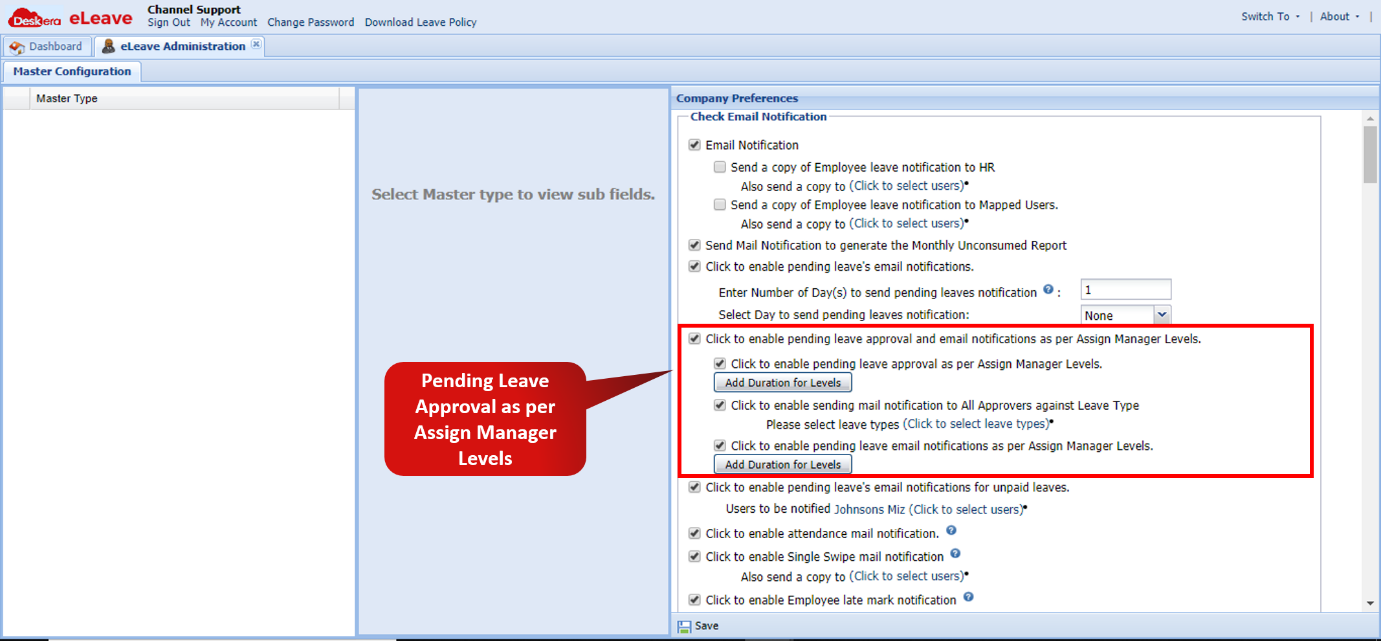 Fig. 3.1.2.1.6 Email Notification
Pending Unpaid Leaves Email Notification: This setting allows email notifications to be sent out upon the application of unpaid leaves. Multiple users can be selected to whom the email notifications will be sent out to. 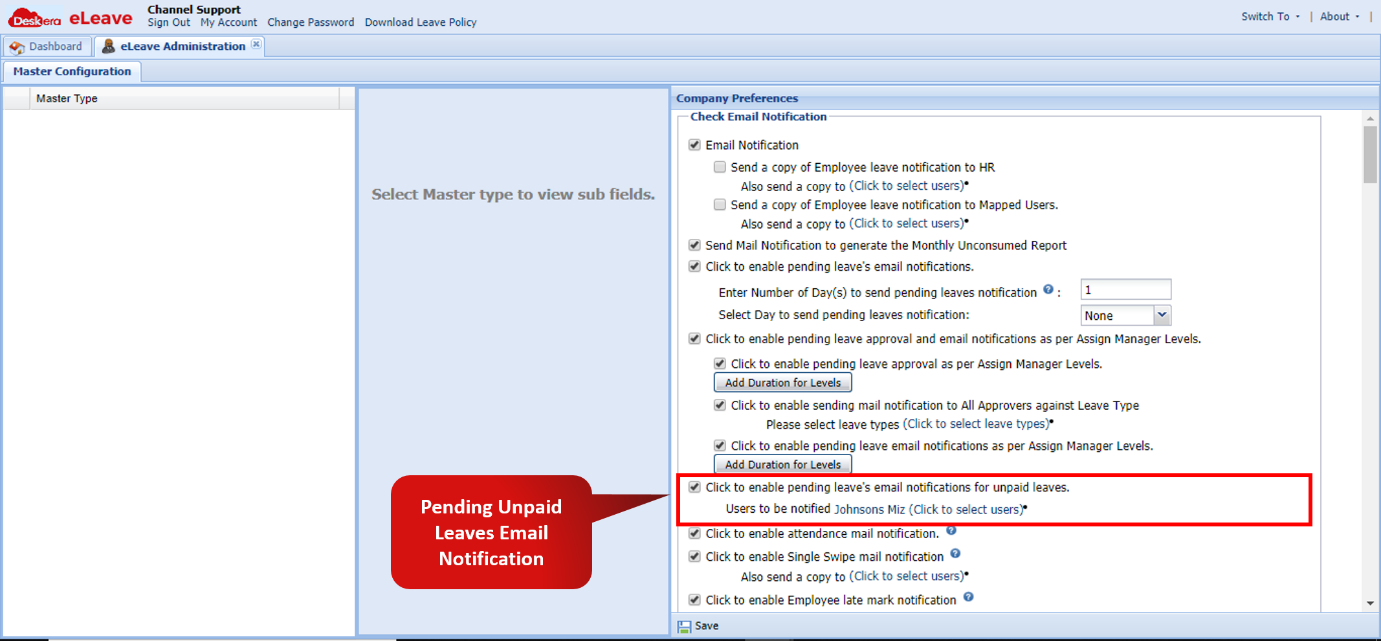 Fig. 3.1.2.1.7 Email Notification
Attendance Mail Notification: When this setting is enabled:
- A notification is sent to the approver when user manually enters his/her attendance.
- The user gets a notification when the approver approves the manually entered attendance
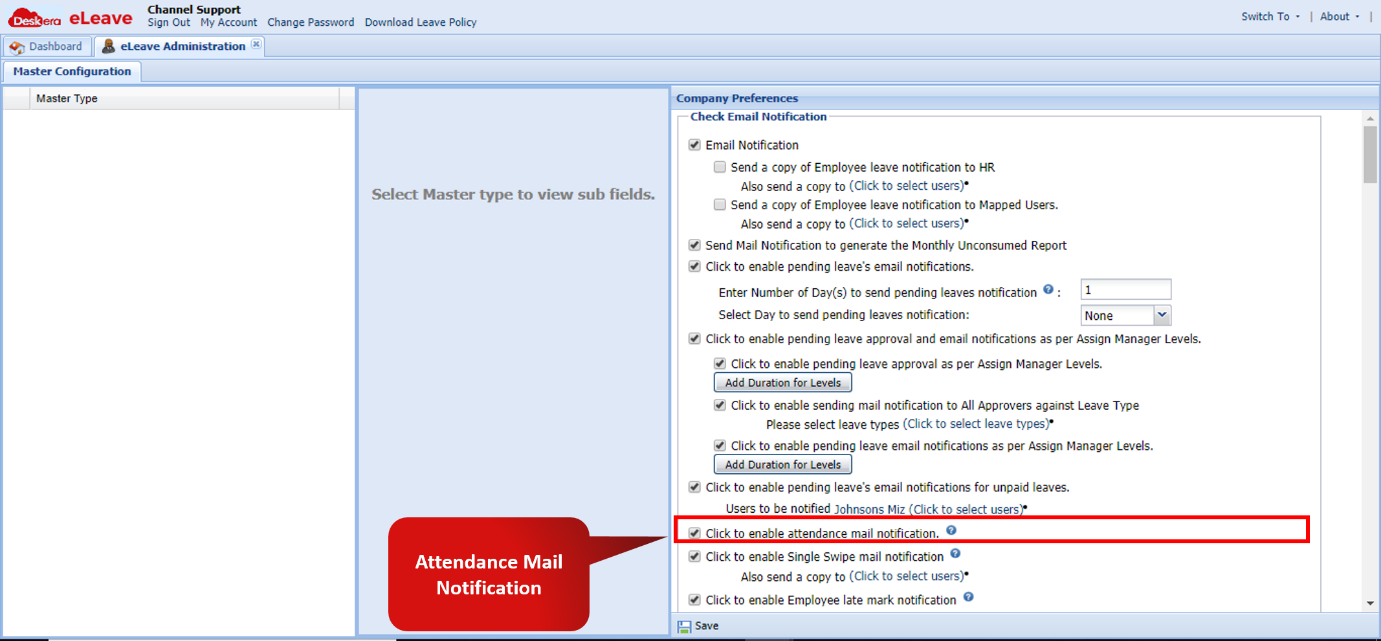 Fig. 3.1.2.1.8 Email Notification
Single Swipe mail notification: When this option is marked, the employee will get a notification in case only one of the two from In-Time and Out-Time in attendance is marked.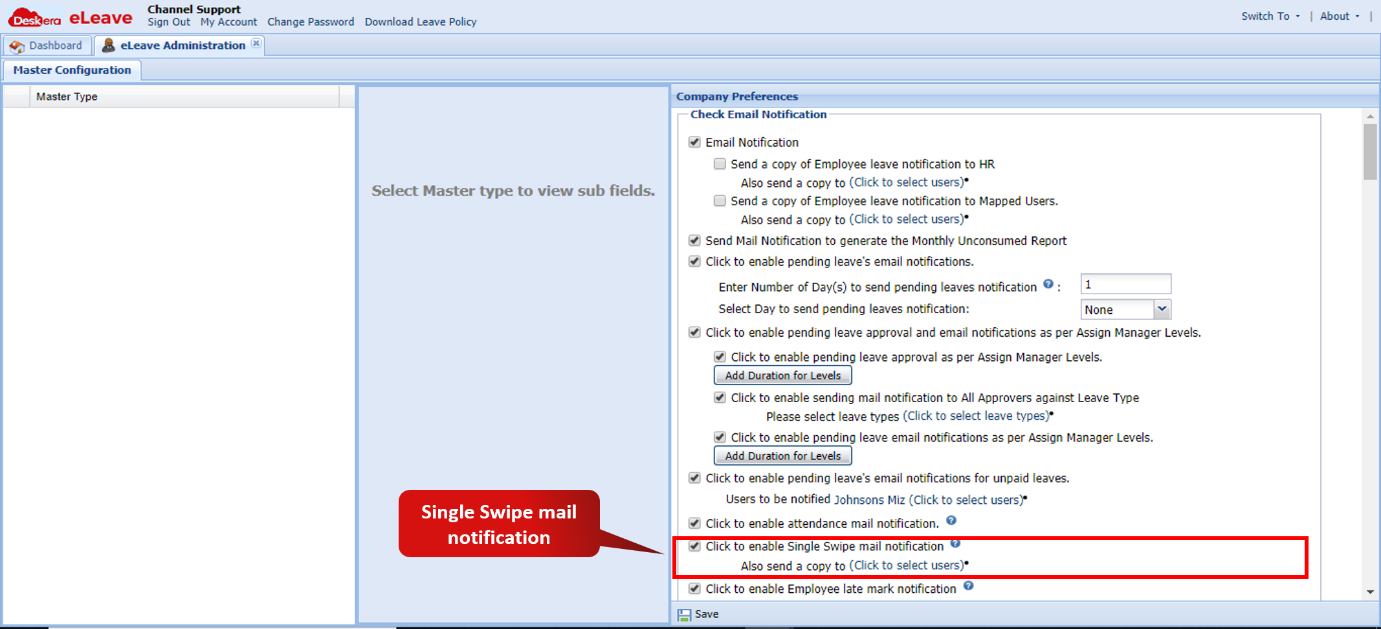 Fig. 3.1.2.1.9 Email Notification
Employee late mark notification: When this option is enabled the employee (other users along with the employee can also be selected for the notification) gets a notification when he/she is late for work. 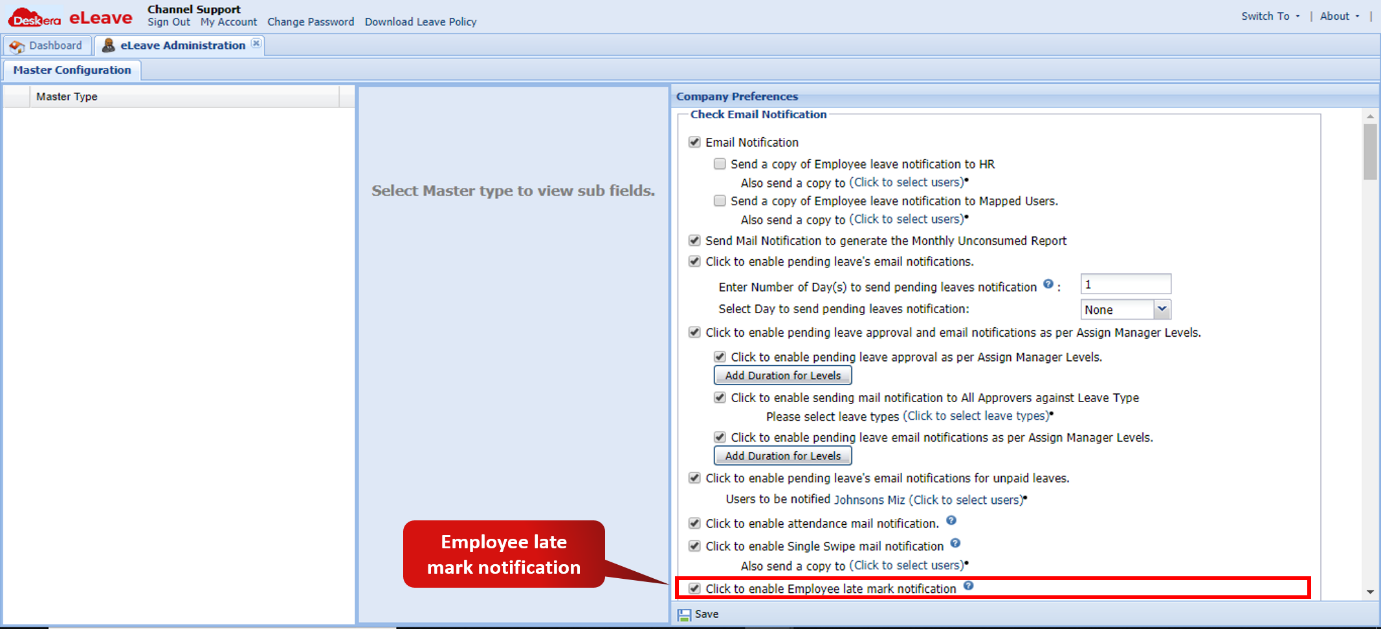 Fig. 3.1.2.1.10 Email Notification
Comments
0 comments
Please sign in to leave a comment.