
This article deals with the settings in the Master Configuration related to the Compensatory-Off and Time-Off features of the Deskera eLeave application.
Prerequisites:
- You have your Deskera eLeave application URL in place.
- You are the administrator of the eLeave application.
- Ensure Stable Internet Connectivity.
Compensatory-Off
Step 1: On the eLeave Dashboard, click on Master Configuration under the Administration widget.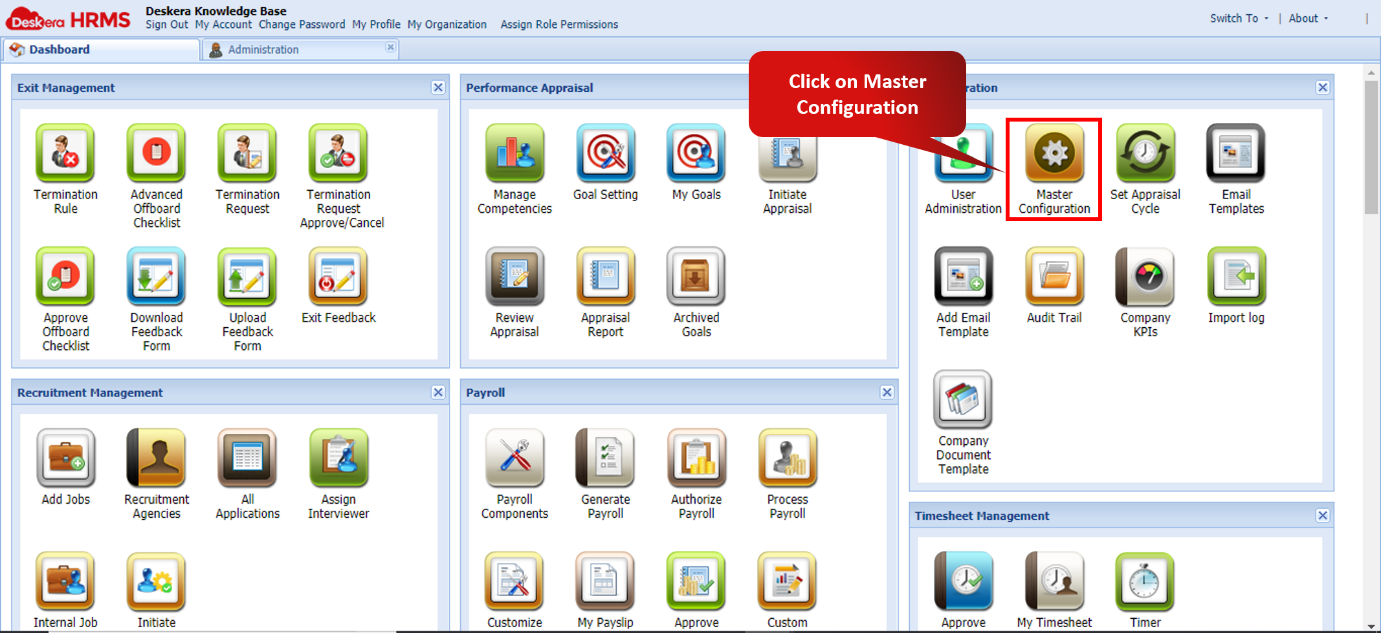 Fig. 3.1.2.3.1 eLeave Dashboard
Click to enable Compensatory Off functionality: Compensatory off functionality is enabled where in the user can apply for a compensatory-off against a holiday the user has worked on. Once compensatory-off is approved, user can apply leave against that compensatory-off.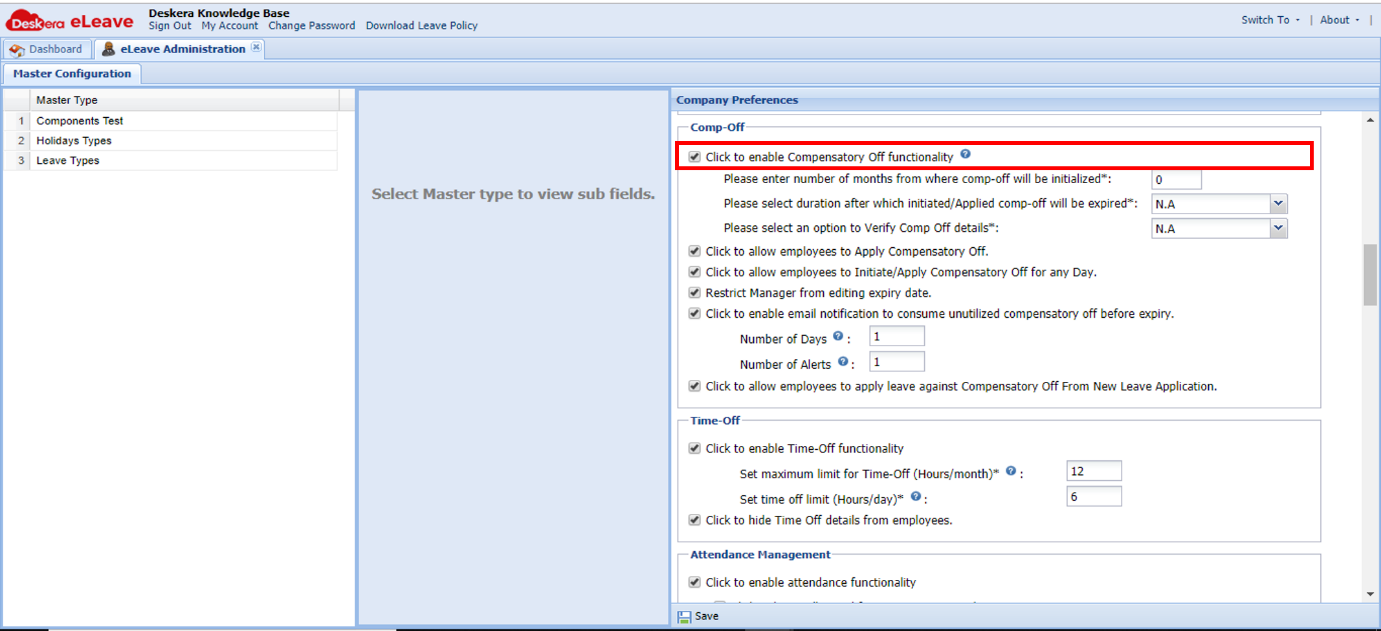 Fig. 3.1.2.3.2 eLeave Dashboard
Please enter number of months from where comp-off will be initialized: User can set a cut-off date from where compensatory-off can be initialized. E.g. If it is set as 1, compensatory-off can be initiated such that working holiday is not older than 1 month from current date. If it is set as 0 (by default), compensatory-off can be initialized from the start of previous financial year.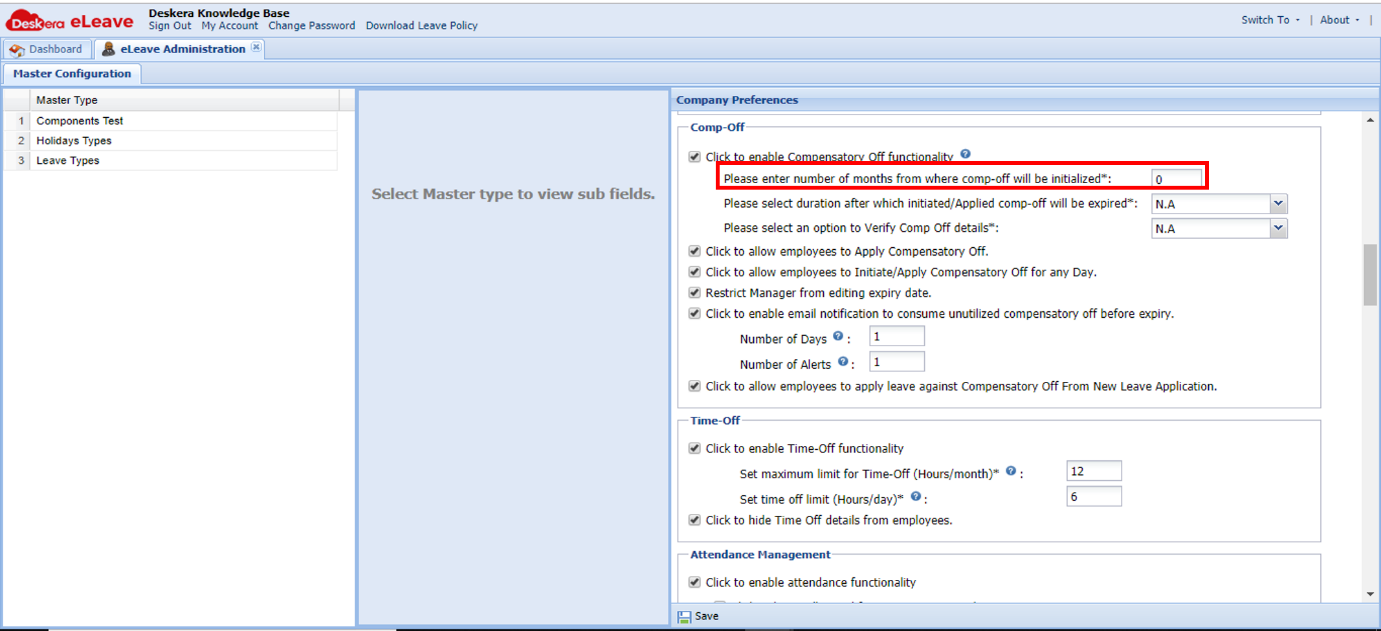 Fig. 3.1.2.3.3 eLeave Dashboard
Please select duration after which initiated/Applied comp-off will be expired: By default N.A is selected which means we can set the number of day / date, after which/ on which compensatory-off will expire while initiating/applying for compensatory-off.
If we select 1 week, compensatory-off will be expired in 1 week from the working holiday. A leave has to be taken within that duration itself. If an option is selected other than N.A.,
For user role - selected option will be applicable and expiry will set accordingly.
For Manager/HR/Admin/Role- selected option will be applicable and expiry will be set accordingly, although they can edit expiry date.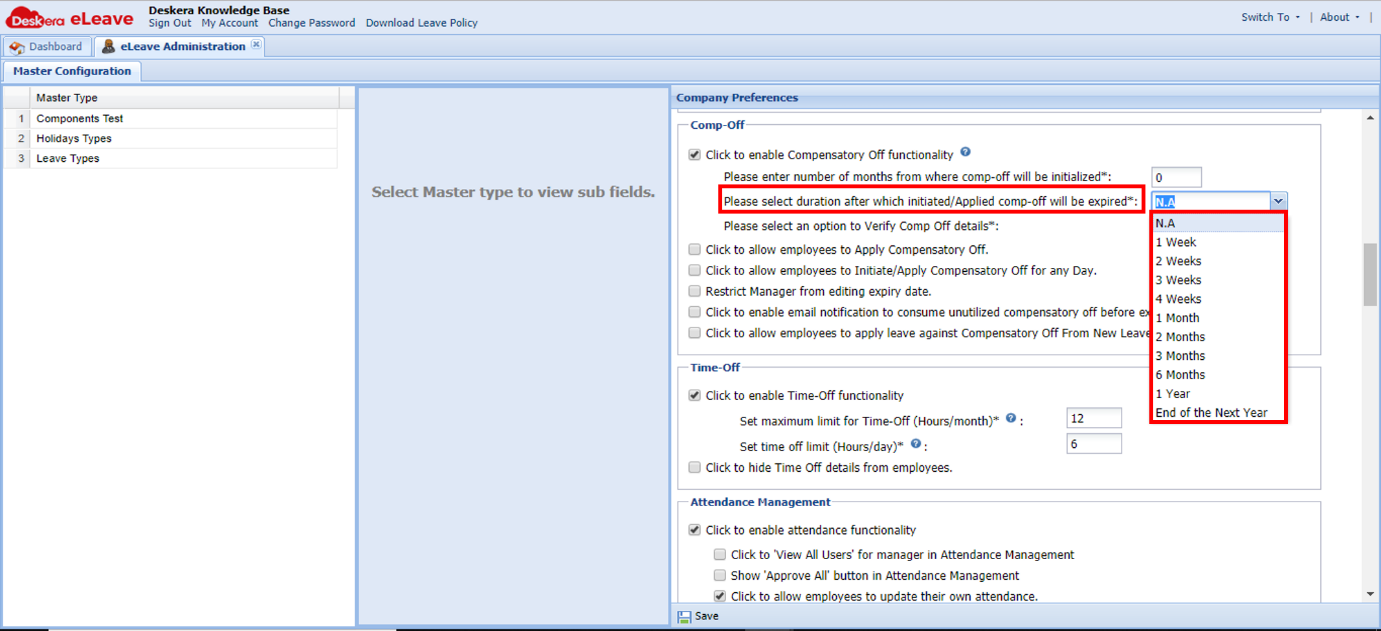 Fig. 3.1.2.3.4 eLeave Dashboard
Please select an option to Verify Comp Off details: By default N.A is selected, which means this is the normal flow where in user initiates/applies for compensatory-off and the manager approves/rejects it after verification. If the option selected is role, the nested option to select role to verify compensatory-off details is enabled.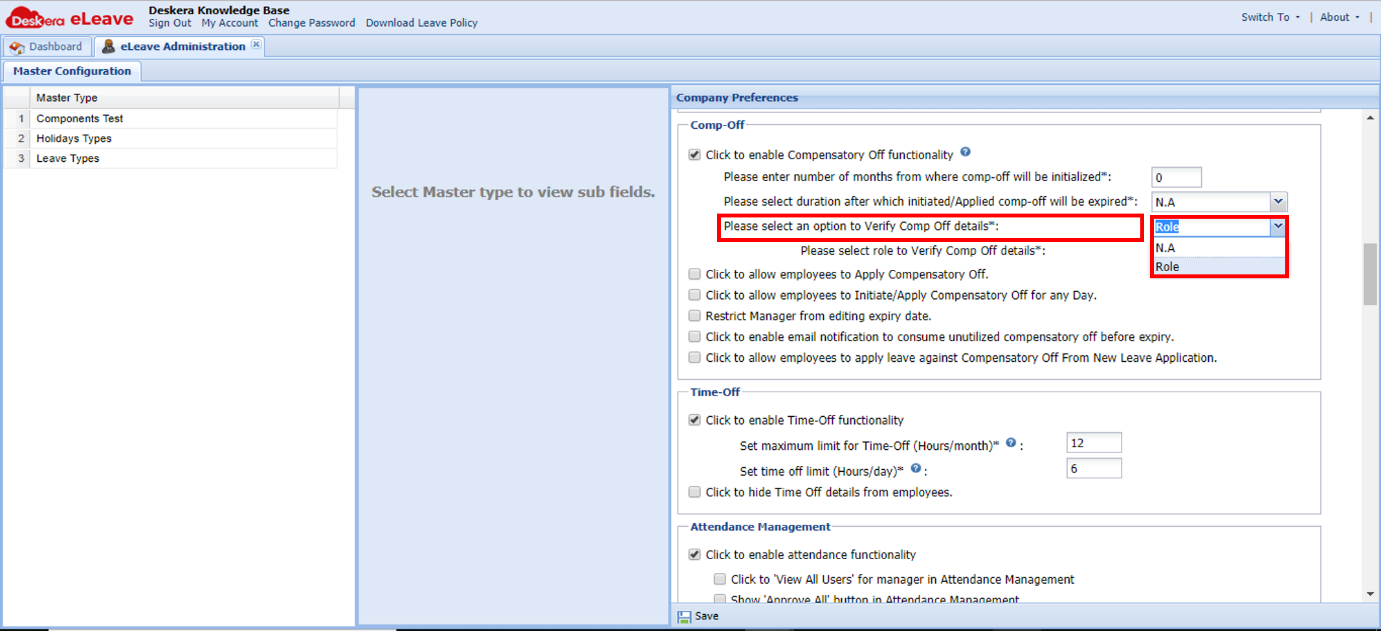 Fig. 3.1.2.3.5 eLeave Dashboard
Please select role to Verify Comp Off details: By Default- HR Role will be selected where in the compensatory-off initiated/applied by user/manager/admin/HR are sent to HR for verification. (Status- Pending Verification) HR can approve/reject verification. Once HR approves it, it is sent further for manager's approval. (Status- Pending). The manager can then perform further action on compensatory-off. If a role other than HR is selected, the same steps will be carried out for that role.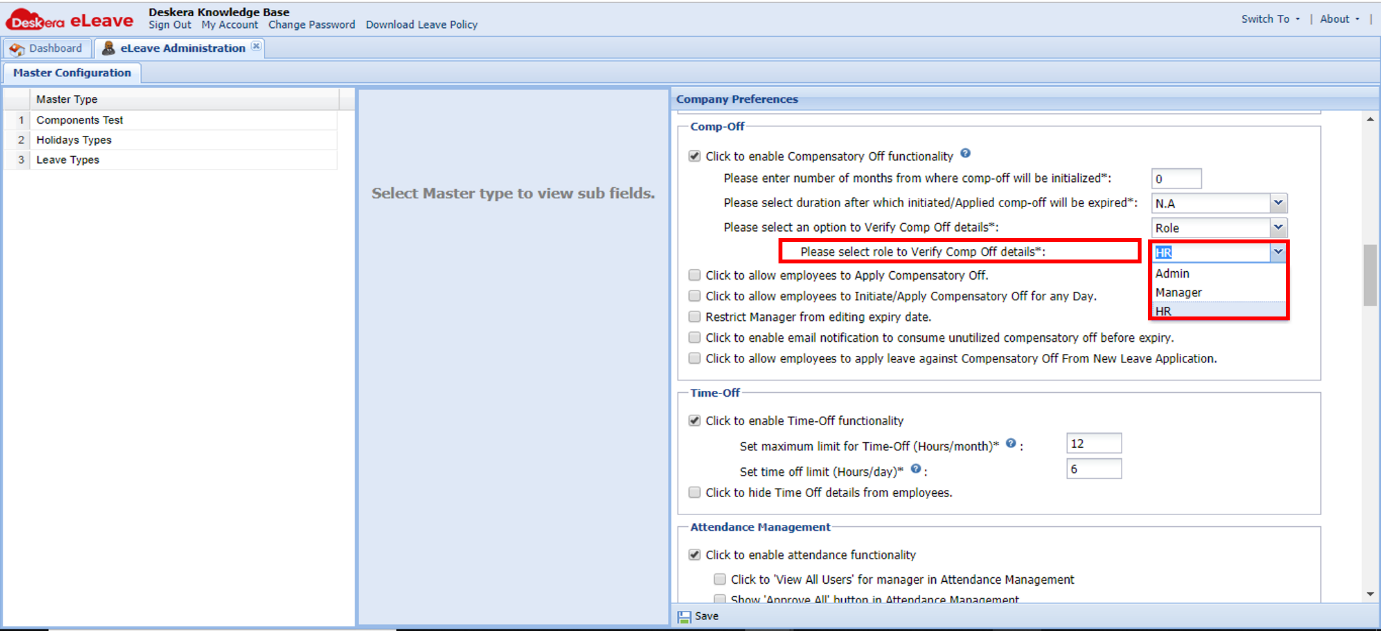 Fig. 3.1.2.3.6 eLeave Dashboard
Click to allow employees to Apply Compensatory Off: Employees can apply for compensatory-off along with leave dates (optional) based on user permissions. Applied compensatory-off will go through the entire process based on selection made on the other master configuration checks.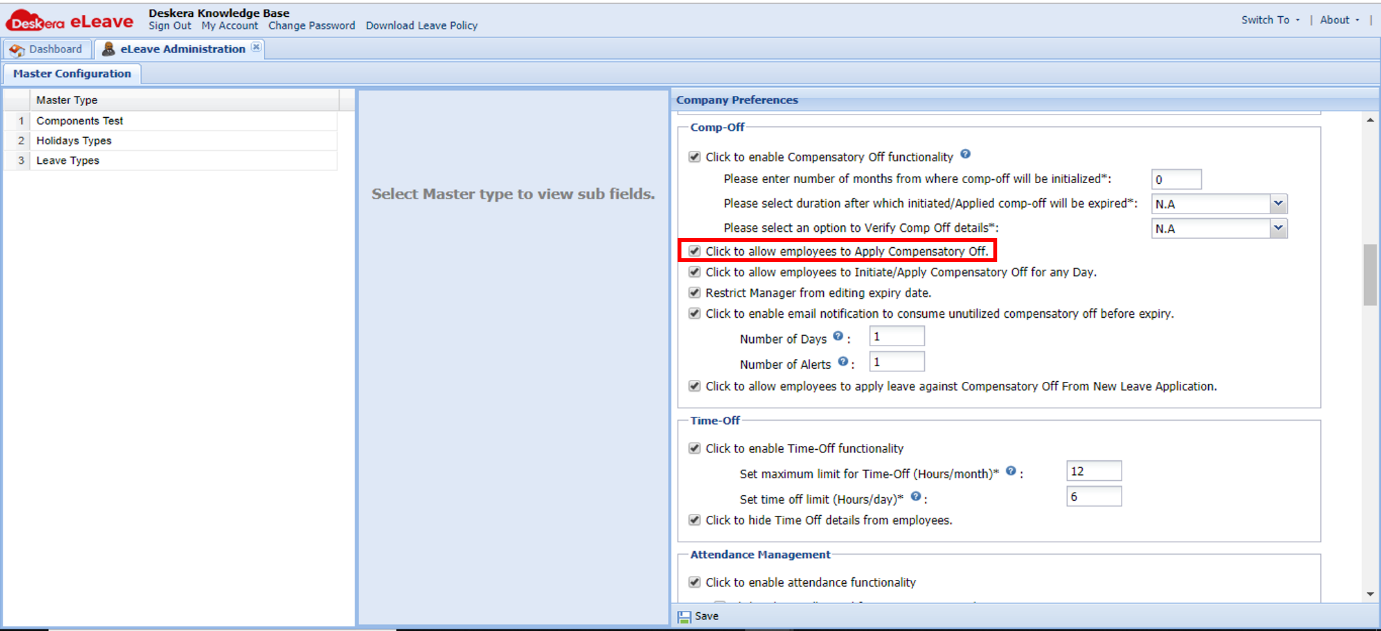 Fig. 3.1.2.3.7 eLeave Dashboard
Click to allow employees to Initiate/Apply Compensatory Off for any Day: If this check is enabled, compensatory-off can be initiated for any day irrespective of public holiday/weekly-off/working day.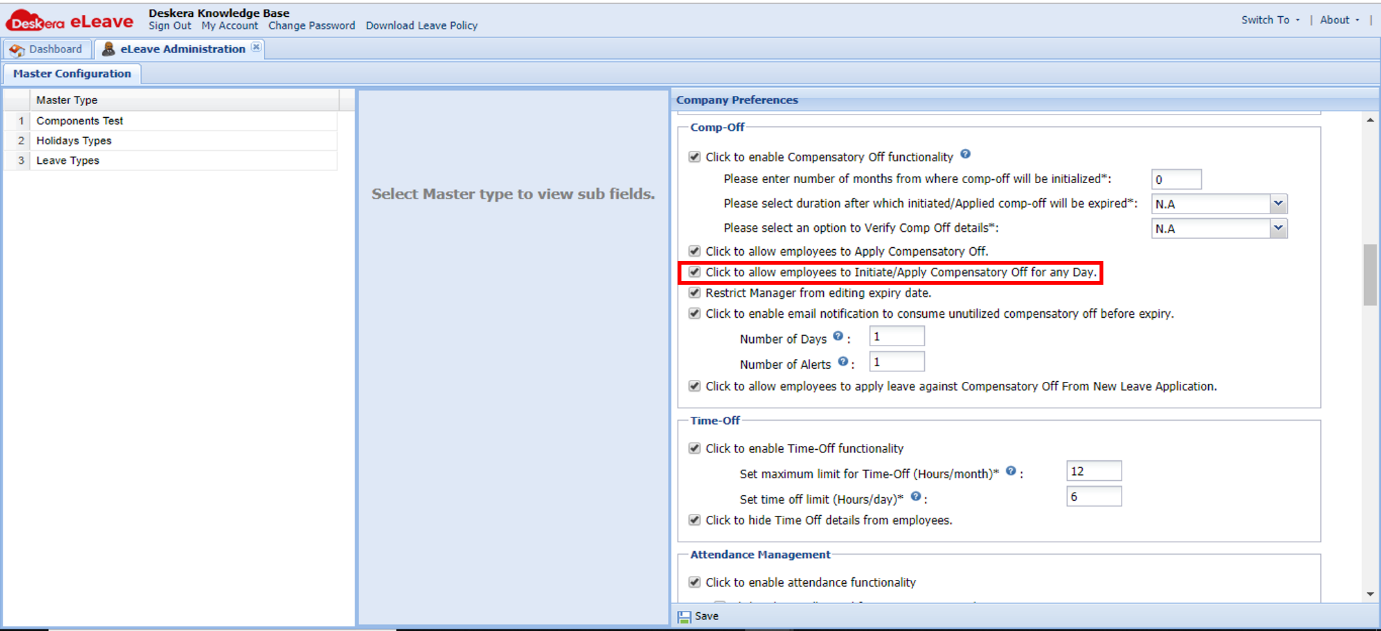 Fig. 3.1.2.3.8 eLeave Dashboard
Restrict Manager from editing expiry date: If this check is enabled, for the manager role- while initiating compensatory-off, default expiry (Other than N.A) will be set for initiated compensatory-off and manager cannot edit the expiry date. 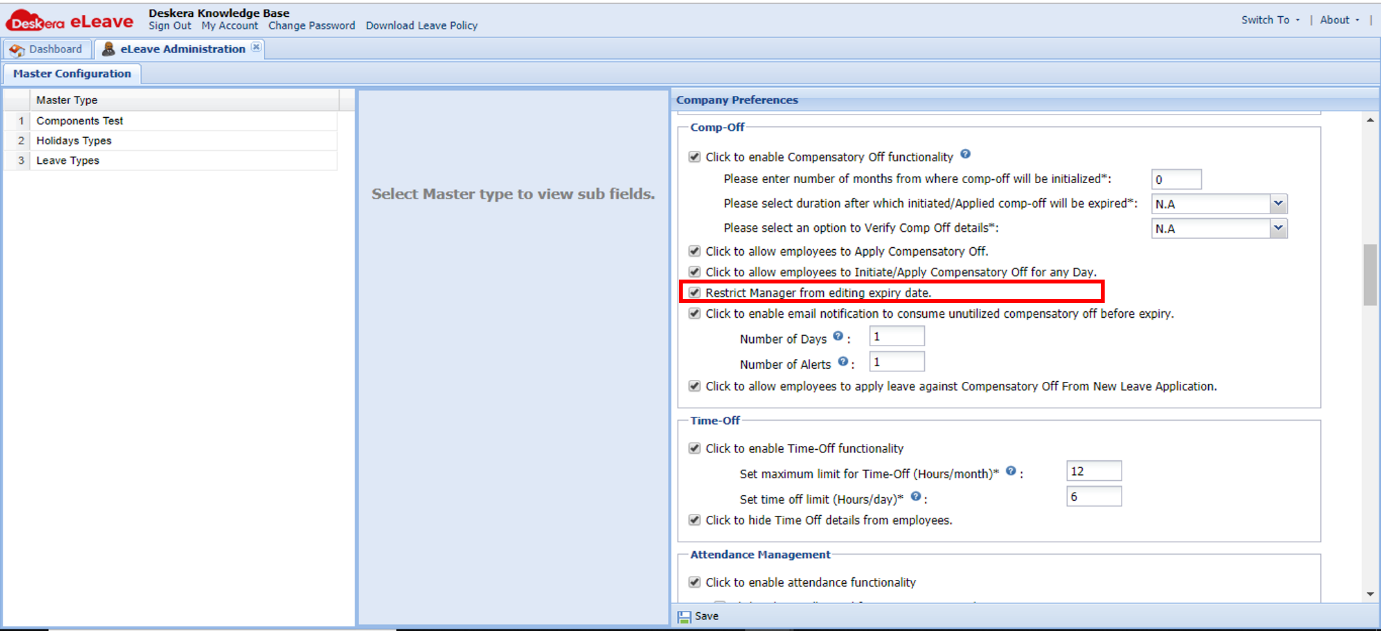 Fig. 3.1.2.3.9 eLeave Dashboard
Time-Off
Click to enable Time-Off functionality: If this check is enabled, Time-off functionality is enabled by which user can apply for Time-off for a day in terms of Minutes/Hours.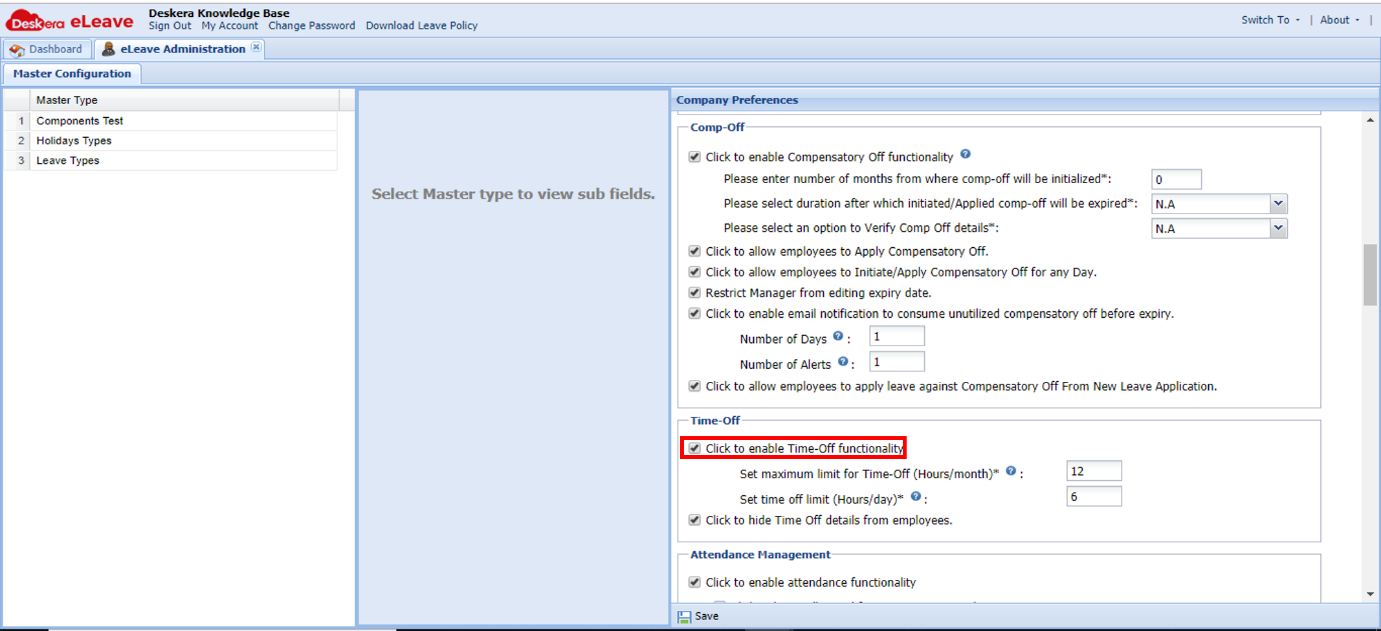 Fig. 3.1.2.3.10 eLeave Dashboard
Maximum Limit for Month and Day: Admin can set monthly limit and daily limit on time-off in terms of hours/month and hours/day respectively.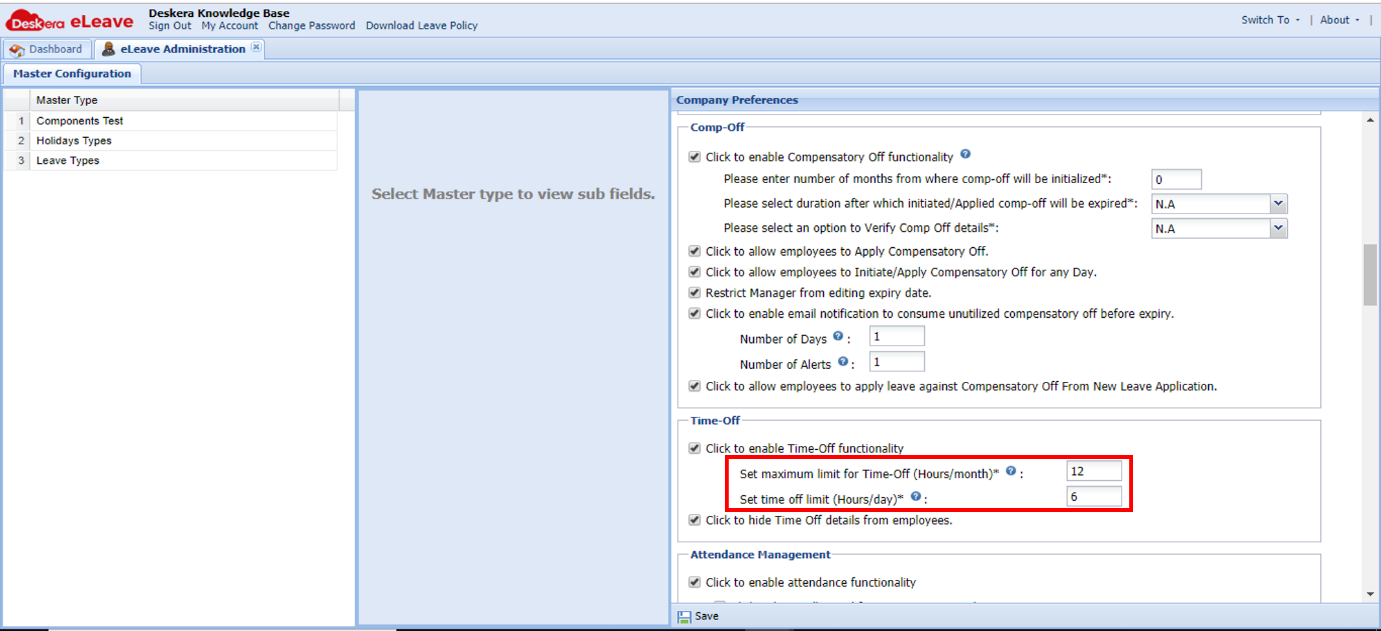 Fig. 3.1.2.3.11 eLeave Dashboard
Click to hide Time Off details from employees: If this check is enabled, time-off entitlement details are hidden from users. Only time-off taken is rendered at the Dashboard.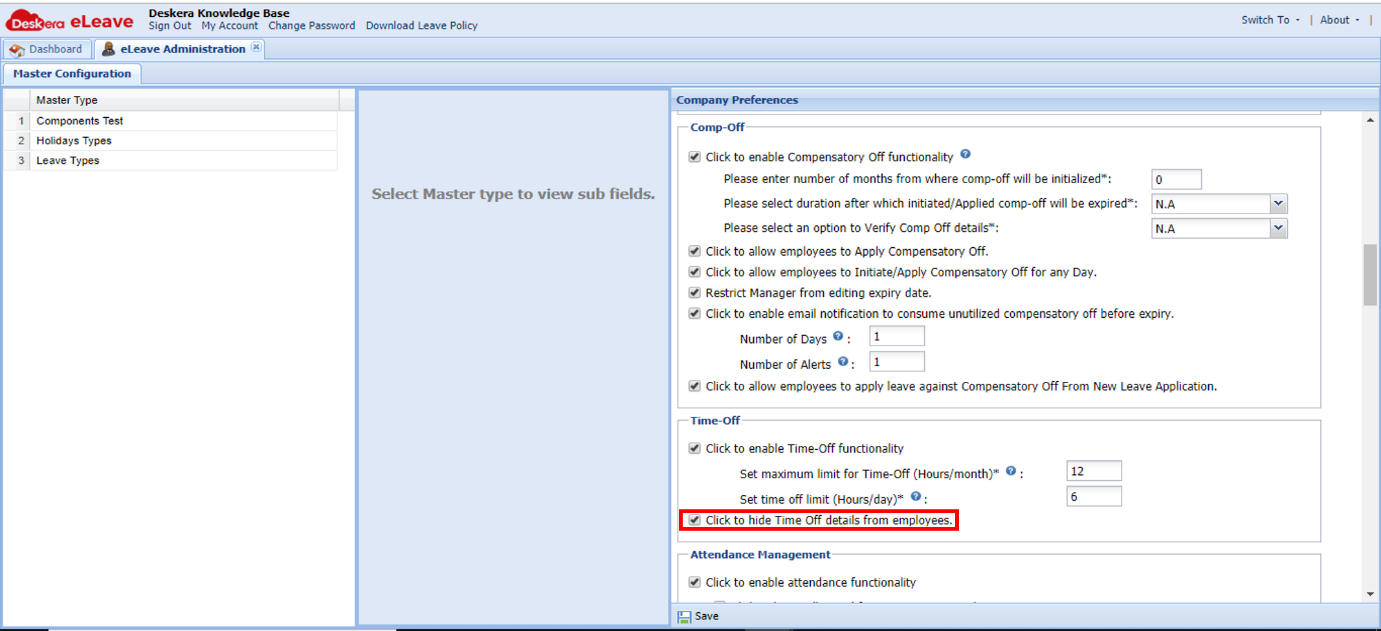 Fig. 3.1.2.3.12 eLeave Dashboard
Comments
0 comments
Please sign in to leave a comment.