
User Leave Manager feature enables you to adjust user leaves, import leaves and export custom reports according to leaves assigned.
Prerequisites:
1. You have your Deskera eLeave application URL in place.
2. You are the administrator of the eLeave application.
3. Ensure good internet connectivity.
Adjust Leaves
Step 1: Go to User Leave Manager under Administration widget in eLeave.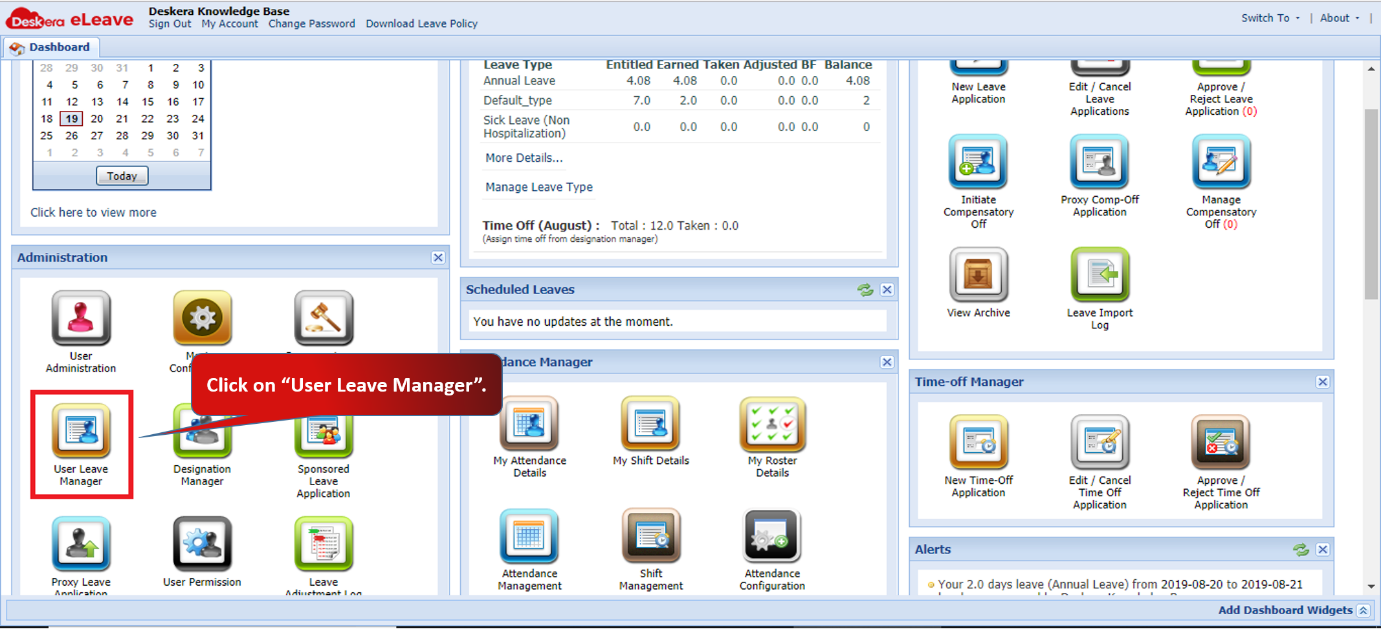 Fig 3.1.4.1 eLeave Dashboard
Step 2: Select the user and click on Adjust Leaves.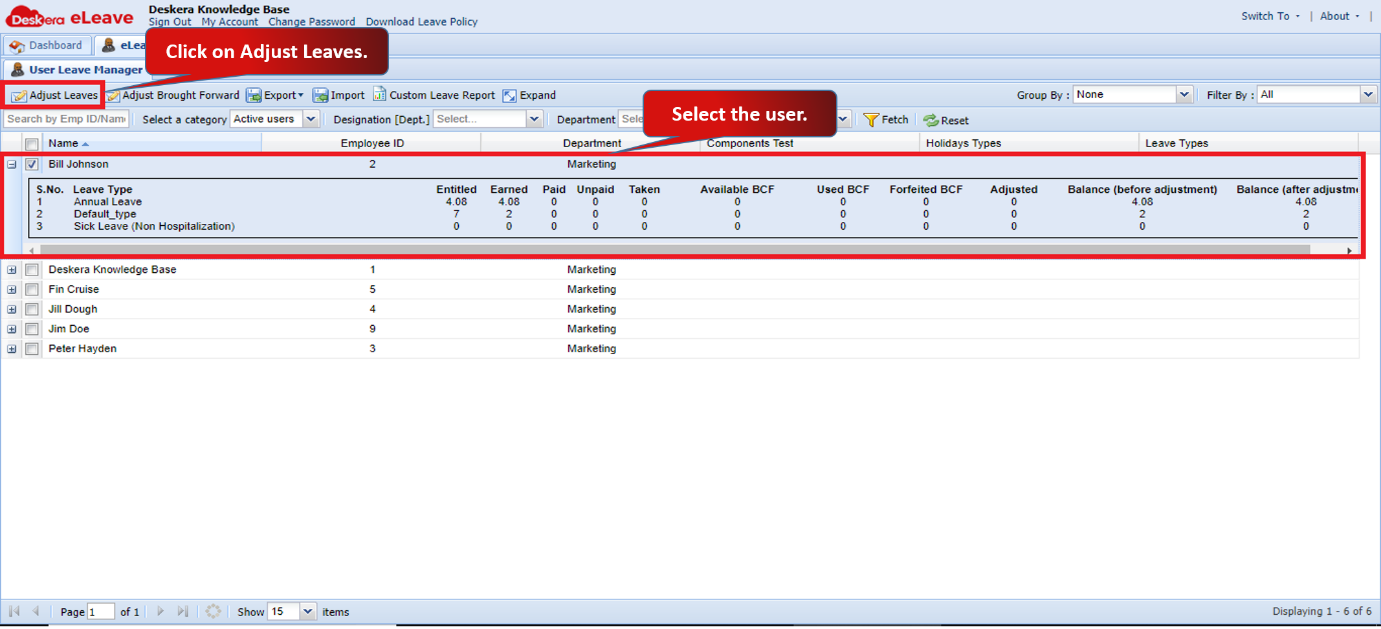 Fig 3.1.4.2 User Leave Manager
Step 3: Adjust the leaves accordingly and click on Submit to save.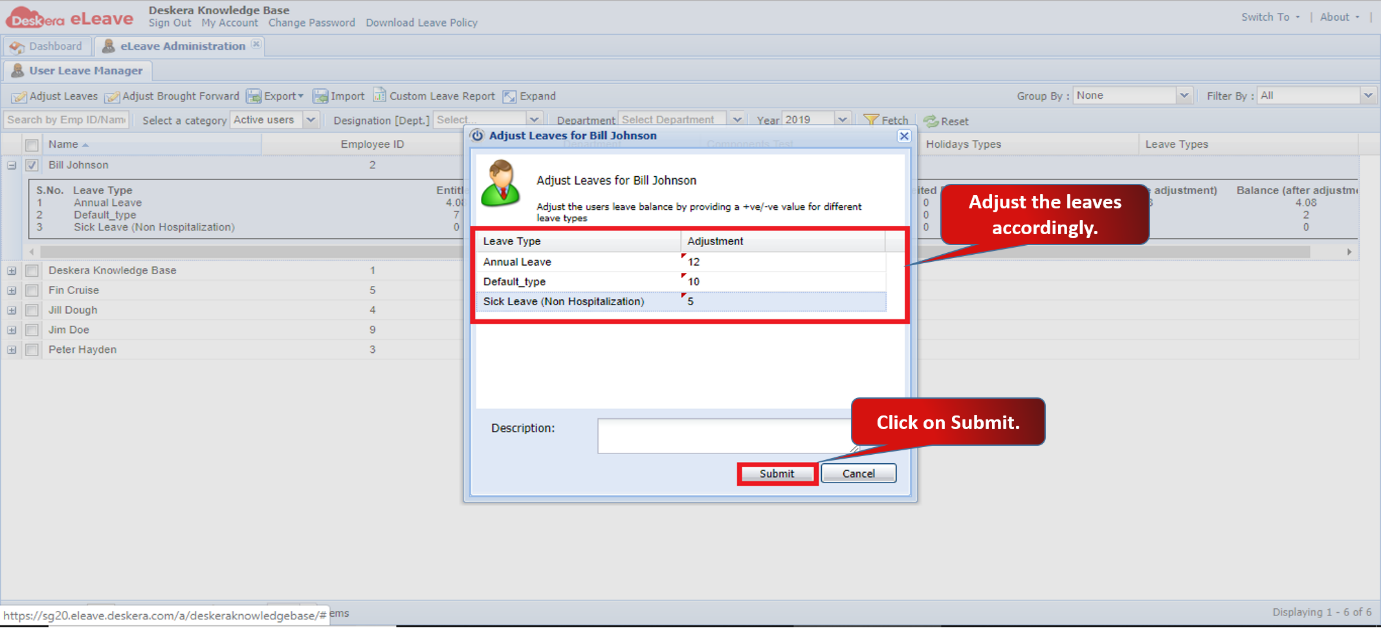 Fig 3.1.4.3 User Leave Manager
Adjust Brought Forward
Step 1: Select the user and click on Adjust Brought Forward.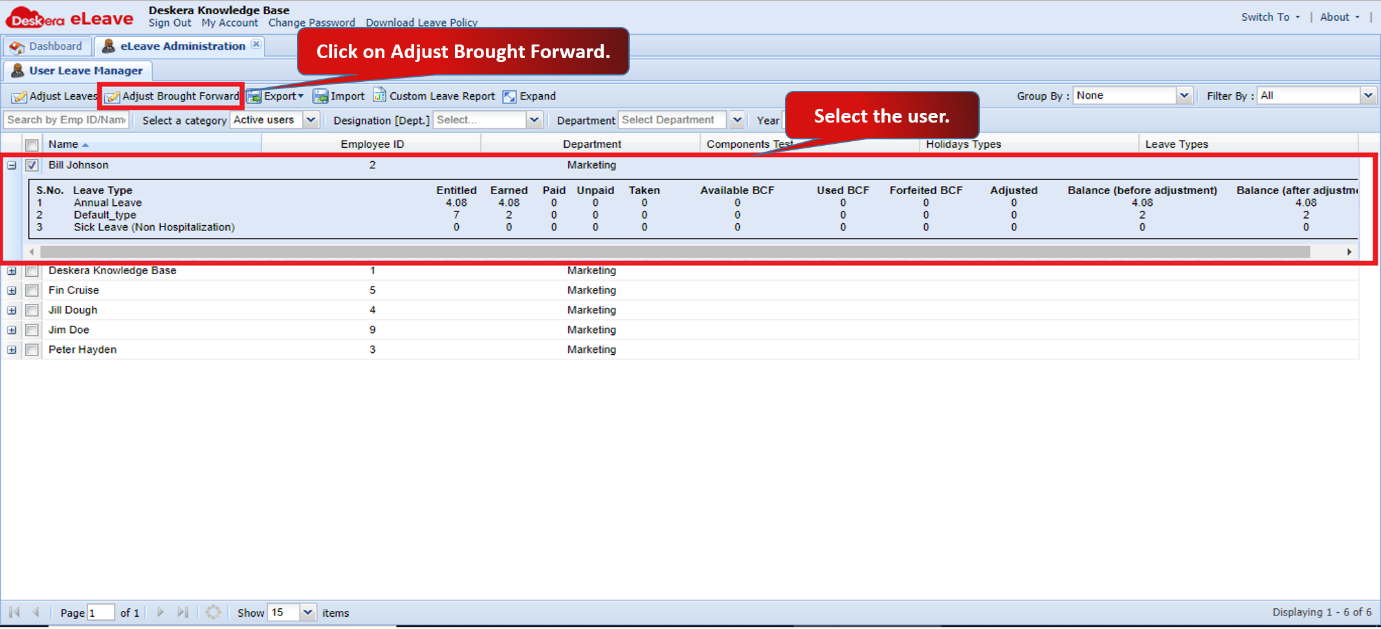 Fig 3.1.4.4 User Leave Manager
Step 2: Adjust the leaves accordingly and click on Submit to save.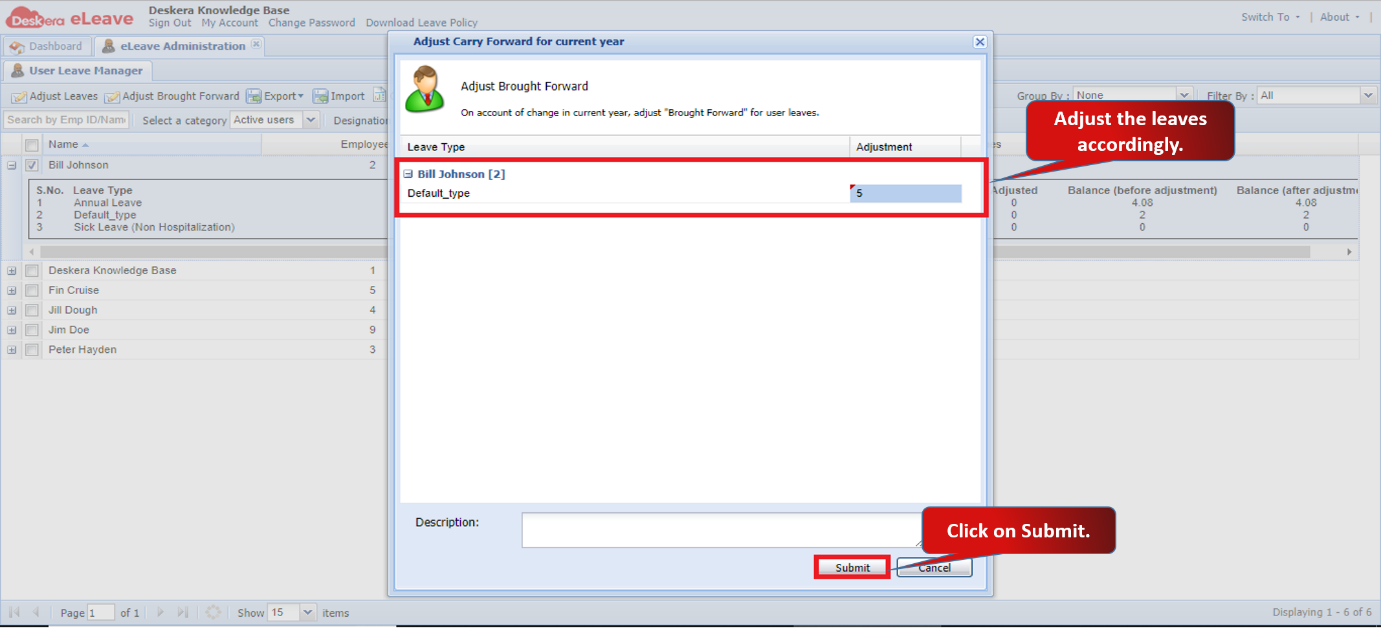 Fig 3.1.4.5 User Leave Manager
Import User Leave
Step 1: Click on Import. 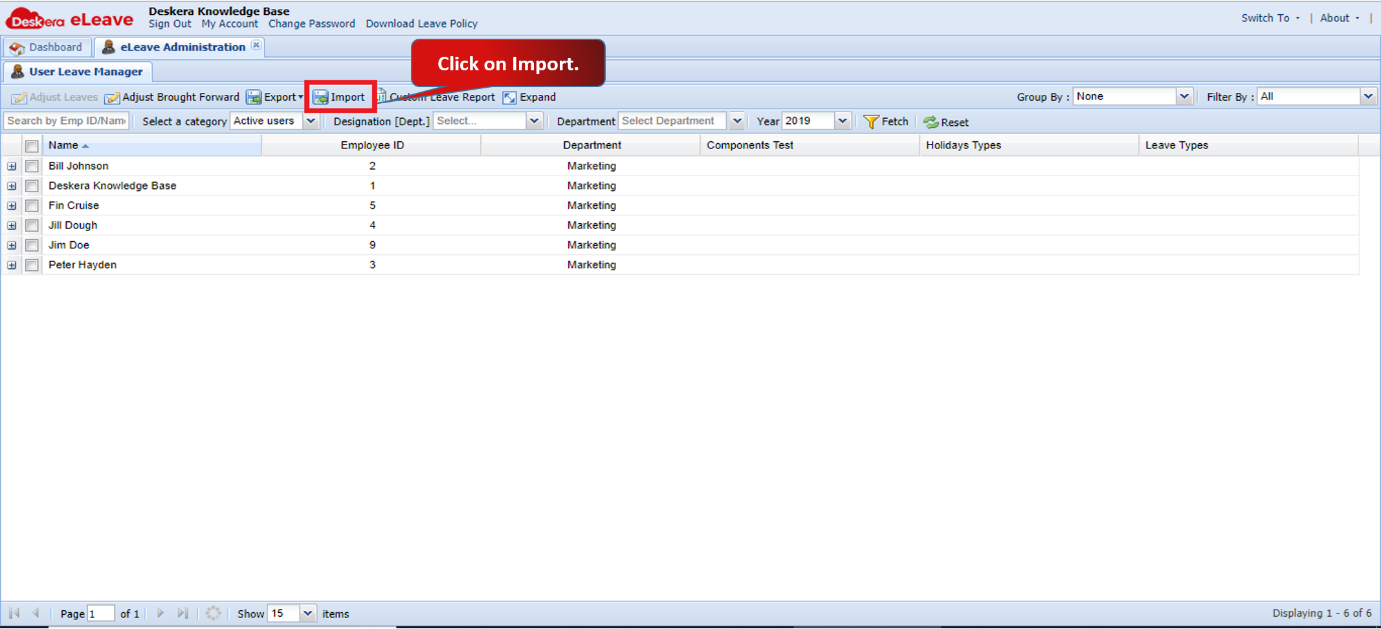 Fig 3.1.4.6 User Leave Manager
Step 2: You can download the sample file to upload the exact format. Upload the CSV file and select the date format used in the uploaded file. Click on Next. 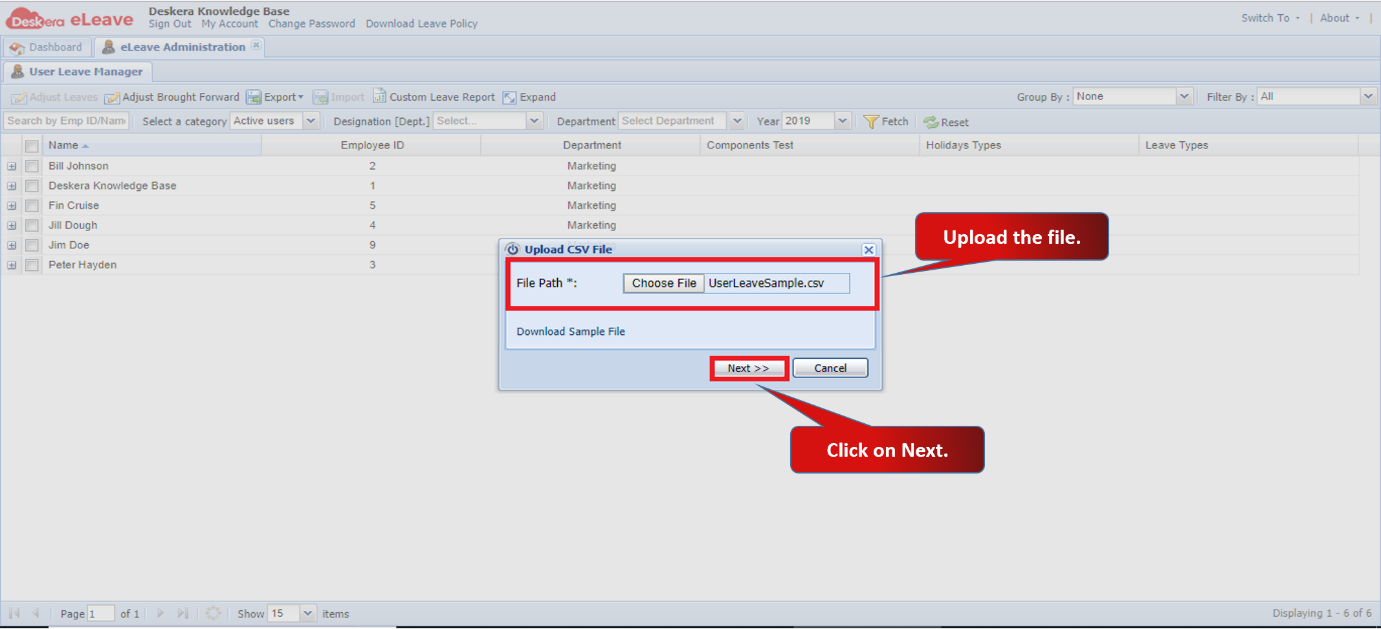 Fig 3.1.4.7 User Leave Manager
Step 3: Click on Auto-Map Headers to map the headers. You can map the headers manually as well. Click on Import. 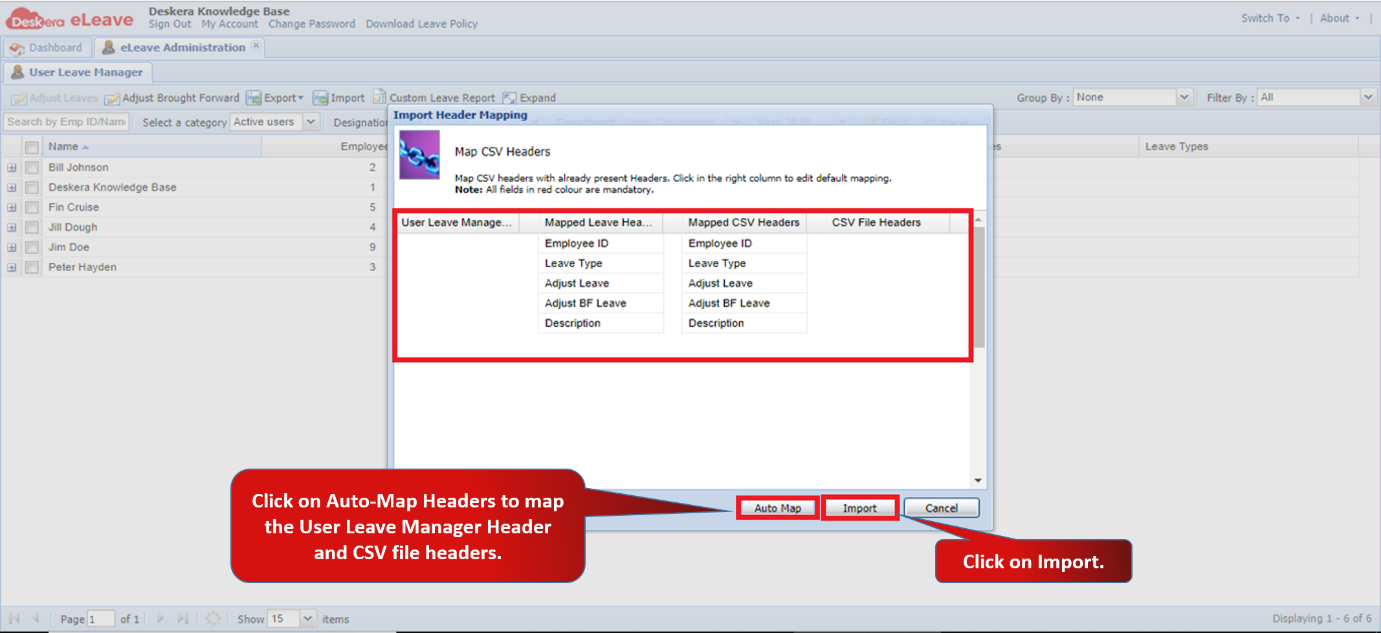 Fig 3.1.4.8 User Leave Manager
Custom Leave Report
Step 1: Select the user and click on Custom Leave Report.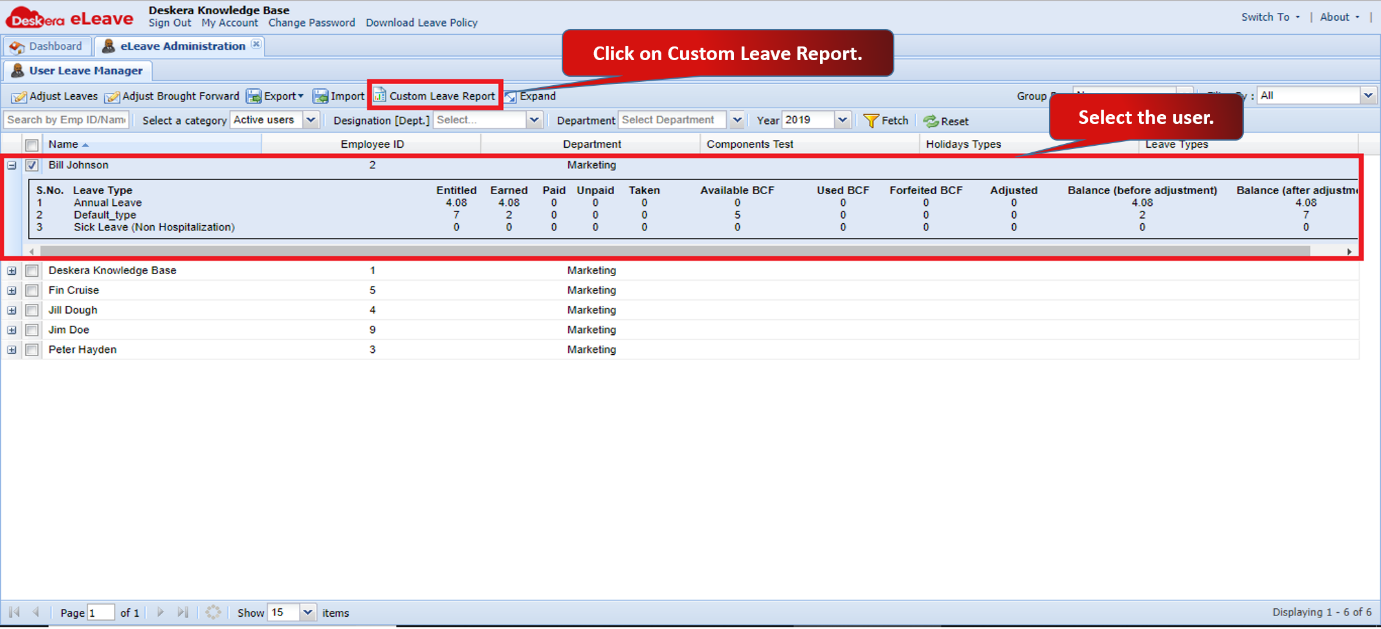 Fig 3.1.4.9 User Leave Manager
Step 2: Select the report to download and click on Submit.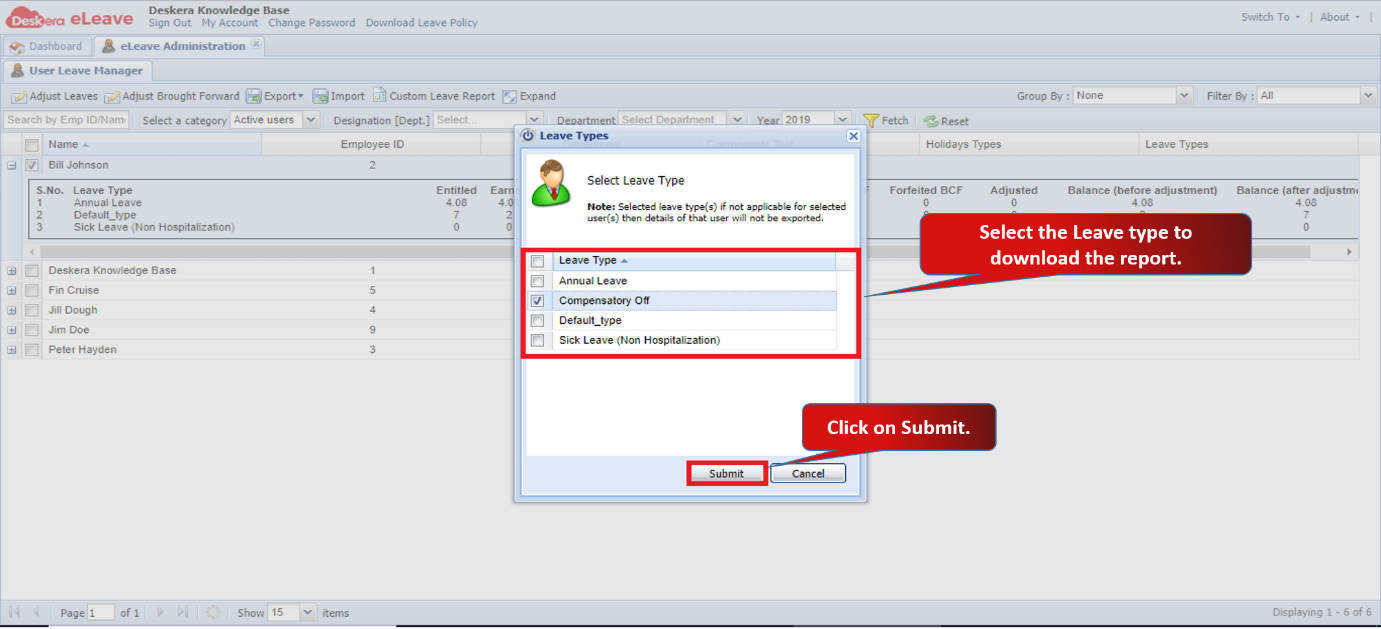 Fig 3.1.4.10 User Leave Manager
Comments
0 comments
Please sign in to leave a comment.