
Employee Designation Type Leave Model tab enables you to add, edit and delete employee designation leave models.
Prerequisites:
1. You have your Deskera eLeave application URL in place.
2. You are the administrator of the eLeave application.
3. Ensure good internet connectivity.
Add Designation Leave Model
Step 1: Go to Designation Manager under Administration widget in eLeave.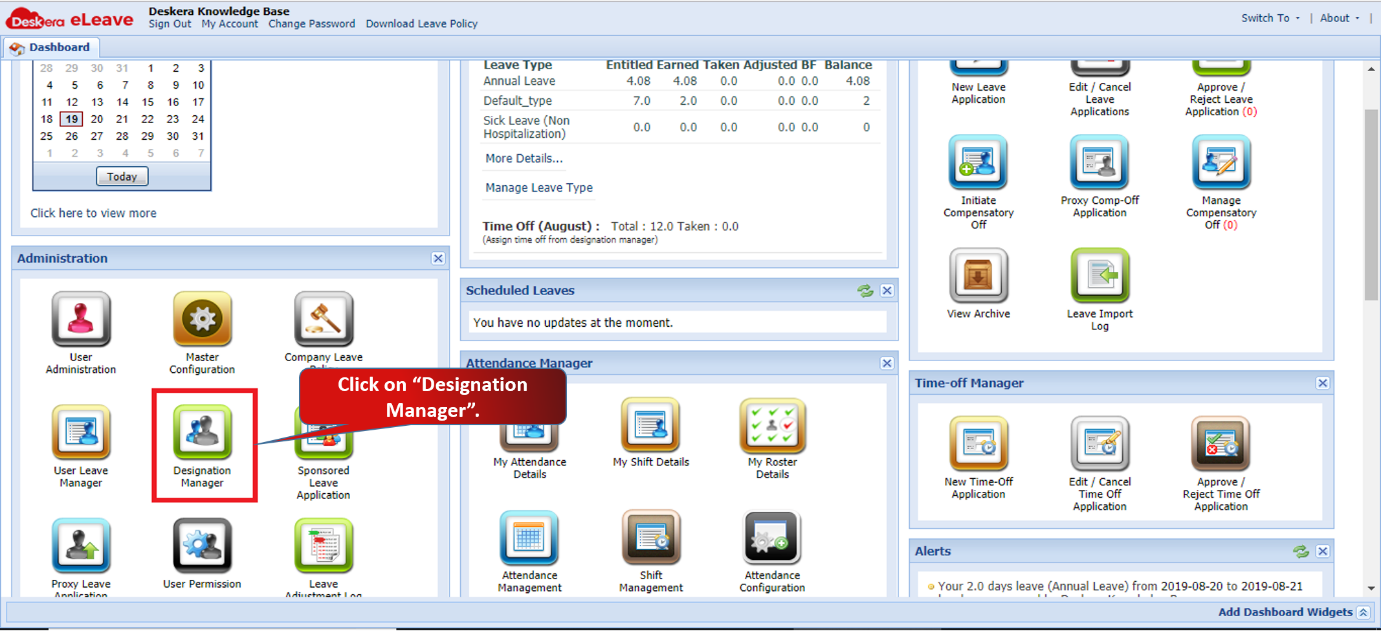 Fig 3.1.5.1.1 eLeave Dashboard
Step 2: Click on Add.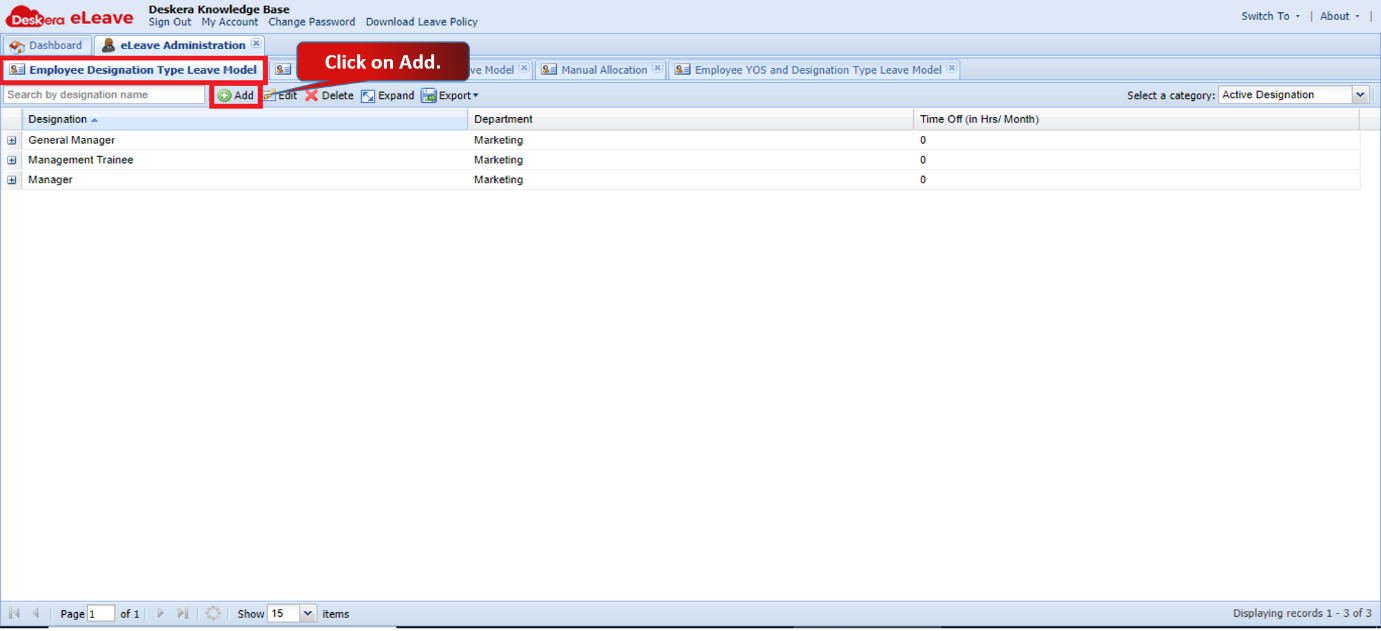 Fig 3.1.5.1.2 Add Leaves
Step 3: Fill in the required details and click on Submit to add.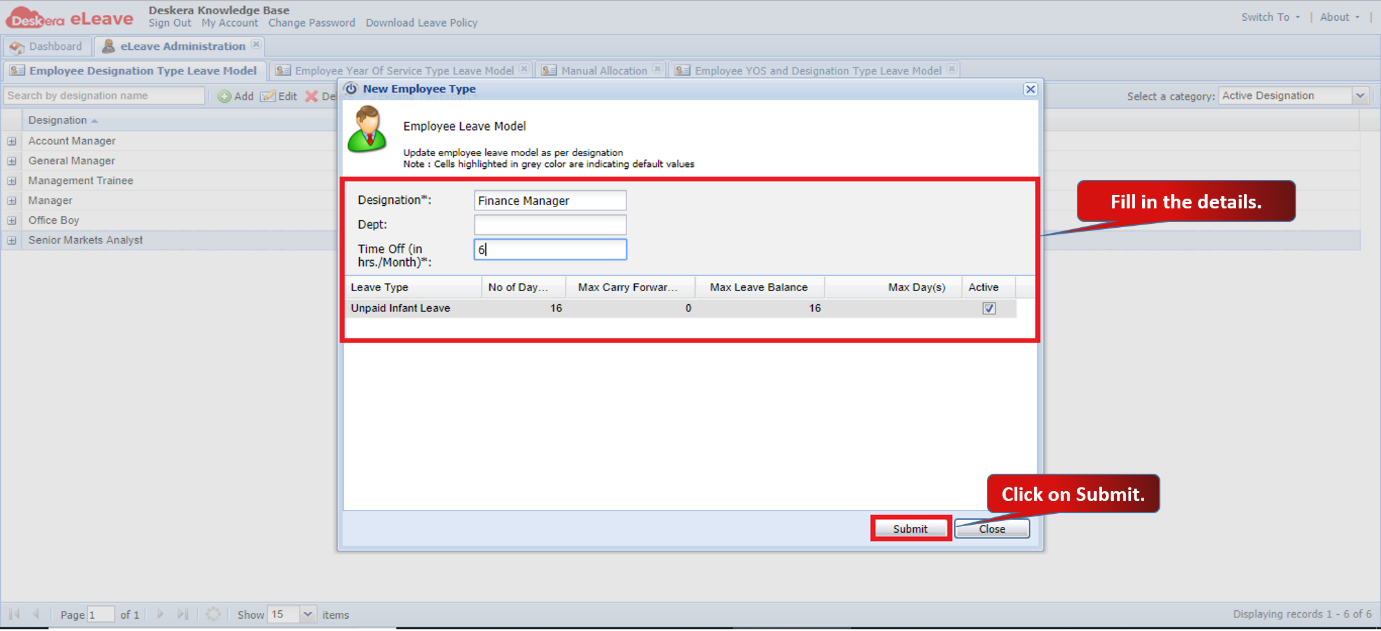 Fig 3.1.5.1.3 Add Leaves
Edit Designation Leave Model
Step 1: Select the designation and click on Edit.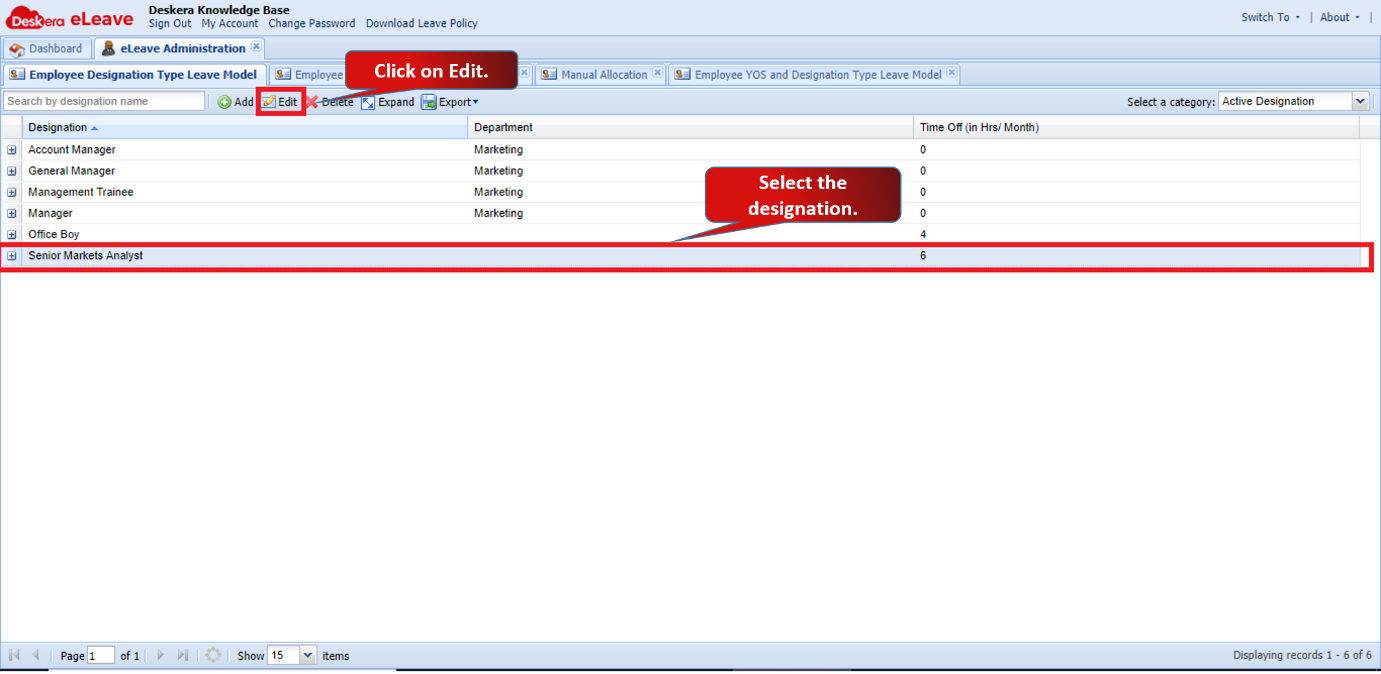 Fig 3.1.5.1.4 Edit Leaves
Step 2: Make the required changes and click on Submit to save.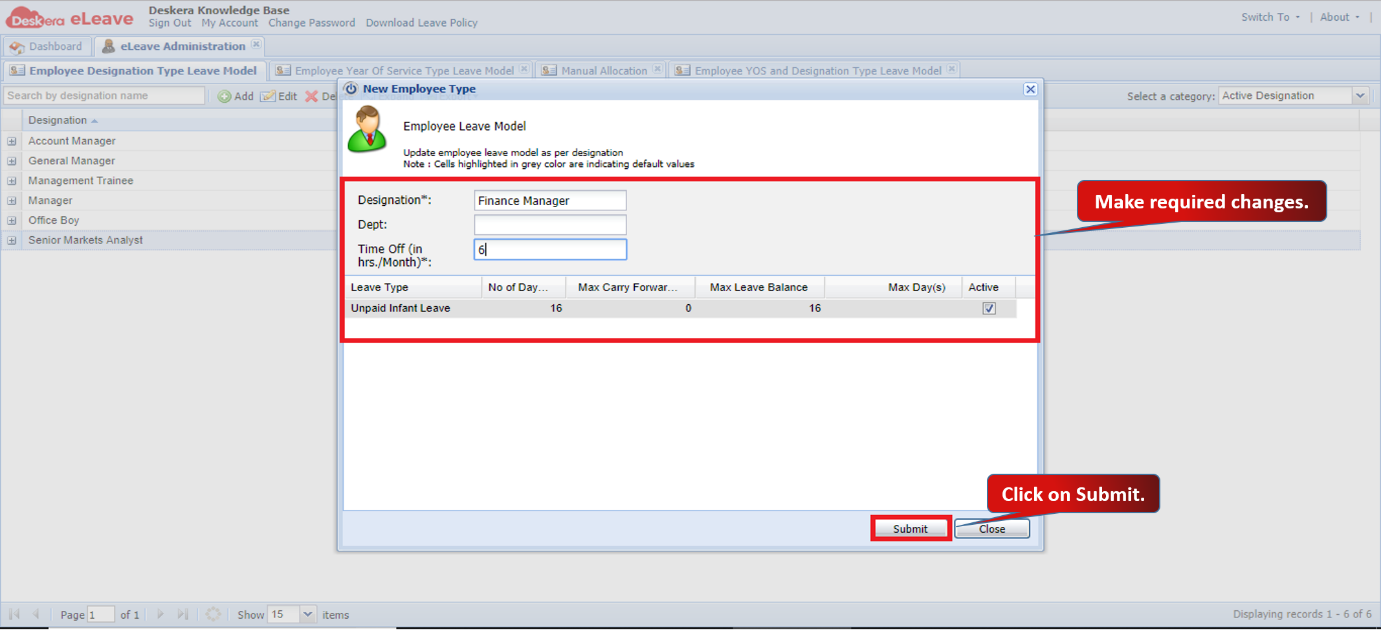 Fig 3.1.5.1.5 Edit Leaves
Delete Designation Leave Model
Step 1: Select the designation and click on Delete. 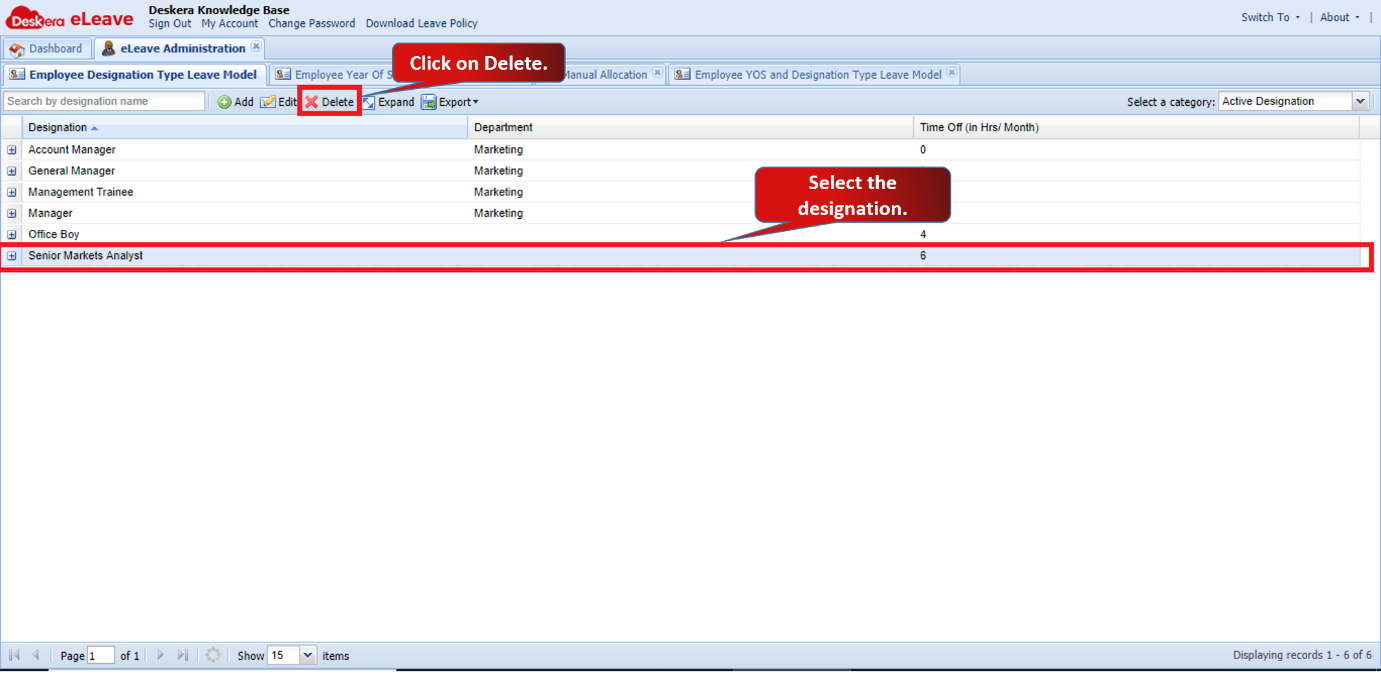 Fig 3.1.5.1.6 Delete Leaves
Step 2: Click on Yes to confirm. The designation leave type model will be deleted.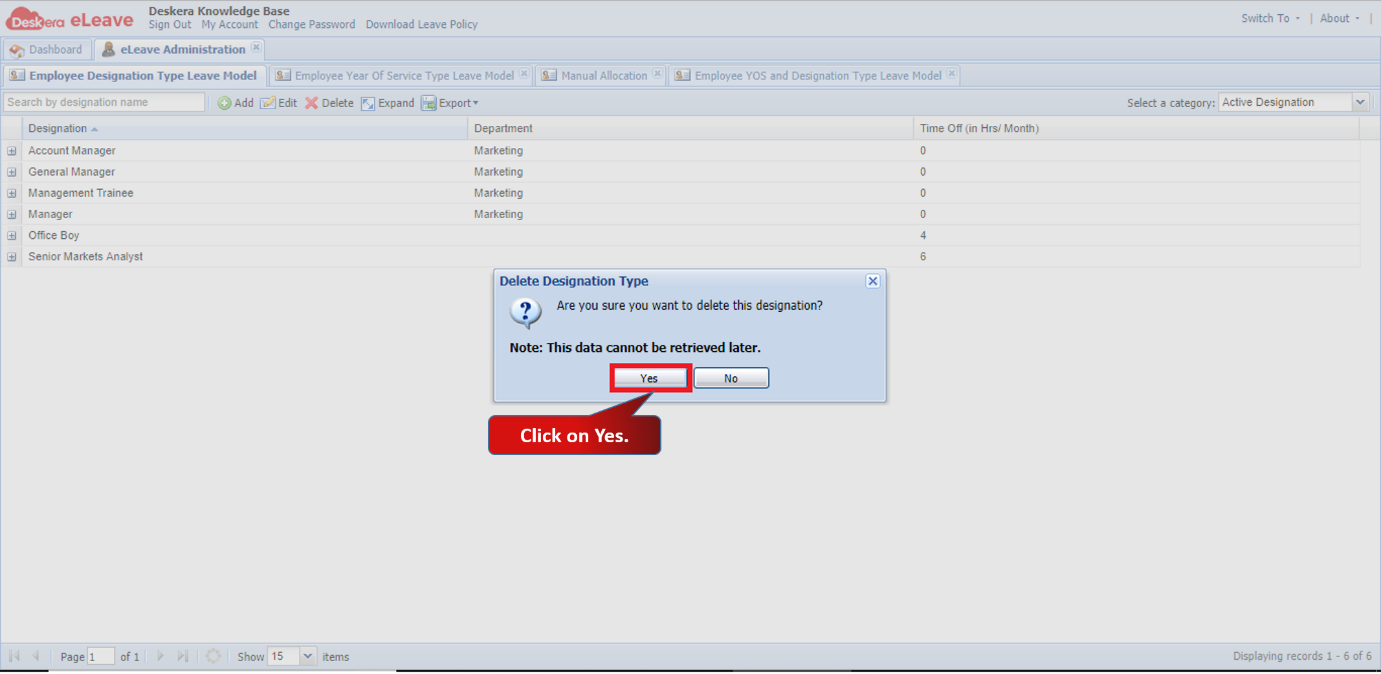 Fig 3.1.5.1.7 Delete Leaves
Comments
0 comments
Please sign in to leave a comment.