
To configure standard Email templates in order to send bulk Emails or automated notification emails from Deskera e-Leave application, Configure Email Template is used. This article briefs us how to configure Email templates in the Deskera e-Leave Application
Prerequisites:
- You have your Deskera eLeaves application URL in place.
- You are the administrator of the eLeaves application.
- Ensure Stable Internet Connectivity.
Step 1: On the e-Leaves Dashboard, Click on Configure Email Template under the Administration Widget.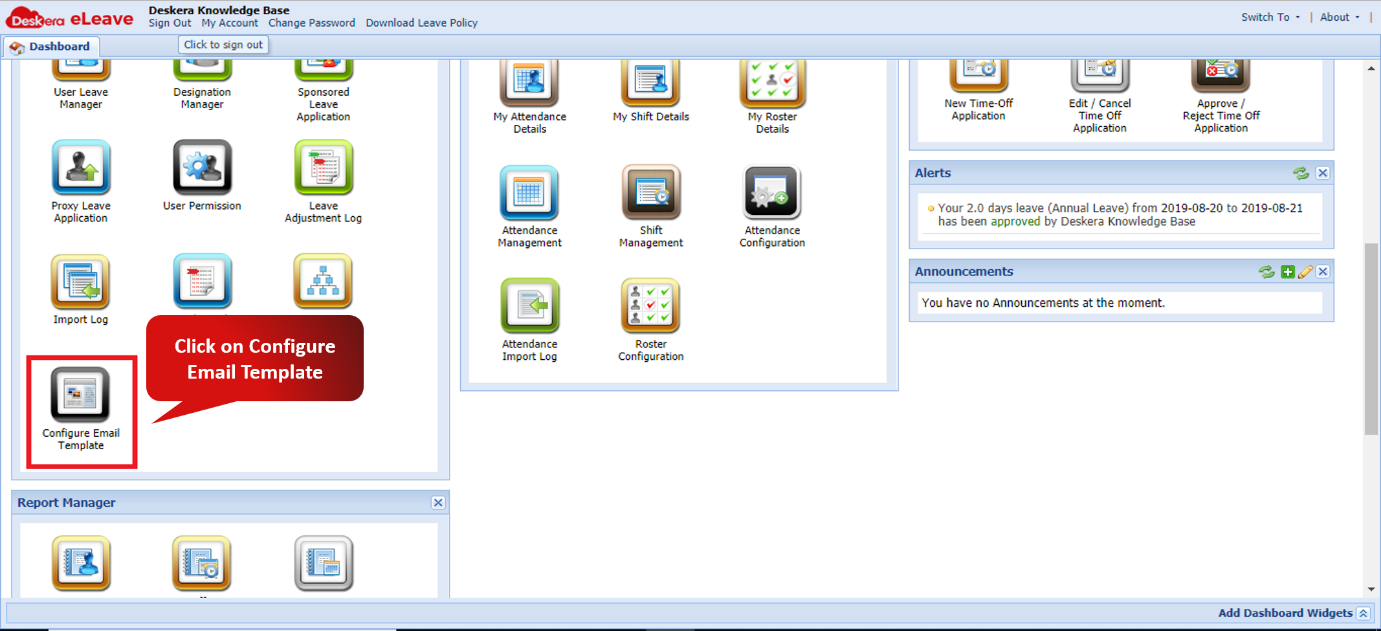 Fig. 3.1.11.1 e-Leaves Dashboard
Step 2: Choose the template you want to configure from the available standard templates.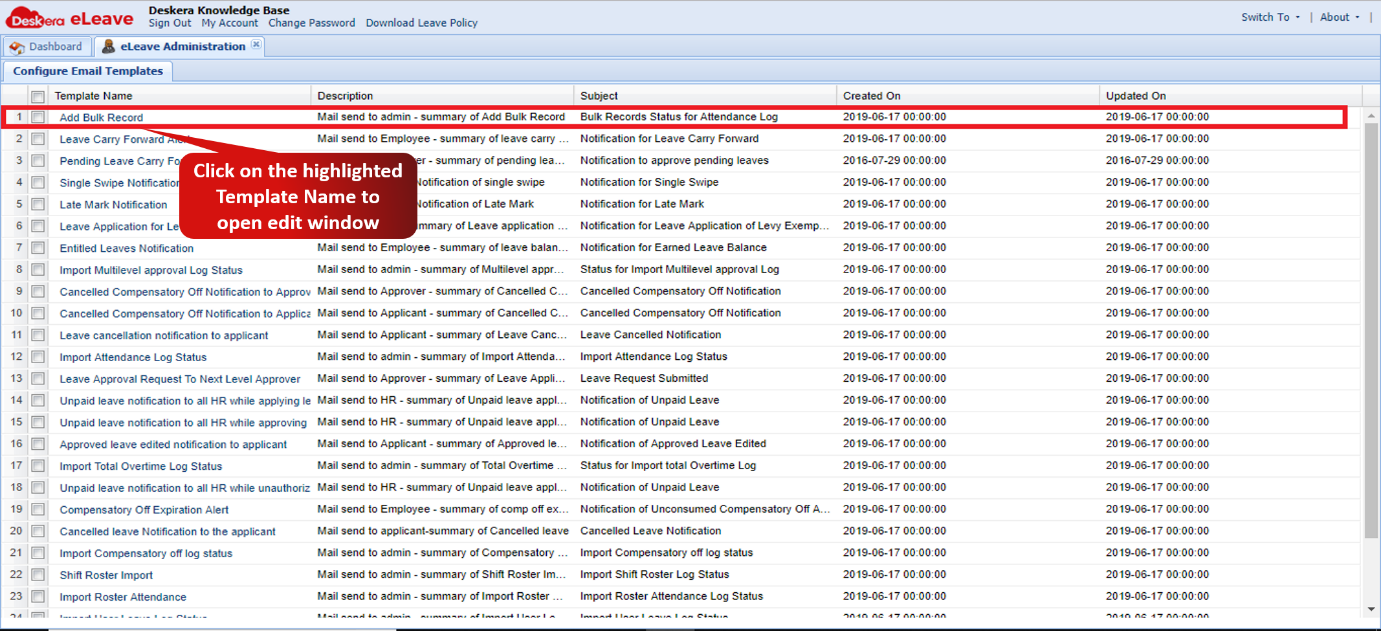 Fig. 3.1.11.2 Configure Email template Window
Step 3: Make the Layout of the email as required using the place holders and content of the email accordingly and click on save to save the configuration.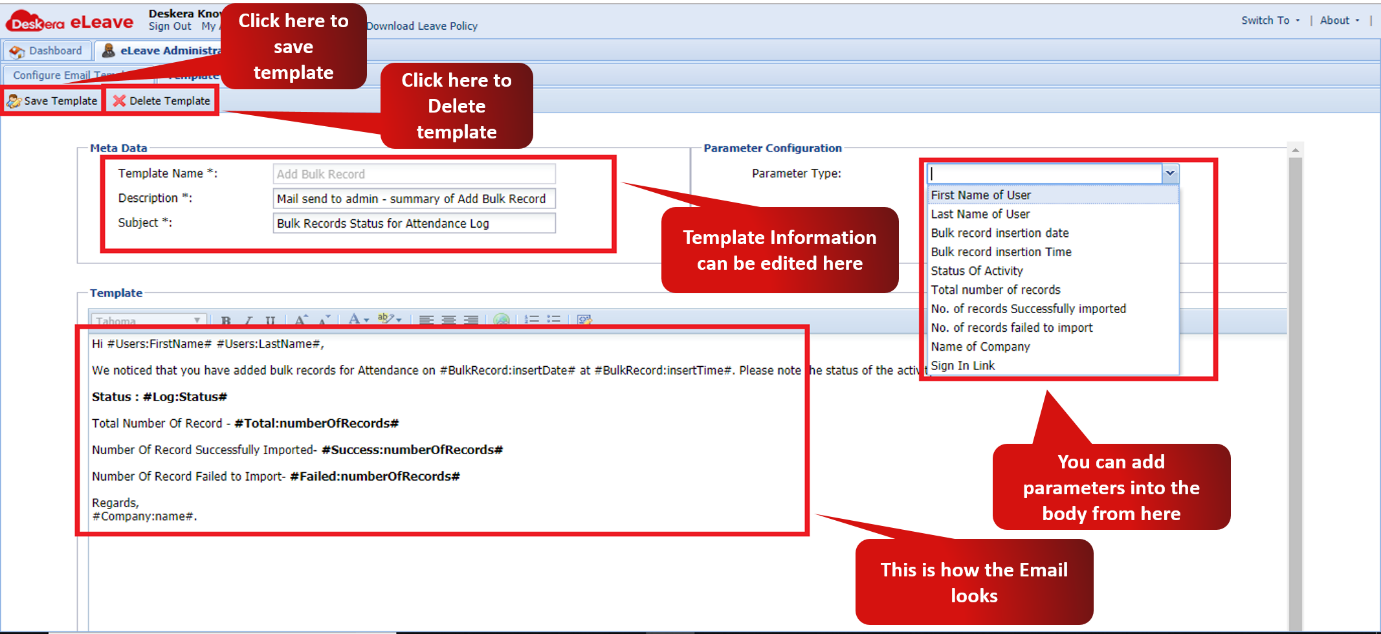 Fig. 3.1.11.3 Edit Email Template window
Comments
0 comments
Please sign in to leave a comment.