
Sync Cost Center feature helps you to sync Cost centers from ERP to eClaim. This is a two- way integration process.
Prerequisites:
1. You have your Deskera eClaims application URL in place.
2. You are the administrator of the eClaims application.
3. Ensure good internet connectivity.
Step 1: Go to ERP and click on Dimensions under Masters. Click on Add Dimensions and create a new dimension named Cost Center. Make sure to tick mark “Is for eClaims” option. Click on Add Dimensions to Save.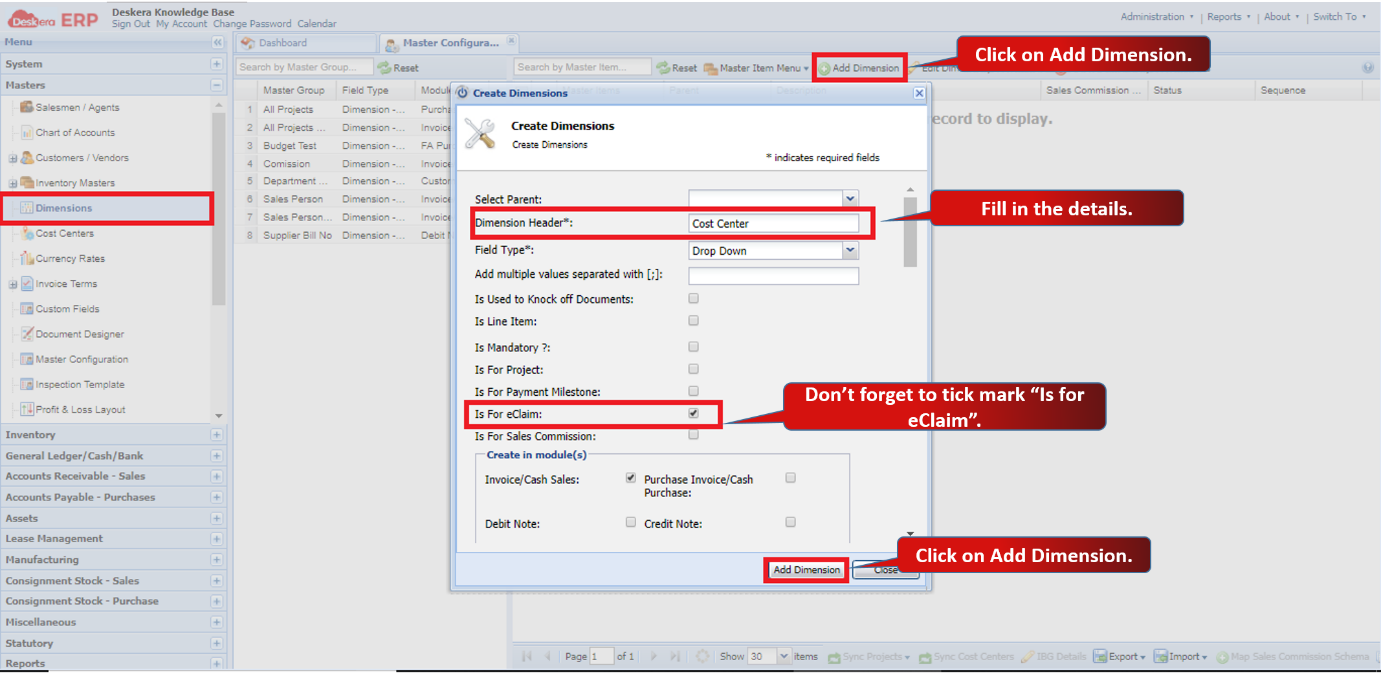 Fig 4.6.1.4.1 Dimensions in ERP
Step 2: Go to Master Item menu and click on Add. Fill in the details to add new cost centers. You can add multiple cost centers as required.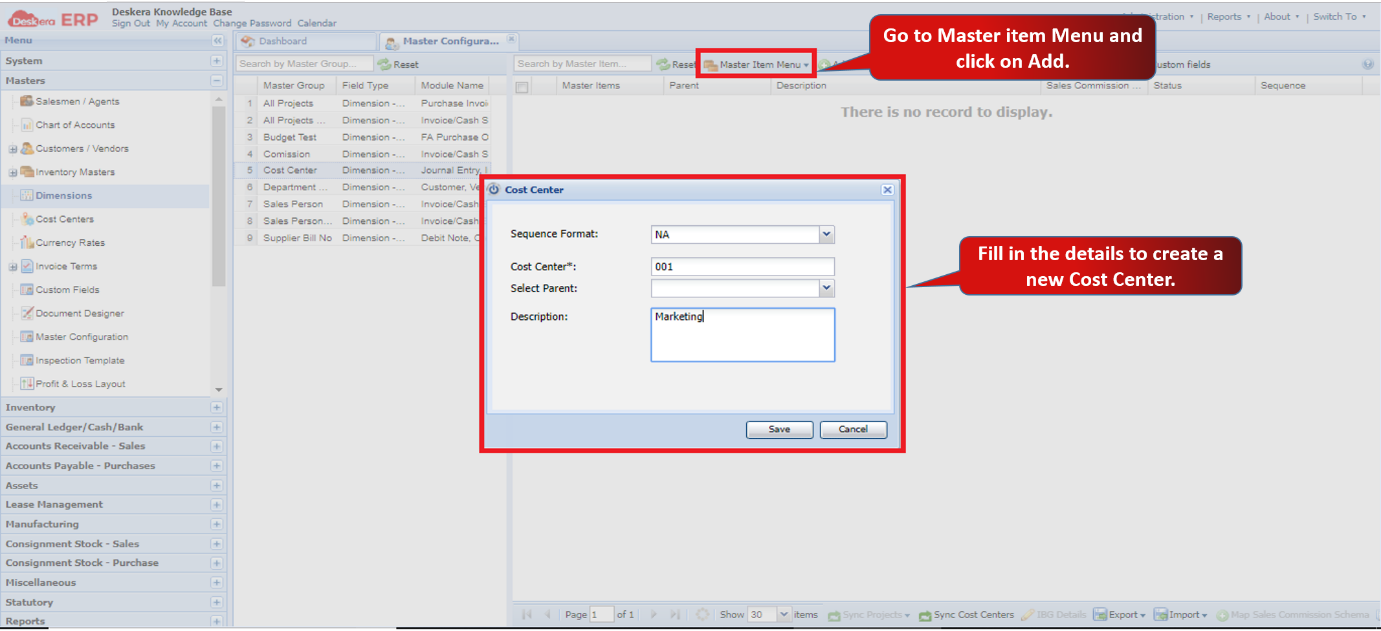 Fig 4.6.1.4.2 Dimensions in ERP
Step 3: Cost centers will be added.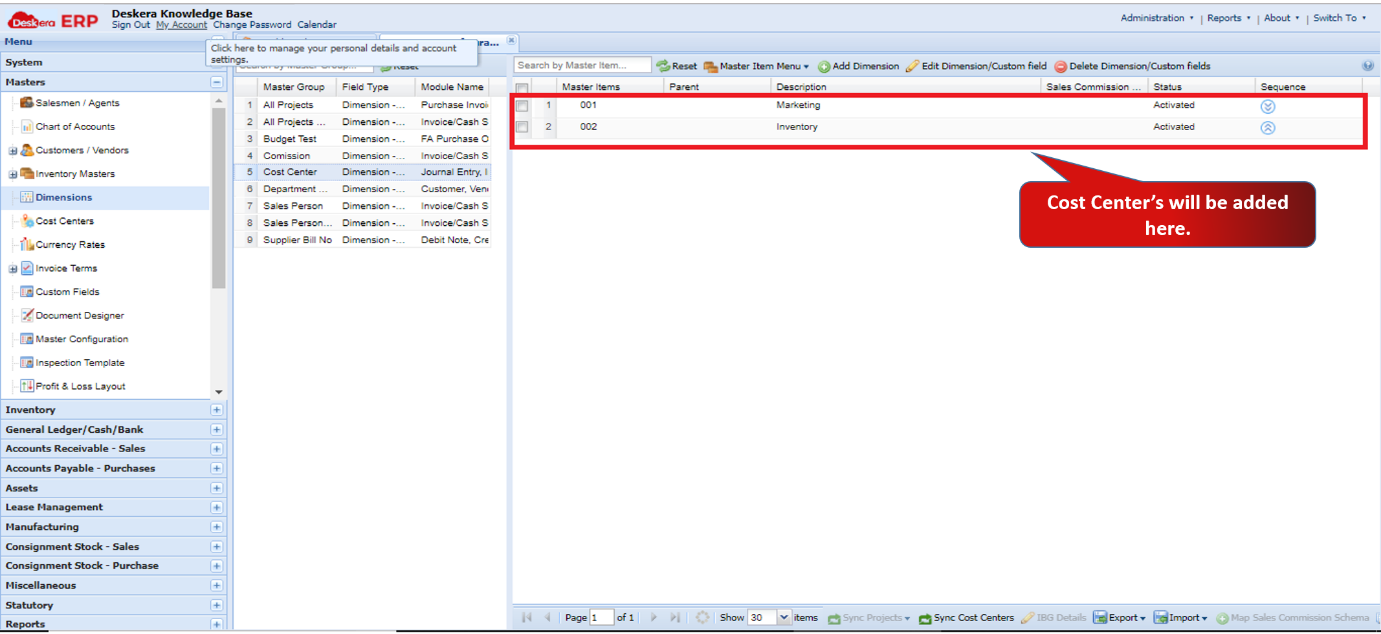 Fig 4.6.1.4.3 Dimensions in ERP
Step 4: Go to Manage Cost Center under Master Setting’s widget in eClaims.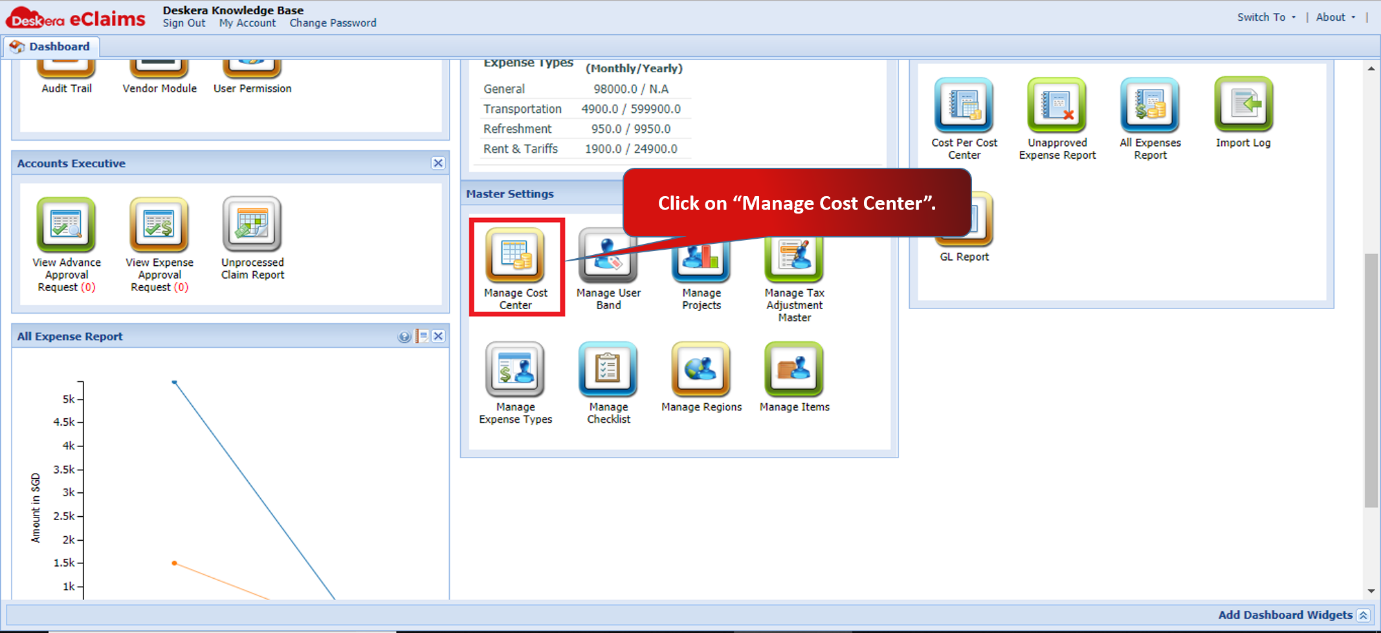 Fig 4.6.1.4.4 eClaims Dashboard
Step 5: Click on Sync Cost Center.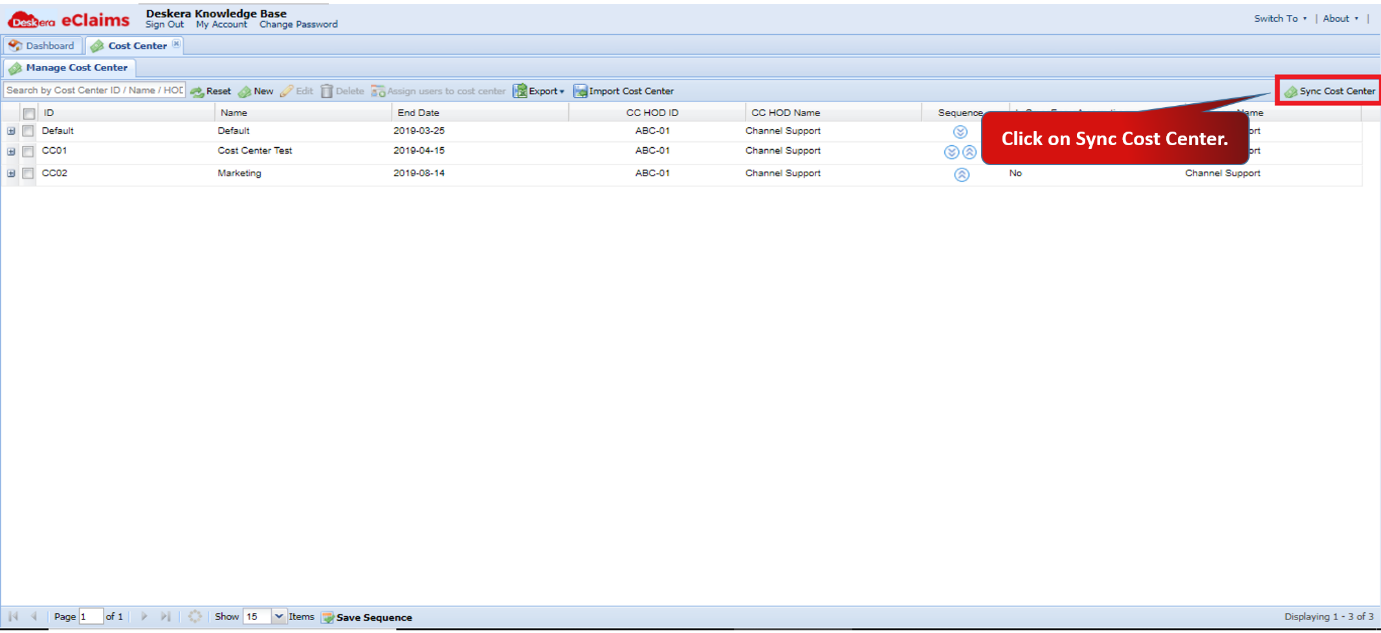 Fig 4.6.1.4.5 Manage Cost Center
Step 6: Select the cost center to be synced. Add the cost center end date and Cost center HOD type.
Click on Save.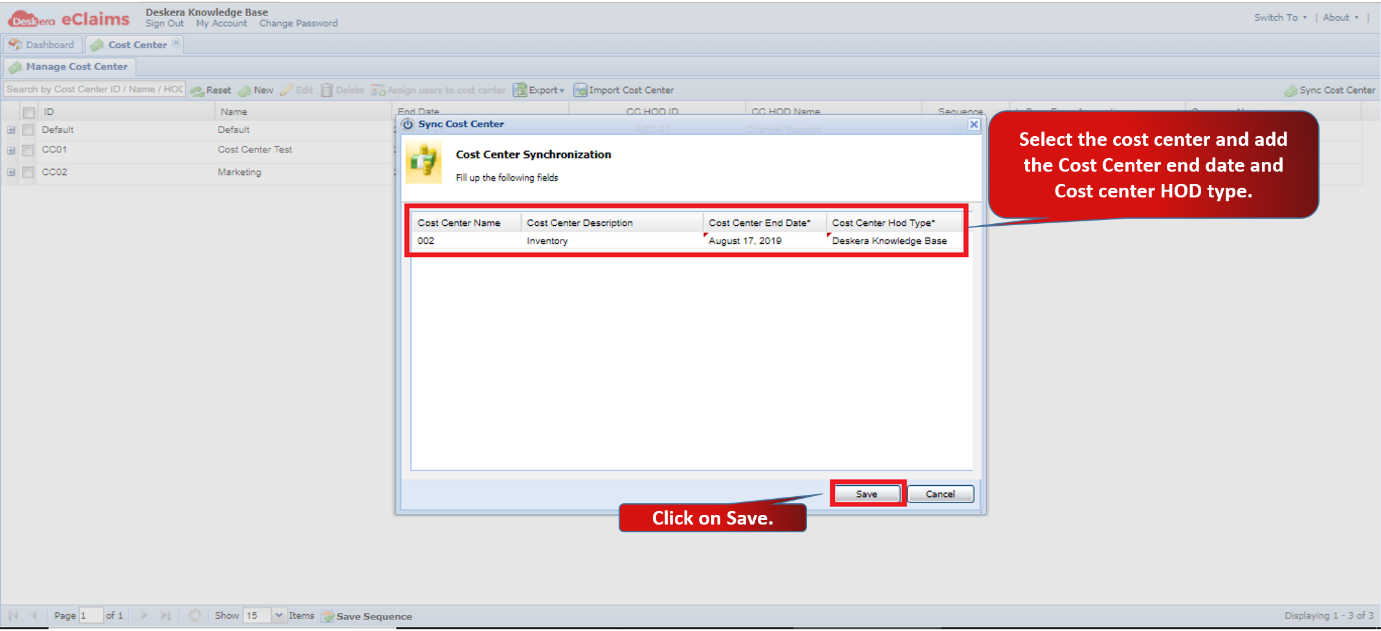 Fig 4.6.1.4.6 Sync Cost Center
Cost Centers will be synced successfully.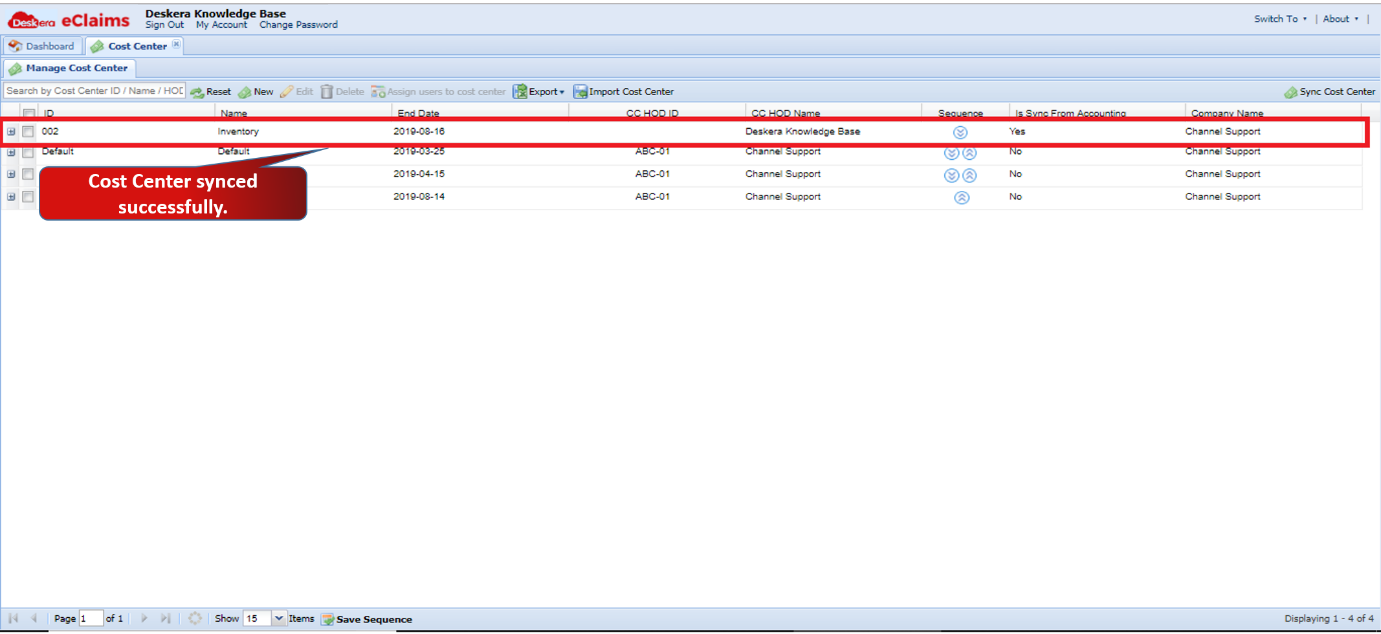 Fig 4.6.1.4.7 Sync Cost Center
Comments
0 comments
Please sign in to leave a comment.