
Prerequisites:
1. You have your Deskera eClaims application URL in place.
2. You are the administrator of the eClaims application.
3. Ensure good internet connectivity.
Import Cost Center
Step 1: Go to Manage Cost Center under Master Setting’s widget in eClaims.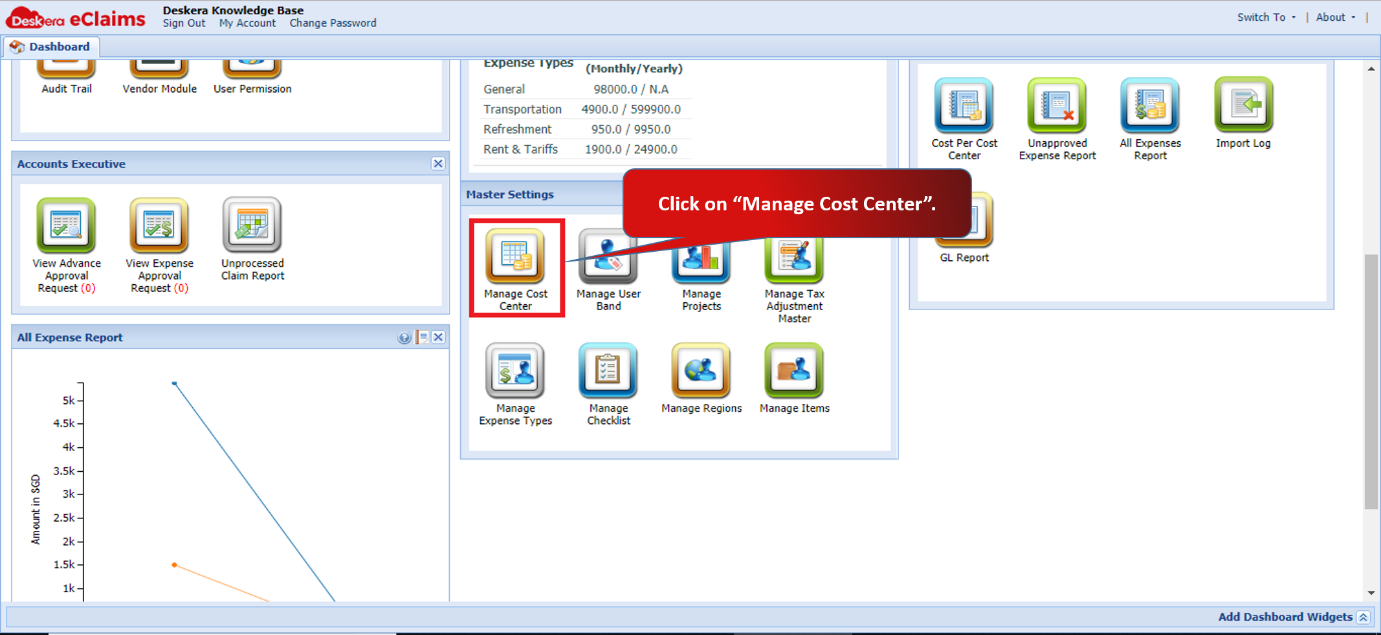 Fig 4.6.1.3.1 eClaims Dashboard
Step 2: Click on Import Cost Center.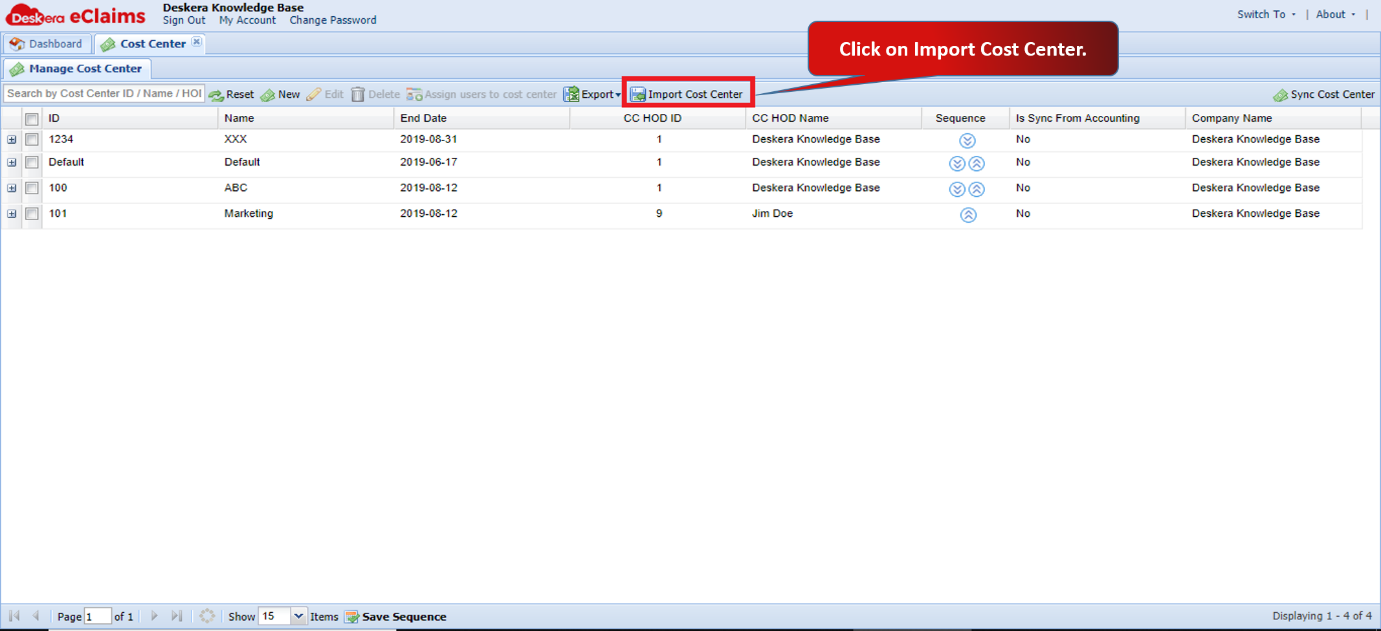 Fig 4.6.1.3.2 Manage Cost Center
Step 3: You can download the sample file to upload the exact format. Upload the CSV file and select the date format used in the uploaded file. Click on Next.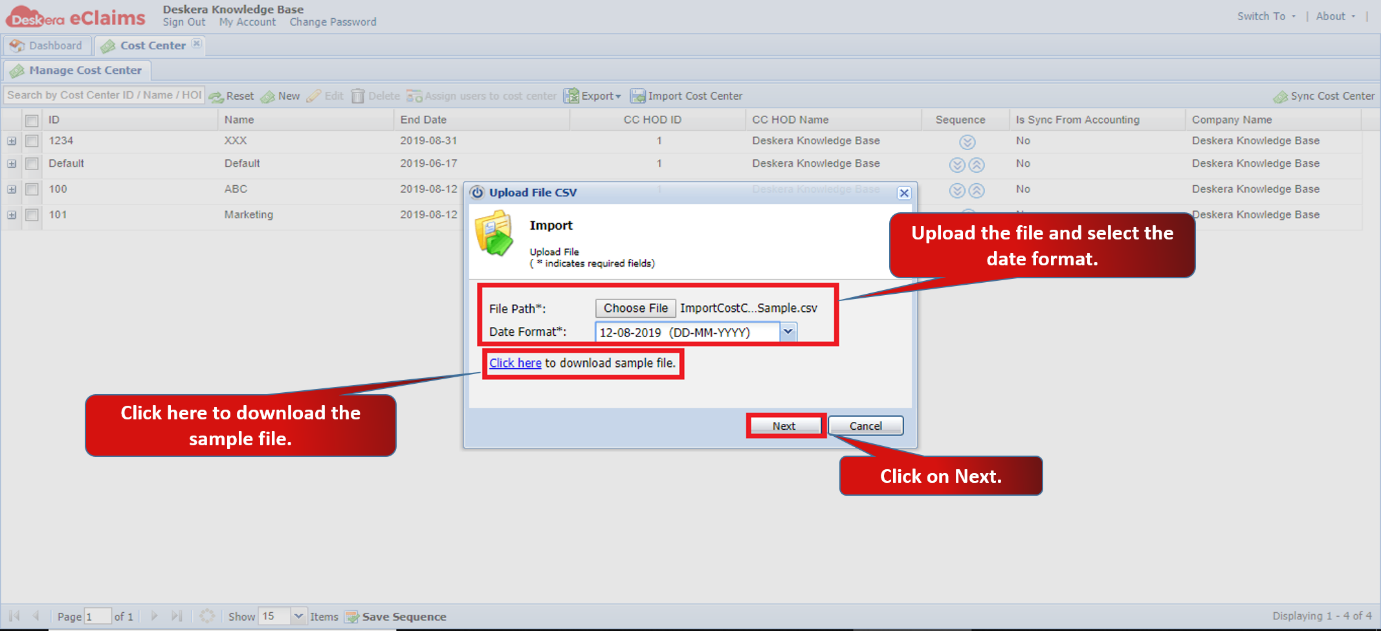 Fig 4.6.1.3.3 Import Cost Center
Step 4: Click on Auto-Map Headers to map the headers. You can map the headers manually as well. Click on Import. 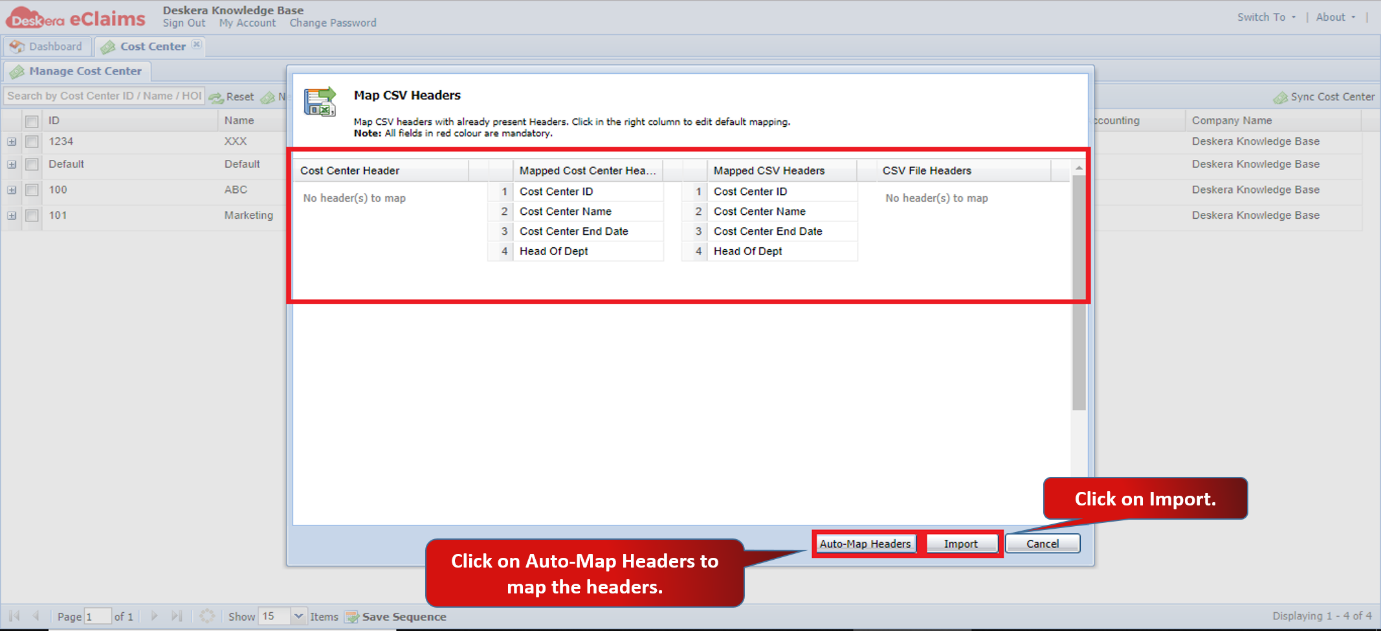 Fig 4.6.1.3.4 Import Cost Center
The cost centers will be imported successfully. It will be reflected under Manage Cost Center tab.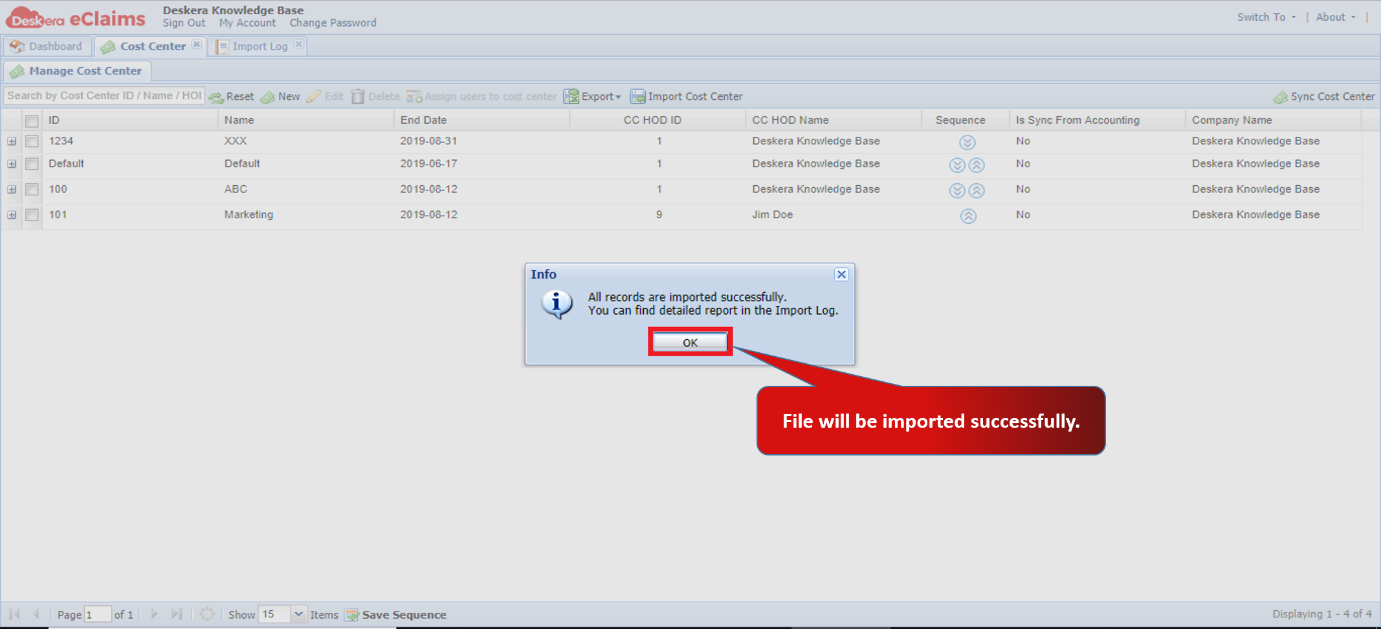 Fig 4.6.1.3.5 Import Cost Center
Save Sequence
Step 1: Under Manage Cost Center, click on the arrows to set the required sequence. Click on Save Sequence to save the settings. 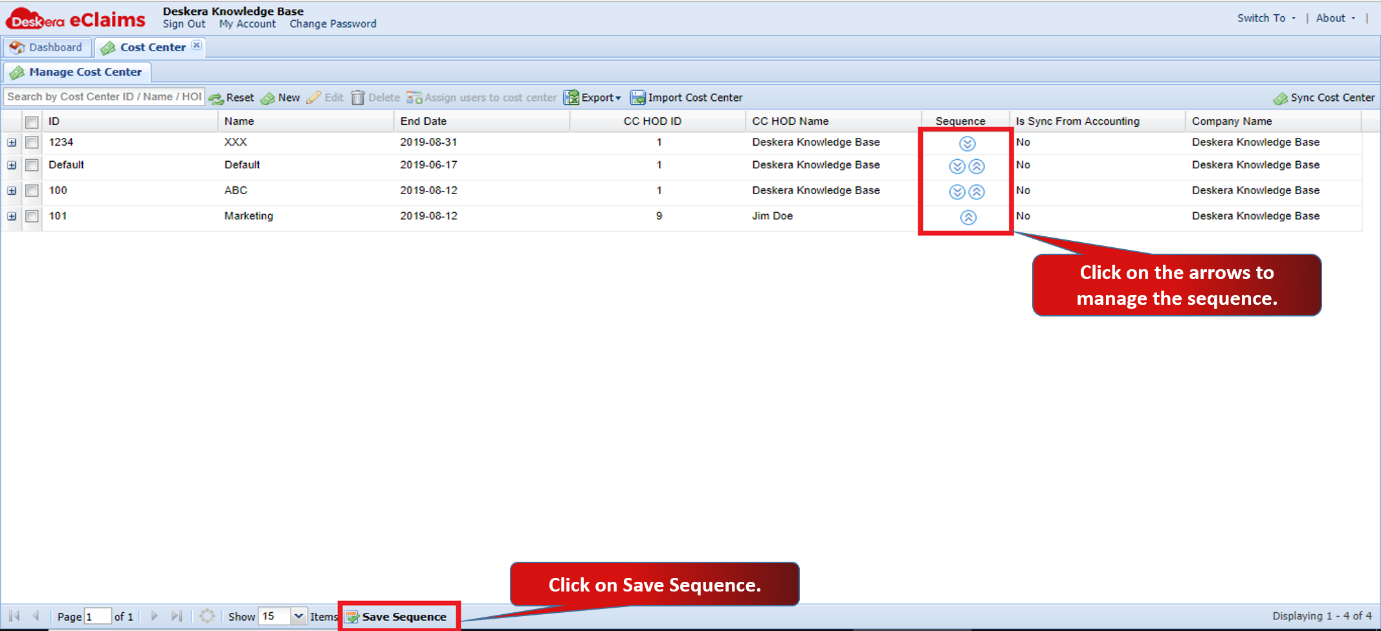 Fig 4.6.1.3.6 Save Sequence
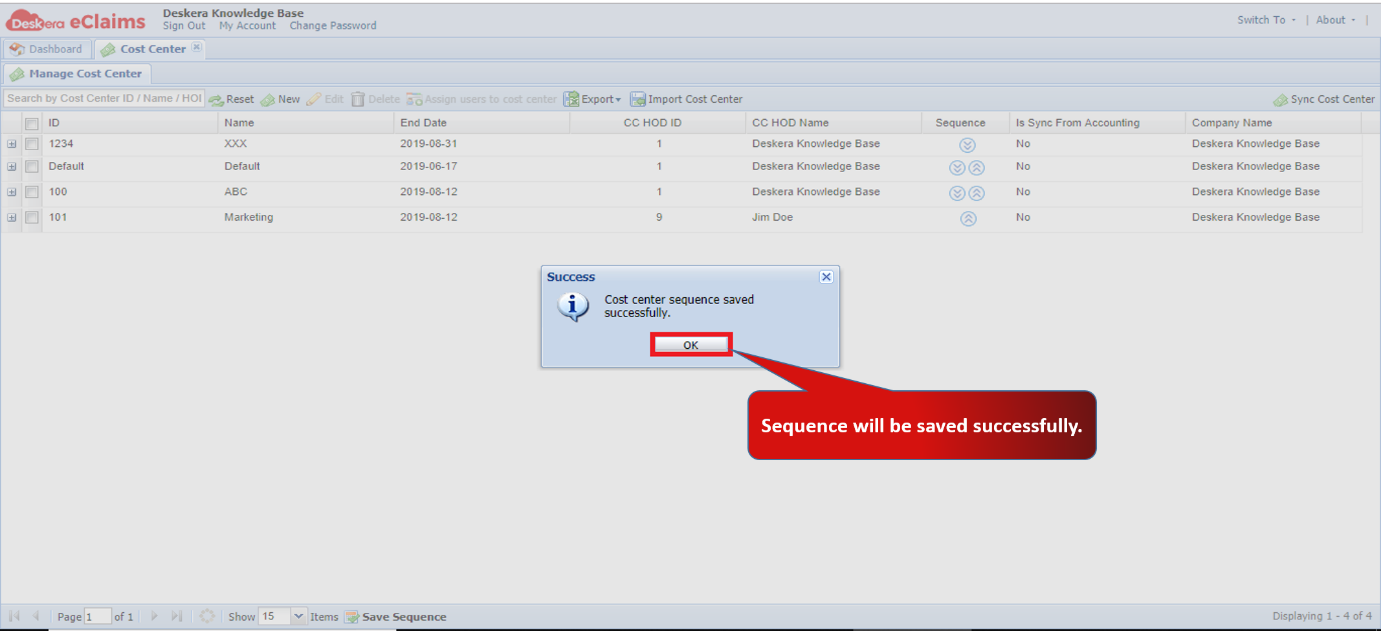 Fig 4.6.1.3.7 Save Sequence
Step 2: You can see the saved sequence when you create a new claim application under Cost Center.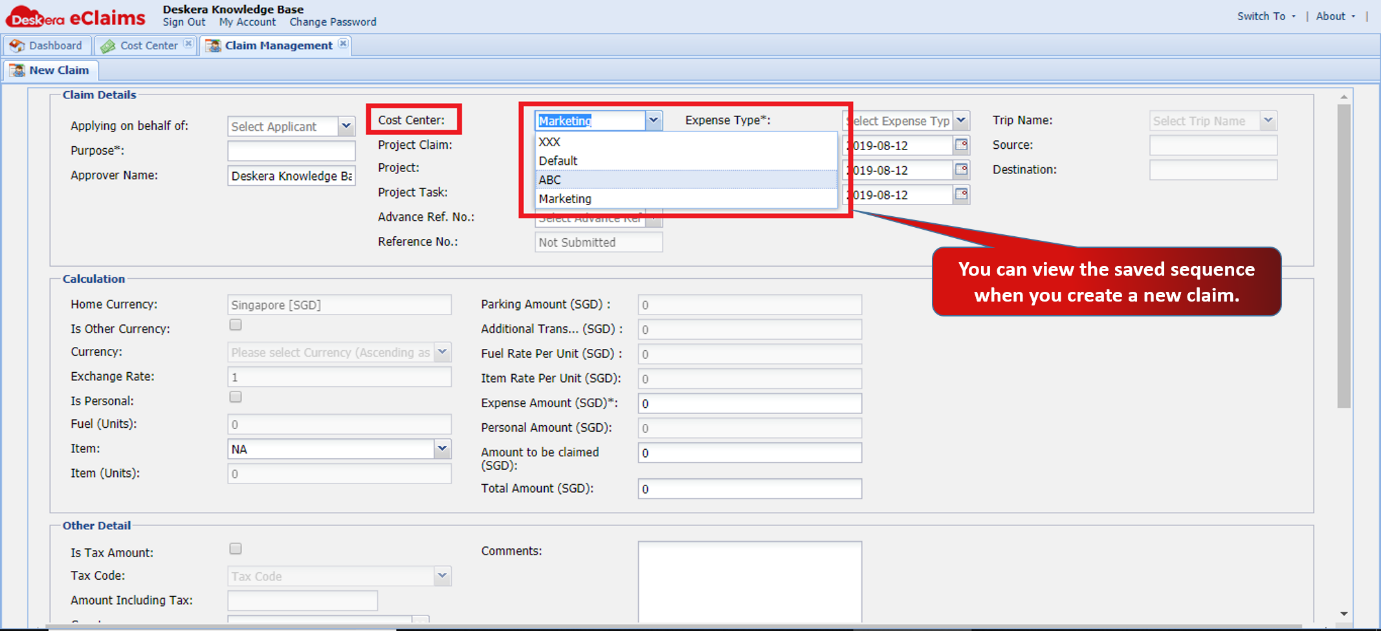 Fig 4.6.1.3.8 New Claim
Comments
0 comments
Please sign in to leave a comment.