
The New/Edit/Delete Project features allow the user to configure project details such as Project Name and ID, Project Manager Name etc. that can be used to apply for claims against these very projects.
Prerequisites:
- You have your Deskera eClaims application URL in place
- You are the administrator of the eClaims application
- Ensure a good internet connectivity
Step 1: Click on Manage Projects under Master Settings on the Deskera eClaims Dashboard.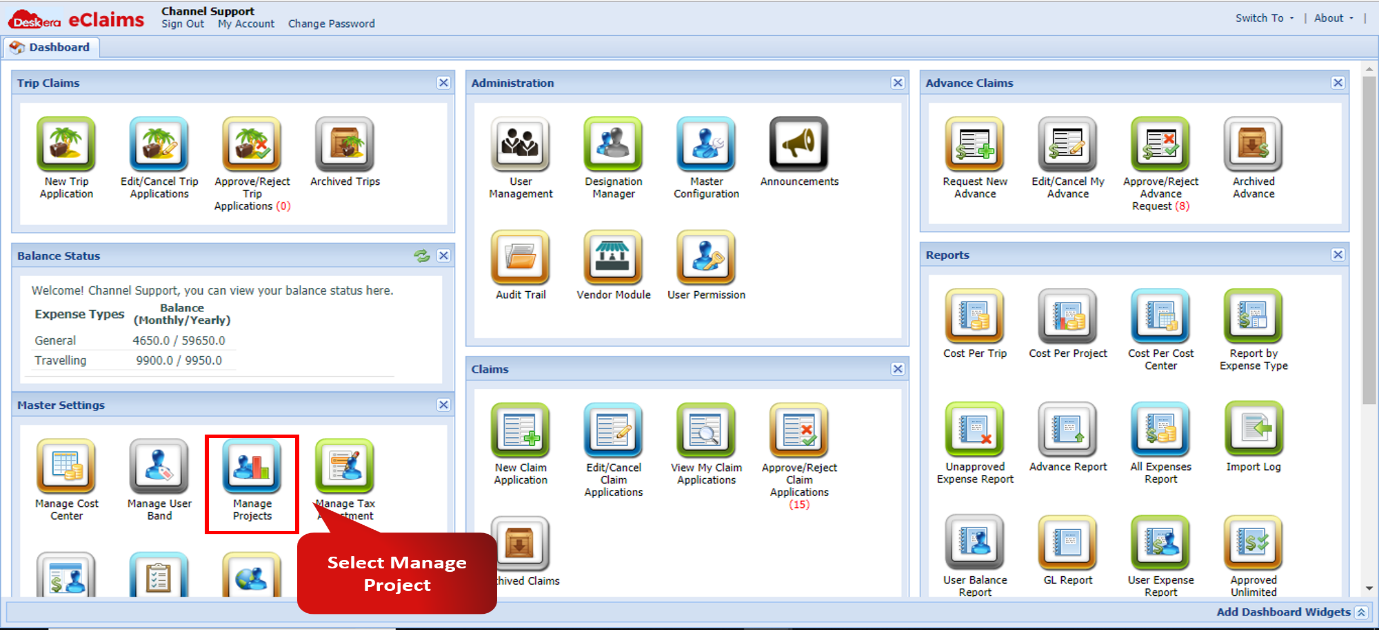 Fig 4.6.3.1.1 Manage Projects
Step 2: To add a new project, click on the New button on the top left hand corner. Configure the details of the project as required and enter claim related details such as Expense Type, Expense Account, Monthly and Yearly Limits etc. 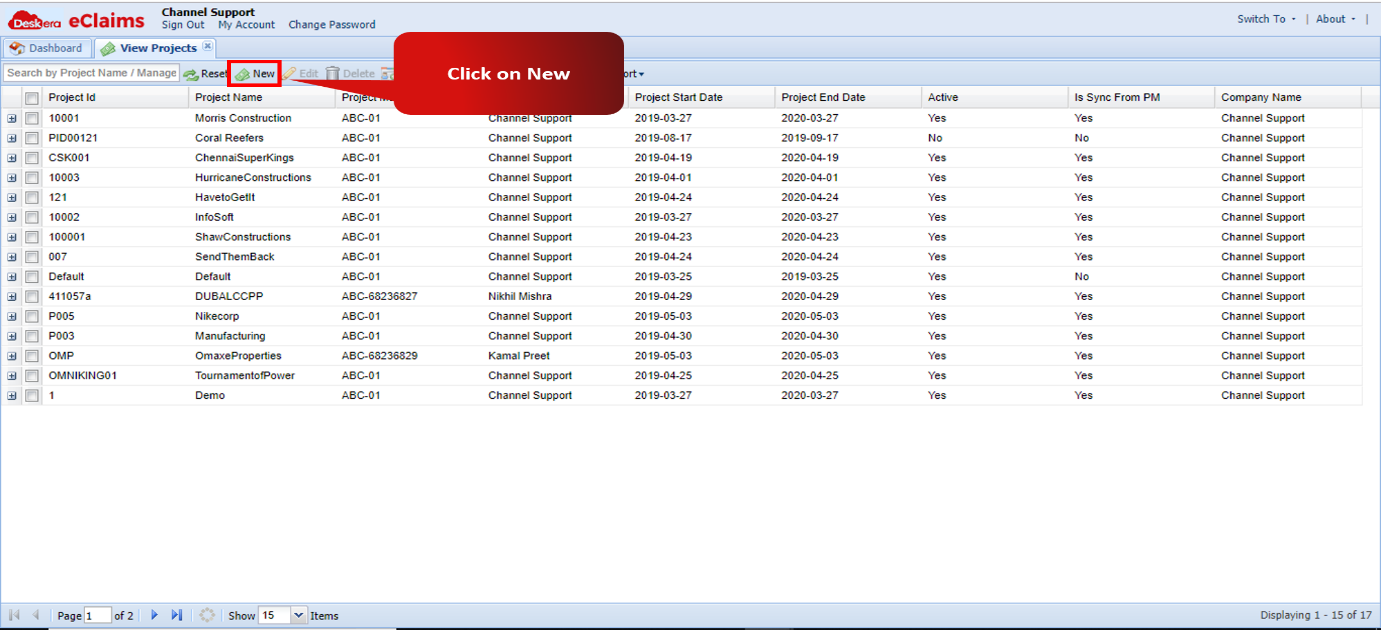 Fig 4.6.3.1.2 Add New Project
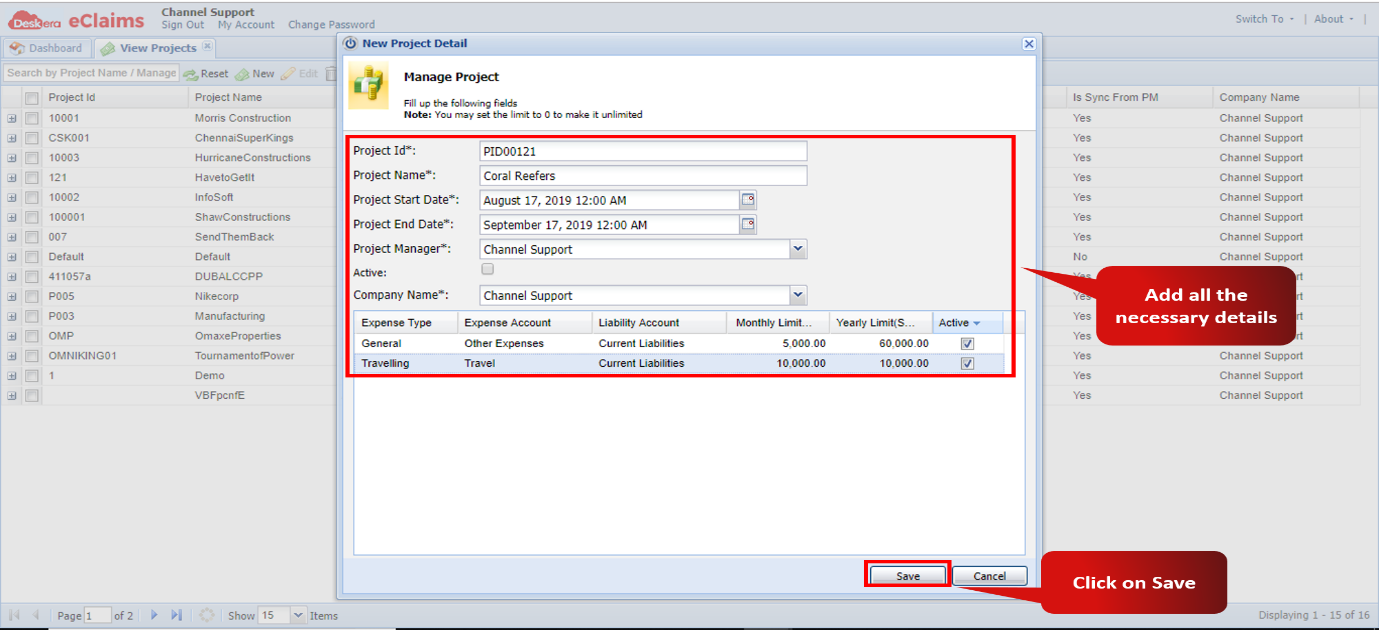 Fig 4.6.3.1.3 Add New Project
Step 3: To edit an existing User Project, select the desired Project and click on the Edit button. Make the necessary changes and click on Update to bring the changes into effect.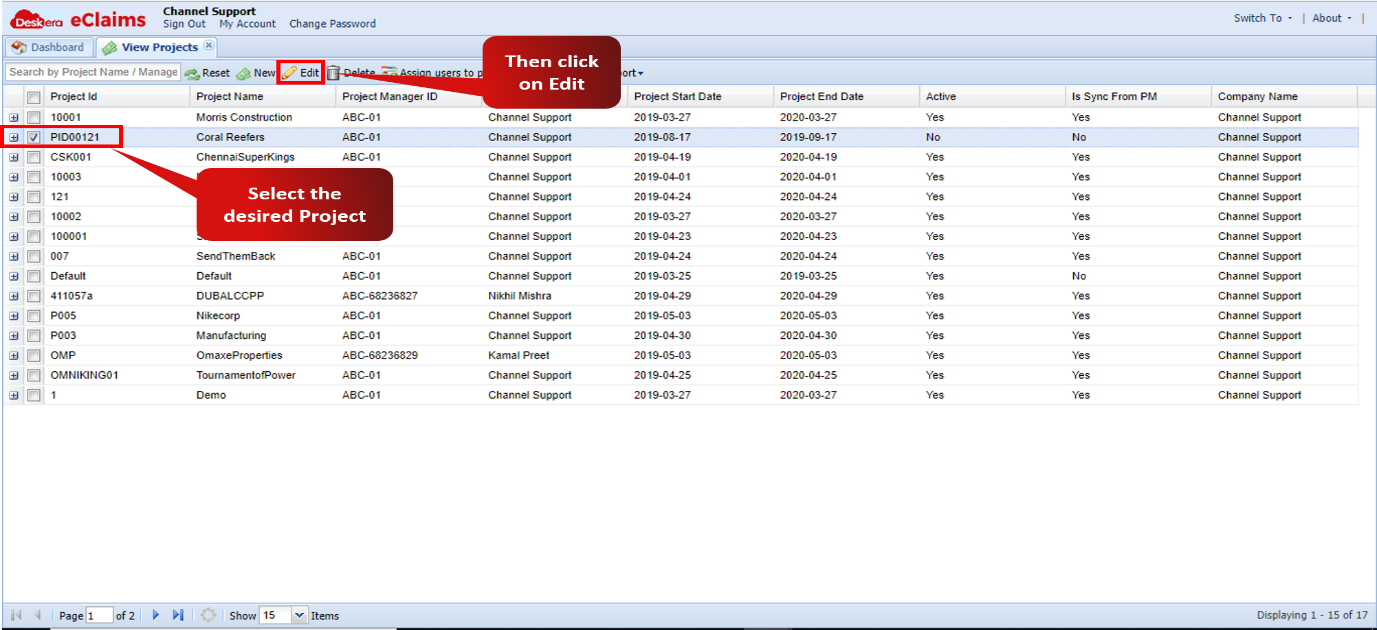 Fig 4.6.3.1.4 Edit Project
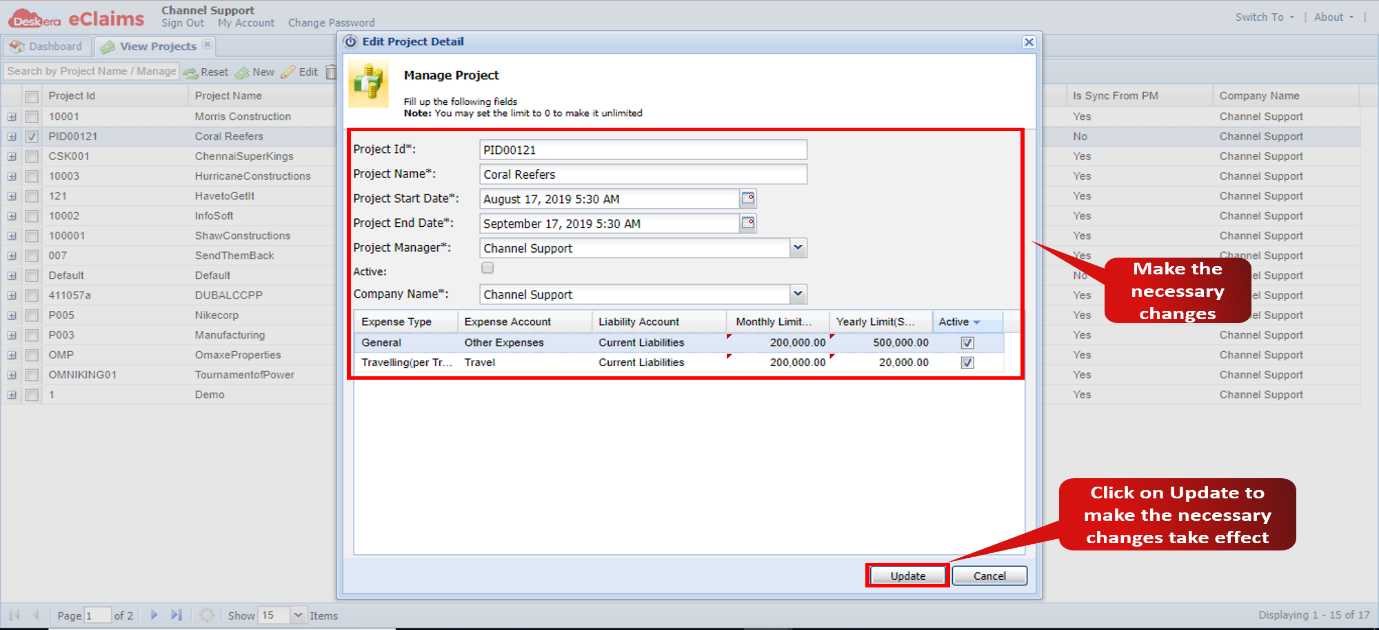 Fig 4.6.3.1.5 Edit Project
Step 4: To delete an existing Project, select the desired project and click on the delete button. The selected project will now be deleted. Fig 4.6.3.1.6 Delete Project
Comments
0 comments
Please sign in to leave a comment.