
Prerequisites:
1. You have your Deskera eClaims application URL in place.
2. You are the administrator of the eClaims application.
3. Ensure good internet connectivity.
New Cost Center
New cost center feature allows you to create a cost center according to your requirements.
Step 1: Go to Manage Cost Center under Master Settings widget in eClaims.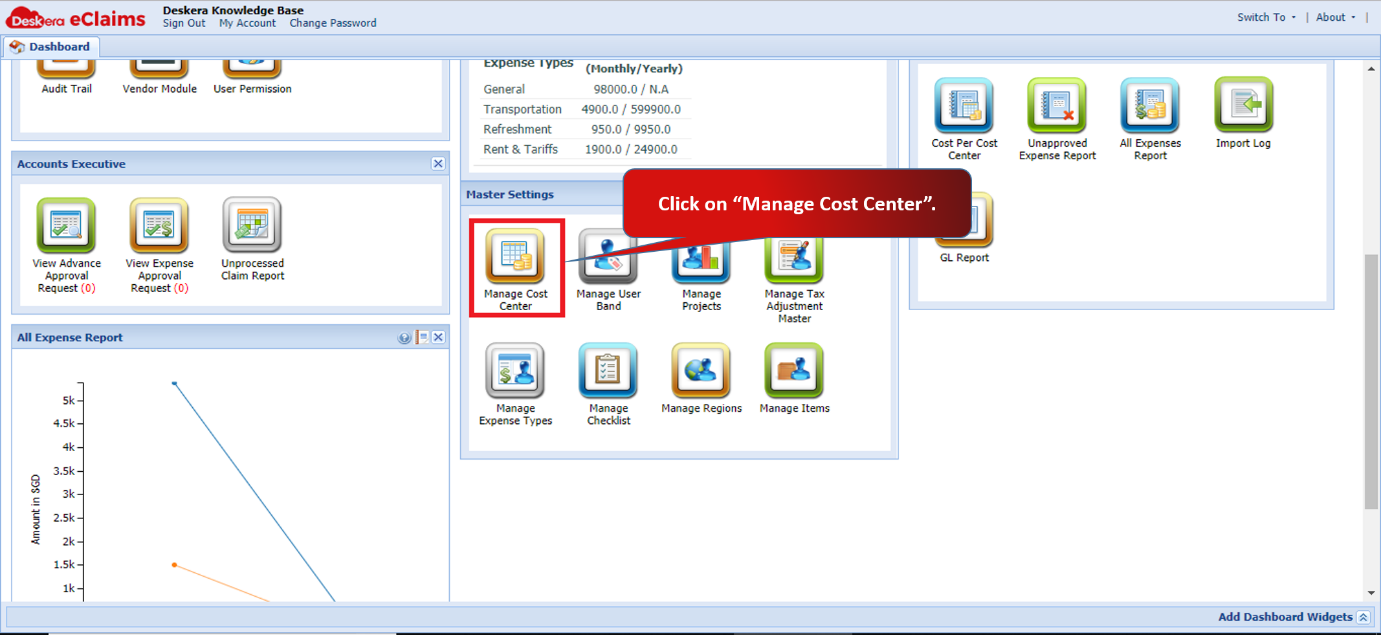 Fig 4.6.1.1.1 eClaims Dashboard
Step 2: Click on New to create a cost center.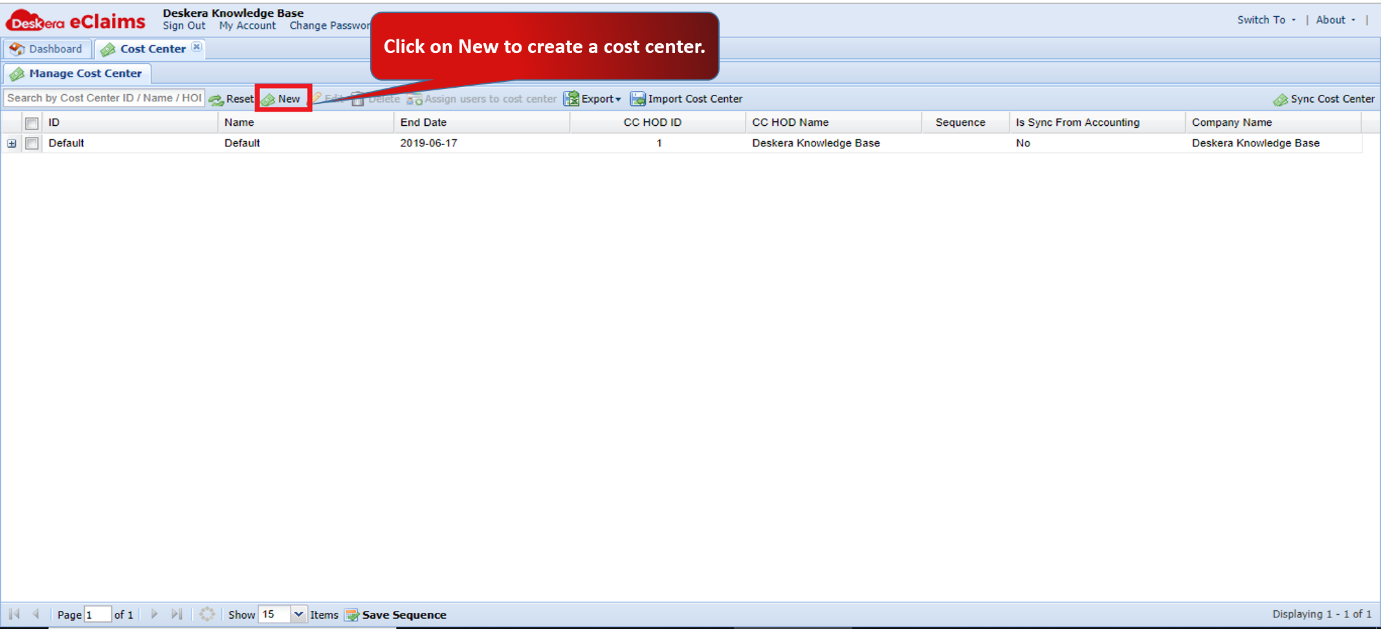 Fig 4.6.1.1.2 Manage Cost Center
Step 3: Fill in the required details. You can set the monthly as well as yearly limit for every expense type. Click on Save to create the cost center.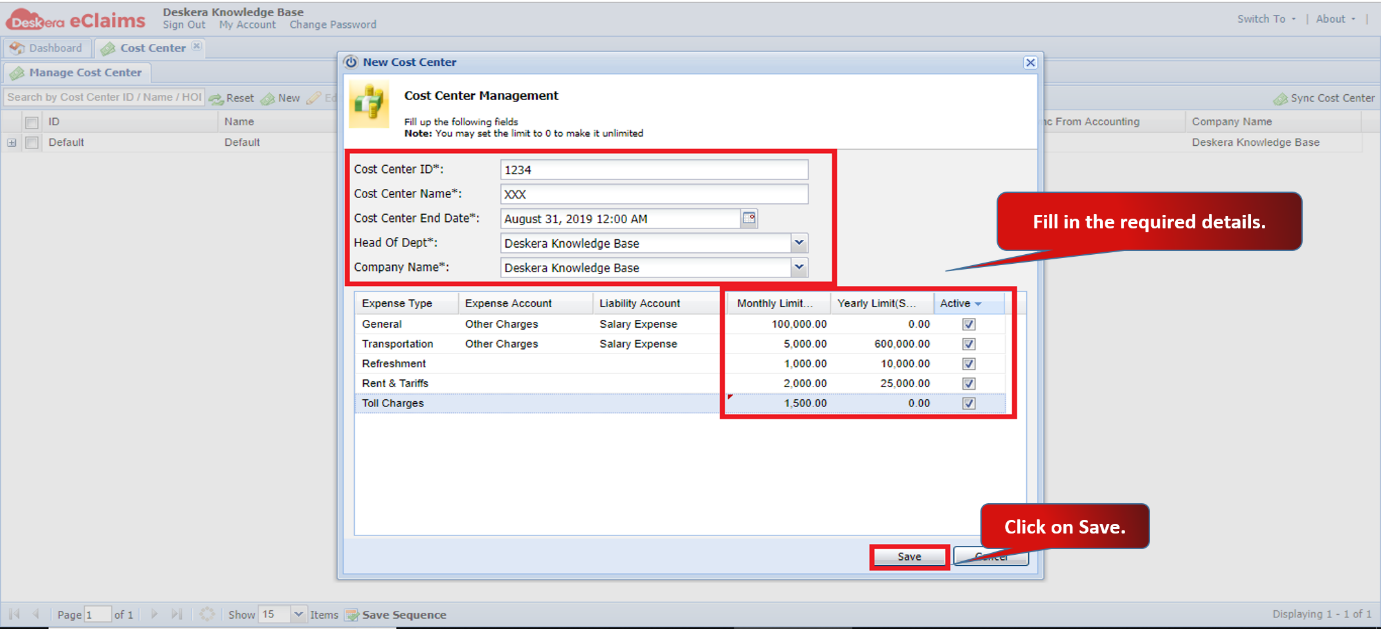 Fig 4.6.1.1.3 New Cost Center
New cost center will be reflected under Manage Cost Center tab.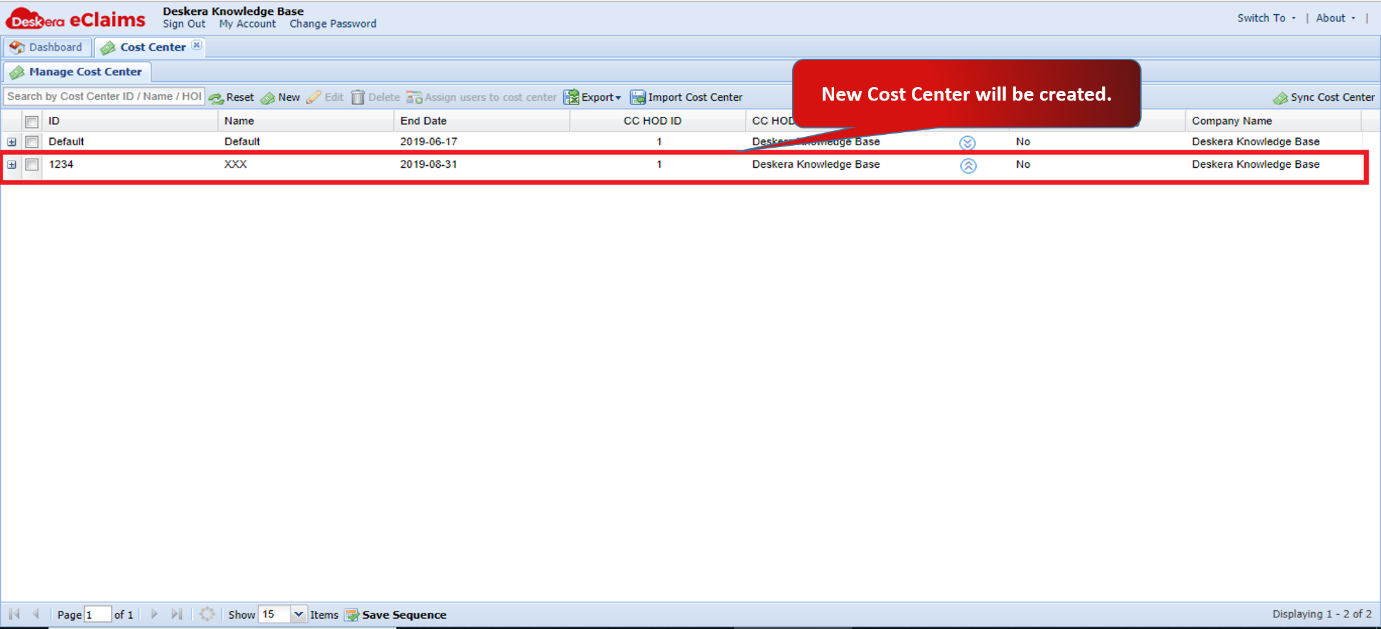 Fig 4.6.1.1.4 New Cost Center
Edit Cost Center
Edit cost center feature allows you to edit a cost center according to your requirements.
Step 1: Under Manage Cost Center tab, select the cost center to edit. Click on Edit.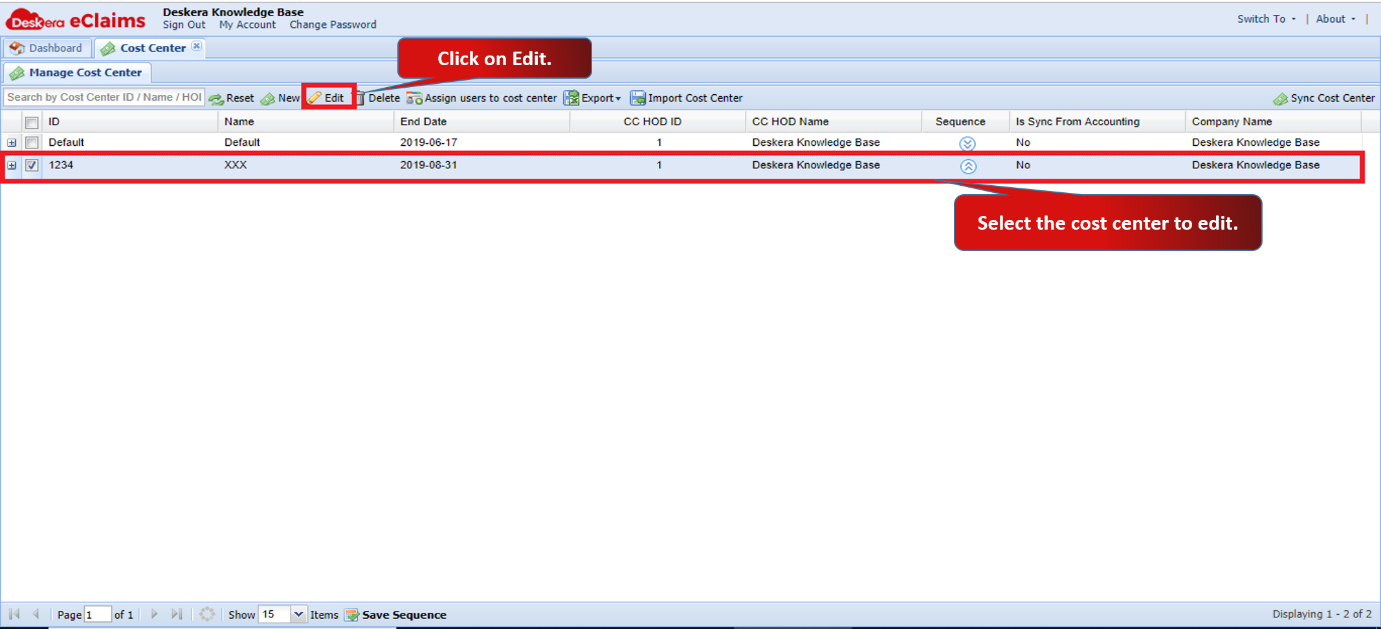 Fig 4.6.1.1.5 Manage Cost Center
Step 2: Make the required changes and click on Save.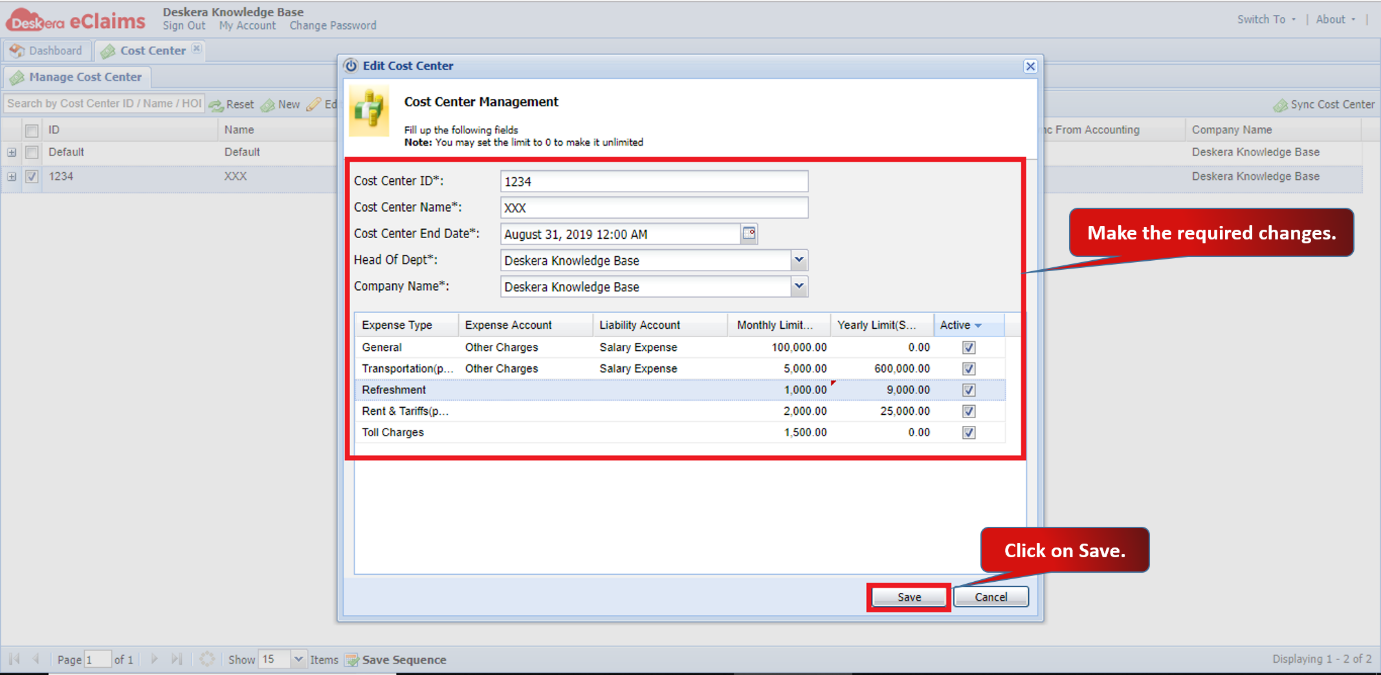 Fig 4.6.1.1.6 Edit Cost Center
Delete Cost Center
Delete cost center feature allows you to remove a cost center from the system permanently.
Step 1: Under Manage Cost Center tab, select the cost center to delete. Click on Delete.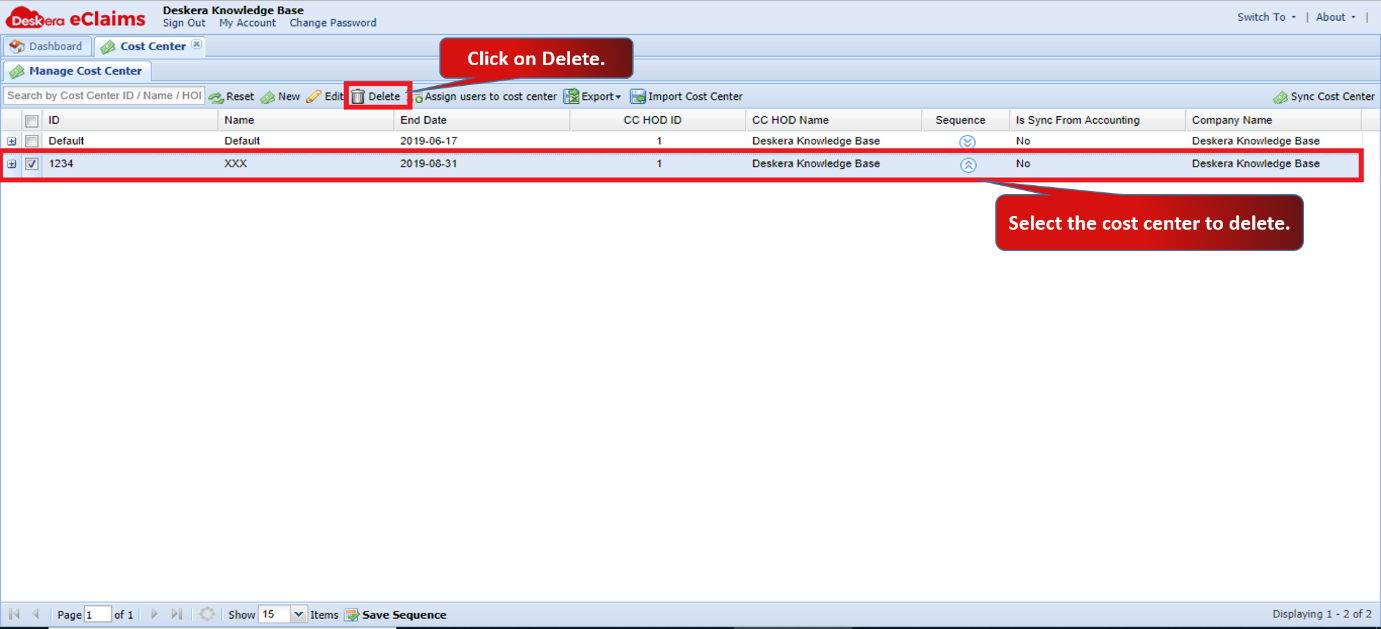 Fig 4.6.1.1.7 Manage Cost Center
Step 2: Click on Yes to delete the cost center permanently.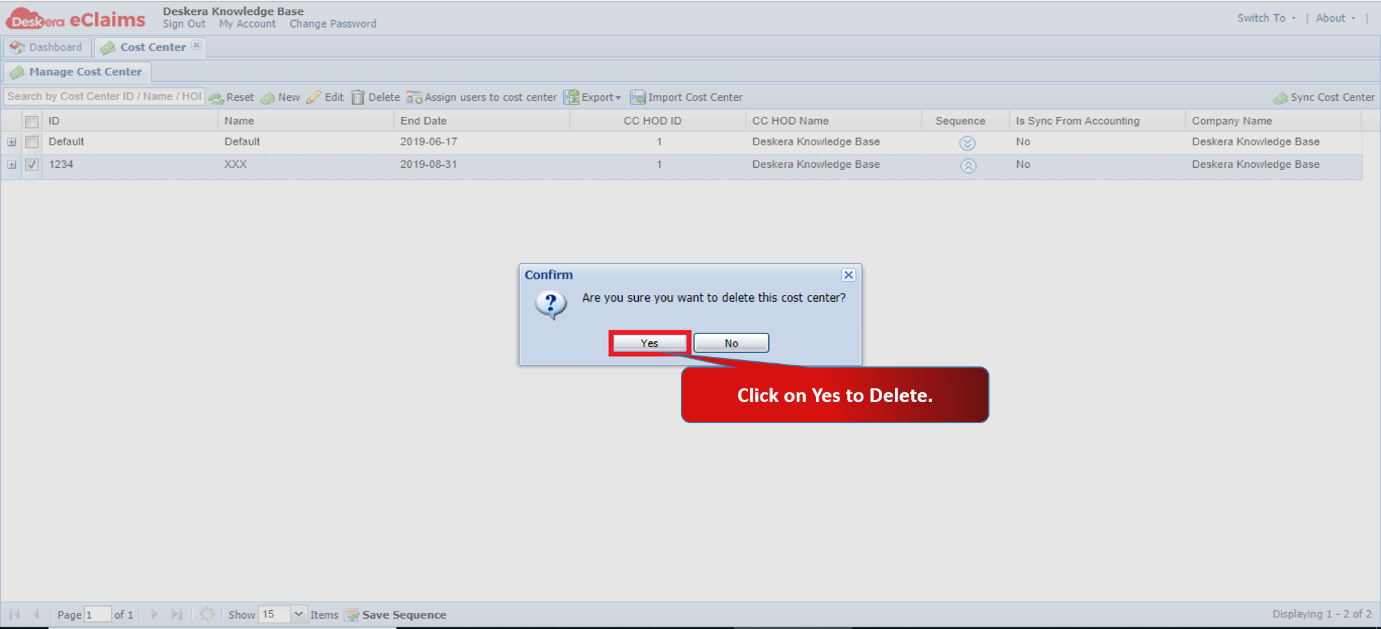 Fig 4.6.1.1.8 Delete Cost Center
Comments
0 comments
Please sign in to leave a comment.