
Deskera eClaims application allows the user to create, edit and delete the various types of expenses that are used in claim application and processing. The user can also set monthly and yearly limits or budgets on the total spending on any particular expense type after which the user will get a notification that the limit has been reached.
Prerequisites:
1. Ensure you have your Deskera eClaims application URL in place.
2. Ensure you are the administrator of the eClaims application
3. Ensure a good internet connectivity
Create New Expense Type
The user can create new expense types in the system which users can use while applying for relevant claims.
Step 1: Go to Manage Expense Types under Master Settings on eClaims Dashboard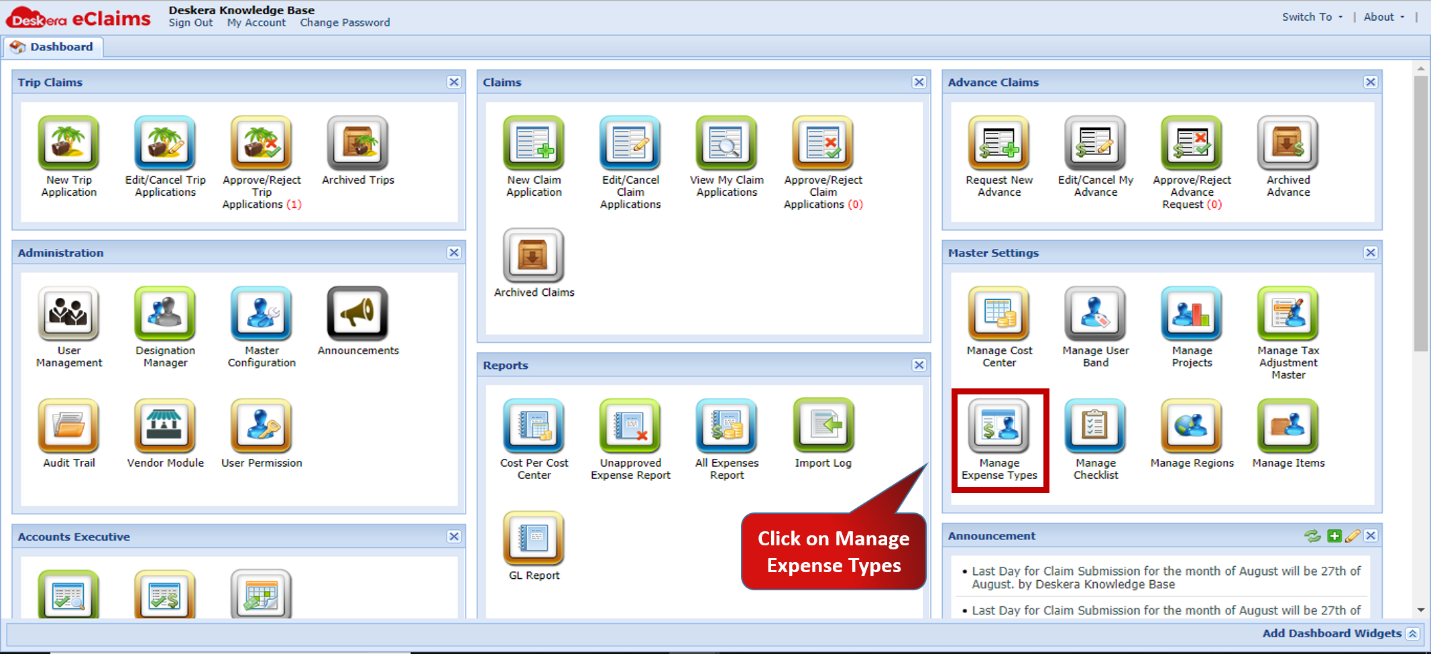 Fig.4.6.5.1.1 eClaims Dashboard
Step 2: Click on New to create new expense type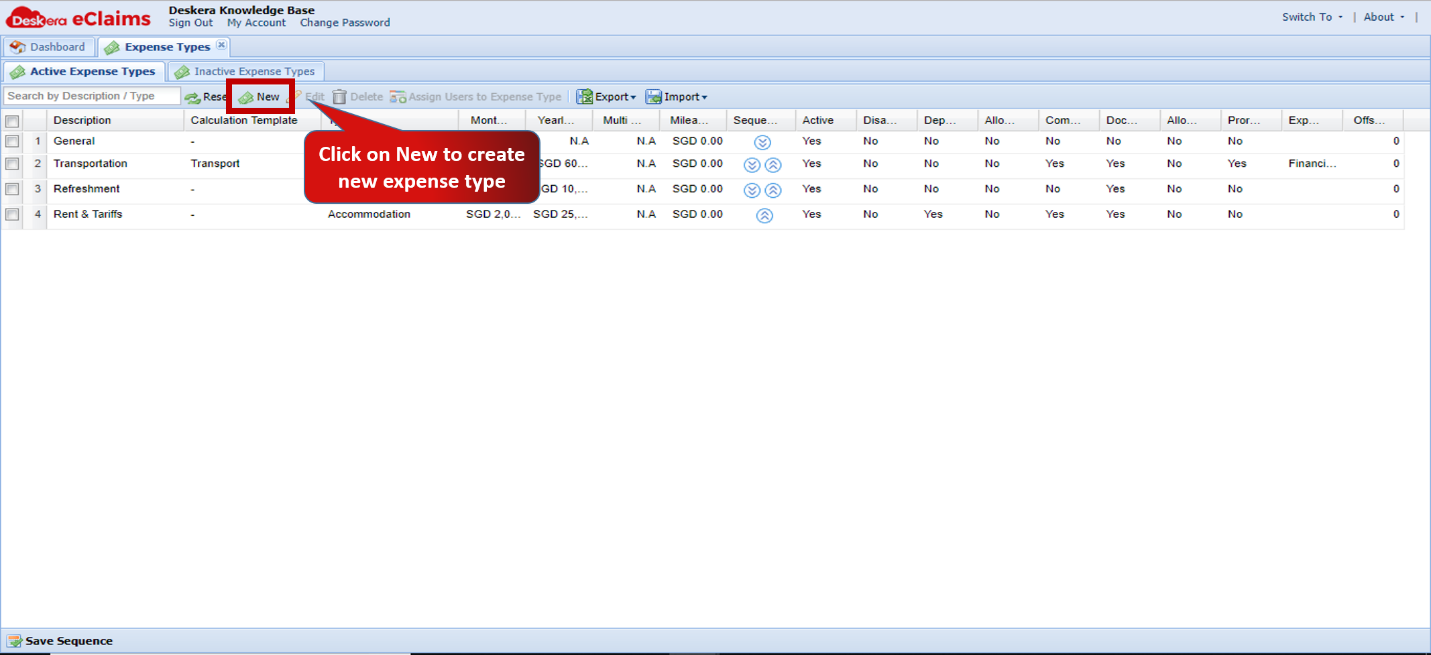 Fig.4.6.5.1.2 Manage Expense Types
Step 3: Enter Expense Type details in the new window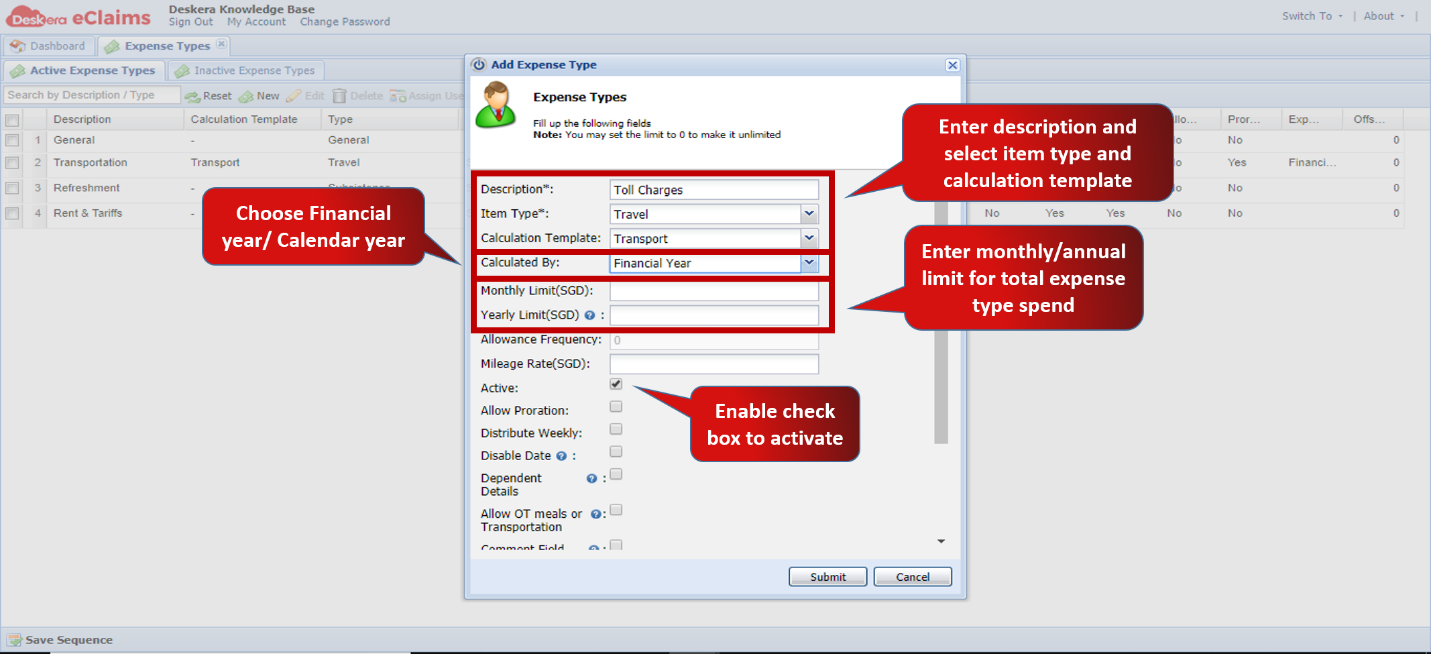 Fig.4.6.5.1.3 Add Expense Types
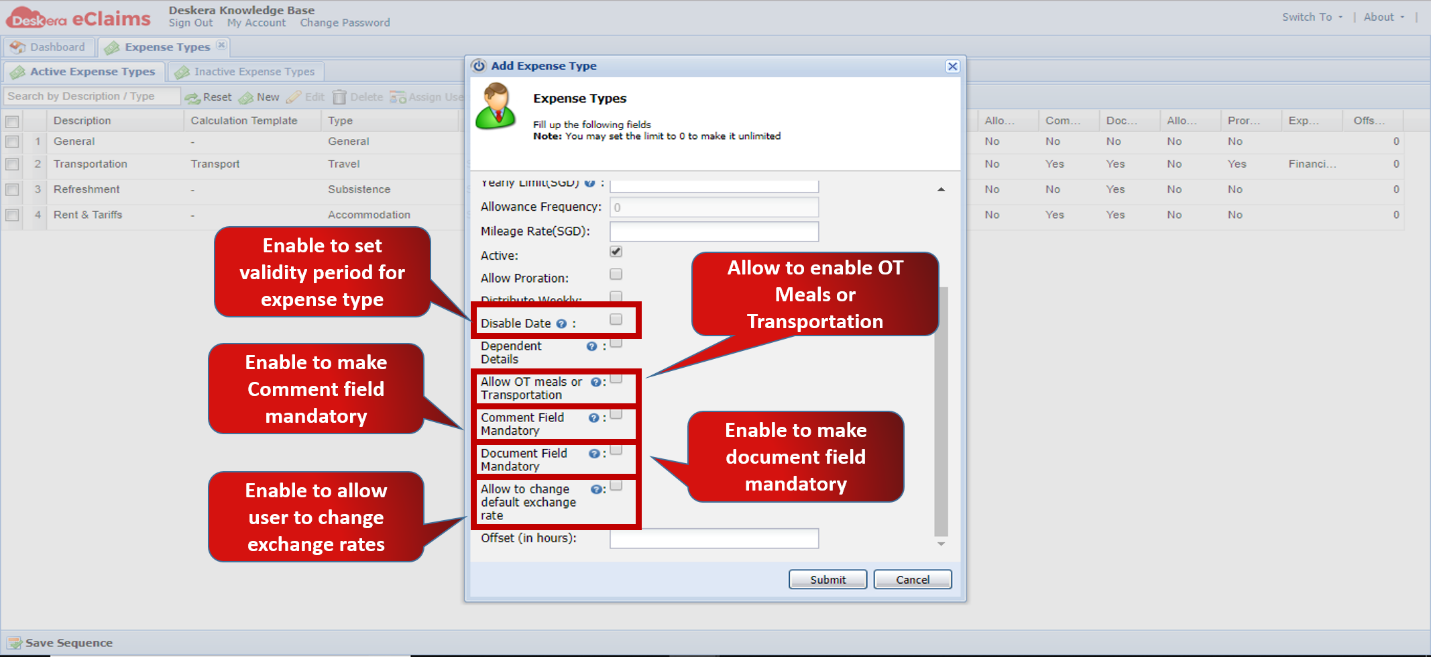 Fig.4.6.5.1.4 Add Expense Types
Step 4: Click on Submit to save new expense type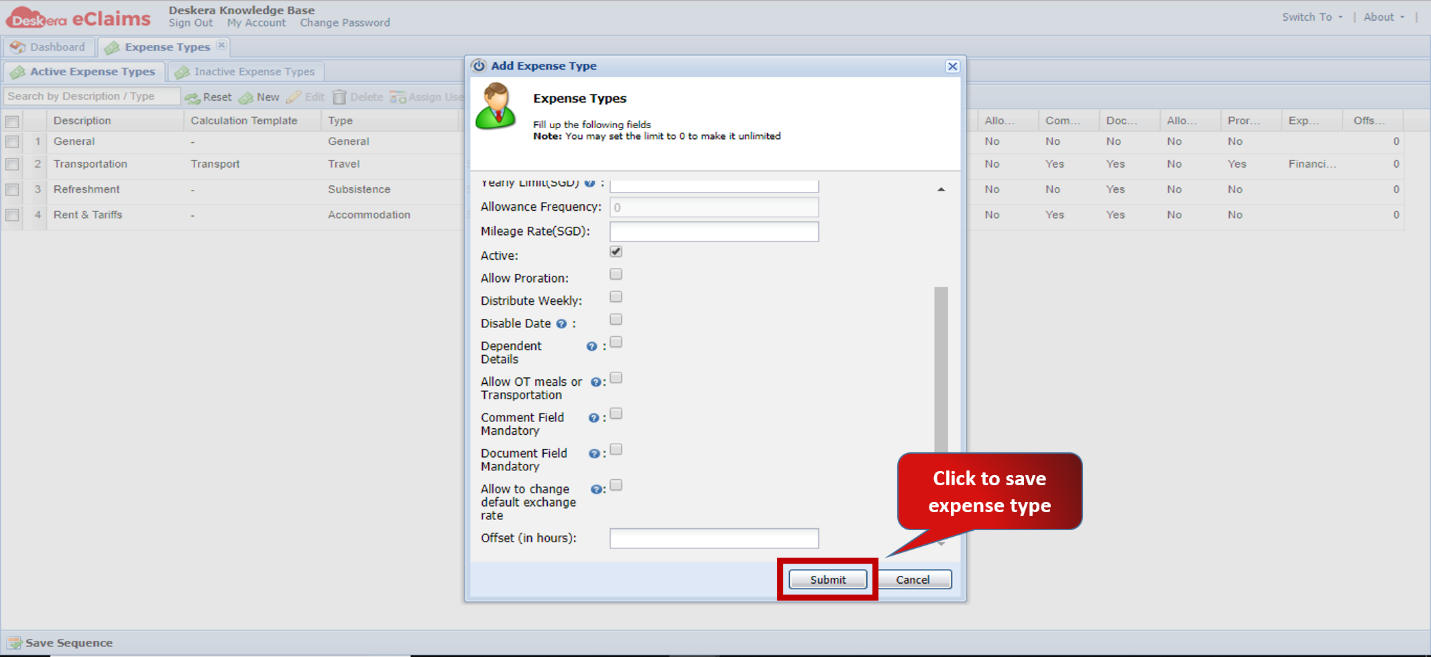 Fig.4.6.5.1.5 Add Expense Types
Edit Active Expense Type
The user can edit or modify existing expense types in the system which users can use while applying for relevant claims.
Step 1: Go to Manage Expense Types under Master Settings on eClaims Dashboard Fig.4.6.5.1.6 eClaims Dashboard
Step 2: Select the expense type to edit and click on Edit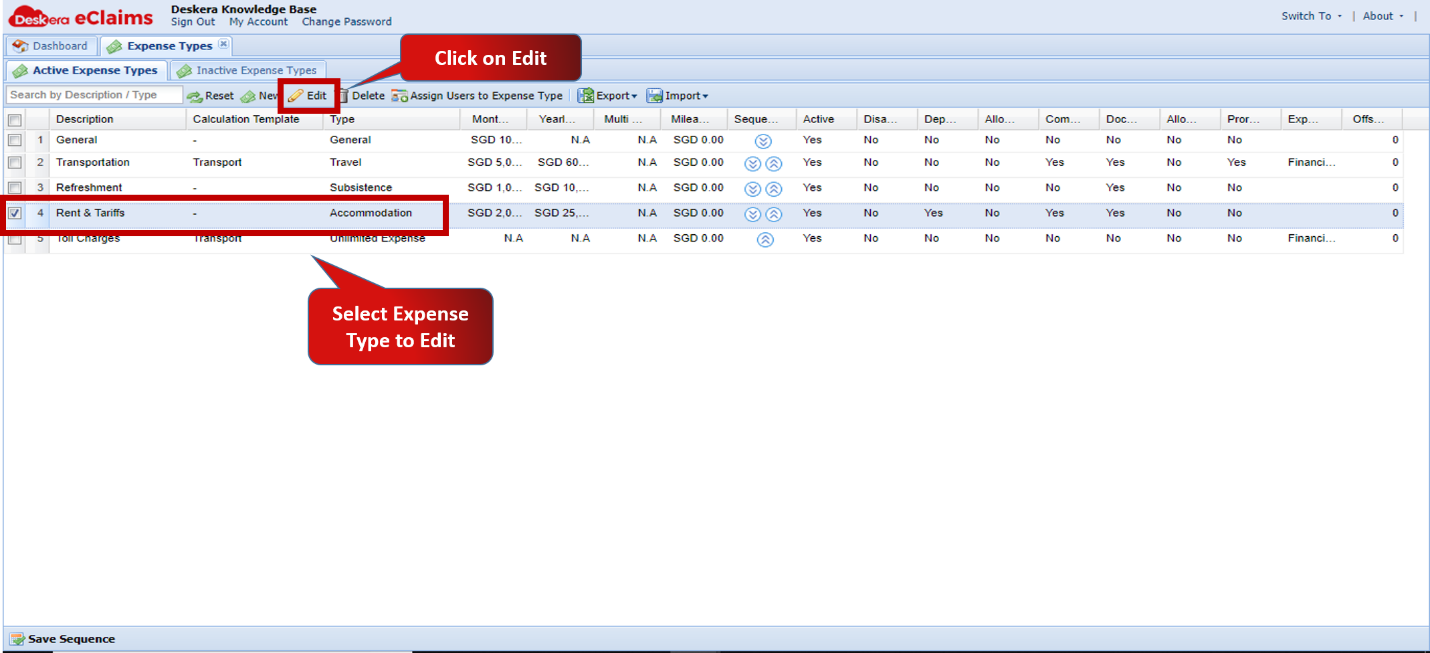 Fig.4.6.5.1.7 Manage Expense Types
Step 3: Make the required changes to be made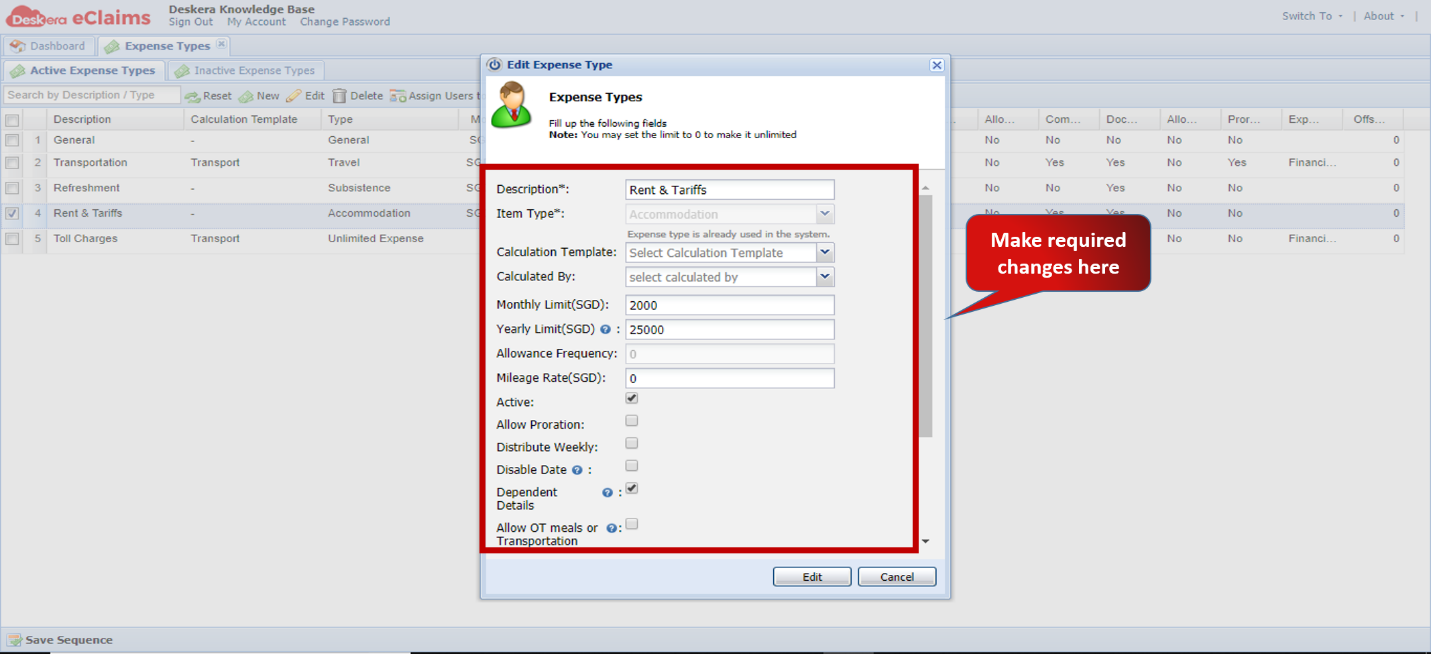 Fig.4.6.5.1.8 Edit Expense Types
Step 4: Click on Edit to save the changes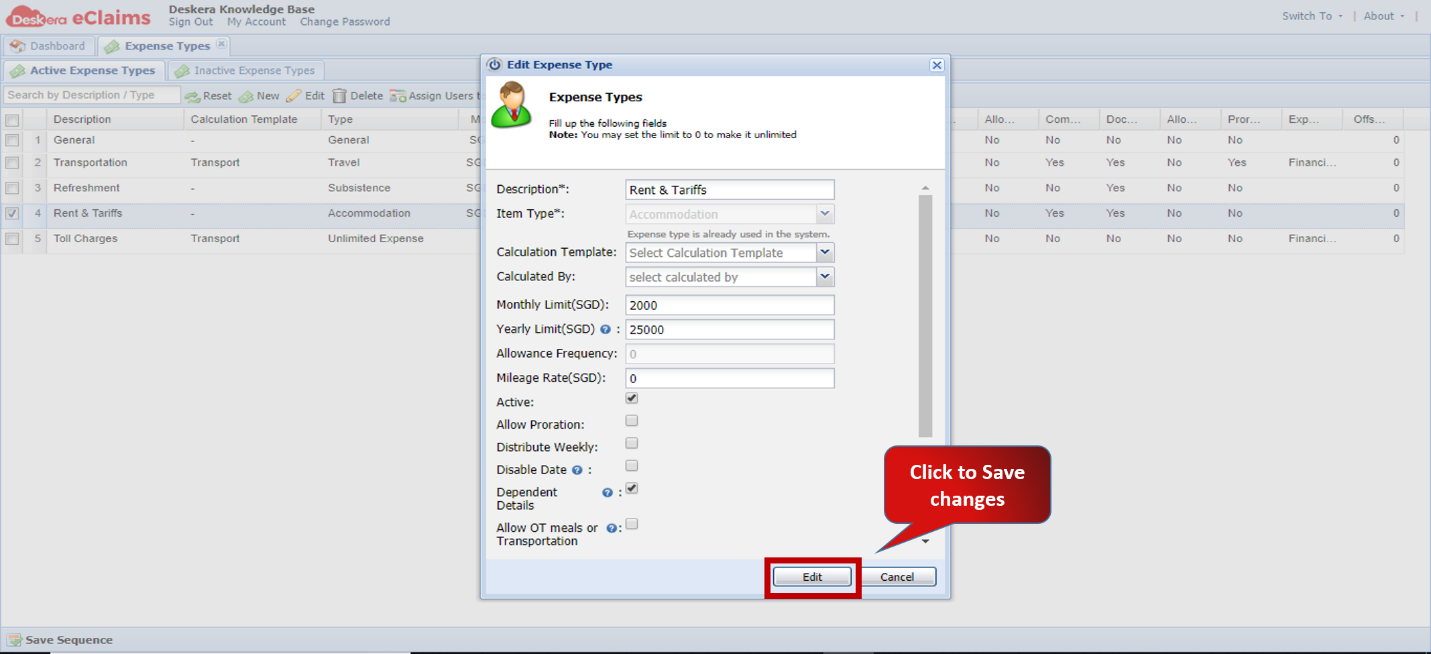 Fig.4.6.5.1.9 Edit Expense Types
Disable Expense Type
The admin can disable an already existing active expense type. This would mean that the users would no longer be able to apply for a claim against that particular expense type. This however would not affect the claims that have already been applied and processed.
Step 1: Go to Manage Expense Types under Master Settings on eClaims Dashboard Fig.4.6.5.1.10 eClaims Dashboard
Step 2: Select the expense type to disable and click on Edit
Fig.4.6.5.1.11 Manage Expense Types
Step 3: Disable the “Active” check-box and click on Edit to save.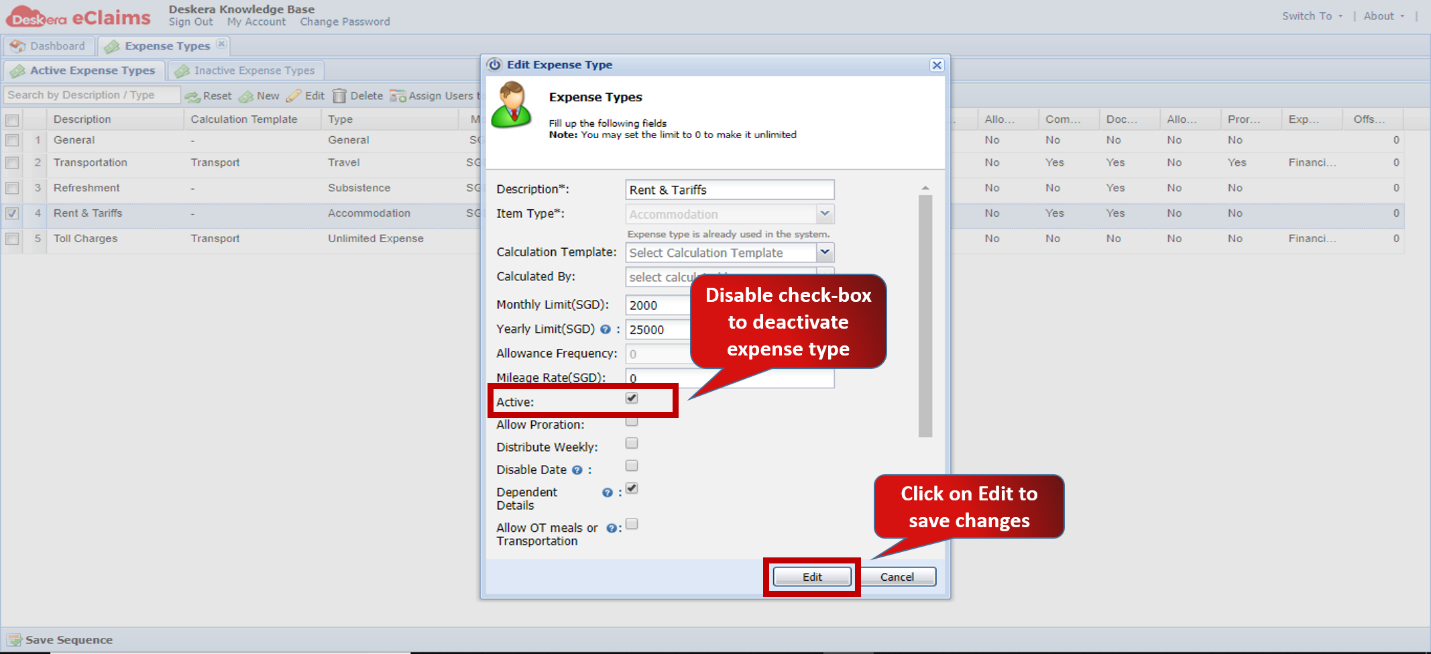 Fig.4.6.5.1.12 Edit Expense Types
Delete Expense Type
The admin can permanently delete an expense type from the Deskera eClaims system. However an expense cannot be deleted if it has already been used for a claim application. In order to delete the expense type the user would have to first delete all claims made against the particular expense type.
Step 1: Go to Manage Expense Types under Master Settings on eClaims Dashboard Fig.4.6.5.1.13 eClaims Dashboard
Step 2: Select the expense type to delete and click on Delete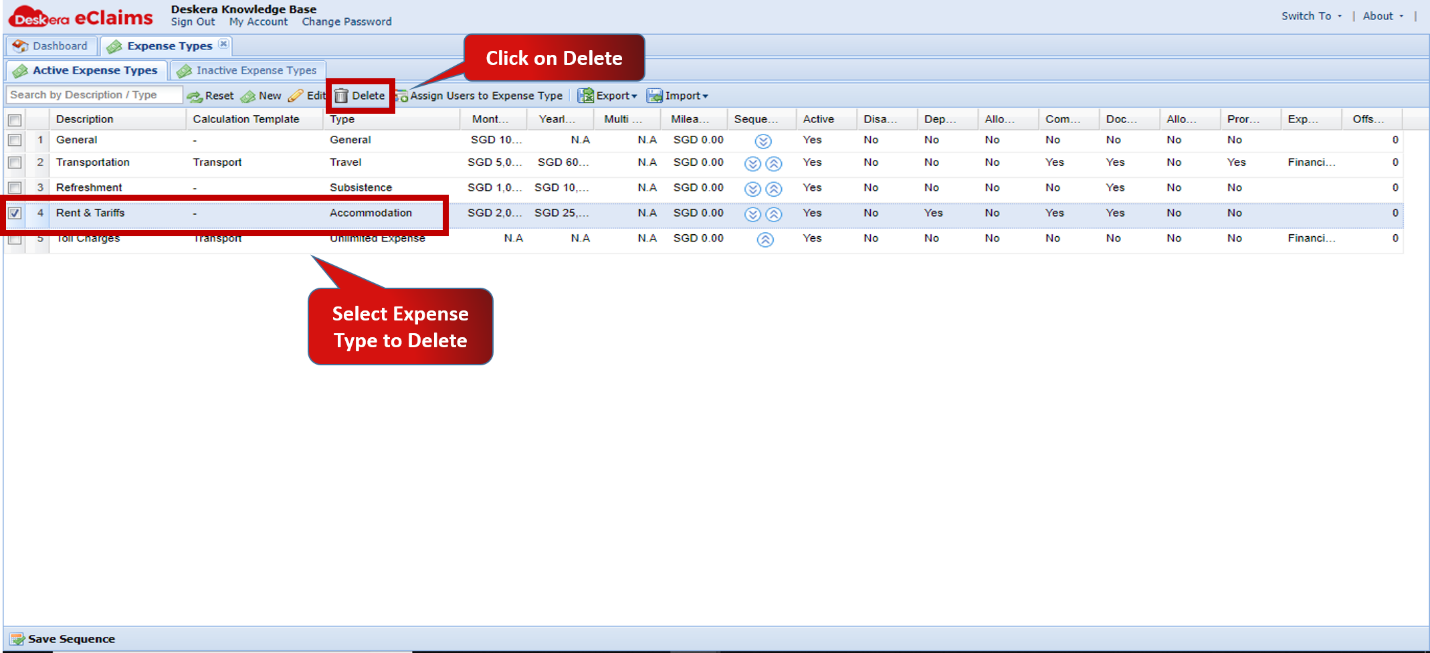 Fig.4.6.5.1.14 Manage Expense Types
Step 3: Click on Yes to confirm Delete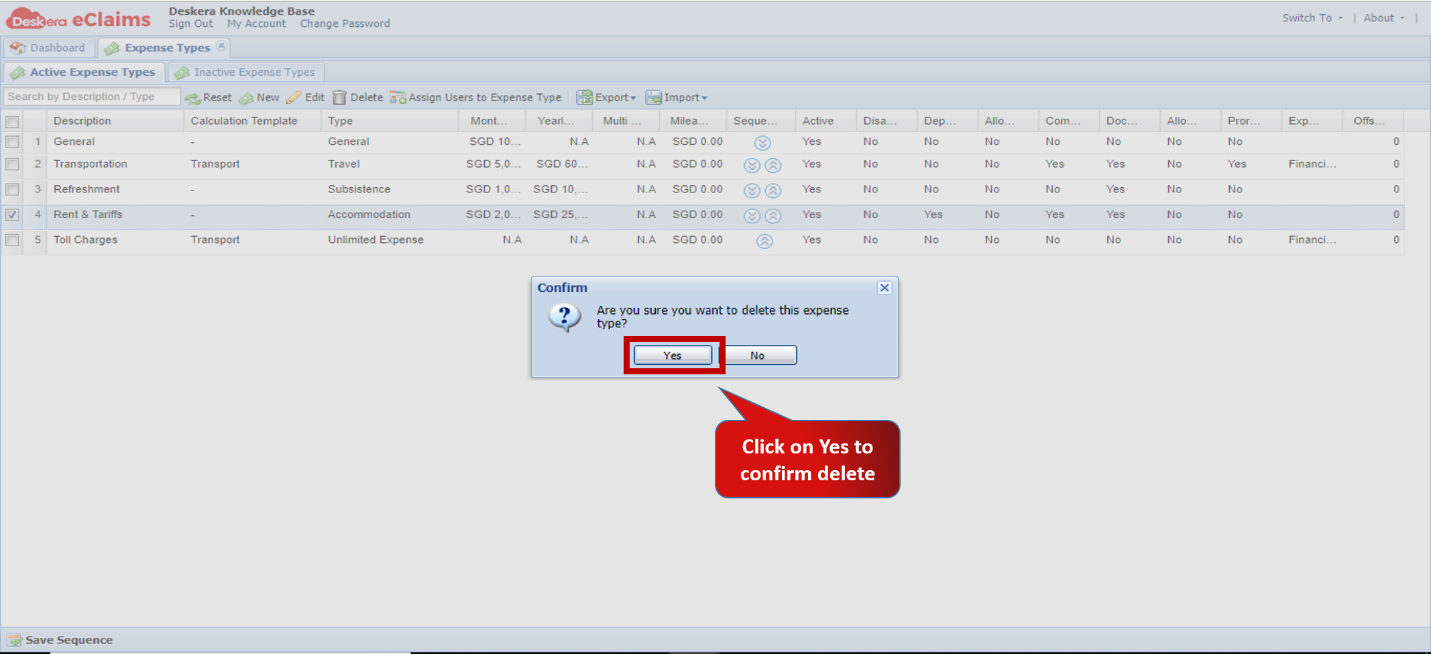 Fig.4.6.5.1.15 Delete Expense Types
Comments
0 comments
Please sign in to leave a comment.