
The article briefs us about various rules available in the Deskera e-Claims system to approve claims of a user.
Prerequisites:
- You have your Deskera HRMS application URL in place.
- You are the administrator of the HRMS application.
- Ensure Stable Internet Connectivity.
Step 1: On the e-Claims Dashboard, click on the Master Configuration and find the claim approval rule to the right hand side of the page.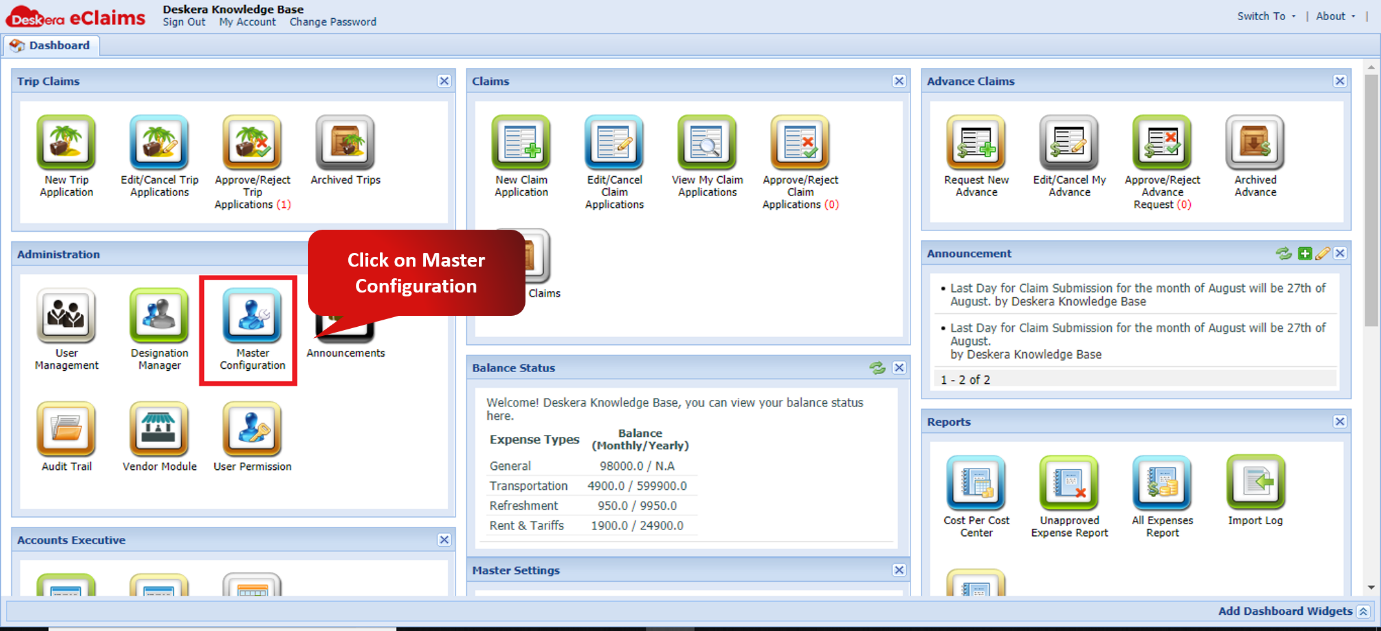 Fig. 4.2.3.1.1.1 e-Claims Dashboard
Step 2: Choose the relevant Claim approval rule and click on save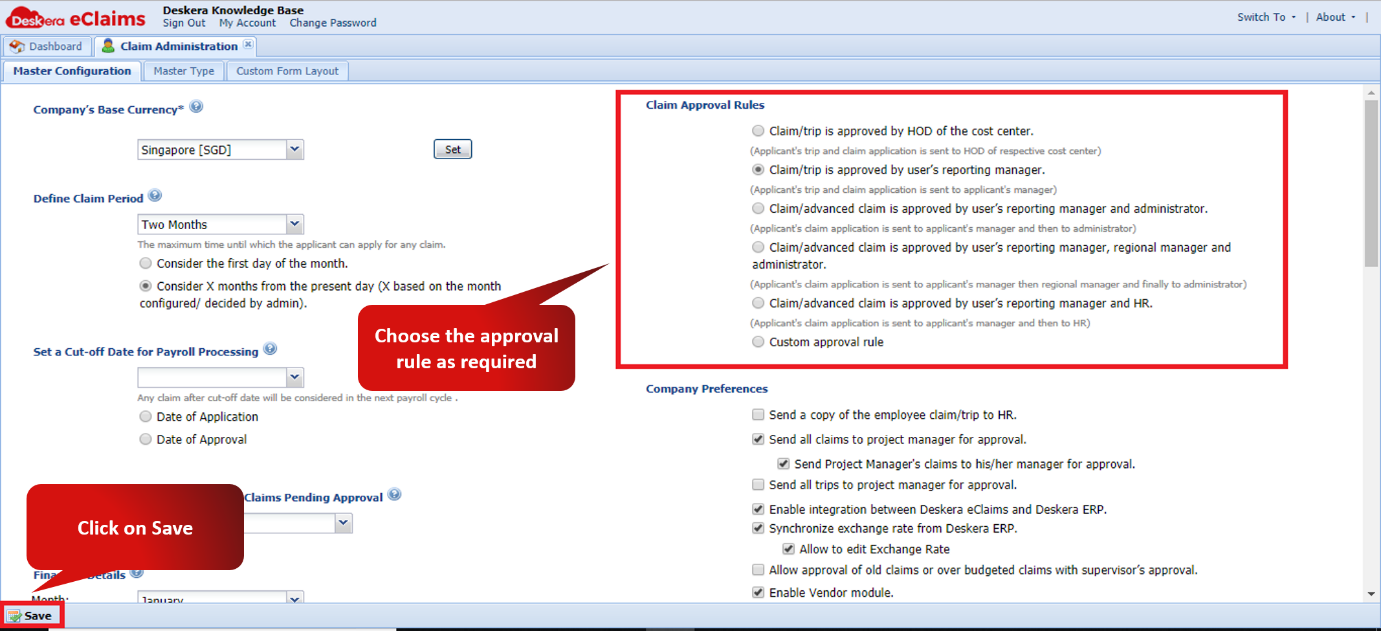 Fig. 4.2.3.1.1.2 User Management window
Note: Each claim approval rule is briefed below.
- Claim/Trip is approved by the HOD of the cost centre: In this claim approval rule, applicant’s trip and claim application is sent to the heads of the respective cost centres for their approval.
- Claim/Trip is approved by user’s reporting manager: In this claim approval rule, applicant’s trip and claim application is sent to the applicant’s reporting manager for approval.
- Claim/Advanced Claims is approved by user’s reporting manager and administrator: In this approval rule, applicant’s claim is sent to the applicant’s manager and then sent to the administrator for approval. It is a two-step approval process.
- Claim/Advanced Claims is approved by user’s reporting, regional manager and administrator: In this approval rule, it is a three-step approval process, first approved by reporting manager, then by the regional manager and finally by the administrator.
- Claims/Advanced Claims approved by the reporting manager and HR: In this approval rule, the claim is first approved by the reporting manager and then by the HR.
- Custom approval rule: under the custom approval rule, the following can be set.
- Claim approved by multi-level approver: In this type of approval rule, claims can be approved up to three levels of approval and also the rules can be set accordingly.
- Claim approved based on expense type: In this type of approval rule, claims containing specific types of expense types is approved by the authority assigned to it.
Comments
0 comments
Please sign in to leave a comment.