
The article briefs us about importing Assign User Manager and Assign Roles directly into the system. In order to mass assign user manager or roles, import function is used.
Prerequisites:
- You have your Deskera eClaims application URL in place.
- You are the administrator of the eClaims application.
- Ensure Stable Internet Connectivity.
Import Assign Manager
Step 1: On the e-Claims Dashboard, click on user management under the Administration widget.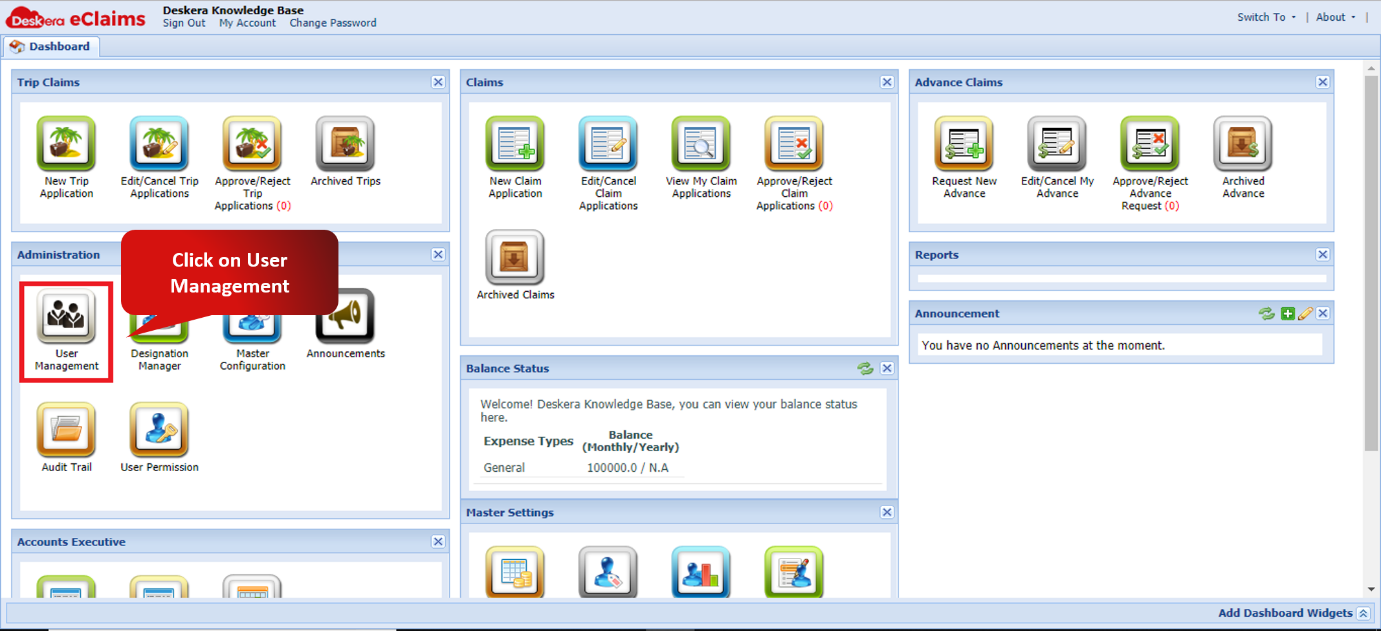
Fig. 4.2.1.1.6.1 e-Claims Dashboard
Step 2: Click on import and choose import assign manager.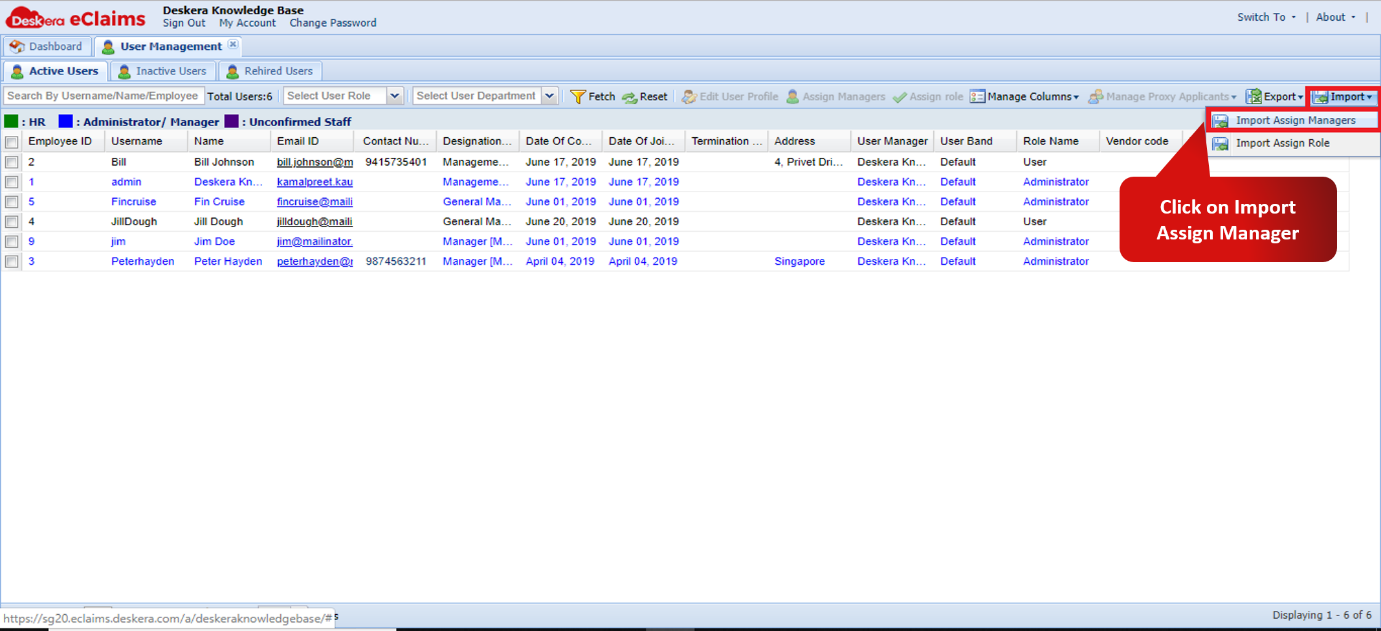
Fig. 4.2.1.1.6.2 User Management window
Step 3: Choose the file to be imported and click on import. In order to download the sample file click on download sample file. The sample file serves as a reference for import file format.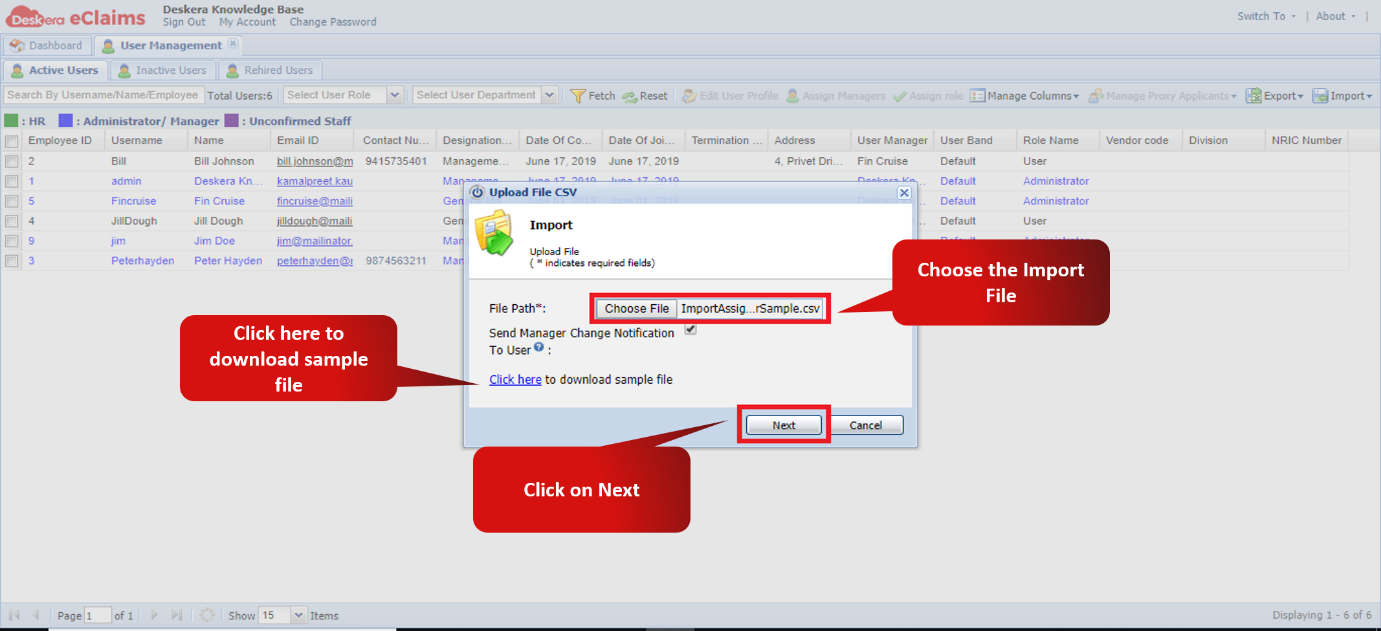
Fig. 4.2.1.1.6.3 Import Wizard.
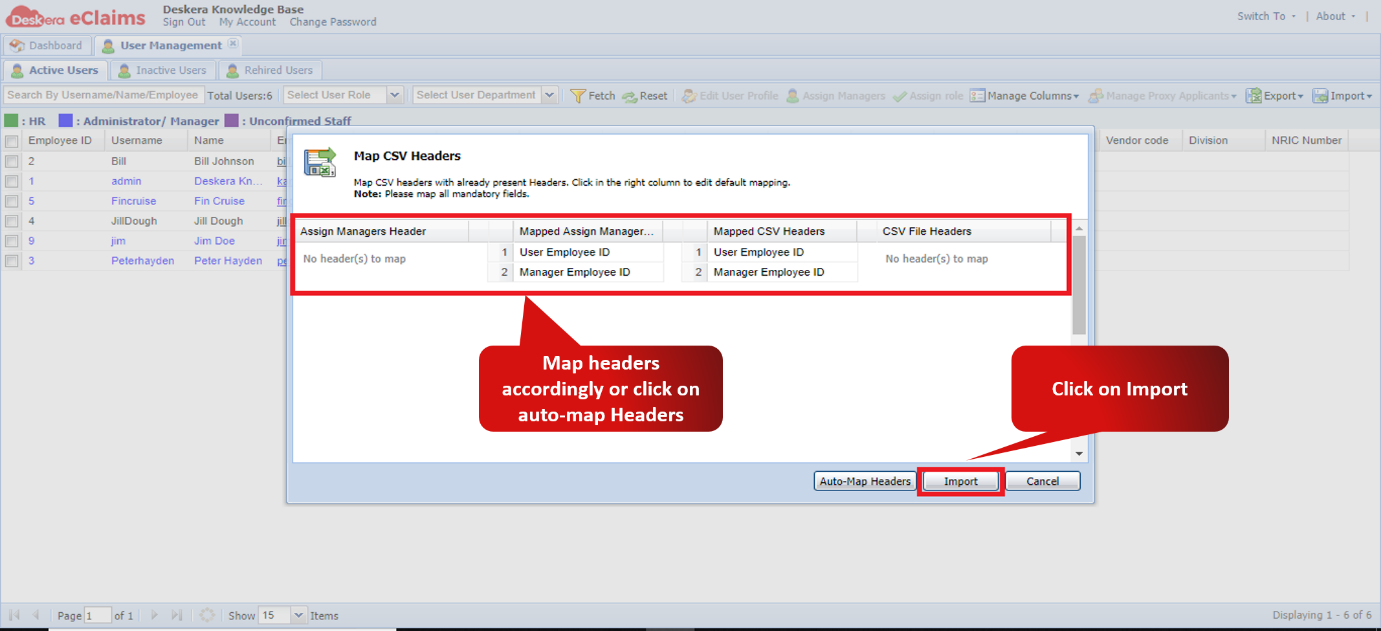
Fig. 4.2.1.1.6.4 Import Wizard.
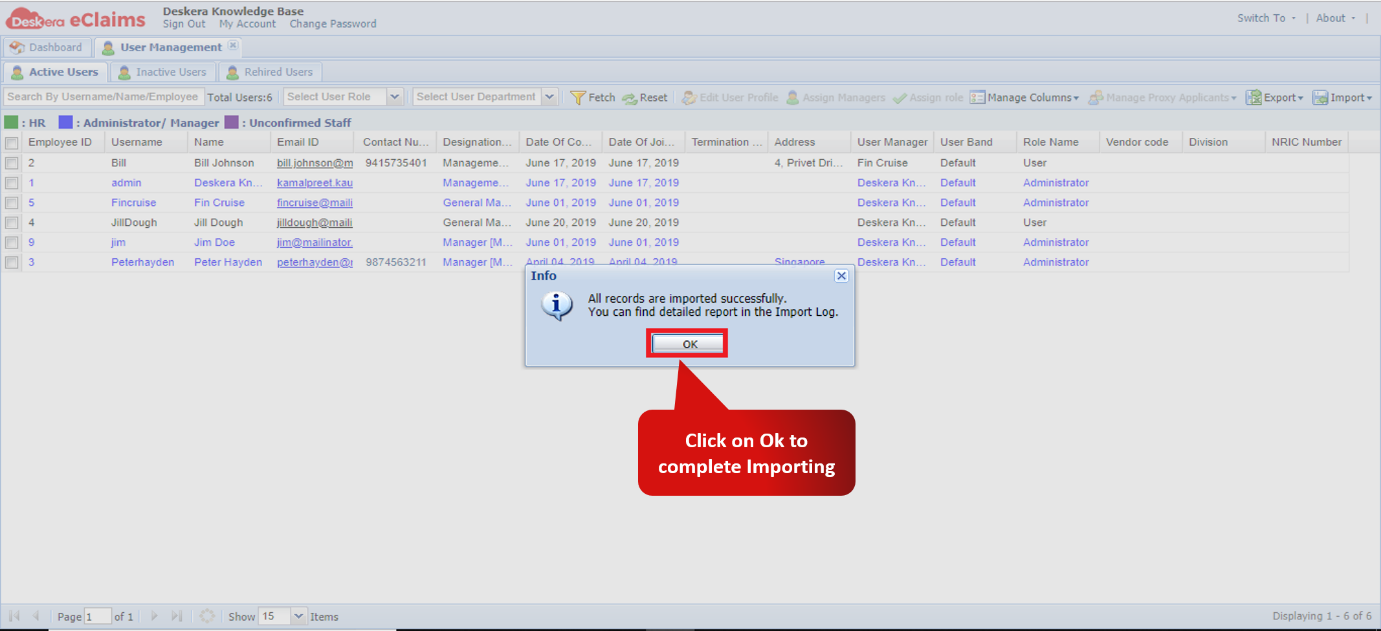
Fig. 4.2.1.1.6.3 Import Successful confirmation Wizard.
Import Assign Role
Step 1: On the e-Claims Dashboard, click on user management under the Administration widget.
Fig. 4.2.1.1.6.6 e-Claims Dashboard
Step 2: Click on import and choose import assign role.
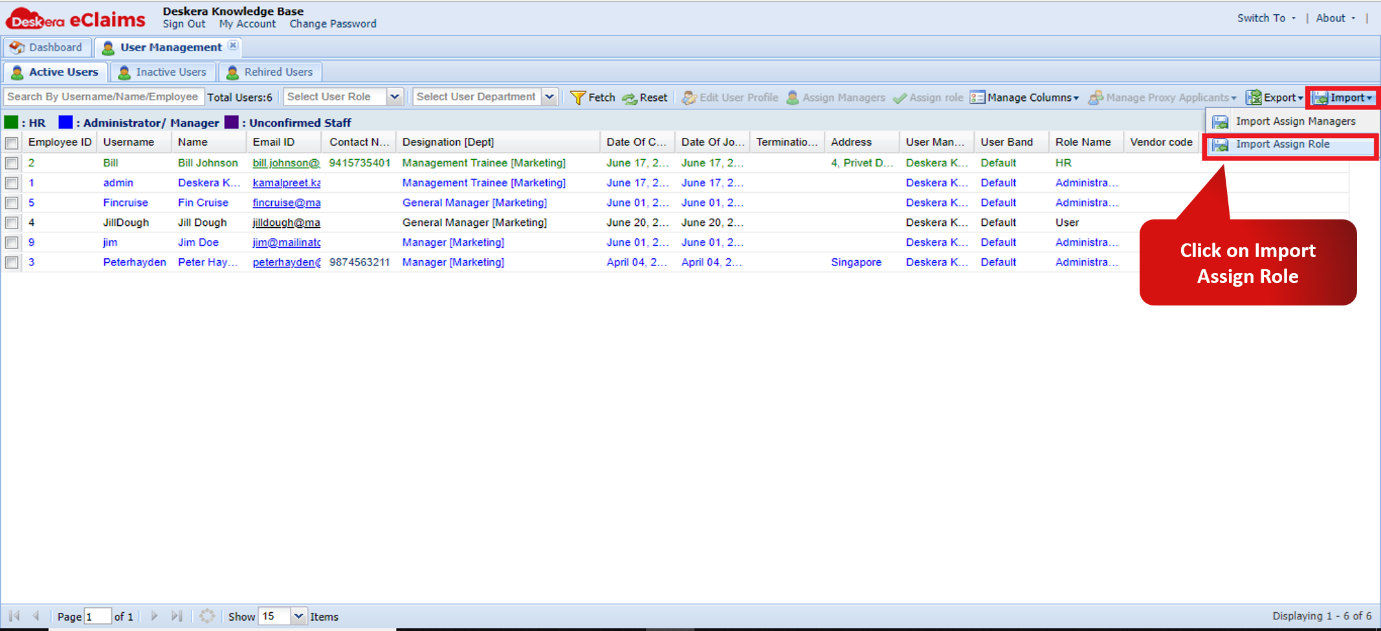
Fig. 4.2.1.1.6.7 User Management window
Step 3: Choose the file to be imported and click on import. In order to download the sample file click on download sample file. The sample file serves as a reference for import file format.
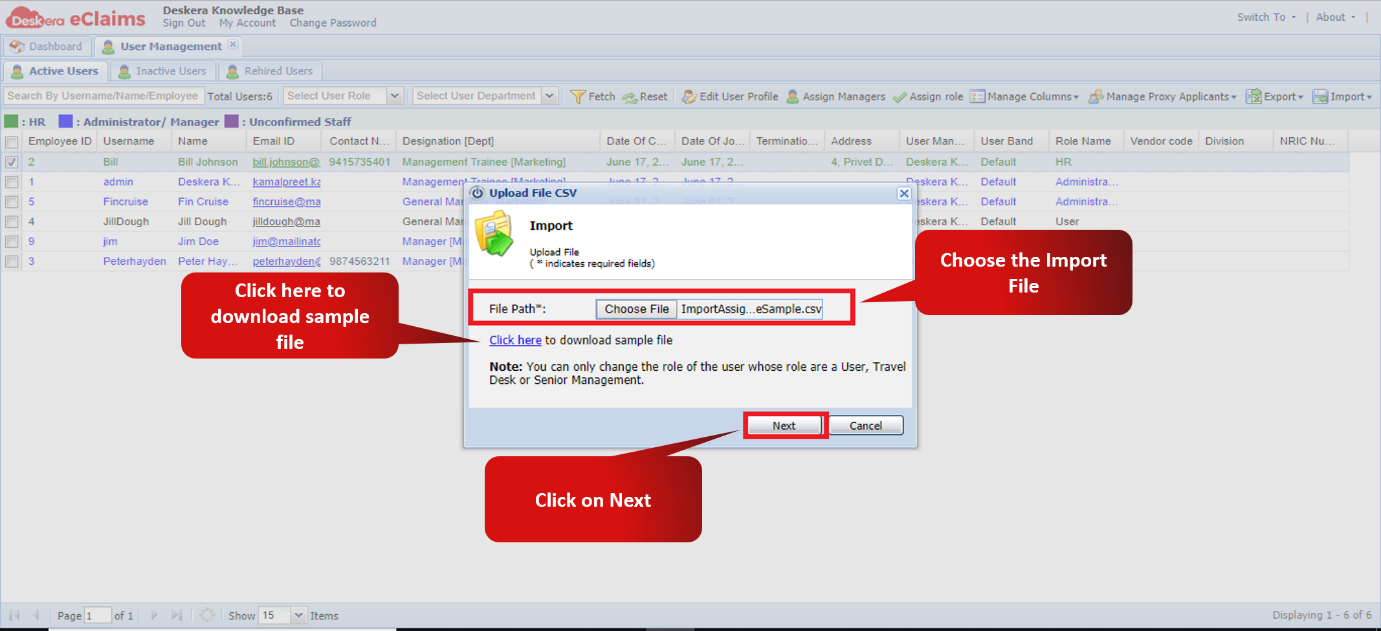
Fig. 4.2.1.1.6.8 Import Wizard.
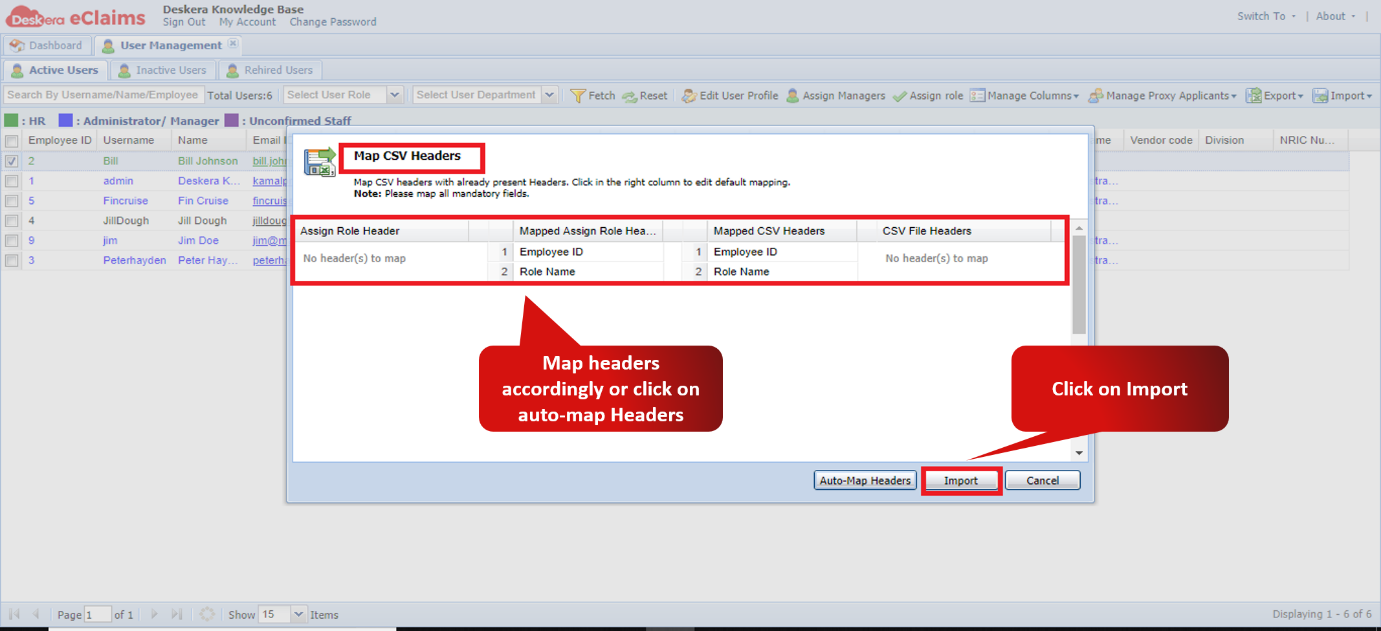
Fig. 4.2.1.1.6.9 Import Wizard.
Fig. 4.2.1.1.6.10 Import Successful confirmation Wizard.
Comments
0 comments
Please sign in to leave a comment.