
Manage Columns include addition, deletion and editing of custom columns created in the Deskera e-Claims application. The article gives the user an idea of how to manage custom columns in Deskera e-Claims application.
Prerequisites:
- You have your Deskera eClaims application URL in place.
- You are the administrator of the eClaims application.
- Ensure Stable Internet Connectivity.
Add Custom Column
Step 1: On the e-Claims Dashboard, click on user management under the Administration widget.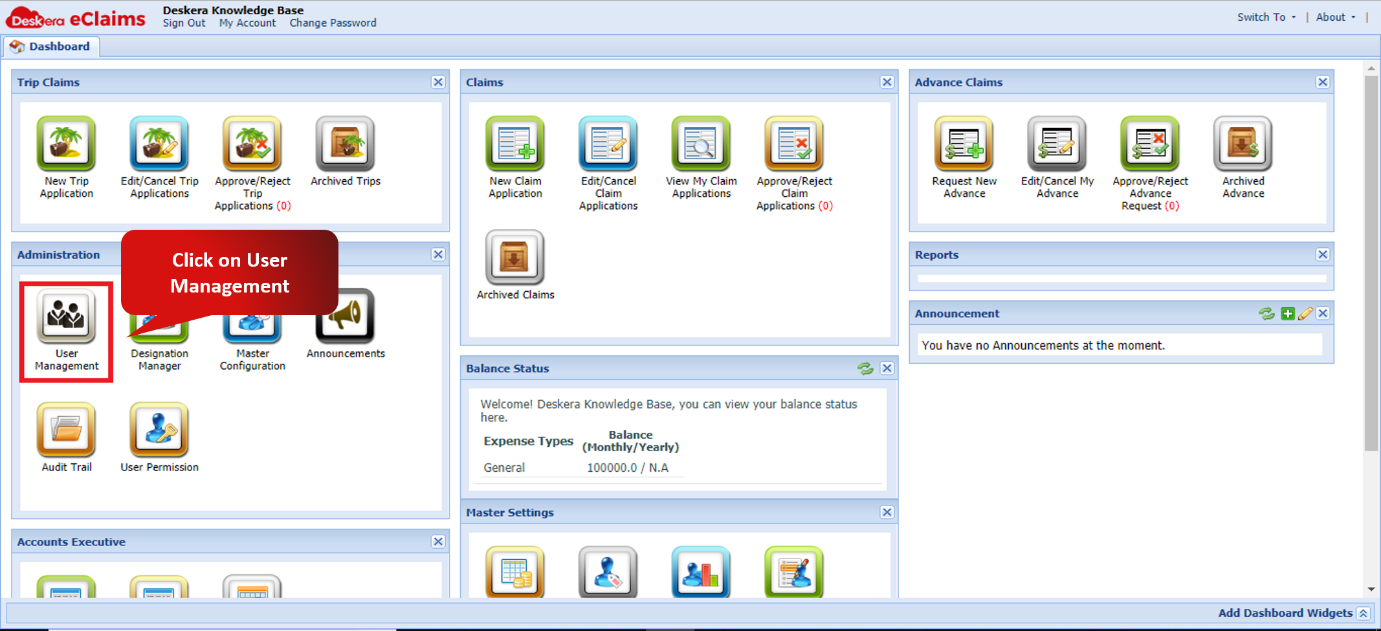
Fig. 4.2.1.1.4.1 e-Claims Dashboard
Step 2: Click on Manage columns and in the drop down menu, choose add custom column.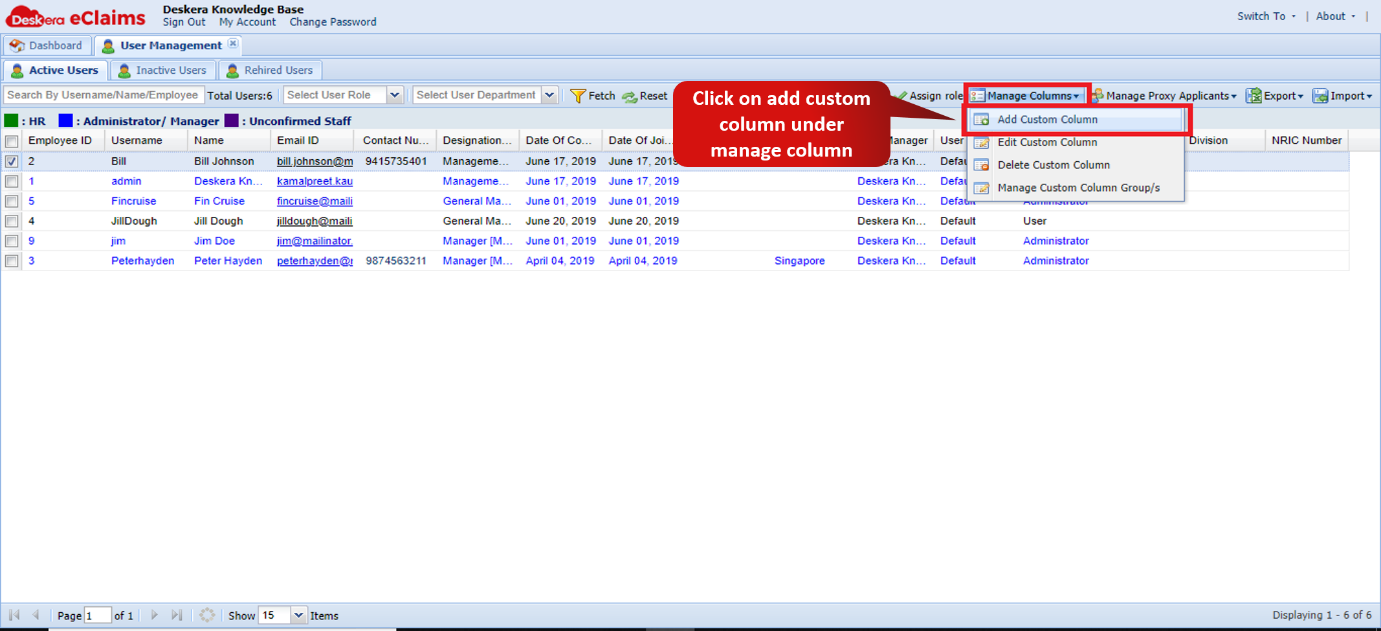
Fig. 4.2.1.1.4.2 User Management window
Step 3: Add all the details of the custom column and click on create to create a new column.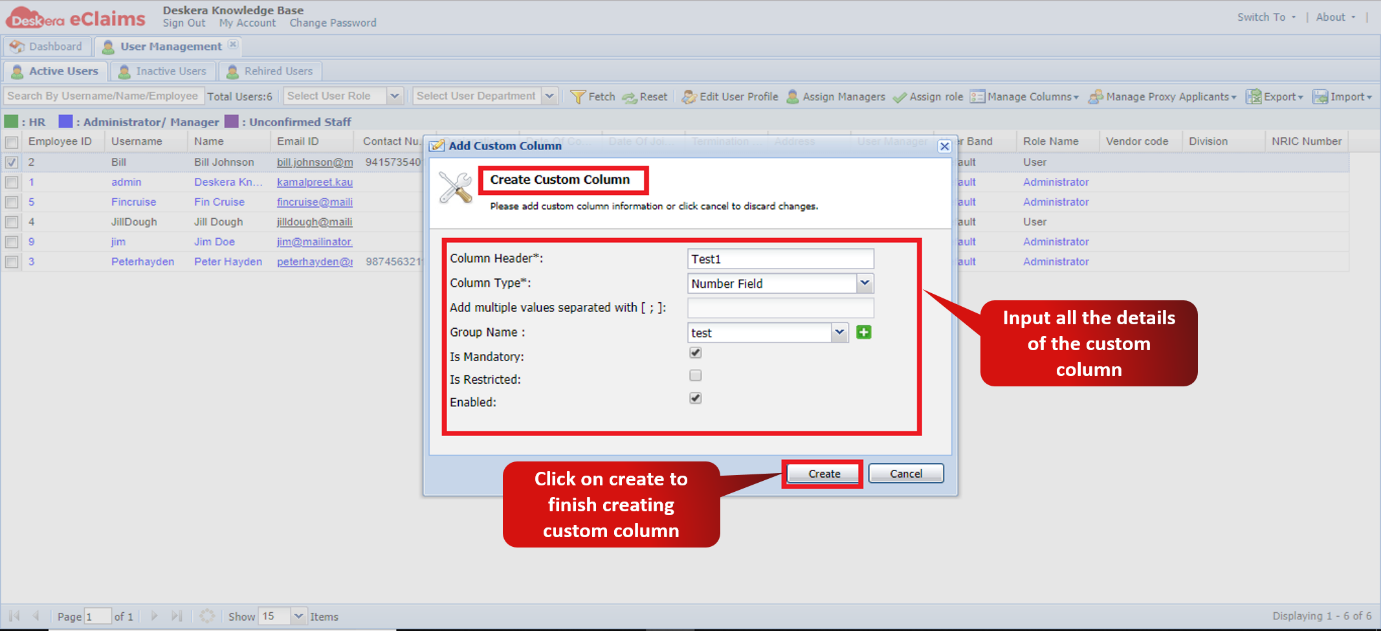
Fig. 4.2.1.1.4.3 Create custom column Wizard
Edit Custom Column
Step 1: On the e-Claims Dashboard, click on user management under the Administration widget.
Fig. 4.2.1.1.4.4 e-Claims Dashboard
Step 2: Select the Custom Column, click on Manage columns and in the drop down menu, choose edit custom column.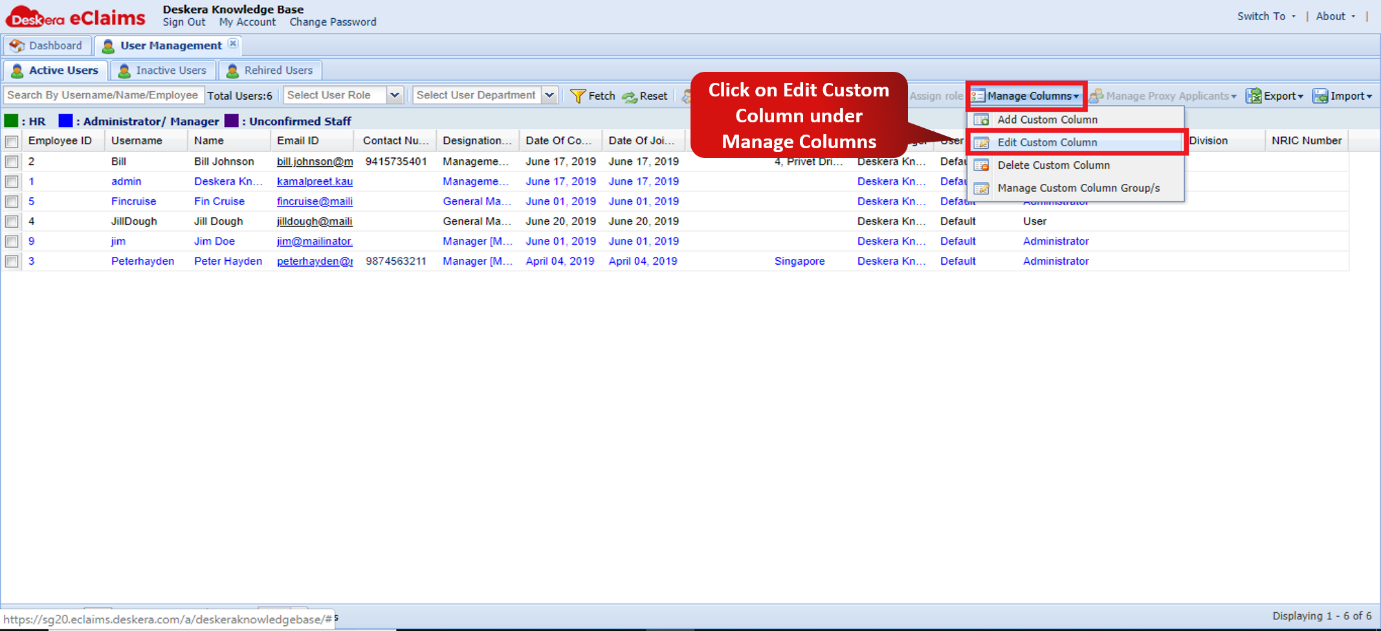
Fig. 4.2.1.1.4.5 User Management window
Step 3: Update all the details of the custom column and click on save to update custom column.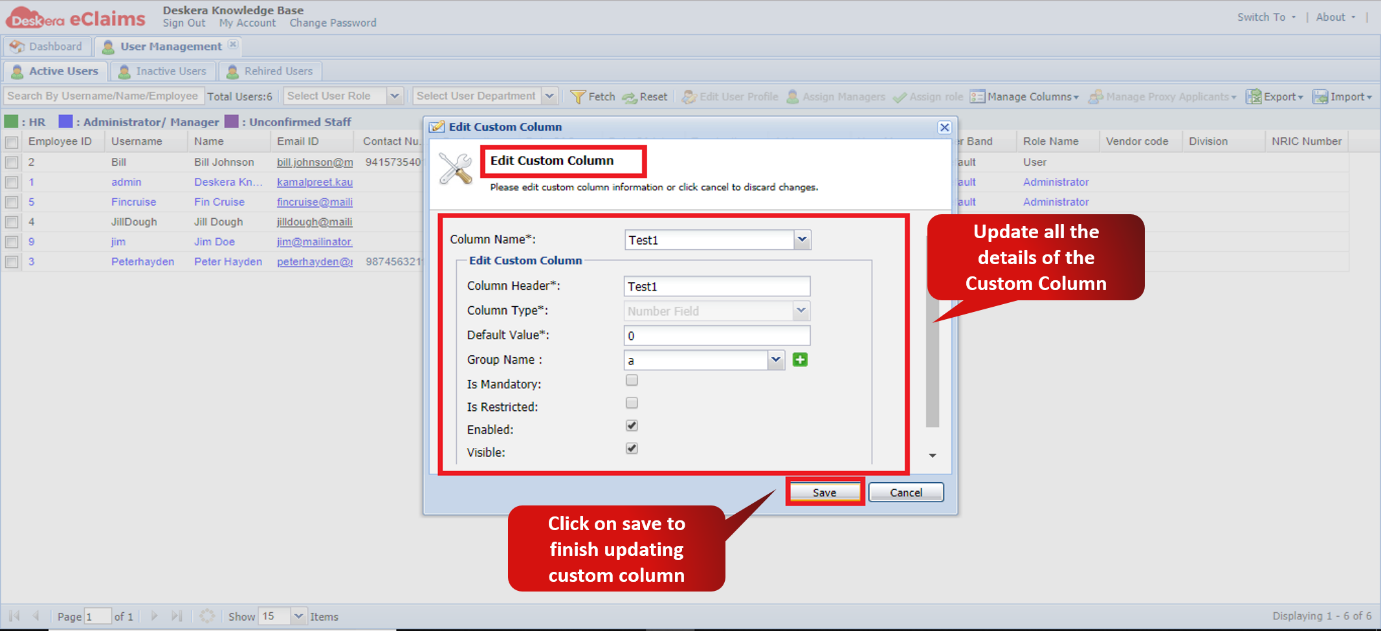
Fig. 4.2.1.1.4.6 Edit custom column Wizard
Delete Custom Column
Step 1: On the e-Claims Dashboard, click on user management under the Administration widget.
Fig. 4.2.1.1.4.7 e-Claims Dashboard
Step 2: Select the Custom Column, click on Manage columns and in the drop down menu, choose delete custom column.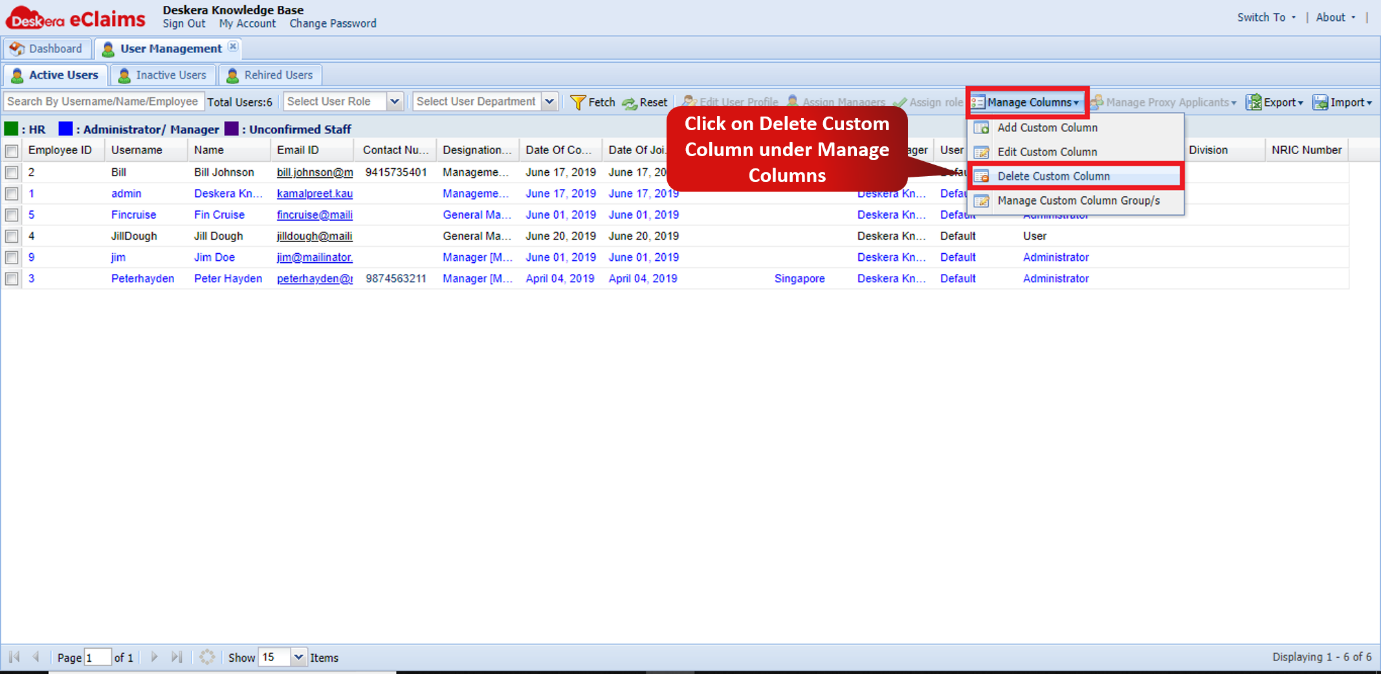
Fig. 4.2.1.1.4.8 User Management window
Step 3: Click on ok to confirm deletion of the custom column.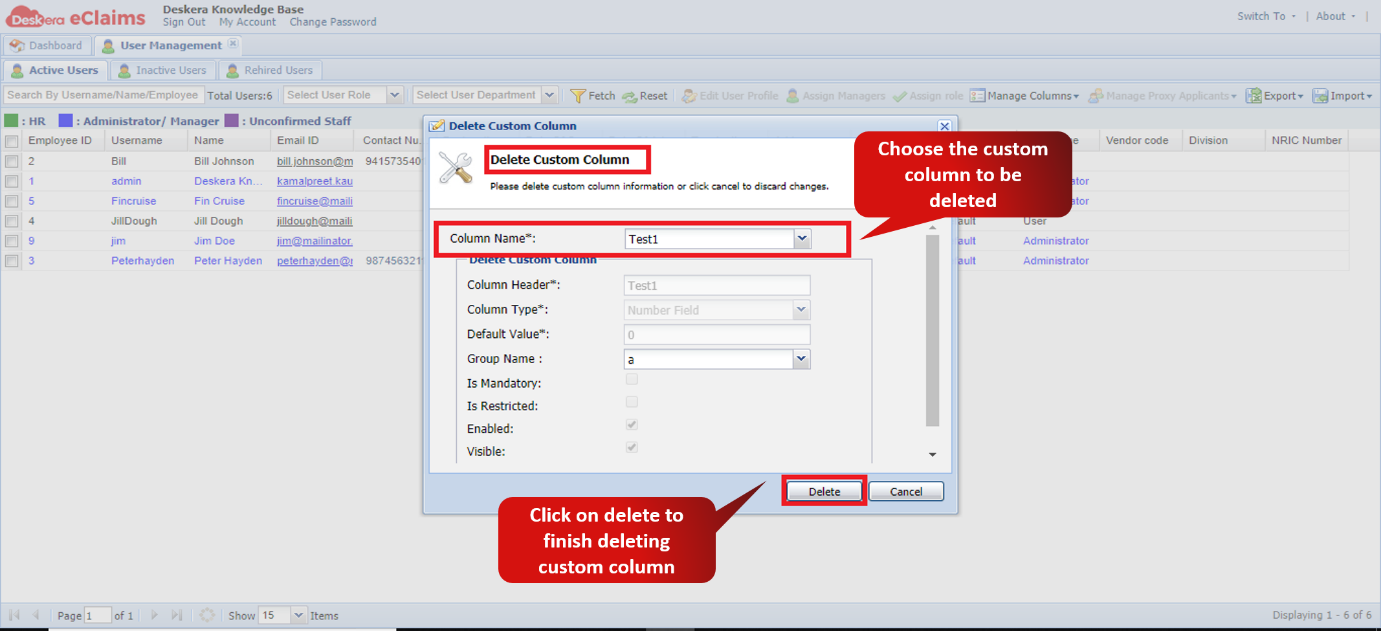
Fig. 4.2.1.1.4.9 Delete custom column Wizard
Manage Custom Column Group/s
Step 1: On the e-Claims Dashboard, click on user management under the Administration widget.
Fig. 4.2.1.1.4.10 e-Claims Dashboard
Step 2: Click on Manage column in the drop down menu, choose Manage custom column group/s.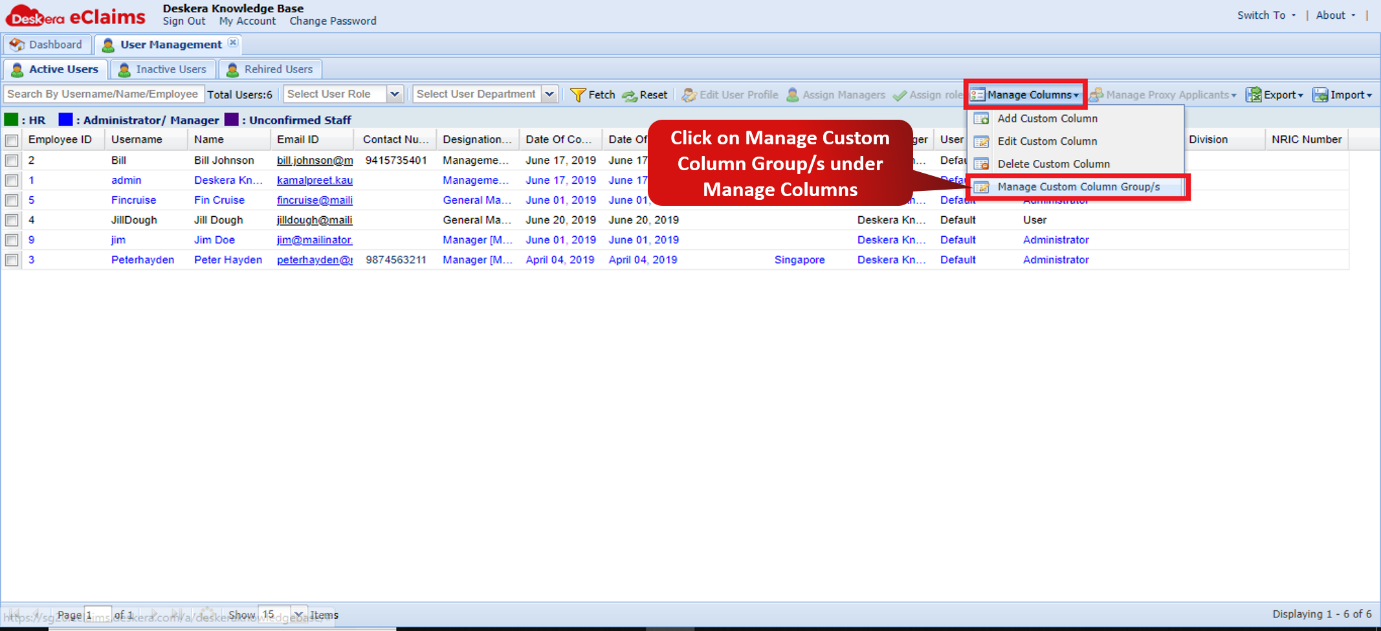
Fig. 4.2.1.1.4.11 User Management window
Step 3: Choose the group to be managed and the field to be managed inside the group. You can either rename the group, remove any field from the group or remove the entire group as required.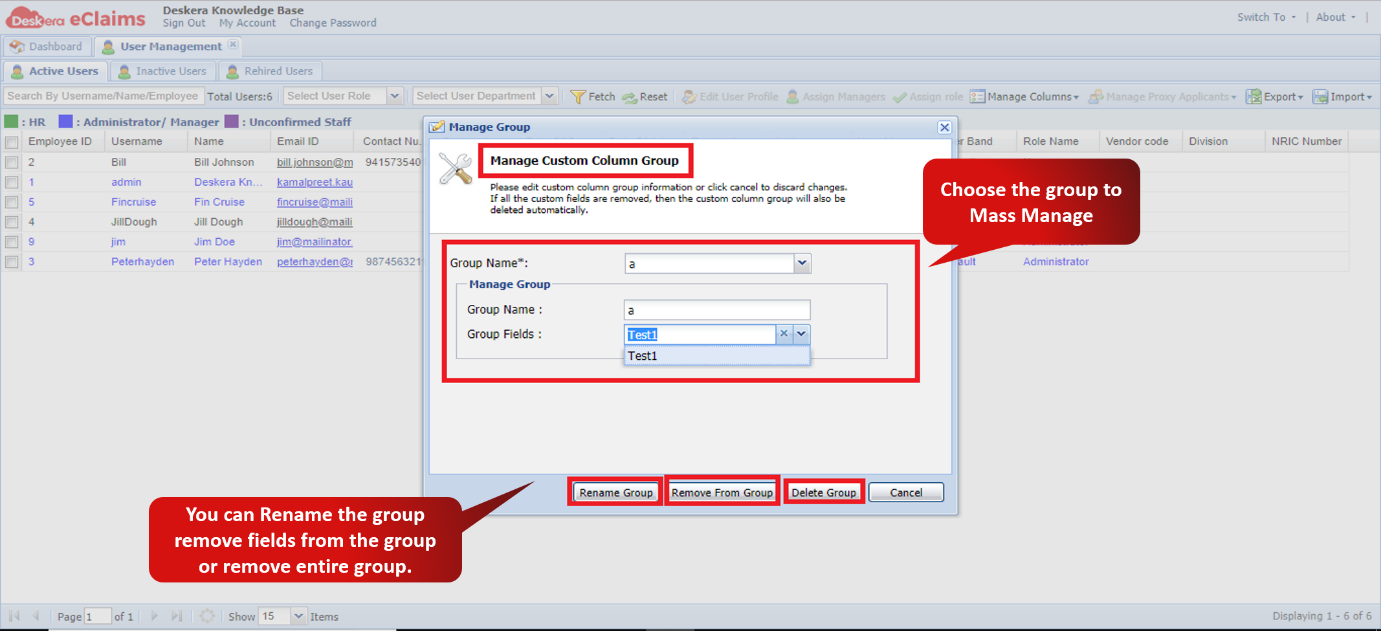
Fig. 4.2.1.1.4.12 Manage custom columns group/s Wizard
Comments
0 comments
Please sign in to leave a comment.