
Proxy Applicant in Deskera e-Claims is the user who applies for claims of another user. This article tells us about how to manage proxy applicants for a user.
Prerequisites:
- You have your Deskera eClaims application URL in place.
- You are the administrator of the eClaims application.
- Ensure Stable Internet Connectivity.
Map for Trips
Step 1: On the e-Claims Dashboard, click on user management under the Administration widget.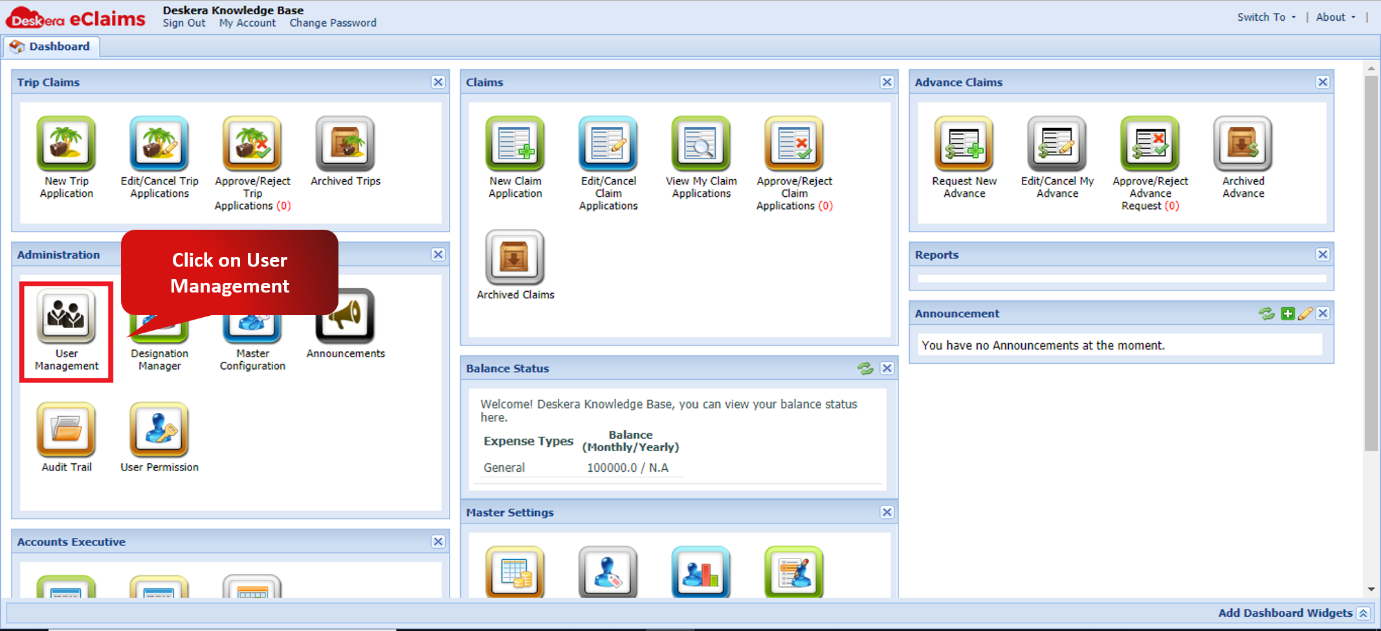
Fig. 4.2.1.1.5.1 e-Claims Dashboard
Step 2: Select the user to assign proxy applicants and click on manage proxy applicant. In the drop down menu click on Map for Trips.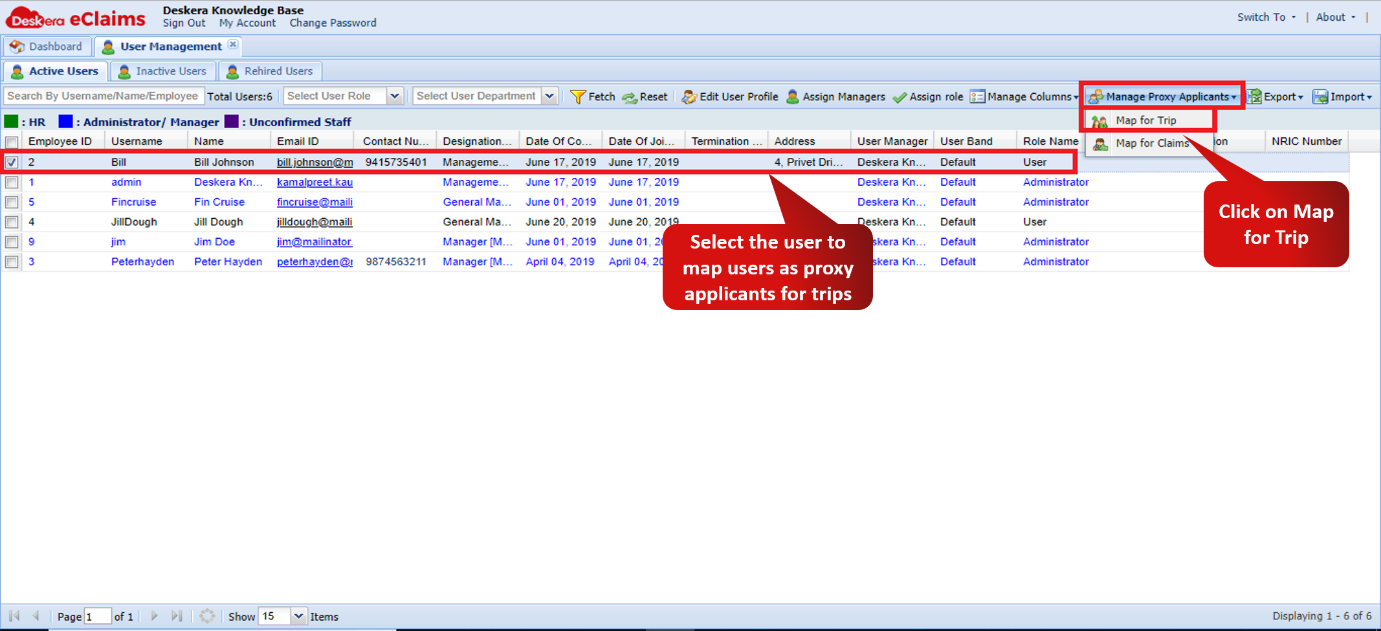
Fig. 4.2.1.1.5.2 User Management window
Step 3: Choose the users in the left hand side and click on the green arrow facing the right hand side to set those users as proxy applicants. Only those users on the right hand side would be able to apply for trip claims of the selected user.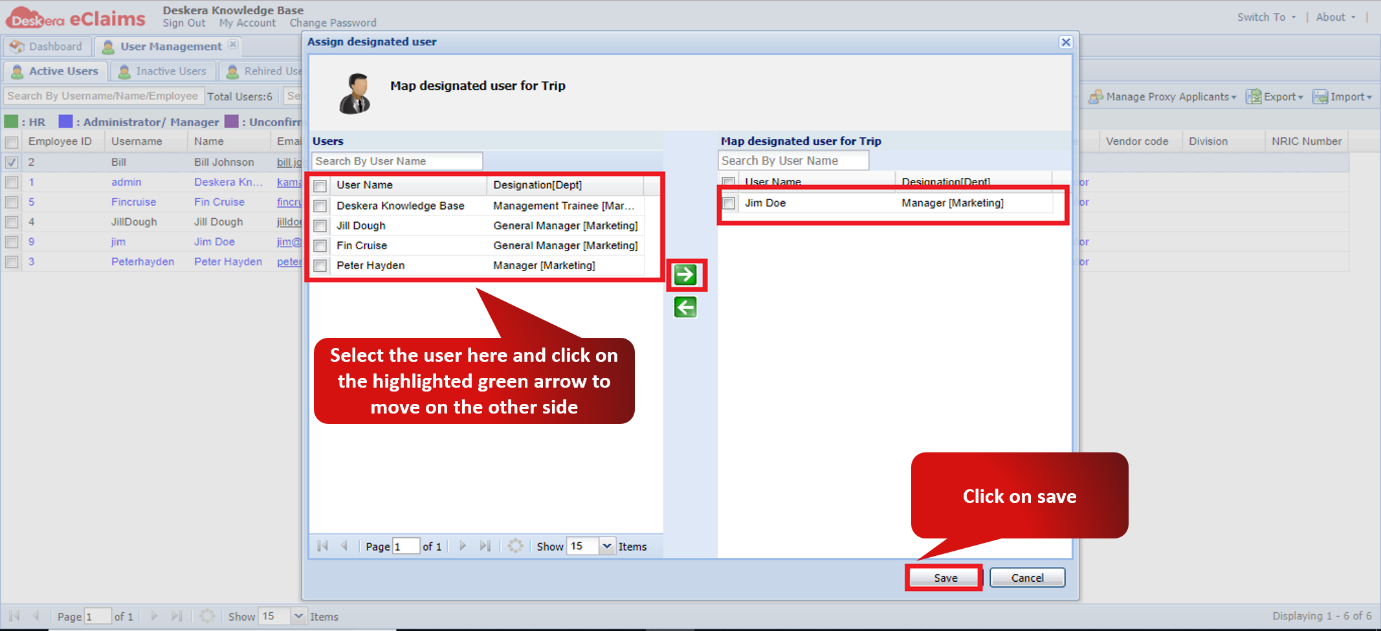
Fig. 4.2.1.1.5.3 Map Designated user for Trips.
Map for Claims
Step 1: On the e-Claims Dashboard, click on user management under the Administration widget.
Fig. 4.2.1.1.5.4 e-Claims Dashboard
Step 2: Select the user to assign proxy applicants and click on manage proxy applicant. In the drop down menu click on Map for Claims.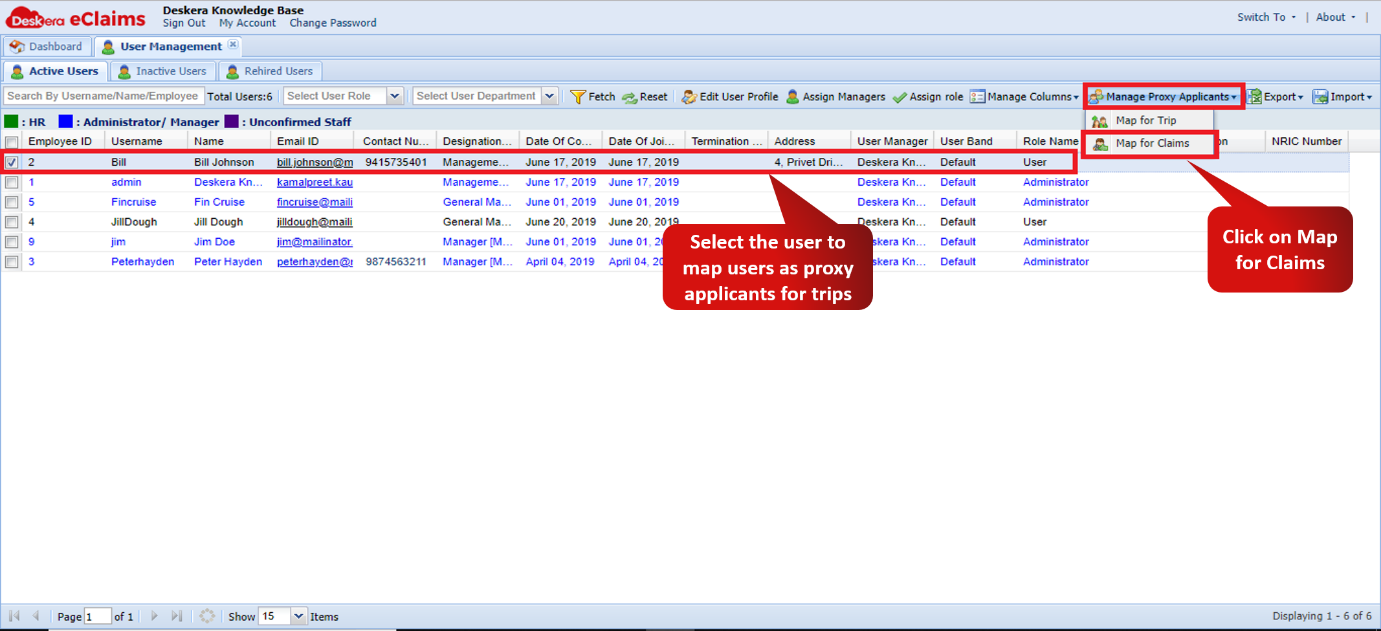
Fig. 4.2.1.1.5.5 User Management window
Step 3: Choose the users in the left hand side and click on the green arrow facing the right hand side to set those users as proxy applicants. Only those users on the right hand side would be able to apply for claims of the selected user.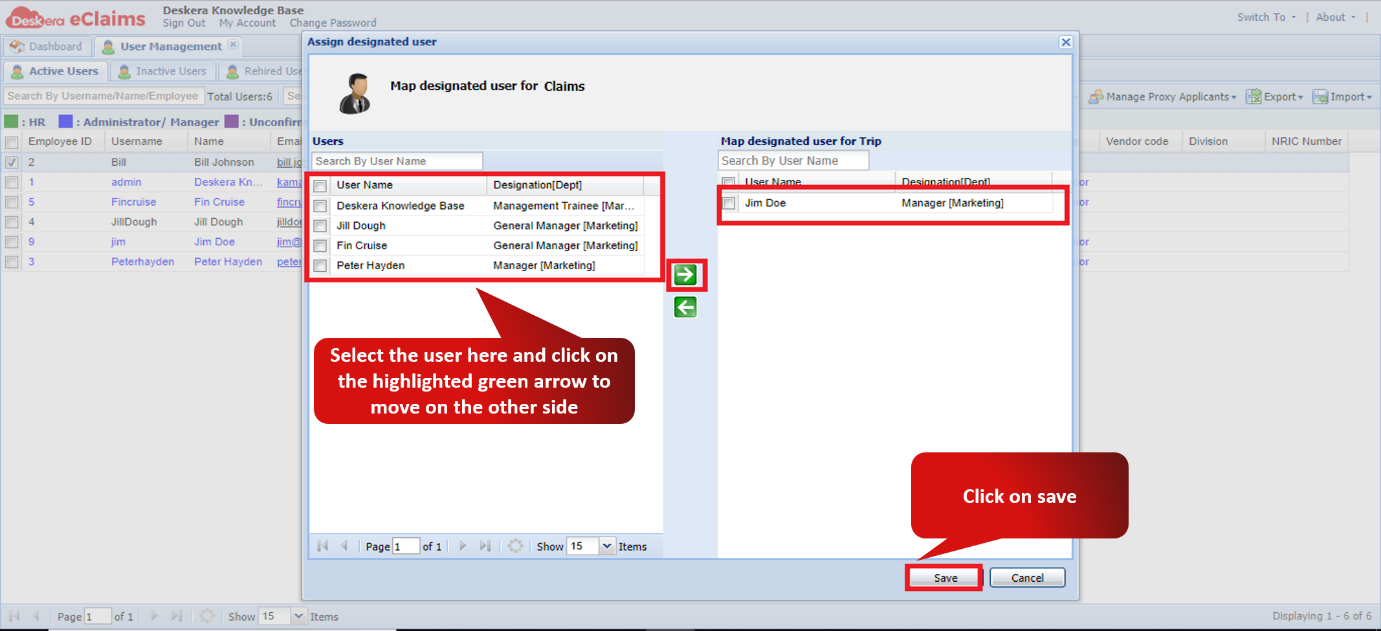
Fig. 4.2.1.1.5.6 Map Designated user for Claims.
Comments
0 comments
Please sign in to leave a comment.