
Attendance Details Report consists of details such as Employee ID, Name, Designation, Email ID, Contact Number, Total Days, Working Days, Absent Days, Weekly Off, Holidays, Leaves, Synced, Unpaid Leaves, Pay Days, and OT details for the selected Month and Year.
Prerequisites:
- You have your Deskera eLeave application URL in place.
- You are the administrator of the eLeave application.
- Ensure Stable Internet Connectivity.
Activating Attendance Details Report from Master Configuration
Step 1: Click on Master Configuration from the eLeave Dashboard.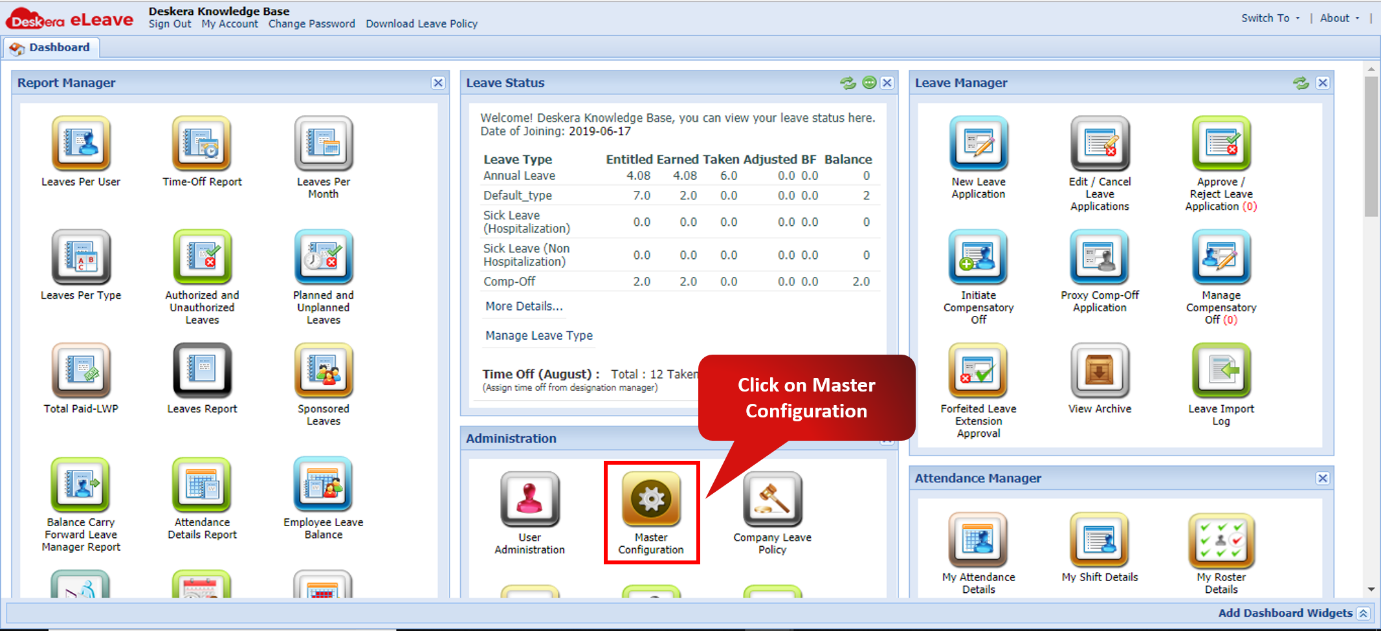 Fig. 3.6.11.1 eLeave Dashboard
Step 2: Scroll down Company Preferences panel to view Report Manager section. Ensure that the checkbox against Attendance Details Report is ticked. 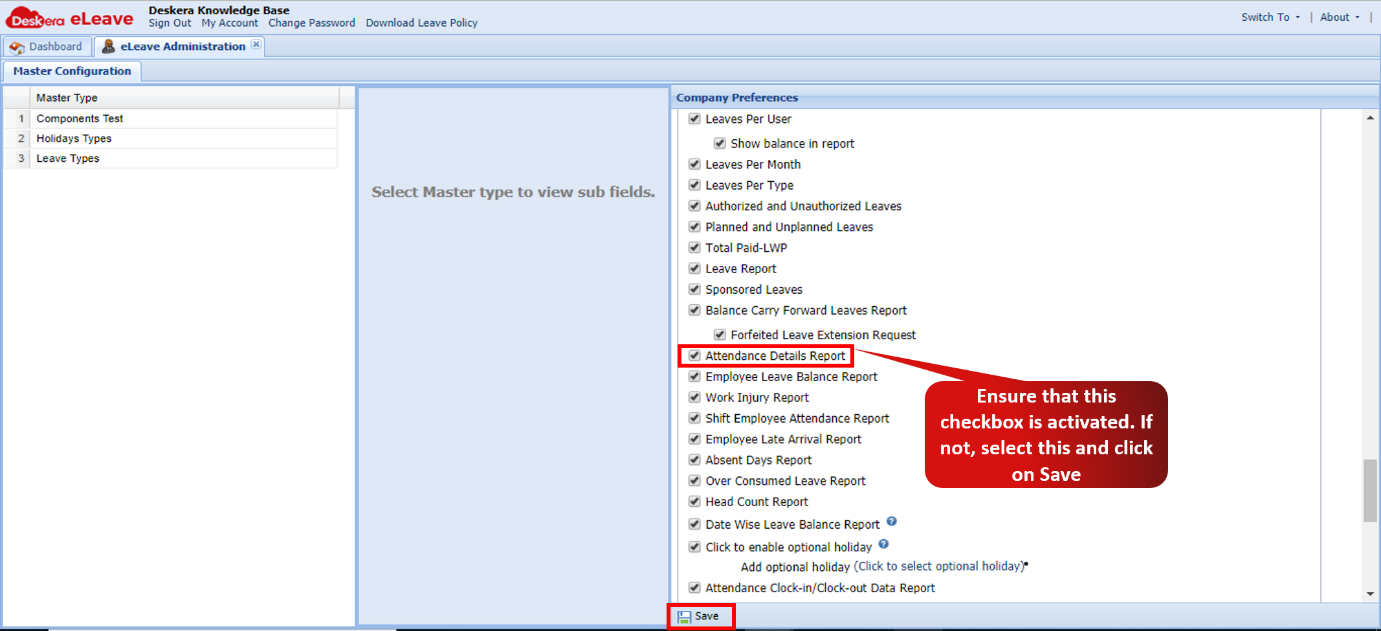 Fig. 3.6.11.2 Master Configuration
Accessing Attendance Details Report
Step 1: Click on Attendance Details Report under Report Manager from the Dashboard.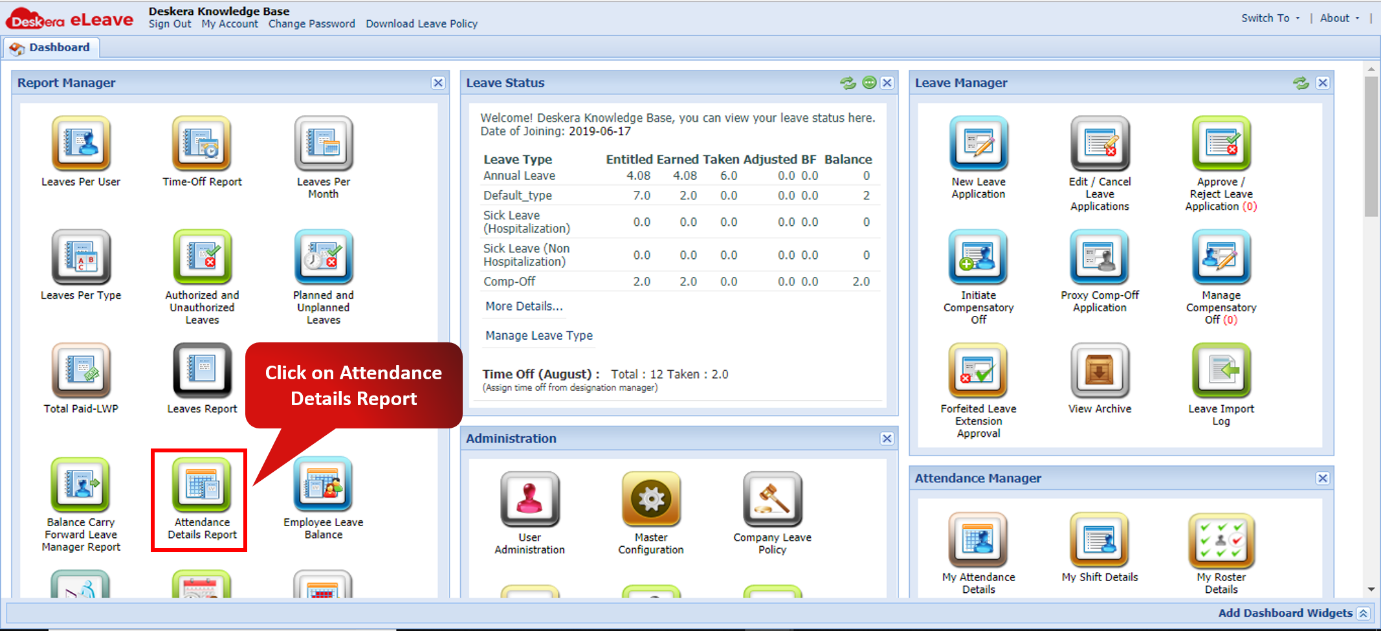 Fig. 3.6.11.3 eLeave Dashboard
Step 2: Attendance Details Report opens showing you the attendance details as per the applied filter.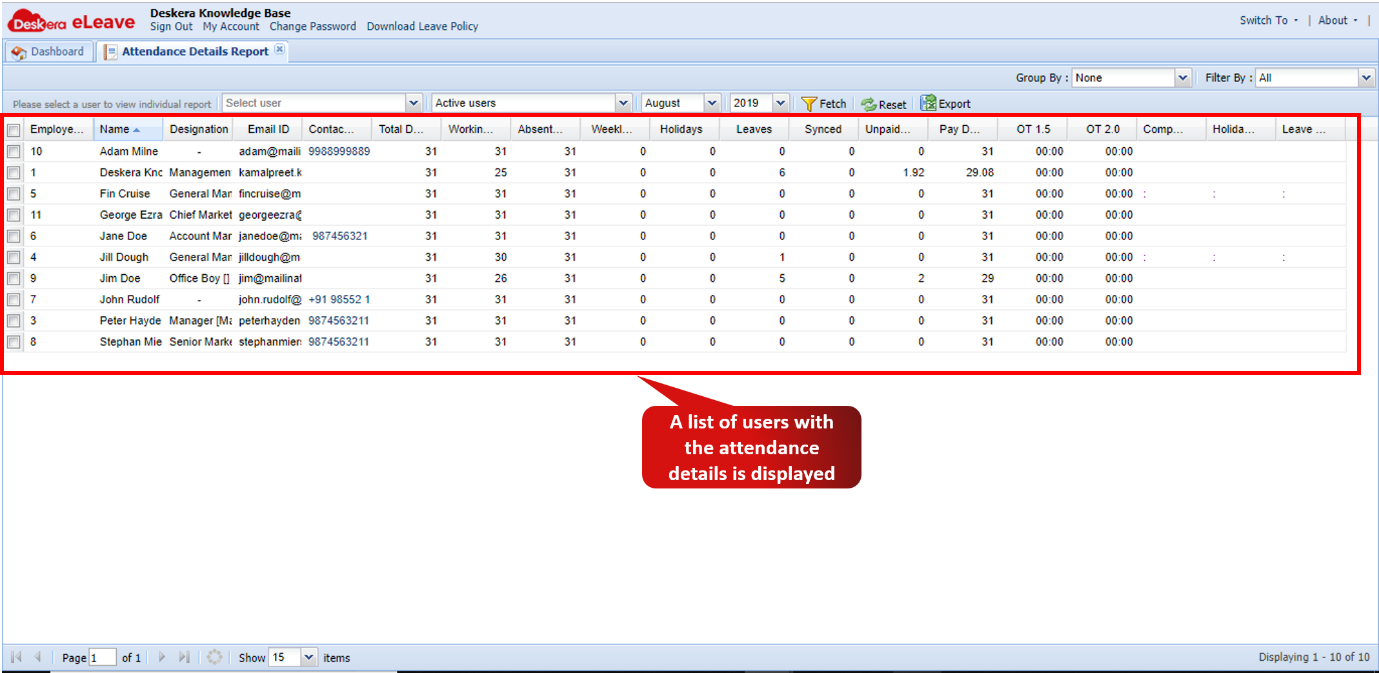 Fig. 3.6.11.4 Attendance Details Report
Comments
0 comments
Please sign in to leave a comment.