
This report provides details of particular user for the entire month along with absent days, Unpaid Leaves, OT etc.
Prerequisites:
- You have your Deskera eLeave application URL in place.
- You are the administrator of the eLeave application.
- Ensure Stable Internet Connectivity.
Step 1: Click Master Configuration icon on the dashboard.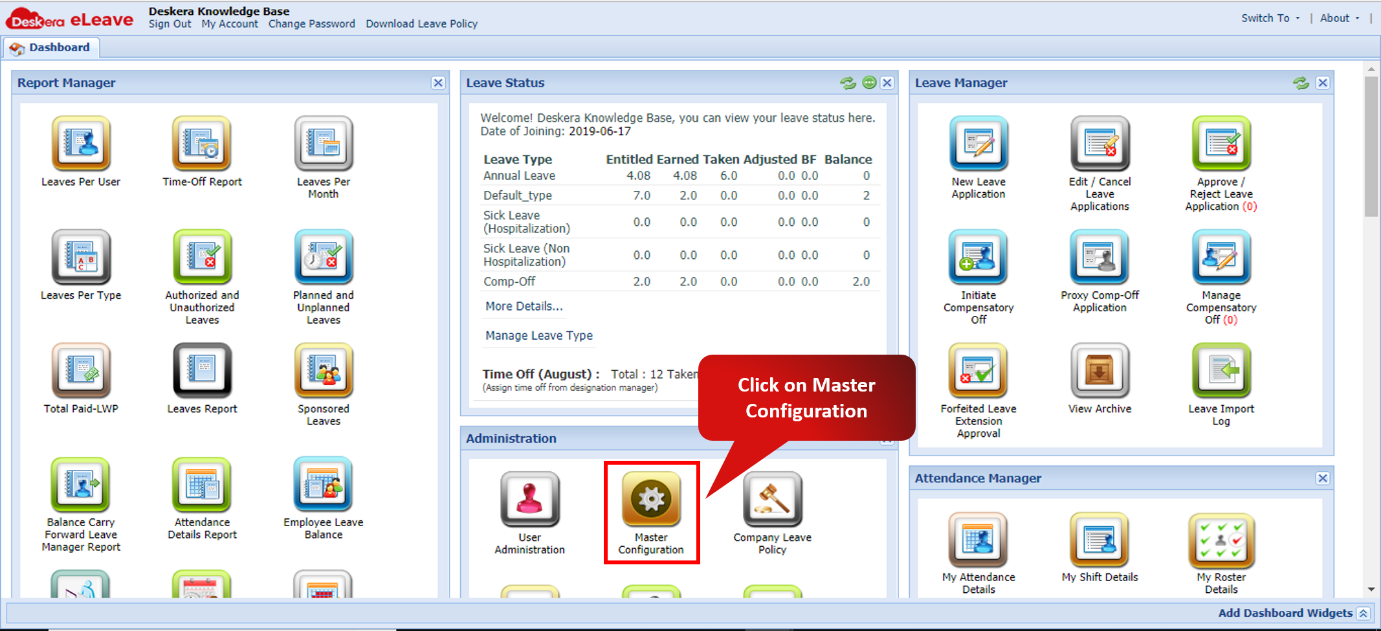 Fig. 3.6.14.1 eLeave Dashboard
Step 2: Scroll down Company Preferences panel to view Report Manager section. Tick the checkbox Absent Days Report and click Save.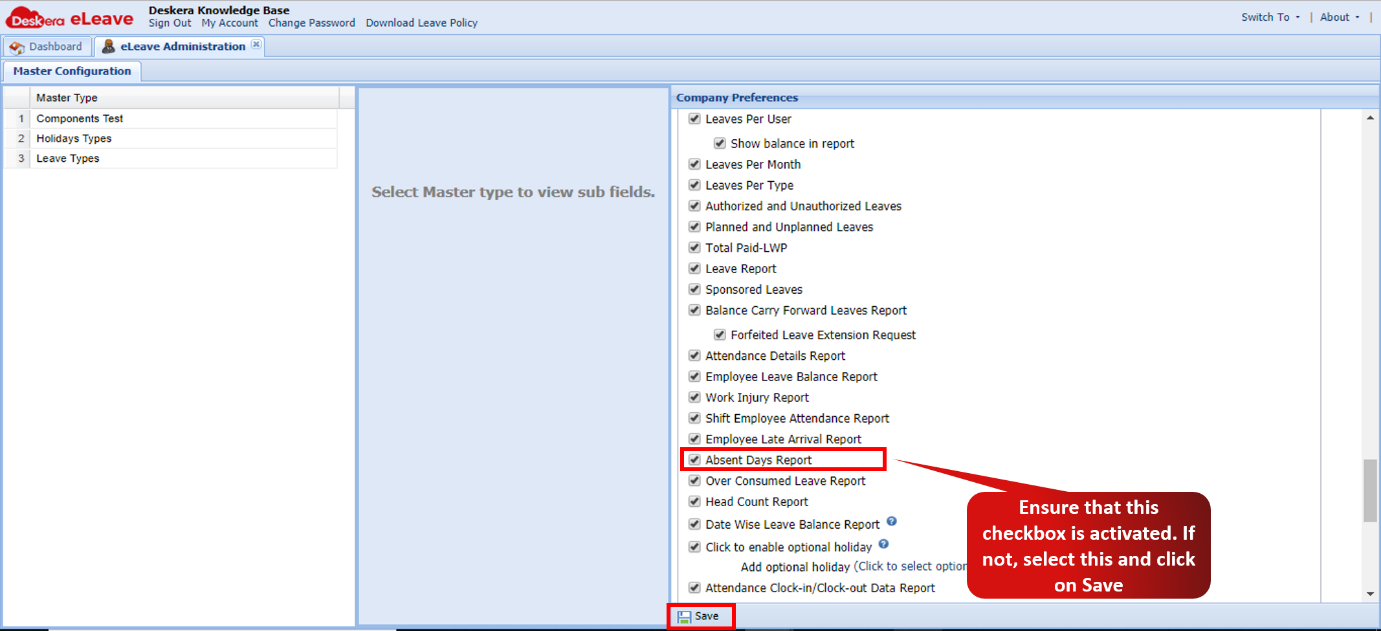 Fig. 3.6.13.2 Master Configuration
Step 3: Click Absent Days Report icon on the dashboard.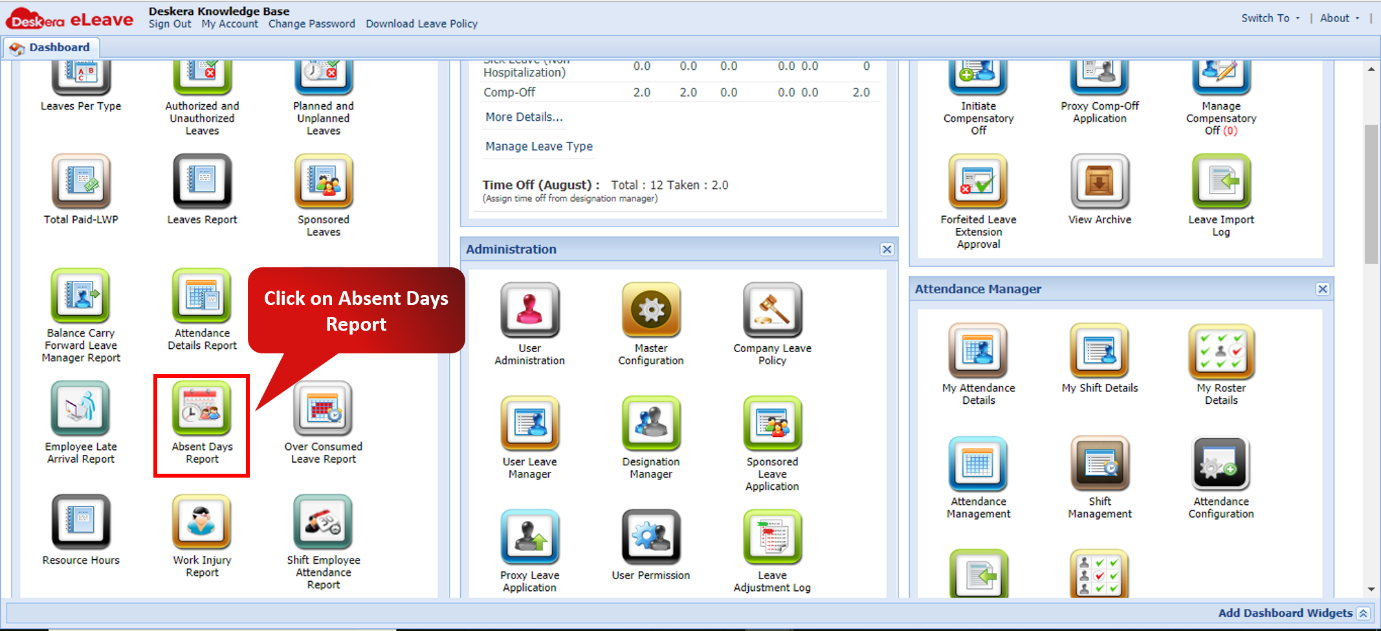 Fig. 3.6.14.3 Absent Days Report
Step 4: Expand a record to view the employee's late arrival details.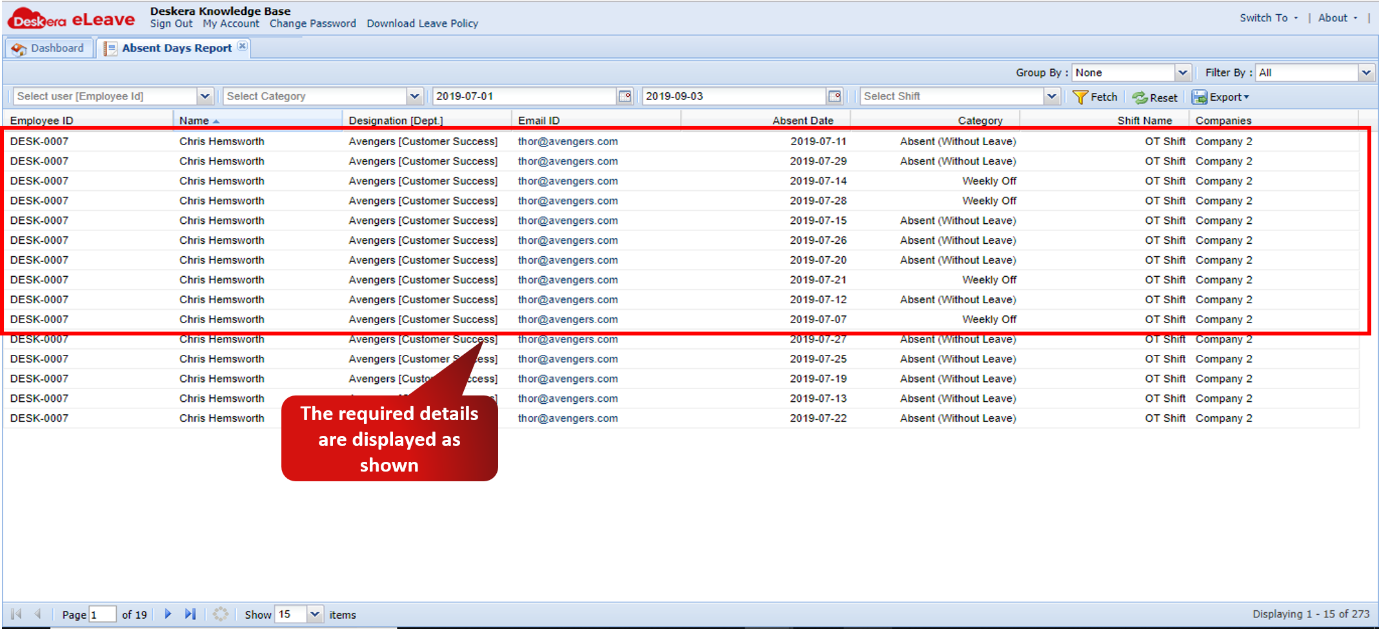 Fig. 3.6.14.4 Absent Days Report
Comments
0 comments
Please sign in to leave a comment.