
All the leave types such as authorized/unauthorized, planned/unplanned and paid/LWP are displayed under this sub-module; the user may select any of the options and generate a report for the same by selecting a date range. The report for the leave selected by the user will be generated in a separate window. The user can also export the report to an external location in CSV and PDF formats.
Prerequisites:
- You have your Deskera eLeave application URL in place.
- You are the administrator of the eLeave application.
- Ensure Stable Internet Connectivity.
Step 1: Click on Leave Report under Report Manager from the Dashboard.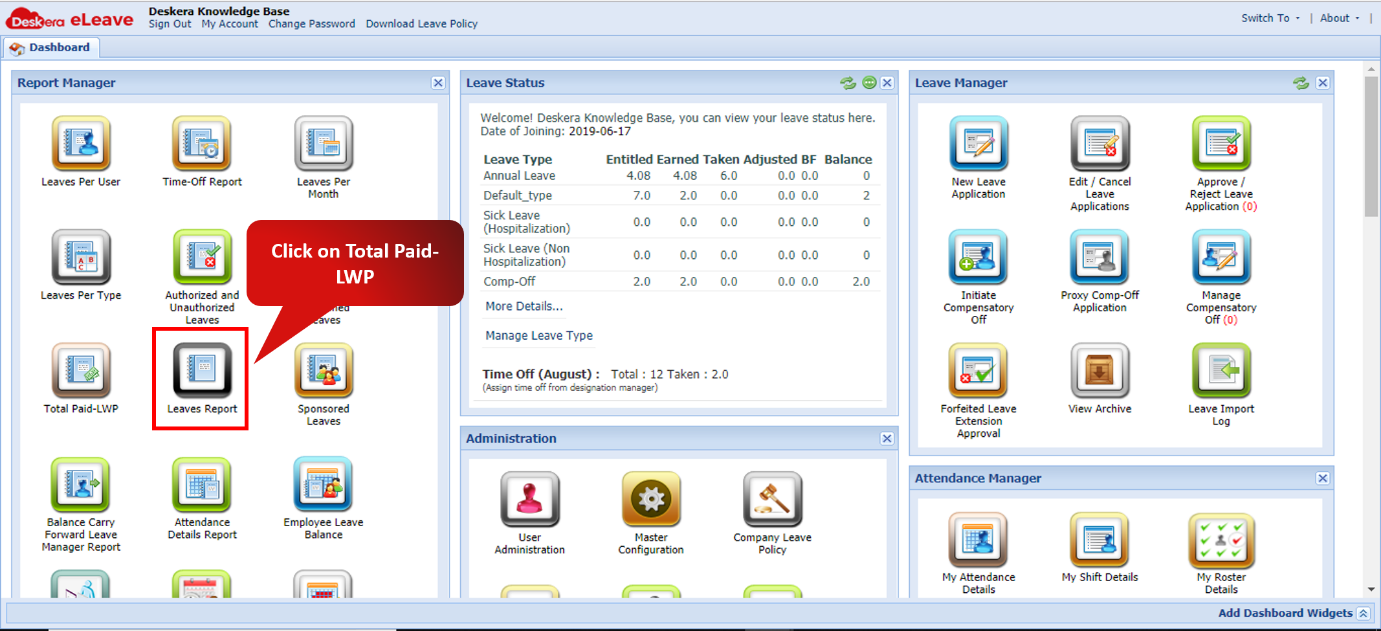 Fig. 3.6.8.1 eLeave Dashboard
Step 2: Select the Report you wish to generate. Then click on Generate Report.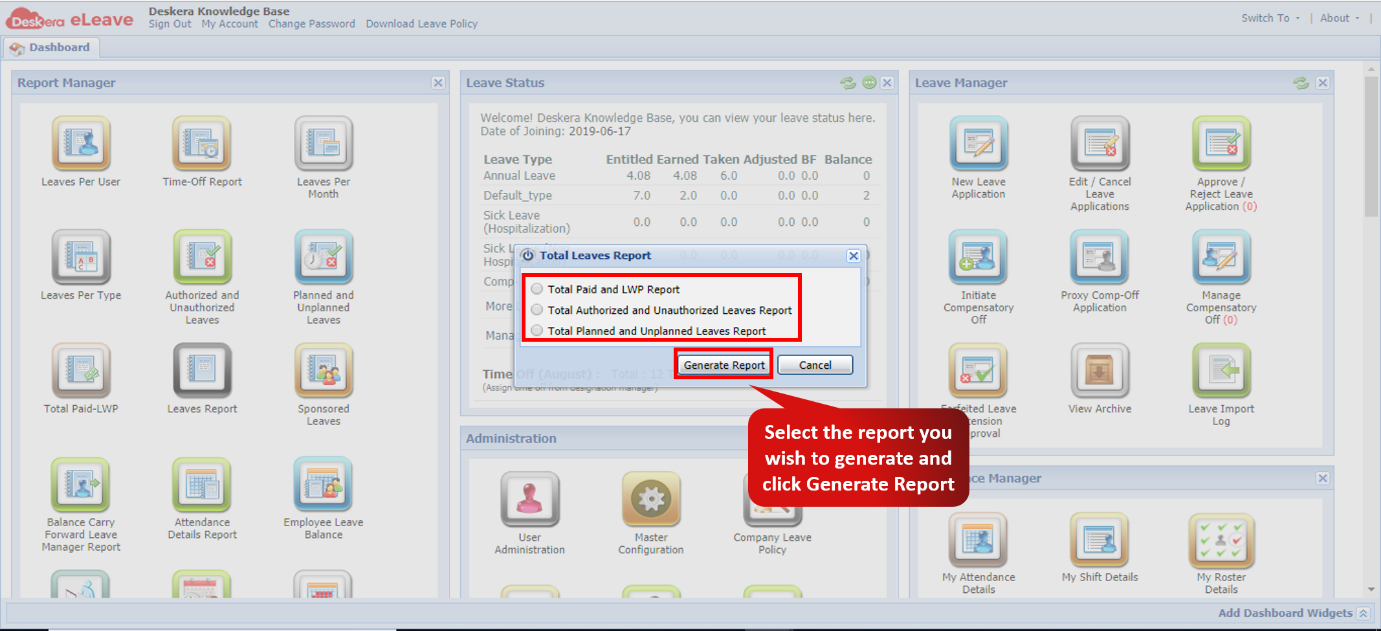 Fig. 3.6.8.2 Leave Report
Step 3: Enter a date range and click Fetch to get the required details. Fig. 3.6.8.3 Leave Report
Step 4: You can also export the report to an external location in CSV and PDF formats.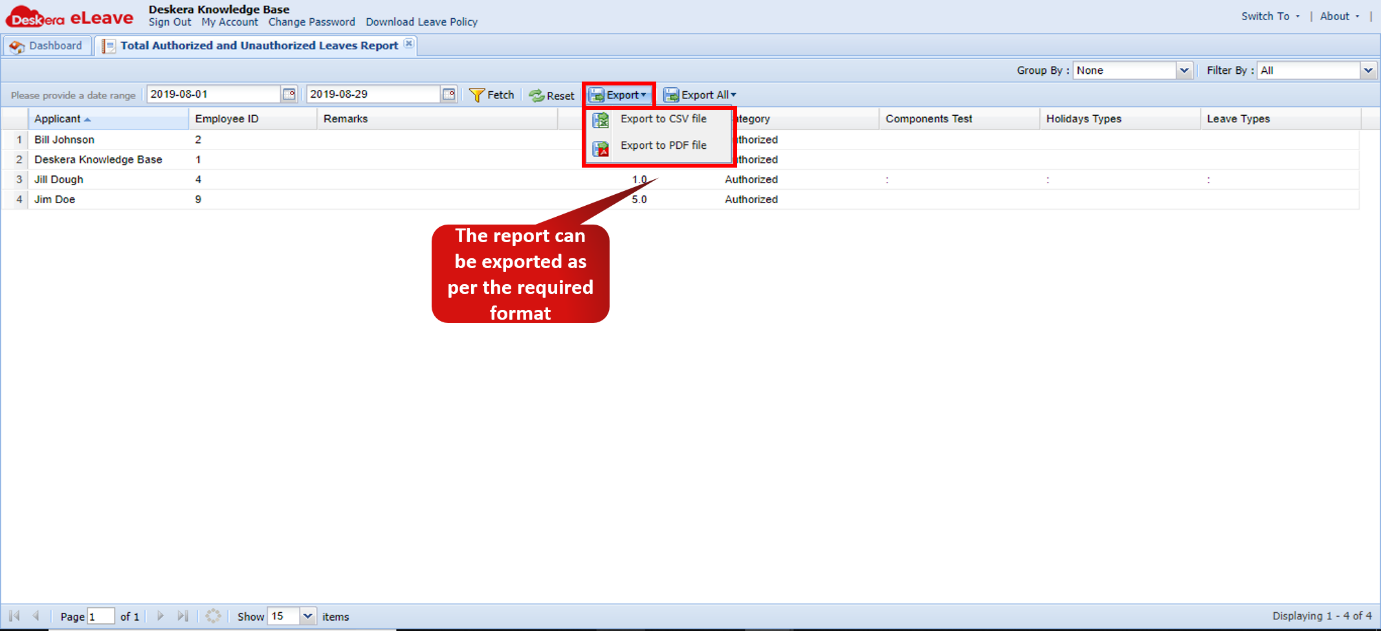 Fig. 3.6.8.4 Leave Report
Comments
0 comments
Please sign in to leave a comment.