
The Custom Form Layout function helps the admin to customize the layout and format of the Claim Application form used to record any new claim. The form is divided into four sections of which Claim Details and Calculation sections comprise of compulsory items that cannot be removed where as Other Details and Claim Approval Window comprise of elements that can be maintained or removed as per user requirement. The number of columns in each section and the flow of items in each section can also be customized using this function.
Prerequisites:
1. Ensure you have your Deskera eClaims application URL in place.
2. Ensure you are the administrator of the eClaims application
3. Ensure a good internet connectivity
How to edit the number of columns in sections?
Step 1: Go to Master Configuration under Administration on eClaims Dashboard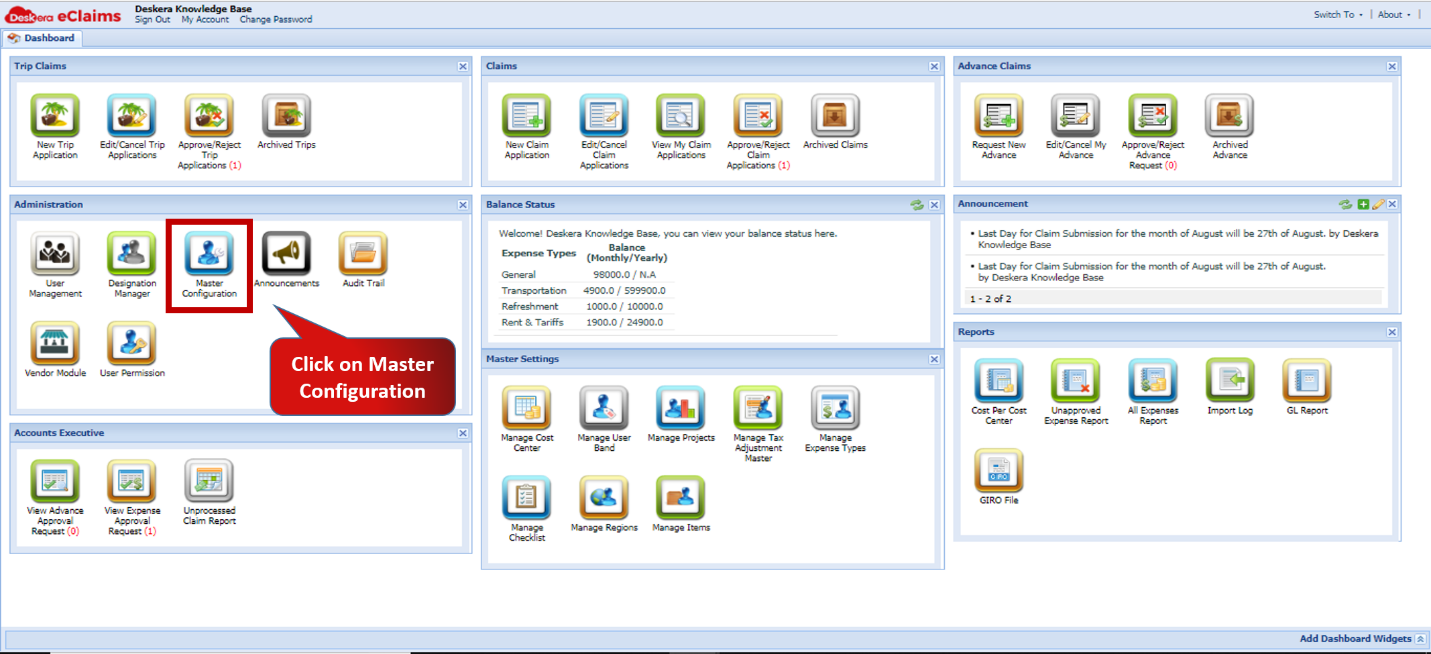 Fig.4.2.3.3.1 eClaims Dashboard
Step 2: Go to Custom Form Layout Tab under Administration on eClaims Dashboard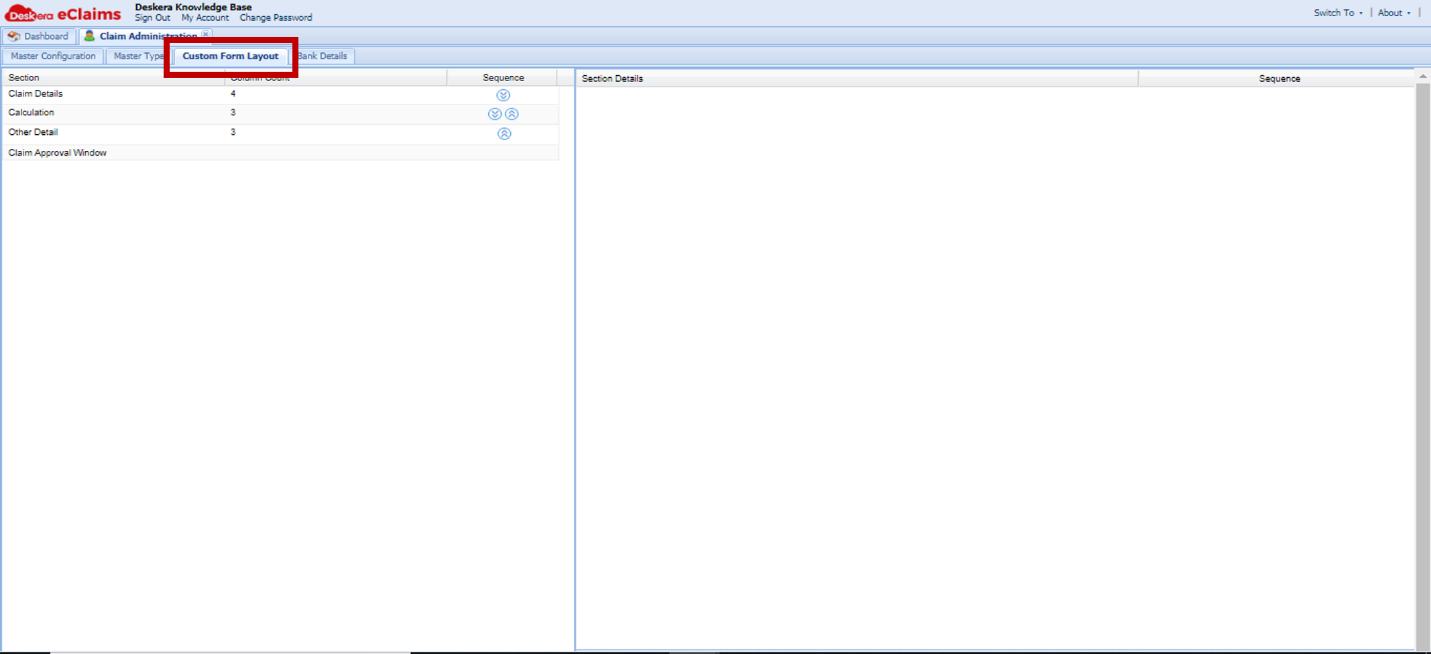 Fig.4.2.3.3.2 Custom Form Layout
Step 3: Enter the number of columns to be reflected in each section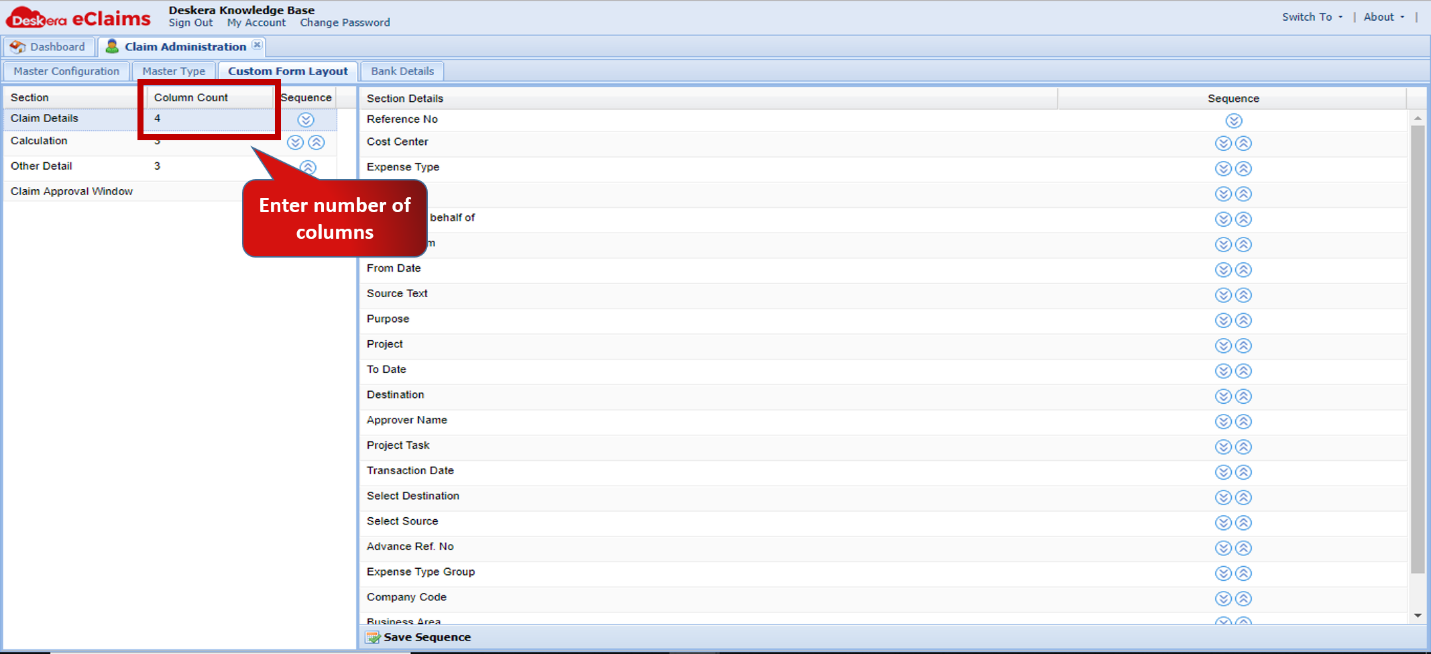 Fig.4.2.3.3.3 Custom Form Layout
Step 4: Save changes and proceed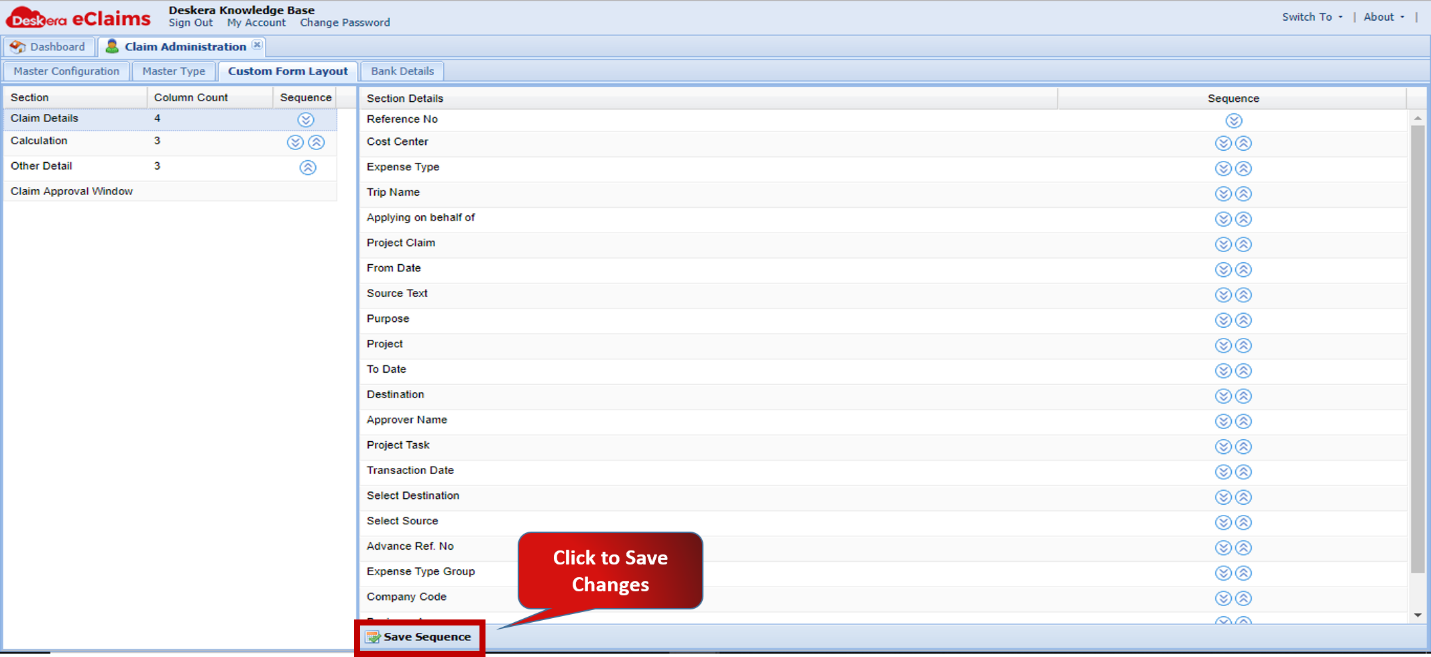 Fig.4.2.3.3.4 Custom Form Layout
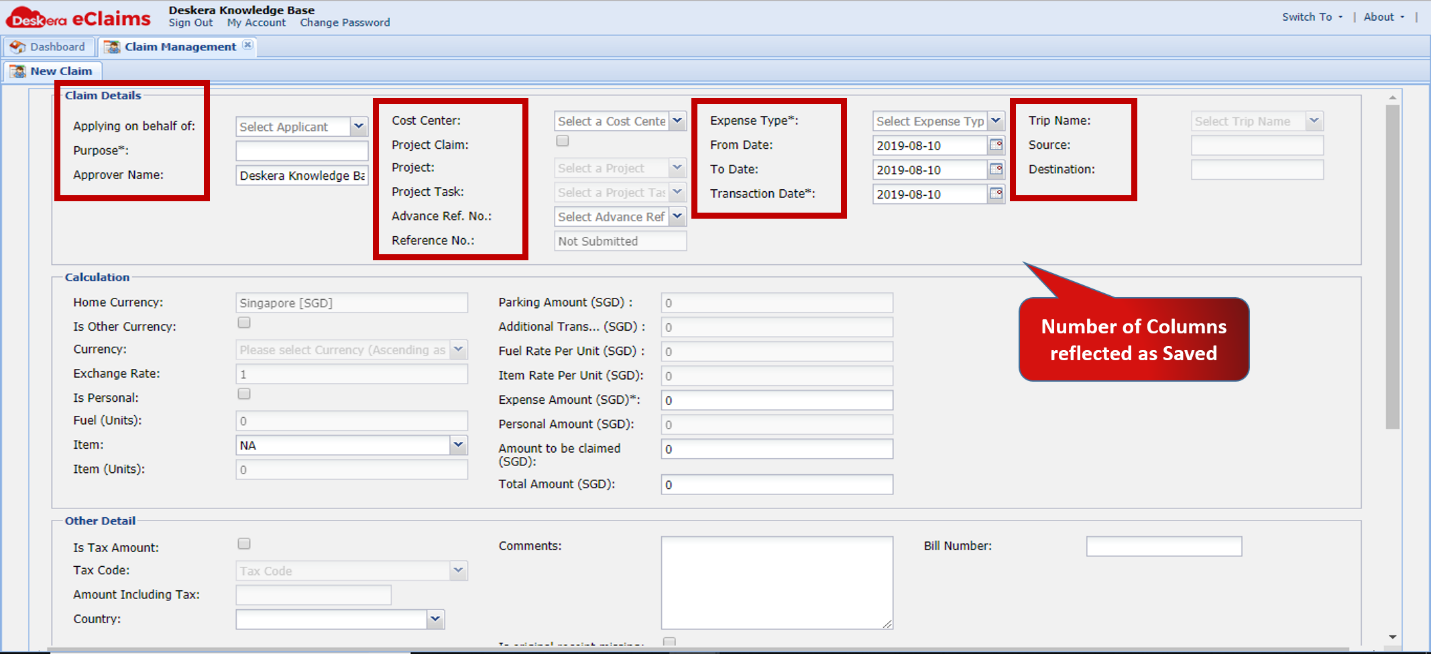 Fig.4.2.3.3.5 New Claim Application Form
How to customize the sequence of items in sections?
Step 1: Go to Master Configuration under Administration on eClaims DashboardFig.4.2.3.3.6 eClaims Dashboard
Step 2: Go to Custom Form Layout Tab under Administration on eClaims DashboardFig.4.2.3.3.7 Custom Form Layout
Step 3: Click on the Section you wish to modify to open side window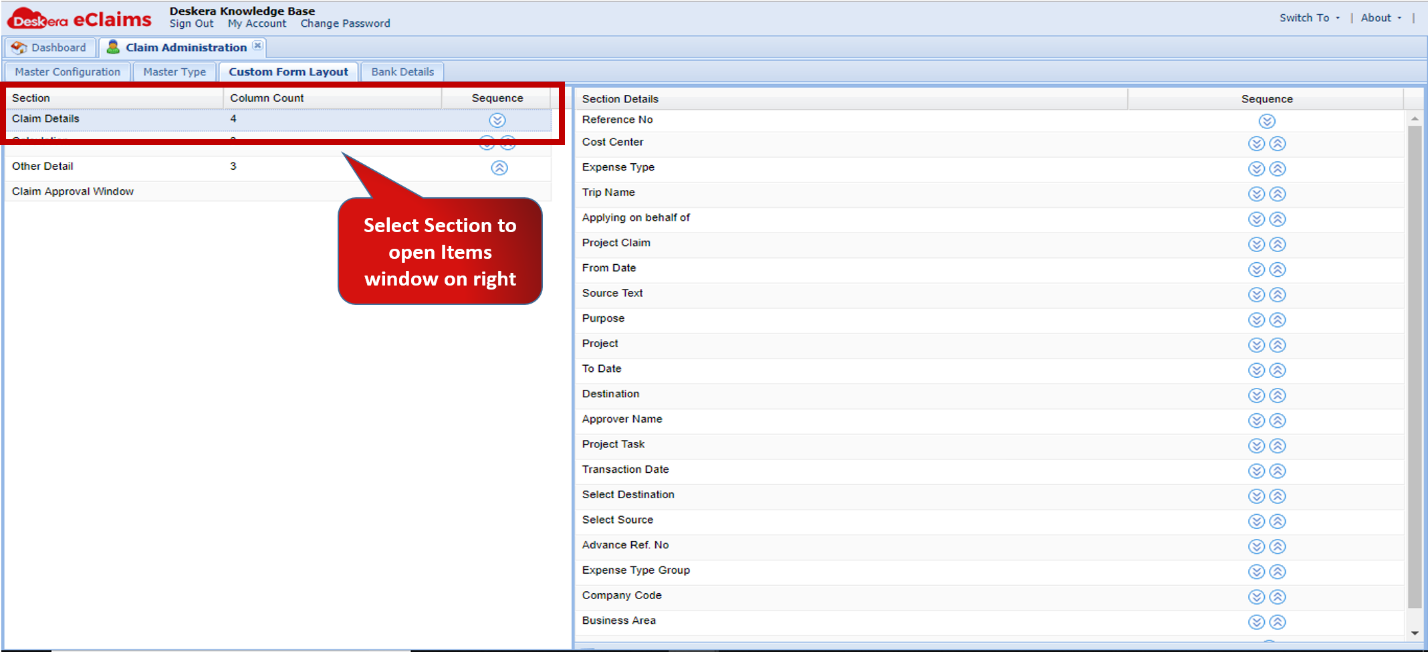 Fig.4.2.3.3.8 Custom Form Layout
Step 4: Use arrows buttons to move items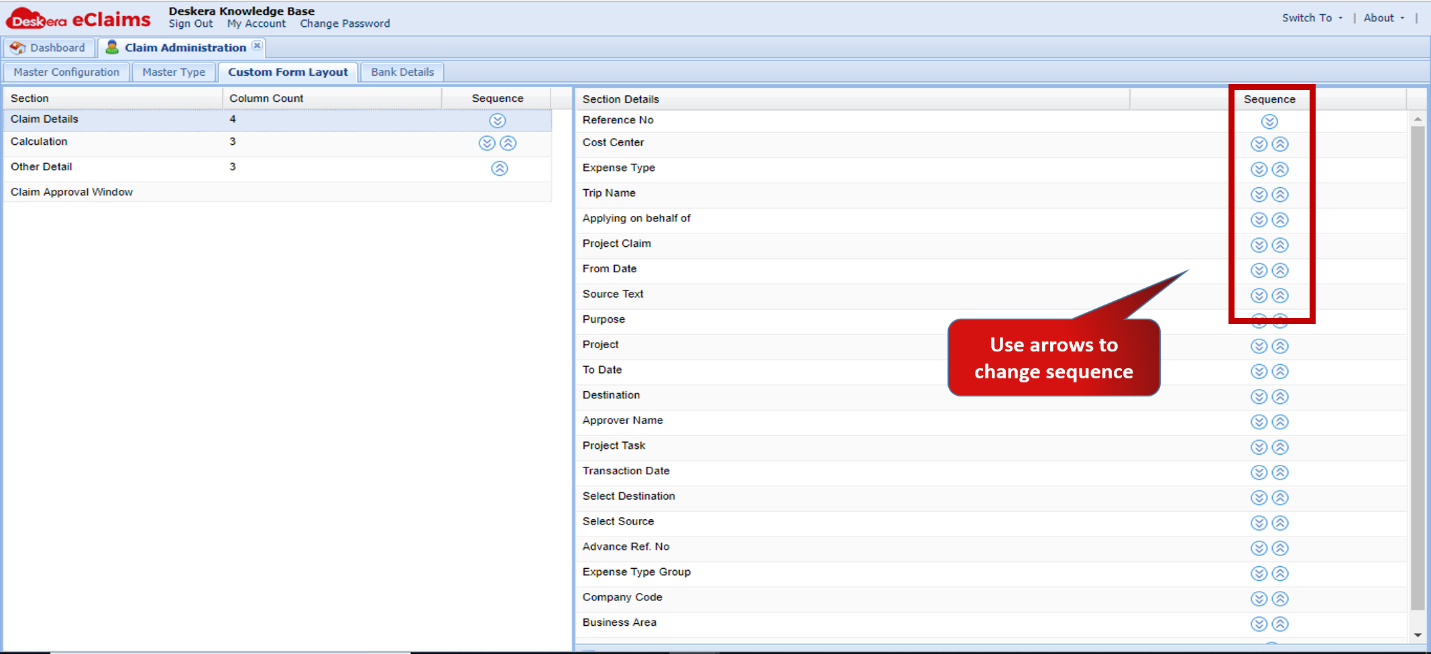 Fig.4.2.3.3.9 Custom Form Layout
Step 5: Save changes and proceedFig.4.2.3.3.10 Custom Form Layout
How to Show/Hide items from sections?
Note: This function is only applicable on Other Details and Claim Approval Window sections. All items in Claim Details and Calculation Section are compulsory.
Step 1: Go to Master Configuration under Administration on eClaims DashboardFig.4.2.3.3.11 eClaims Dashboard
Step 2: Go to Custom Form Layout Tab under Administration on eClaims DashboardFig.4.2.3.3.12 Custom Form Layout
Step 3: Click on the Section you wish to modify to open side window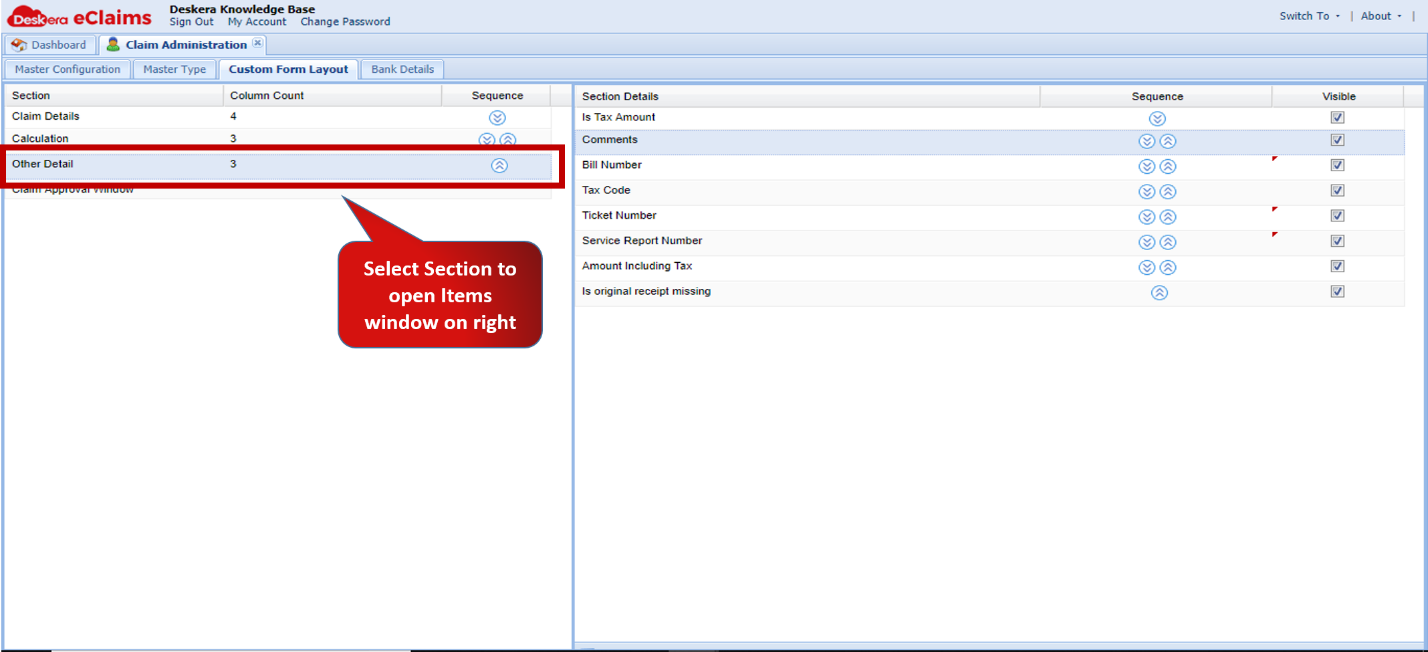 Fig.4.2.3.3.13 Custom Form Layout
Step 4: Uncheck the “Visible” column corresponding to the item you wish to remove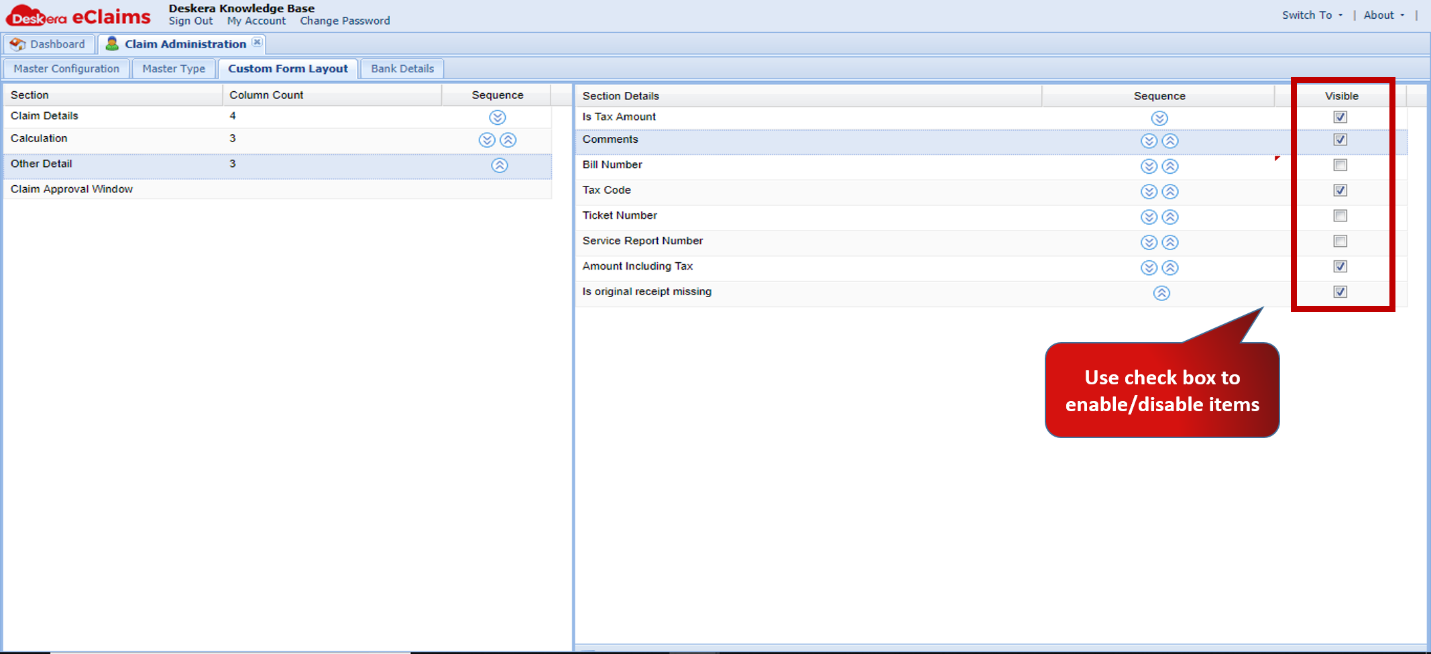 Fig.4.2.3.3.14 Custom Form Layout
Step 5: Save changes and proceed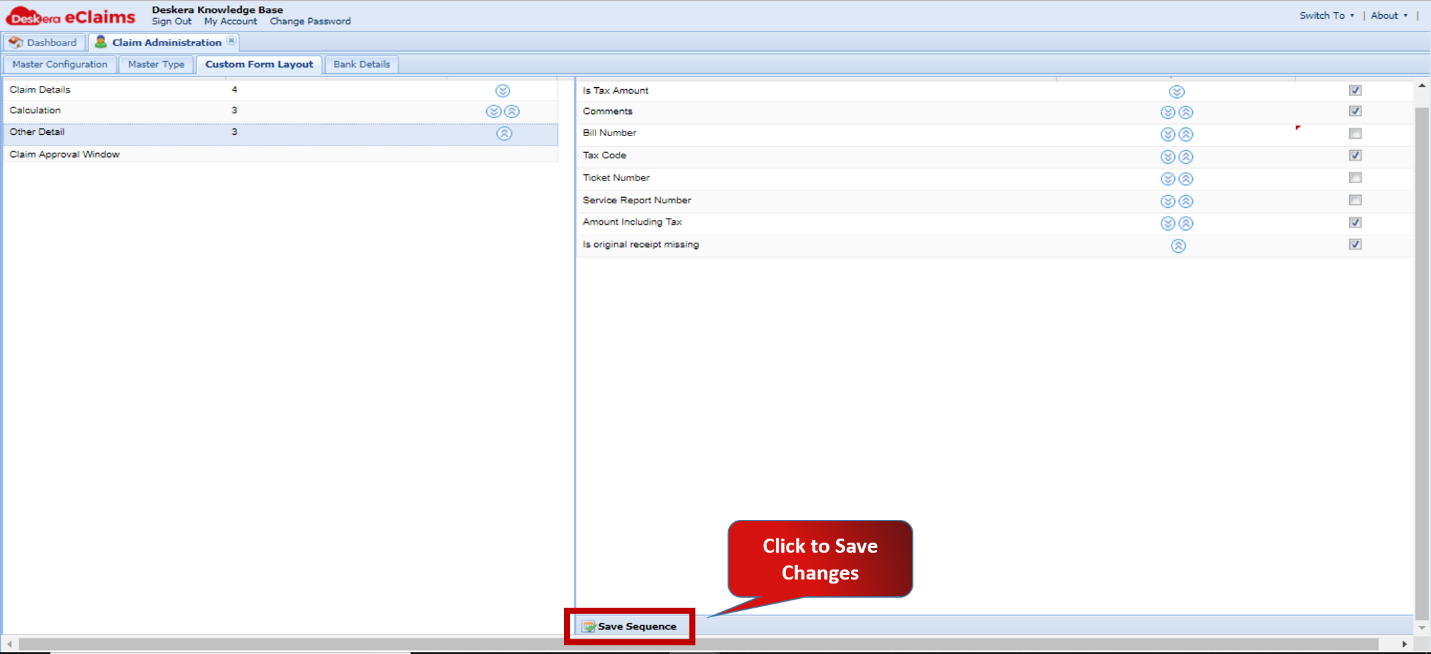 Fig.4.2.3.3.15 Custom Form Layout
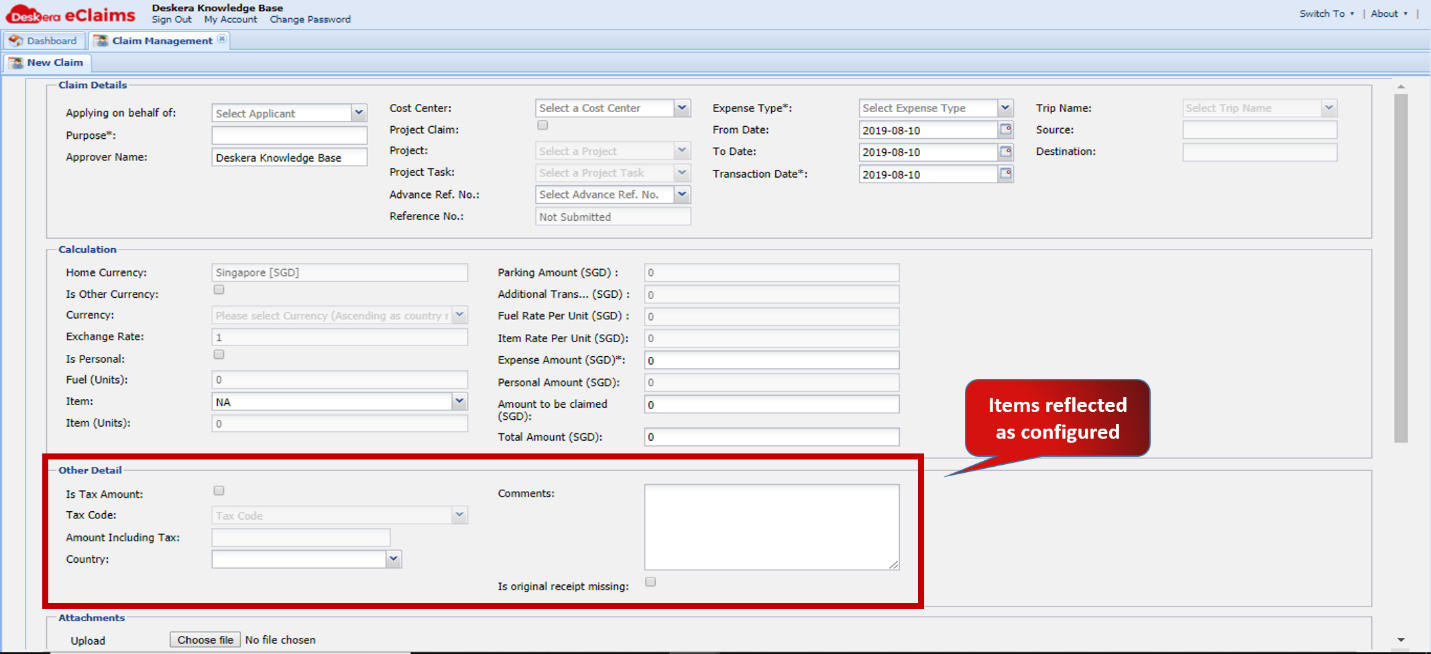 Fig.4.2.3.3.16 New Claim Application Form
Comments
0 comments
Please sign in to leave a comment.