
Claims Process helps you to file a new claim, approve or reject it and forward it to accounts department for final approval and sanction it in user’s payroll.
Prerequisites:
1. You have your Deskera eClaims application URL in place.
2. You are the administrator of the eClaims application.
3. Ensure good internet connectivity.
Step 1: Go to New Claim Application under Claims widget in eClaims. 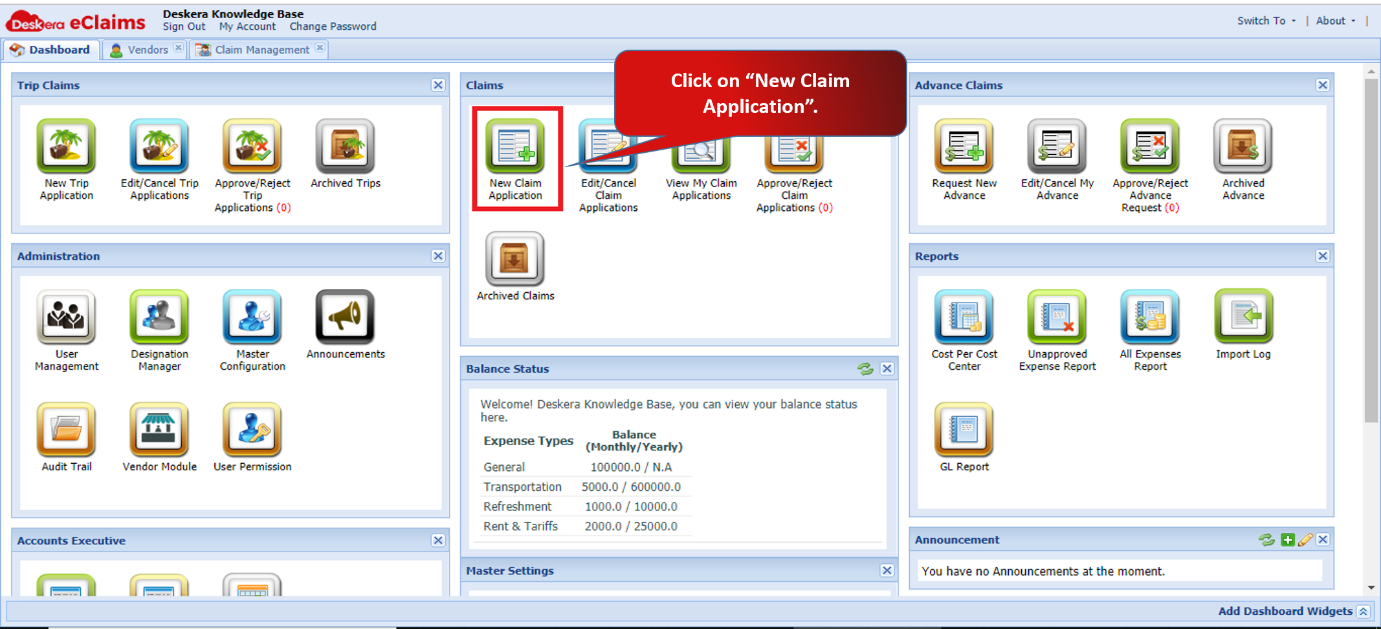
Fig 4.3.1 eClaims Dashboard
Step 2: Fill in the mandatory claim details and expense related details under each section.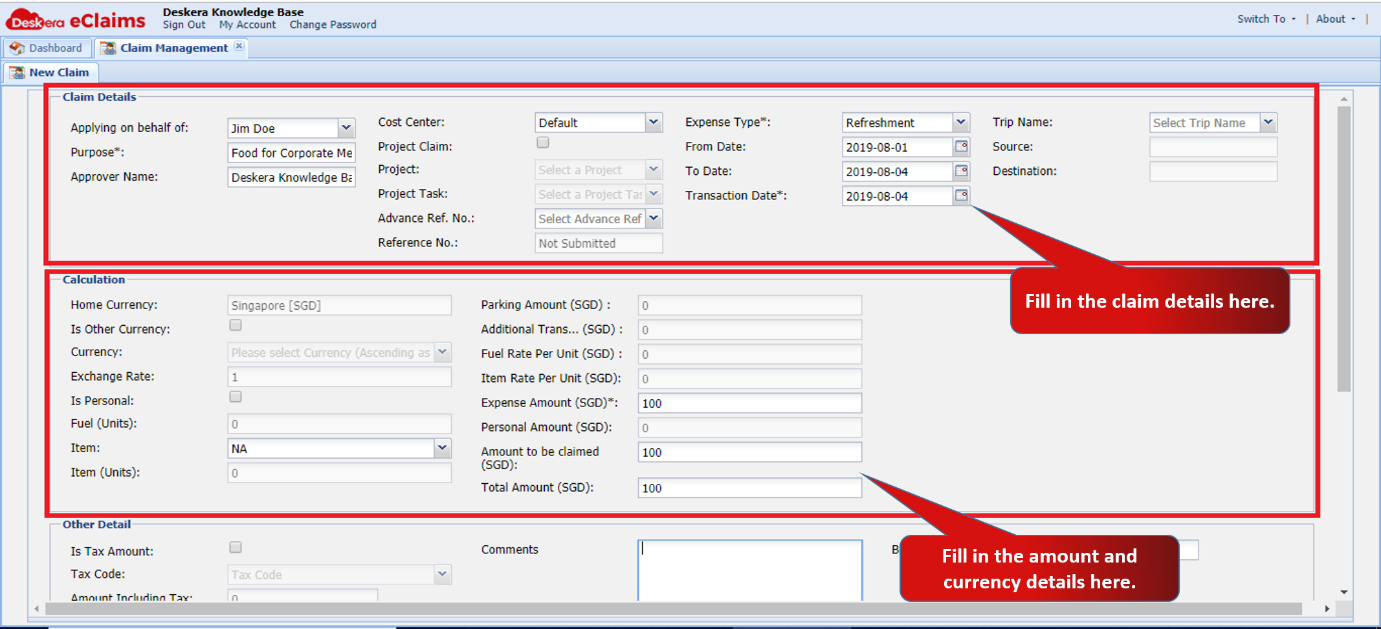
Fig 4.3.2 New Claim
You can also fill in the other details and attach the documents related to the claim. Once you have filled in all the required information, click on Save as Draft to add it as a Draft. 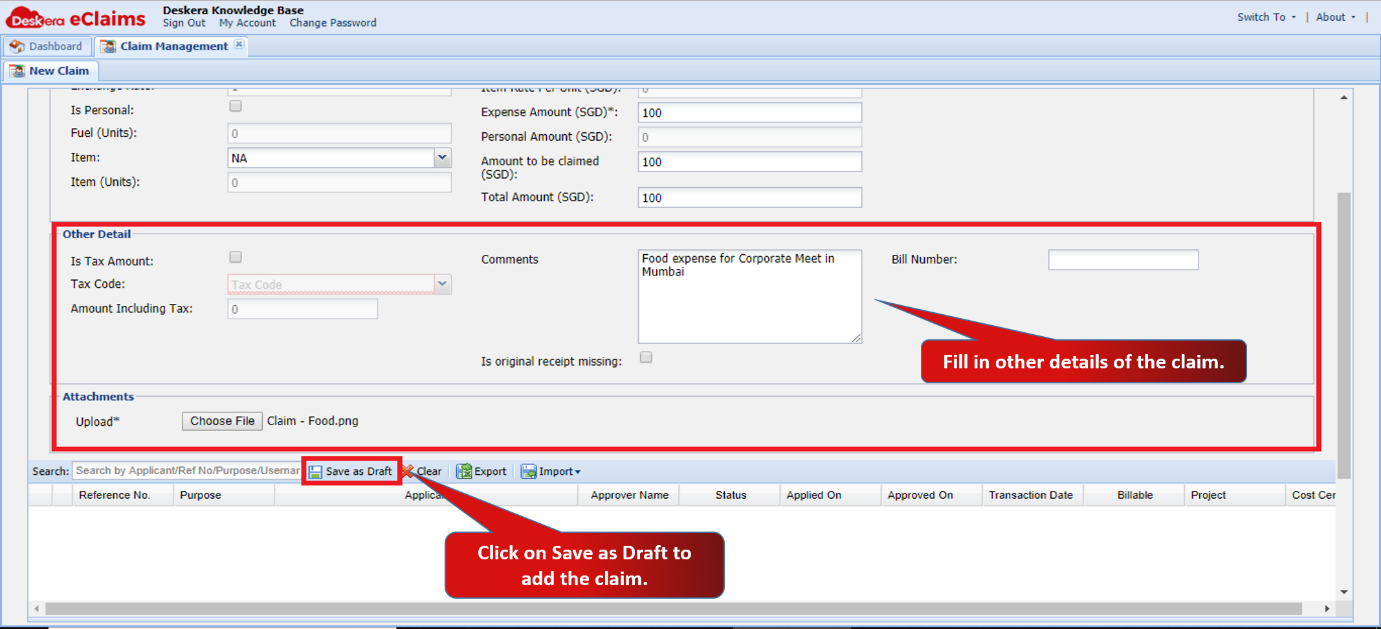
Fig 4.3.3 New Claim
Step 3: You can see the Draft claim below. Select the claim and click on Submit Selected Claims to submit it and send it for approval. The claim will be created and submitted successfully. 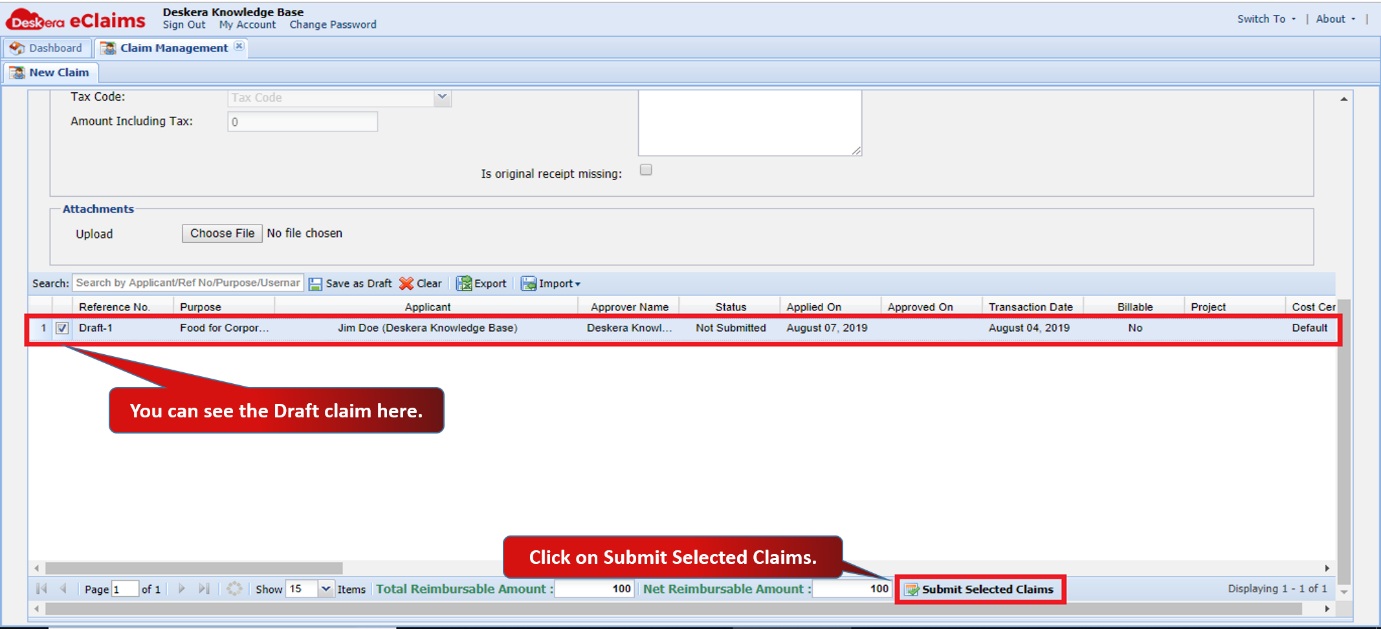
Fig 4.3.4 New Claim
Step 4: Go to Approve/Reject Claim Applications under Claims widget in eClaims.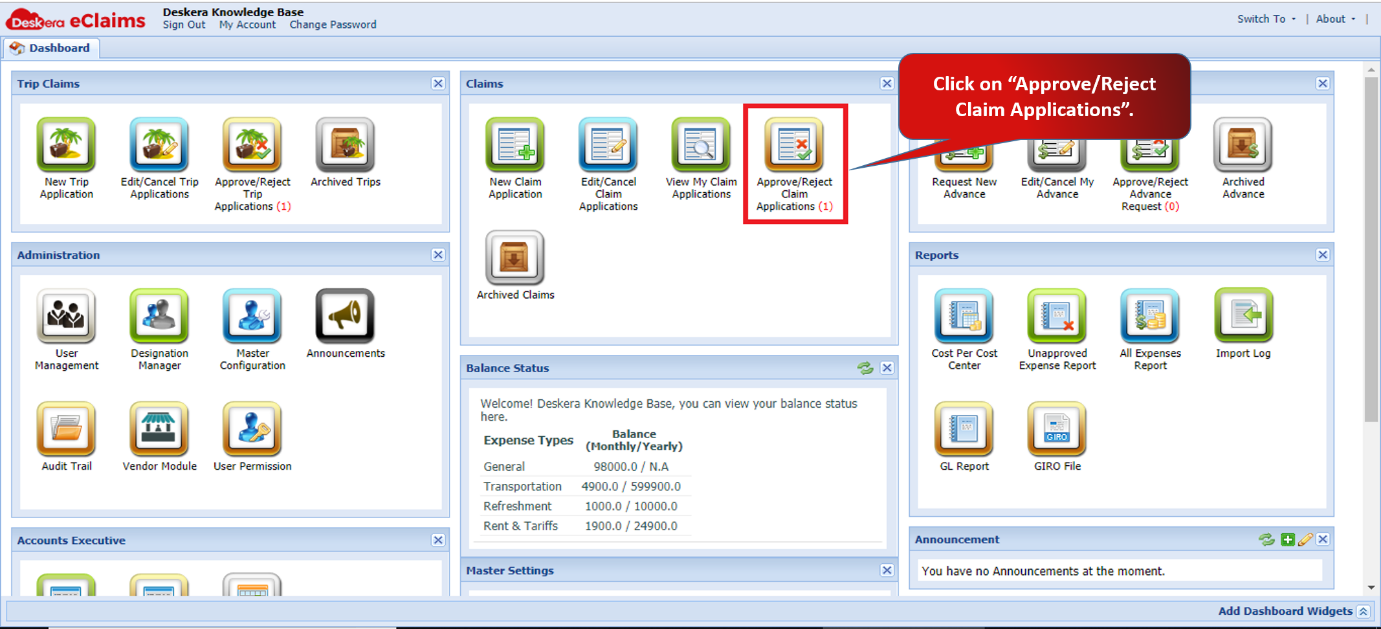
Fig 4.3.5 eClaims Dashboard
Step 5: Select the claim which you want to review and approve. Click on Approve Selected Claims.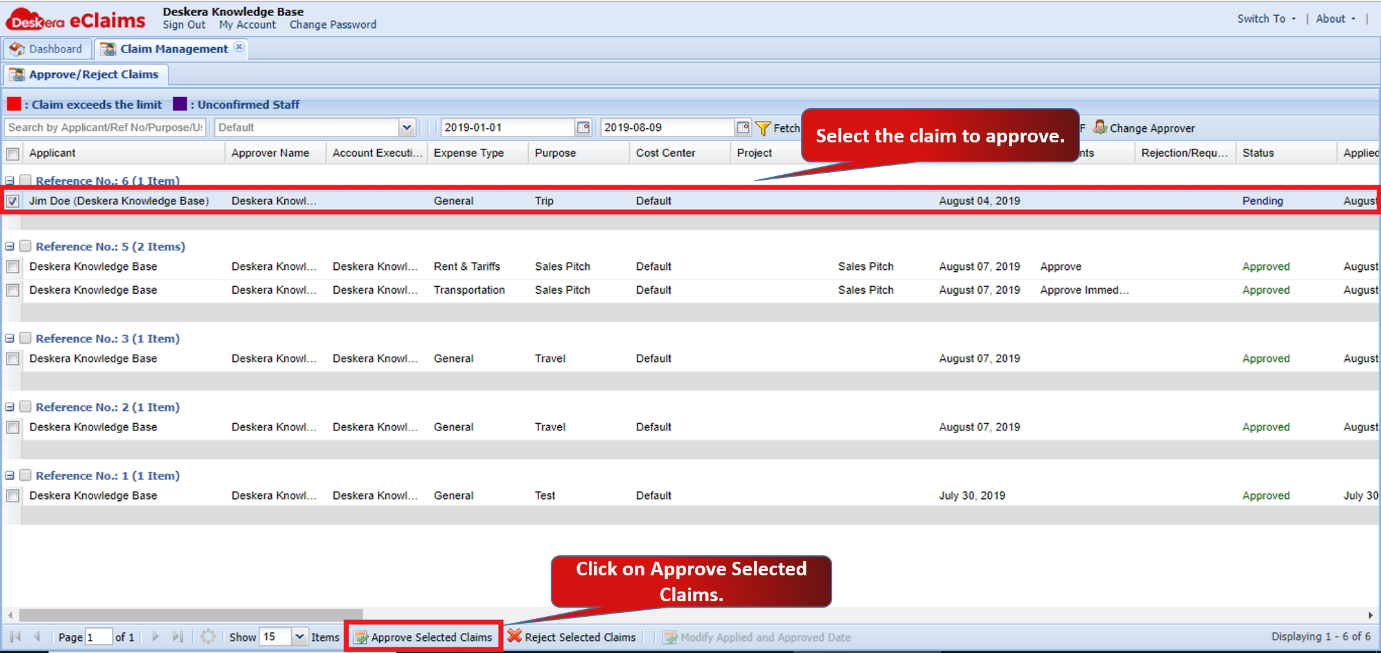
Fig 4.3.6 Approve/Reject Claims
Step 6: An Approve Claim Amount window will popup. Select the claim and click on Ok to continue.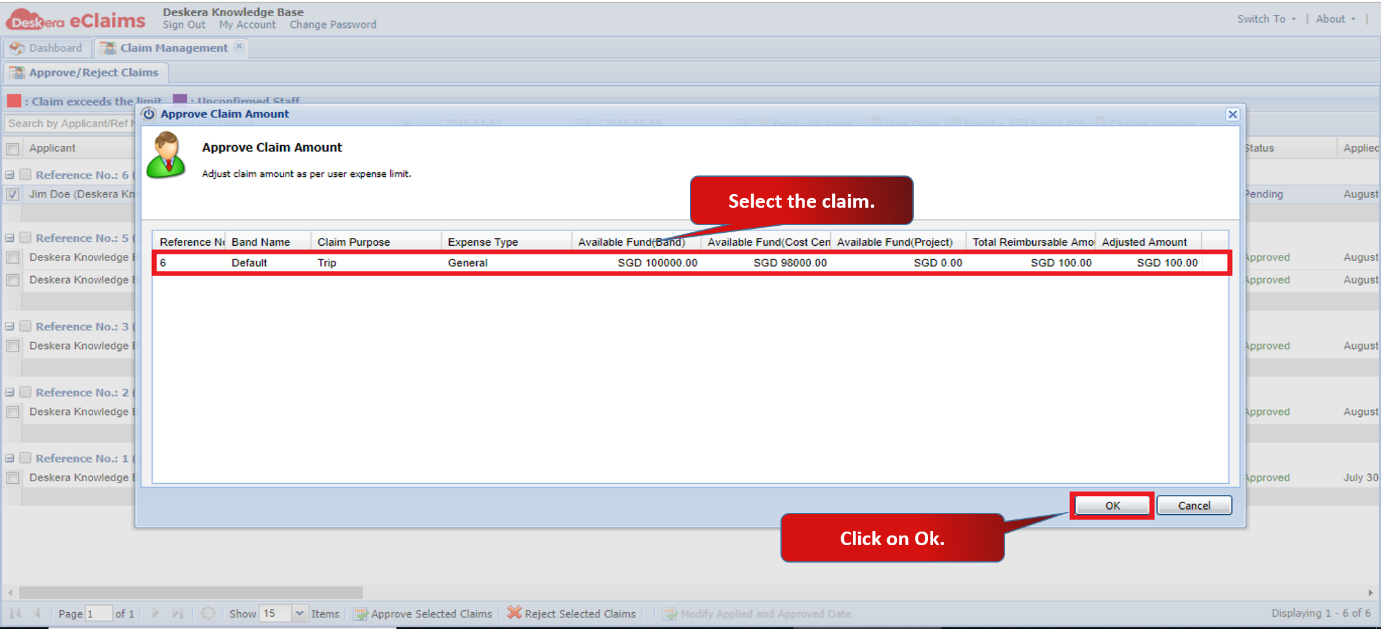
Fig 4.3.7 Approve/Reject Claims
Step 7: An Accounts Executive window will popup. Select the Accounts Executive to whom you want to send the claim for Accounts Approval and click on Apply.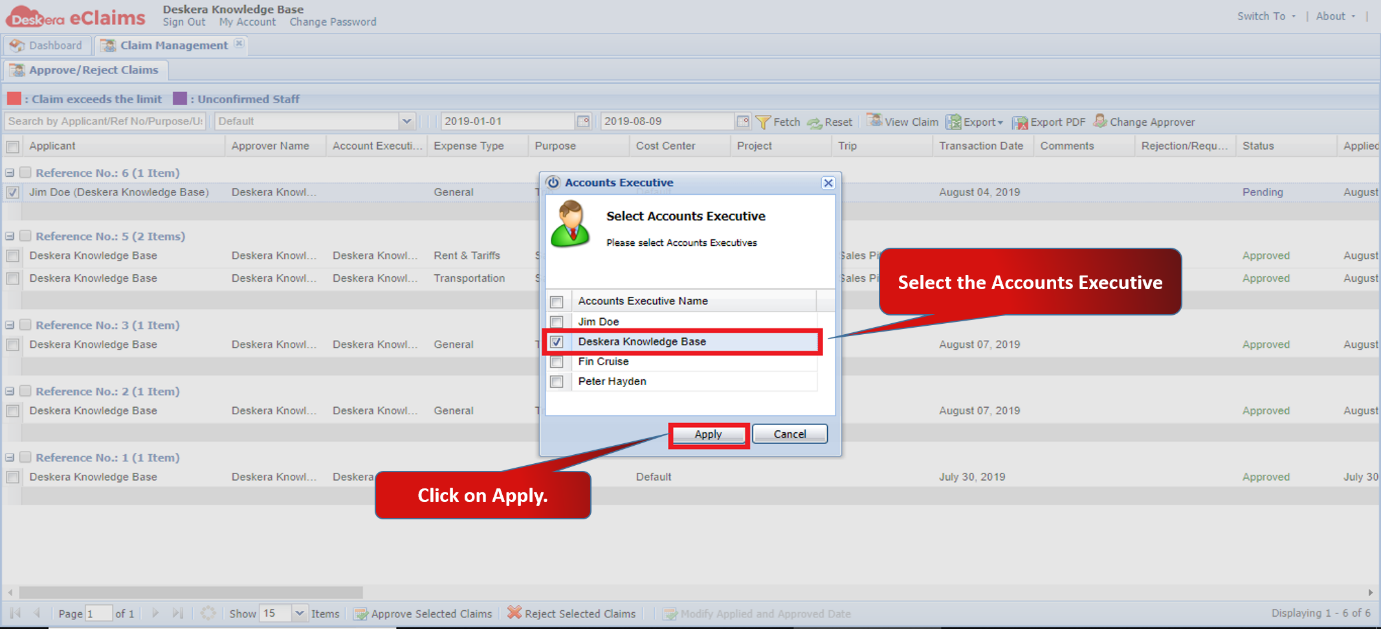
Fig 4.3.8 Approve/Reject Claims
The claim will be forwarded to the assigned accounts executive for approval. 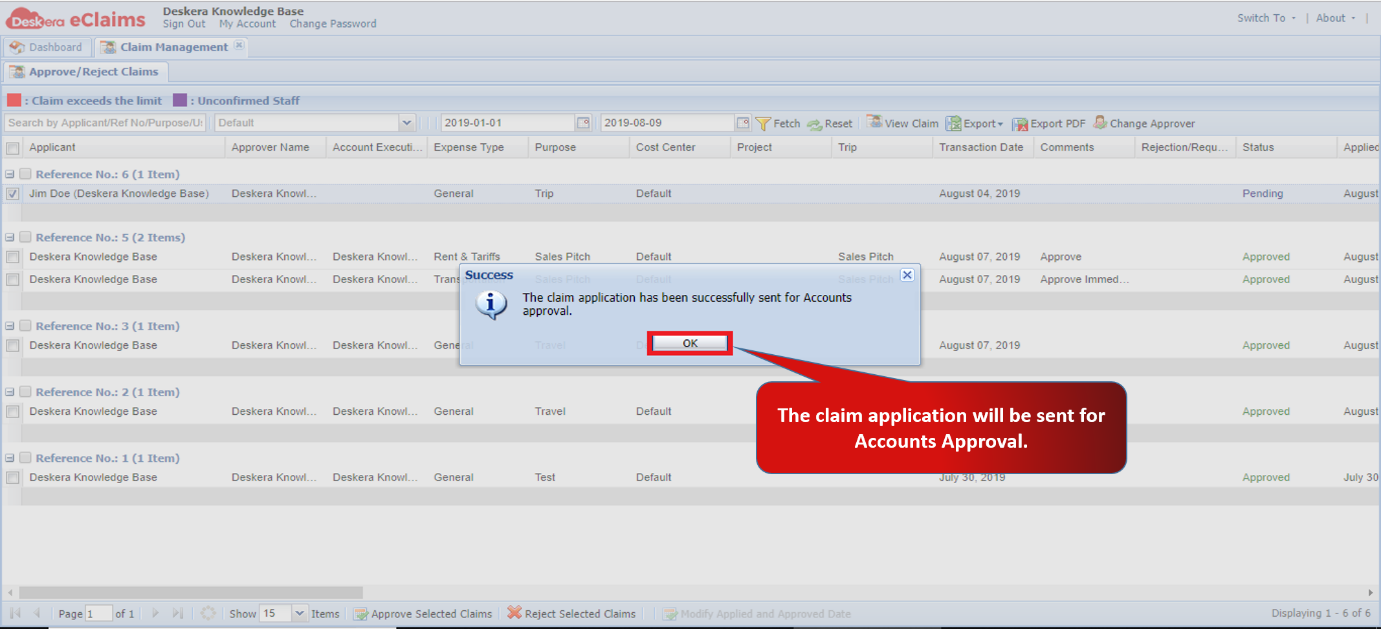
Fig 4.3.9 Approve/Reject Claims
Step 8: Go to View Expense Approval Request under Accounts Executive widget in eClaims.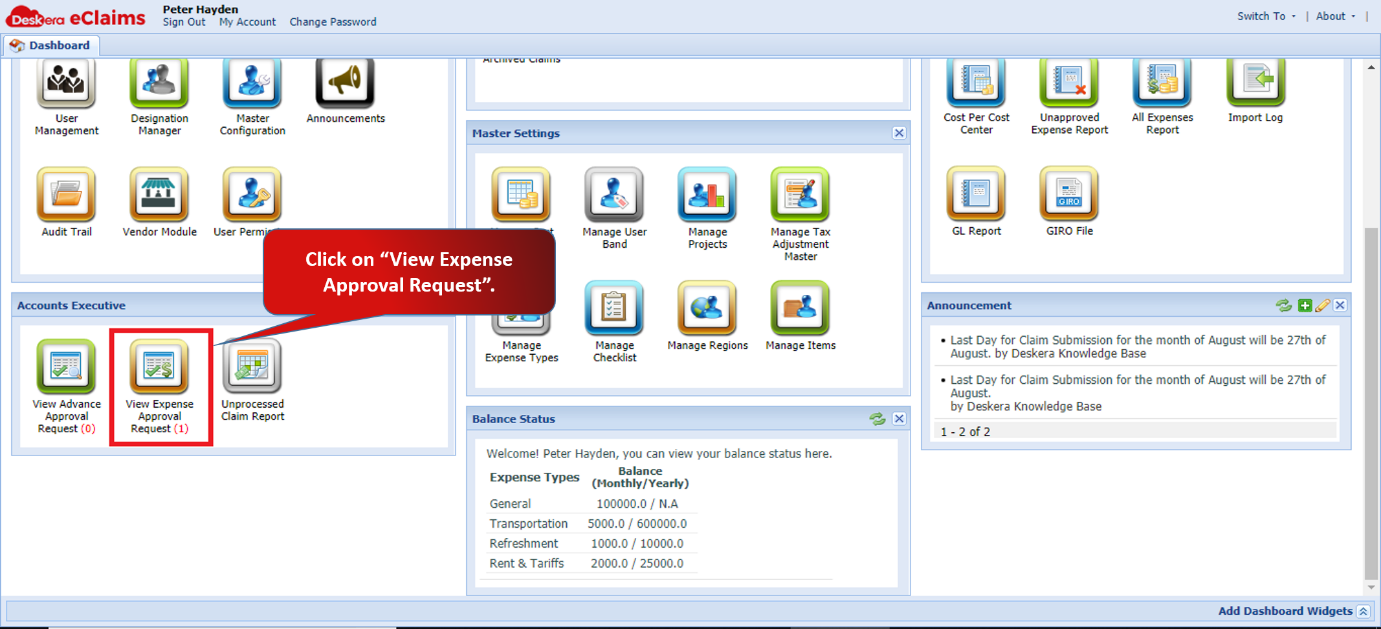
Fig 4.3.10 eClaims Dashboard
Step 9: Select the claim which you want to review and approve. Click on Approve Selected Claims.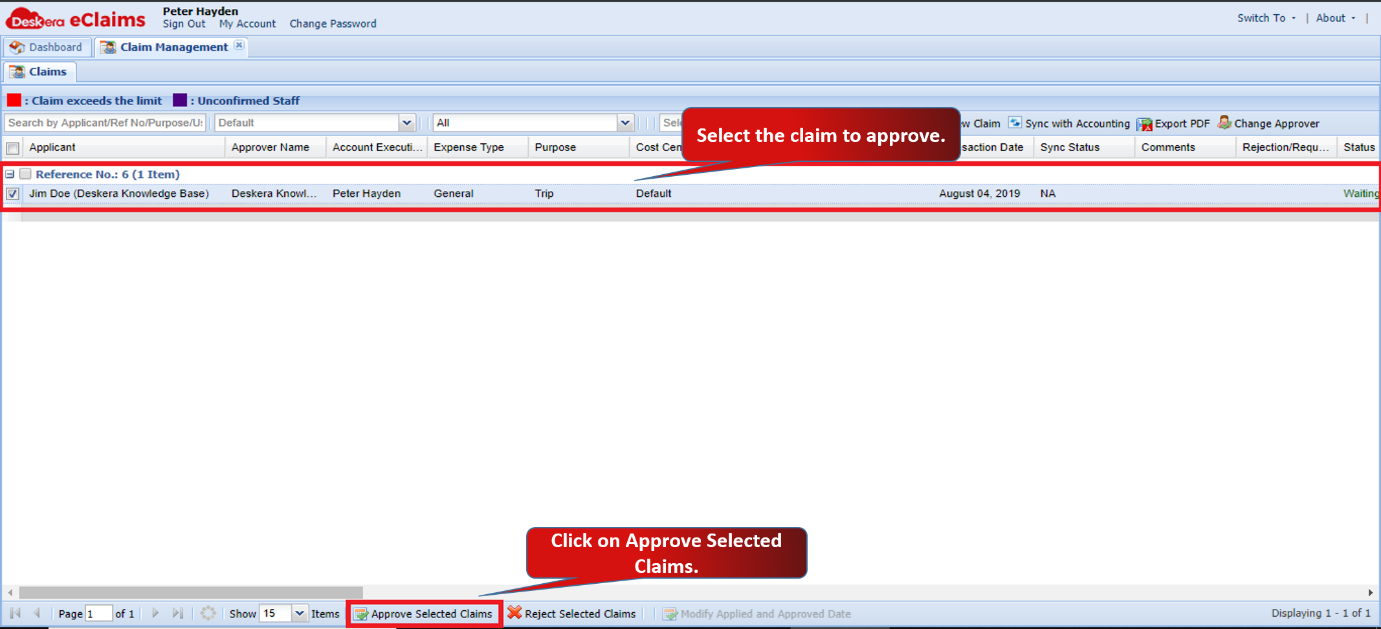
Fig 4.3.11 Accounts Approval
Step 10: Fill in the payment details like Method Name, Payment Date and Cheque No. and then click on Make Payment.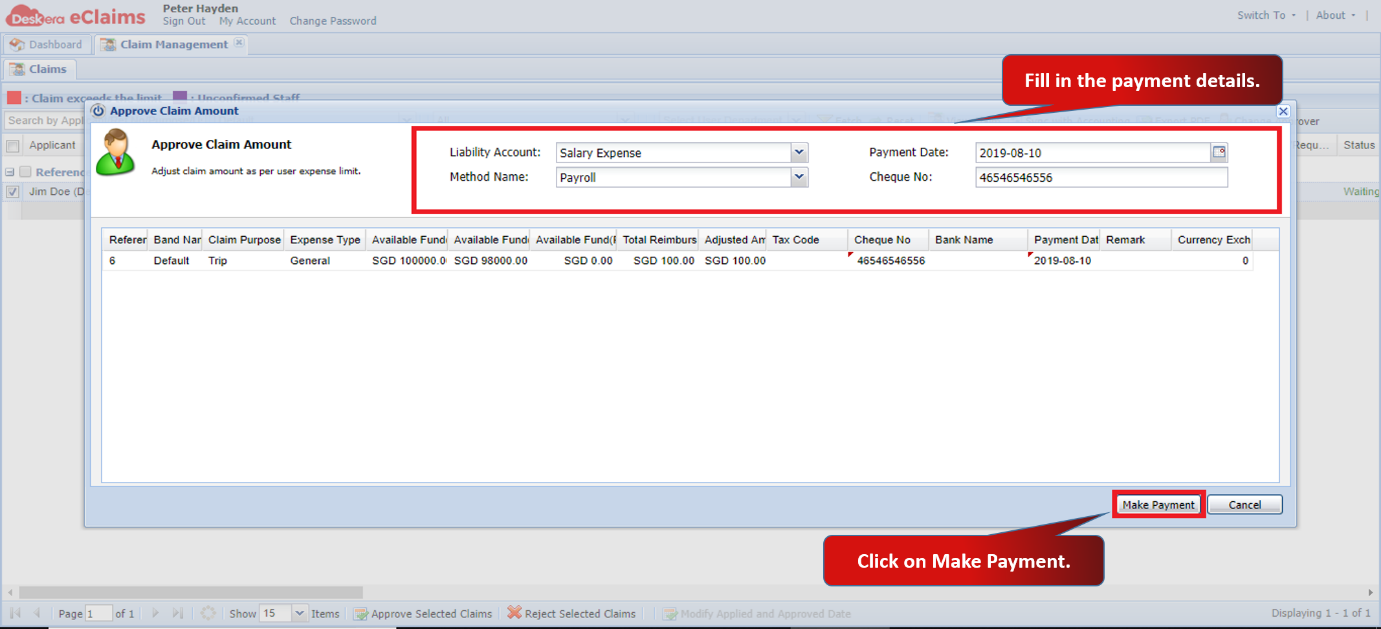
Fig 4.3.12 Accounts Approval
The claim will be approved by the accounts and will be reflected in the payroll of the user.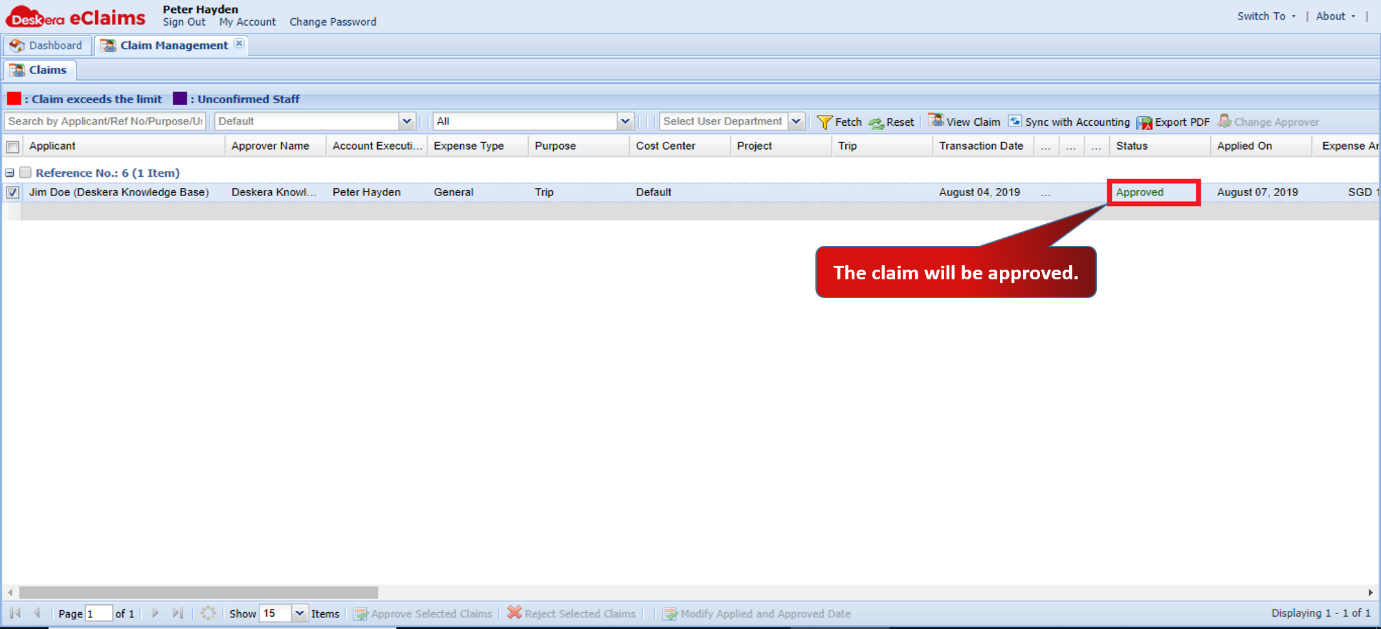
Fig 4.3.13 Accounts Approval
Comments
0 comments
Please sign in to leave a comment.