
Insert New Claim feature in Edit/Cancel Claim Applications enables you to add a new claim which will be linked with the claim created before. You can add multiple claims using this feature.
Prerequisites:
1. You have your Deskera eClaims application URL in place.
2. You are the administrator of the eClaims application.
3. Ensure good internet connectivity.
Step 1: Go to Edit/Cancel Claim Application under Claims widget in eClaims. 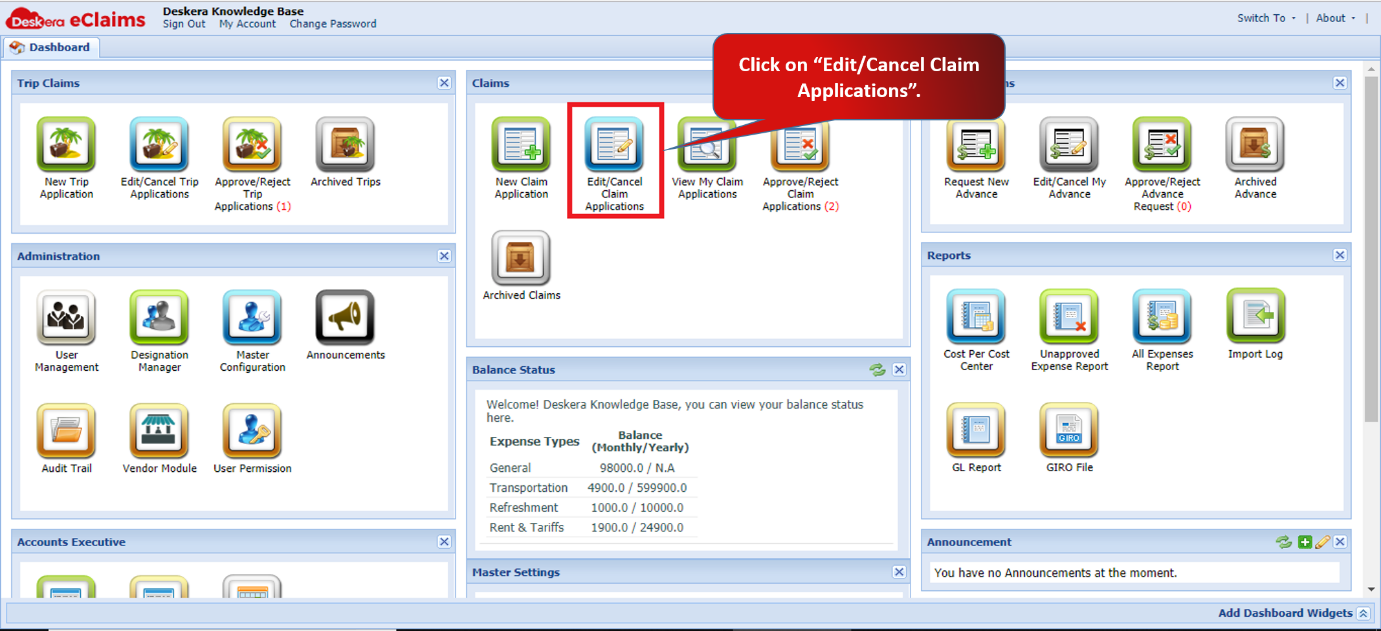
Fig 4.3.2.2.1 eClaims Dashboard
Step 2: Select the claim and right click on it. A drop down will appear. Click on Insert New Claim. You can also directly select the claim and click on Insert New Claim found on the footer of the screen.
Fig 4.3.2.2.2 Insert New Claim
Step 3: Fill in the mandatory details for creating a new claim. Upload the documents and click on Save as Draft to continue.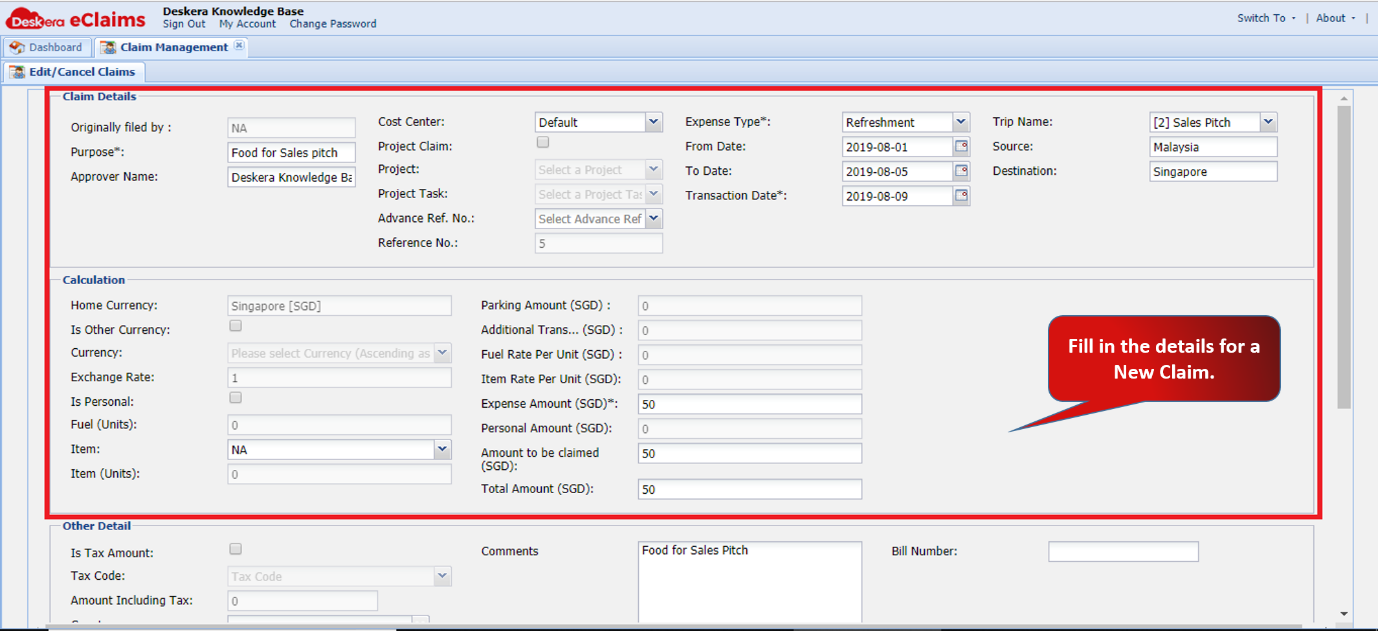
Fig 4.3.2.2.3 Insert New Claim
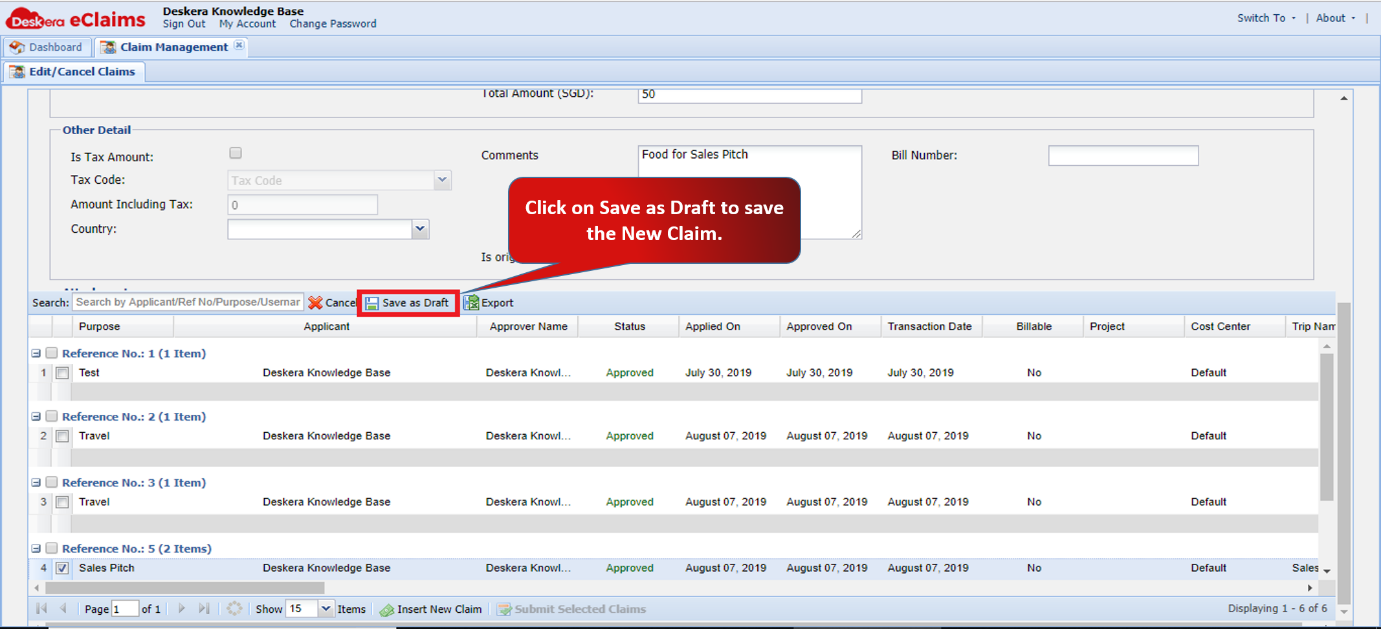
Fig 4.3.2.2.4 Insert New Claim
Step 4: Select the new claim saved and click on Submit Selected Claims to submit it and sent it for Approval.
You claim will be submitted successfully.
Fig 4.3.2.2.5 Insert New Claim
Comments
0 comments
Please sign in to leave a comment.