
Approve/Reject Claim Applications feature enables the approver to view the claims and approve or reject the claim. Once the approver approves the claim, it is forwarded to Account Executive for approval as well.
Prerequisites:
1. You have your Deskera eClaims application URL in place.
2. You are the administrator of the eClaims application.
3. Ensure good internet connectivity.
Step 1: Go to Approve/Reject Claim Applications under Claims widget in eClaims. 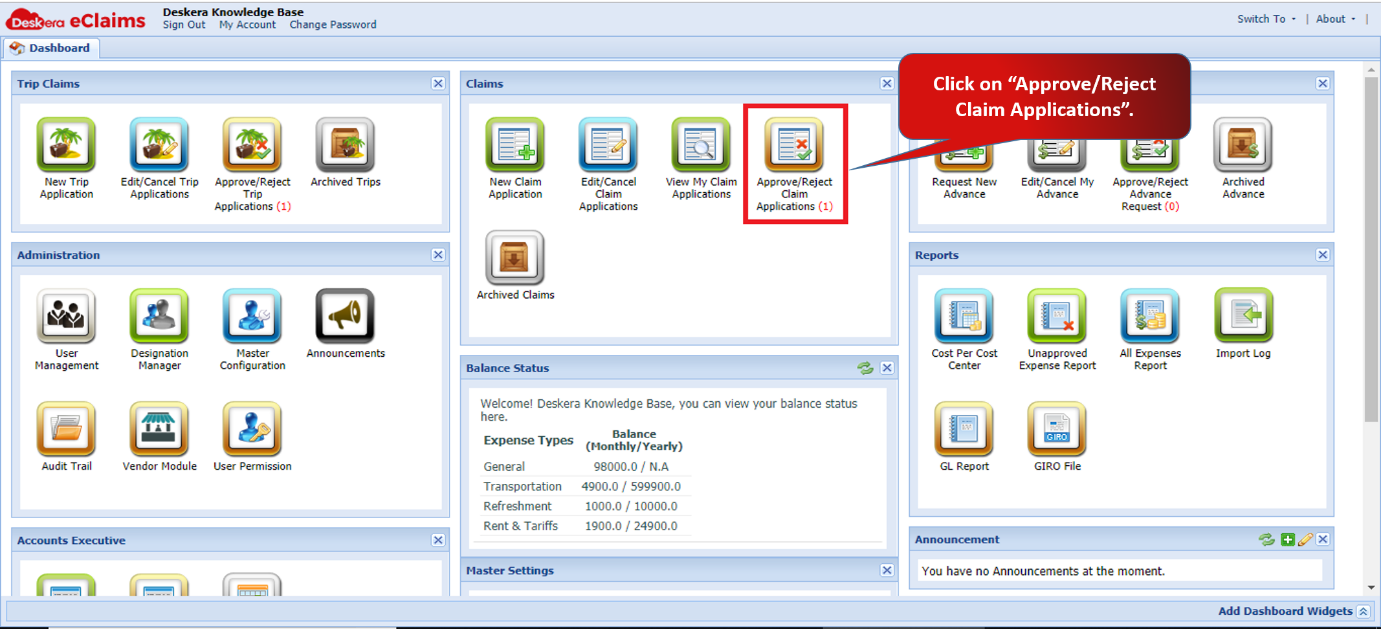
Fig 4.3.4.1.1 eClaims Dashboard
Step 2: Select the claim which you want to review and approve. Click on Approve Selected Claims.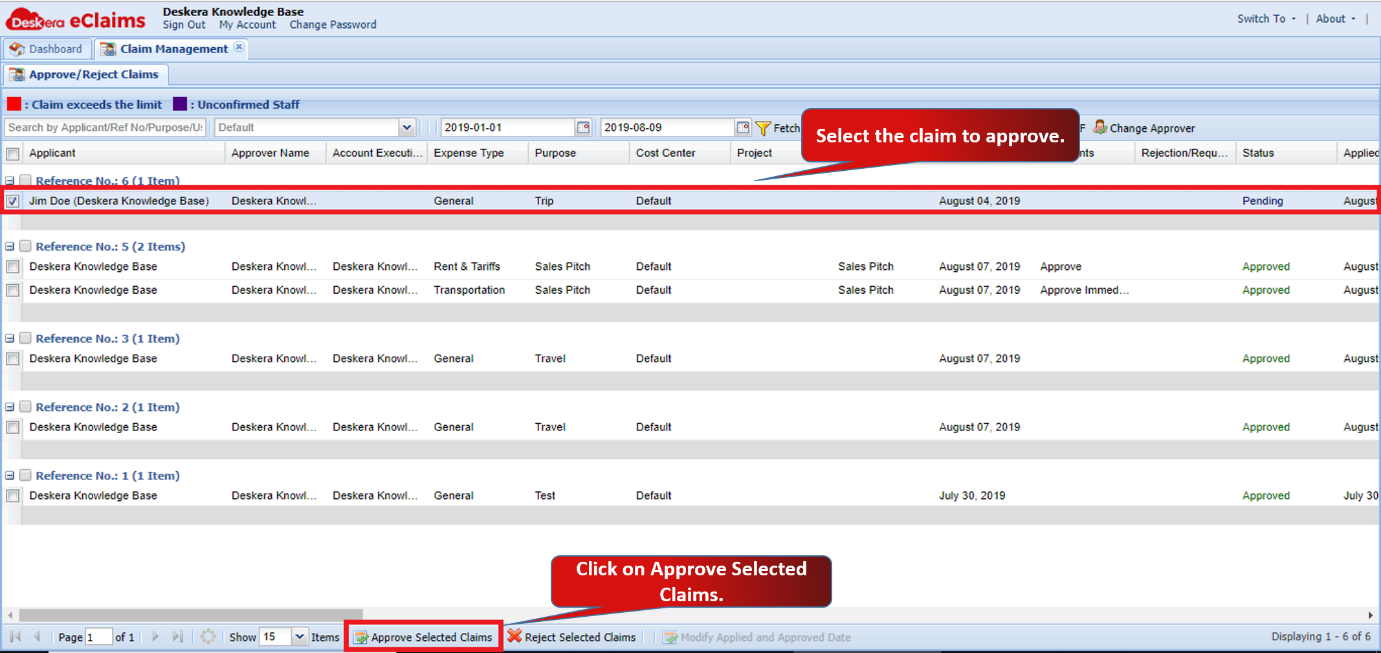
Fig 4.3.4.1.2 Approve/Reject Claims
Step 3: An Approve Claim Amount window will popup. Select the claim and click on Ok to continue.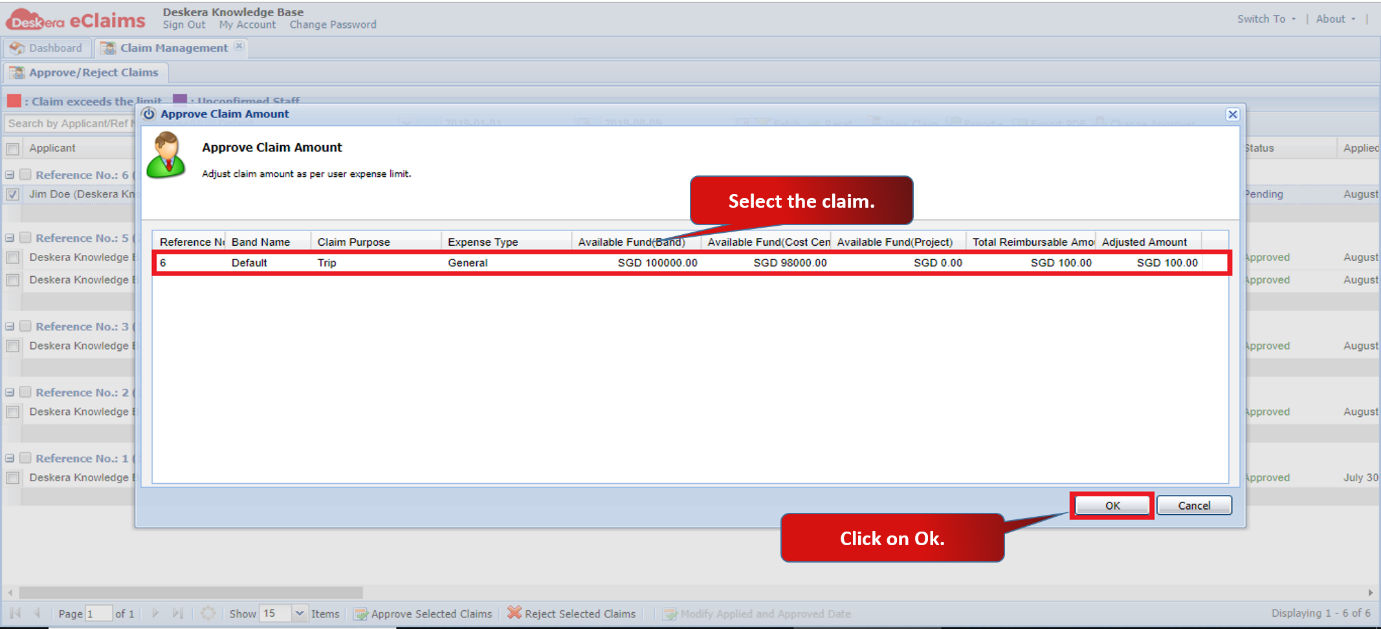
Fig 4.3.4.1.3 Approve/Reject Claims
Step 4: An Accounts Executive window will popup. Select the Accounts Executive to whom you want to send the claim for Accounts Approval and click on Apply.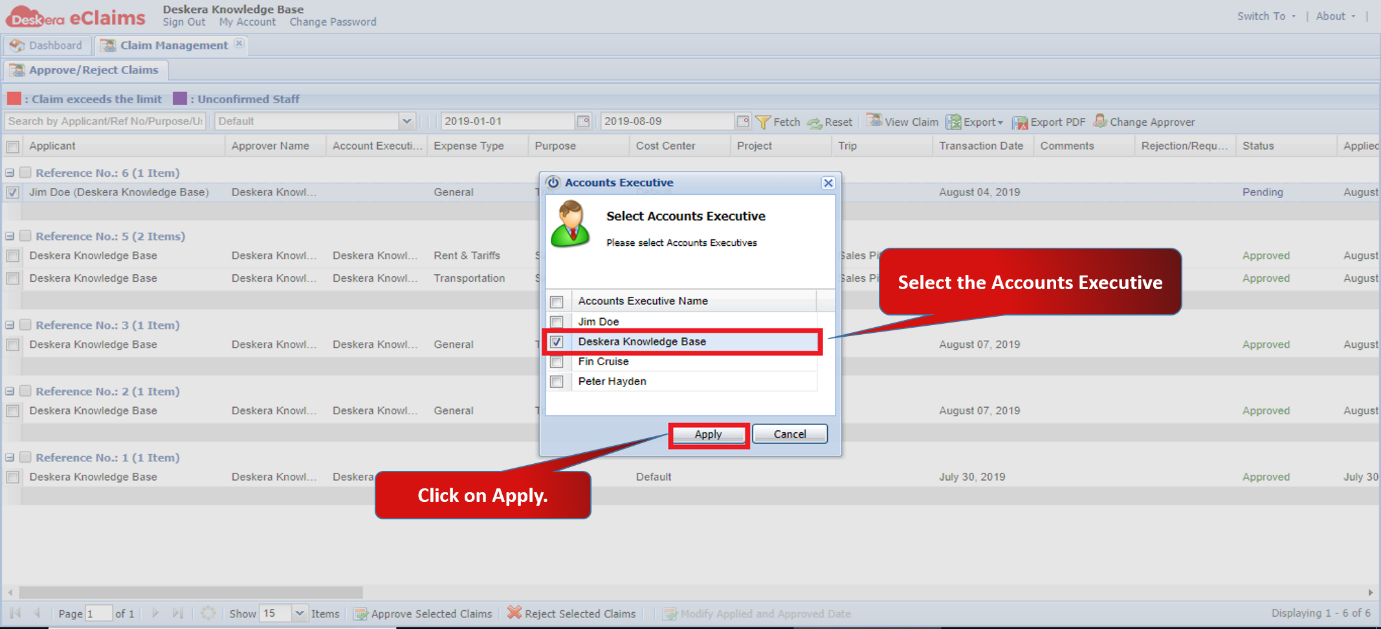
Fig 4.3.4.1.4 Approve/Reject Claims
The claim will be forwarded to the assigned accounts executive for approval. 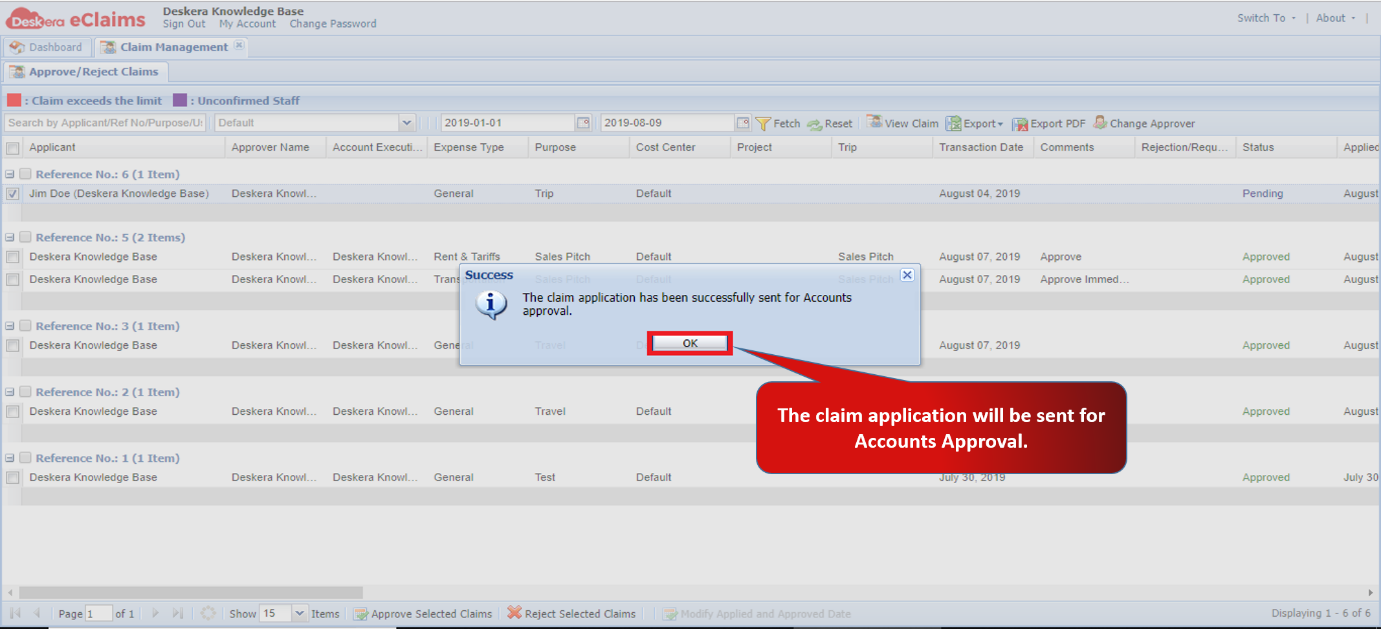
Fig 4.3.4.1.5 Approve/Reject Claims
Step 5: Accounts Executive can view the claim in View Expense Approval Request under Accounts Executive widget.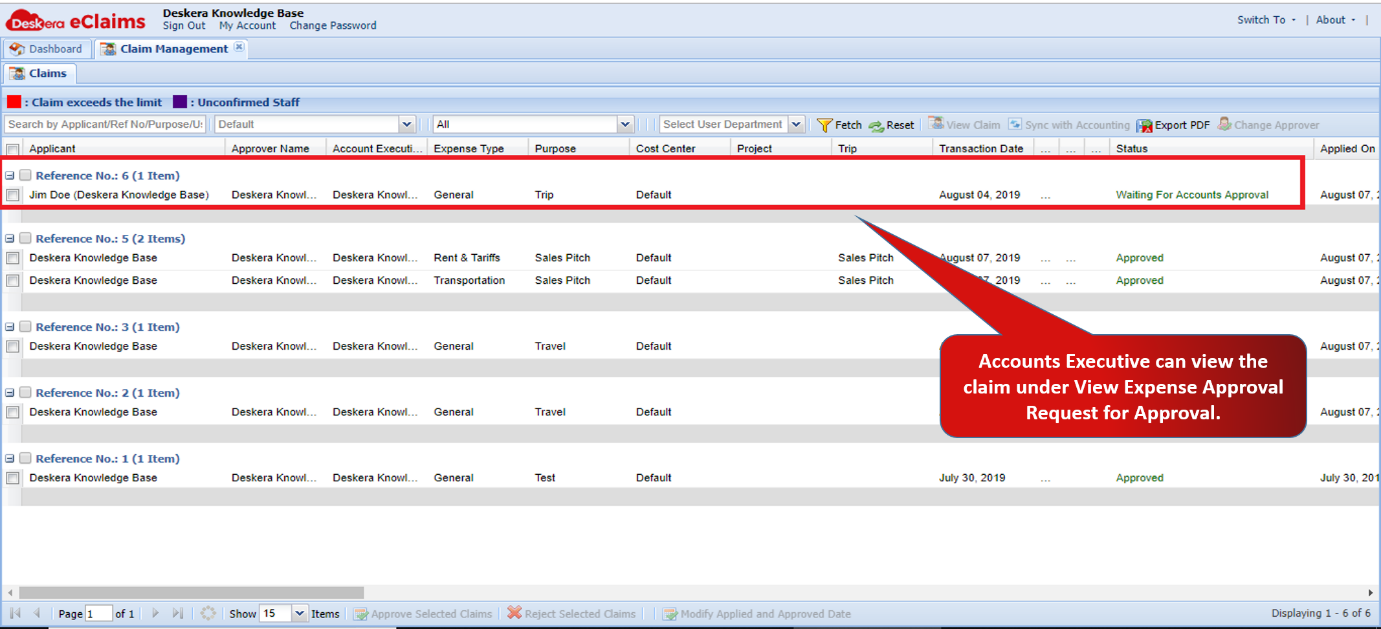
Fig 4.3.4.1.6 Accounts Approval
Comments
0 comments
Please sign in to leave a comment.