
This article focuses on certain configurations under Master Configuration in the Deskera eClaims Application. The functionalities covered in this article are concerned with the method of payment of claims amount to the applicants, managing divisions and eligibility for advance claim requests.
Prerequisites:
1. Ensure you have your Deskera eClaims application URL in place.
2. Ensure you are the administrator of the eClaims application
3. Ensure a good internet connectivity
Select payment option
The administrator can configure how the claims submitted and approved on eClaims application are to be settled and the payments to be made. The system allows two methods of payment; Payroll and GIRO.
Step 1: Go to Master Configuration under Administration on eClaims Dashboard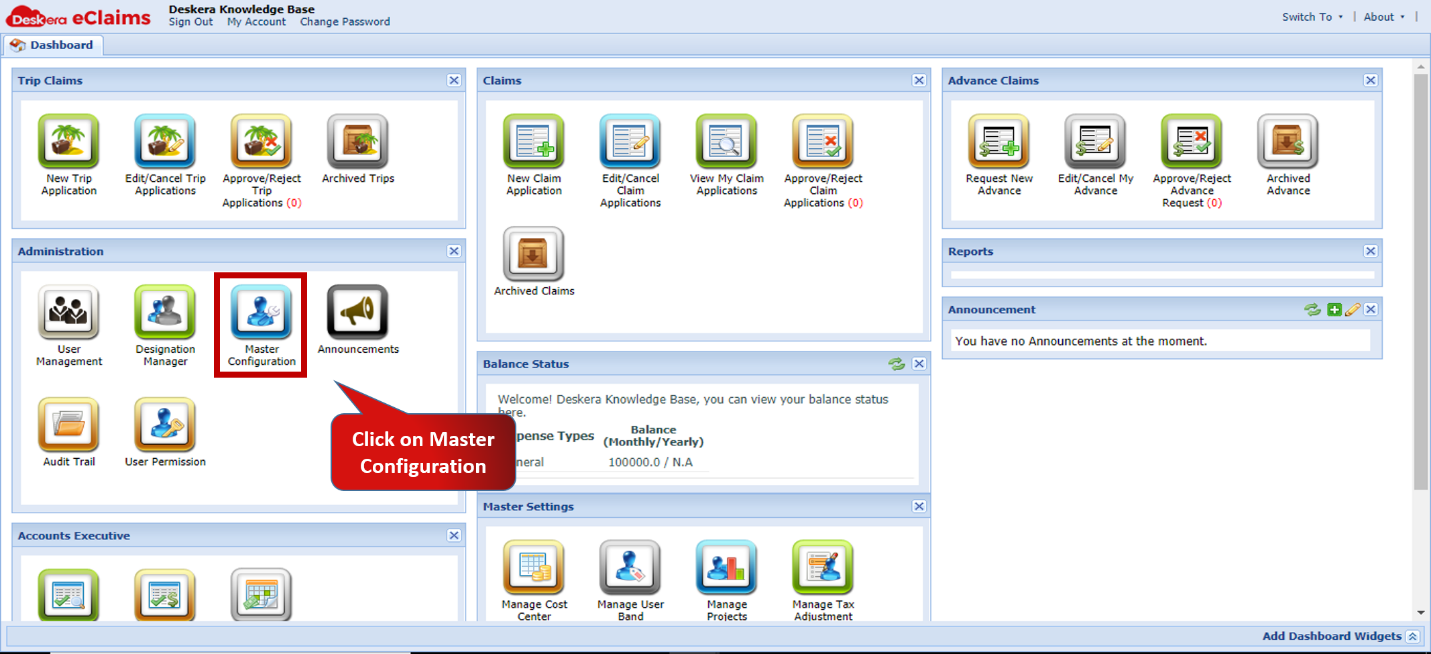 Fig.4.2.3.1.7.1 eClaims Dashboard
Step 2: Under Select Payment option choose the required option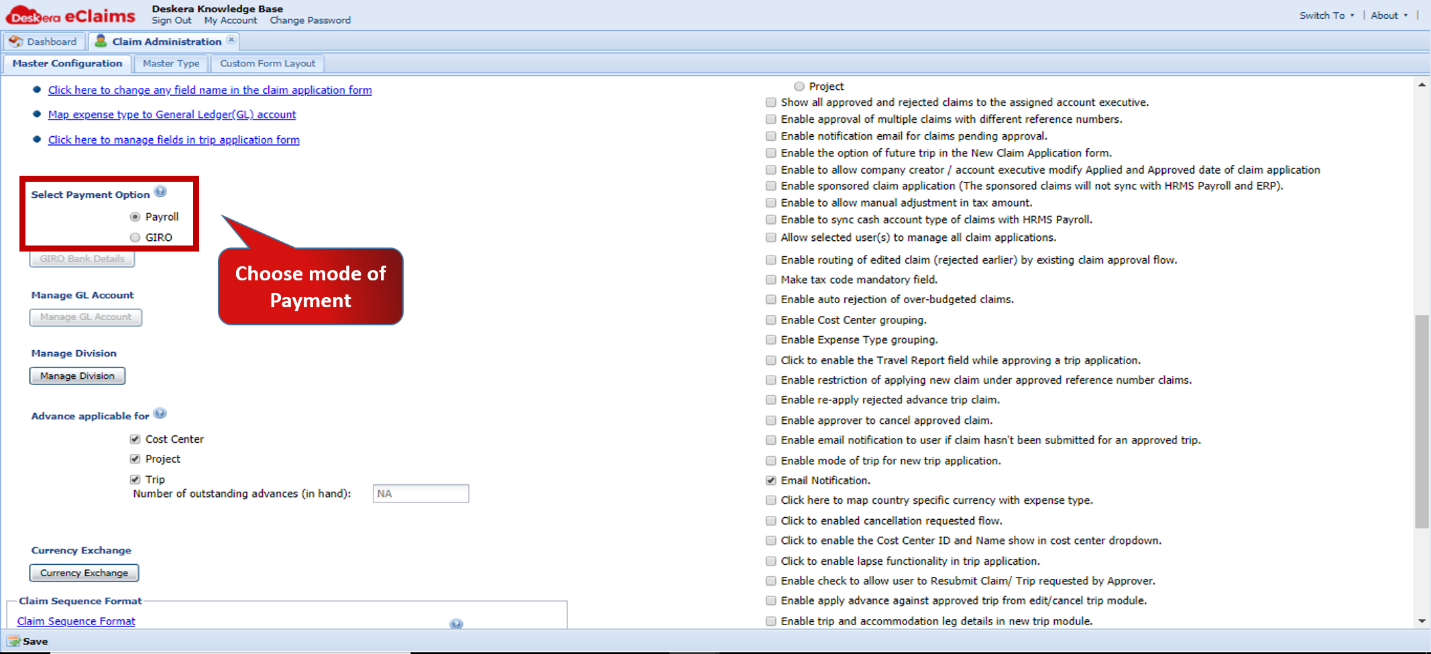 Fig.4.2.3.1.7.2 Master Configuration
Step 2.a: If Payroll is selected as the option the claim amount is mapped via the hard-coded Payroll Component E-Claim-Reimbursement which should be mapped to the employee 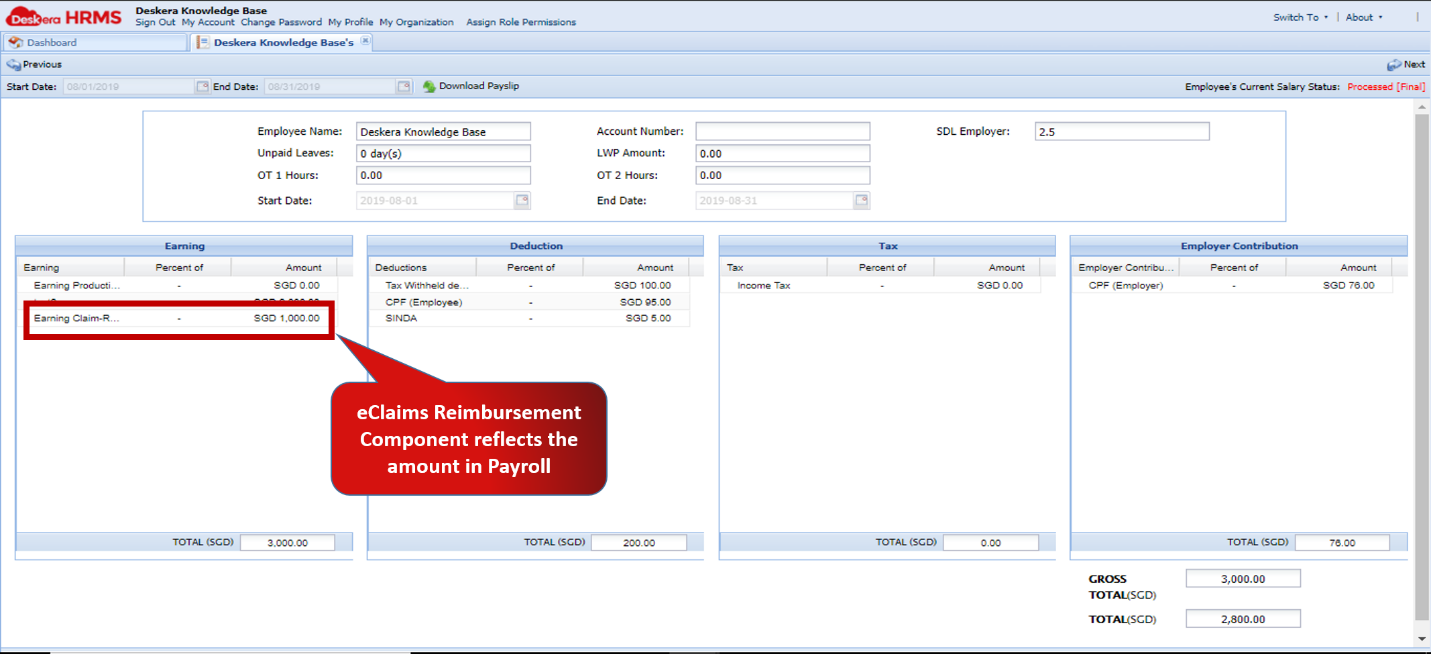 Fig.4.2.3.1.7.3 Employee Salary Details
Step 2.b: If GIRO is selected as the option the claim amount is directly paid to the GIRO Bank details of the employee entered in the system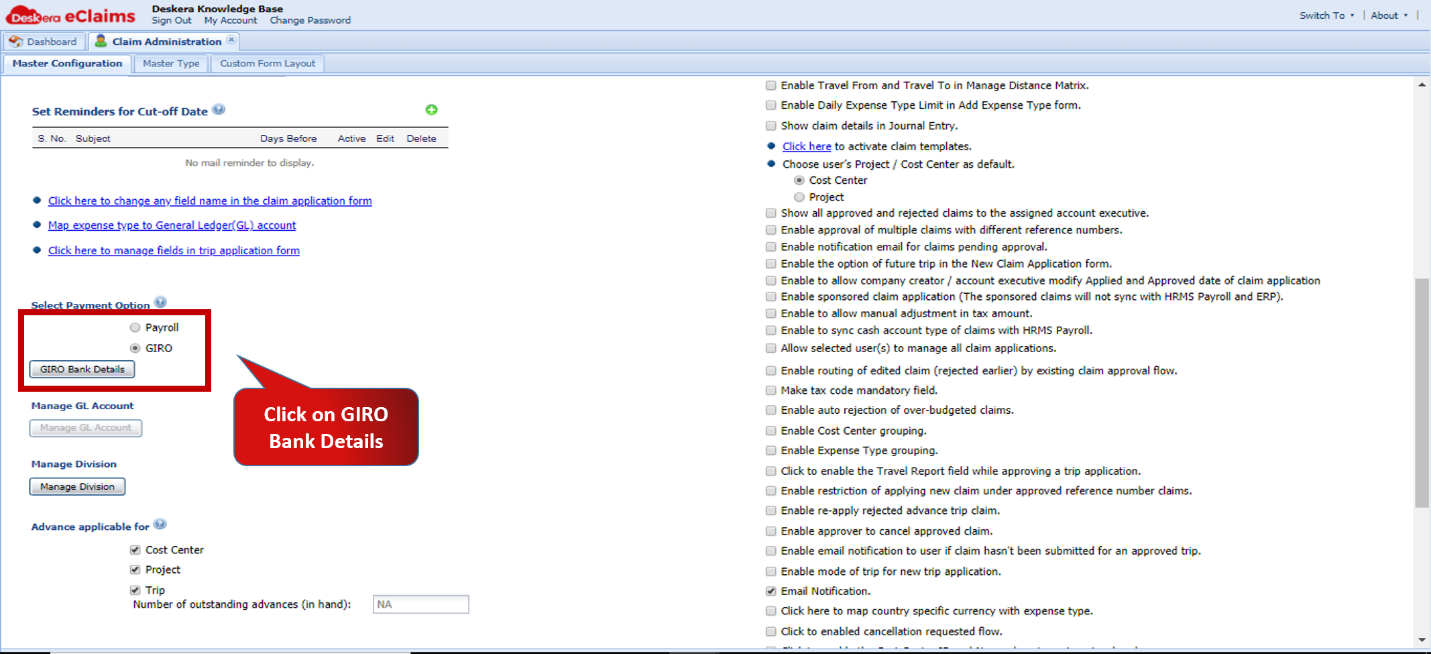 Fig.4.2.3.1.7.4 Master Configuration
Step 3: Enter GIRO Bank Details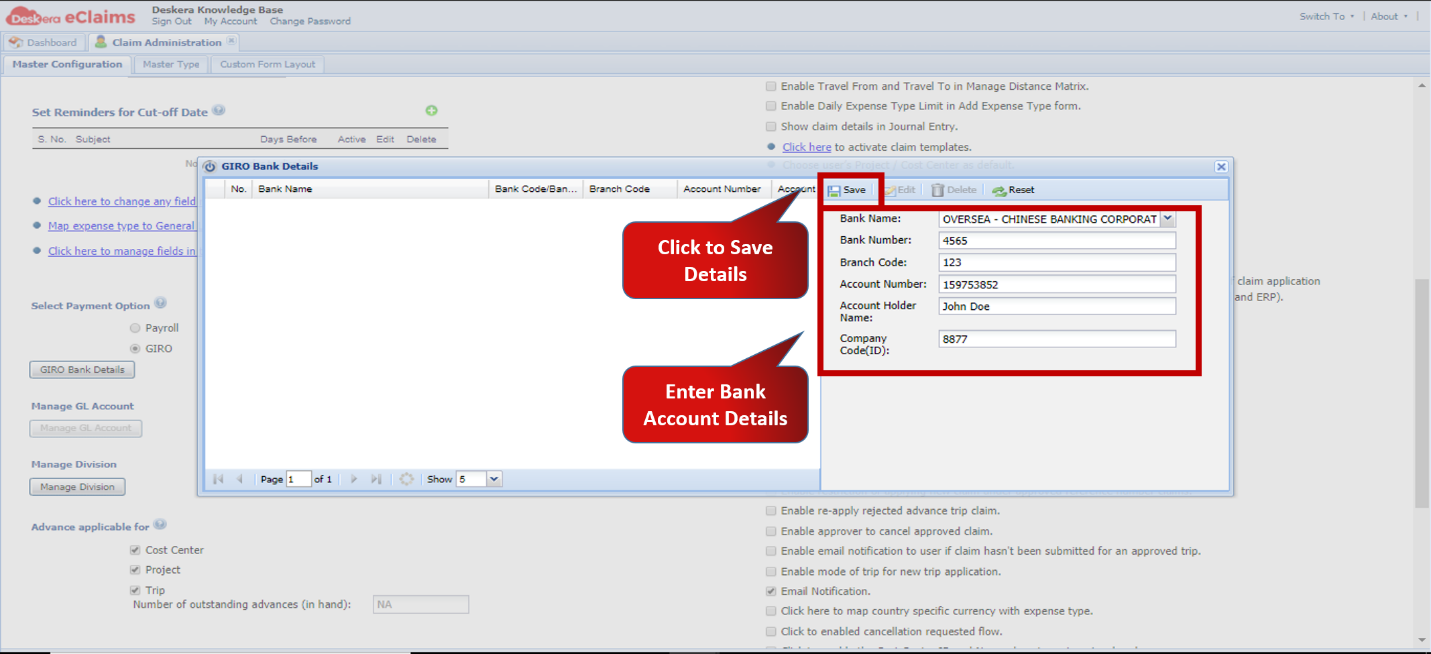
Fig.4.2.3.1.7.5 GIRO Bank Details
Step 4: Save changes and proceed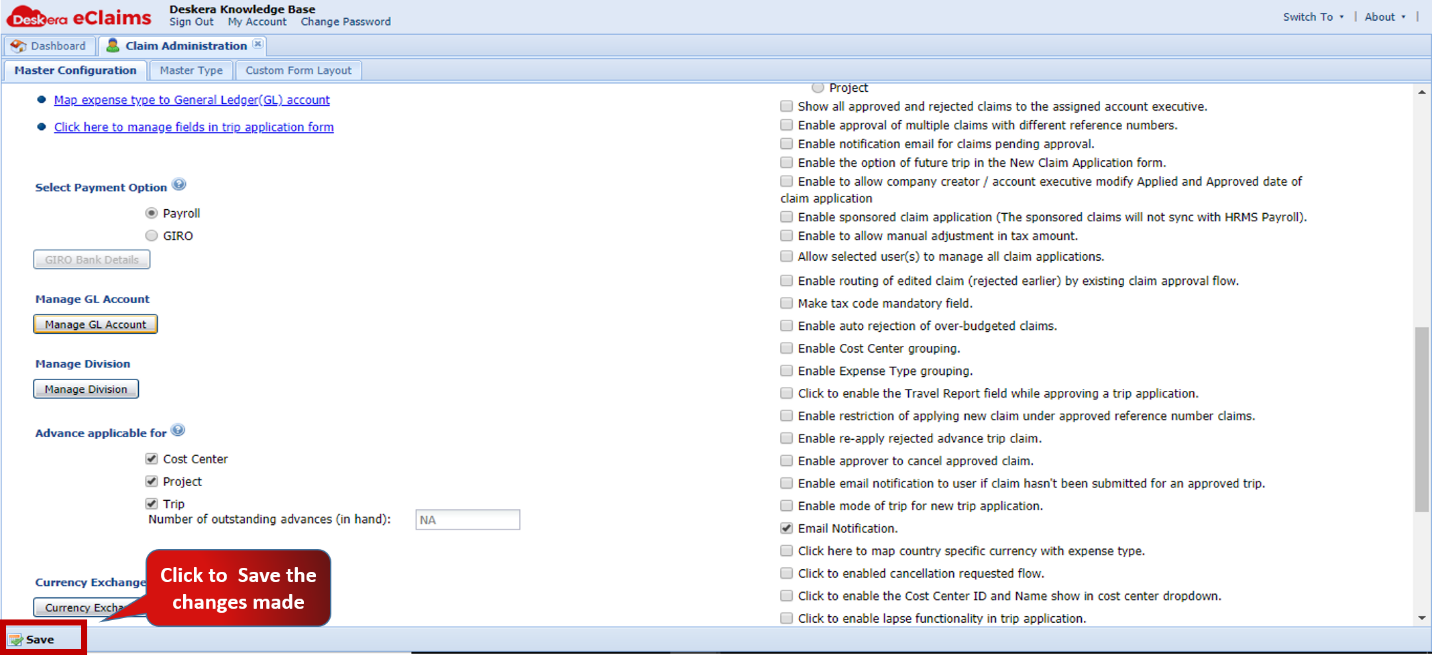 Fig.4.2.3.1.7.6 Master Configuration
Manage Division
This function helps the administrator to create, edit or delete Divisions to which employees can be assigned on eClaims. If the Cost Centre and Division for a claim are the same, the data can be auto-populated while settling the claim.
Step 1: Go to Master Configuration under Administration on eClaims DashboardFig.4.2.3.1.7.7 eClaims Dashboard
Step 2: Click on Manage Division to open new window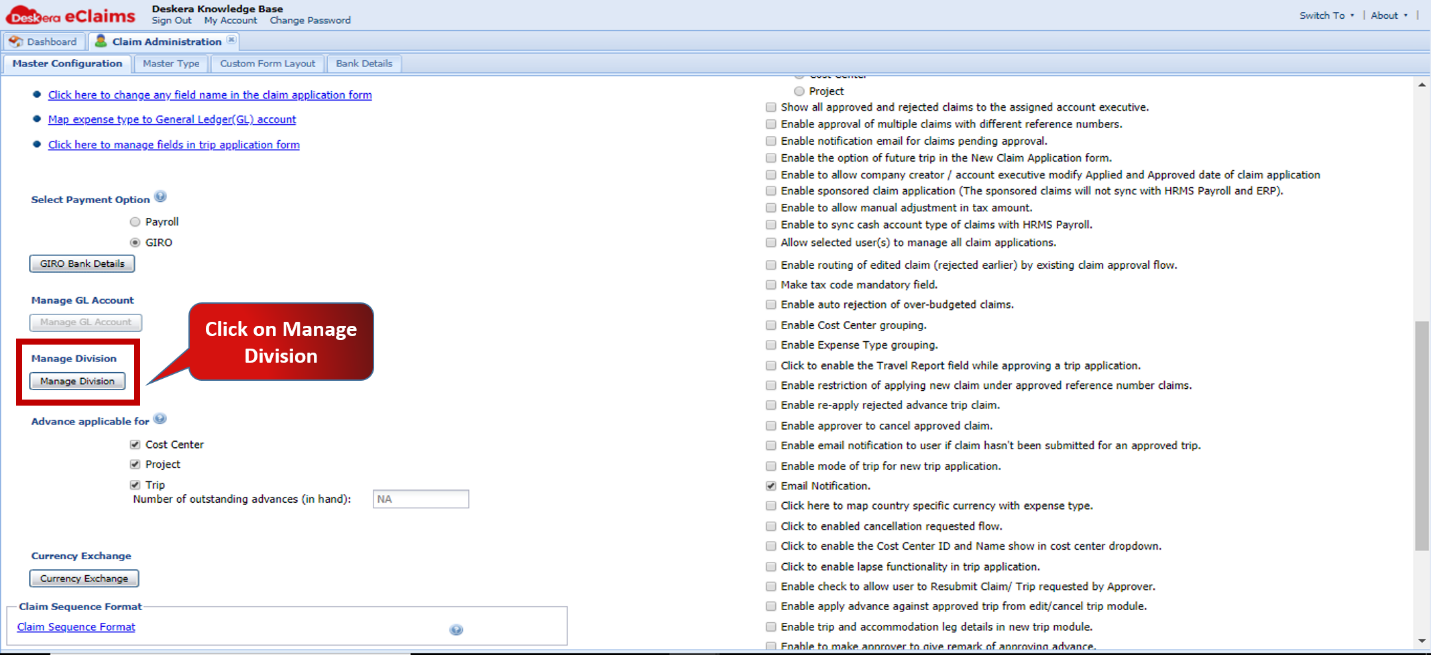 Fig.4.2.3.1.7.8 Master Configuration
Step 3: Enter New Division Name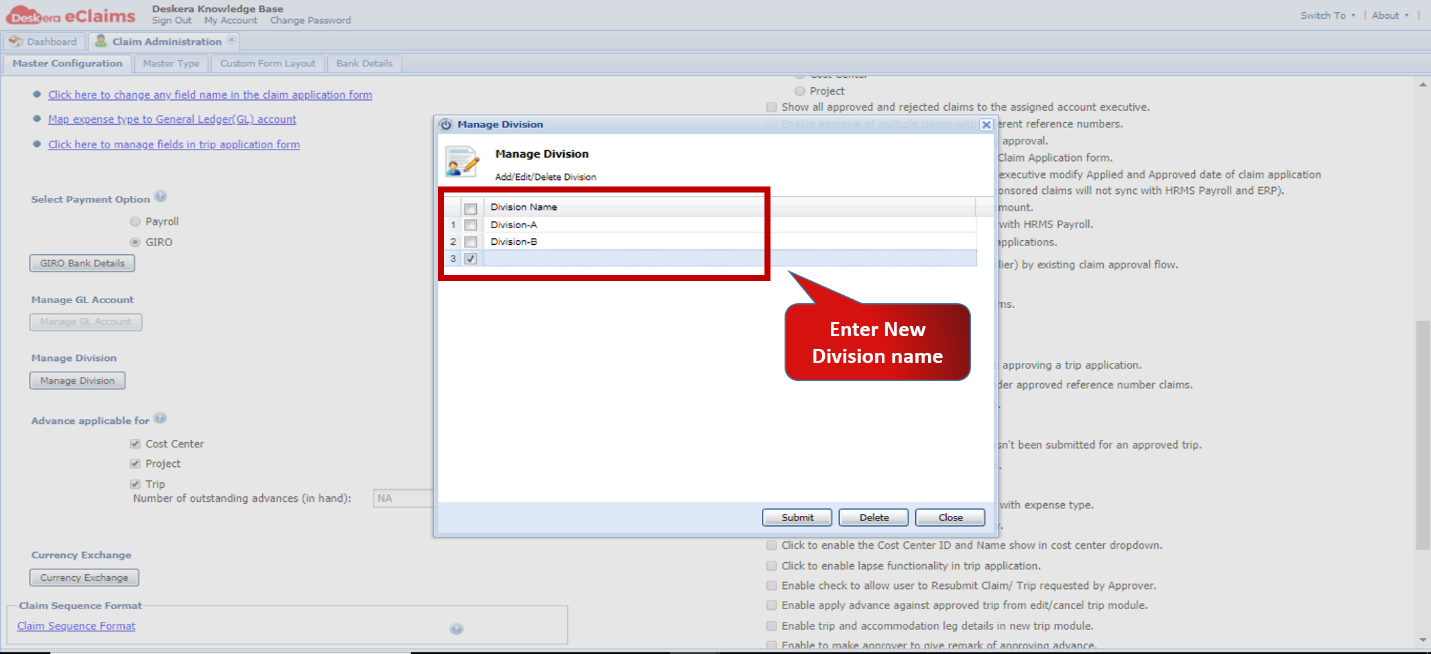 Fig.4.2.3.1.7.9 Manage Divisions
Step 4: Submit New Divisions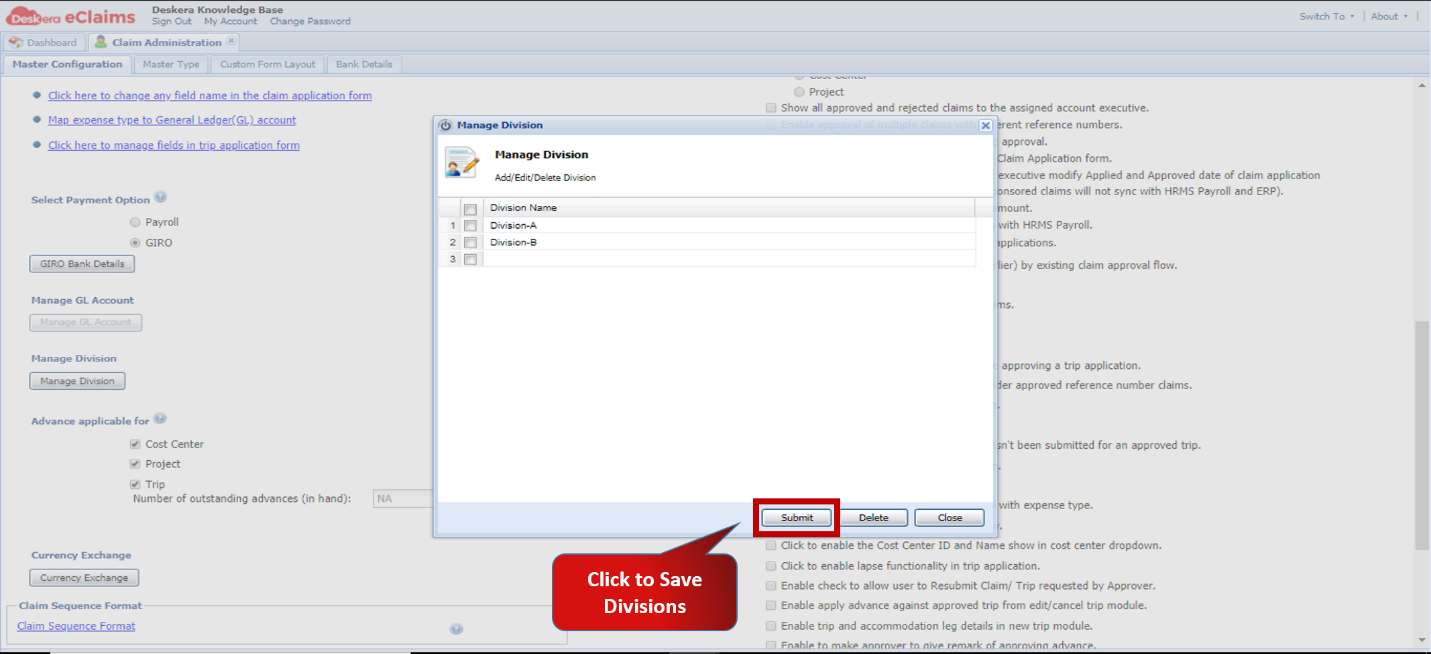 Fig.4.2.3.1.7.10 Manage Divisions
Step 5: Save changes and proceed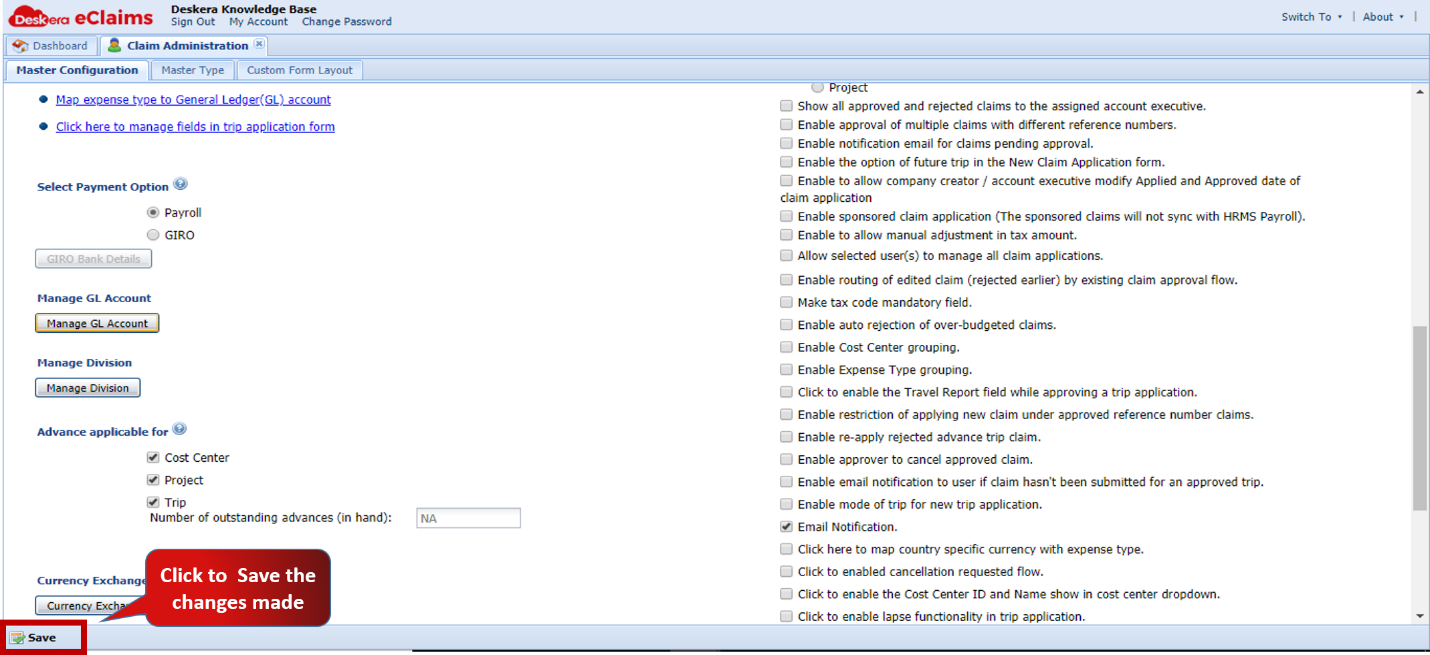 Fig.4.2.3.1.7.11 Master Configuration
Advance applicable for
This function helps the administrator configure if Cost Centers, Projects and Trips should be made eligible to request for Advance Claims. If enabled here, then they can apply for Advance Claims in the eClaims application which will allow them to claim before actually incurring the expense. This function also allows the administrator to set the maximum number of outstanding advances that may be present at a given time.
Note: One of the three options will always have to be enabled at all times.
Step 1: Go to Master Configuration under Administration on eClaims DashboardFig.4.2.3.1.7.12 eClaims Dashboard
Step 2: Enable check-box for options that are eligible for Advance claims 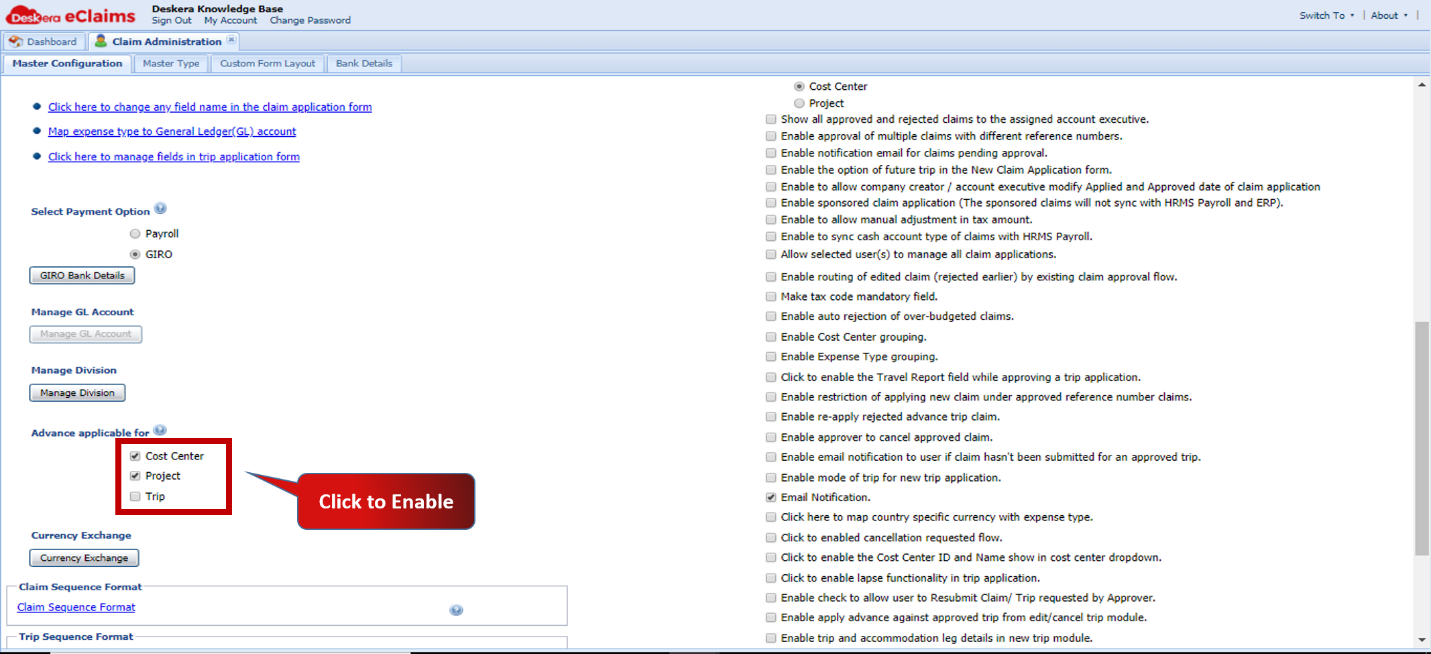 Fig.4.2.3.1.7.13 Master Configuration
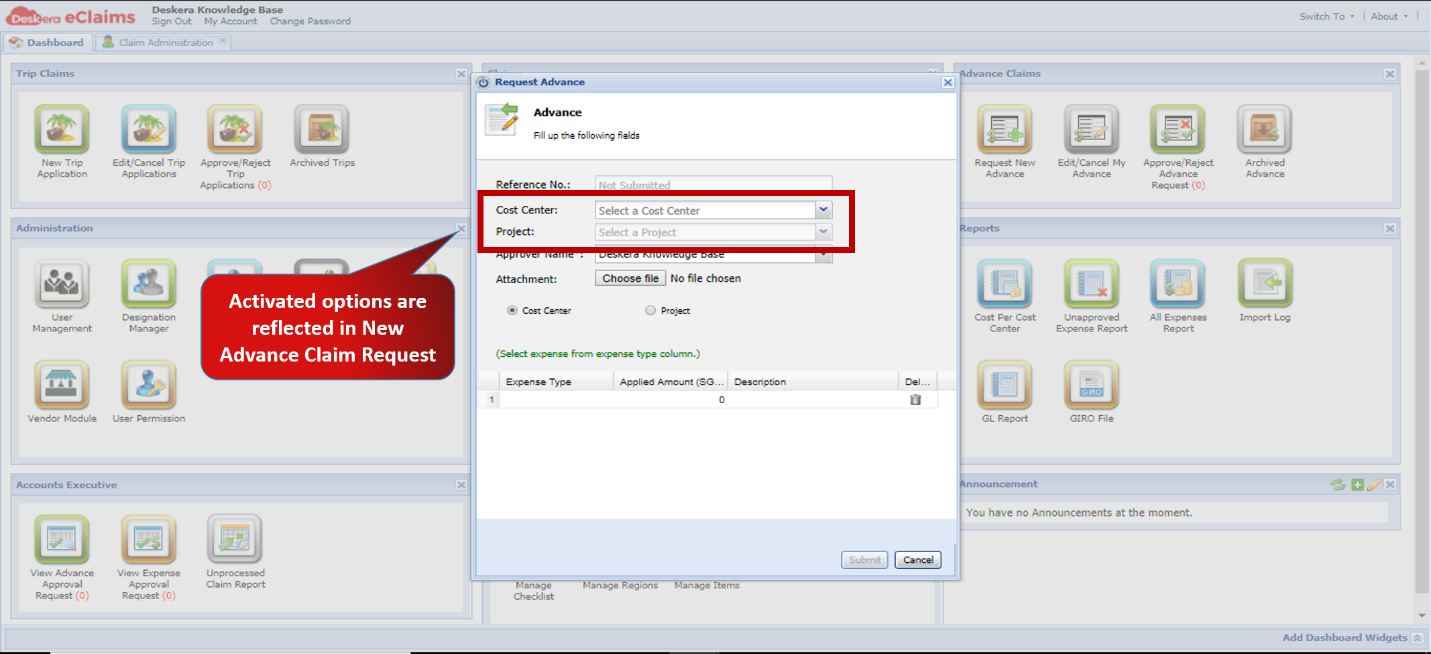 Fig.4.2.3.1.7.14 New Advance Claim
Step 3: Enter limit for Maximum outstanding advances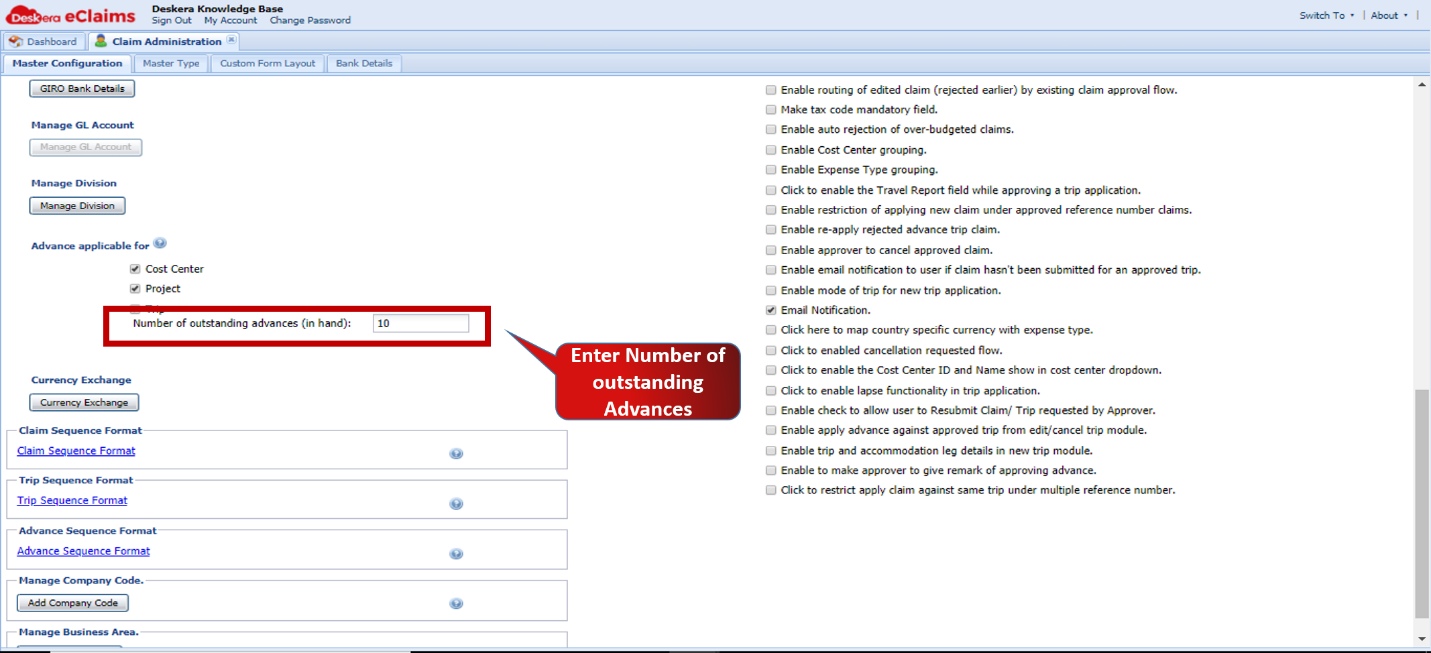 Fig.4.2.3.1.7.15 Master Configuration
Step 4: Save changes and proceedFig.4.2.3.1.7.16 Master Configuration
Comments
0 comments
Please sign in to leave a comment.