
User Permission feature enables you to assign permissions to various roles in the organisation in Deskera eClaims. You can also manage reports by activating them accordingly.
Prerequisites:
1. You have your Deskera eClaims application URL in place.
2. You are the administrator of the eClaims application.
3. Ensure good internet connectivity.
Step 1: Go to User Permission under Administration widget in eClaims. 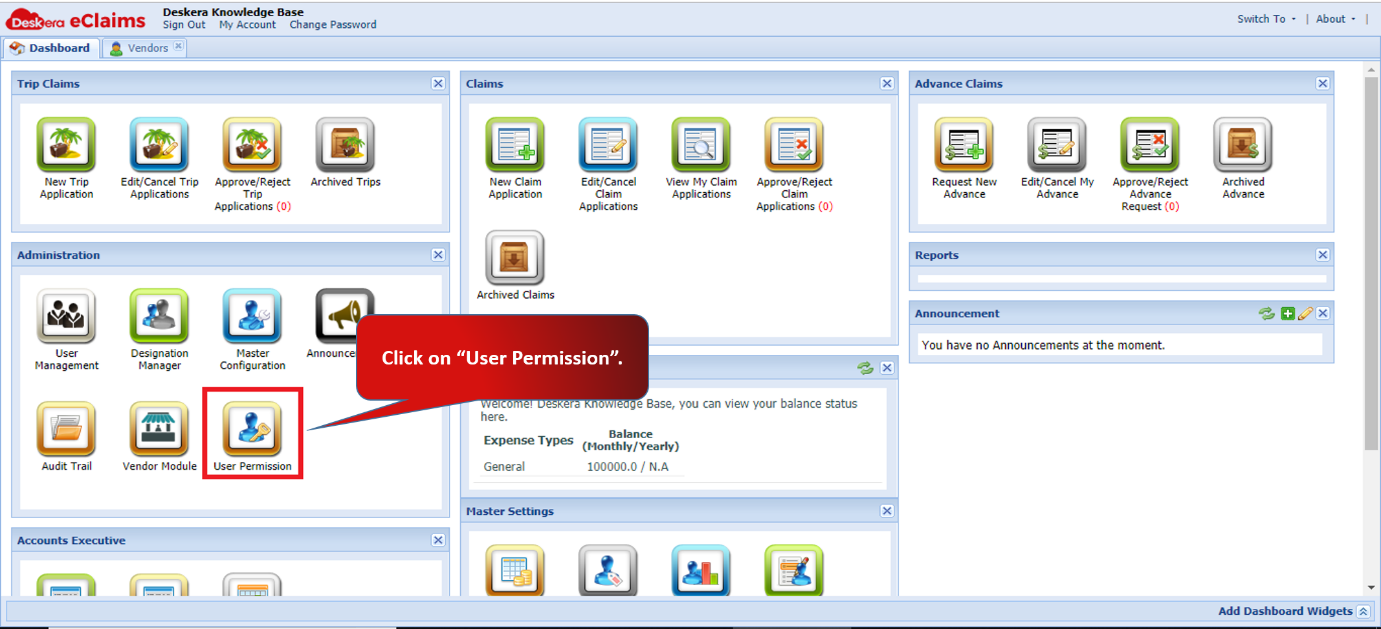
Fig 4.2.6.1 eClaims Dashboard
Step 2: Check the box and assign permissions to respective roles. For example- The administrator has permission to access all the widgets as seen in the image below.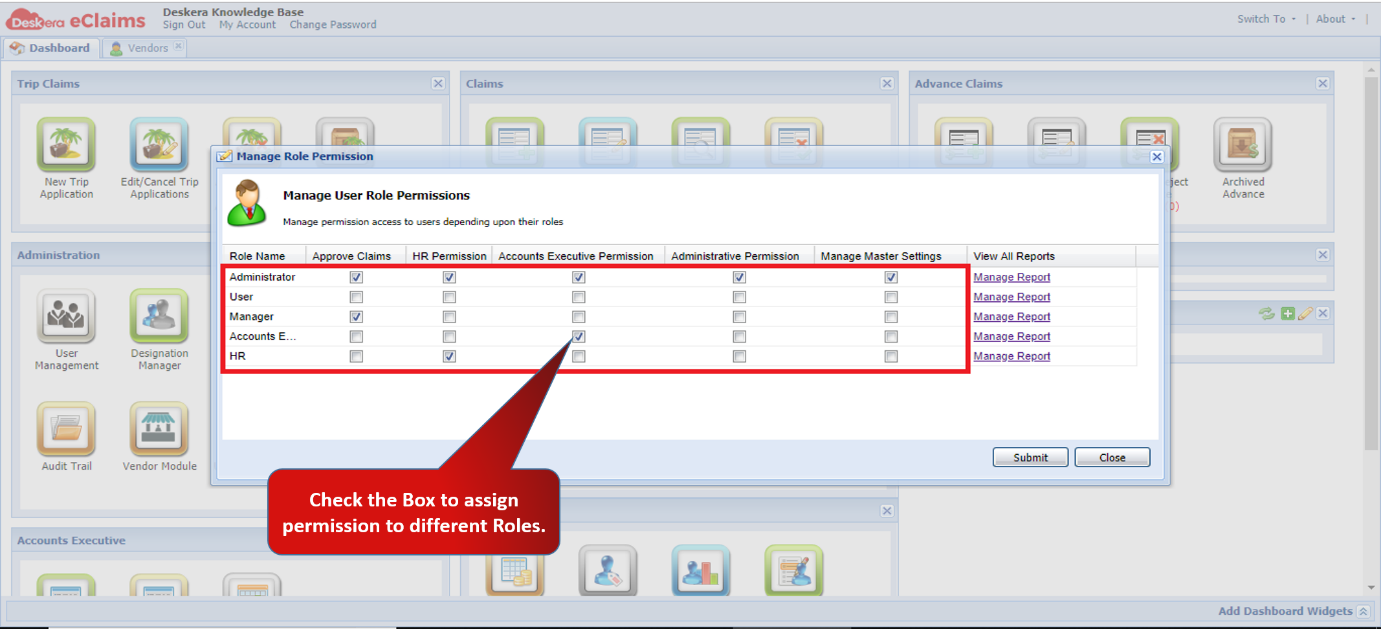
Fig 4.2.6.2 Manage User Role Permissions
Step 3: Click on Manage Report to activate reports and graphs for a selected role.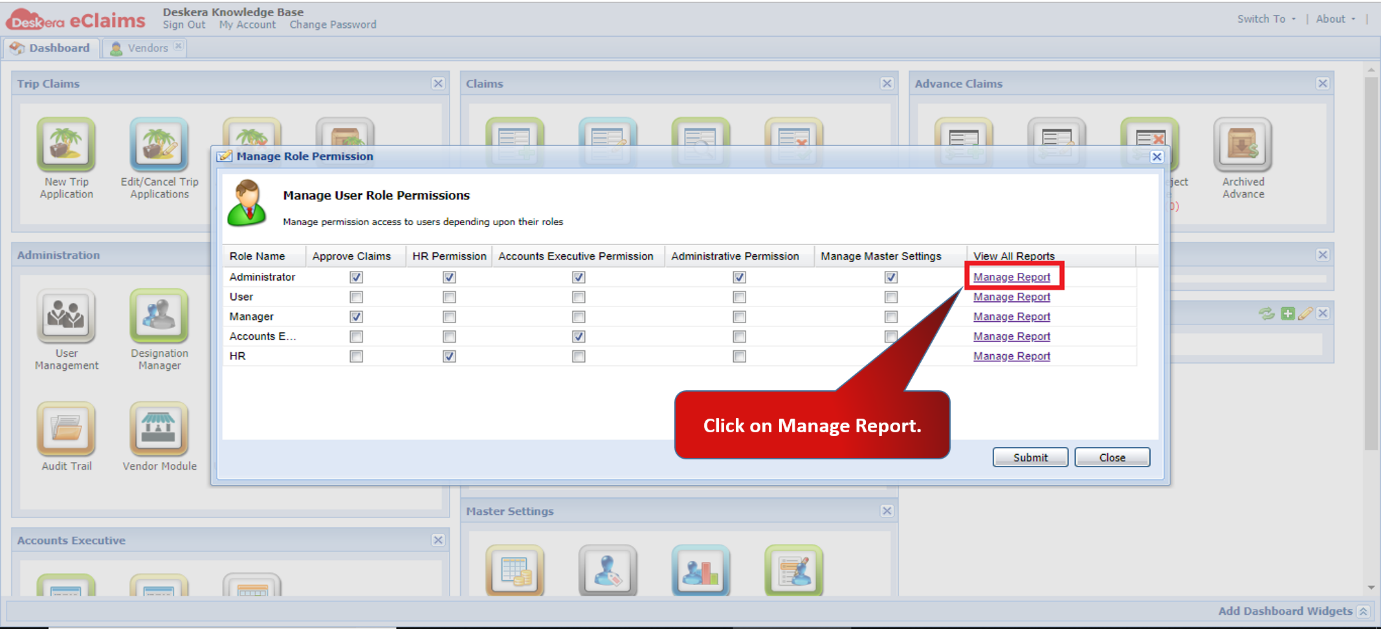
Fig 4.2.6.3 Manage User Role Permissions
Step 4: Check the box to activate the reports and graphs for the selected role. Click on Submit to save the settings.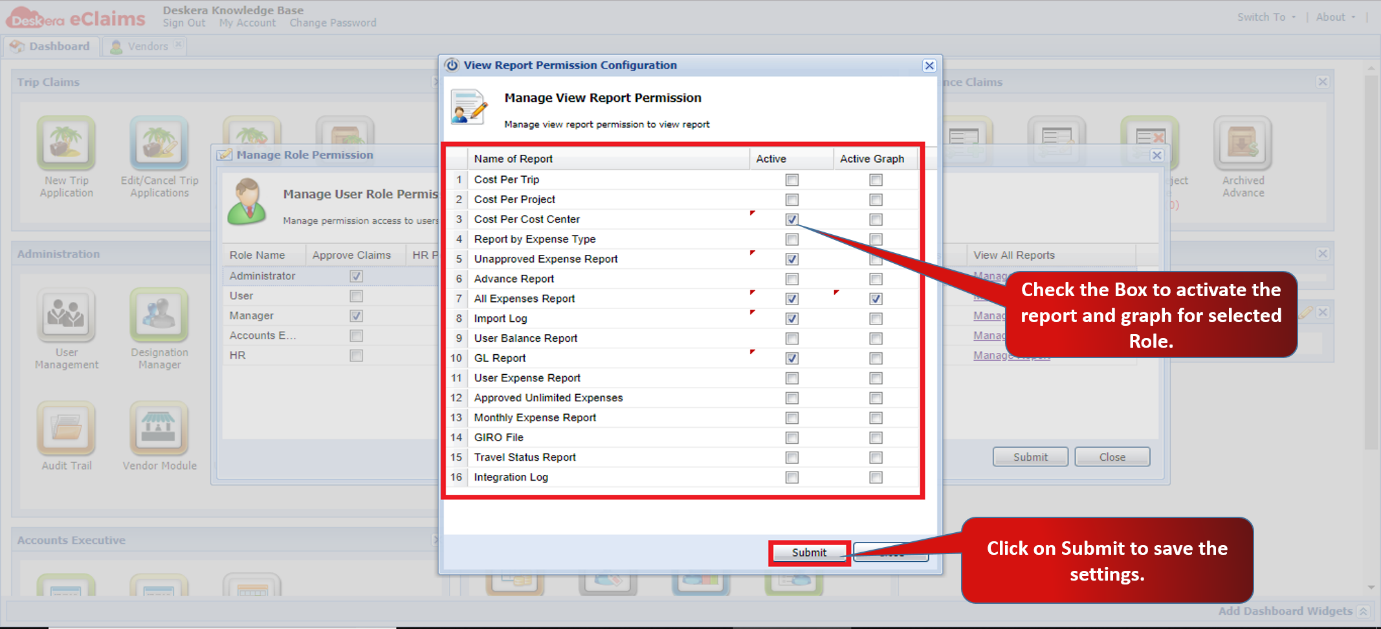
Fig 4.2.6.4 Manage Report Permissions
The permissions will be assigned. Refresh or Log in again to see new permissions assigned in eClaims. 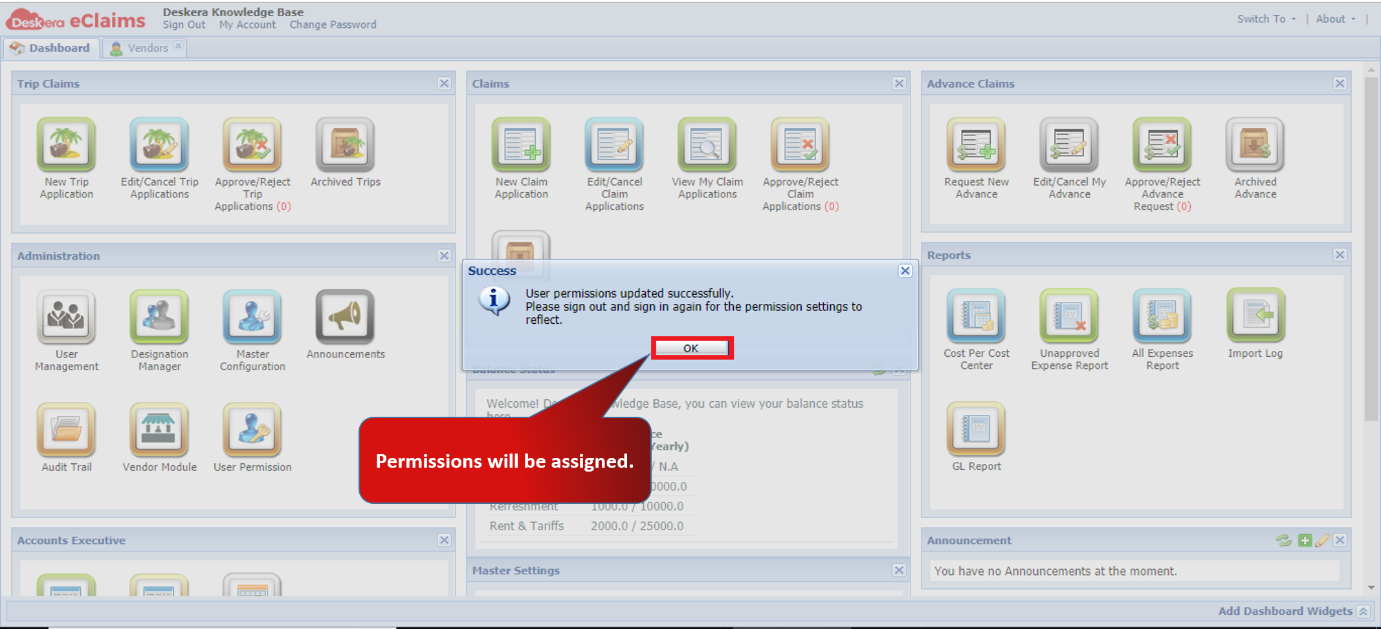
Fig 4.2.6.5 Manage User Role Permissions
Comments
0 comments
Please sign in to leave a comment.