
Master Type feature allows you to make your own section to add new data according to your preferences. Users can easily add, edit and delete master types/ custom columns according to their requirement.
Prerequisites:
1. Ensure you have your Deskera eClaims application URL in place.
2. Ensure you are the administrator of the eClaims application
3. Ensure a good internet connectivity
How to Create Master Type
Step 1: Go to User Management under Administration on eClaims Dashboard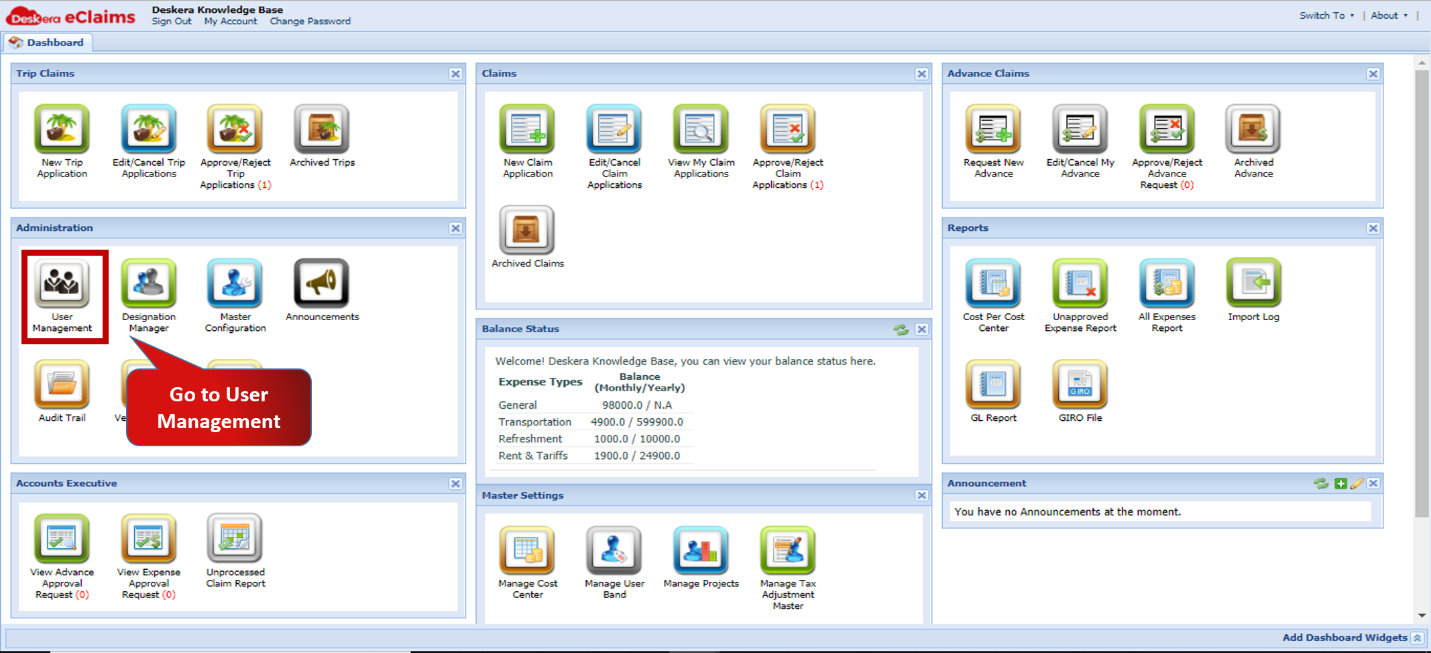 Fig.4.2.3.2.1 eClaims Dashboard
Step 2. Click on Manage Columns and select Add Custom Column 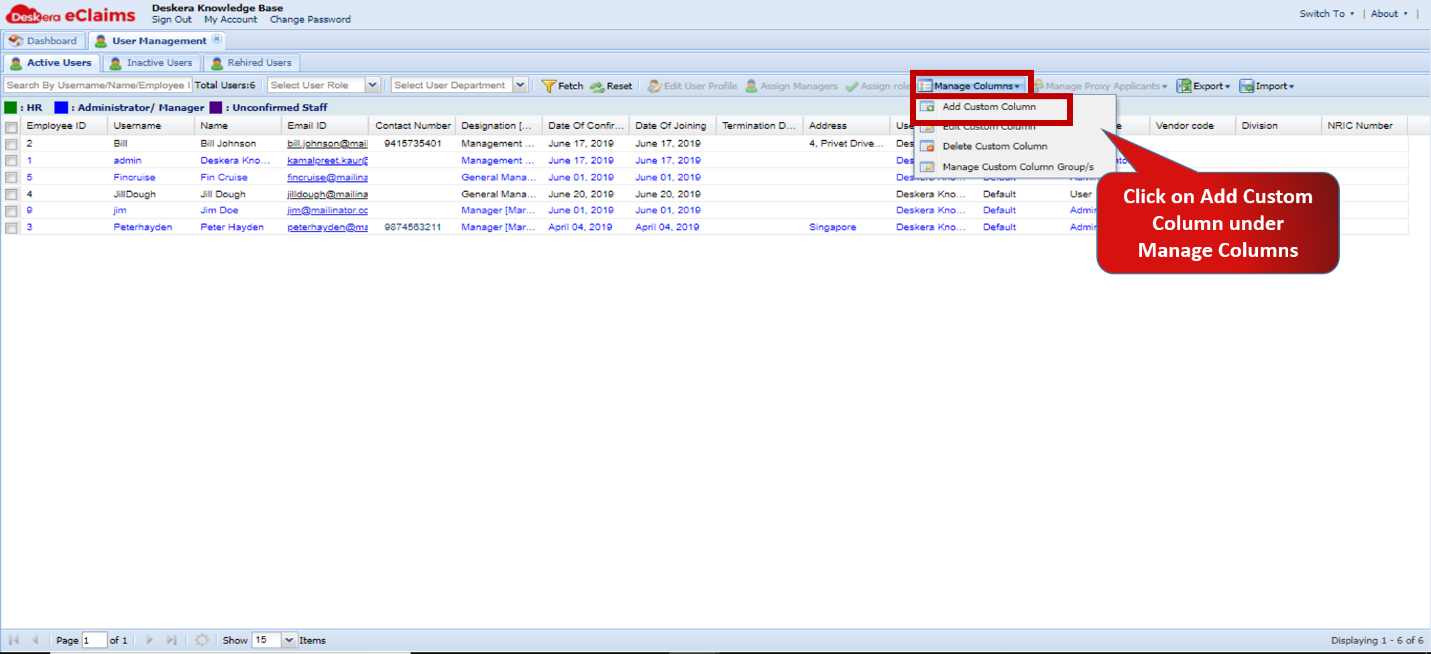 Fig.4.2.3.2.2 User Management
Step 3. Fill in the details in the Create Custom Column window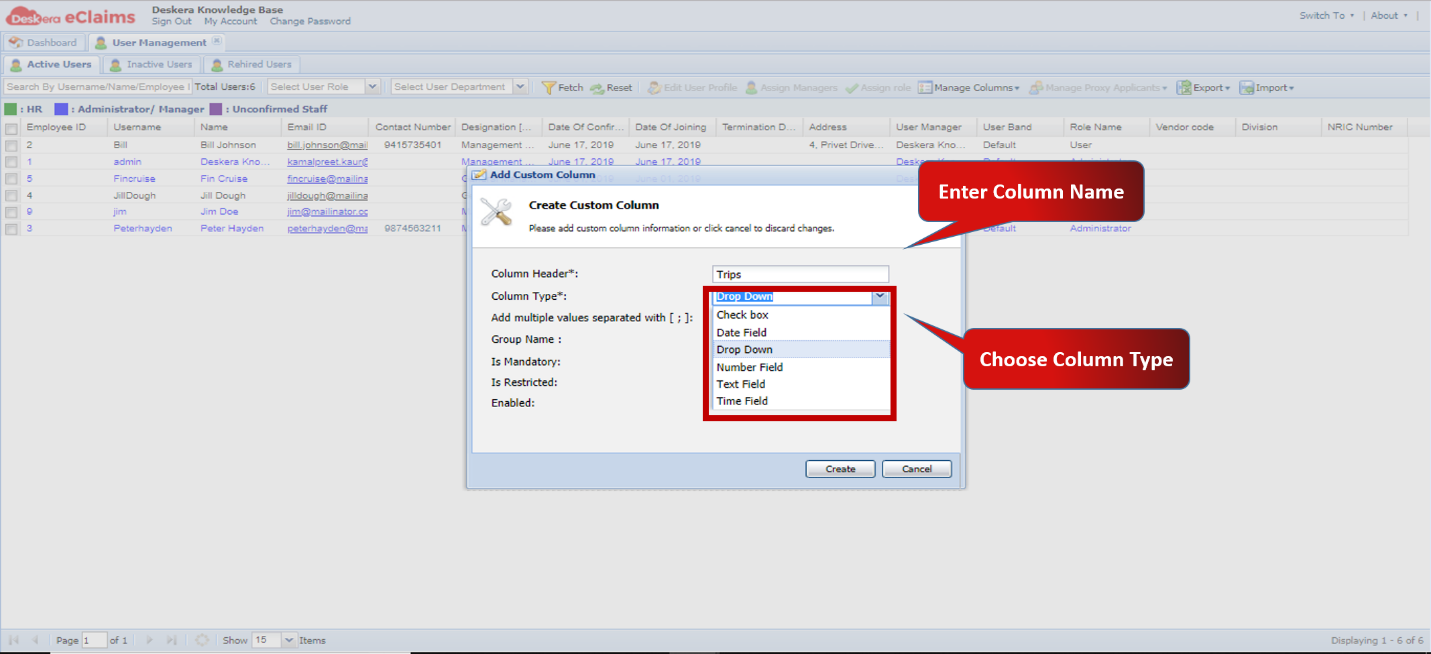 Fig.4.2.3.2.3 Create Custom Column
Step 4: Click on Create and Save changes 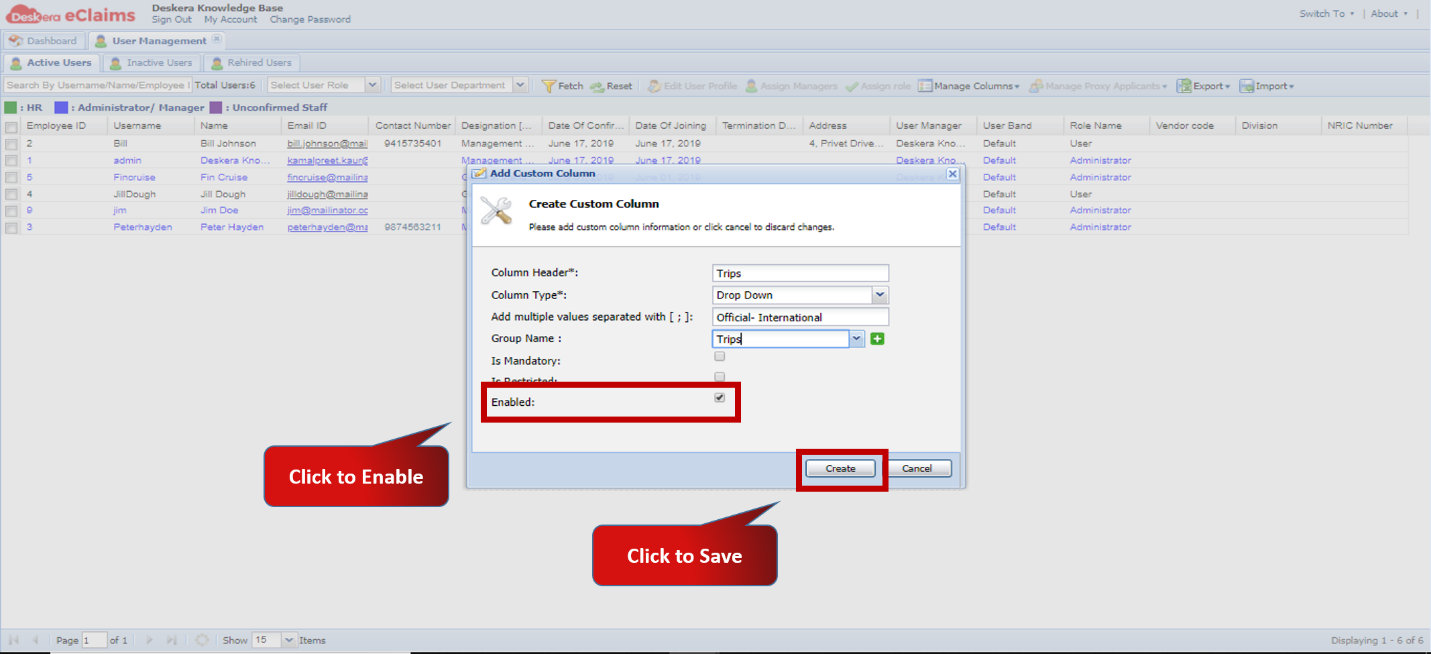 Fig.4.2.3.2.4 Create Custom Column
How to Edit Master Type
Step 1: Go to User Management under Administration on eClaims DashboardFig.4.2.3.2.5 eClaims Dashboard
Step 2. Click on Manage Columns and select Edit Custom Column 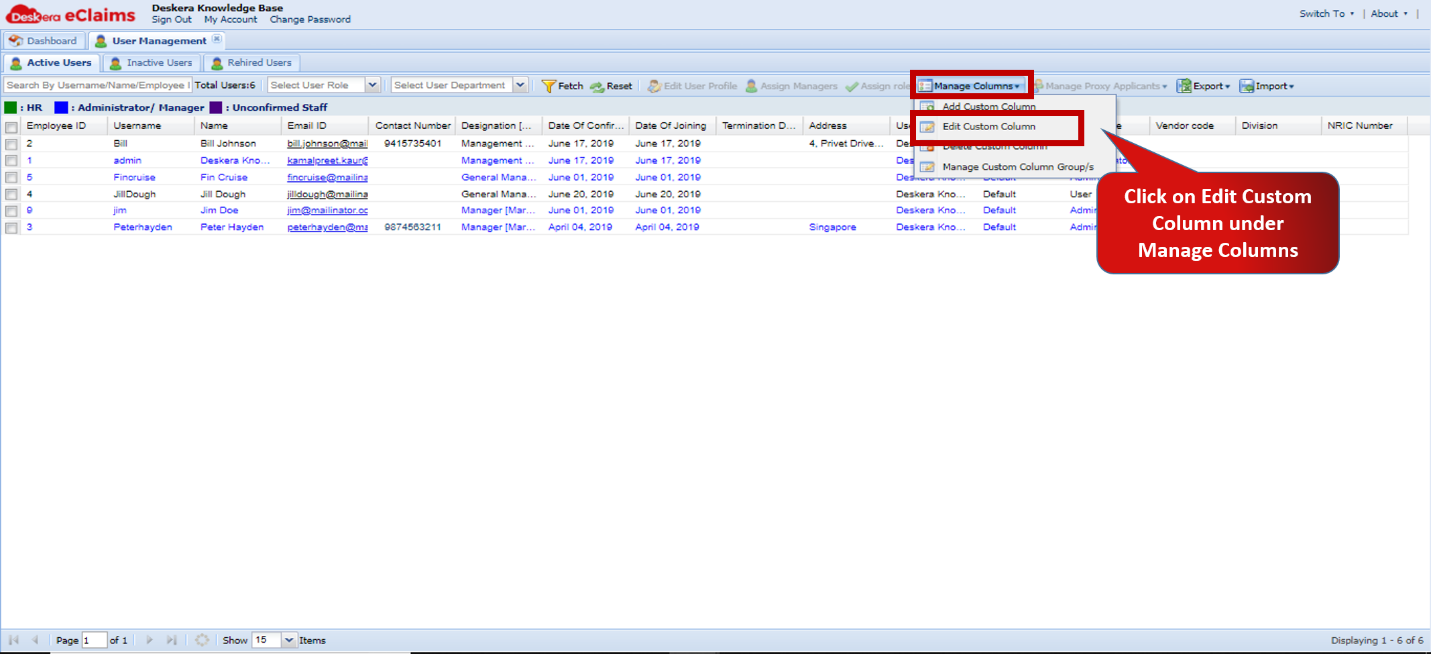 Fig.4.2.3.2.6 User Management
Step 3. Fill in the required changes and click on Save. 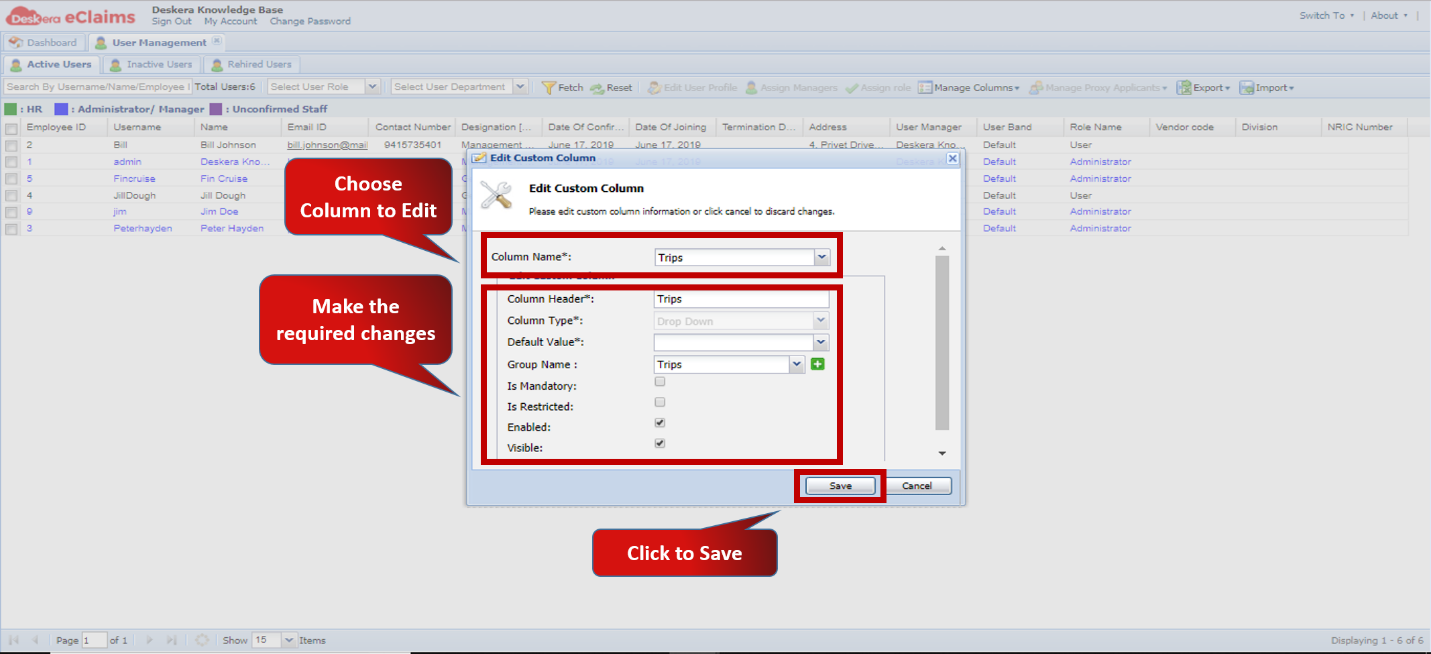 Fig.4.2.3.2.7 Edit Custom Column
How to Delete Master Type
Step 1: Go to User Management under Administration on eClaims DashboardFig.4.2.3.2.8 eClaims Dashboard
Step 2. Click on Manage Columns and select Delete Custom Column 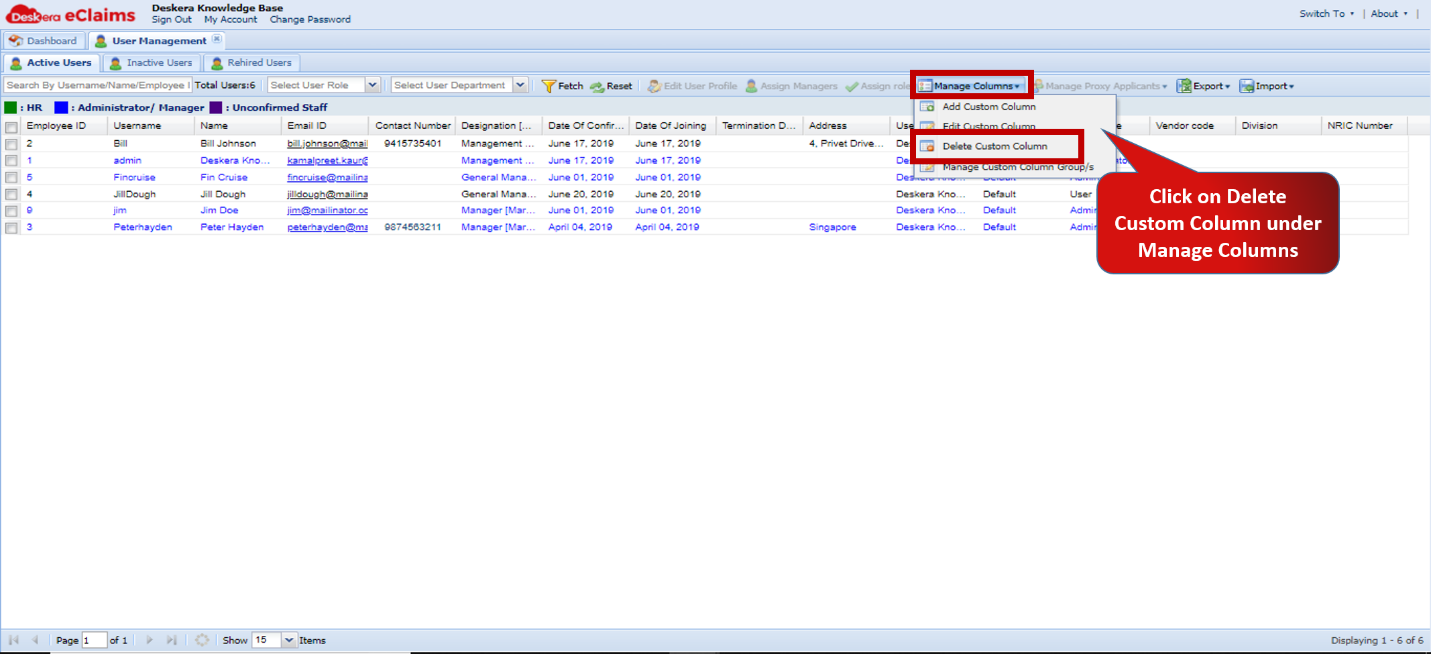 Fig.4.2.3.2.9 User Management
Step 3: Choose the Column to delete and Click on Delete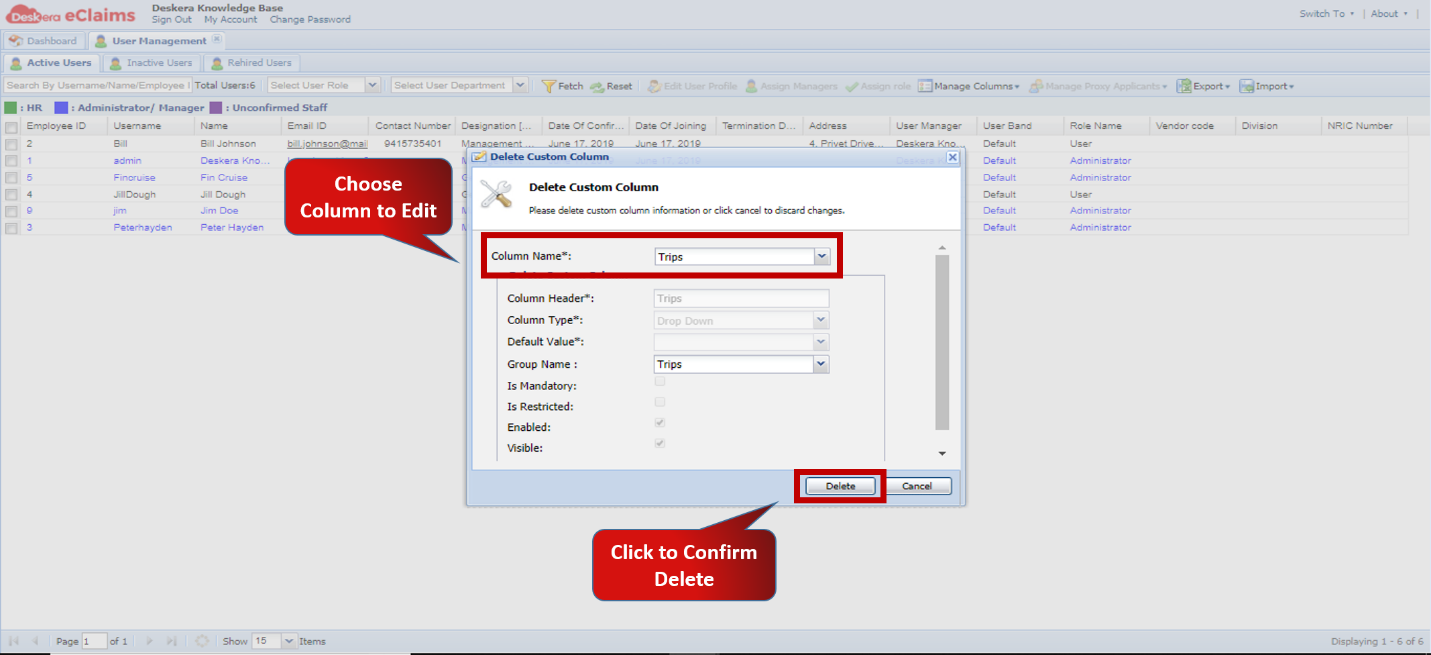 Fig.4.2.3.2.10 Delete Custom Column
How to Add Sub-Fields
Step 1: Go to Master Configuration on eClaims Dashboard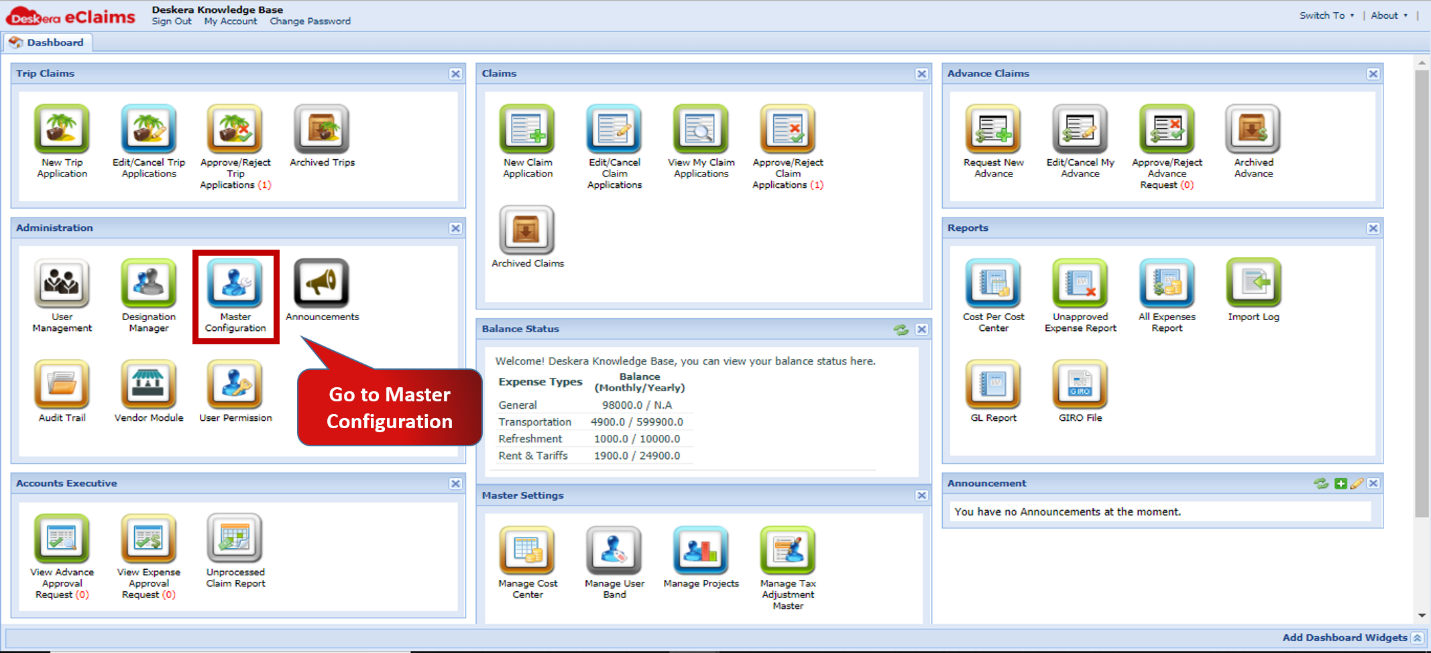 Fig.4.2.3.2.11 eClaims Dashboard
Step 2. Select the Master Type and Click on Add Sub fields 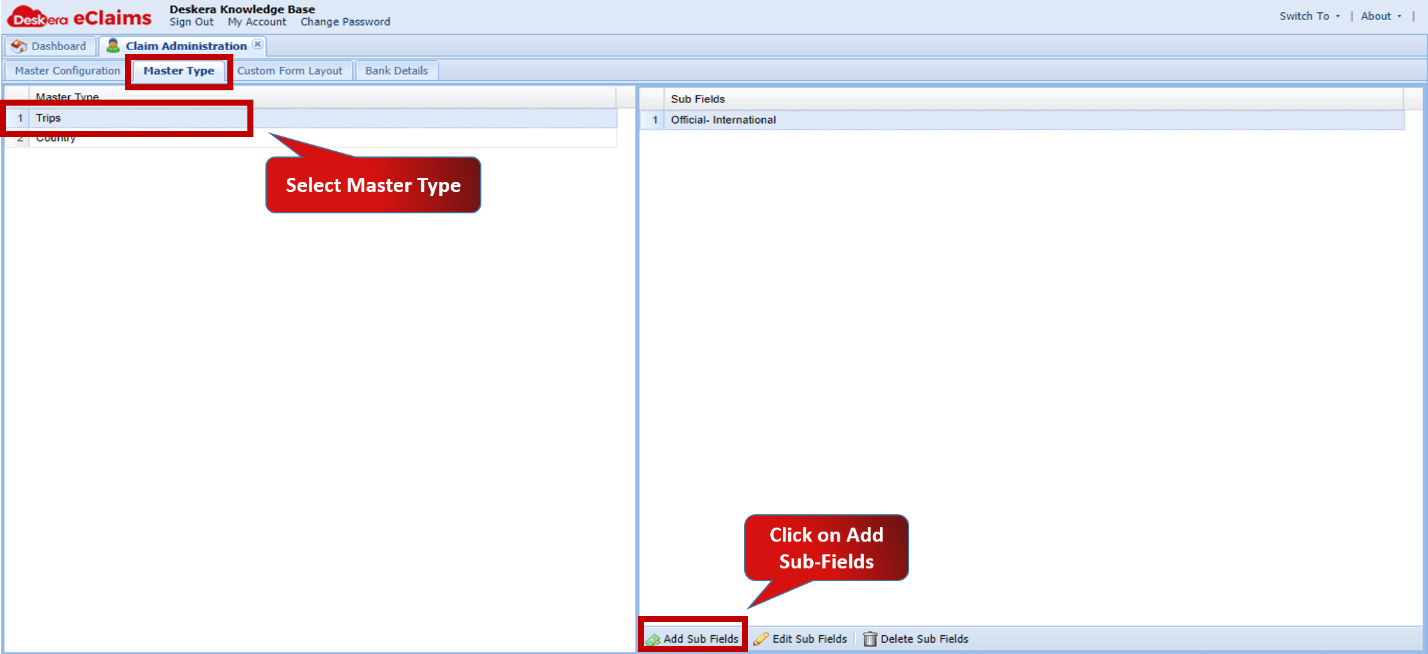 Fig.4.2.3.2.12 Master Configuration
Step 3: Enter Sub-field name and click on Save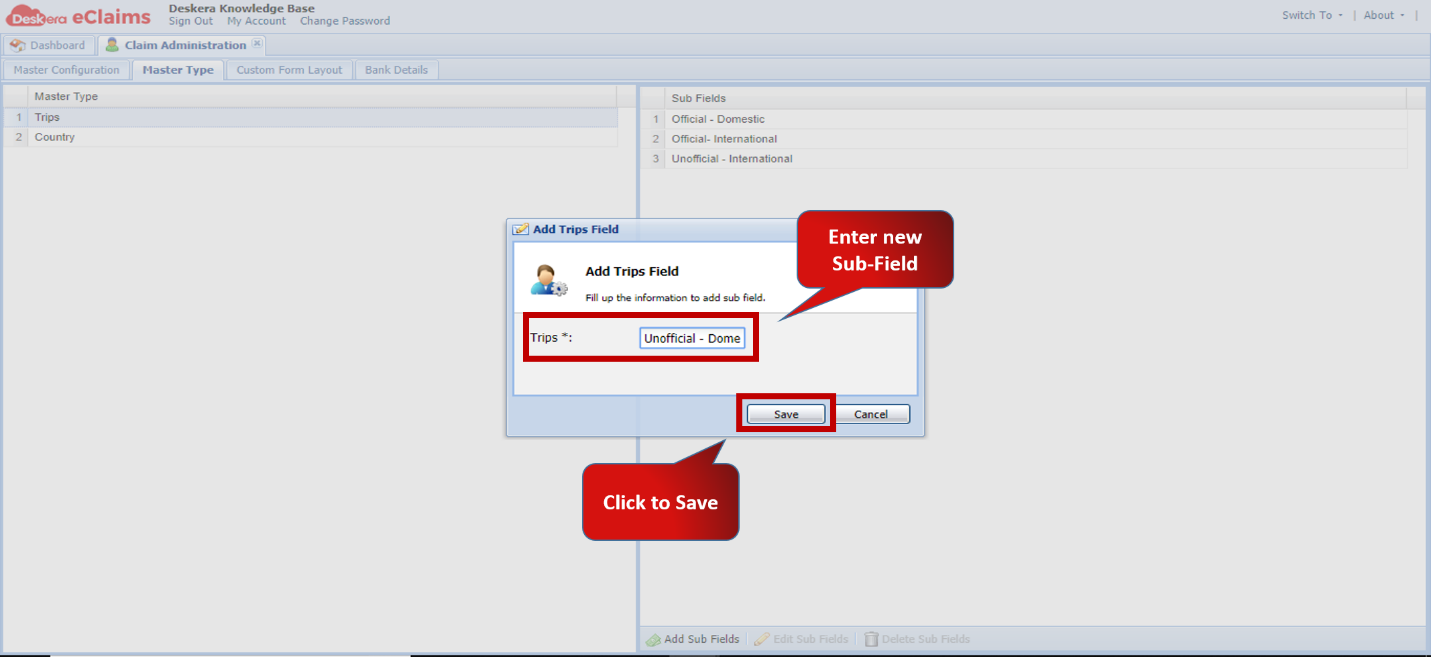 Fig.4.2.3.2.13 Add Sub-Field
How to Edit Sub-Fields
Step 1: Go to Master Configuration on eClaims DashboardFig.4.2.3.2.14 eClaims Dashboard
Step 2. Select the Master Type and Click on Edit Sub fields 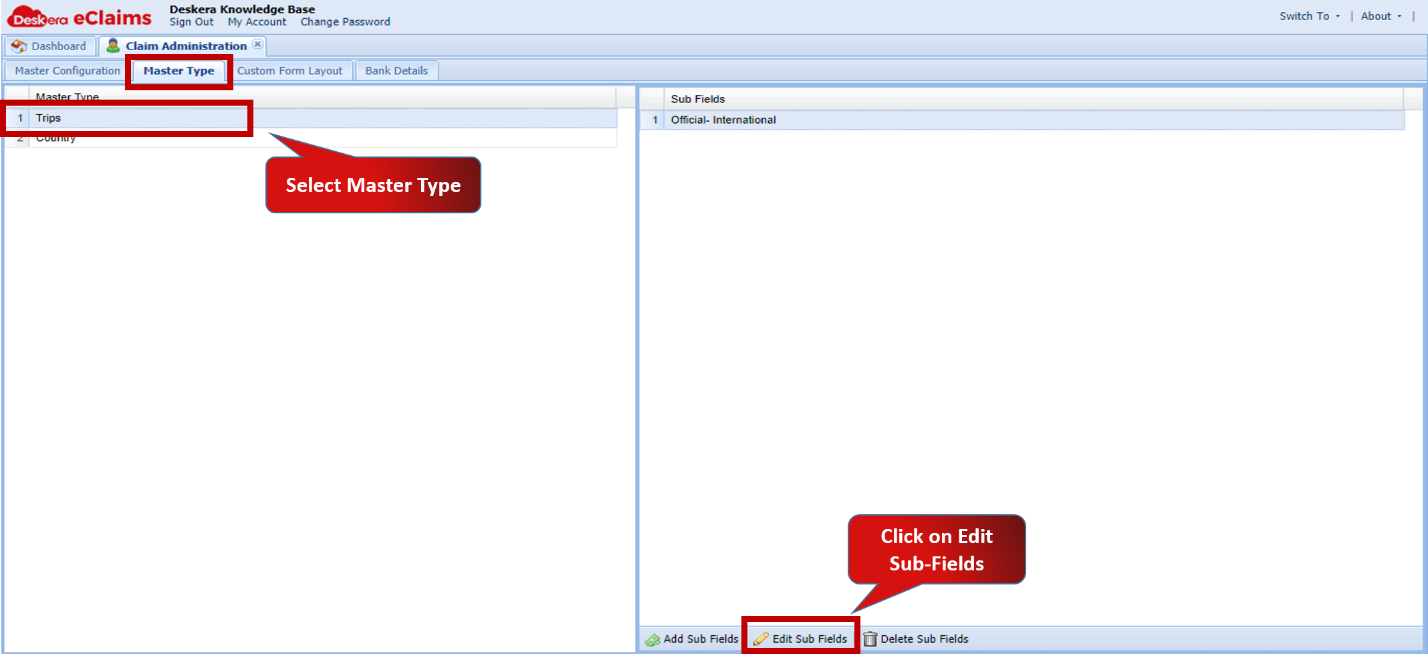 Fig.4.2.3.2.15 Master Configuration
Step 3: Make changes to Sub-Field and click on Save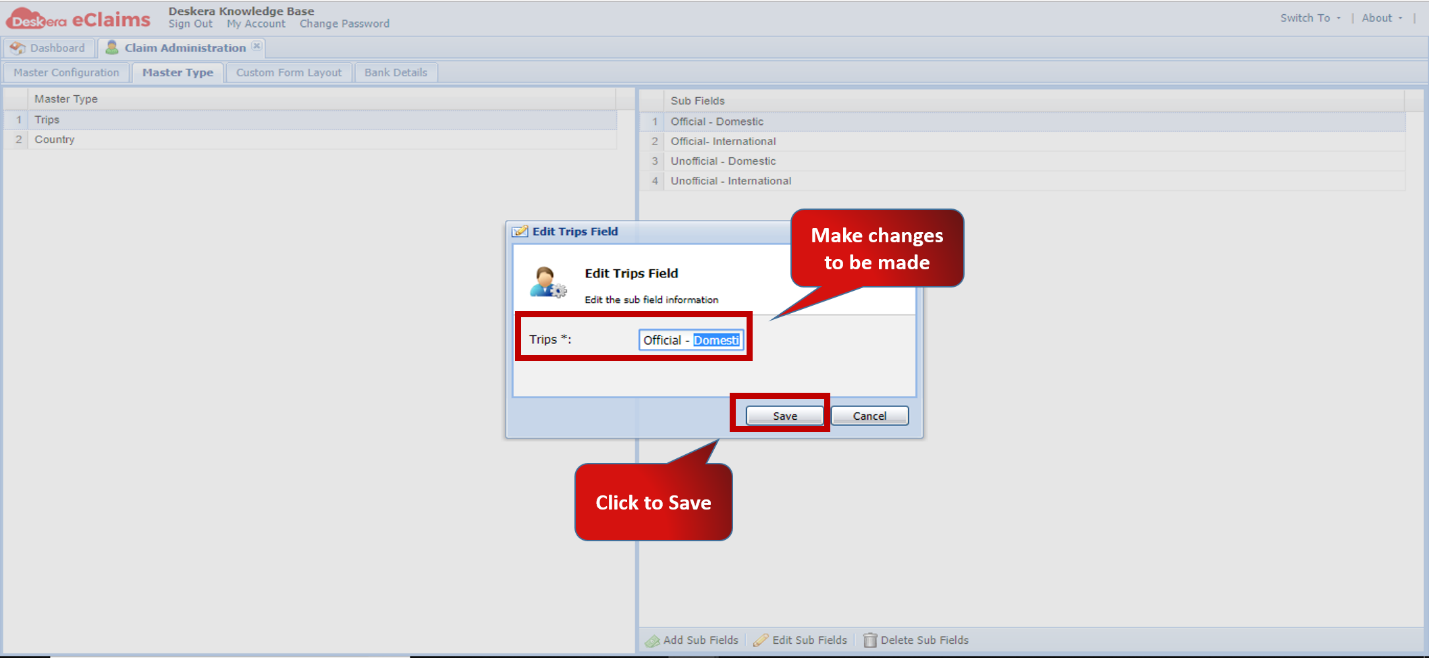 Fig.4.2.3.2.16 Edit Sub-Field
How to Delete Sub-Fields
Step 1: Go to Master Configuration on eClaims DashboardFig.4.2.3.2.17 eClaims Dashboard
Step 2. Select the Master Type and Click on Delete Sub fields 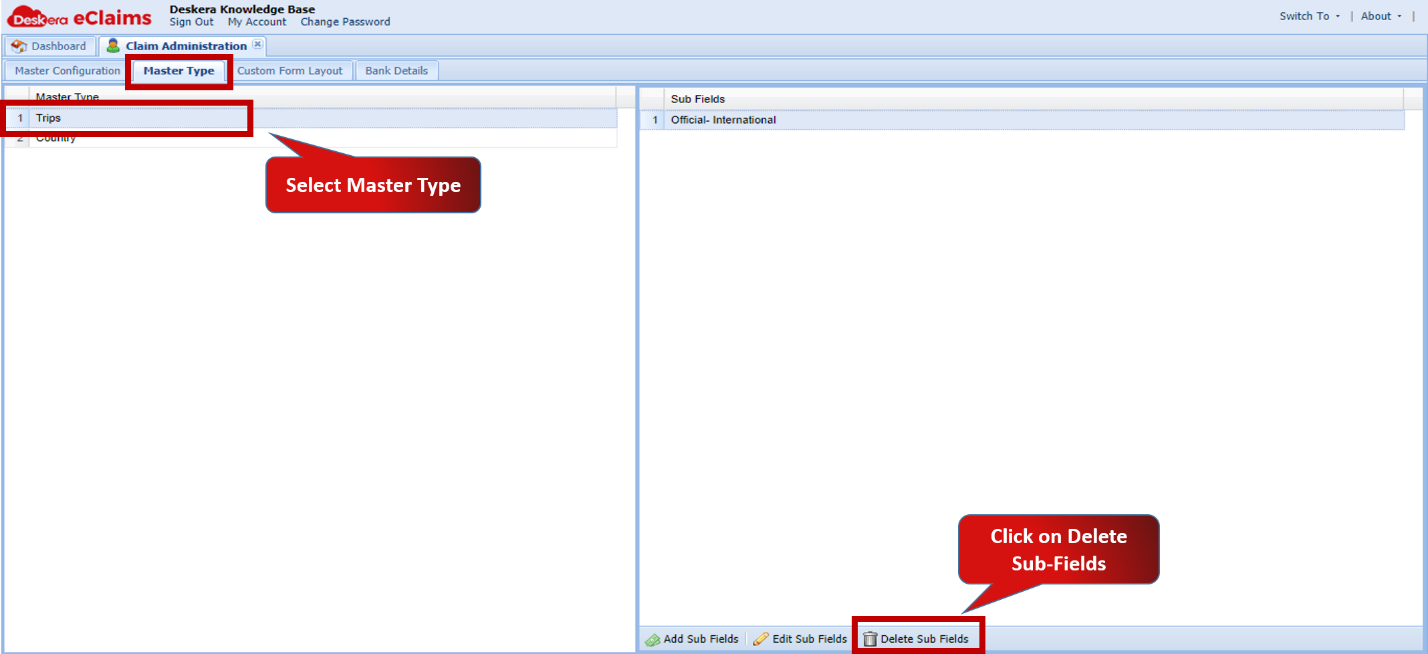 Fig.4.2.3.2.18 Master Configuration
Step 3: Click on Yes to confirm Delete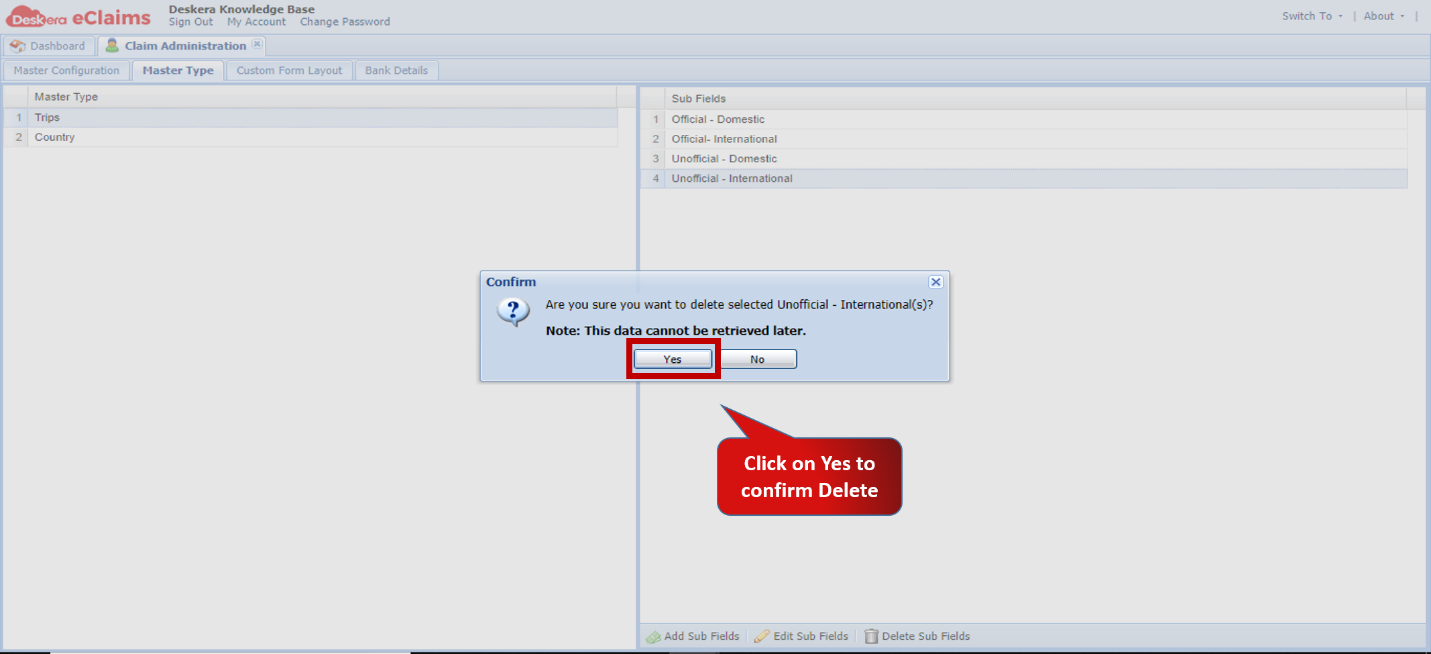 Fig.4.2.3.2.19 Delete Sub-Field
Comments
0 comments
Please sign in to leave a comment.