
The user can view and manage all the trip members of a particular trip application using the Trip Members feature on the Edit/Cancel Trip Applications page.
Prerequisites:
- You have your Deskera HRMS application URL in place
- You are the user/administrator of the HRMS application
- Ensure a good internet connectivity
Step 1: Click on Edit/Cancel Trip Applications under Trip Claims on the Deskera eClaims Dashboard.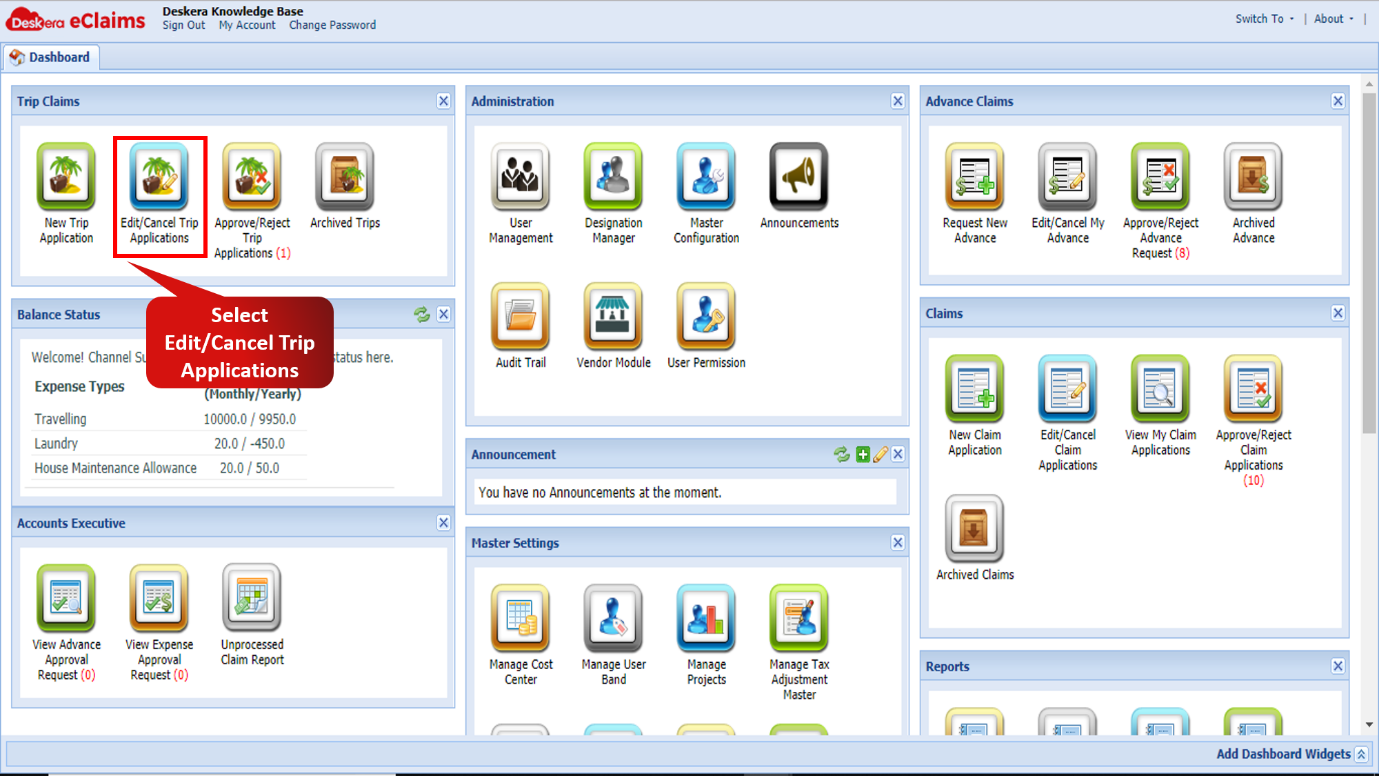 Fig 4.1.2.2.1 Edit/Cancel Trip Applications
Step 2: Select a trip that has Trip Type as Group and click on it. The Trip Members feature will now appear. 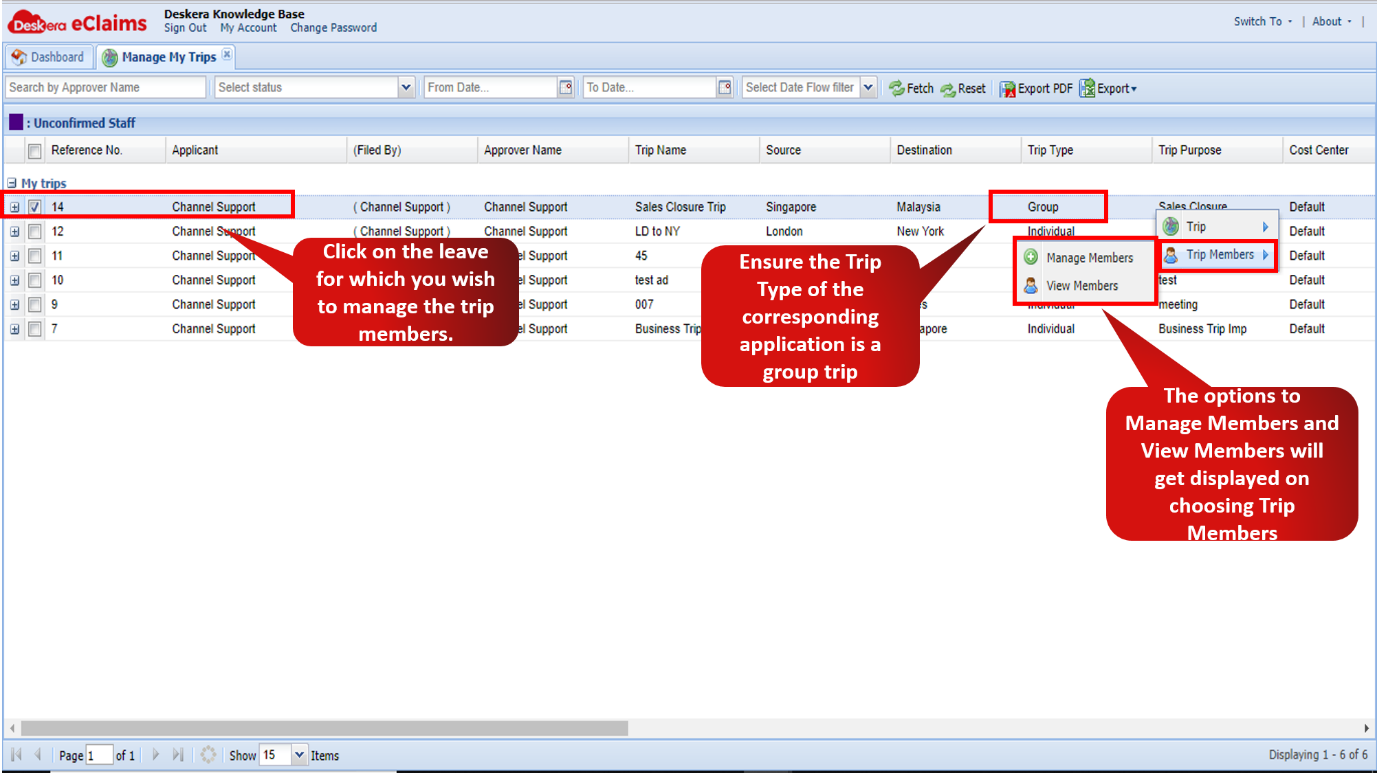 Fig 4.1.2.2.2 Trip Members
Step 3: Clicking on Manage Members will direct you to the screen as shown below, allowing you add and remove members for the corresponding trip application. 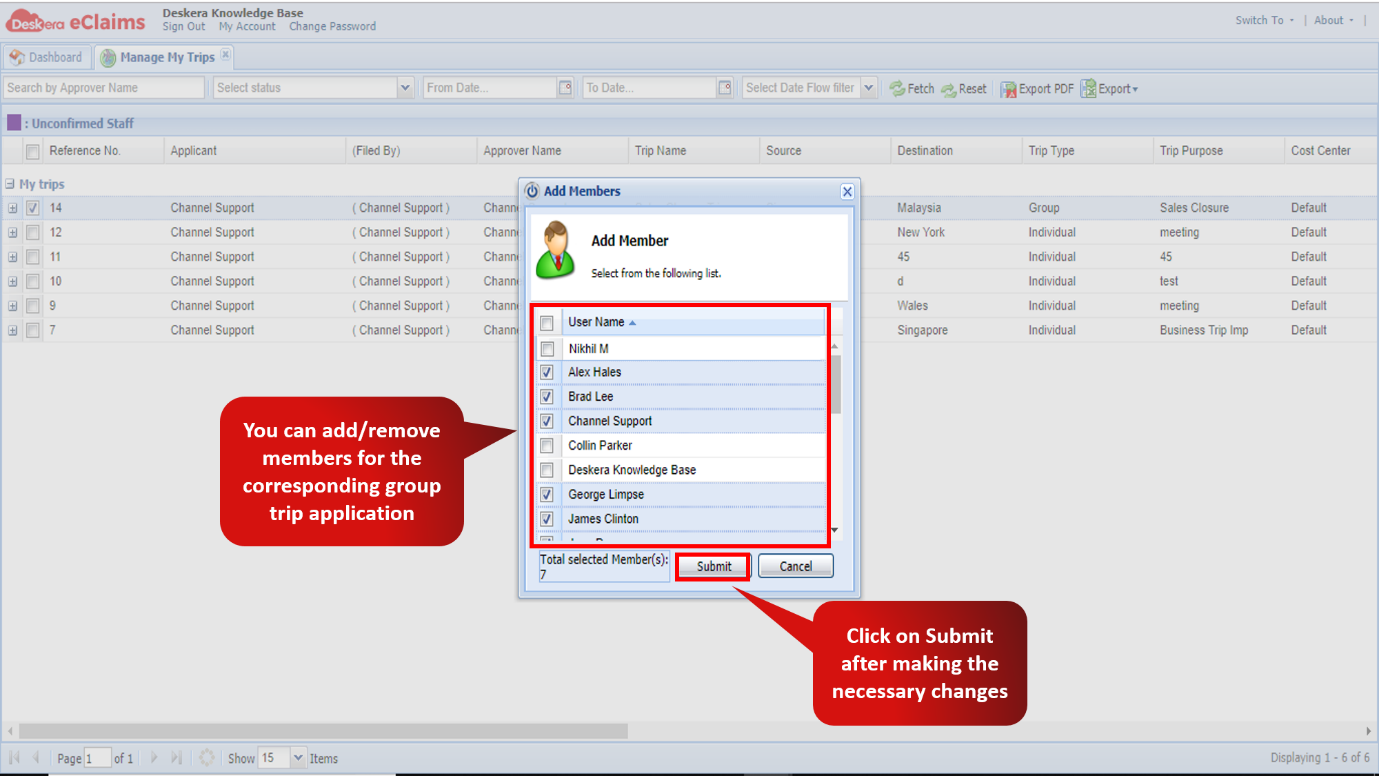 Fig 4.1.2.2.3 Manage Members
Step 4: Clicking on the View Members option allows the user to see a list of all the members present in the corresponding trip application. 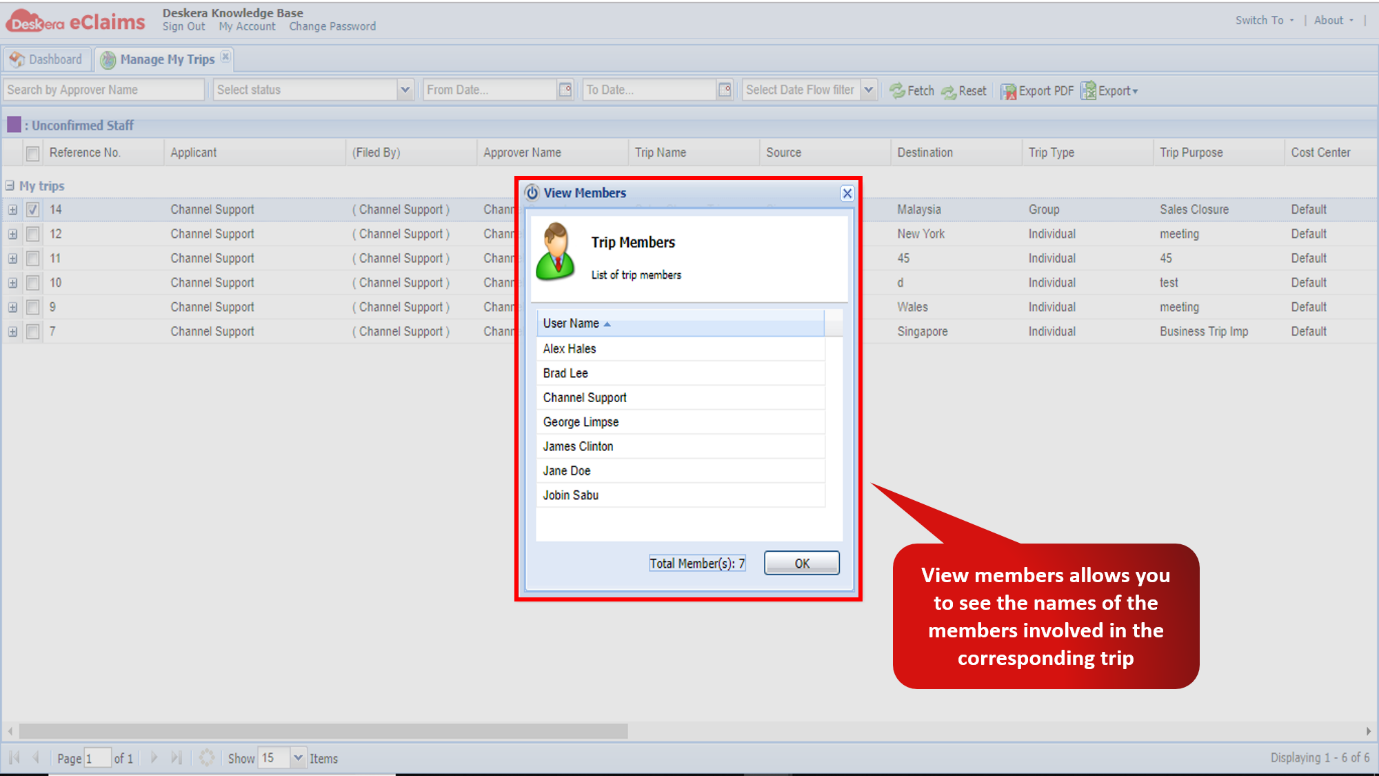 Fig 4.1.2.2.4 View Members
Comments
0 comments
Please sign in to leave a comment.