
The Approve/Reject Trip Applications sub-module on the eClaims Dashboard allows the user to view all the trip claim applications that are pending for approval by the corresponding approving manager. Only the administrator and the approving manager(s) can view these applications under the Approve/Reject Trip Applications window.
Prerequisites:
- You have your Deskera eClaims application URL in place
- You are the user/administrator of the eClaims application
- Ensure a good internet connectivity
Step 1: Click on Approve/Reject Trip Applications under Trip Claims on the Deskera eClaims Dashboard.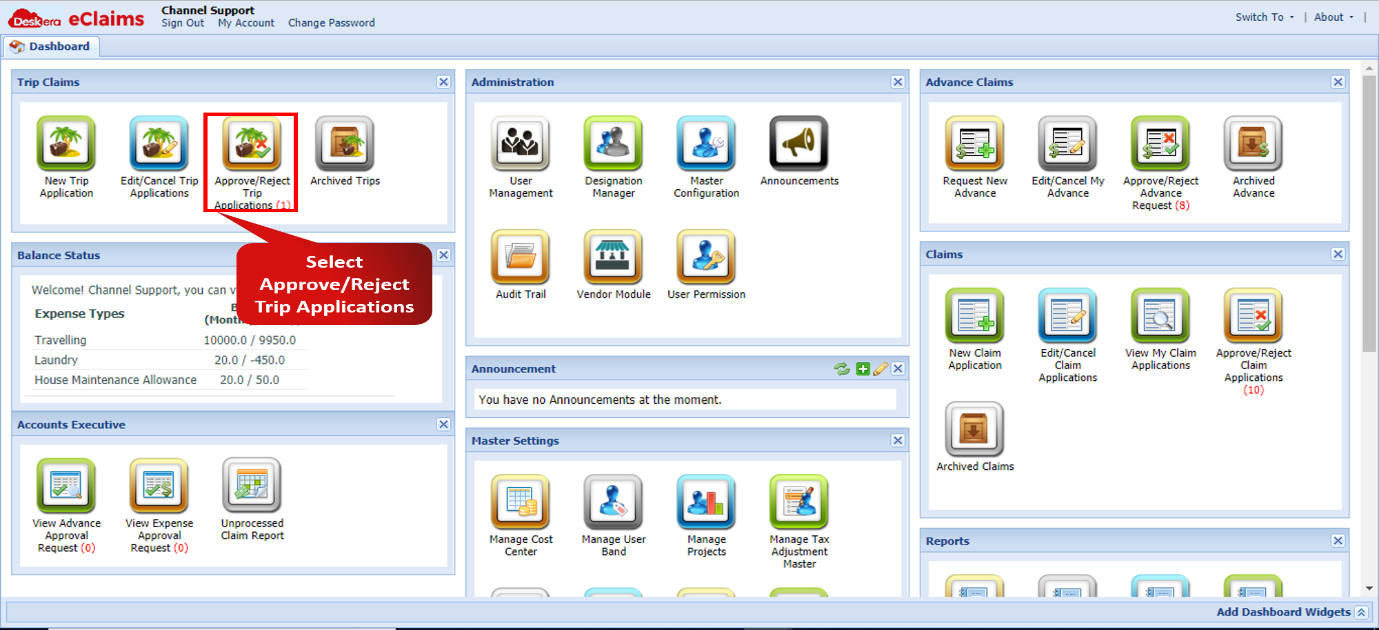 Fig 4.1.3.2.1 Approve/Reject Trip Applications
Step 2: Click on the trip that you wish to Approve/Reject. Click on Trips and then select View Details to review the claim in order to decide if it is to be approved or rejected.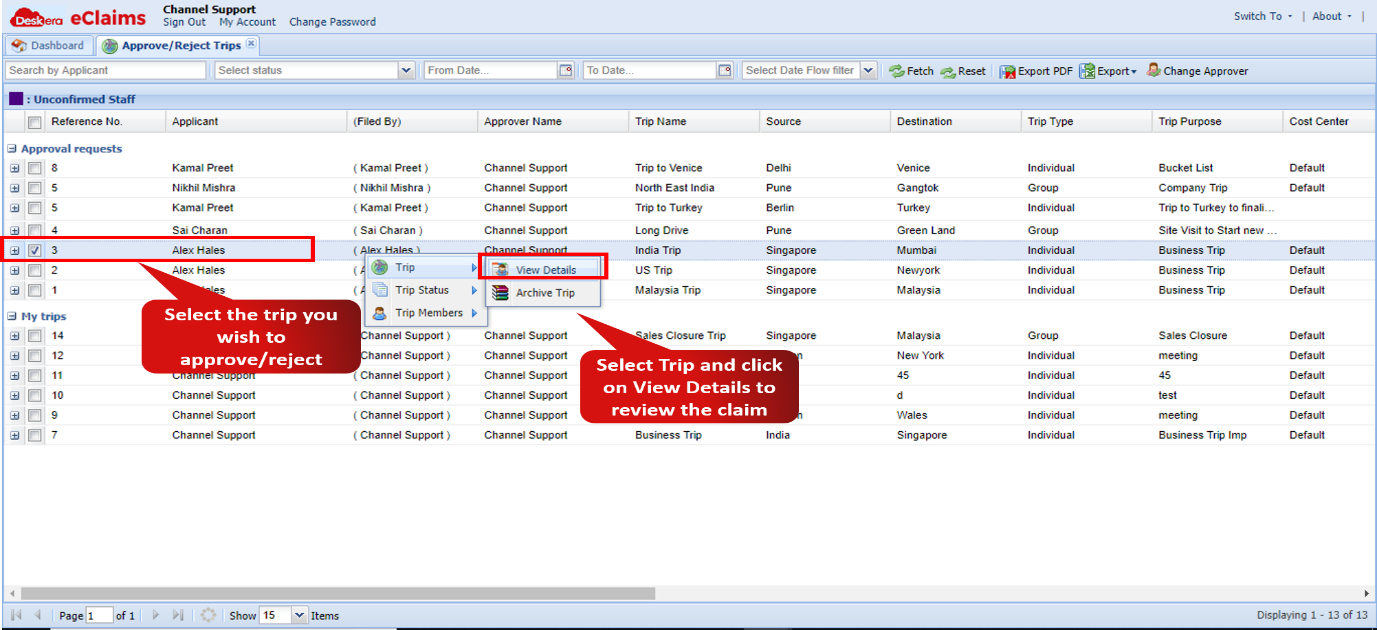 Fig 4.1.3.2.2 View Trip Details
Step 3: After reviewing the trip application, on the Approve/Reject Trips window, click on the trip claim again, then under Trip Status select either Approve or Reject as required.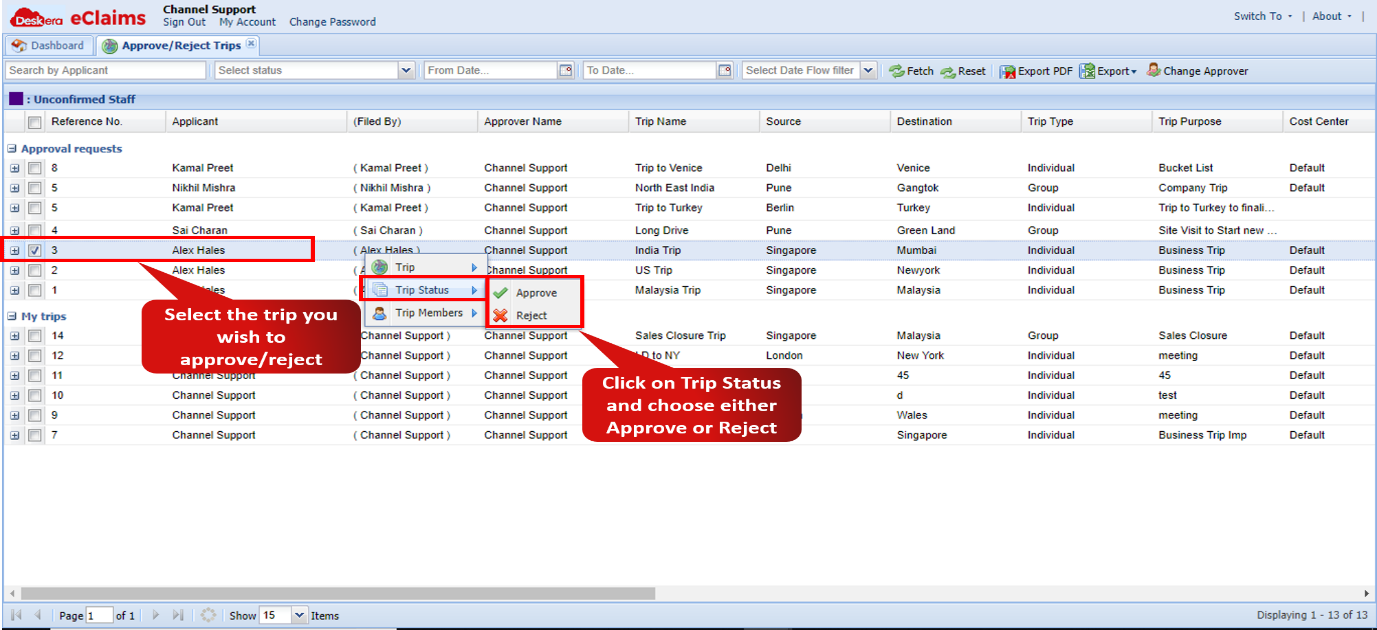 Fig 4.1.3.2.3 Approve/Reject Claim
Step 4: Clicking on Approve will prompt a dialogue box for adding a remark for approval.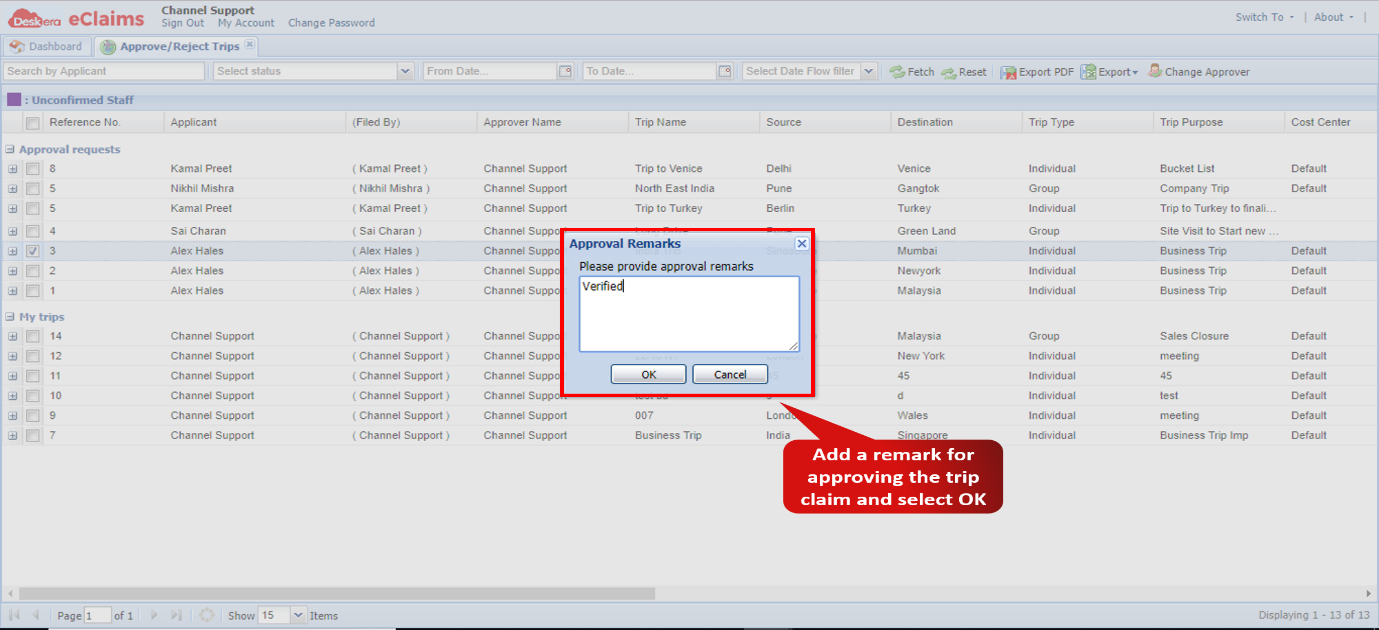 Fig 4.1.3.2.4 Approve Remark
Step 5: Clicking on Reject will also prompt a dialogue box for adding a remark for rejection of the trip claim application.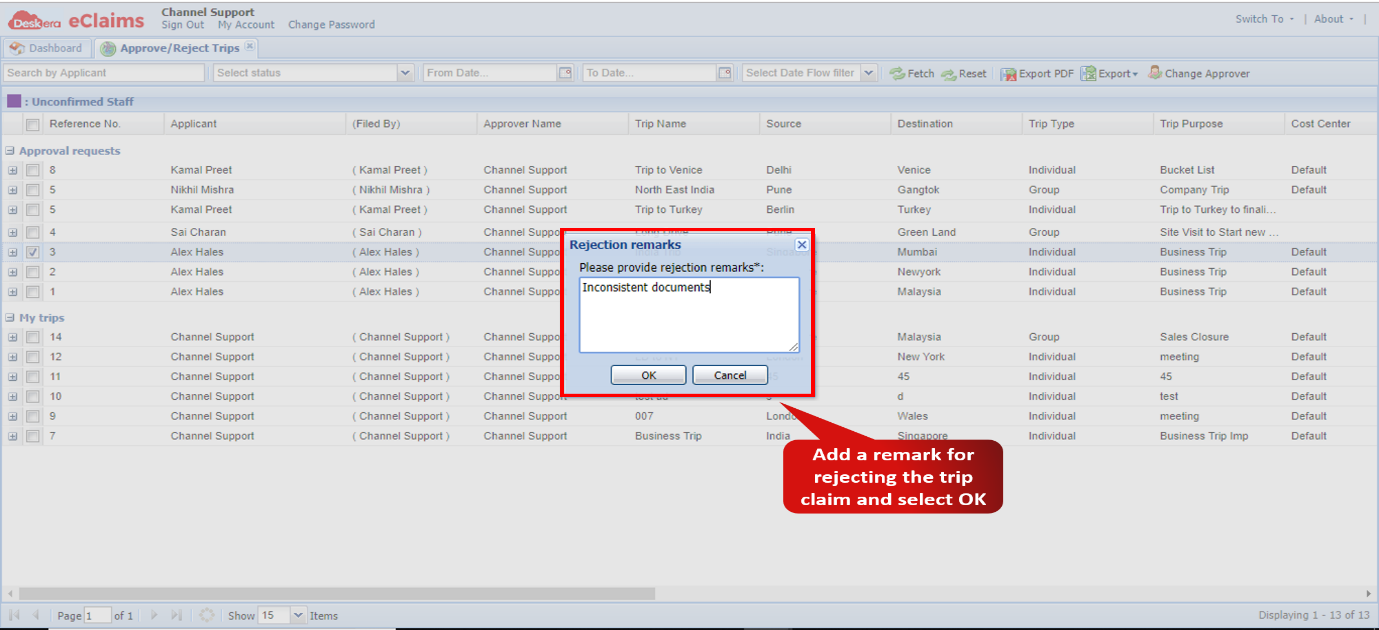 Fig 4.1.3.2.5 Reject Remark
Comments
0 comments
Please sign in to leave a comment.