
An employee can be allotted to work in shift in the Deskera eLeave Application. Shifts can be added into the Deskera eLeave Application as shown below.
Prerequisites:
- You have your Deskera eLeaves application URL in place.
- You are the administrator of the eLeaves application.
- Ensure Stable Internet Connectivity.
Step 1: On the e-Leaves Dashboard, Click on Shift Management under the Attendance Manager Widget.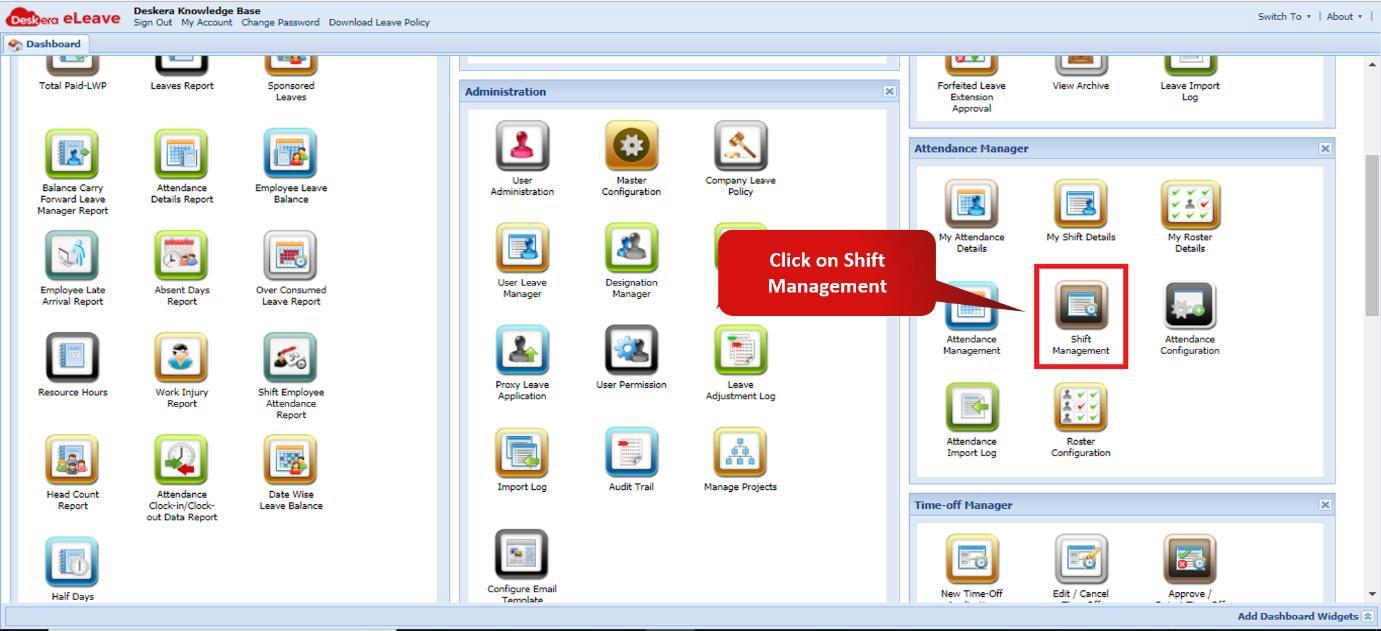 Fig. 3.3.4.1.1 e-Leaves Dashboard
Step 2: Click on Add Shift.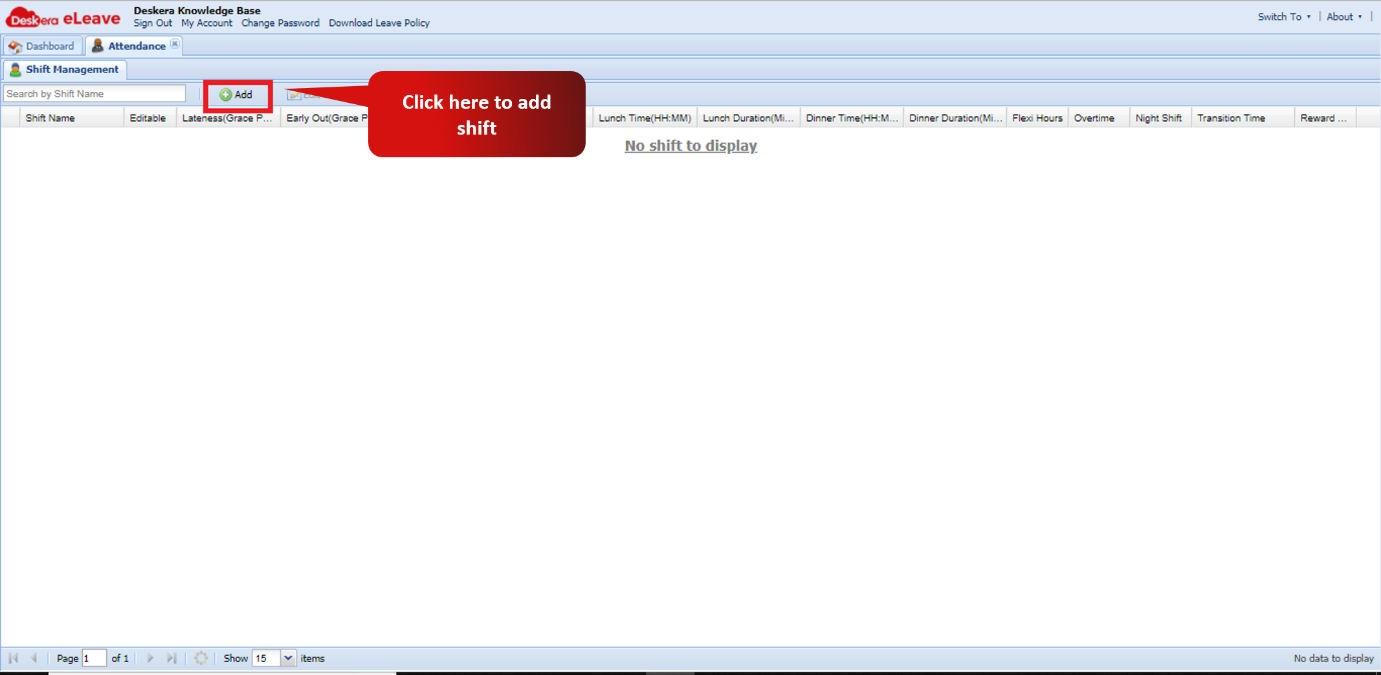 Fig. 3.3.4.1.2 Attendance Management Window
Step 3: Add the details of the shift and the timings of the shift and click on Submit to save the shift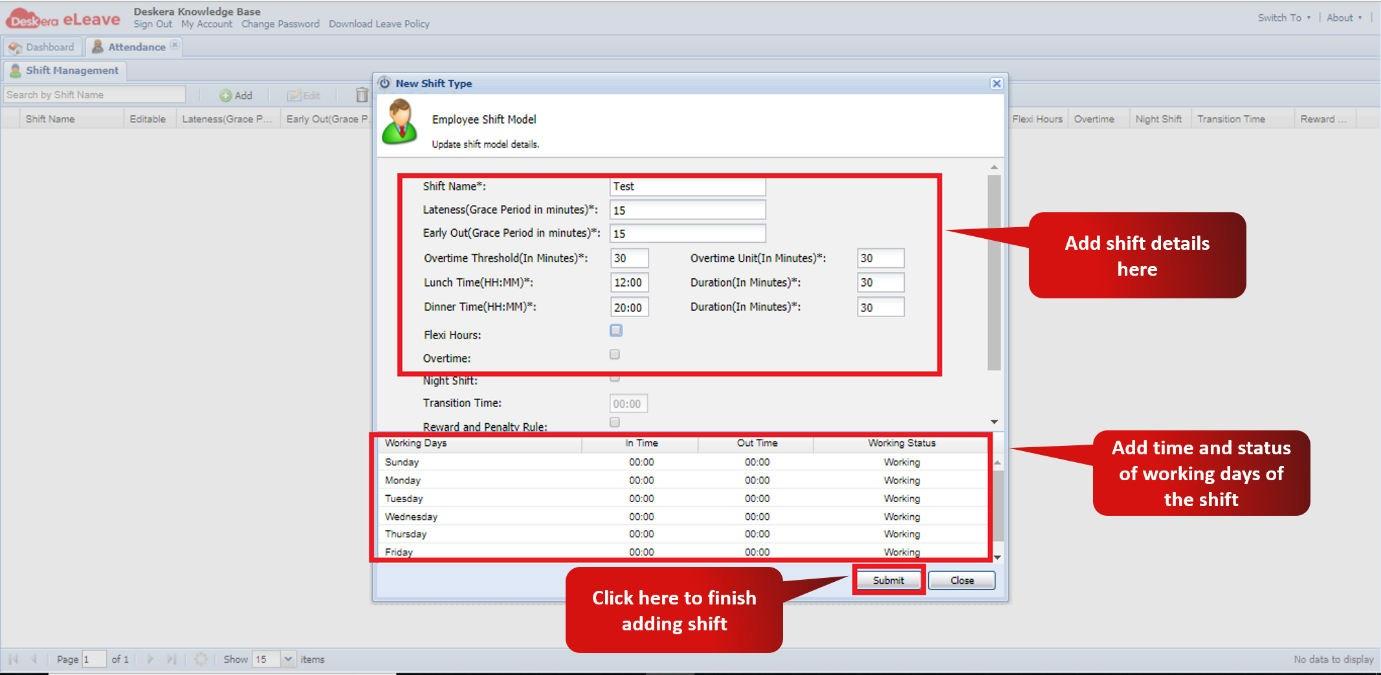 Fig. 3.3.4.1.3 Add Shift Wizard
The following are the the important terms explained while adding a shift:
- Lateness (Grace Period in Minutes): The duration after the In-time post which the attendance is considered as late
- Early Out (Grace Period in Minutes): The duration before the out-time before which the attendance us considered as early-out
- Overtime Threshold: The overtime threshold is that duration after the out-time after which the Overtime allowances starts computing
- Overtime Unit: overtime units are the units used to calculate overtime. Ex: is the overtime units is 30 minutes, the employee works for a total overtime of 3 hours and 15 minutes, the overtime is considered as 3 hours i.e.; 6 units of overtime.
- Flexi-Shift: Flexi-shift is where the employee has no fixed time but has fixed working hours. In case the flexi shift is on, the lateness function is not considered.
- Transition Time: the time after which the night shift starts. Ex: Transition time is 13:00, the shift is calculated from 13:00 that day up to 12:59 the next day.
Comments
0 comments
Please sign in to leave a comment.