
An employee can be allotted to work in shift in the Deskera eLeave Application. Shifts can be added into the Deskera eLeave Application as shown below.
Prerequisites:
- You have your Deskera eLeaves application URL in place.
- You are the administrator of the eLeaves application.
- Ensure Stable Internet Connectivity.
Edit Shift
Step 1: On the e-Leaves Dashboard, Click on Shift Management under the Attendance Manager Widget.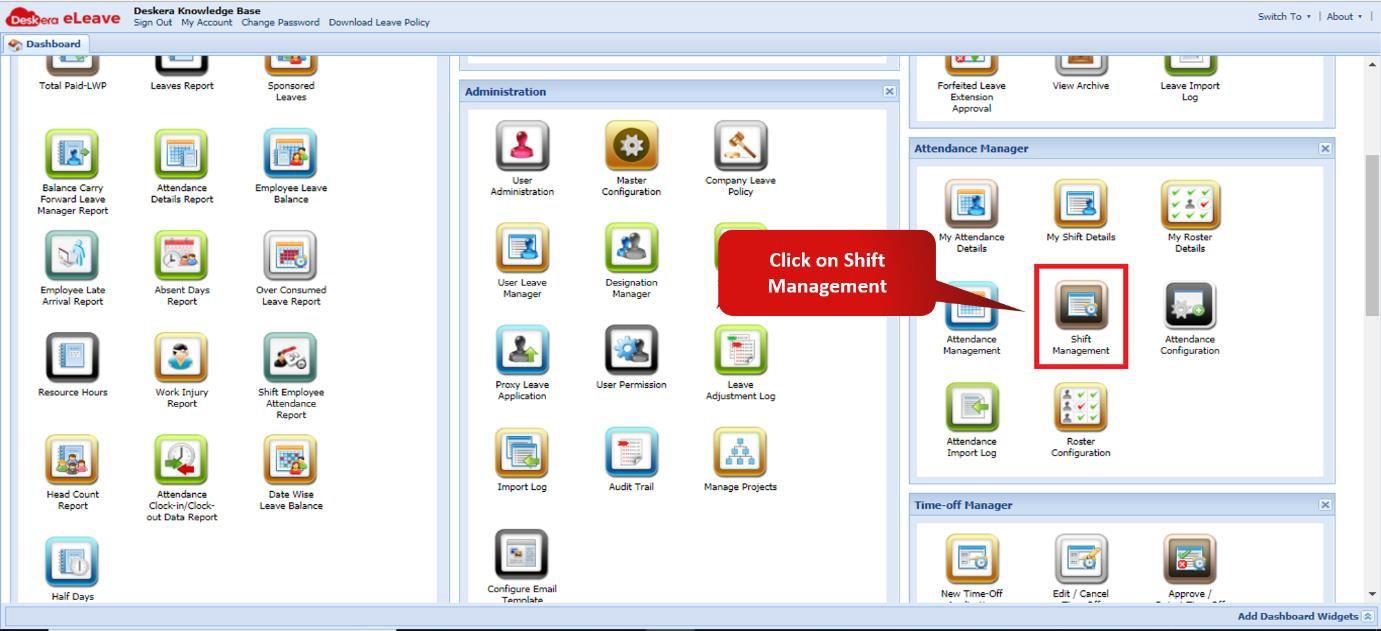 Fig. 3.3.4.2.1 e-Leaves Dashboard
Step 2: Click on Edit Shift.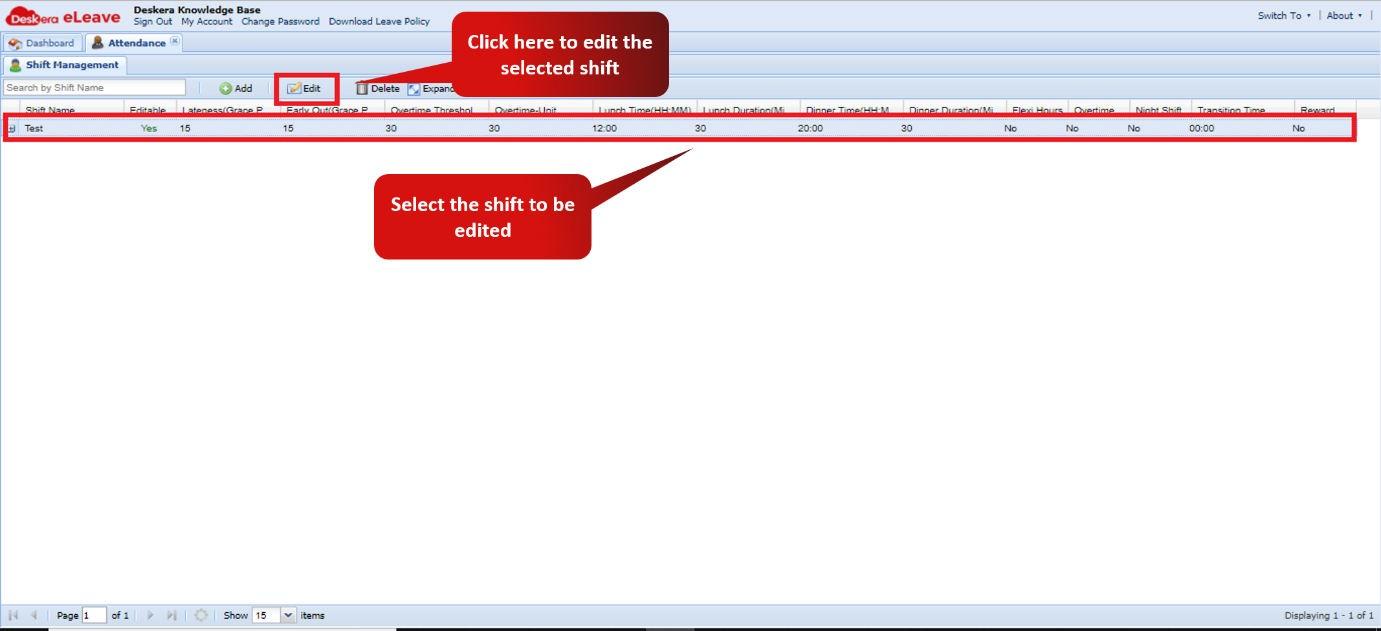 Fig. 3.3.4.2.2 Attendance Management Window
Step 3: Edit the details of the shift and the timings of the shift and click on Submit to save the edited shift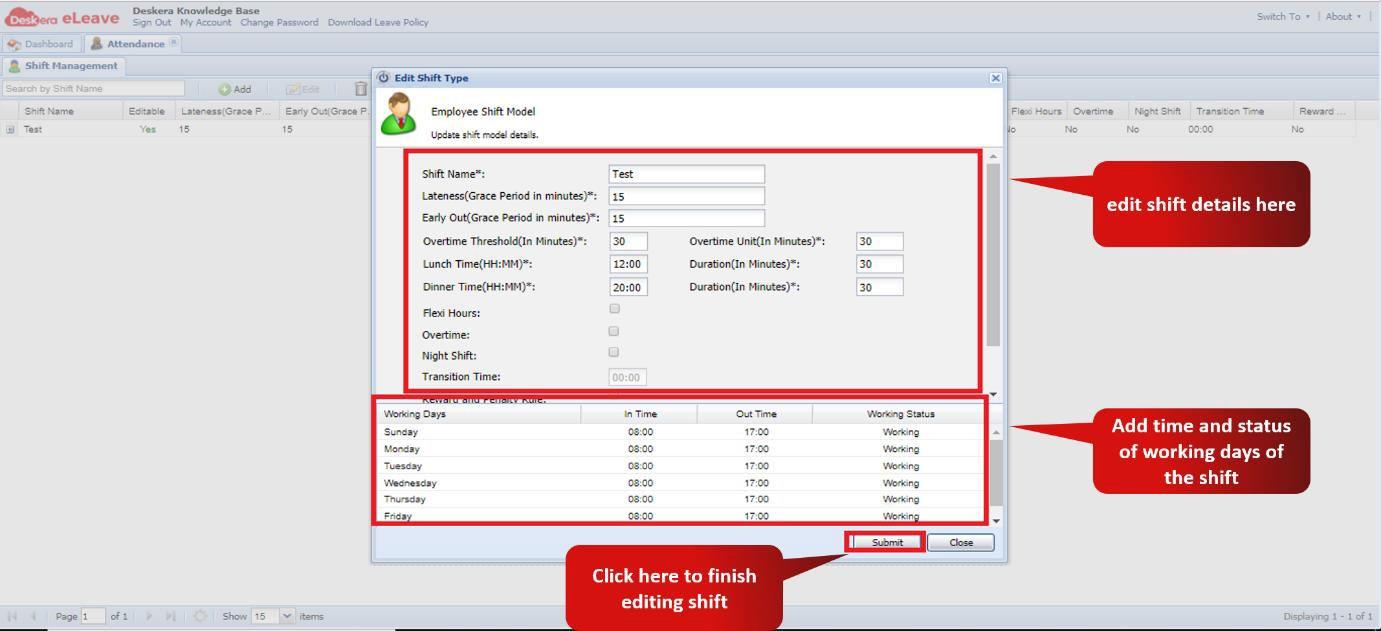 Fig. 3.3.4.2.3 Edit Shift Wizard
Delete Shift
Step 1: On the e-Leaves Dashboard, Click on Shift Management under the Attendance Manager Widget.Fig. 3.3.4.2.4 e-Leaves Dashboard
Step 2: Click on Delete Shift.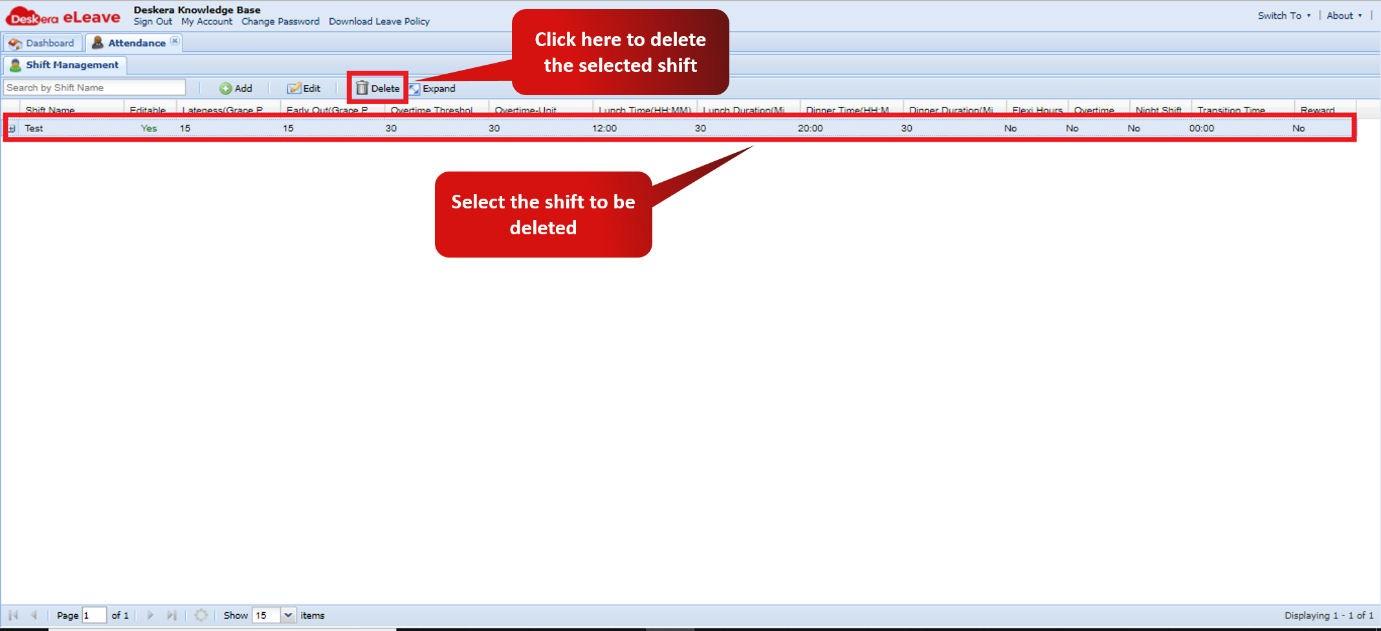 Fig. 3.3.4.2.5 Attendance Management Window
Step 3: Click on OK to confirm deleting the shifts. In case the shift has been assigned to a user and is running, then the shifts cannot be deleted.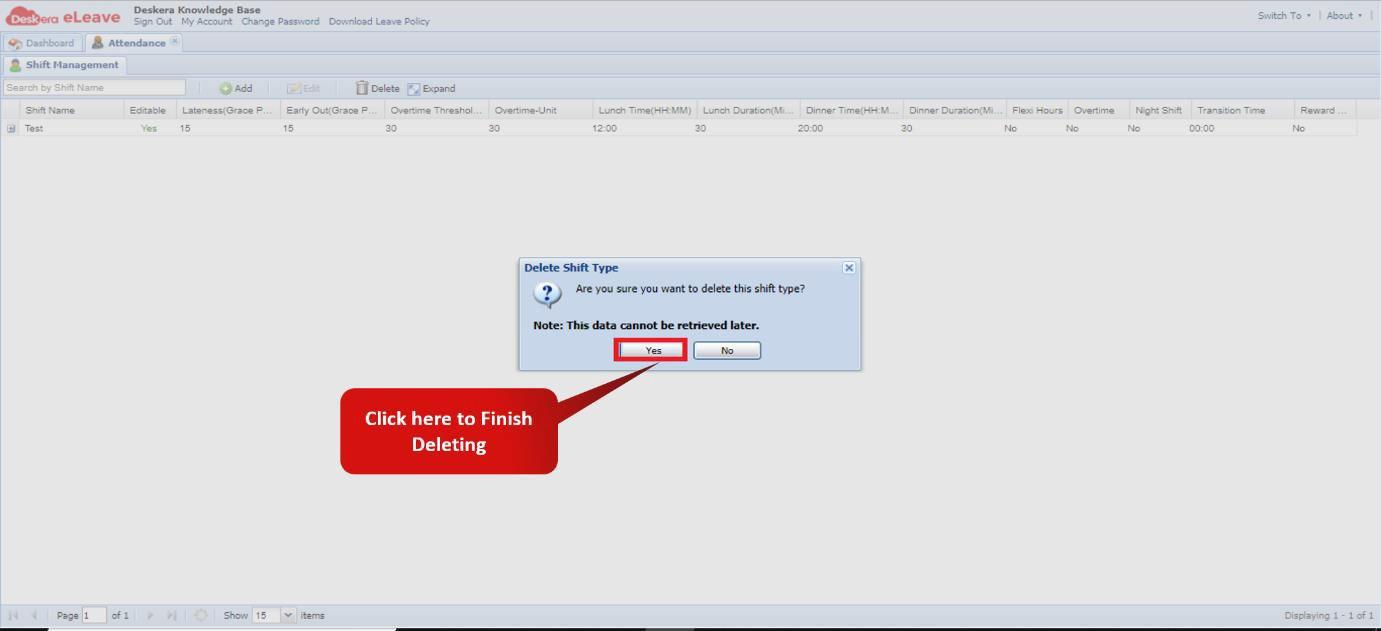 Fig. 3.3.4.2.6 Delete Shift Wizard
Comments
0 comments
Please sign in to leave a comment.