
Deskera eLeave Application allows the users to efficiently manage the leave application and approval process for the employees. Various types of leaves can be created and assigned to users who can apply for those leaves allotted to them. This article focuses on how the user can go about the entire leave application and approval process.
Prerequisites:
1. Ensure you have your Deskera eLeave application URL in place.
2. Ensure you are logged in as the concerned applicant of the leave.
3. Ensure the leave application has been submitted and not approved.
4. Ensure a good internet connectivity
1. Leave Application
Step 1: Go to New Leave Application under Leave Manager on eLeave Dashboard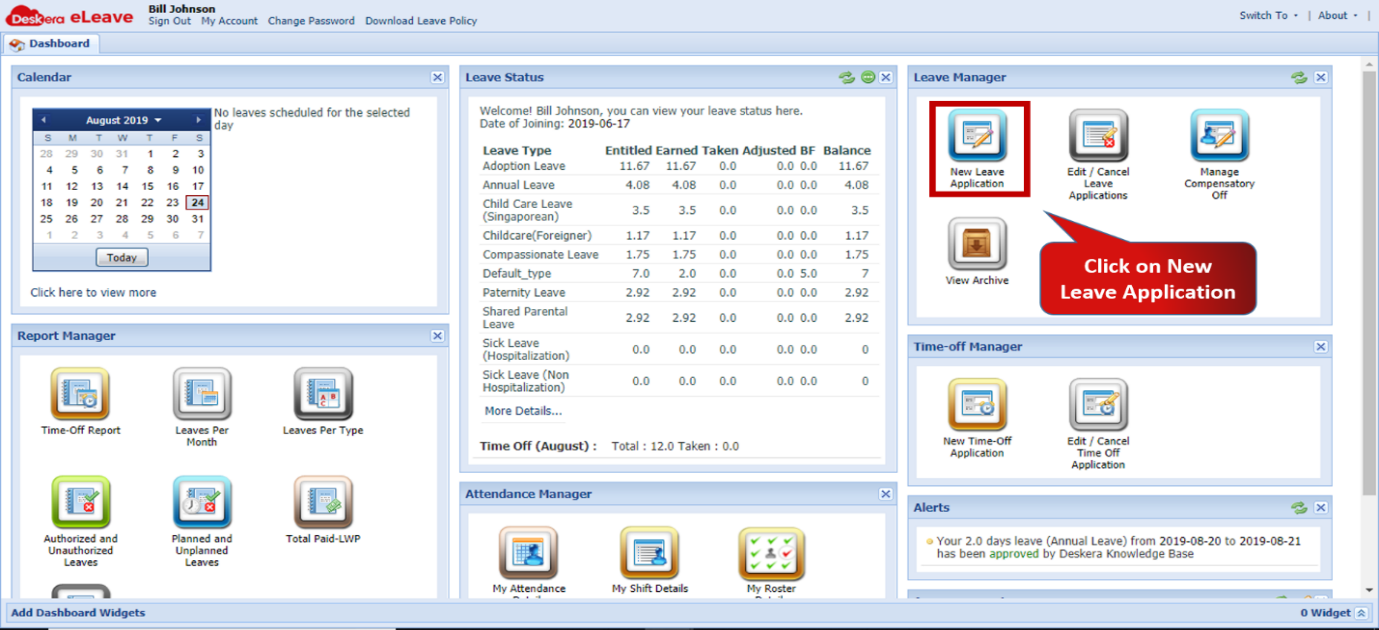 Fig.3.2.1 eLeave Dashboard
Step 2: Select the leave type the user wishes to avail from the types assigned to him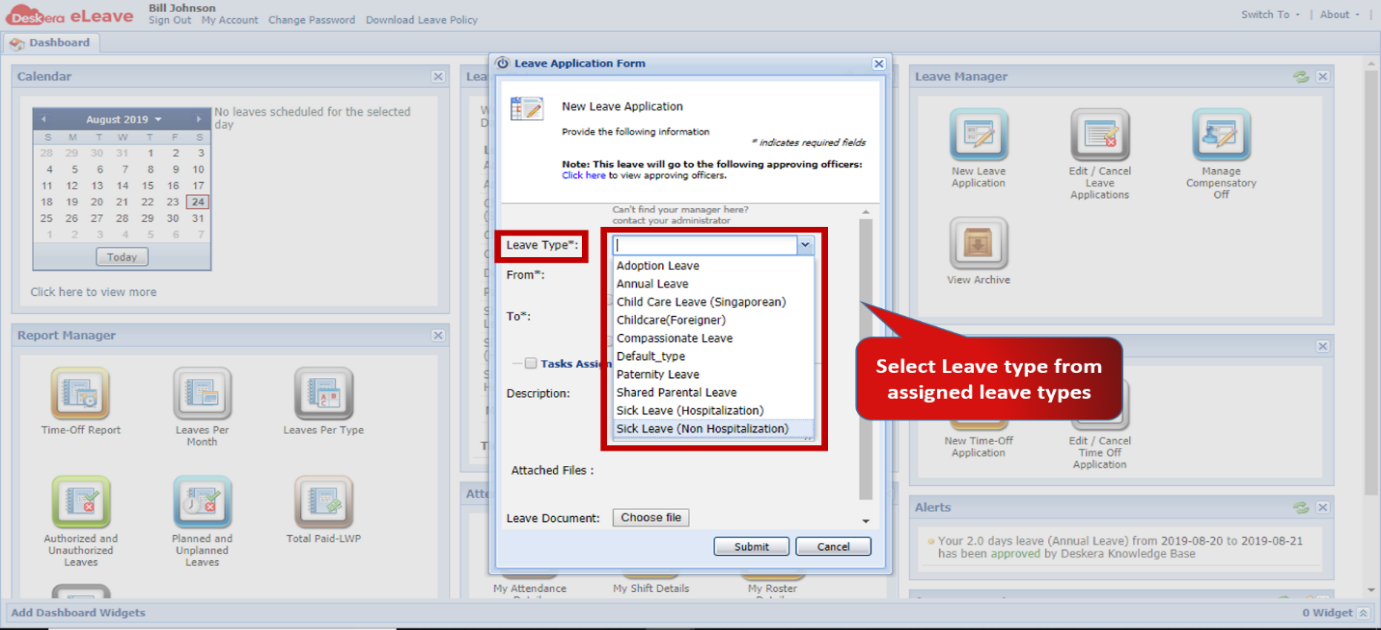 Fig.3.2.2 Leave Application Form
Step 3: Enter the time period during which the leave is to be availed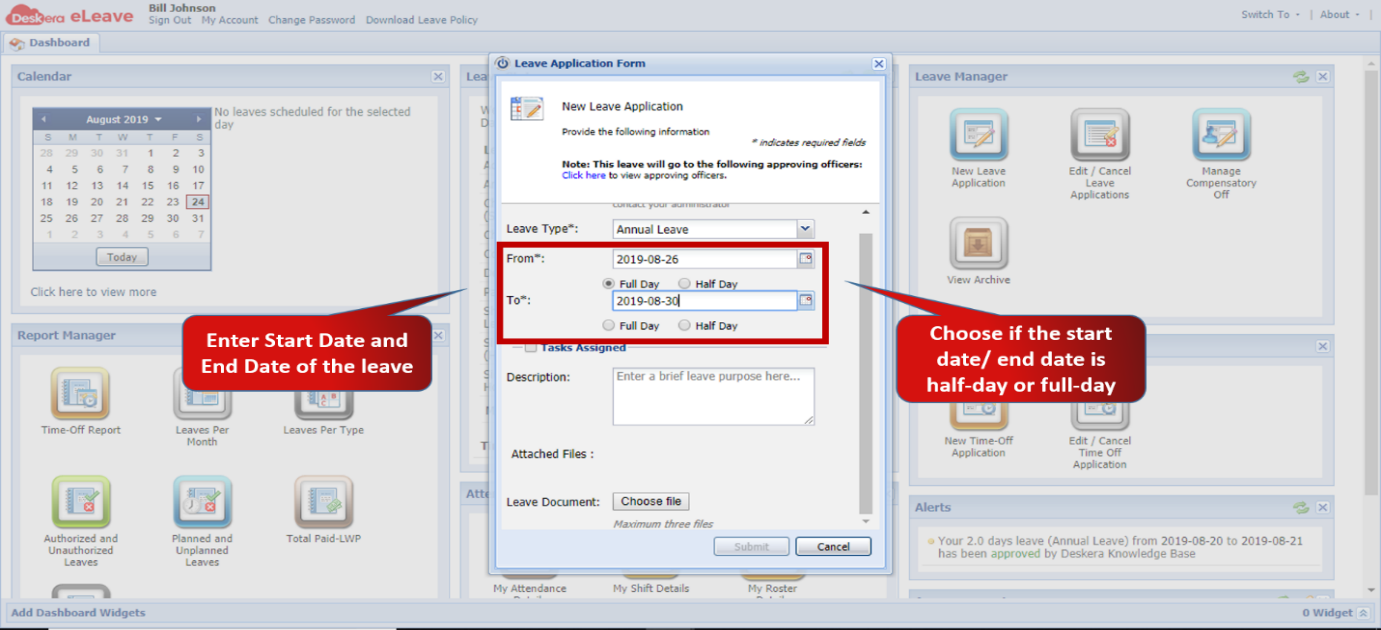 Fig.3.2.3 Leave Application Form
Step 4: Enter Leave description and attach leave documents if any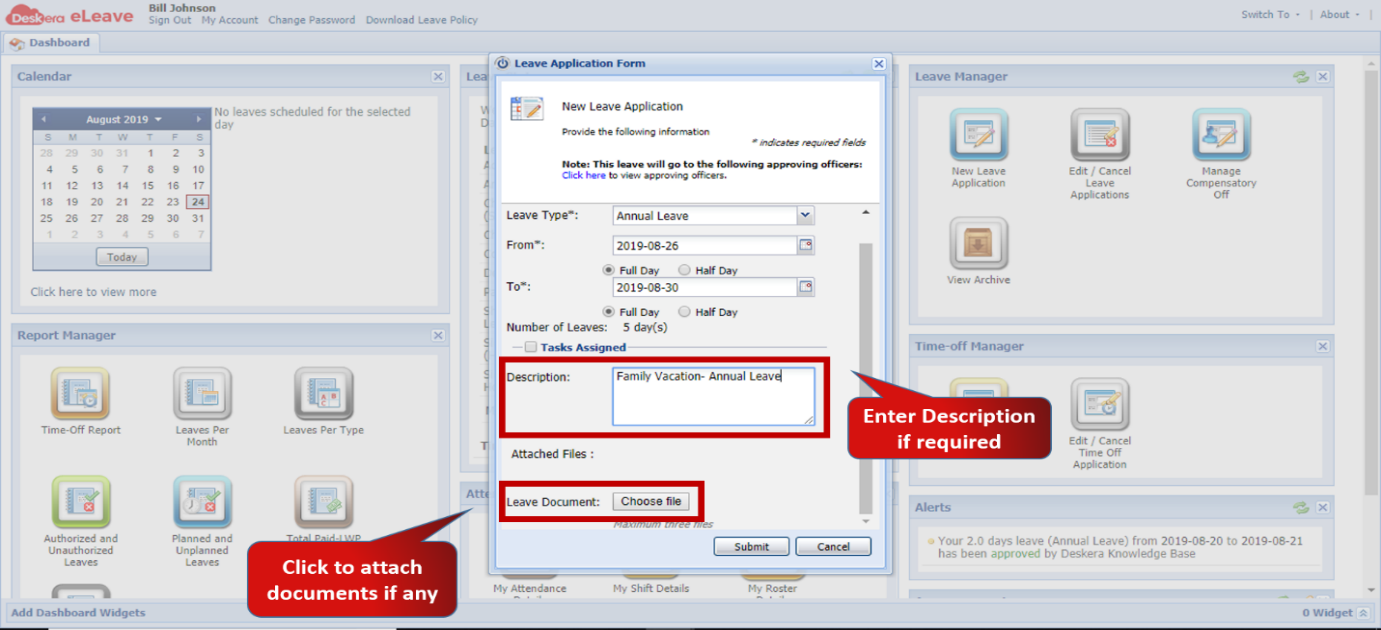 Fig.3.2.4 Leave Application Form
Step 5: Click on Submit to save application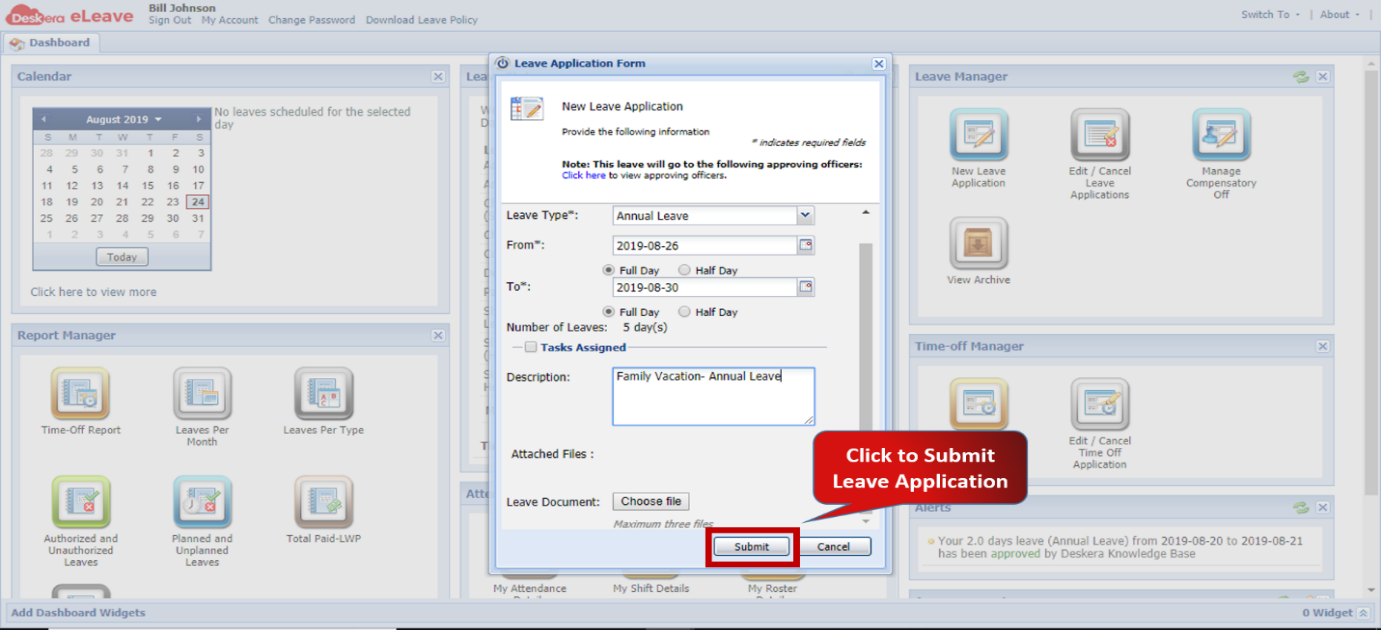 Fig.3.2.5 Leave Application Form
2. Approve/ Reject Leave Application
Note: The leave can only be approved by the designated manager/approver for the particular employee.
Step 1: Go to Approve/Reject Leave Application under Leave Manager on eLeave Dashboard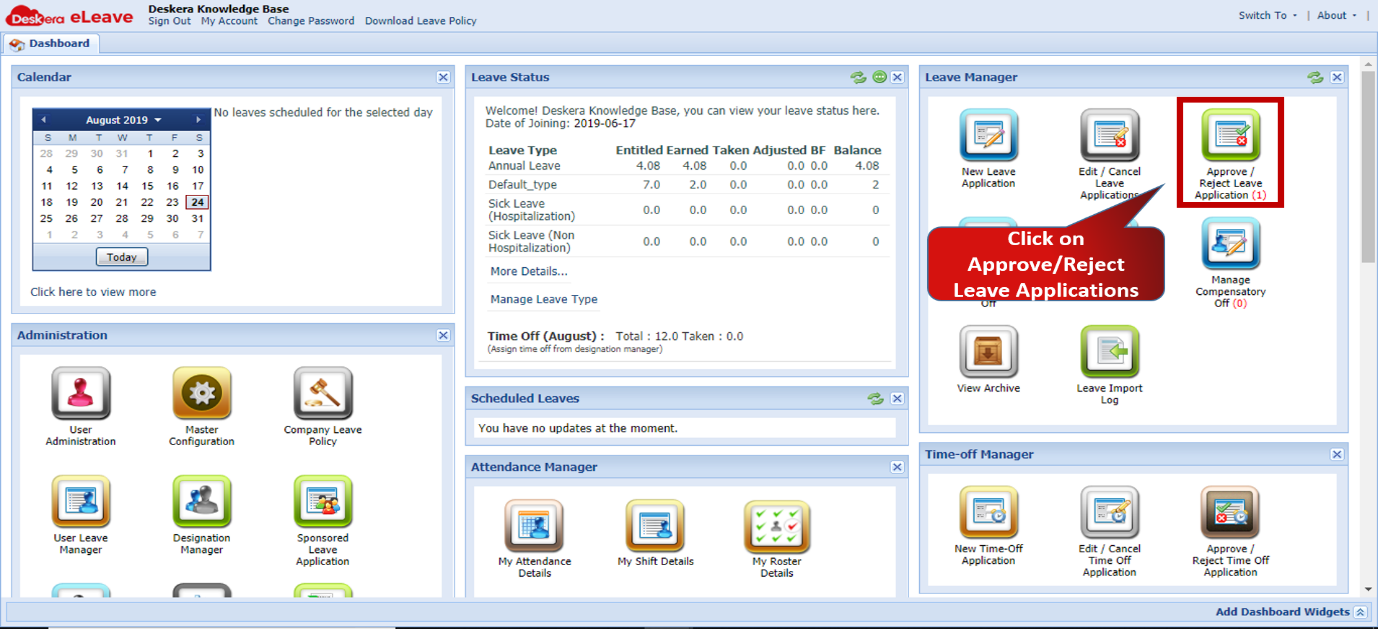 Fig.3.2.6 eLeave Dashboard
Step 2: Select the leave application to be approved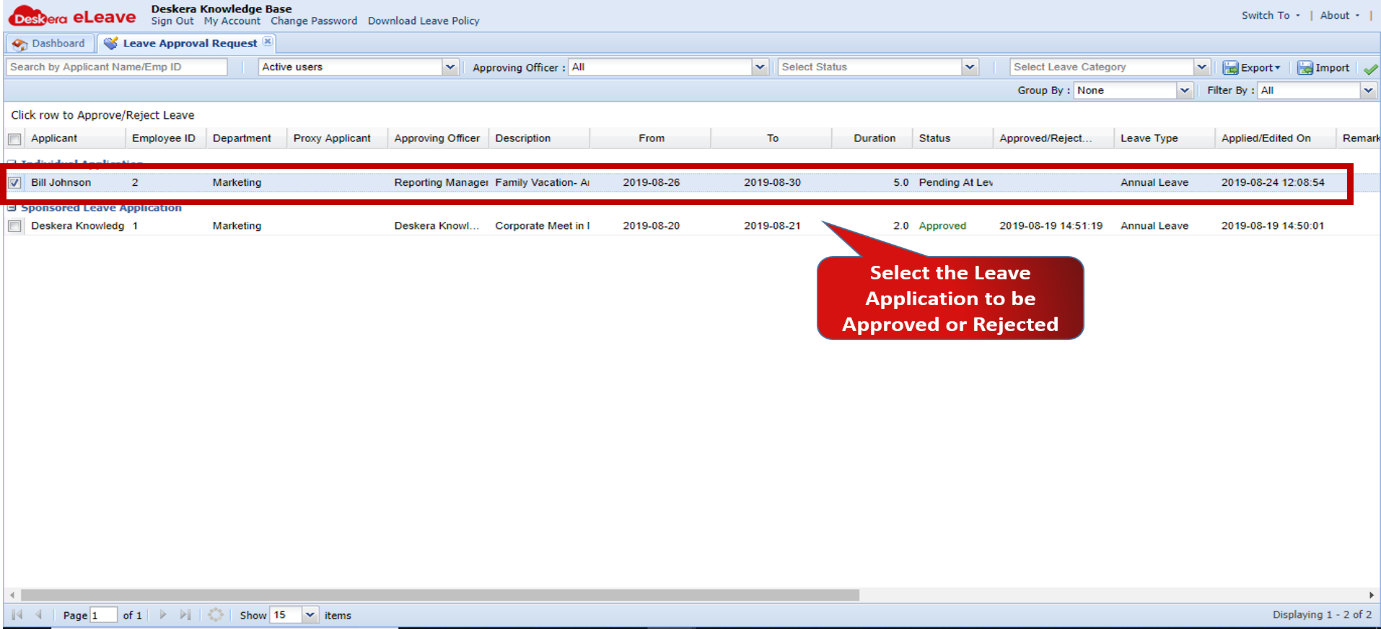 Fig.3.2.7 Leave Approval Request
Step 3: To approve the leave, Right Click and select Approve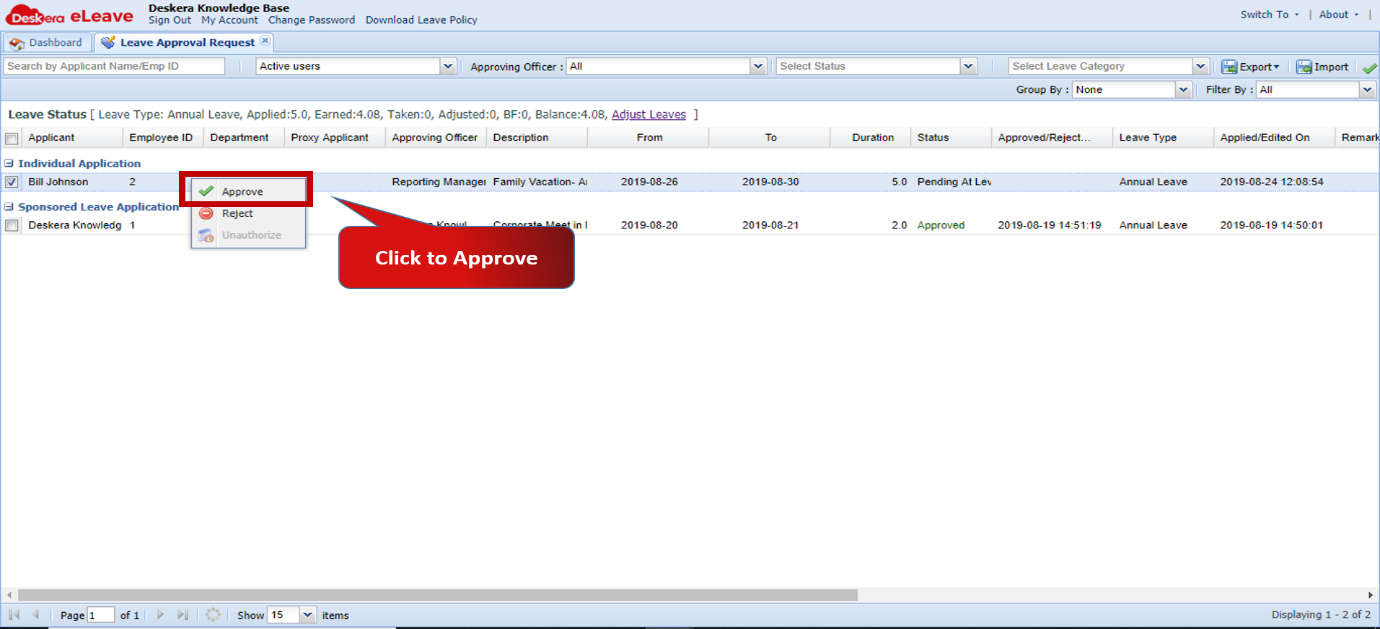 Fig.3.2.8 Leave Approval Request
Step 4: Review the details and click on Confirm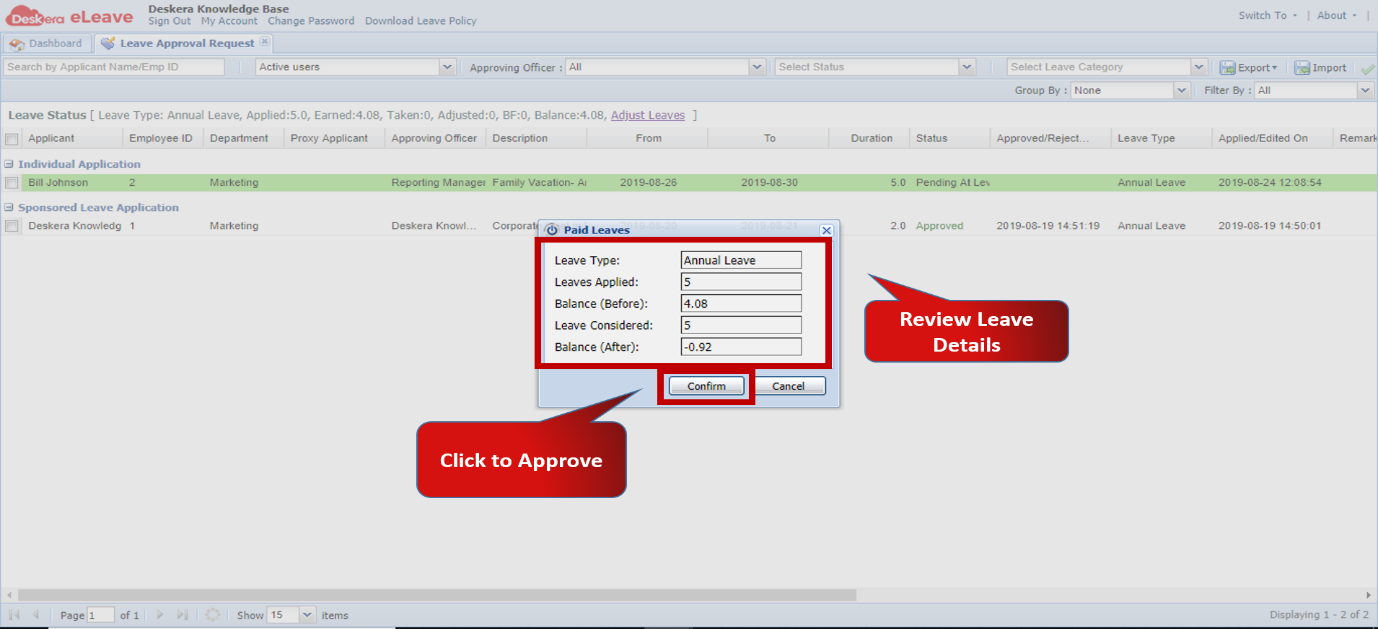 Fig.3.2.9 Approve Leave
Step 5: To reject the leave, Right Click and select Reject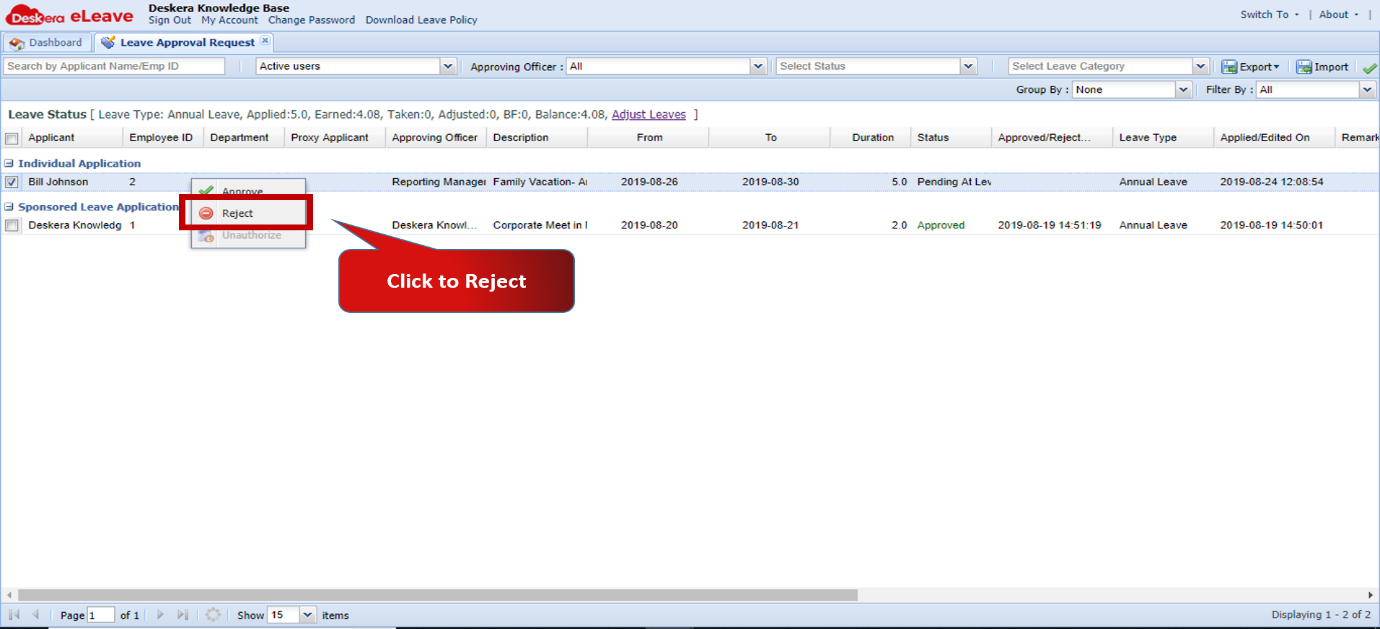 Fig.3.2.10 Leave Approval Request
Step 6: Enter reason for rejecting and click on OK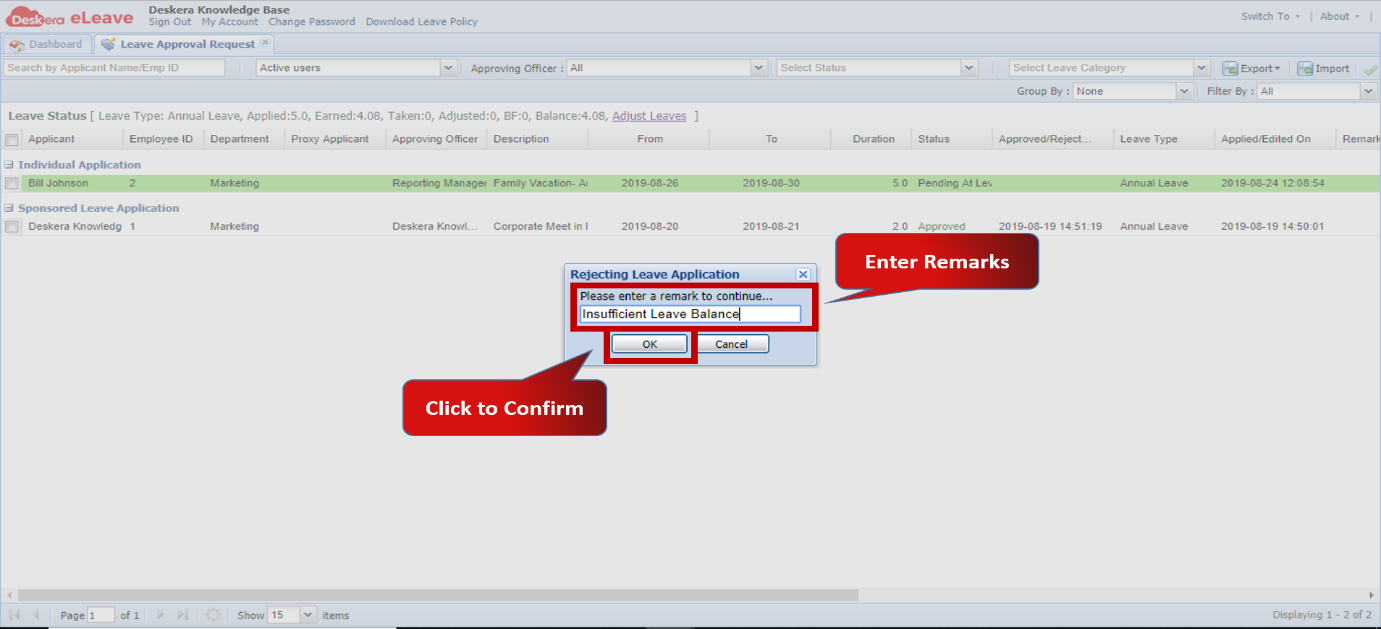 Fig.3.2.11 Reject Leave
3. Cancel Leave Application
Note: Cancellation of leaves by the applicant can only be done as long as the leave has not been approved. Once approved only the approving manager can cancel the leave.
Step 1: Go to Edit/Cancel Leave Applications under Leave Manager on eLeave Dashboard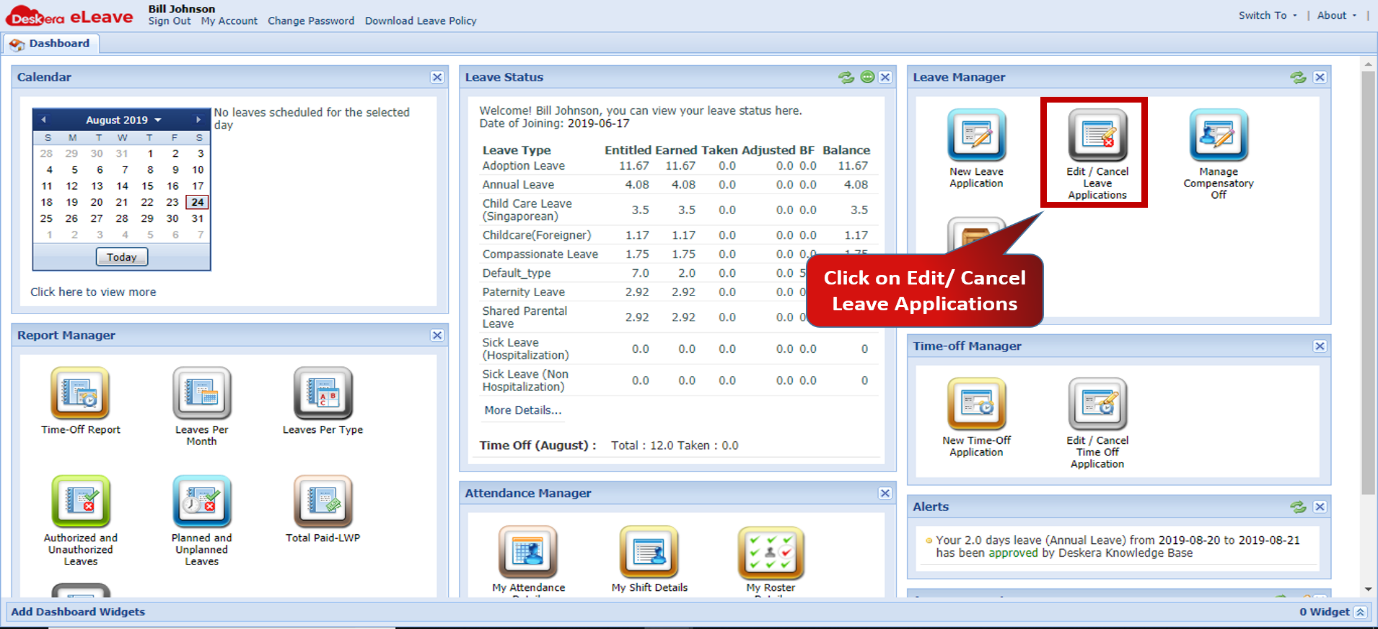 Fig.3.2.12 eLeave Dashboard
Step 2: To Cancel leave application click on Cancel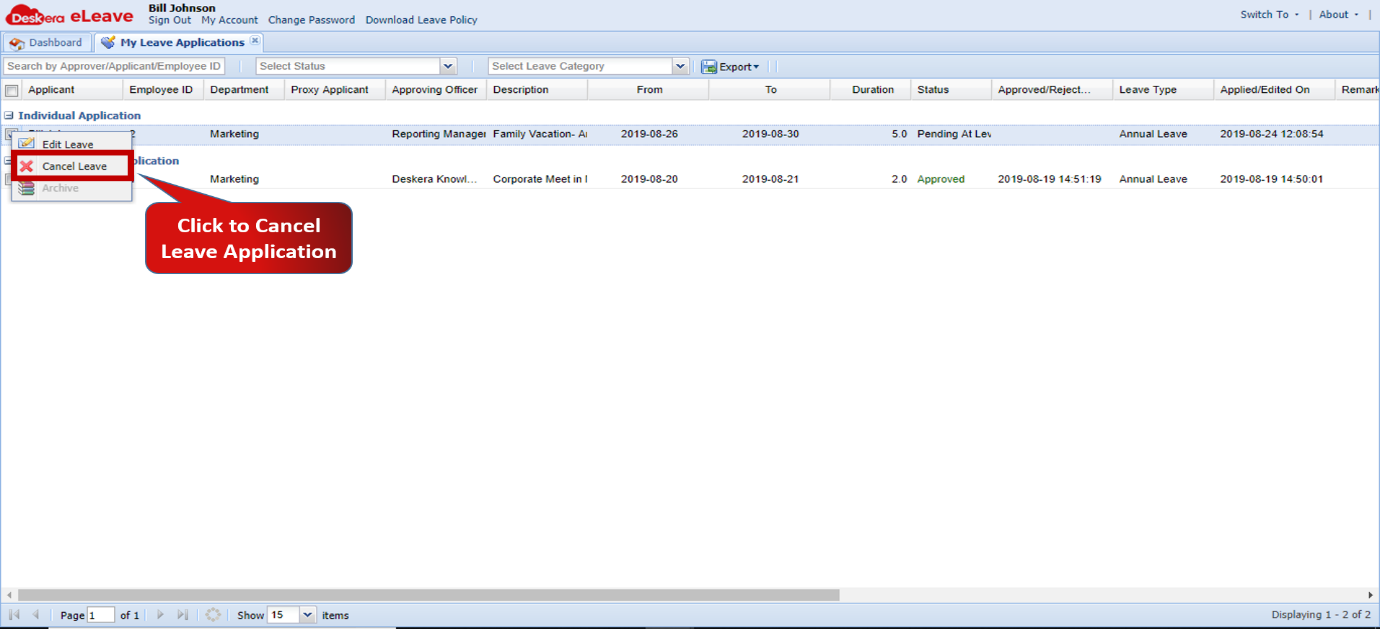 Fig.3.2.13 My Leave Application Form
Step 3: Enter reason for cancellation and click on OK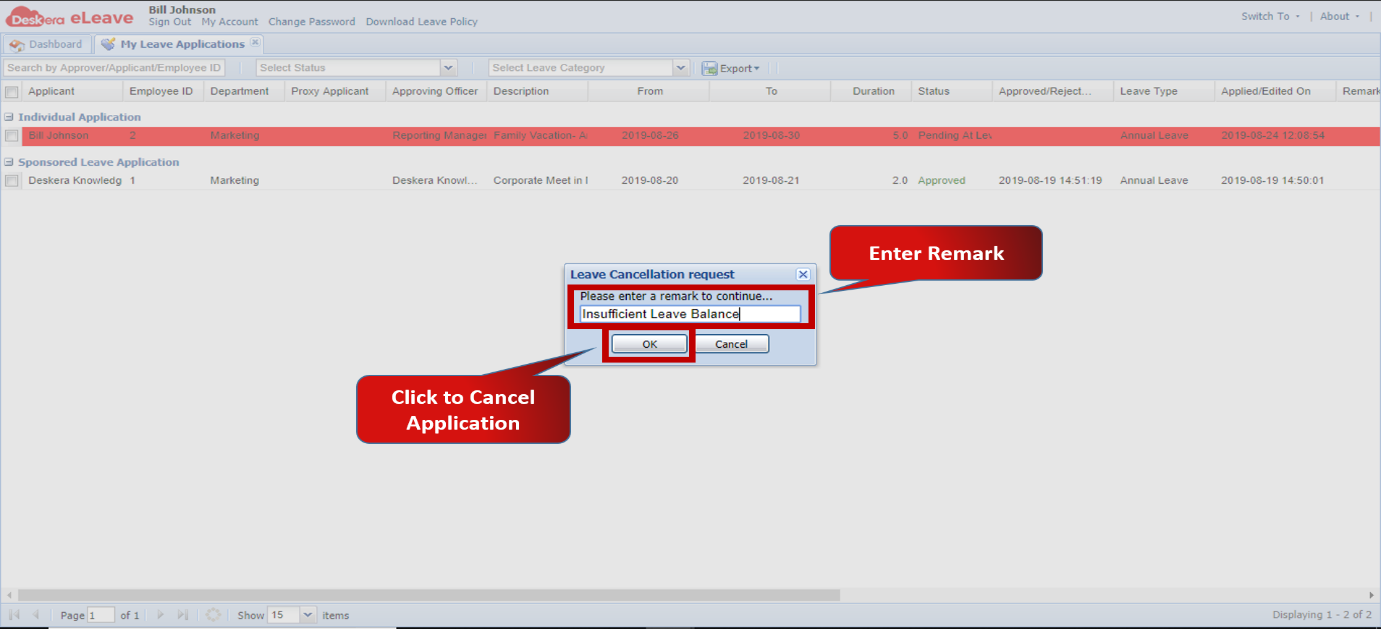 Fig.3.2.14 Cancel Leave Application Form
Comments
0 comments
Please sign in to leave a comment.