
Deskera eLeave Application allows the users to efficiently manage the leave application and approval process for the employees. Various types of leaves can be created and assigned to users who can apply for those leaves allotted to them. This article focuses on how the user can go about to edit or cancel an existing leave application.
Prerequisites:
1. Ensure you have your Deskera eLeave application URL in place.
2. Ensure you are logged in as the concerned applicant of the leave.
3. Ensure the leave application has been submitted and not approved.
4. Ensure a good internet connectivity
Step 1: Go to Edit/Cancel Leave Applications under Leave Manager on eLeave Dashboard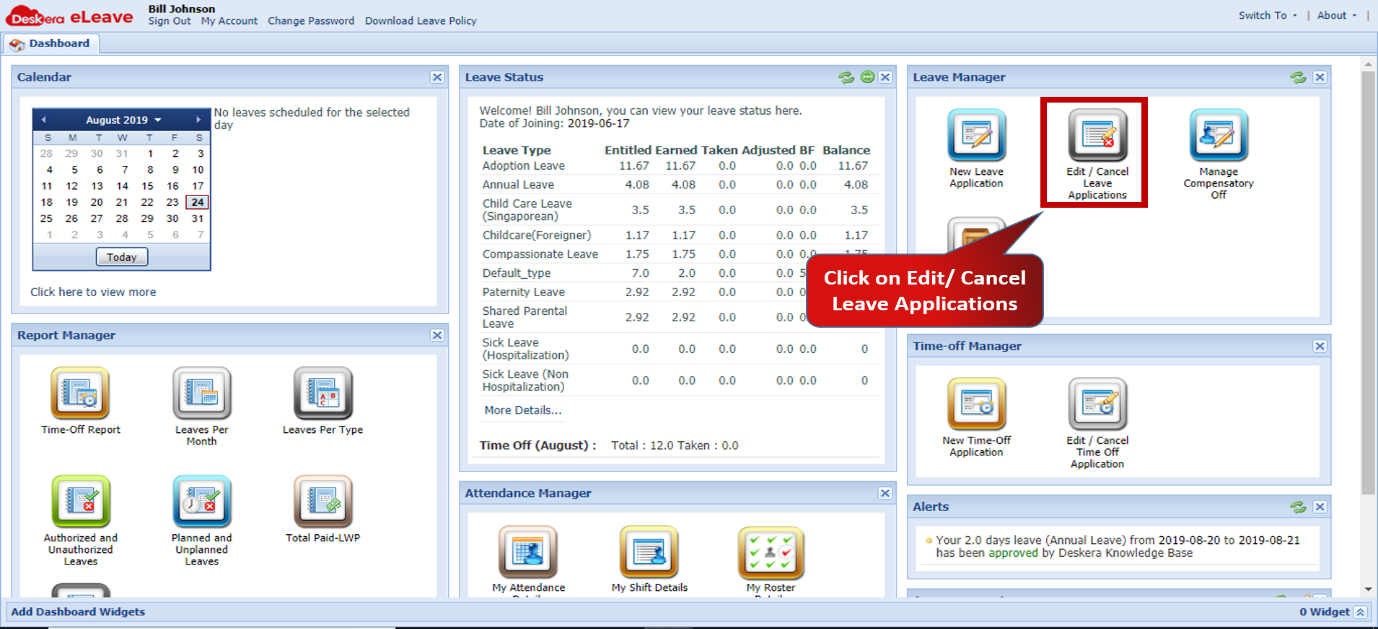 Fig.3.2.2.1 eLeave Dashboard
Step 2: Select the leave application that has already been submitted by the user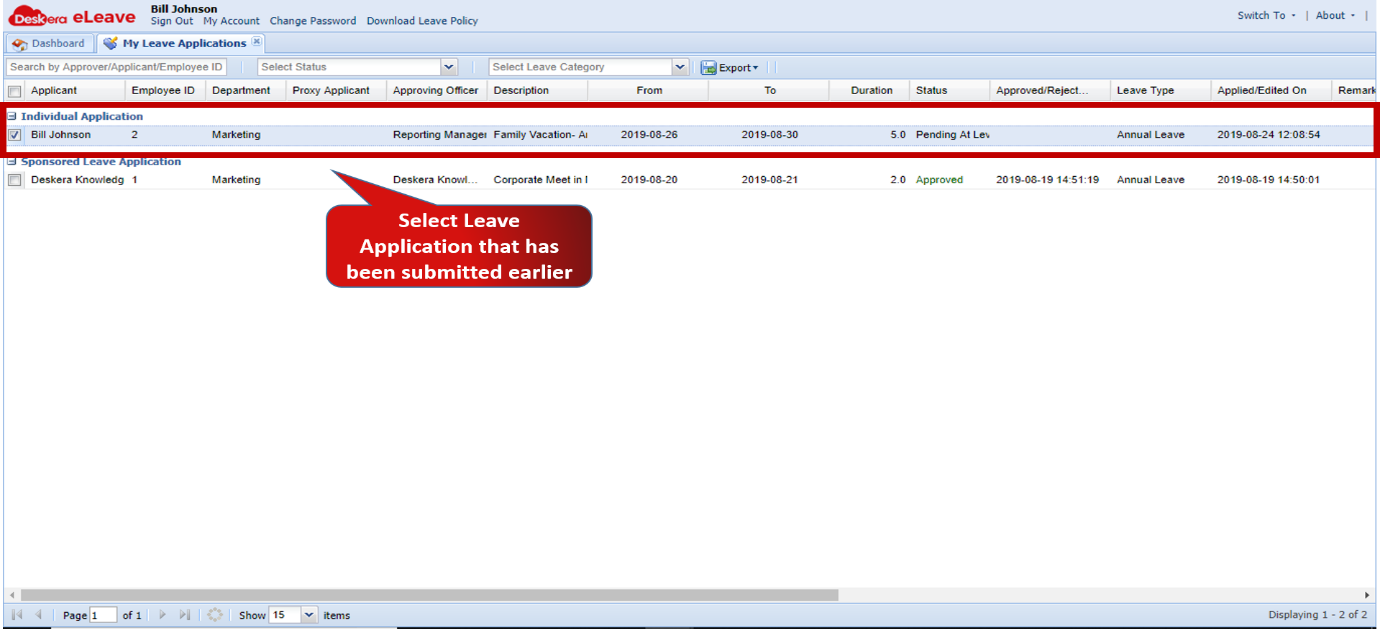 Fig.3.2.2.2 My Leave Application Form
Step 3: To Edit leave application click on Edit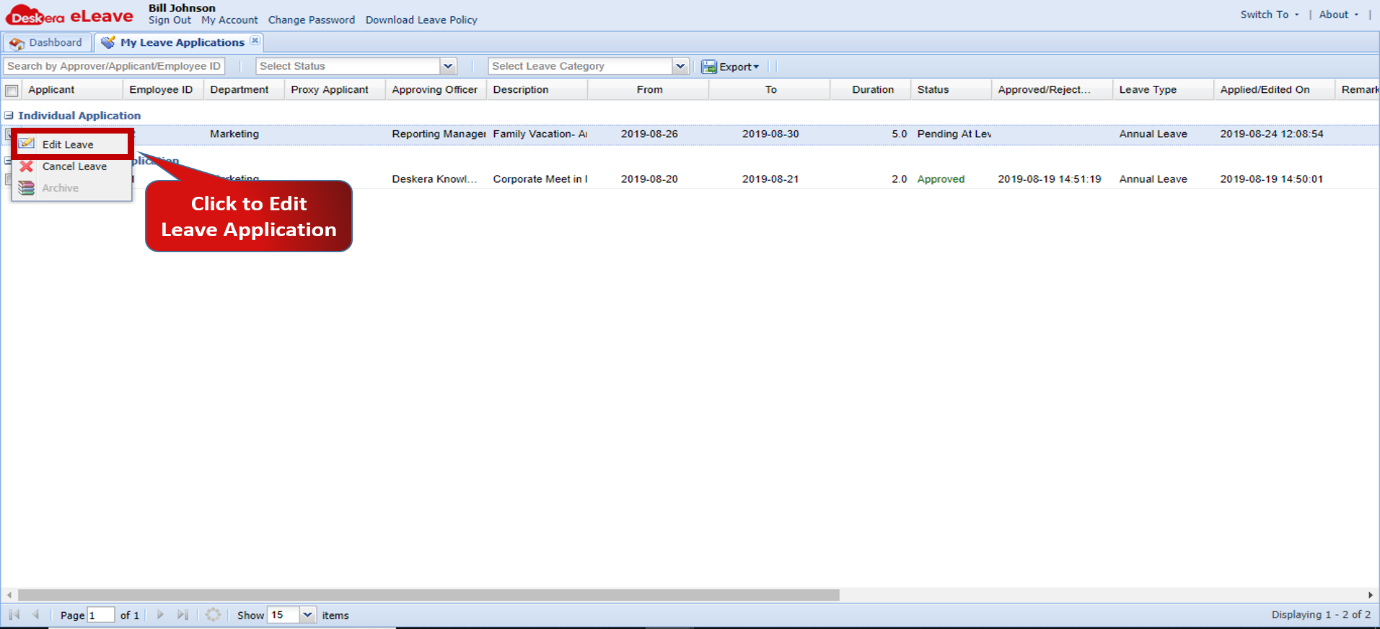 Fig.3.2.2.3 My Leave Application Form
Step 4: Enter required changes and click on Update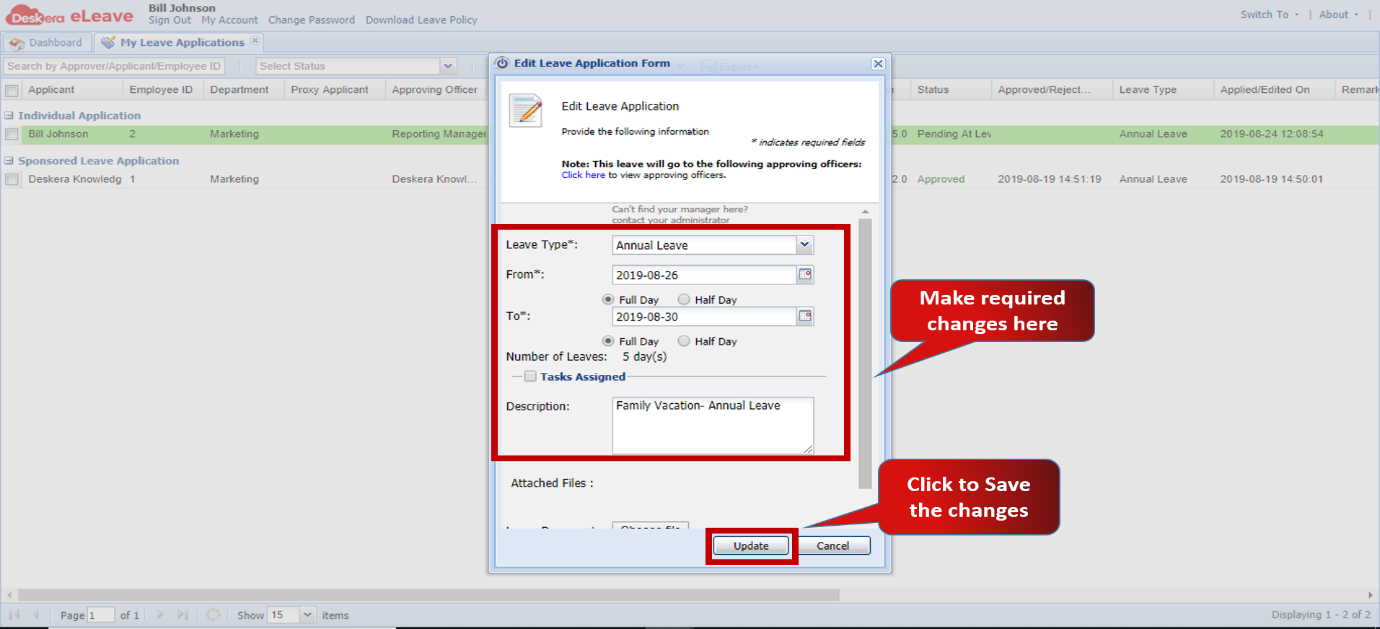 Fig.3.2.2.4 Edit Leave Application Form
Step 5: To Cancel leave application click on Cancel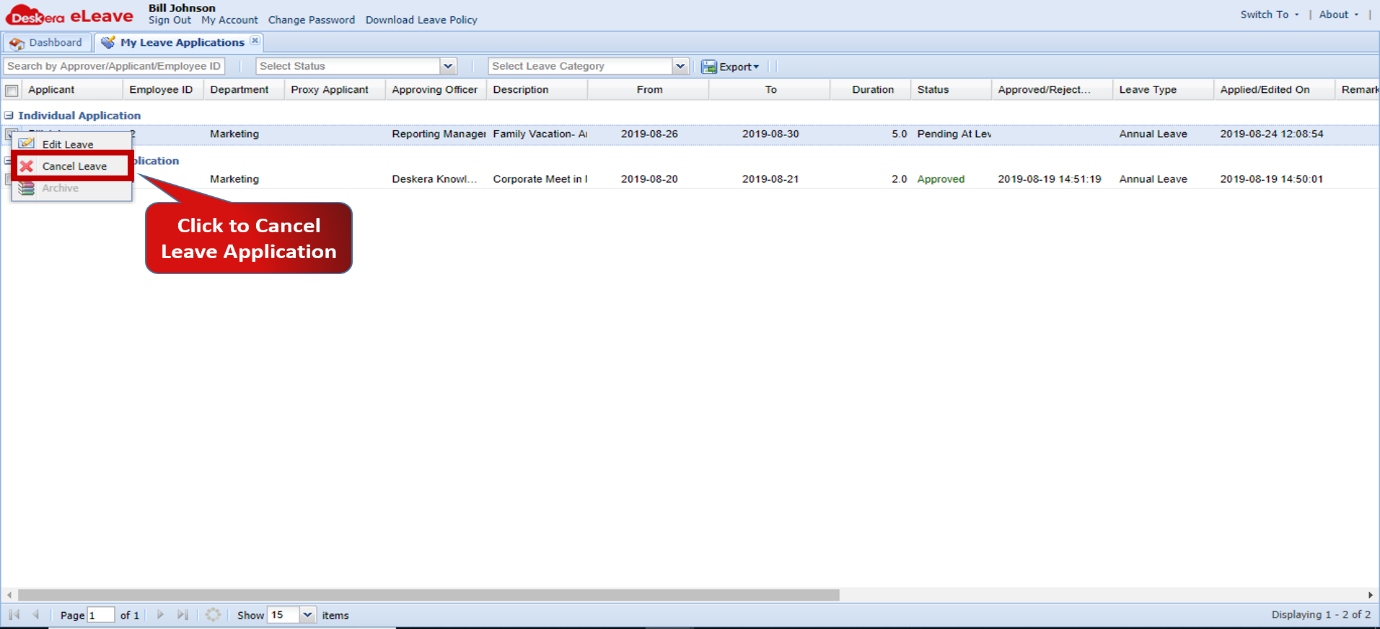 Fig.3.2.2.5 My Leave Application Form
Step 6: Enter reason for cancellation and click on OK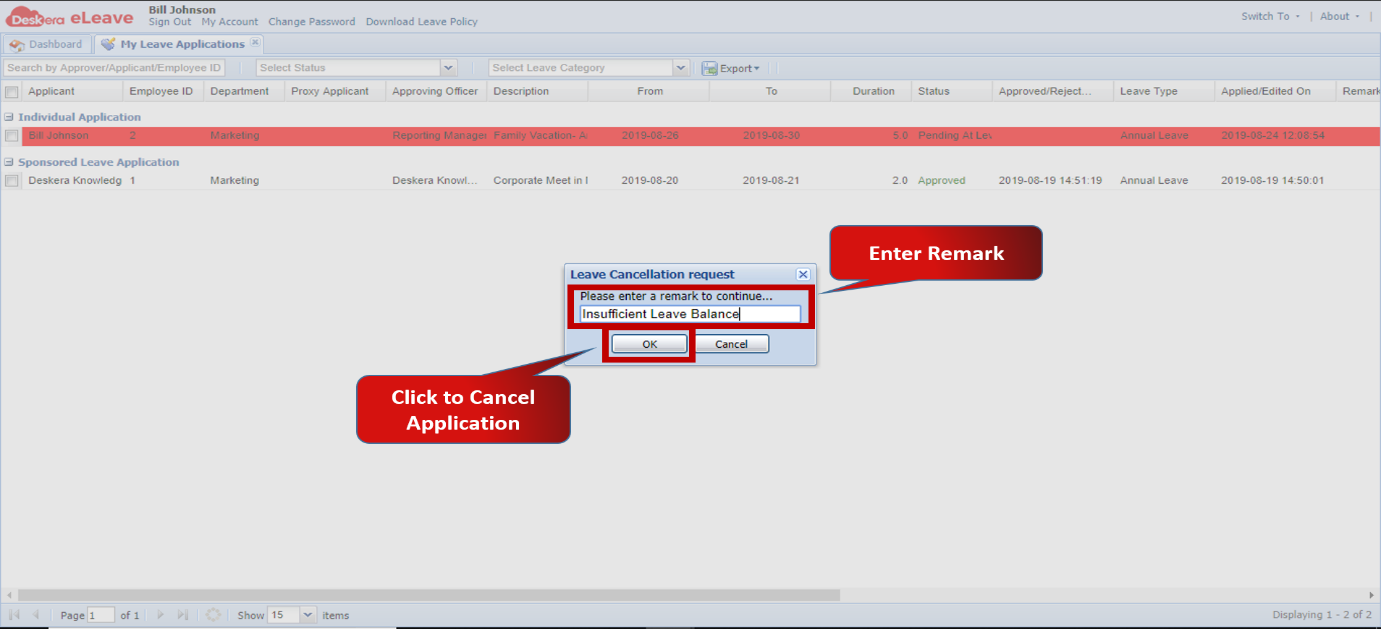 Fig.3.2.2.6 Cancel Leave Application Form
Comments
0 comments
Please sign in to leave a comment.