
View/Edit/Delete Job Profile features help you to edit, view and delete job positions in Deskera HRMS. You can edit and view details like No. of Vacancies, Department, Approving Manager, Job Type and much more.
Prerequisites:
1. You have your Deskera HRMS application URL in place.
2. You are the administrator of the HRMS application
3. Ensure good internet connectivity
View/ Edit Job Profile
Step 1: Go to Add Jobs under Recruitment Management widget in HRMS.
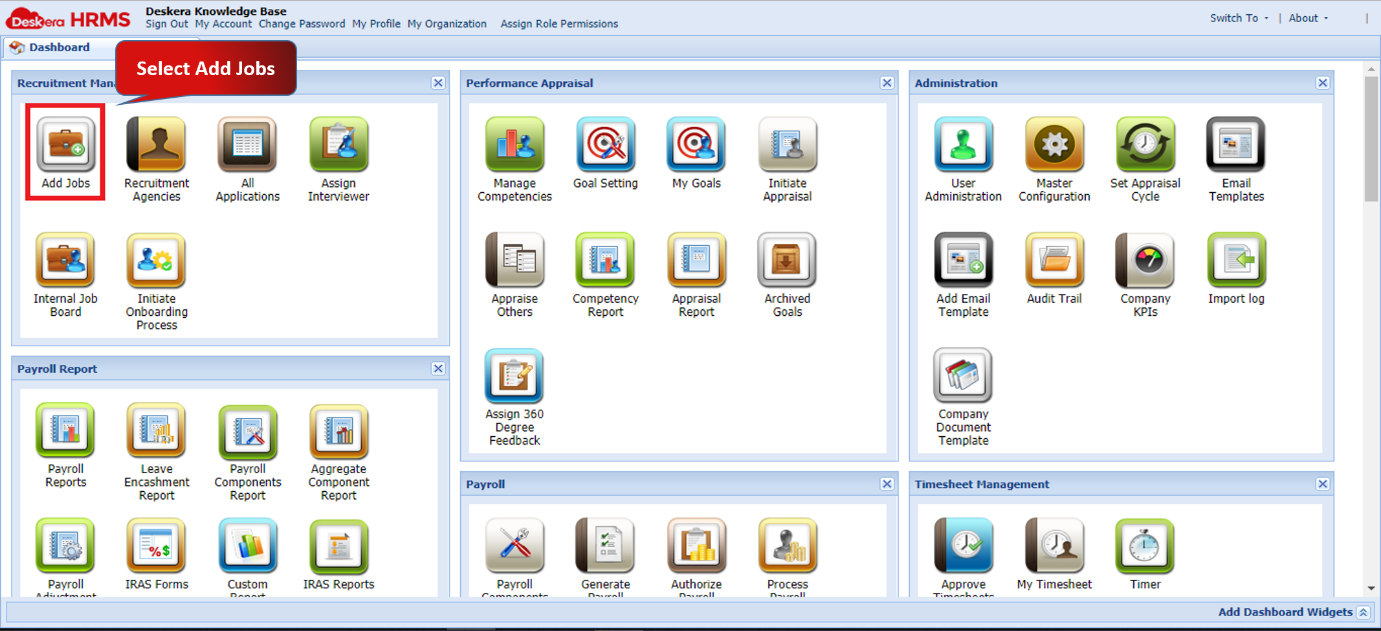
Fig 2.3.2.2.1 HRMS Dashboard
Step 2: Under Job Management tab, select the job to be edited and click on View/Edit Job Profile present on the top left corner of the screen.
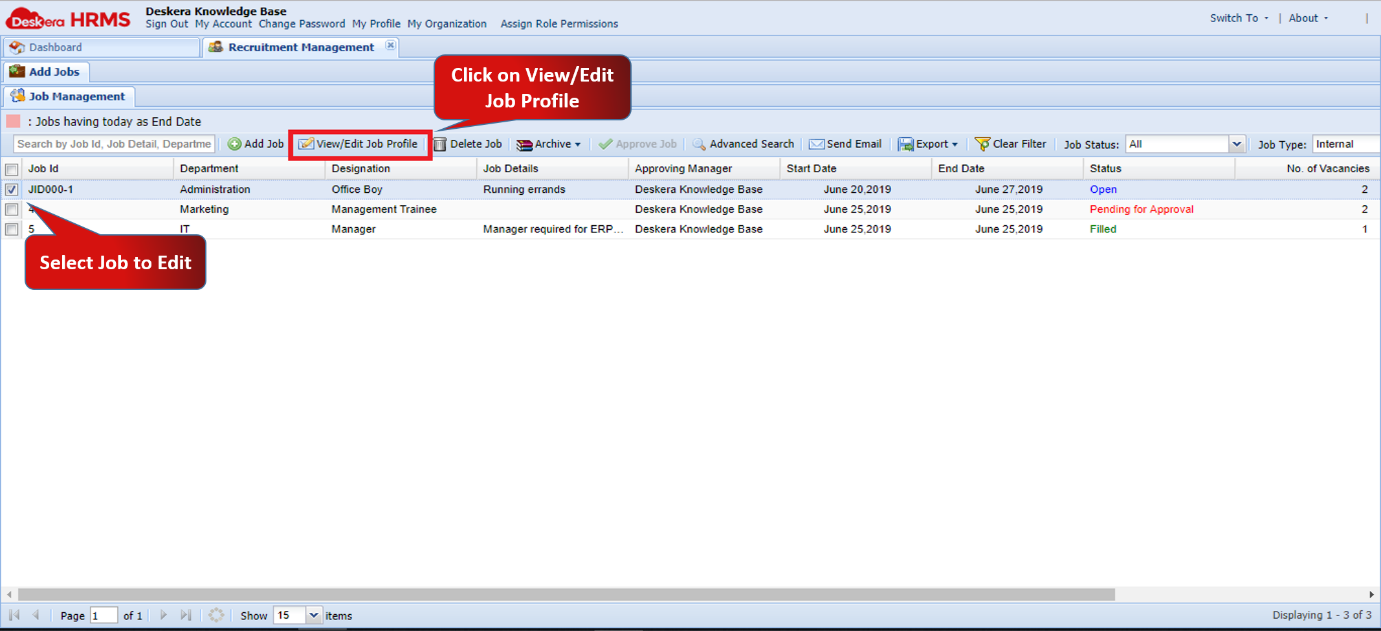
Fig 2.3.2.2.2 Job Management
Step 3: A new window defining the Job Position profile will open up. Edit the details according to your requirements. This feature enables you to also add Responsibilities, Skills Required and Qualification Required for that Job Position.
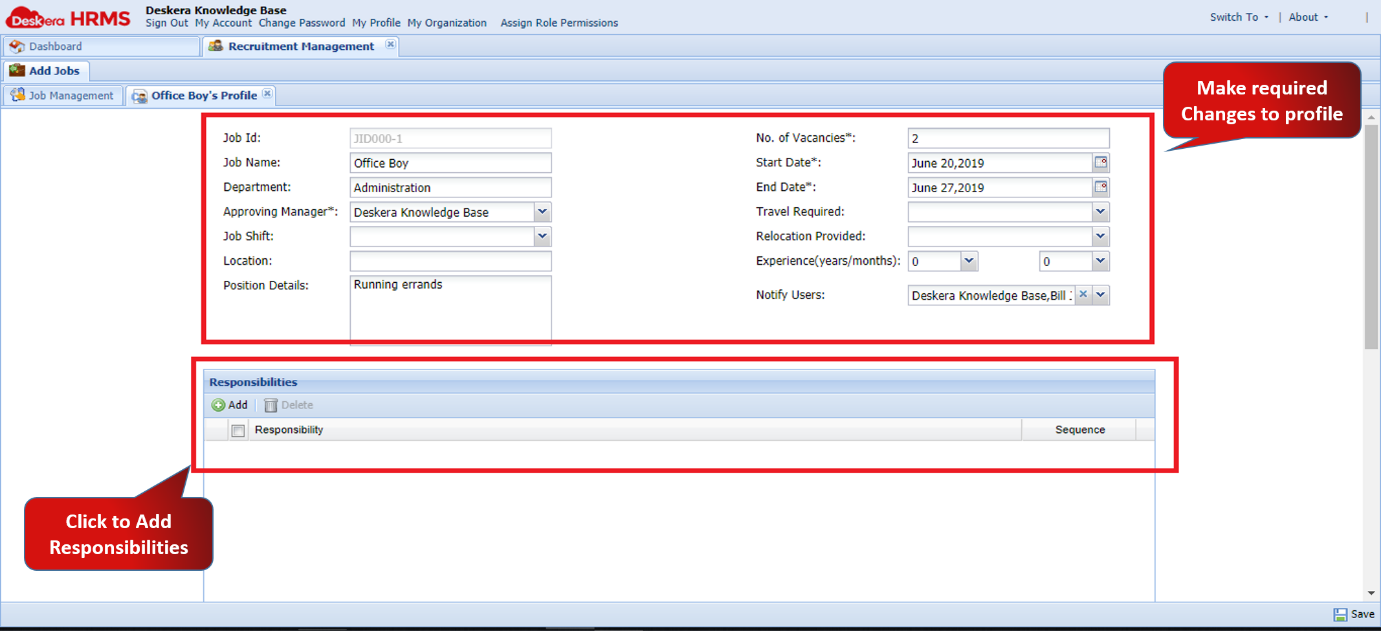
Fig 2.3.2.2.3 Job Position Profile
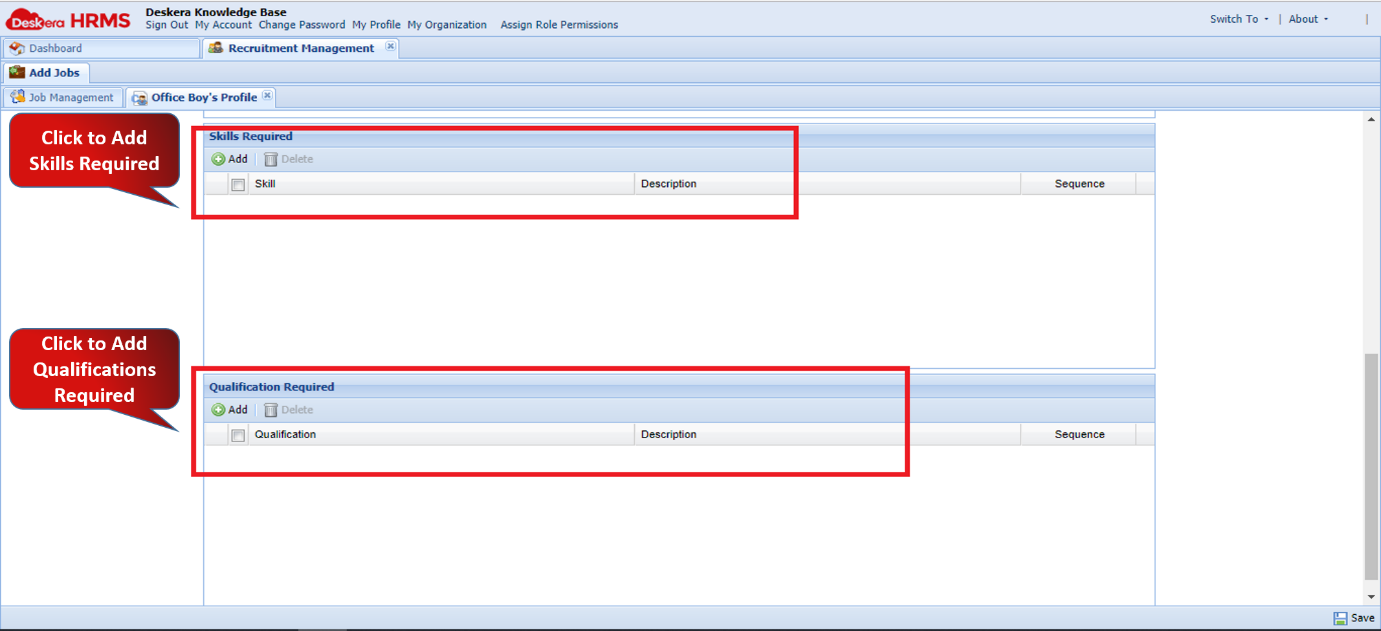
Fig 2.3.2.2.4 Job Position Profile
You can add Responsibilities, Skills Required and Qualification Required for that Job Position by clicking on Add option under respective Tabs and fill in the required details. You can also delete them by clicking on Delete option.
Click Save after Editing and adding details in the profile.
Delete Job Profile
Step 1: Go to Add Jobs under Recruitment Management widget in HRMS.
Fig 2.3.2.2.5 HRMS Dashboard
Step 2: Under Job Management tab, select the job to be deleted and click on Delete Job present on the top left corner of the screen.
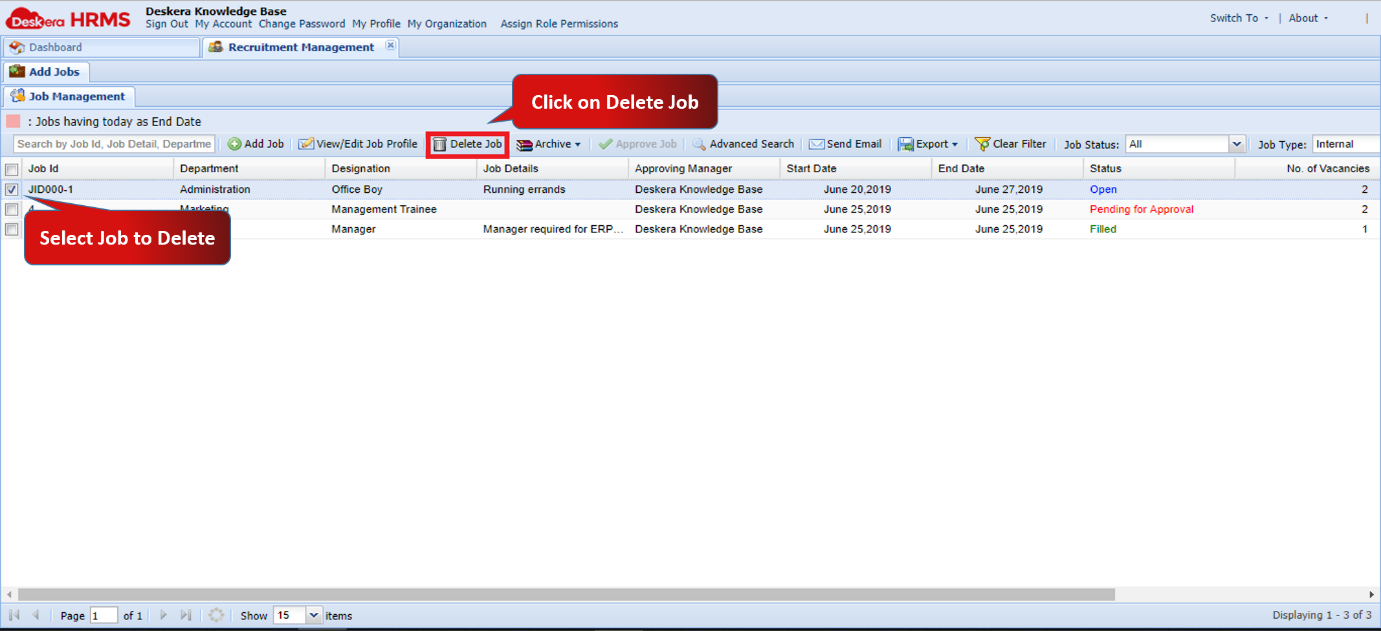
Fig 2.3.2.2.6 Job Management
Step 3: A window will pop up to confirm your deletion. Select Yes to Delete the Job profile.
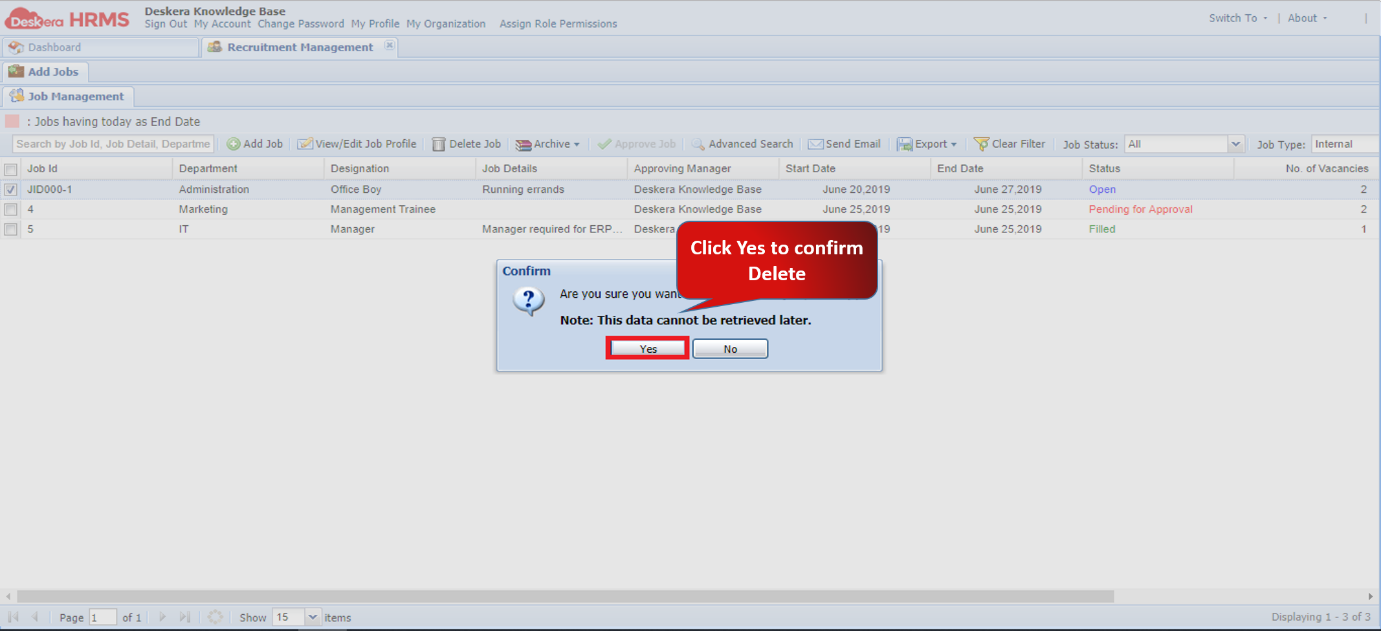
Fig 2.3.2.2.7 Delete Job
Comments
0 comments
Please sign in to leave a comment.