
Interviewer management includes assigning and unassigning a user in the Deskera HRMS module as an interviewer.
Prerequisites:
- You have your Deskera HRMS application URL in place.
- You are the administrator of the HRMS application.
- Ensure Stable Internet Connectivity.
Assign Interviewer:
To assign a user as an interviewer, the following steps are to be followed:
Step 1: In the HRMS Dashboard, navigate to “Assign Interviewer” icon under the “Recruitment management” widget.
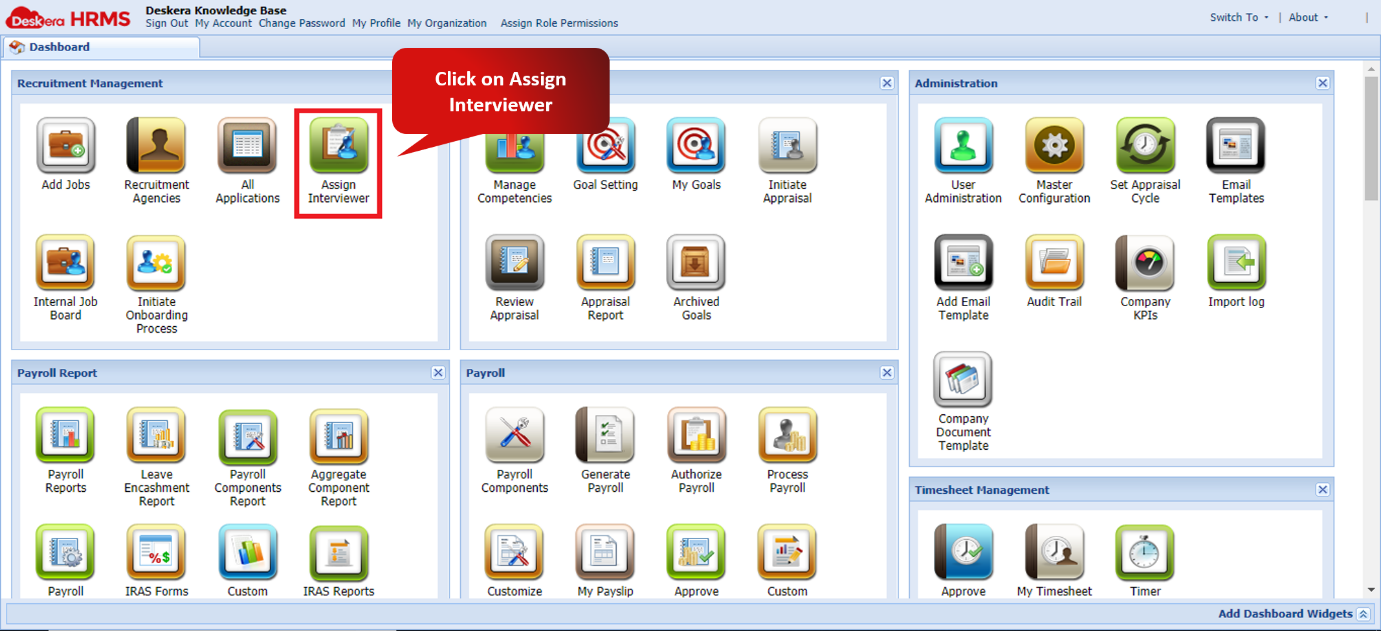
Fig. 2.3.4.1 HRMS Dashboard
Step 2: Select the user to be assigned as interviewer and Click on “Set as Interviewer”.
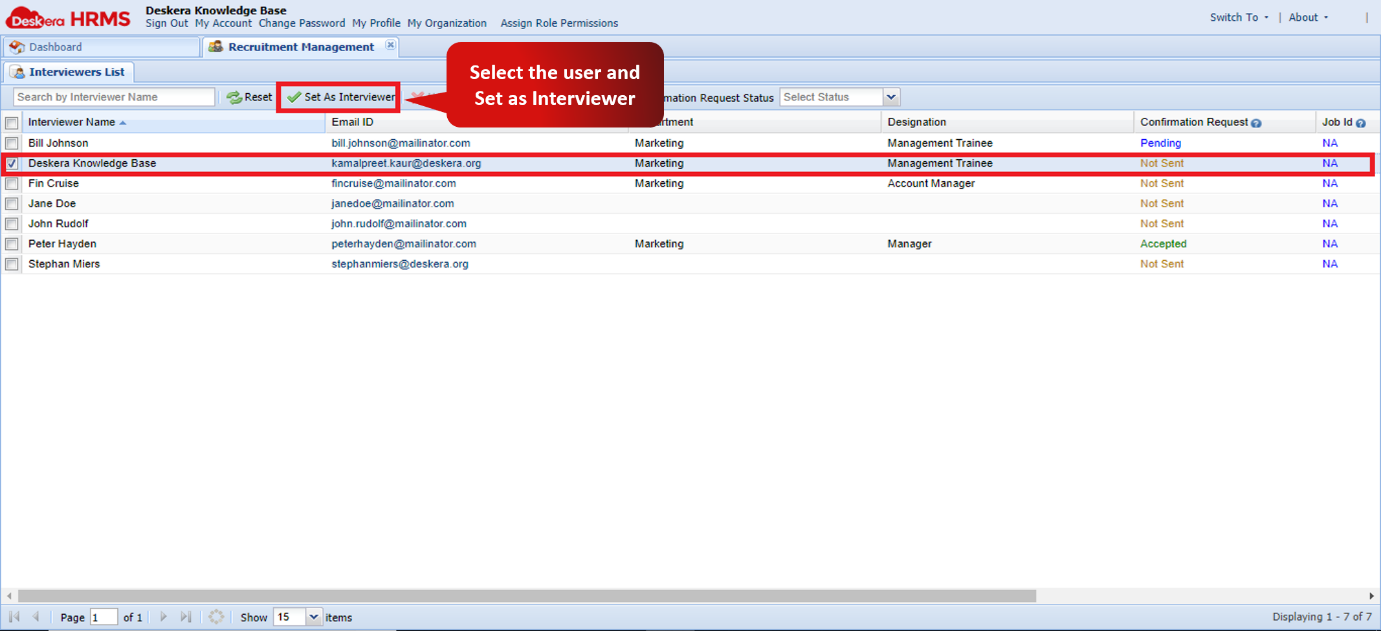
Fig. 2.3.4.2 Set as interviewer
Step 3: Click on yes to proceed setting user as an interviewer.
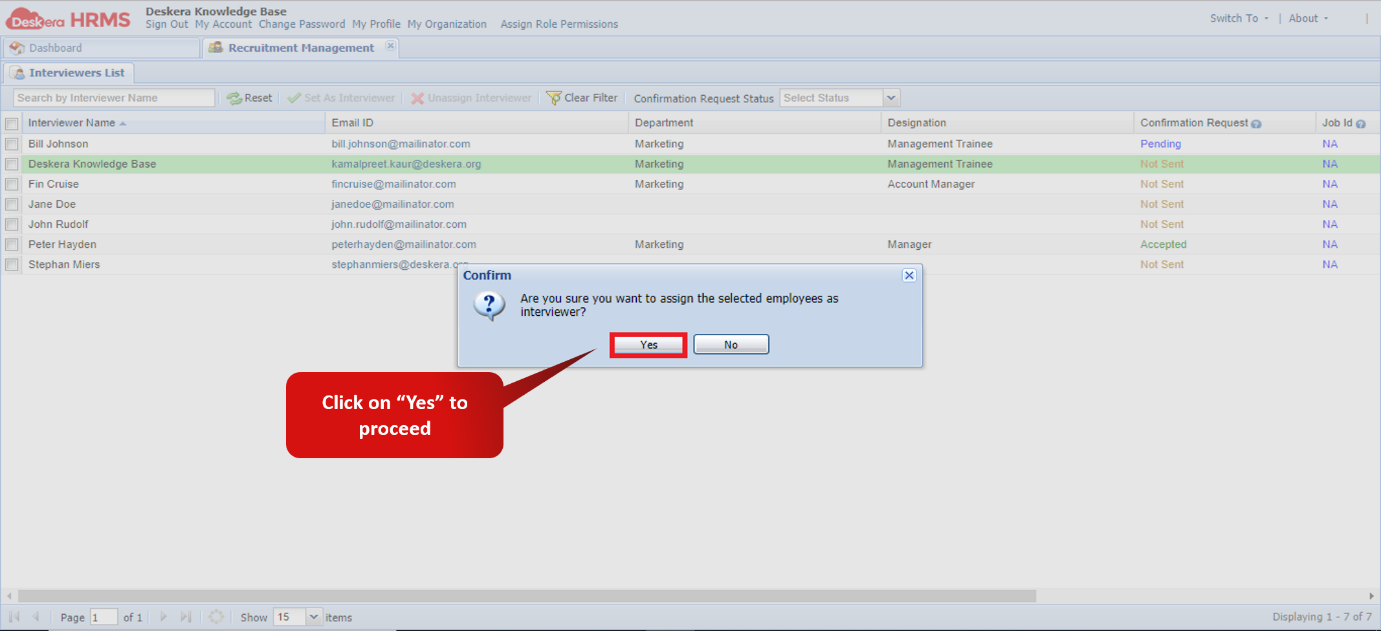
Fig. 2.3.4.3 Confirmation for Assigning interviewer
Note: 1. The user gets the notification both on the URL and on mail. Once the user accepts the confirmation, the user will be assigned as Interviewer.
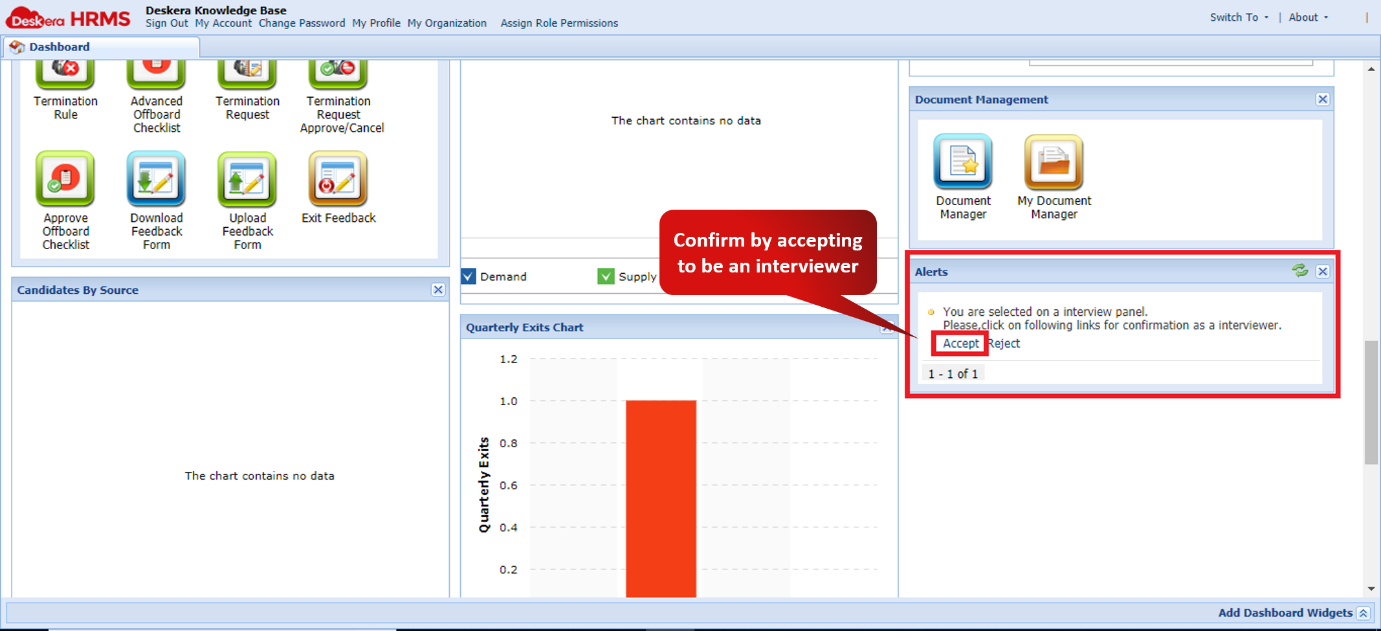
Fig. 2.3.4.4 HRMS Dashboard
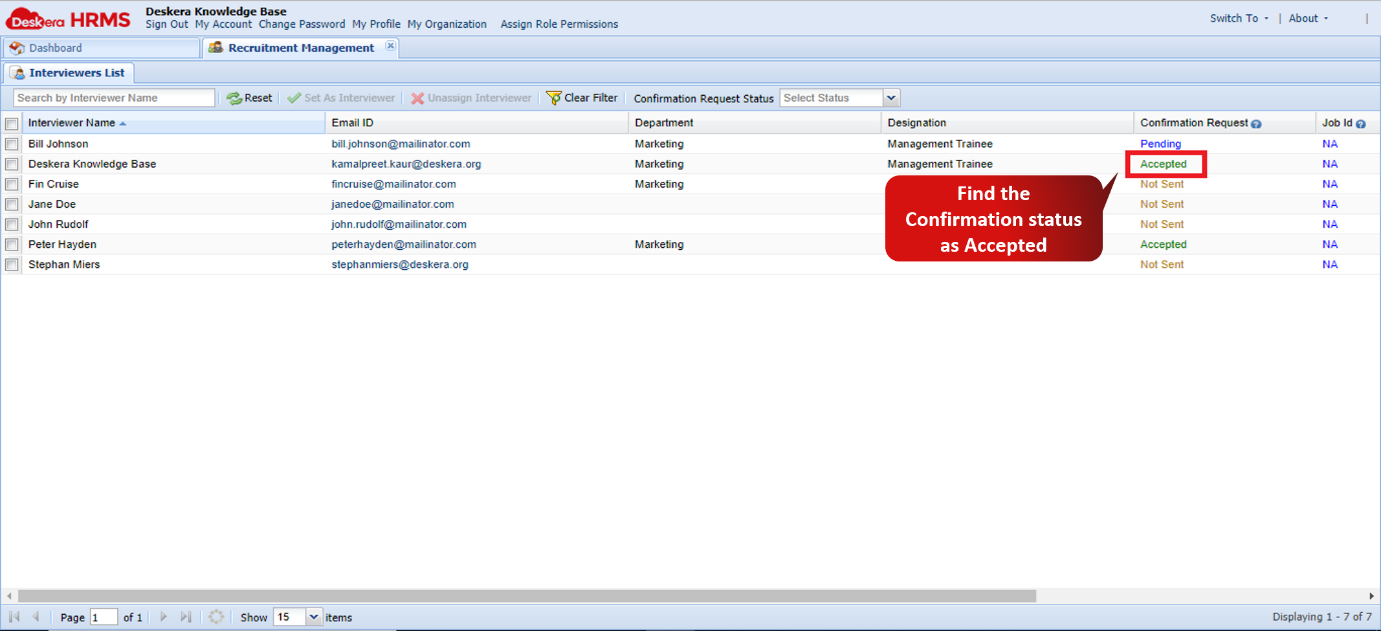
Fig. 2.3.4.5 Set as Interviewer
2. You can now schedule interview to the interviewer under the pending applications tab.
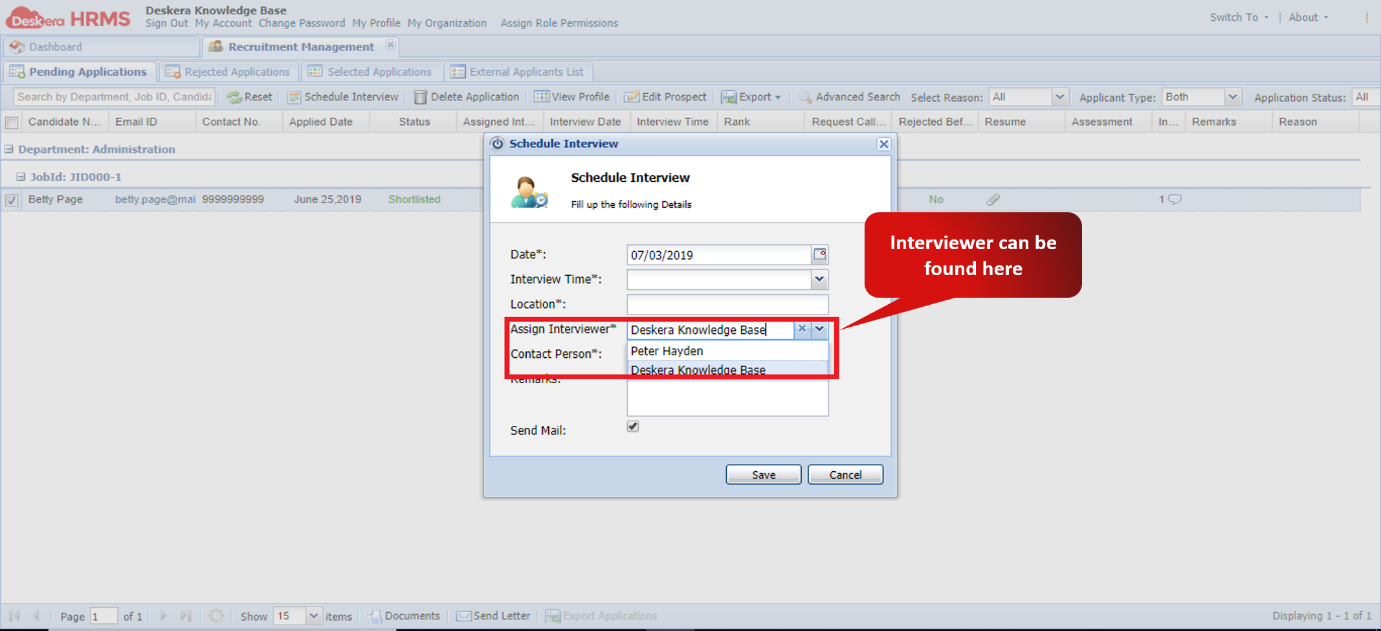
Fig. 2.3.4.6 Schedule Interview
Unassign Interviewer:
To unassign an interviewer, the following steps are to be followed.
Step1: In the HRMS Dashboard, navigate to “Assign Interviewer” icon under the “Recruitment management” widget.
Fig. 2.3.4.7 Schedule Interview
Step 2: Select the user to be unassigned and click on “Unassign Interviewer”.
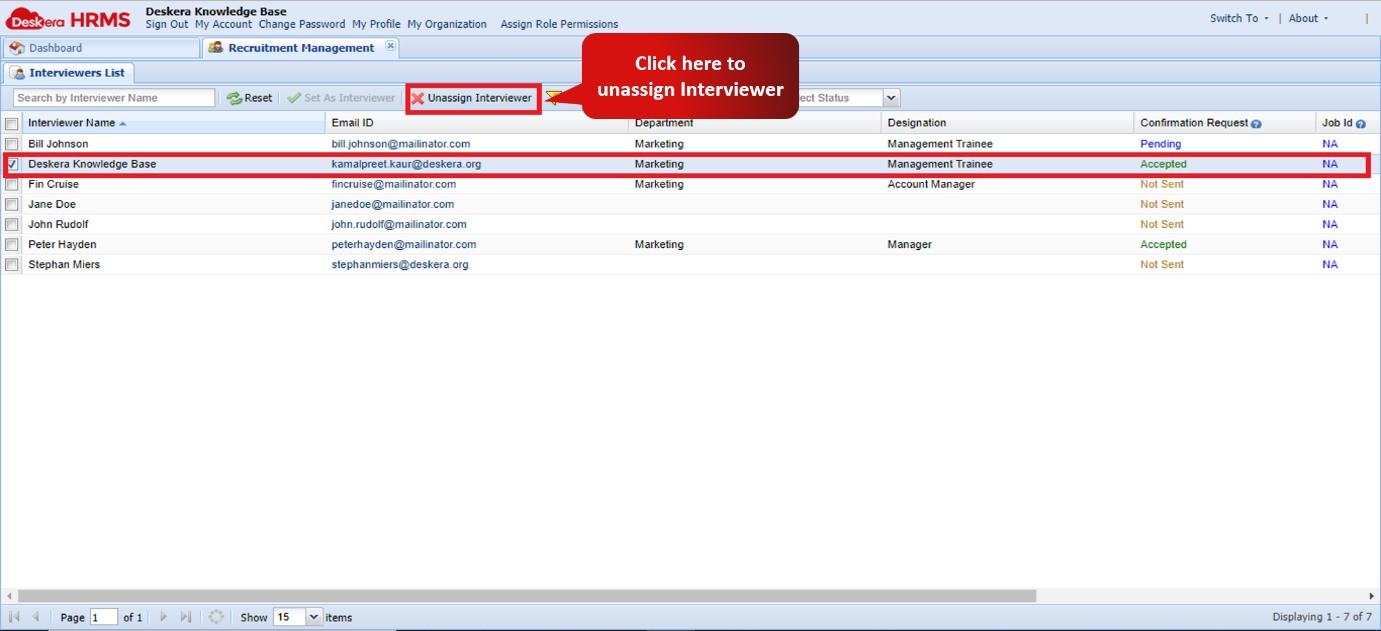
Fig. 2.3.4.8 Schedule Interview
Step 3: Click on yes to proceed to unassign the user as an interviewer.
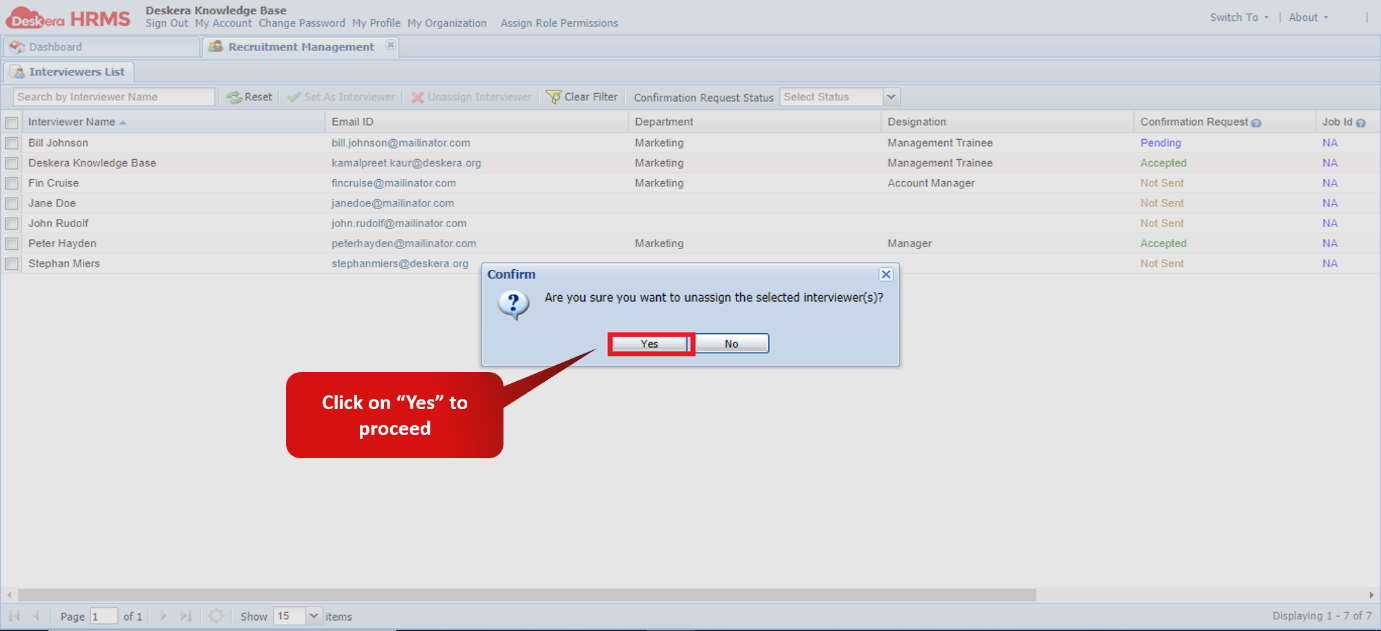
Fig. 2.3.4.9 Schedule Interview
Comments
0 comments
Please sign in to leave a comment.