
View/Edit/Delete Application features helps you to manage selected applications. You can view the selected applicants and edit their profiles. Edit prospect feature helps you to change the status of the applicant and maintain a detailed record in Deskera HRMS.
Prerequisites:
1. You have your Deskera HRMS application URL in place.
2. You are the administrator of the HRMS application
3. Ensure good internet connectivity
View Profile
Step 1: Go to All Applications under Recruitment Management widget in HRMS.
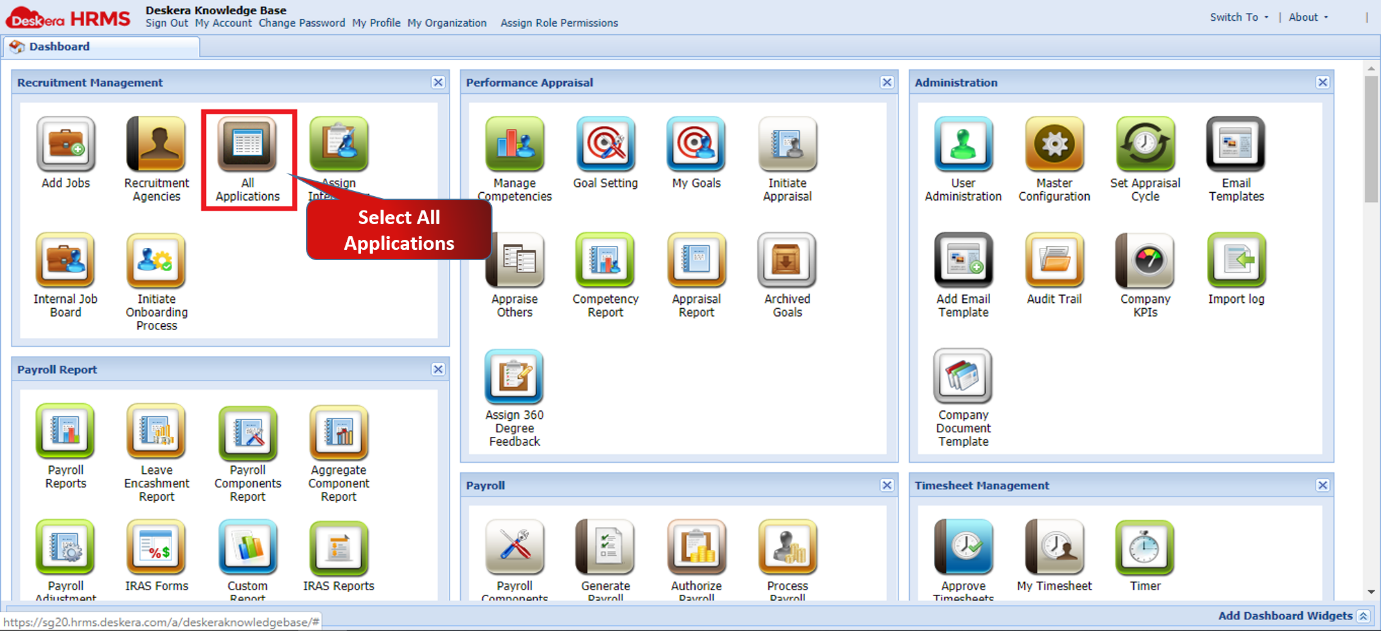
Fig 2.3.3.3.1.1 HRMS Dashboard
Step 2: Under Selected Applications tab, select the applicant to be viewed and click on View Profile present on the top left corner of the screen.

Fig 2.3.3.3.1.2 Selected Applications
Step 3: A new window will open the applicant’s profile. You can view and edit details here of the selected applicant and then once done, click on Submit Resume.

Fig 2.3.3.3.1.3 Applicant’s Profile

Fig 2.3.3.3.1.4 Applicant’s Profile
Edit Prospect
Step 1: Go to All Applications under Recruitment Management widget in HRMS.
Fig 2.3.3.3.1.5 HRMS Dashboard
Step 2: Under Selected Applications tab, select the applicant and click on Edit Prospect present on the top left corner of the screen.
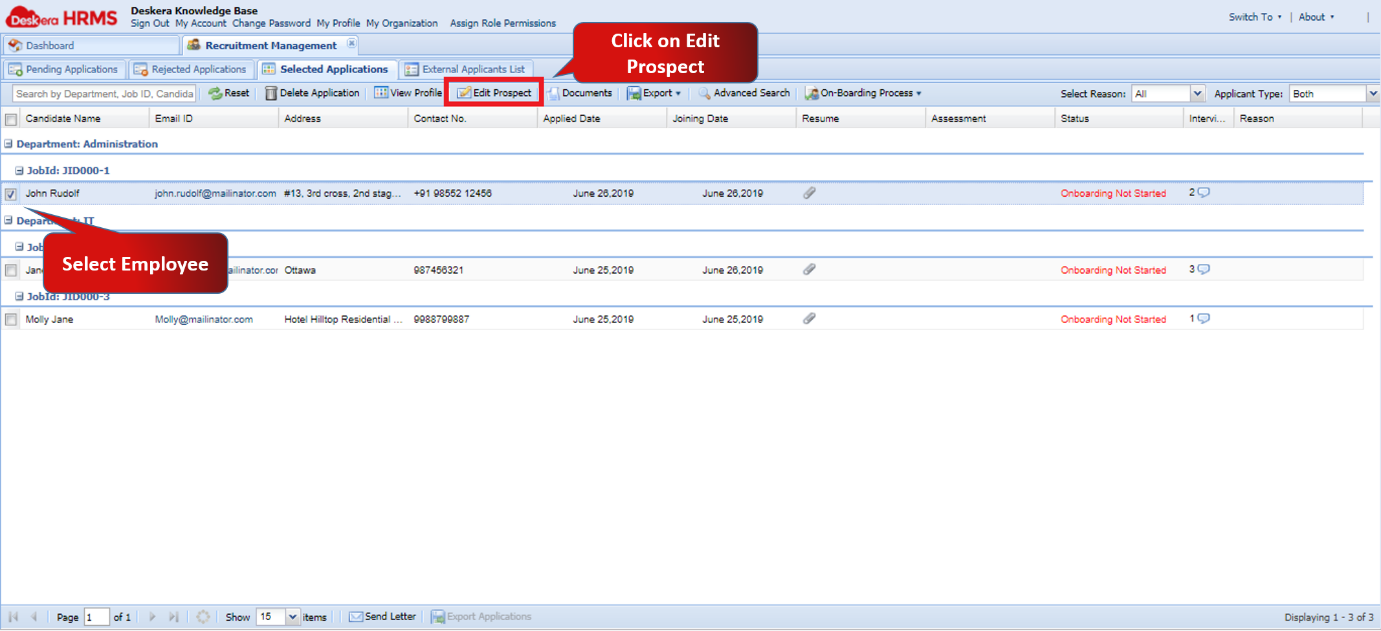
Fig 2.3.3.3.1.6 Selected Applications
Step 3: Edit prospect window helps us to change the Assign Status of the applicant. You can fill in other details like Rank. Request Call-back, Reason and much more with this feature as well. Click on Save to update the changes.

Fig 2.3.3.3.1.7 Edit Prospects
Delete Application
Step 1: Go to All Applications under Recruitment Management widget in HRMS.
Fig 2.3.3.3.1.8 HRMS Dashboard
Step 2: Under Selected Applications tab, select the applicant and click on Delete Application present on the top left corner of the screen.
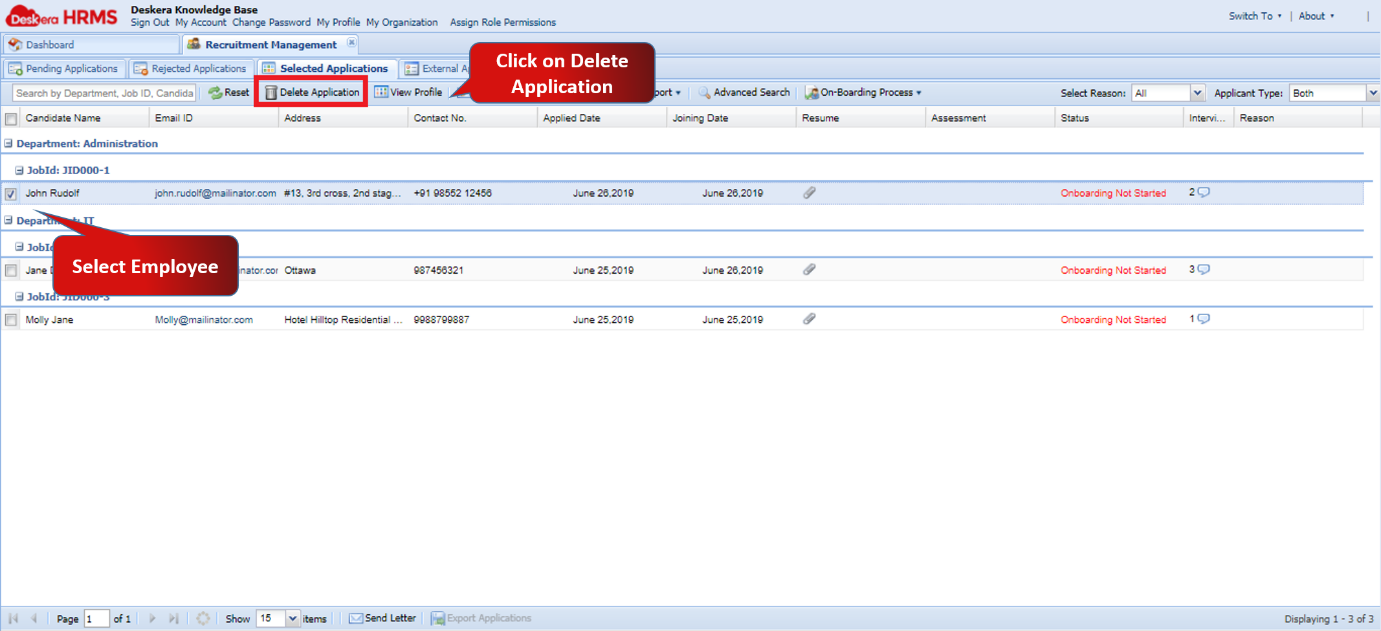
Fig 2.3.3.3.1.9 Selected Applications
Step 3: A window will pop up to confirm your deletion. Select Yes to Delete the Job profile.

Fig 2.3.3.3.1.10 Delete Application
Comments
0 comments
Please sign in to leave a comment.