
This article helps to understand the steps involved in approving or rejecting the advance claim application made by an employee. Only the assigned approver for the particular employee will have the option to approve or reject the particular claim.
Prerequisites:
1. Ensure you have your Deskera eClaims application URL in place.
2. Ensure you are logged in as the designated approver for the employee.
3. Ensure a good internet connectivity.
4. Ensure that the user has already submitted an advance claim application.
How to Approve/Reject Advance Request
Step 1: Go to Approve/Reject Advance Claims under Advance Claims on eClaims Dashboard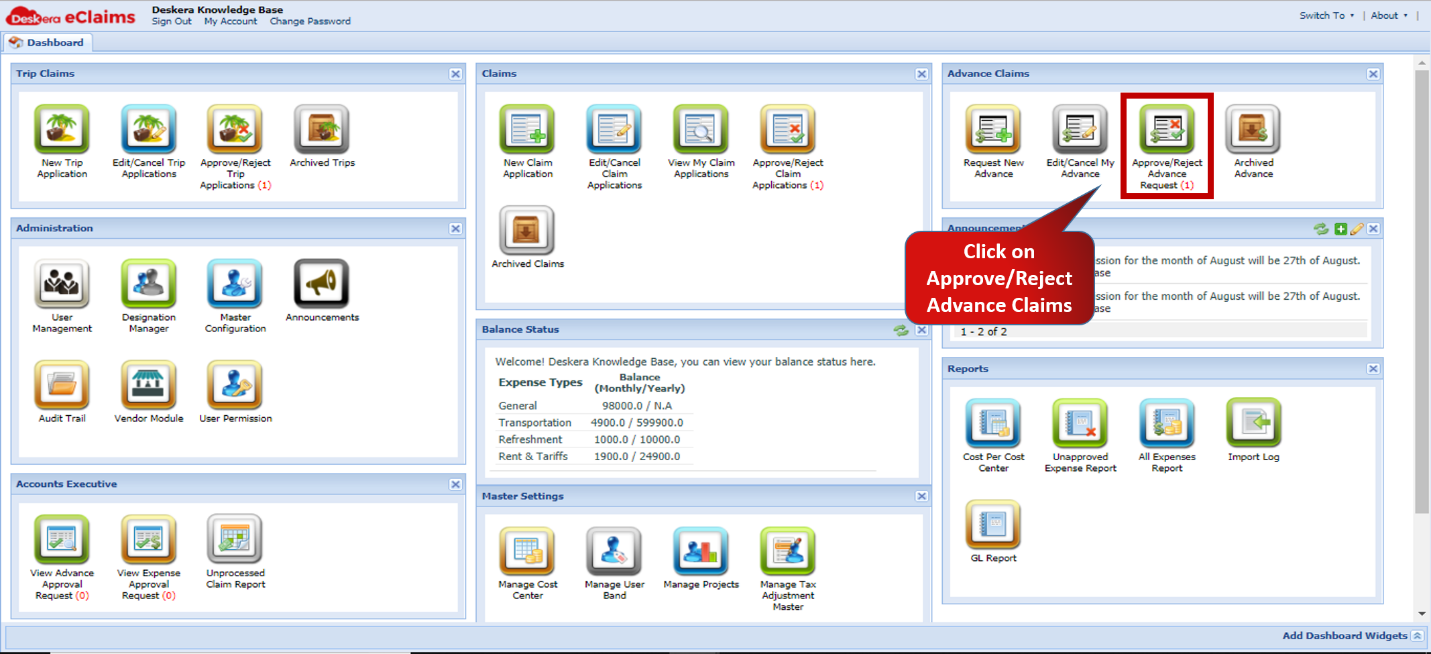 Fig.4.4.3.1 eClaims Dashboard
Step 2: Select the claim you wish to approve/reject and click on Approve/Reject under Status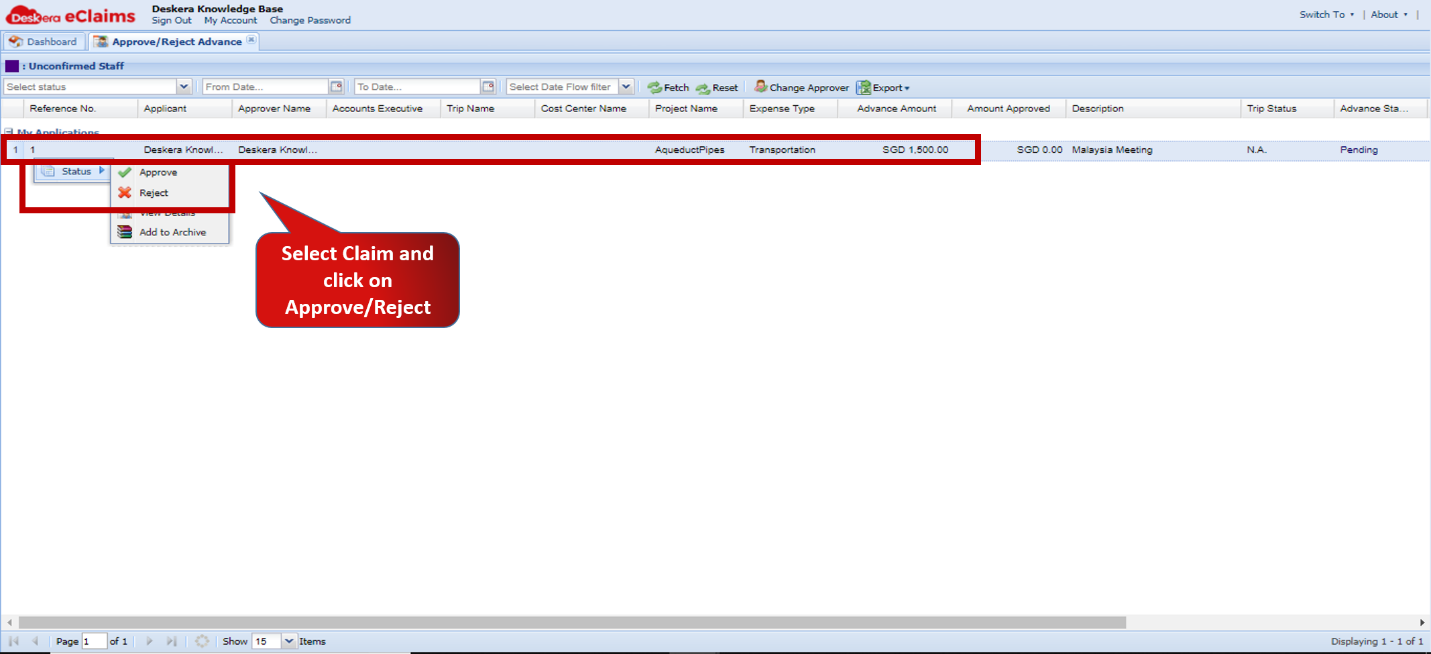 Fig.4.4.3.2 Approve/Reject Advance Claim
Step 3: Choose the Account Executive and Click on Approve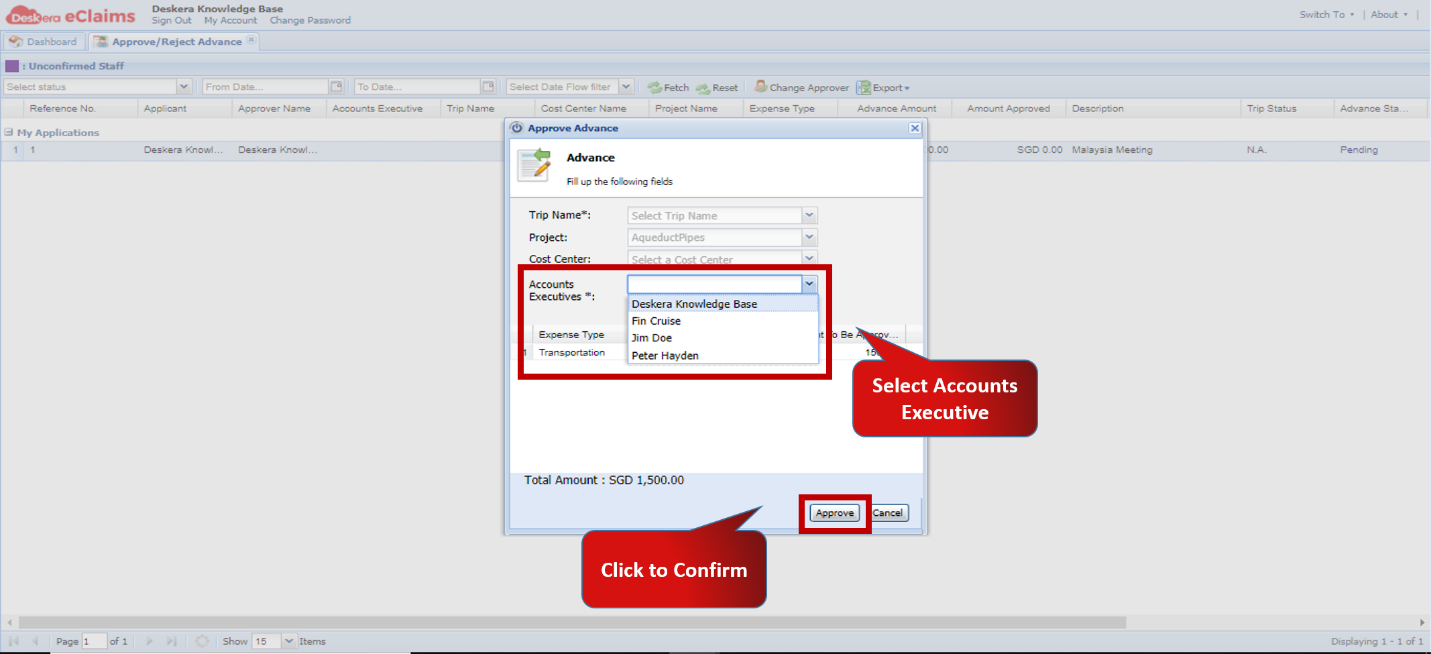 Fig.4.4.3.3 Approve/Reject Advance Claim
To reject select Reject status, enter comment and click on Submit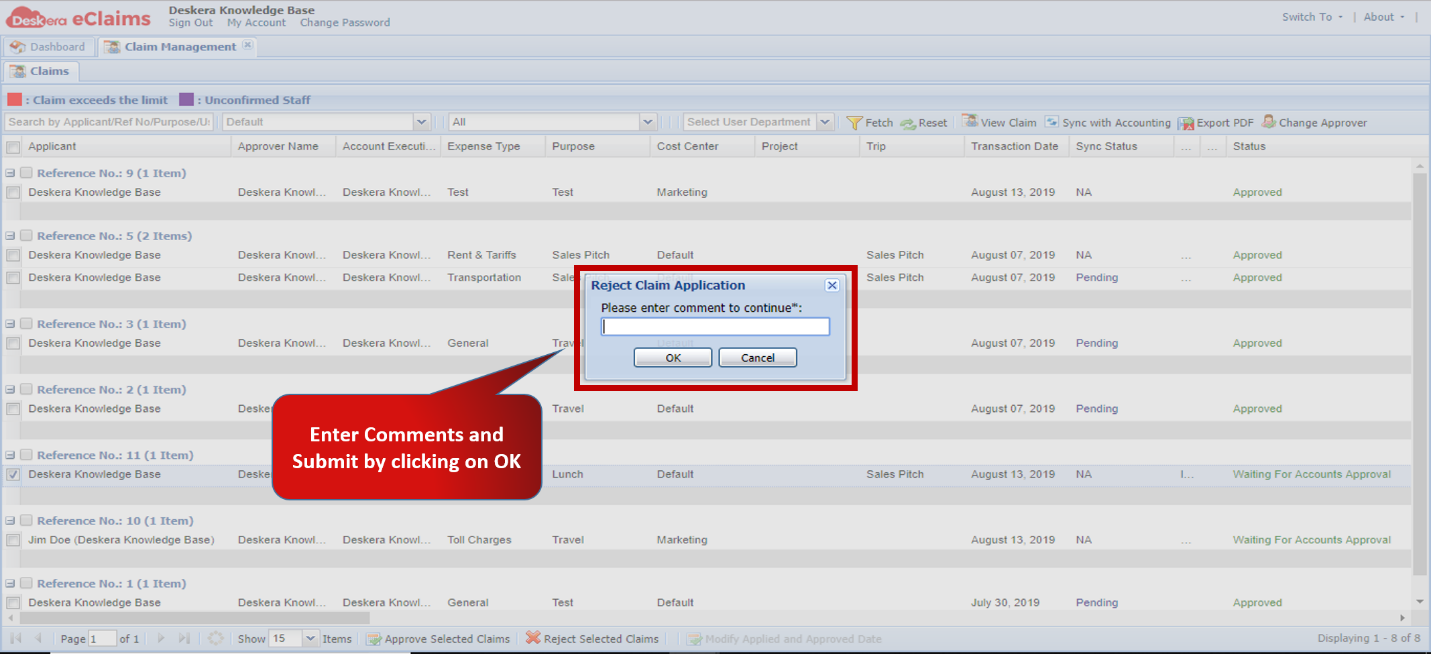 Fig.4.4.3.4 Approve/Reject Advance Claim
How to Change Approver for Advance Claims
Note: Ensure you are the administrator of the eClaims application
Step 1: Go to Approve/Reject Advance Claims under Advance Claims on eClaims DashboardFig.4.4.3.5 Master Configuration
Step 2: Select the claim you wish to approve/reject and click on Change Approver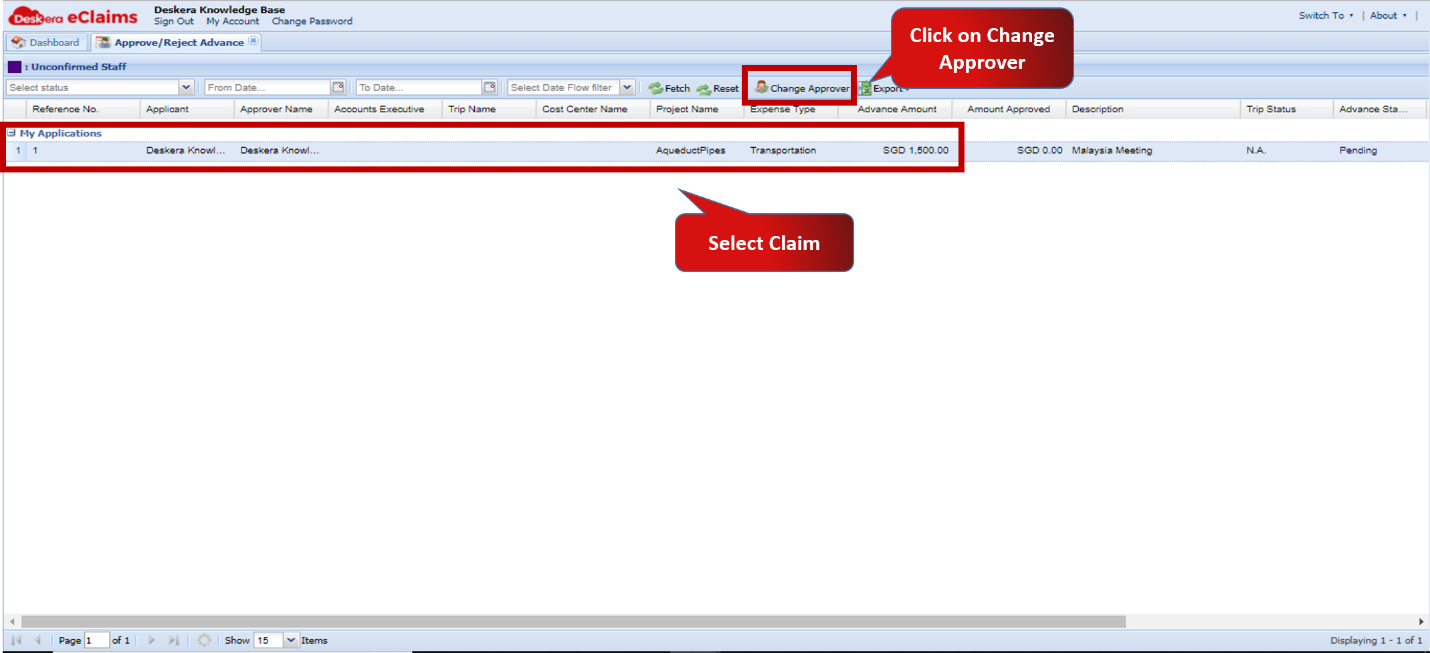 Fig.4.4.3.6 Approve/Reject Advance Claim
Step 3: Select the Approver and click on Apply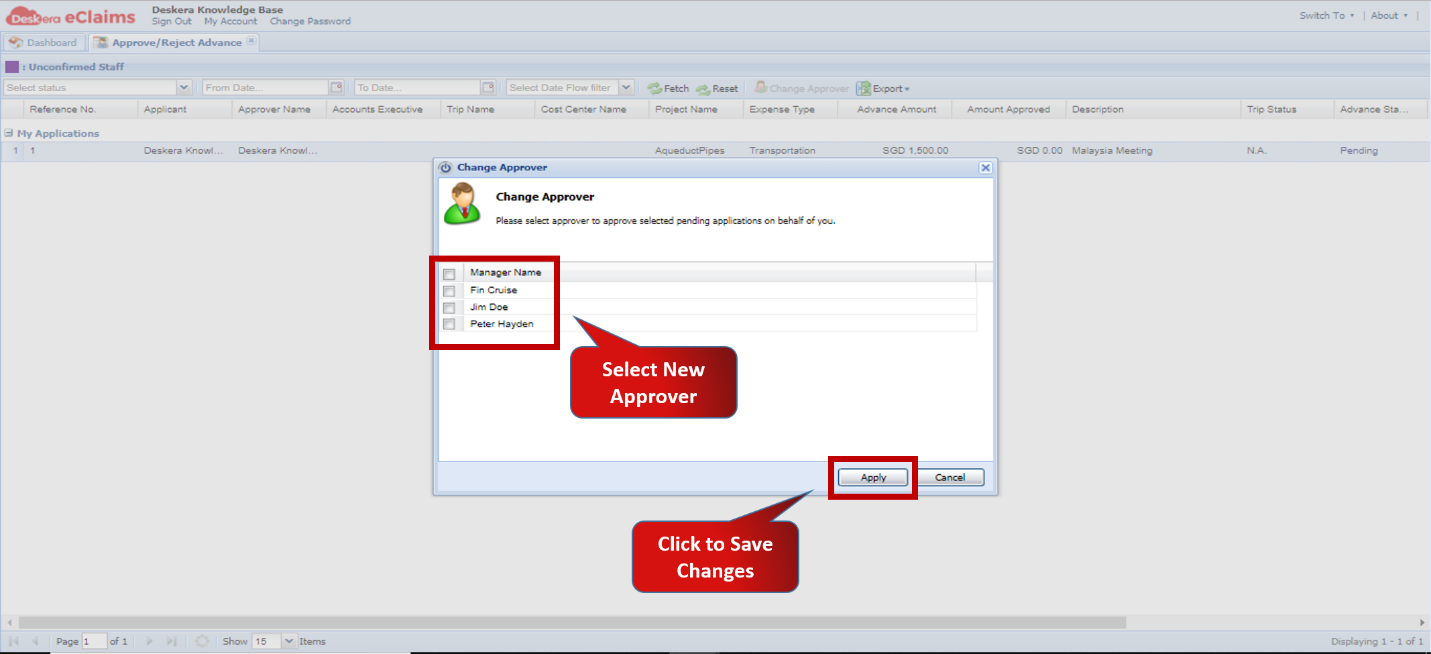 Fig.4.4.3.7 Change Approver
Comments
0 comments
Please sign in to leave a comment.