
Deskera CRM allows the user to edit, delete and Archive contact to efficiently convert business opportunities. This article focuses on the steps to be followed by the user to edit, delete and archive records.
Prerequisites:
1. Ensure you have your Deskera CRM application URL in place.
2. Ensure you are the administrator or authorised user on the CRM application.
3. Ensure a good internet connectivity.
Step 1: Go to Contacts under My Links on the CRM dashboard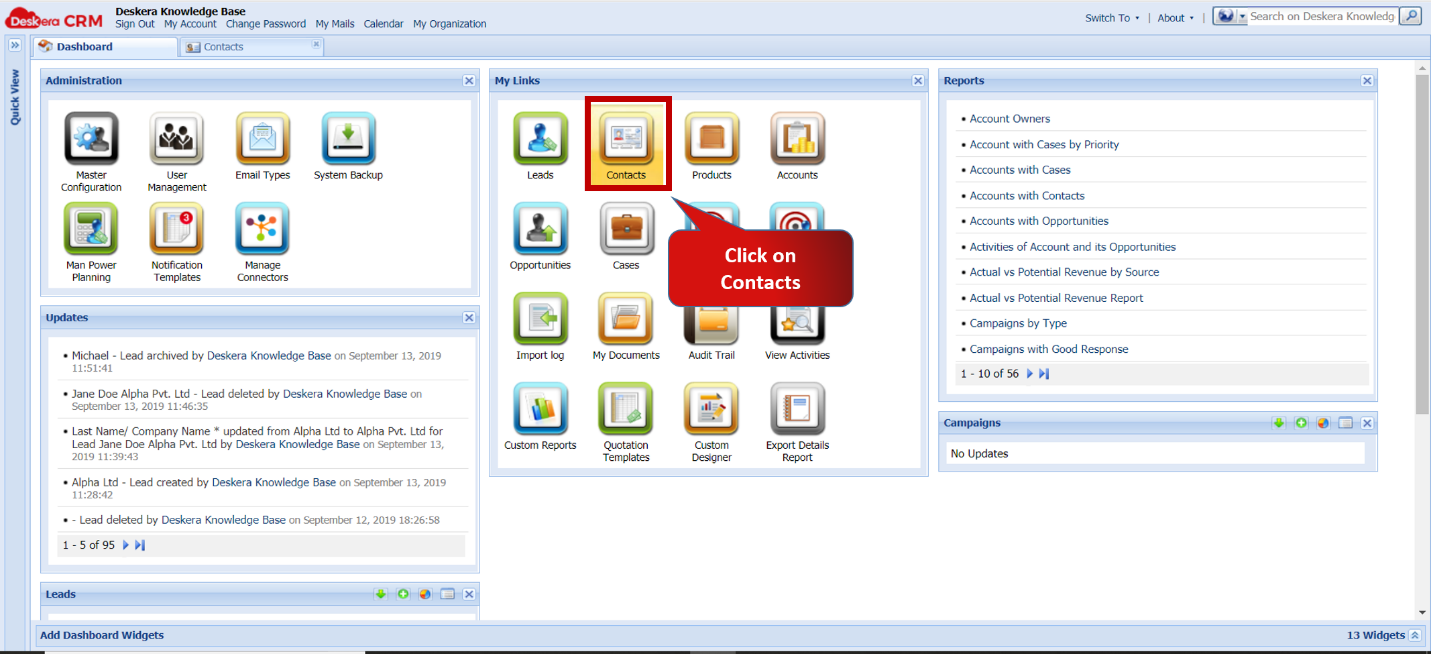 Fig 5.4.2.1 CRM Dashboard
Step 2: Select the record to edit and click on Edit Record.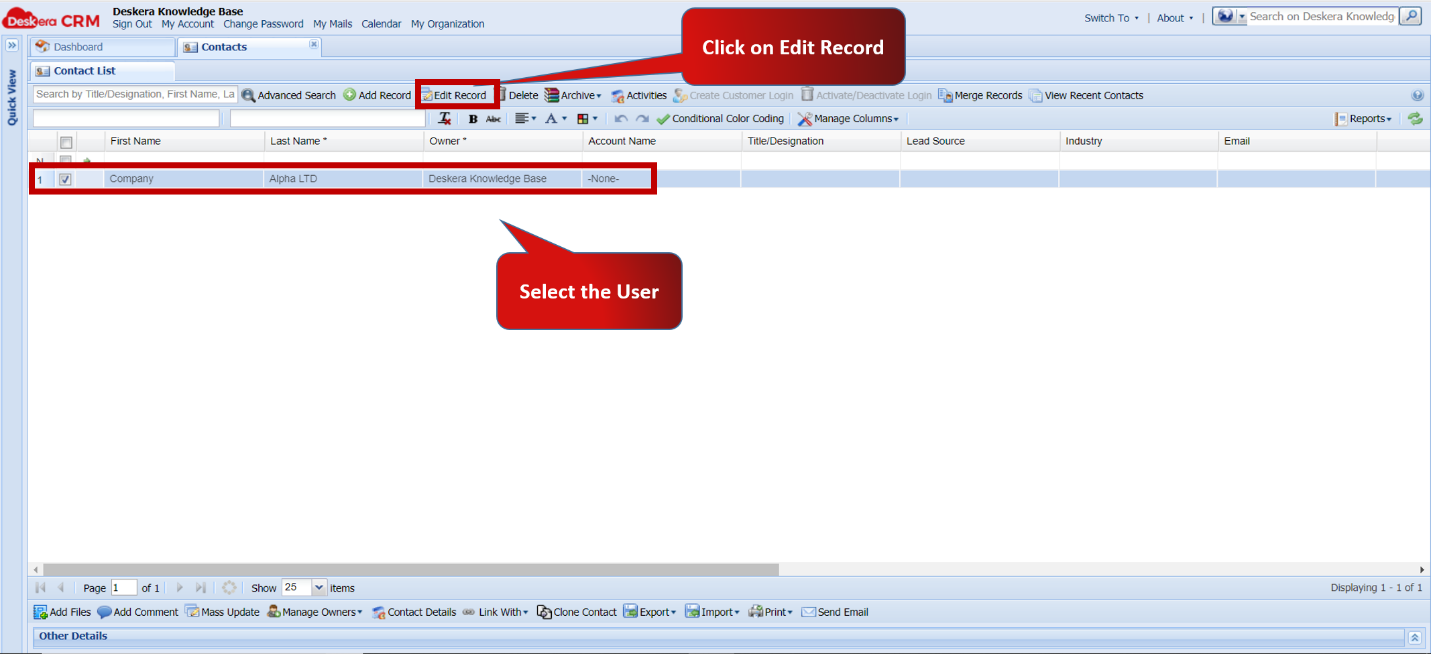 Fig 5.4.2.2 Edit record
Step 3: Enter the necessary changes and Click on Submit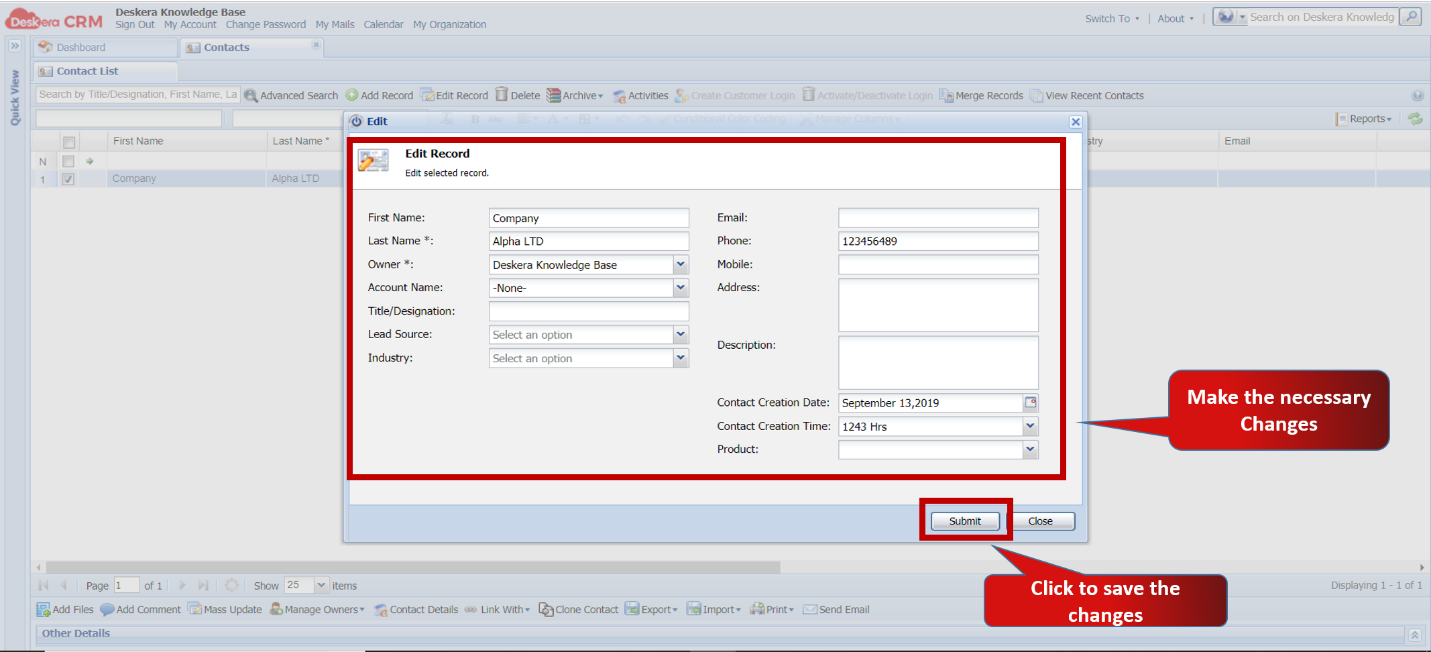 Fig 5.4.2.3 Edit record
Step 4: Changes are reflected in the Contact list.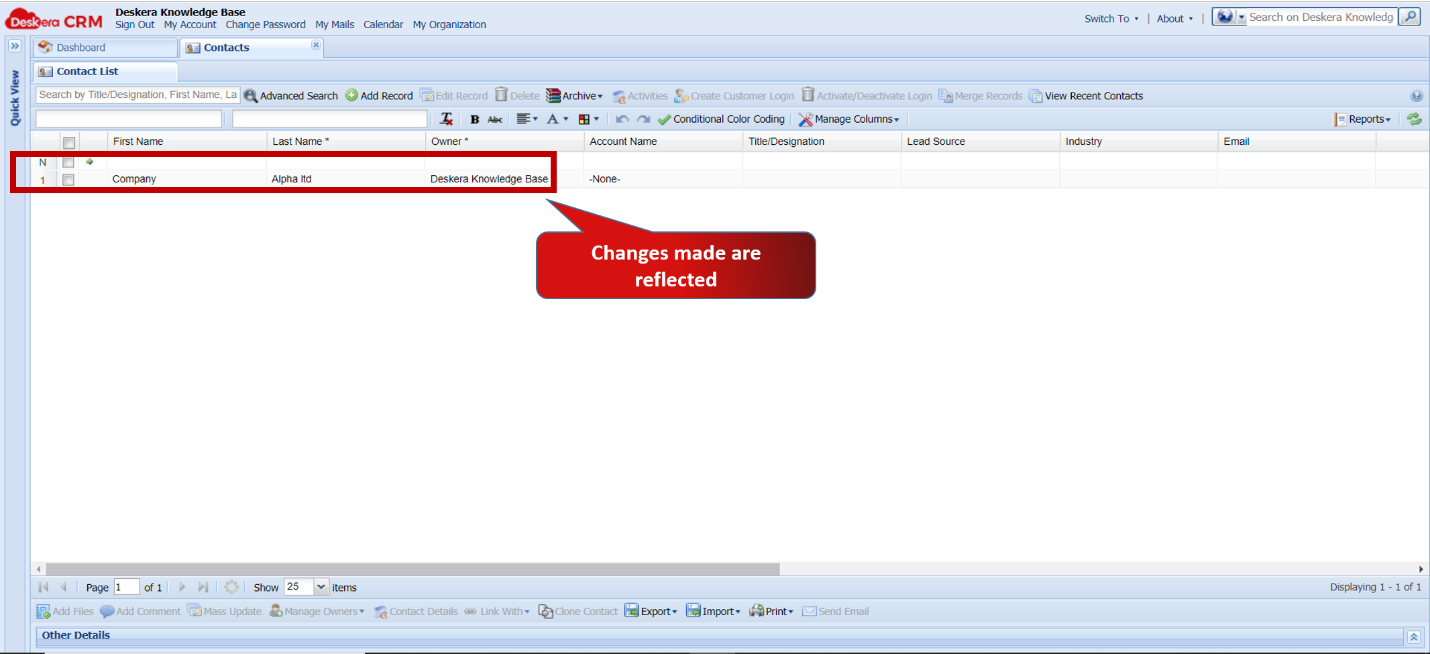 Fig 5.4.2.4 Contacts
Delete Records
Step 1: Go to Contacts under My Links on the CRM dashboardFig 5.4.2.5 CRM dashboard
Step 2: Select the record to edit and click on Delete Record.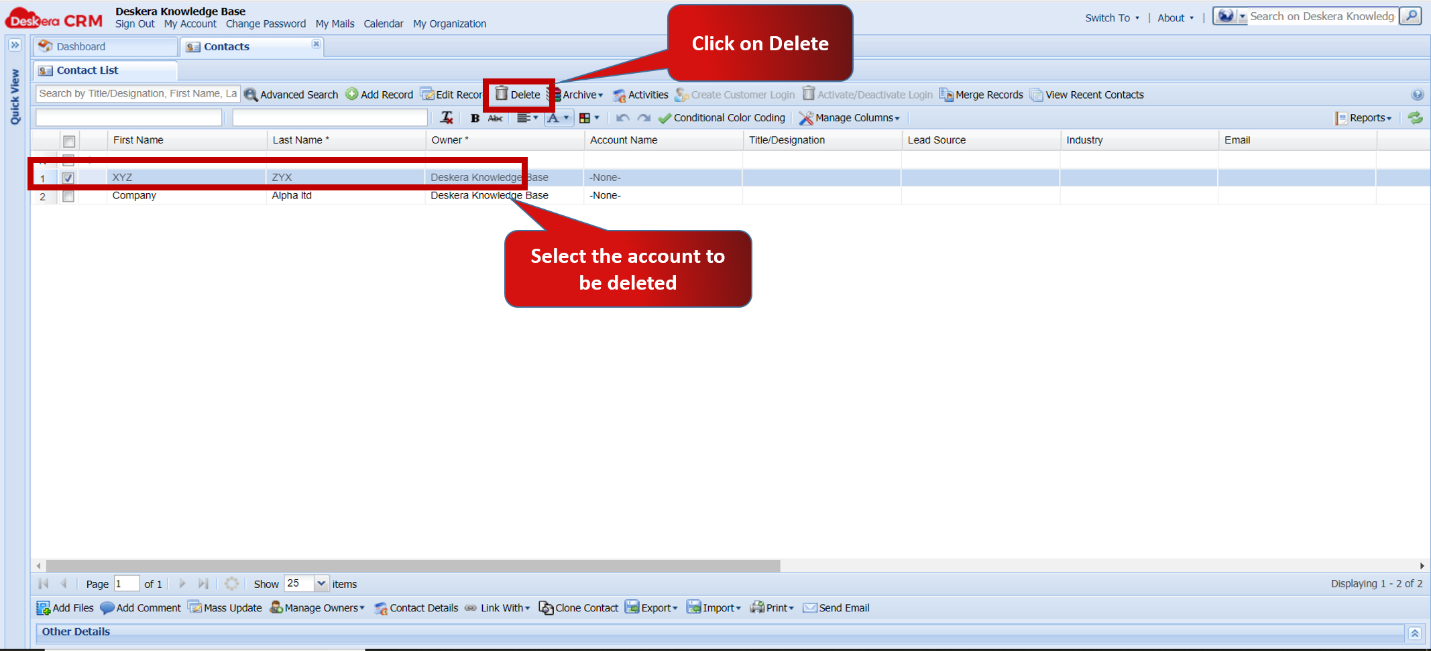 Fig 5.4.2.6 Delete Record
Step 3: Click on OK to confirm Delete.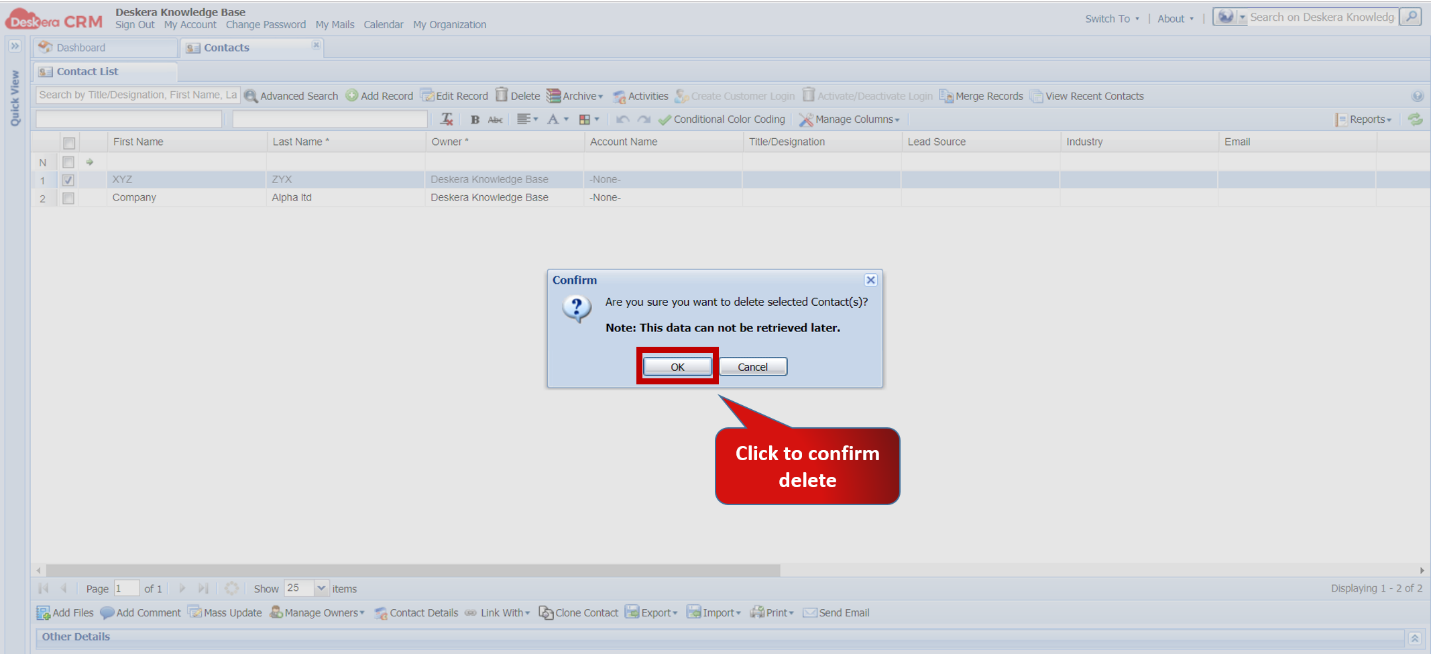 Fig 5.4.2.7 Delete Record
Step 4: Contact record is deleted from the Lead list.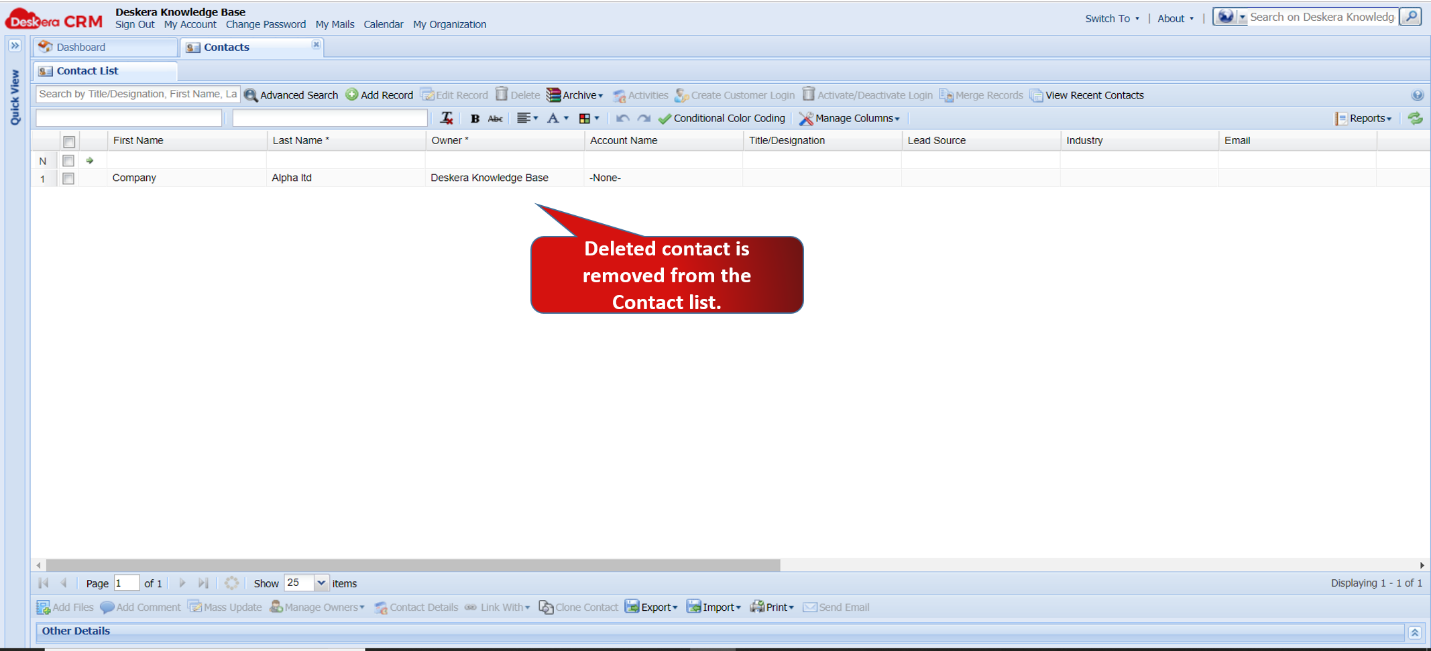 Fig 5.4.2.8 Contact is Deleted
Archive Records
Step 1: Go to Contacts under My Links on the CRM dashboard.Fig 5.4.2.9 CRM Dashboard
Step 2: Select the record to archive and click on Archive – Add to Archive. Fig 5.4.2.10 Add Archive
Step 3: Click on Yes to confirm.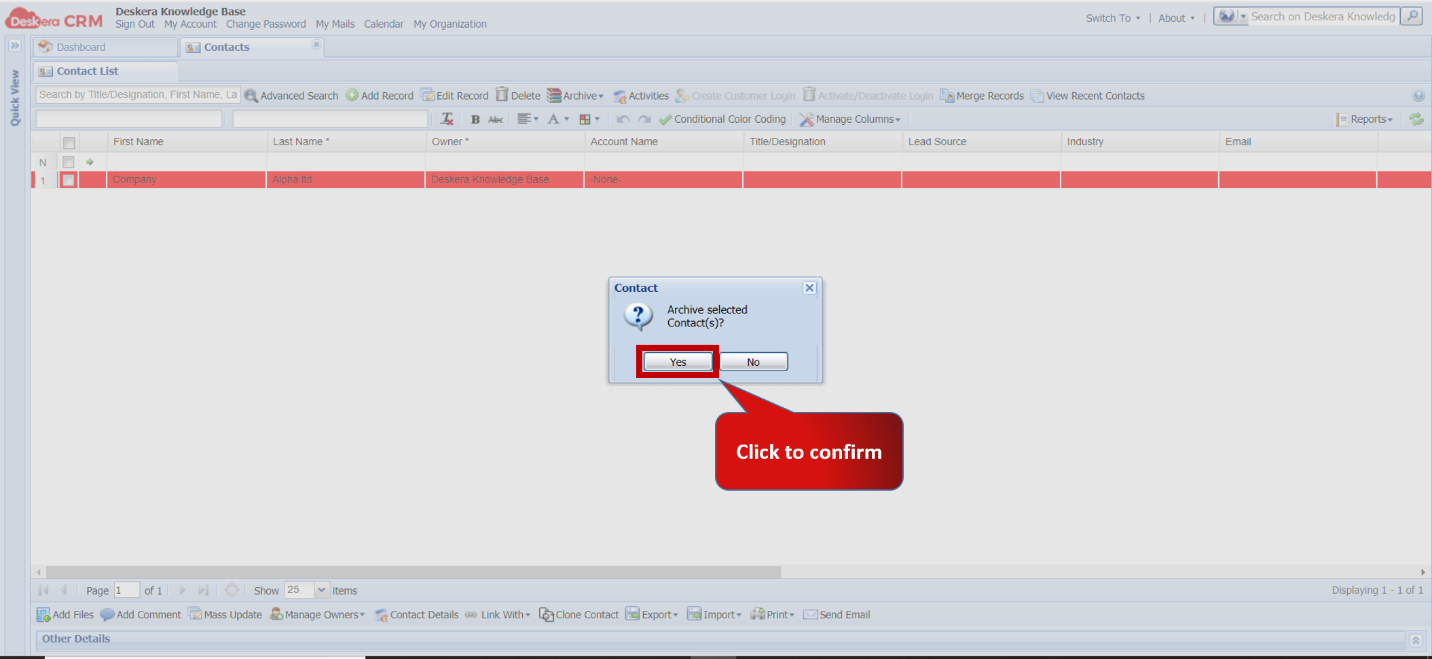 Fig 5.4.2.11 Add to Archive
Step 4: Contact record appears in the Archived Contact list.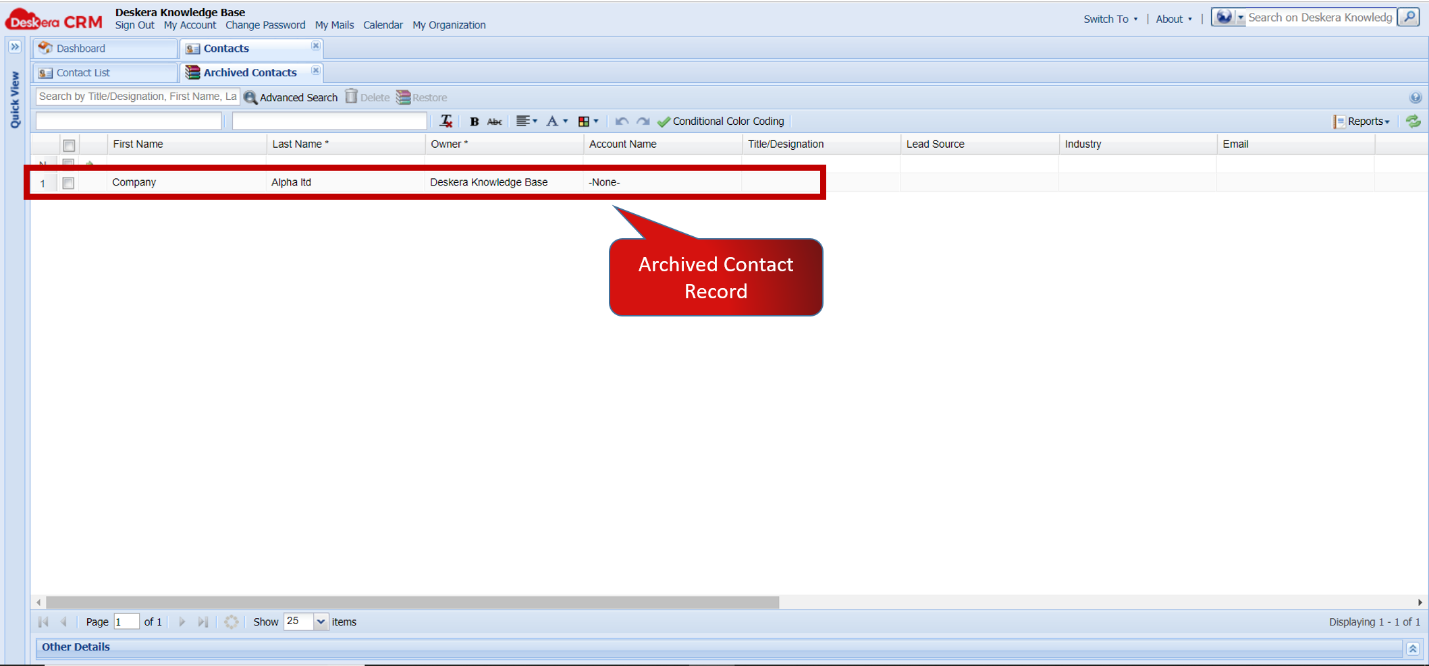 Fig 5.4.2.12 Archive record displayed
Comments
0 comments
Please sign in to leave a comment.