
Deskera CRM allows the user to import contacts. This article focuses on the steps to be followed by the user to import contact in CRM contact list.
Prerequisites:
1. Ensure you have your Deskera CRM application URL in place.
2. Ensure a good internet connectivity.
Step 1: Go to Contacts under My Links on the CRM dashboard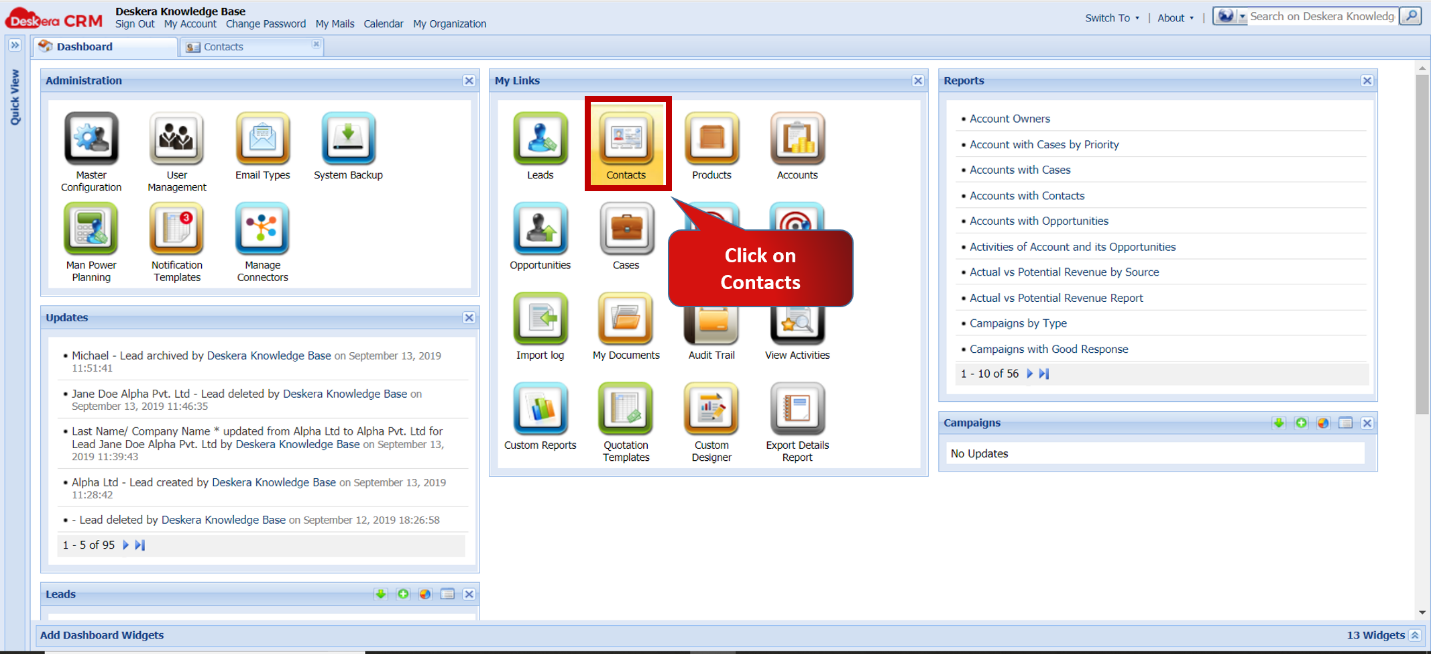 Fig 5.4.7.1 CRM Dashboard
Step 2: Click on Import and select a file type. Fig 5.4.7.2 Contact-Import
Step 3: Select import file and the date format from the import screen and click on next. Do make sure the date format mentioned in import file and import screen are same.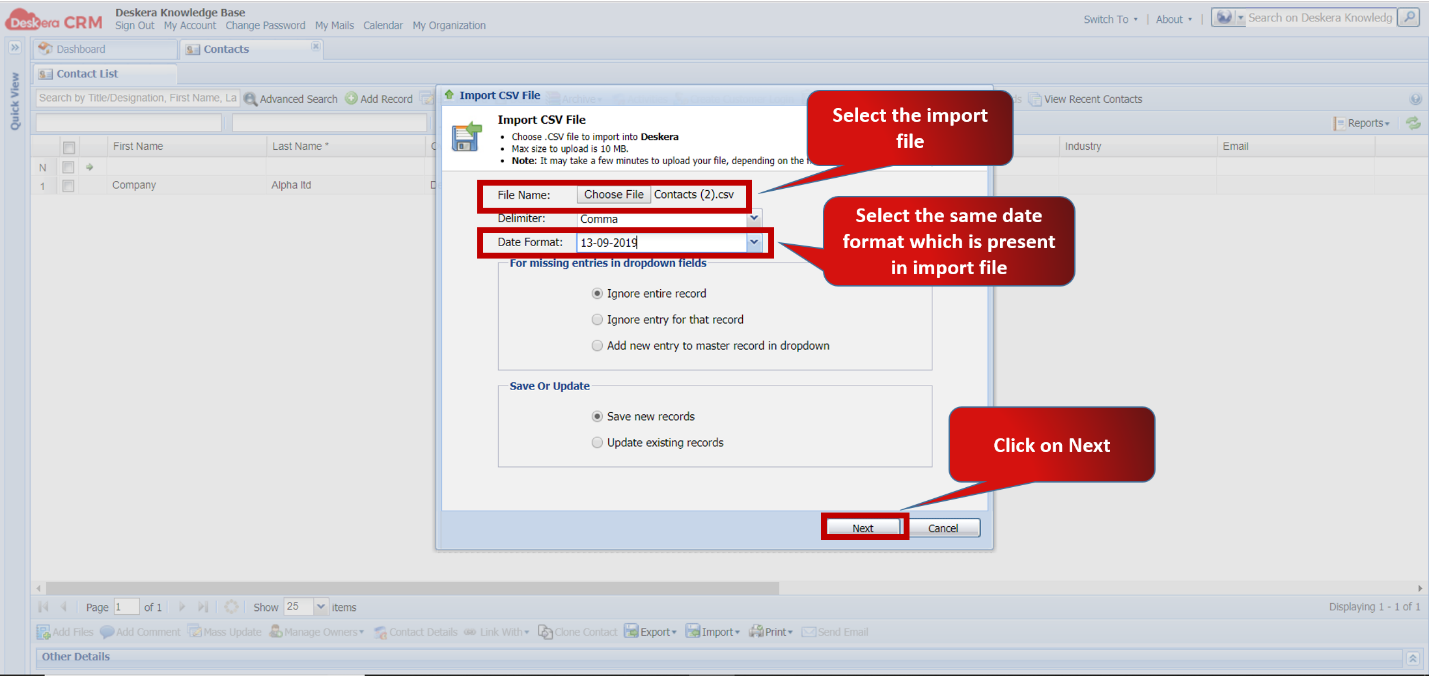 Fig 5.4.7.3 Import window
Step 4: Click on Auto map columns. This will help in mapping of correct fields from import file with the correct fields in system.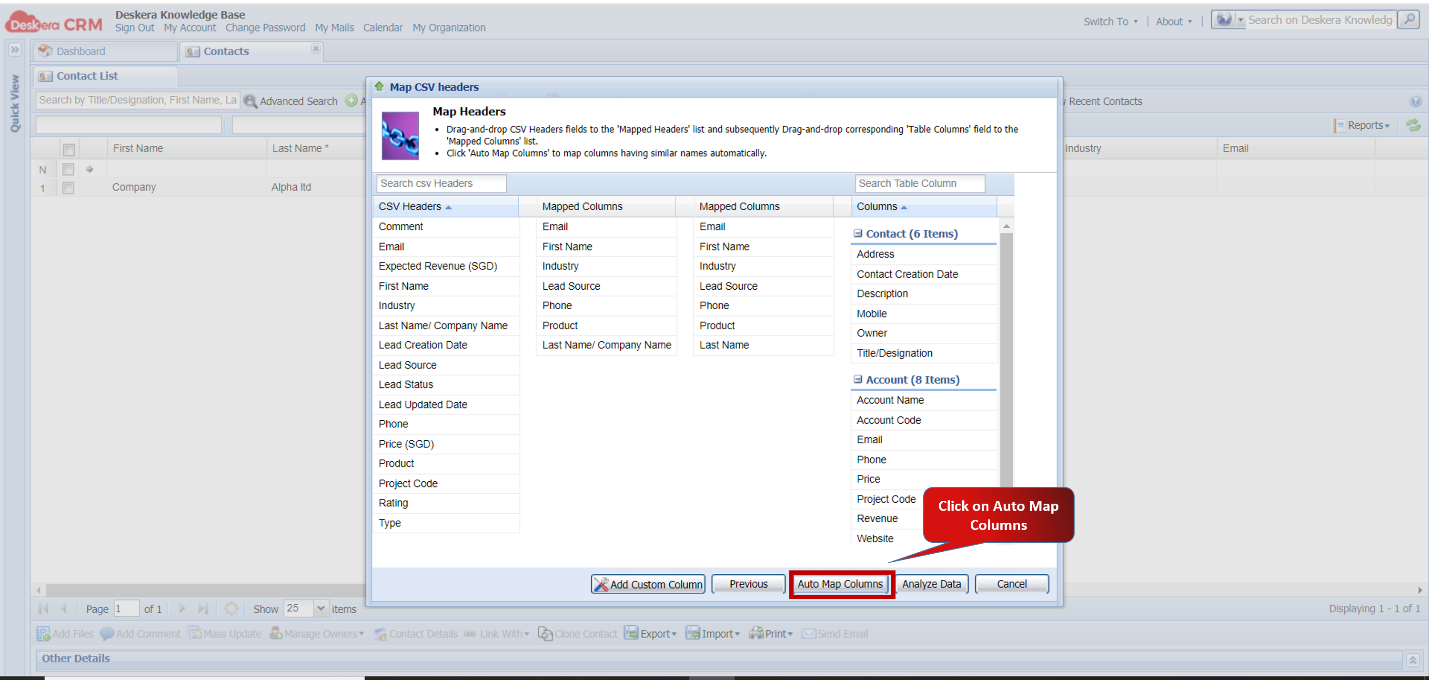 Fig 5.4.7.4 Map CSV window
Step 5: After the fields are mapped, click on Analyze Data.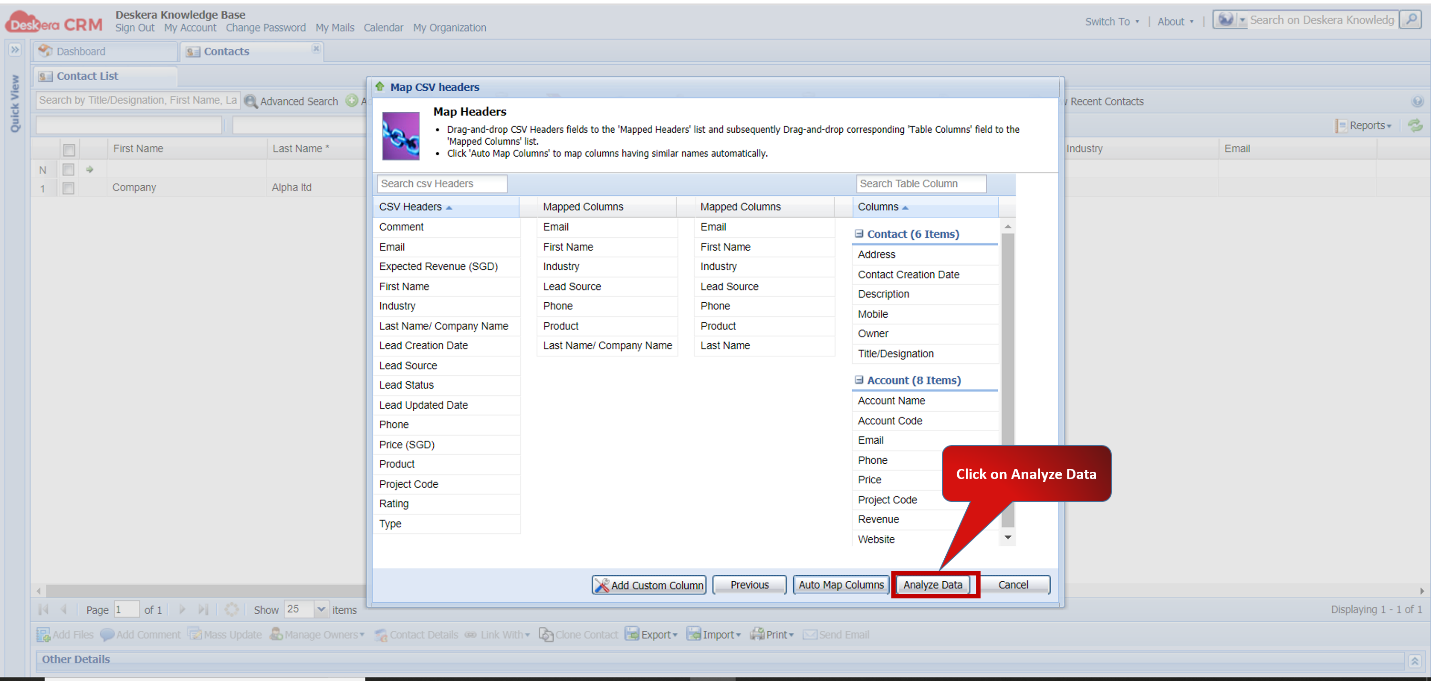 Fig 5.4.7.4 Map CSV window
Step 6: Click on Import Data.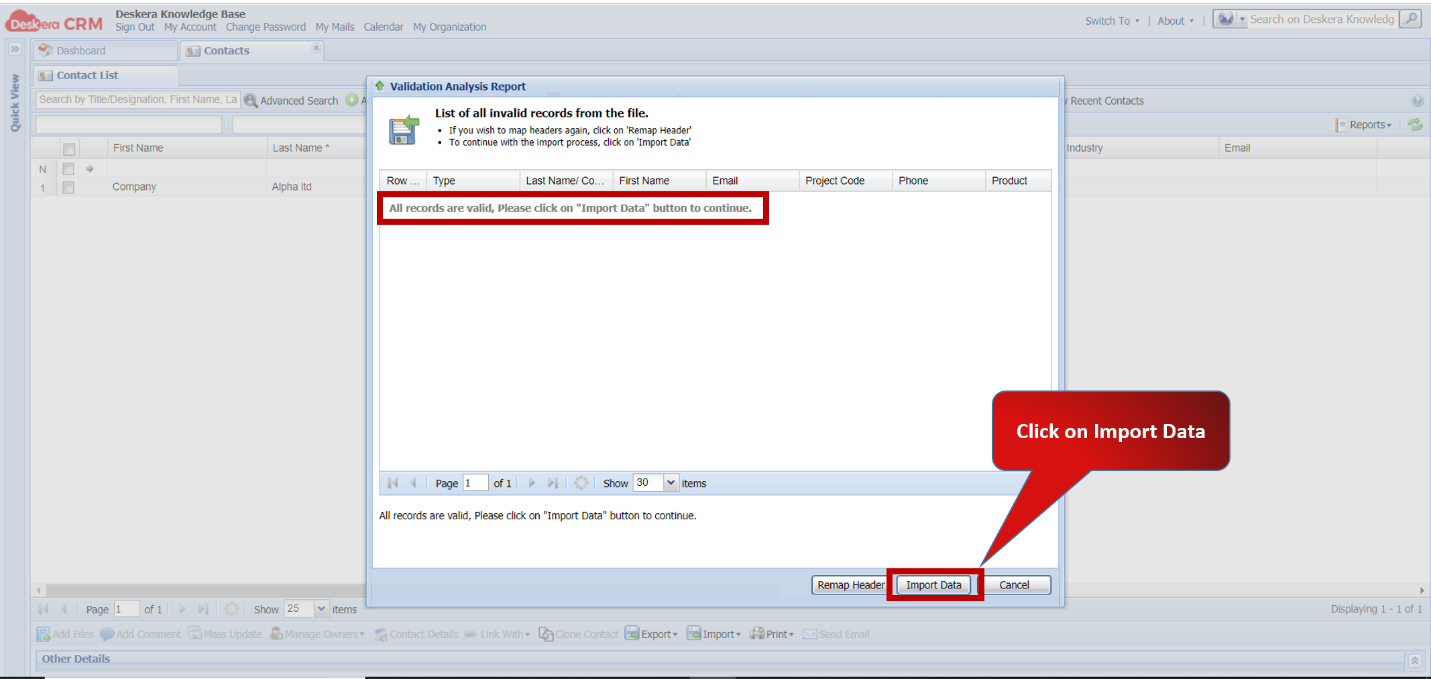 Fig 5.4.7.5 valuation analysis report
Step 7: After all the records are imported, it can be viewed from the Import Log.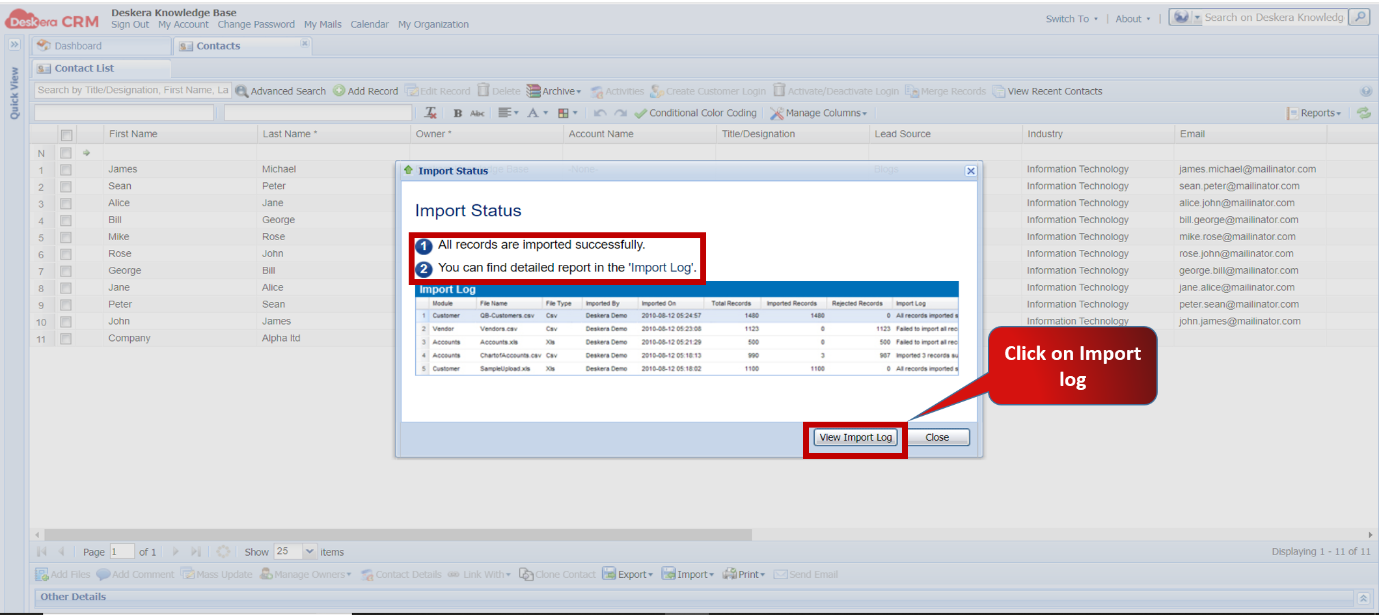 Fig 5.4.7.6 Import status
Step 8: Import log will display total records Imported and Rejected.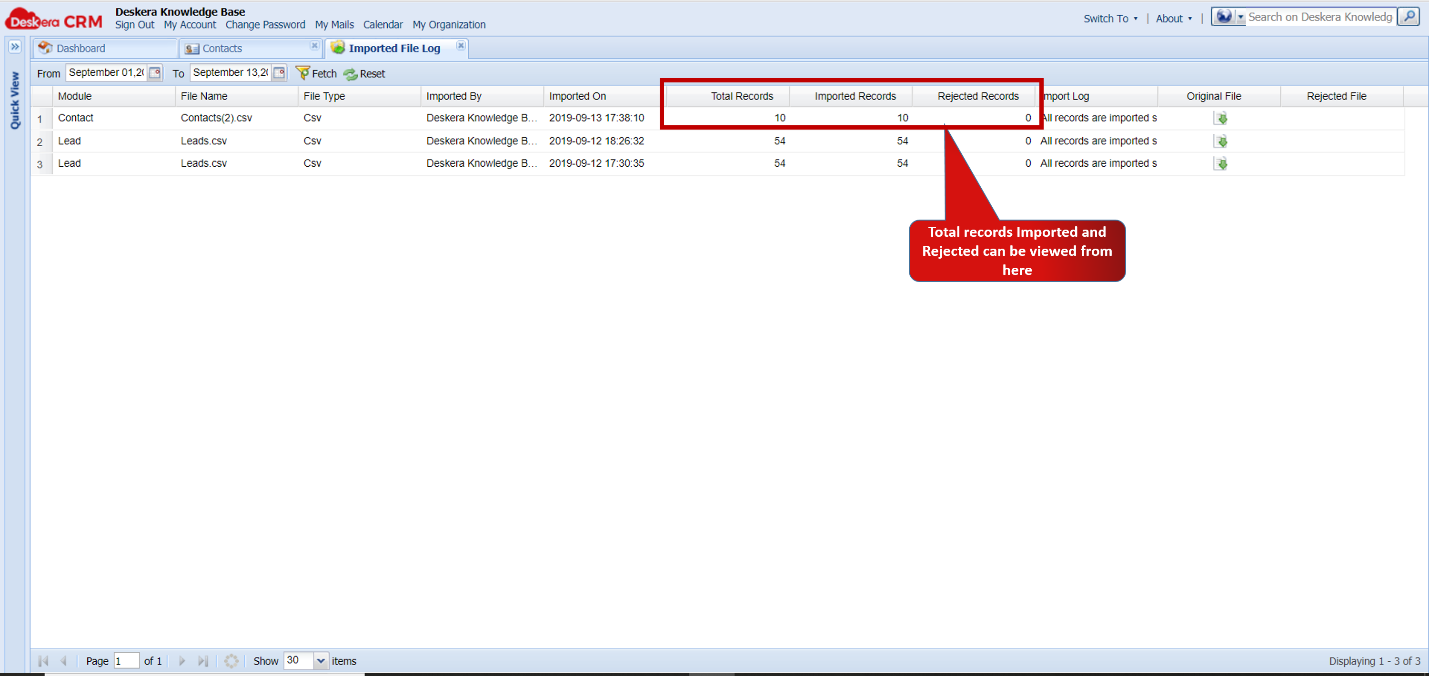 Fig 5.4.7.7 Import log
Comments
0 comments
Please sign in to leave a comment.