
Deskera eClaims application allows the user to generate various reports from the system. The All Expenses Report shows the list of all expenses related to claim applications made by the users.
Prerequisites:
1. Ensure you have your Deskera eClaims application URL in place.
2. Ensure you are the administrator of the eClaims application
3. Ensure a good internet connectivity
Step 1: Go to All Expenses Report under Reports on eClaims Dashboard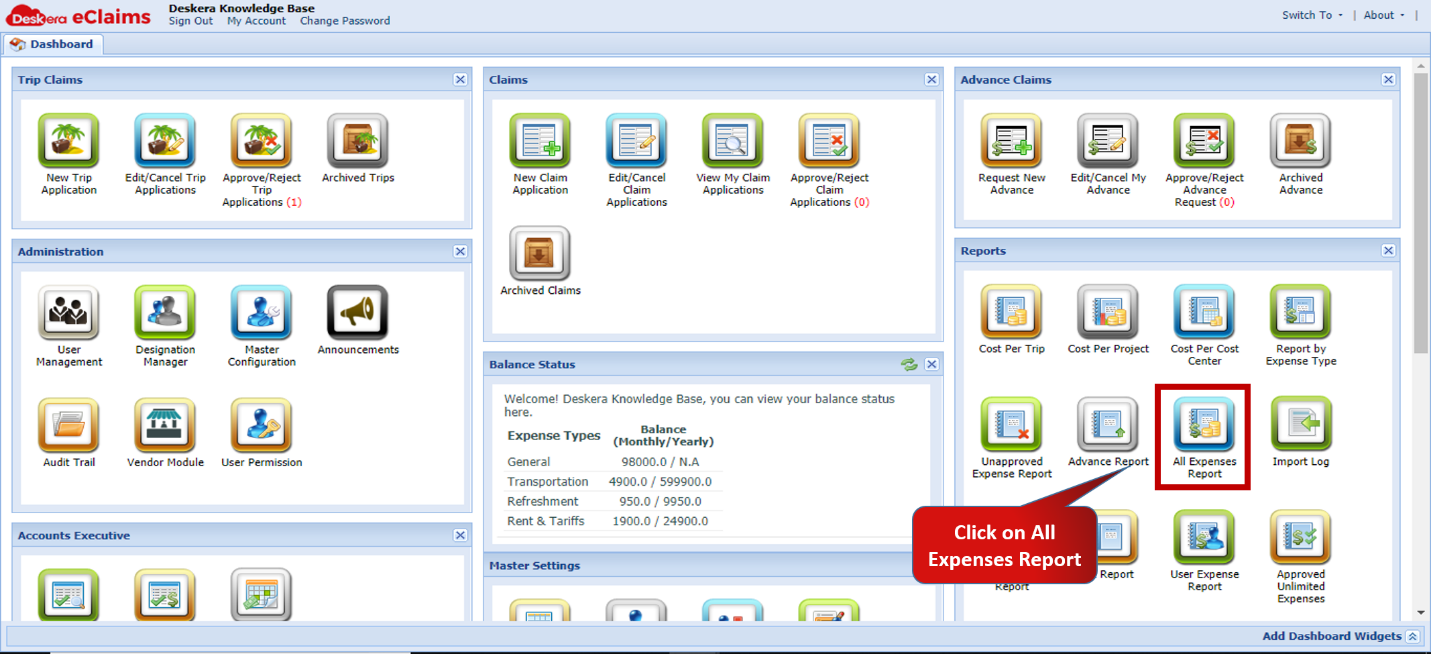 Fig.4.7.14.1 eClaims Dashboard
Step 2: Select Claim Status and enter time period for which the report is to be generated.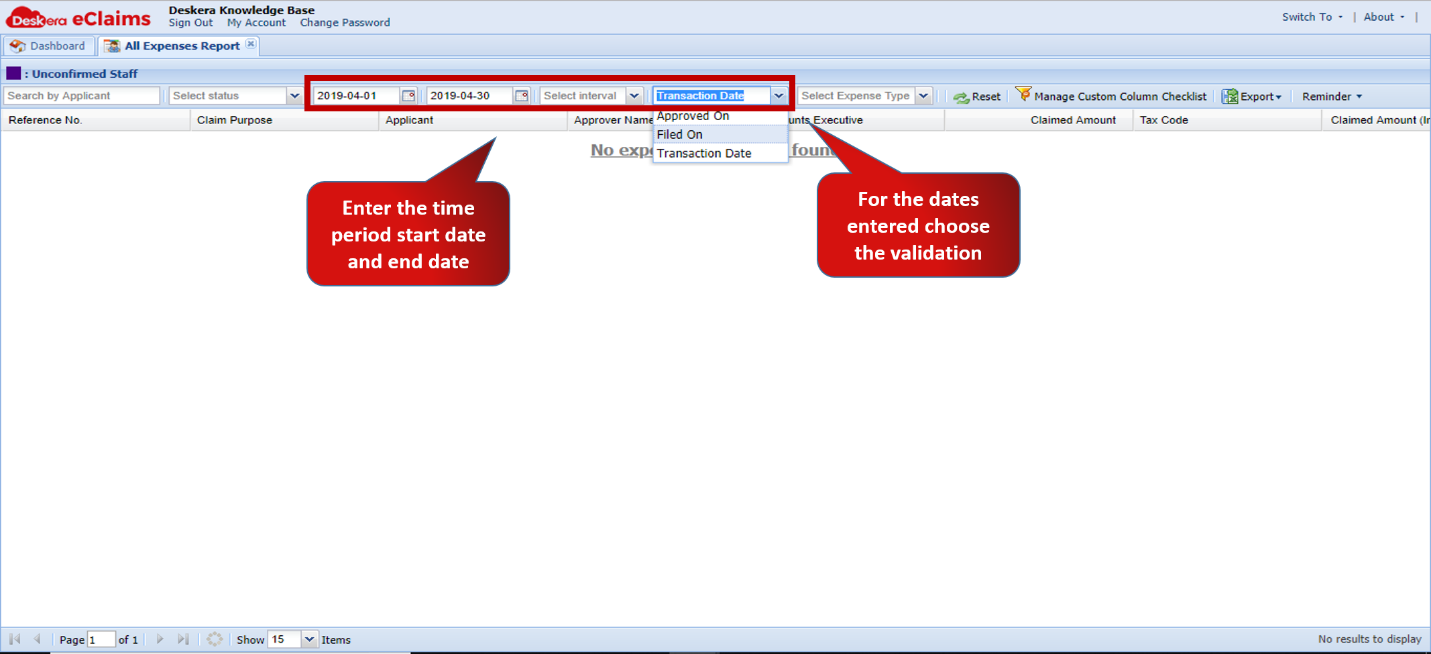 Fig. 4.7.14.2 All Expenses Report
Step 3: Select the expense type for which report is to be generated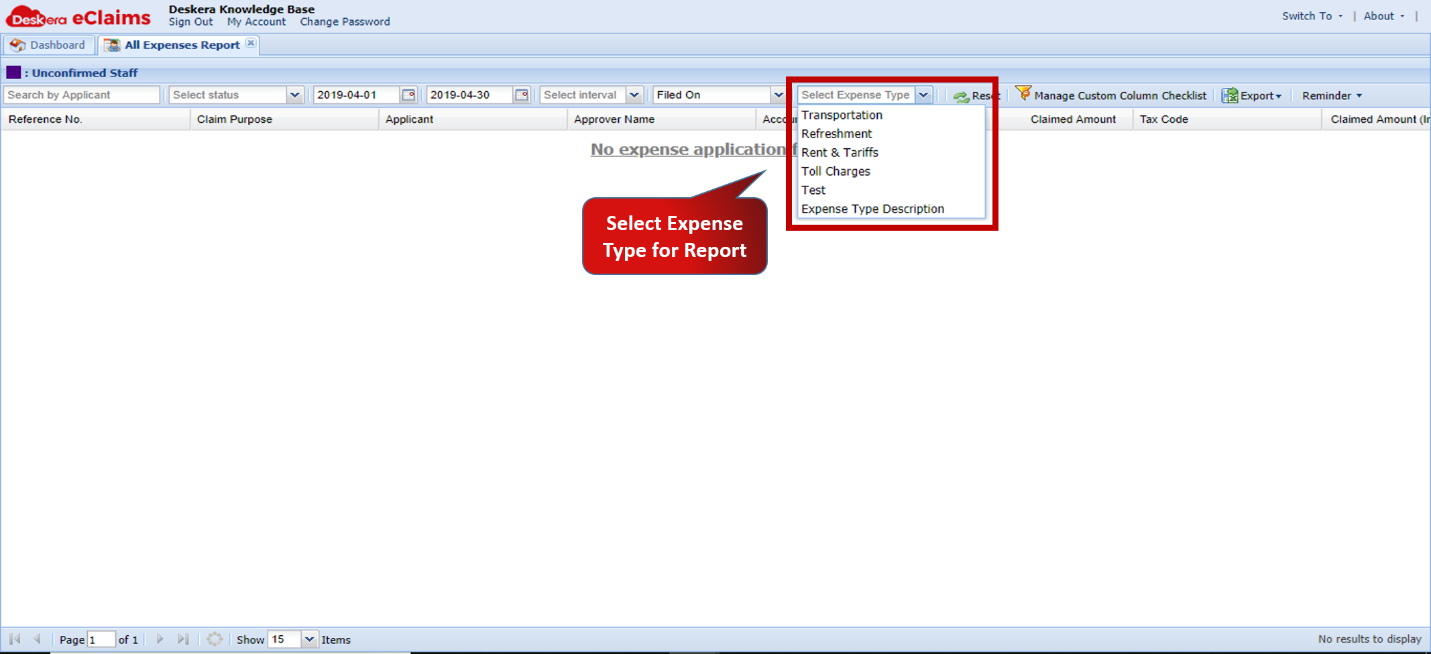 Fig. 4.7.14.3 All Expenses Report
Step 4: Click on Export to download report. Report is available in Excel and CSV formats. 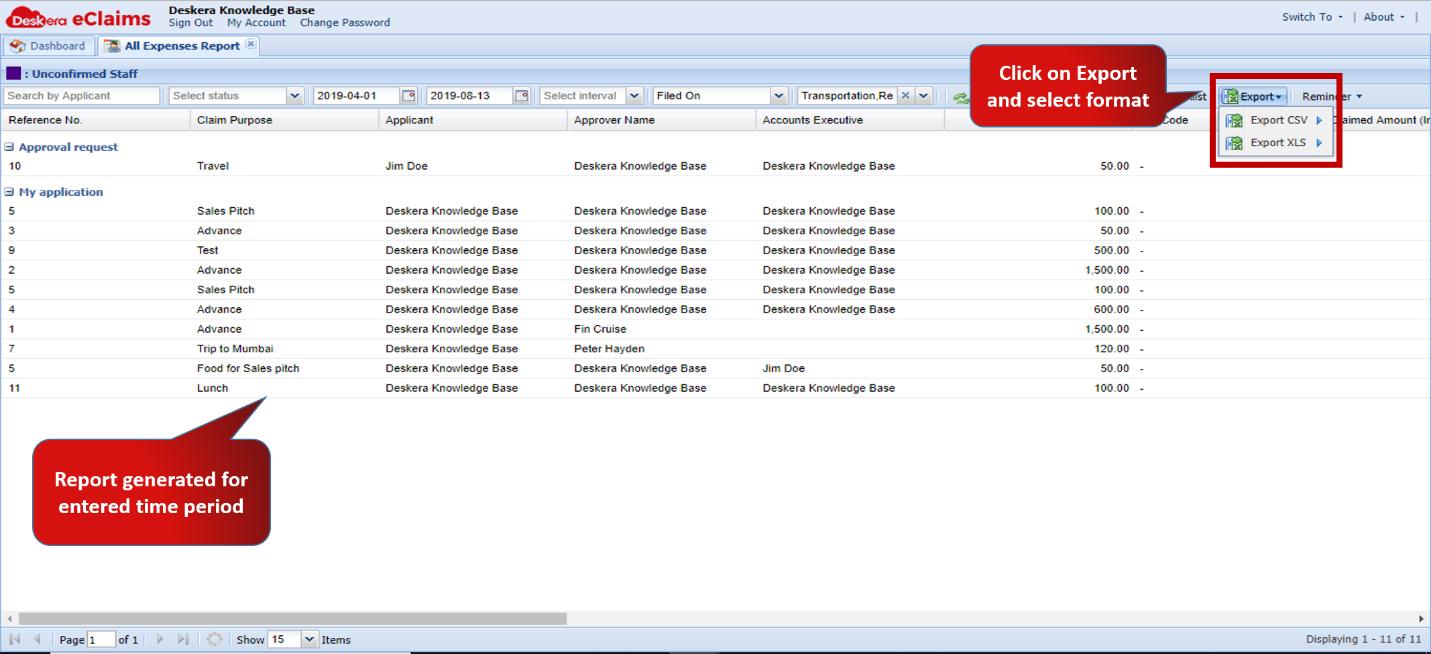 Fig. 4.7.14.4 All Expenses Report
Comments
0 comments
Please sign in to leave a comment.