
Expense Approval Request feature enables you to approve or reject a claim on Accounts level. Accounts Executives are assigned to review and approve the claim request accordingly.
Prerequisites:
1. You have your Deskera eClaims application URL in place.
2. You are the administrator of the eClaims application.
3. Ensure good internet connectivity.
Expense Approval Request
Step 1: Go to Master Configuration under Administration widget in eClaims.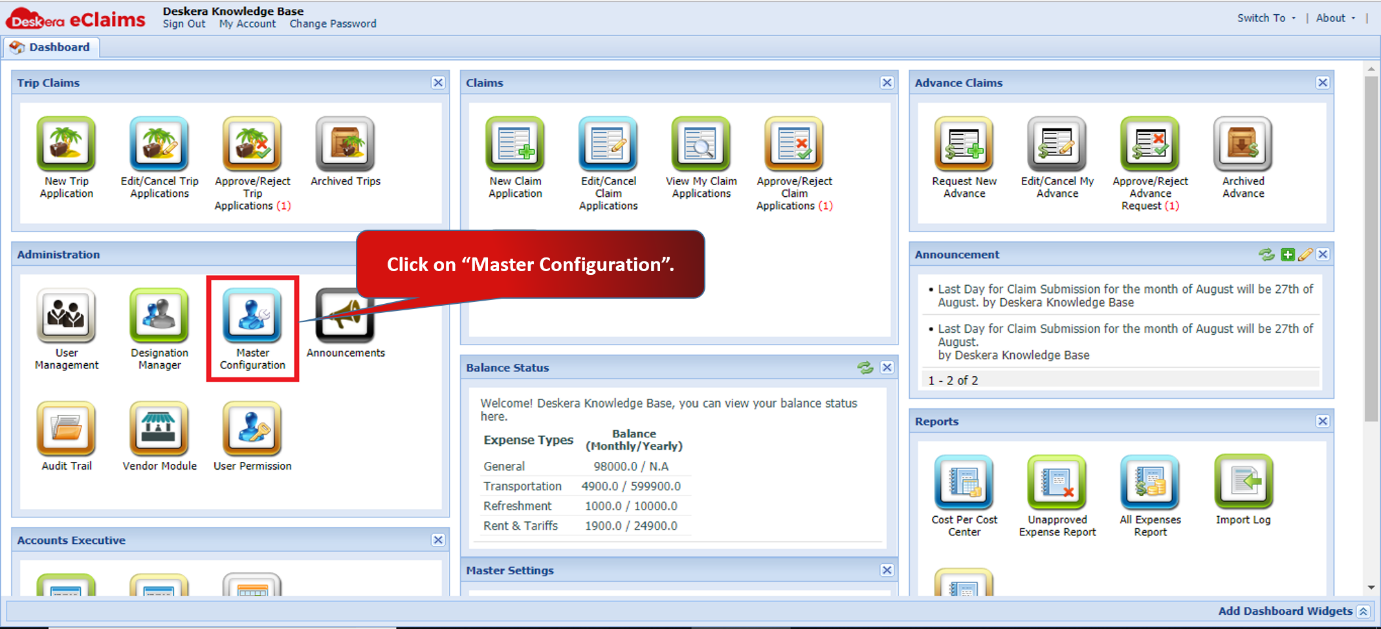 Fig 4.5.2.1.1 eClaims Dashboard
Step 2: Under Master Configuration tab, click on Map expense type to General Ledger Account.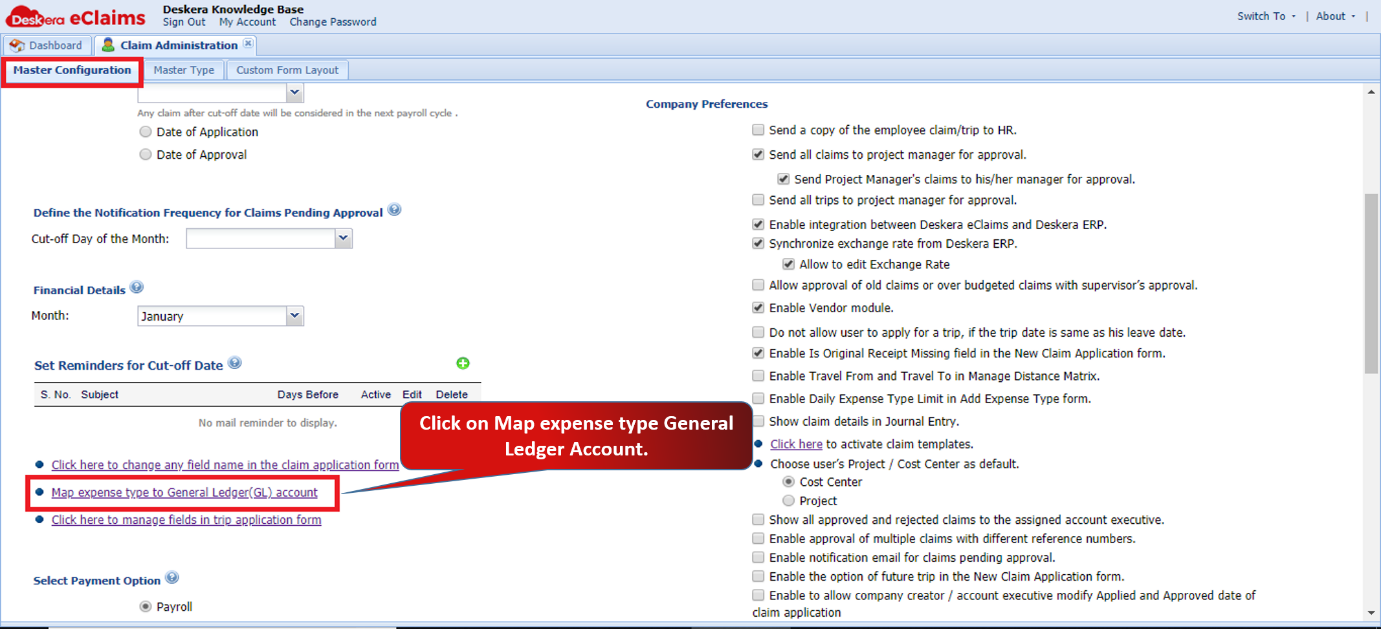 Fig 4.5.2.1.2 Master Configuration
Step 3: Map the Expense Type to respective Expense Account and Liability Account. Click on Save.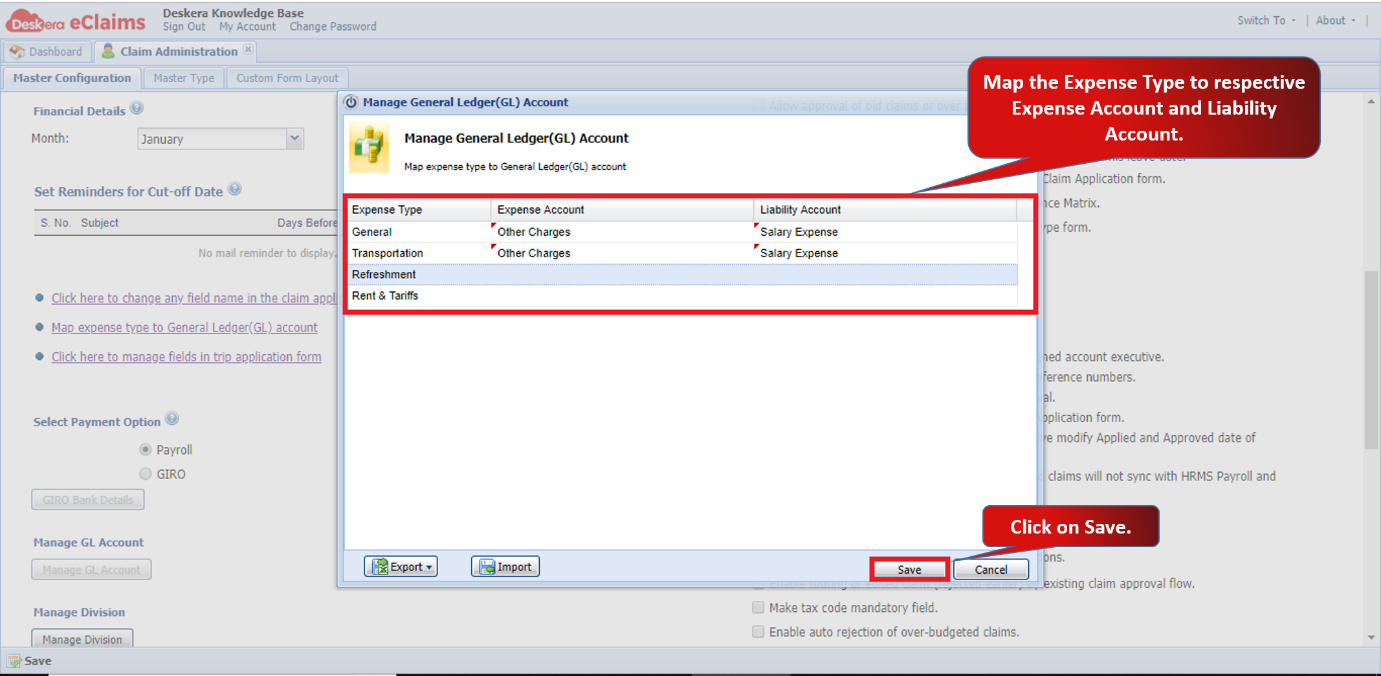 Fig 4.5.2.1.3 Master Configuration
Step 4: Go to View Expense Approval Request under Accounts Executive widget in eClaims.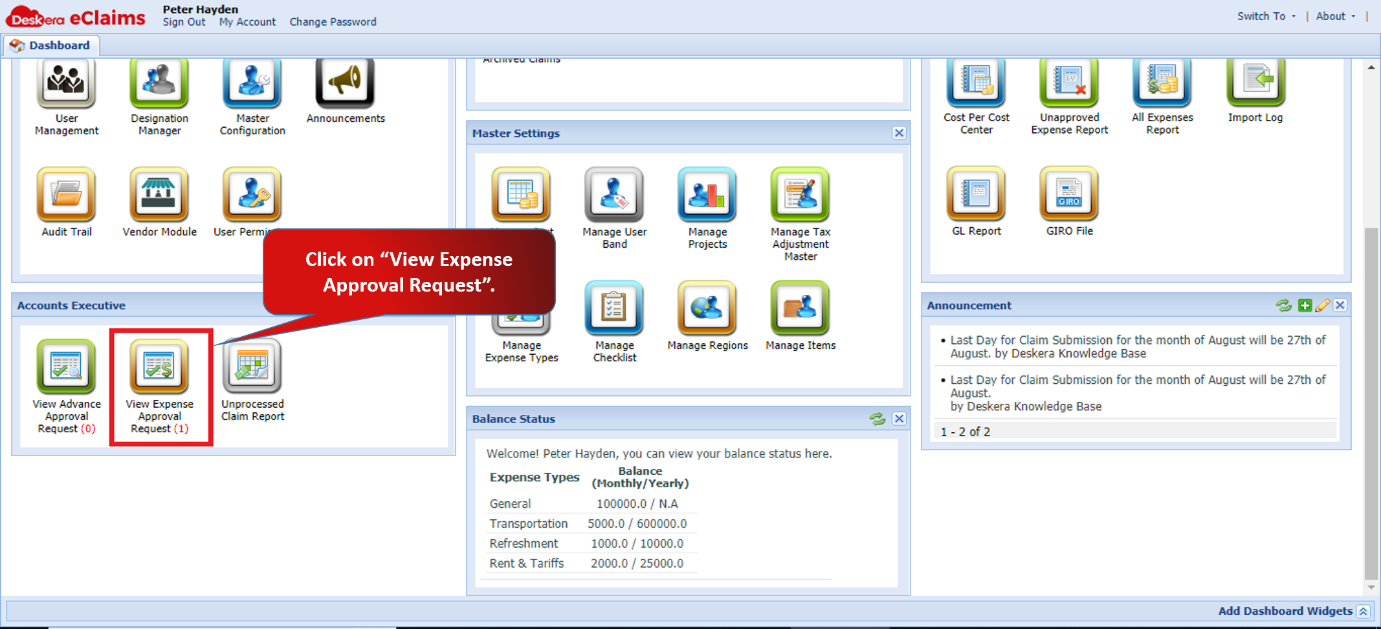 Fig 4.5.2.1.4 eClaims Dashboard
Step 5: Select the claim which you want to review and approve. Click on Approve Selected Claims.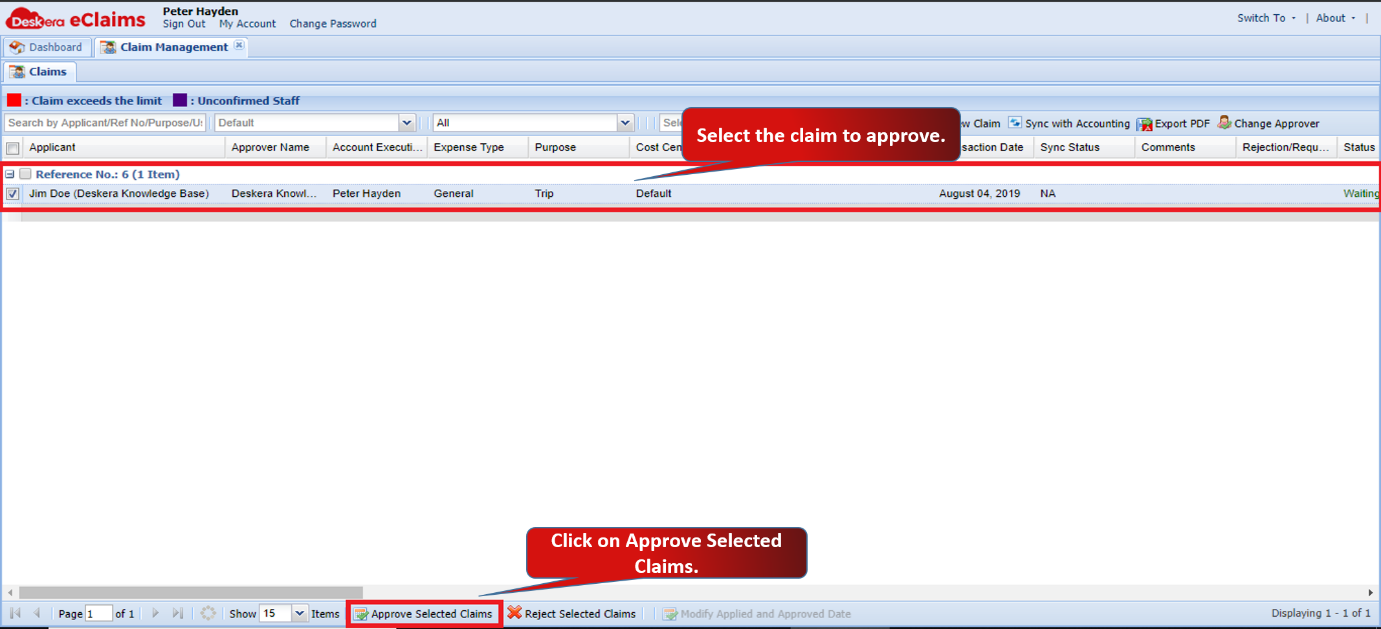 Fig 4.5.2.1.5 Approve Claims
Step 6: Fill in the payment details like Method Name, Payment Date and Cheque No. and then click on Make Payment.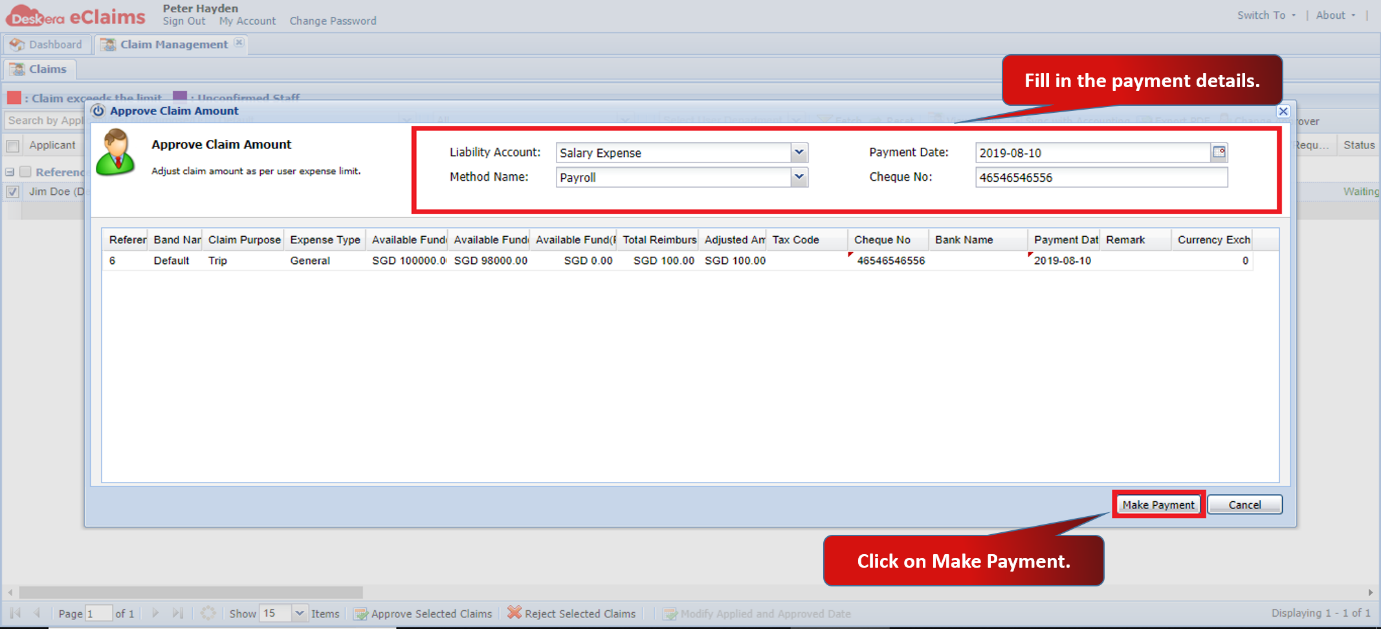 Fig 4.5.2.1.6 Approve Claims
The claim will be approved by the accounts and will be reflected in the payroll of the user.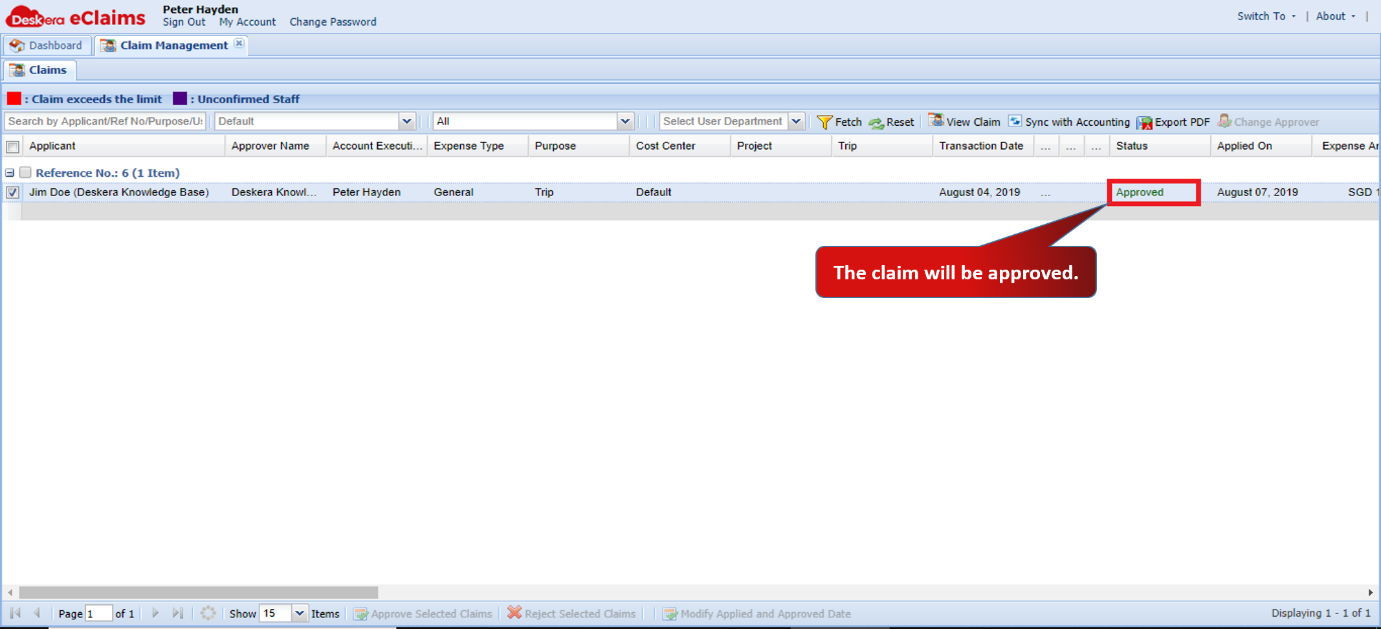 Fig 4.5.2.1.7 Approve Claims
Change Approver
Step 1: Go to View Expense Approval Request under Accounts Executive widget in eClaims.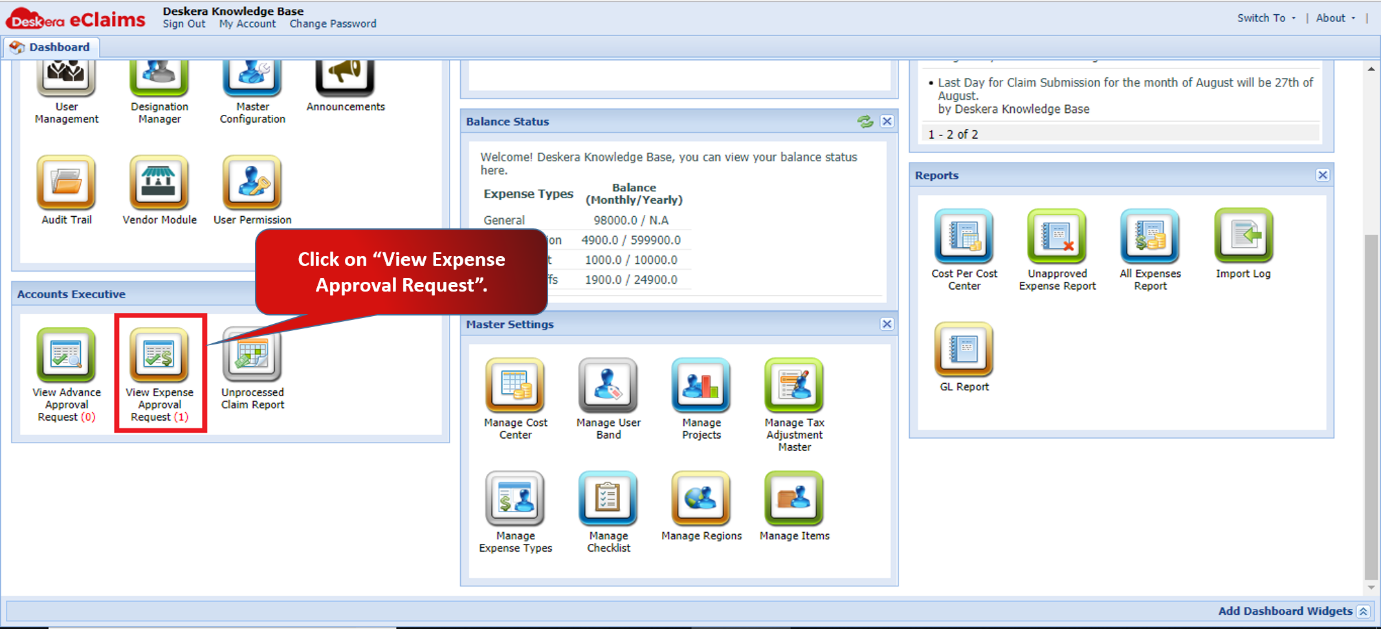 Fig 4.5.2.1.8 eClaims Dashboard
Step 2: Select the claim for which you want to change the approver and click on Change Approver.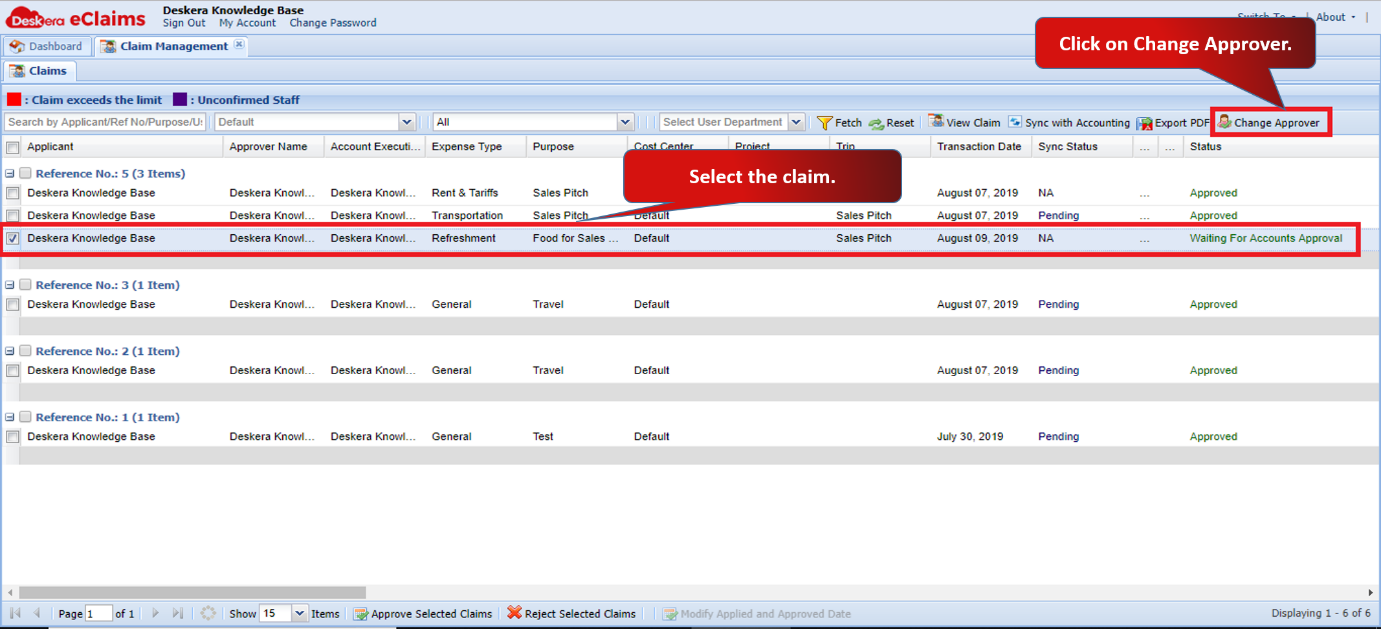 Fig 4.5.2.1.9 Change Approver
Step 3: Select the Approver and click on Apply. The approver will be changed and the selected claim will be assigned to the new approver.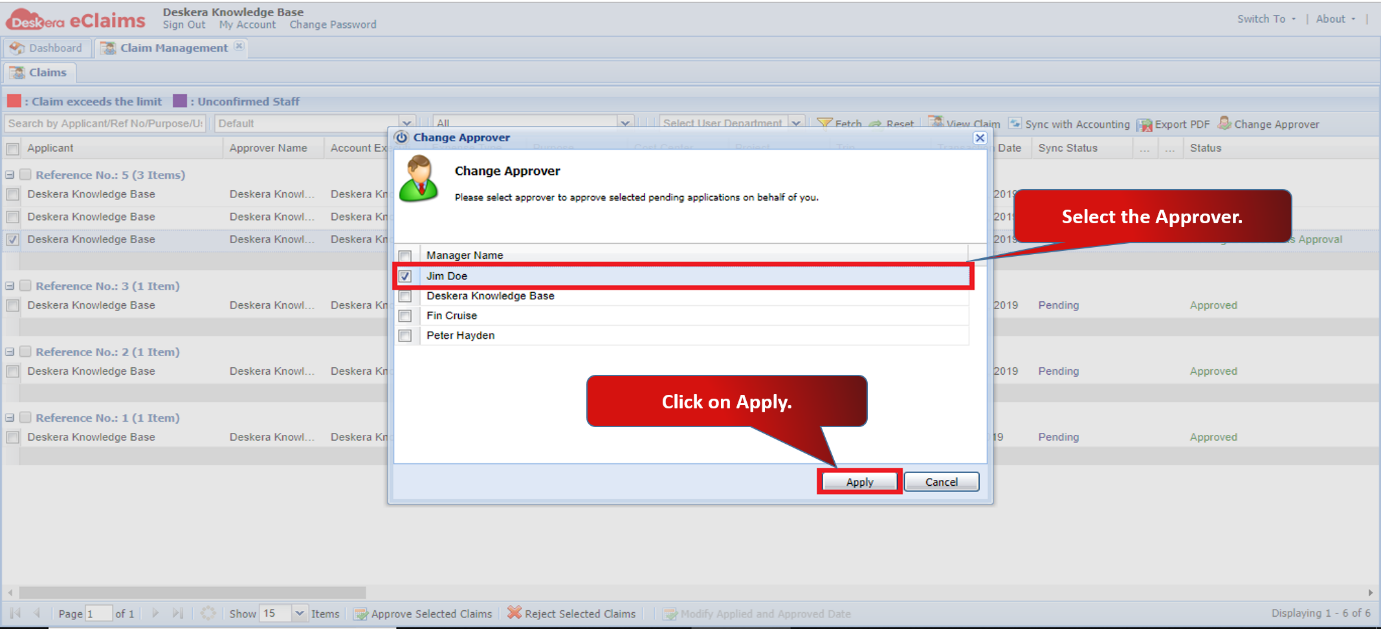 Fig 4.5.2.1.10 Change Approver
Comments
0 comments
Please sign in to leave a comment.