
This article focuses on the Sync with accounting function present in the View Expense Approval Request under the Accounts Executive module.
This function helps in syncing data with ERP once a claim has been approved and processed by the Accounts Executive. Once this sync has been completed the approved claim will be reflected in the company’s books of accounts.
Prerequisites:
1. Ensure you have your Deskera eClaims application URL in place.
2. Ensure you are the administrator of the eClaims application
3. Ensure a good internet connectivity
4. Claim submitted should be available for accounts executive’s approval.
Step 1: Go to View Expense Approval Request under Accounts Executive Module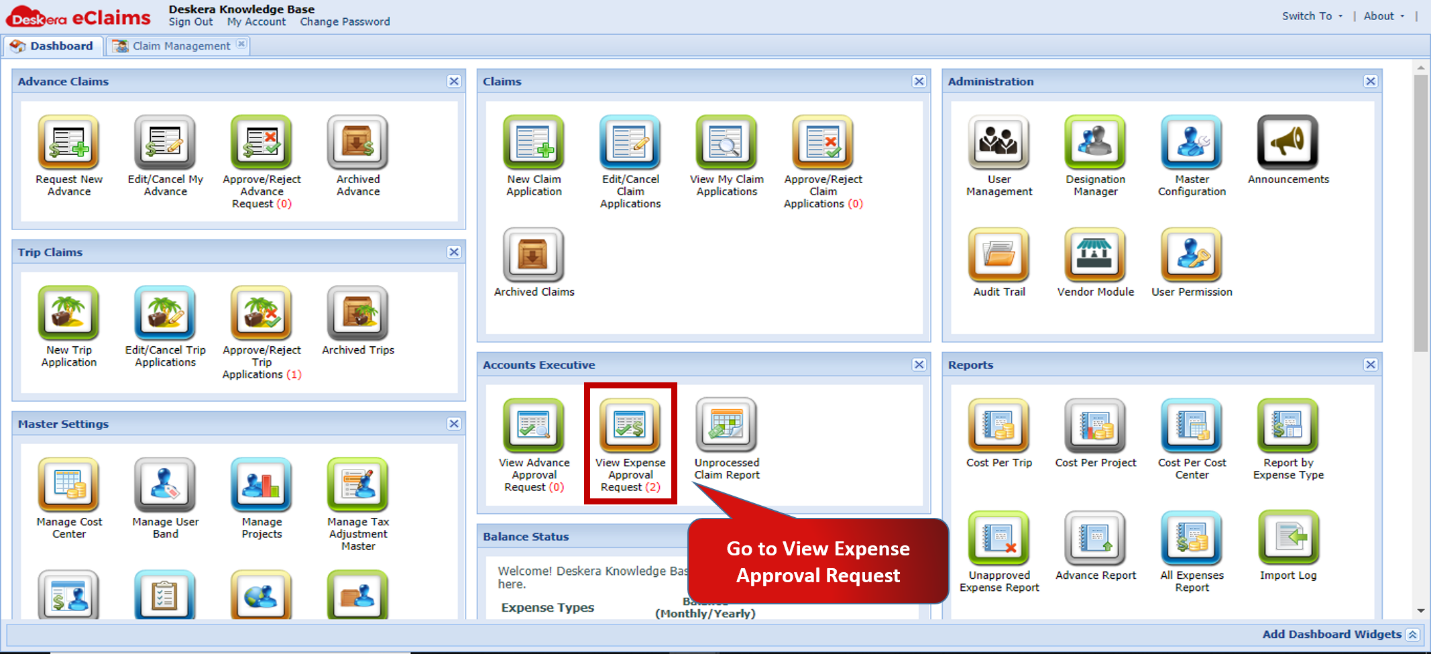 Fig.4.2.3.1.4.1 eClaims Dashboard
Step 2: Select claim, approve and process the claim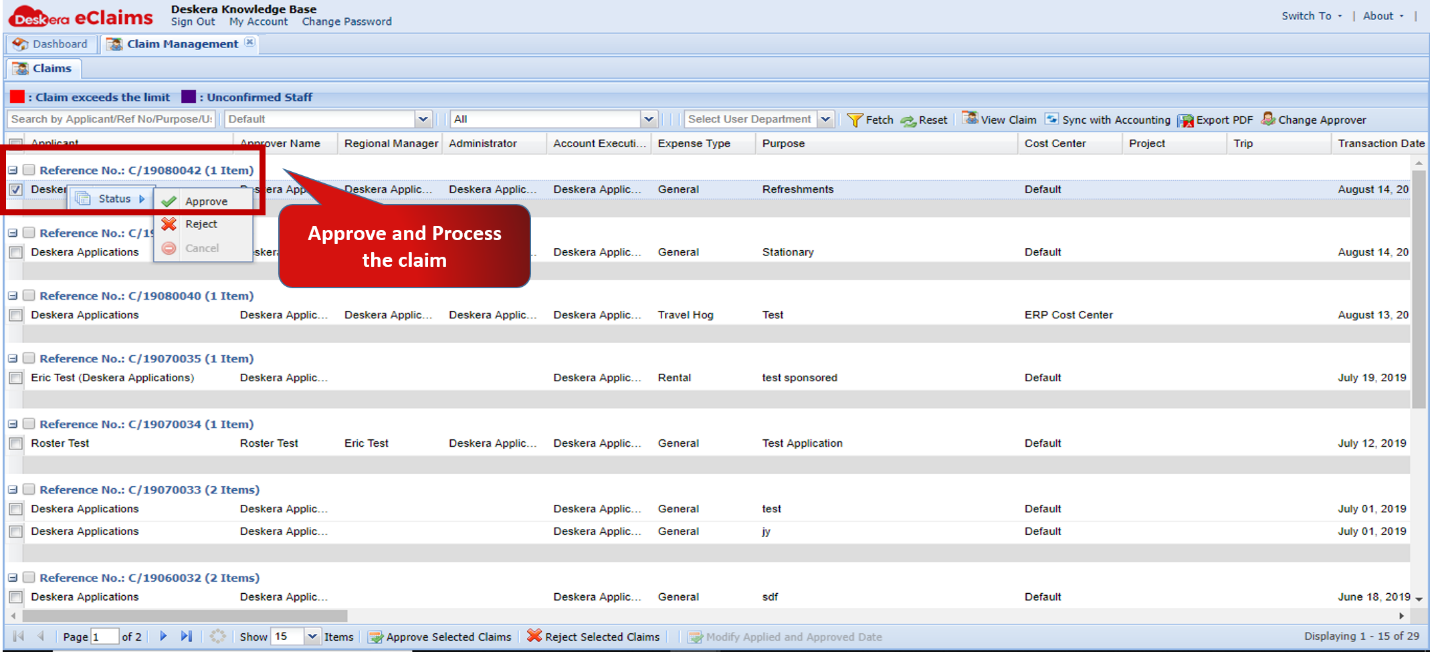 Fig.4.2.3.1.4.2 Master Configuration
Step 3: Click on Sync with Accounting option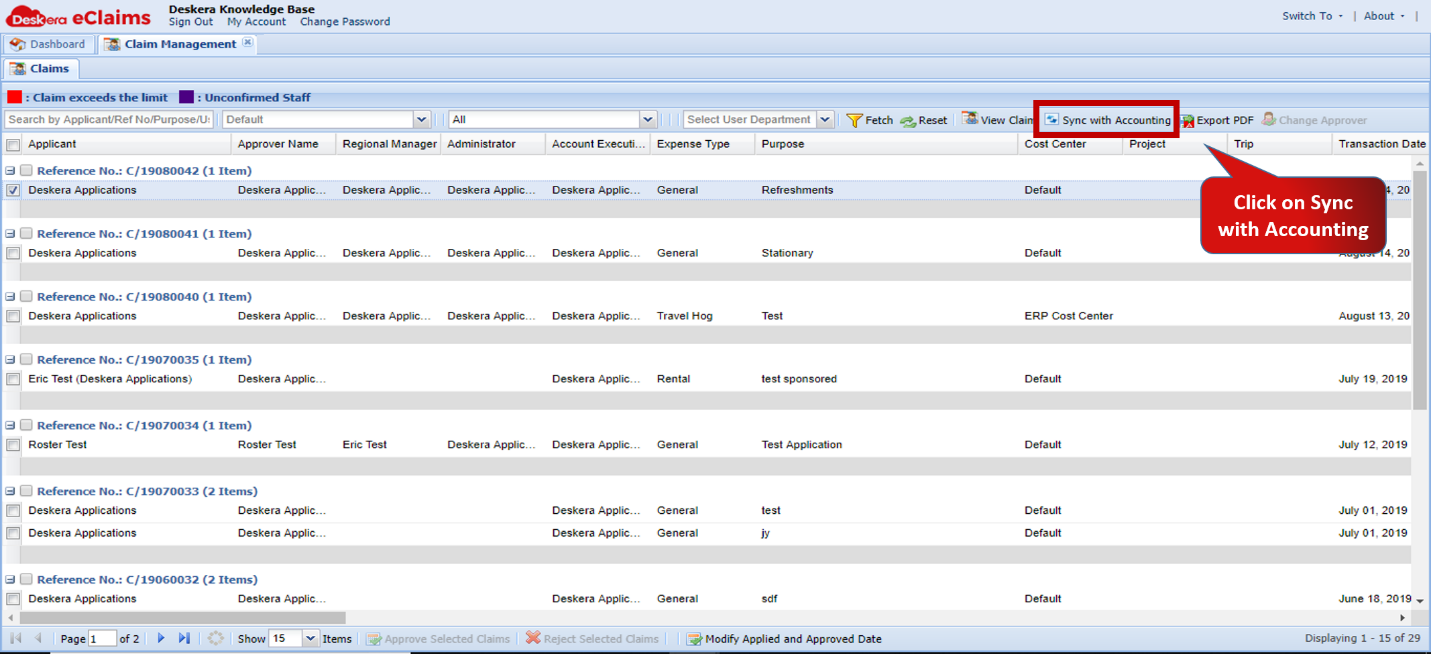 Fig.4.2.3.1.4.3 Master Configuration
Step 4: Journal Entry reflected in Deskera ERP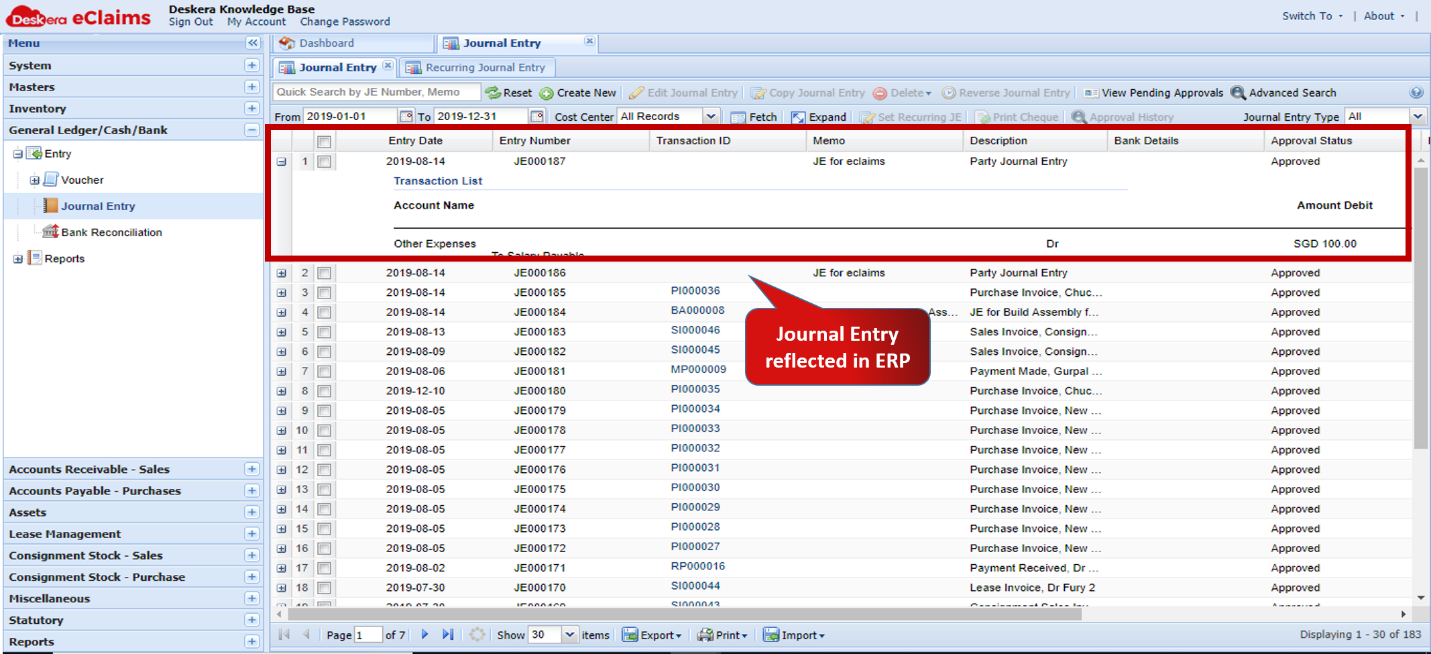 Fig.4.2.3.1.4.4 Master Configuration
Comments
0 comments
Please sign in to leave a comment.