
Performance Appraisal Configuration allows the user to enable and disable various settings according to your organisation needs. You can find these settings in Master Configuration under Administration Widget.
Prerequisites:
1. You have your Deskera HRMS application URL in place.
2. You are the administrator of the HRMS application
3. Ensure good internet connectivity
General Settings
Step 1: Click Master Configuration link on the HRMS Dashboard under Administration widget.
 Fig 2.2.3.1.1 HRMS Dashboard
Step 2: Select Modules Configuration and go to Performance Appraisal. You can activate/deactivate following settings by selecting/ deselecting the check-box.
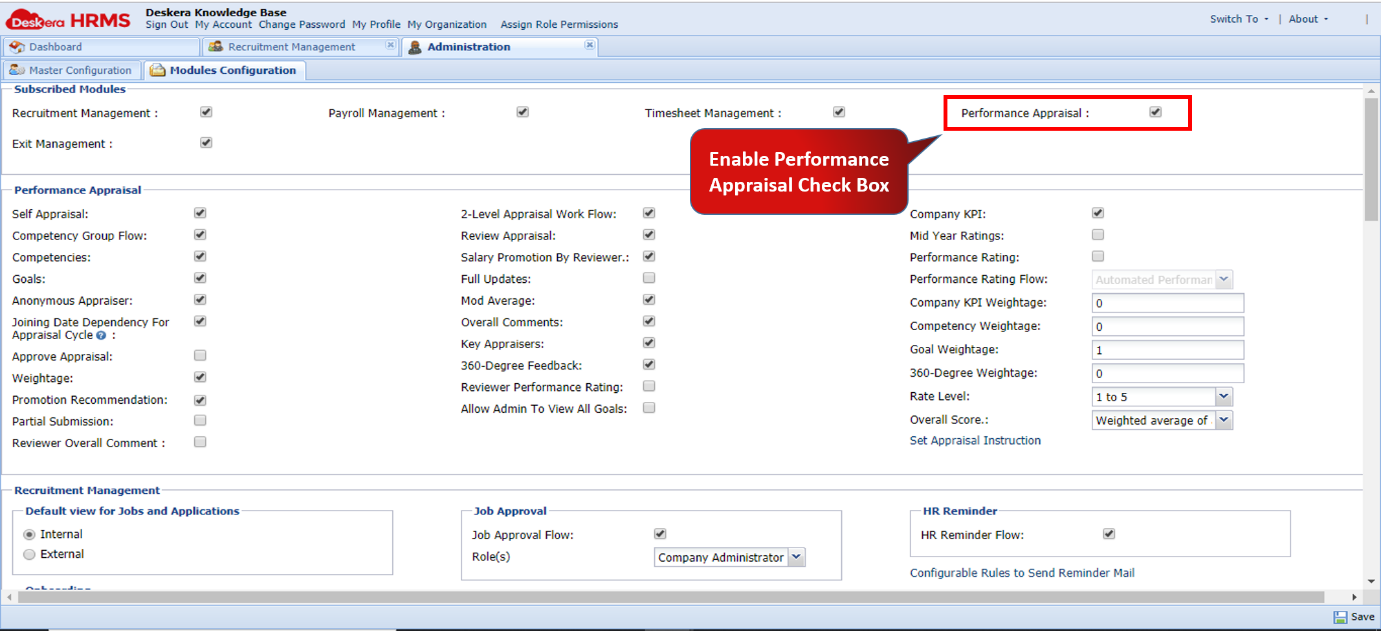
Fig 2.2.3.1.2 Modules Configuration
Self-Appraisal
Self-Appraisal setting makes appraisal a two way process. It includes appraisal both by managers and employees. It allows employees to do a self-appraisal. If deactivated, employees won’t be able to do self-appraisal.
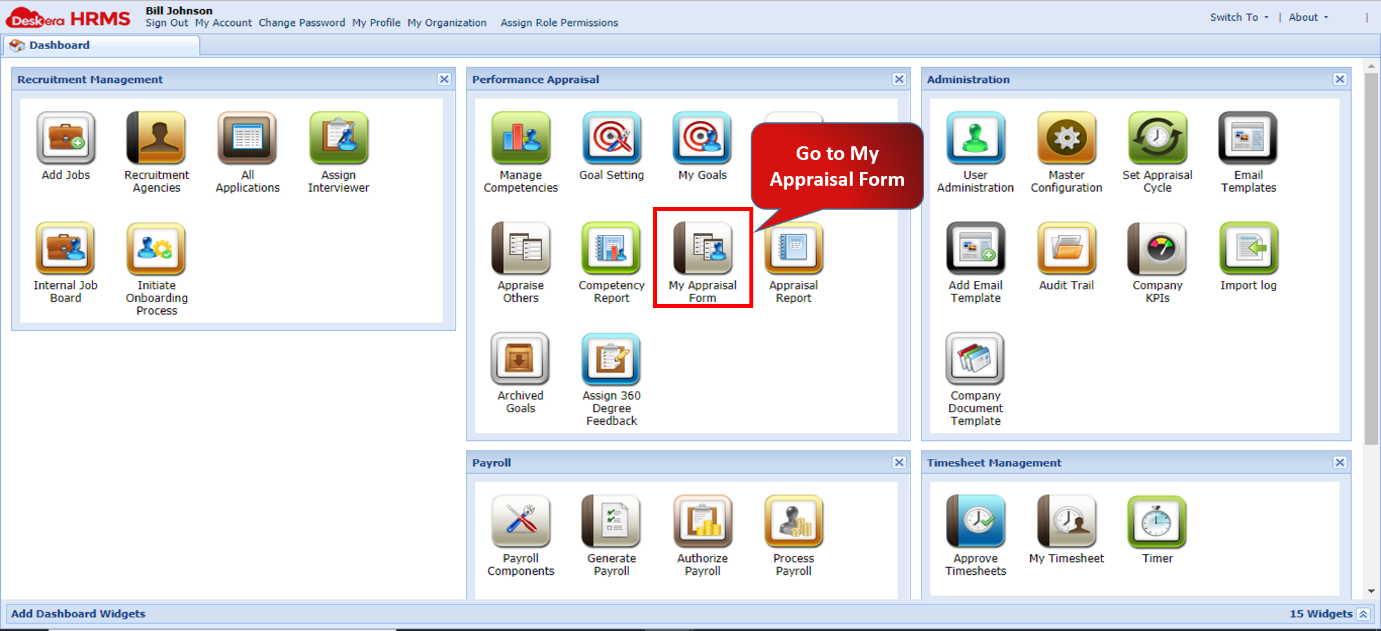
Fig 2.2.3.1.3 HRMS Dashboard

Fig 2.2.3.1.4 My Appraisal Form
Competencies
Competencies refer to the skills associated with a designation and form the basis of performance evaluation process. Competencies appear in the ‘Performance Appraisal Form’ if check-box is activated.

Fig 2.2.3.1.5 My Appraisal Form
Goals
Goals refer to the tasks, targets or goals assigned to the employees. It forms the basis of the goal evaluation in the performance appraisal process. Goals appear in the ‘Performance Appraisal Form’ if check-box is activated.

Fig 2.2.3.1.6 My Appraisal Form
Anonymous Appraiser
Anonymous Appraiser prevents employees to see their appraiser’s name. Deactivating the check-box allows employees to know their appraiser’s name.

Fig 2.2.3.1.7 Anonymous Appraiser Activated

Fig 2.2.3.1.8 Anonymous Appraiser Deactivated
Joining Date Dependency for Appraisal Cycle
Joining Date Dependency for Appraisal Cycle enables to check if the joining date of an employee is greater than the start date of an appraisal cycle. If unchecked, it will verify the same on end date of the appraisal cycle.

Fig 2.2.3.1.9 Initiate Appraisal
Approve Appraisal
All appraisals need to be approved by the reviewer before publishing. Deactivating the option allows all appraisals to be automatically published once managers have submitted the appraisals of their employees.

Fig 2.2.3.1.10 Appraisal Cycle Report
Weightage
Clicking the check-box allows administrator/ manager to assign weightage to competencies.

Fig 2.2.3.1.11 Competency Management
Promotion Recommendation
Clicking the check-box allows you to recommend promotion for your employees. The system will ask the appraiser to set new designation, department and salary increment fields while submitting appraisal form.
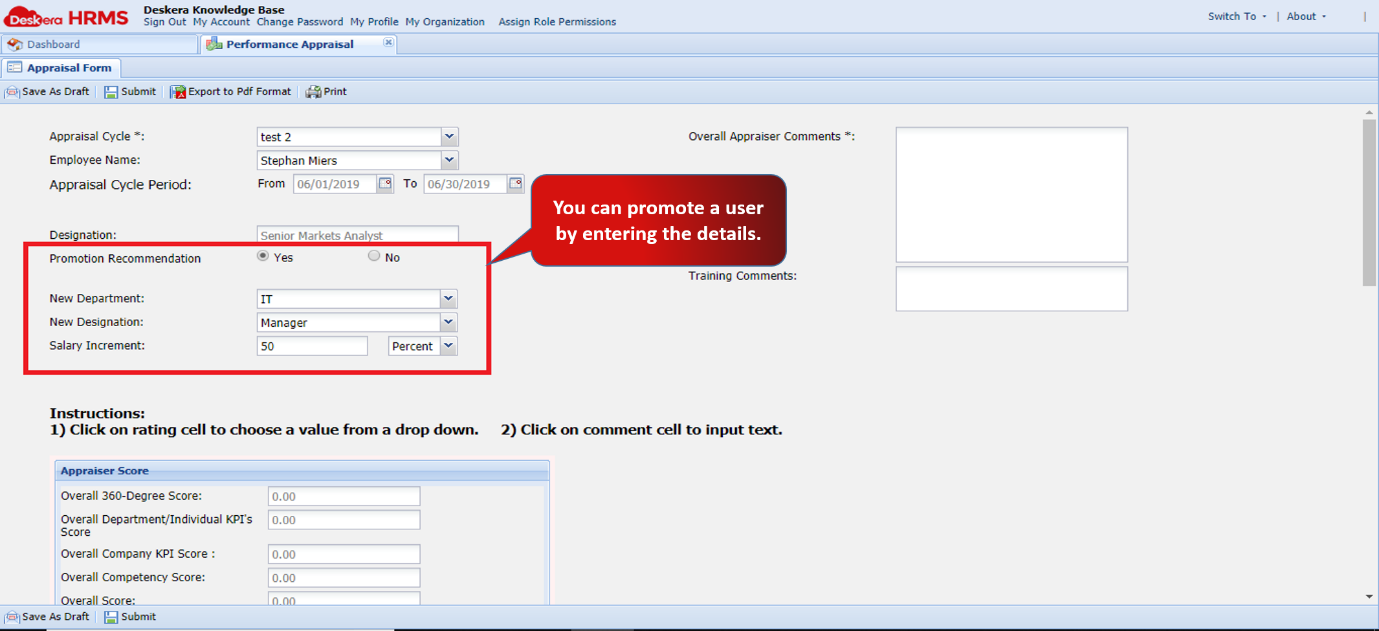
Fig 2.2.3.1.12 Performance Appraisal
Partial Submission
Managers do not have to rate each and every competency and/ or goals assigned to employees. Partial submission entails rating of one or a few competencies and/or goals assigned to the employee. Deselecting the check-box leaves managers to rate each and every competency and/ or goal in the appraisal form to enable its submission.
2-Level Appraisal Work Flow
2- Level Appraisal Work flow enables to set an Initial reviewer and a final reviewer. Deselecting this check box allows you to only set a Single level Appraiser Work Flow.

Fig 2.2.3.1.13 Assign Reviewer
Review Appraisal
Clicking the check-box makes it mandatory for the reviewer to review all appraisals submitted by the managers at his end. Deselecting the check-box removes the reviewer role in the system.

Fig 2.2.3.1.14 HRMS Dashboard
Full updates
Enable all updates to appear on the Dashboard.
Mod Average
Enable ratings to be reflected as Mod Average. The formula is Mod Average = Average of ratings after excluding a minimum and a maximum rating.

Fig 2.2.3.1.15 Appraisal Report
Salary Promotion by Reviewer
Clicking the check box enables the system to ask reviewer to set new designation, department and salary increment fields while approving appraisal form. Once approved, it will reflect in the user’s profile under User Administration.

Fig 2.2.3.1.16 Review Appraisal
Overall Comments
If enabled, then Overall Comments field will be shown to appraise and appraiser in their respective forms.
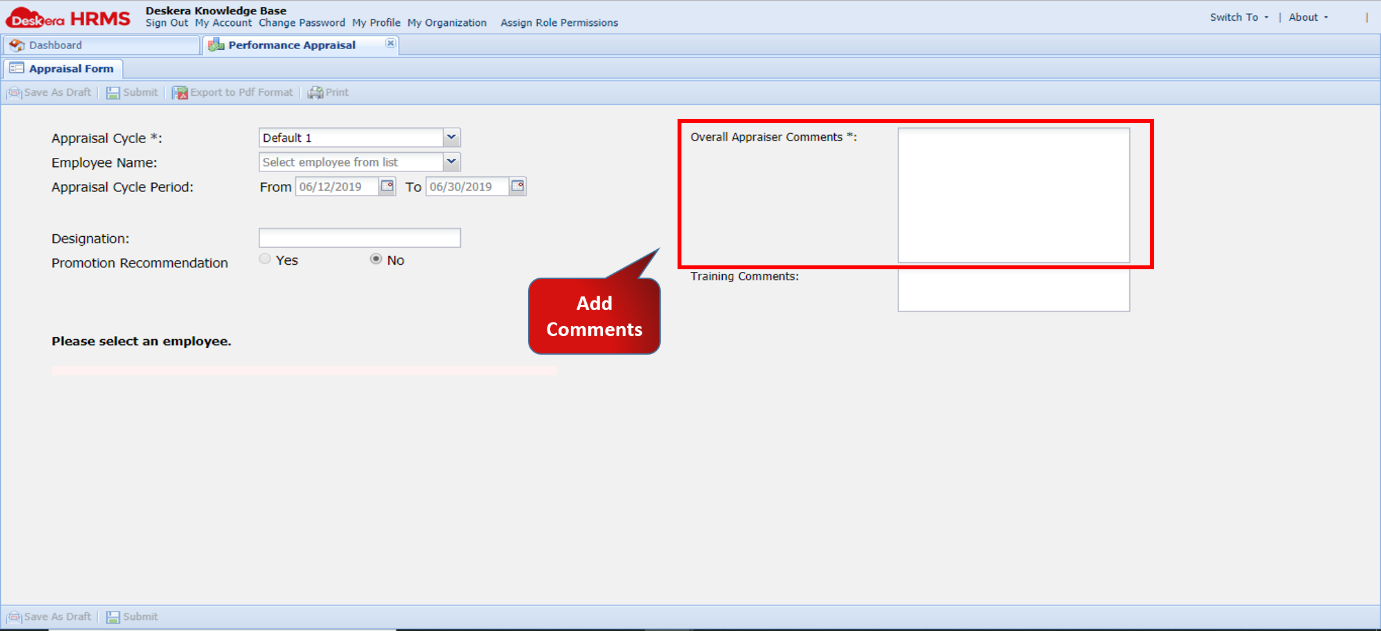
Fig 2.2.3.1.17 Appraisal Form
Key Appraisers
After enabling, an employee can select up to 5 key appraisers to provide qualitative appraisal with respect to the employee’s tasks.
360- Degree Feedback
360- Degree Feedback allows to submit 360- Degree ratings of an employee. These ratings are considered while calculating the overall score for appraisal.

Fig 2.2.3.1.18 HRMS Dashboard

Fig 2.2.3.1.19 360 degree feedback window
Allow Admin to View all Goals
If enabled, this setting will allow the admin and the managers to view all the goals of their respective employee’s.
Company KPI
Company KPI enables you to view and manage Company KPI’s. If enabled, you can see Company KPIs under Administration widget on HRMS Dashboard.

Fig 2.2.3.1.20 HRMS Dashboard

Fig 2.2.3.1.21 Company KPI window
Mid-Year Ratings
If enabled, you will be able to see previous mid-year appraisal’s ratings with respect to assigned competencies.
Performance Rating and Performance Rating Flow
If these settings are enabled, then you can view and calculate performance rating on the basis of calculated overall score. This setting is available only when Automated Performance rating is selected under Overall score.

Fig 2.2.3.1.21 Module Configuration
Comments
0 comments
Please sign in to leave a comment.