
Employee Management Configuration function helps in assigning employee confirmation related settings as well as the option to customize user profiles.
The Employee Management function can be found under Module Configuration tab in the System Configuration Module.
Prerequisites:
1. Ensure you have your Deskera HRMS application URL in place.
2. Ensure you are the administrator of the HRMS application
3. Ensure a good internet connectivity
Step 1: Open Module Configuration under Master Configuration
 Fig.2.2.3.6.1 Master Configuration
Step 2: Go to Employee Management under Module Configuration
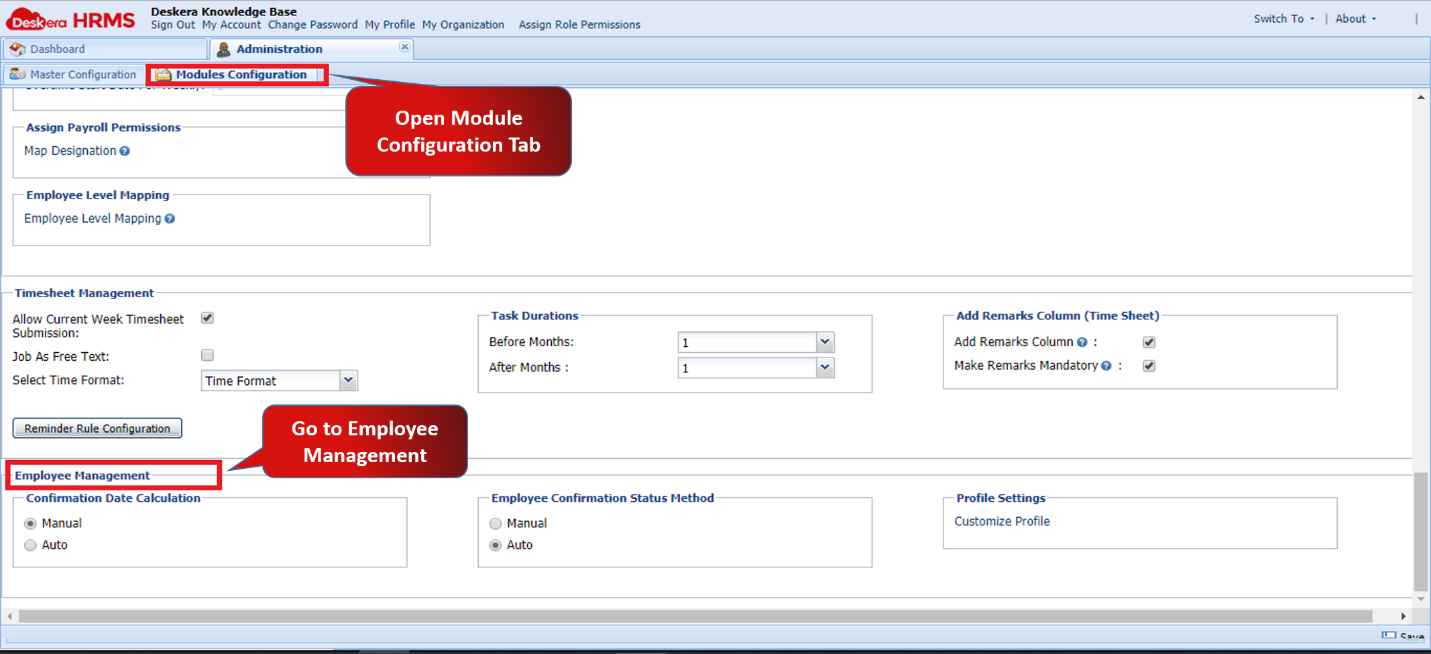 Fig.2.2.3.6.2 Module Configuration
Confirmation Date Calculation
There are 2 options to manage the confirmation date calculation
- When Manual option is selected the confirmation date would be required to be entered manually.
 Fig.2.2.3.6.3 Employee Profile
- When Auto option is enabled, the confirmation date is auto populated on the basis of the year, month, week and days entered in the probation period.
 Fig.2.2.3.6.4 Employee Profile
Employee Confirmation Status Method
There are 2 options to manage the employee confirmation status.
 Fig.2.2.3.6.5 Employee Profile
- When Manual option is selected the confirmation status would be required to be entered/selected manually.
- When Auto option is enabled, the confirmation status is auto populated on the basis of the successful completion of the probation period.
Profile Settings
The employee profile configuration function allows the user to customize the user profiles stored in the Deskera HRMS application. The function allows to position tabs, field types and fields to user profiles and assign user permission to access specified information.
Step 1: Click on Customize Profile under Profile Settings
 Fig.2.2.3.6.6 Module Configuration
Step 2: Click on Next to move from Customize Tabs to Customize Field Sets and then to Customize Fields.
 Fig.2.2.3.6.7 Module Configuration
Step 3: Make the necessary changes. Order of Items can be edited by using the Up and Down arrows against each item.
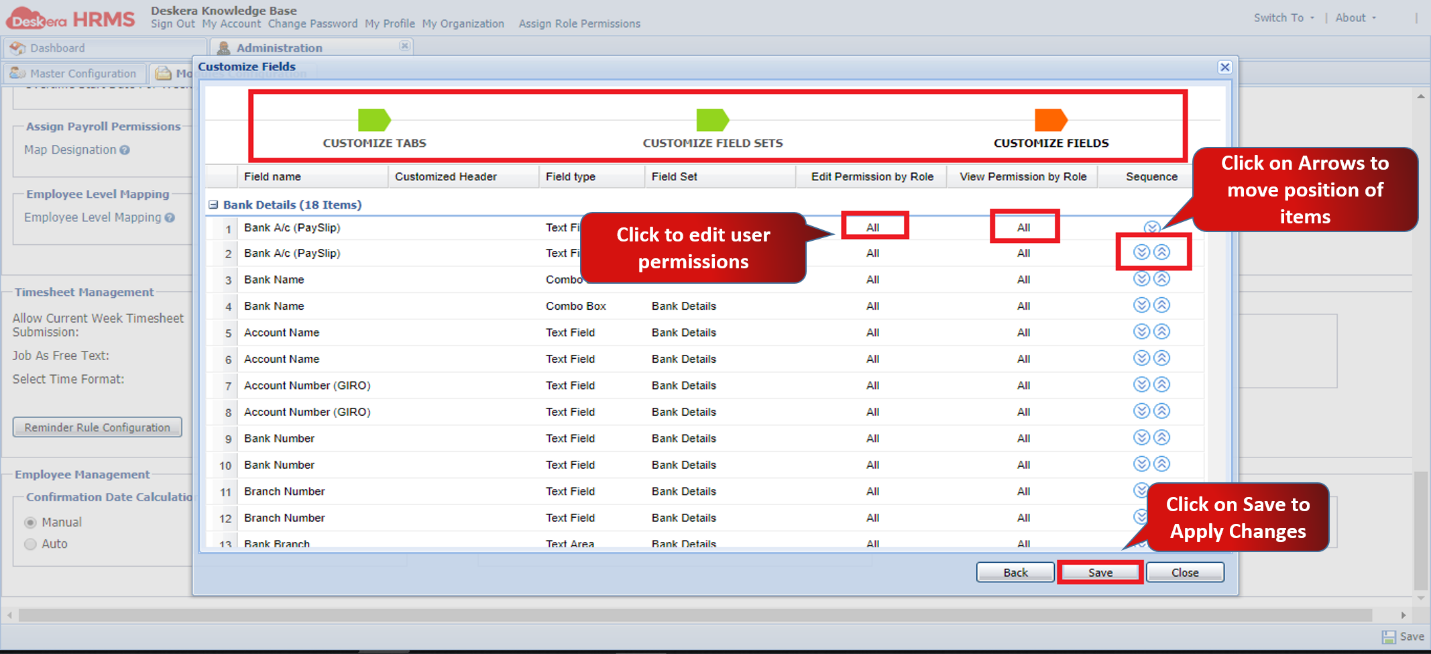 Fig.2.2.3.6.8 Module Configuration
Step 4: Click on Save to Apply Changes
Comments
0 comments
Please sign in to leave a comment.