
Prerequisites:
1. You have your Deskera HRMS application URL in place.
2. You are the administrator of the HRMS application
3. Ensure a good internet connectivity
Step 1: From the HRMS dashboard navigate to Master Configuration under the Administration tab and locate Payroll Management under Modules Configuration.
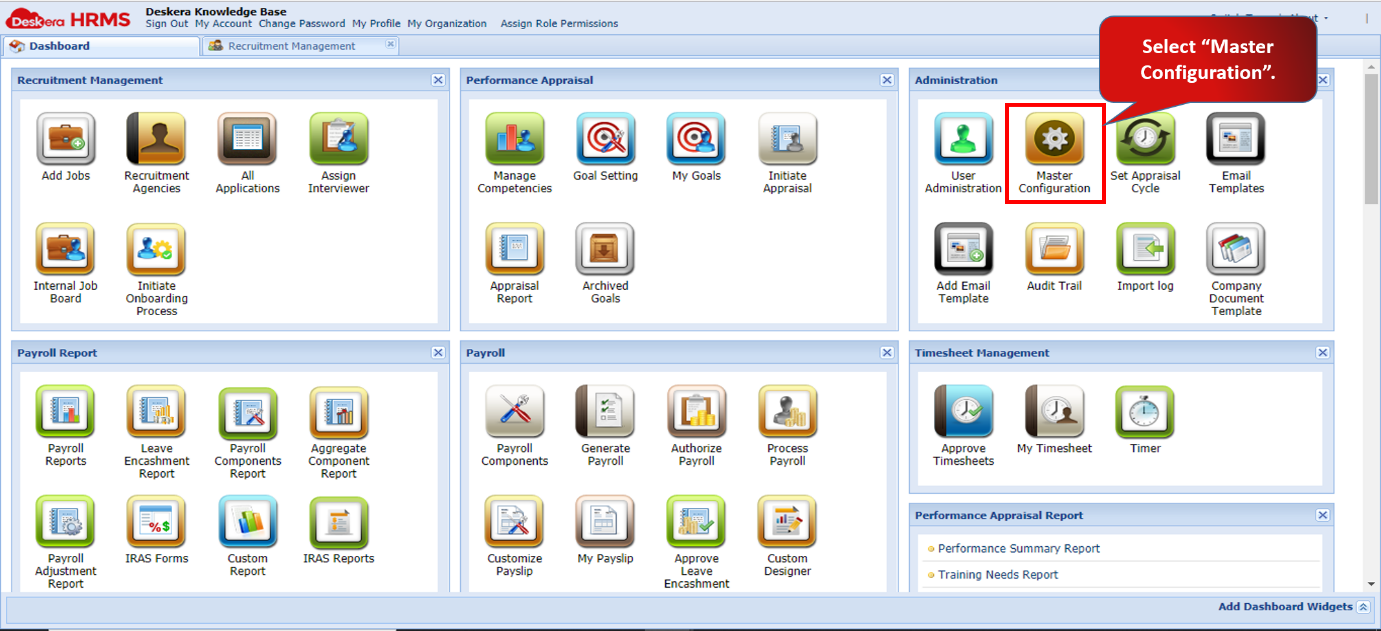
Fig. 2.2.3.3.1 Payroll Management Module Settings
Payroll Based On: This setting allows the user to configure the Paycycle based on a range of dates.
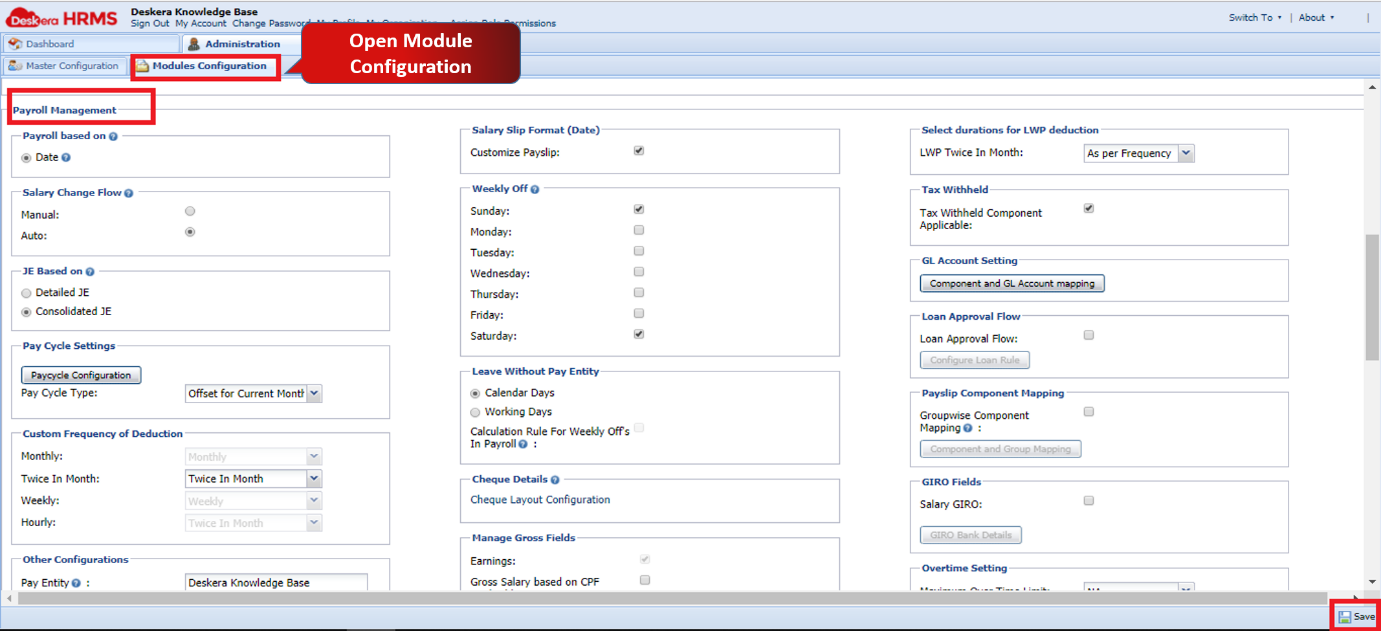
Fig. 2.2.3.3.2 Payroll Based On

Fig. 2.2.3.3.3 Salary Slip Format (Date)
Salary Slip Format (Date): Checking the box against Customize Payslip enables/disables the feature from appearing on the Dashboard under Payroll Module.
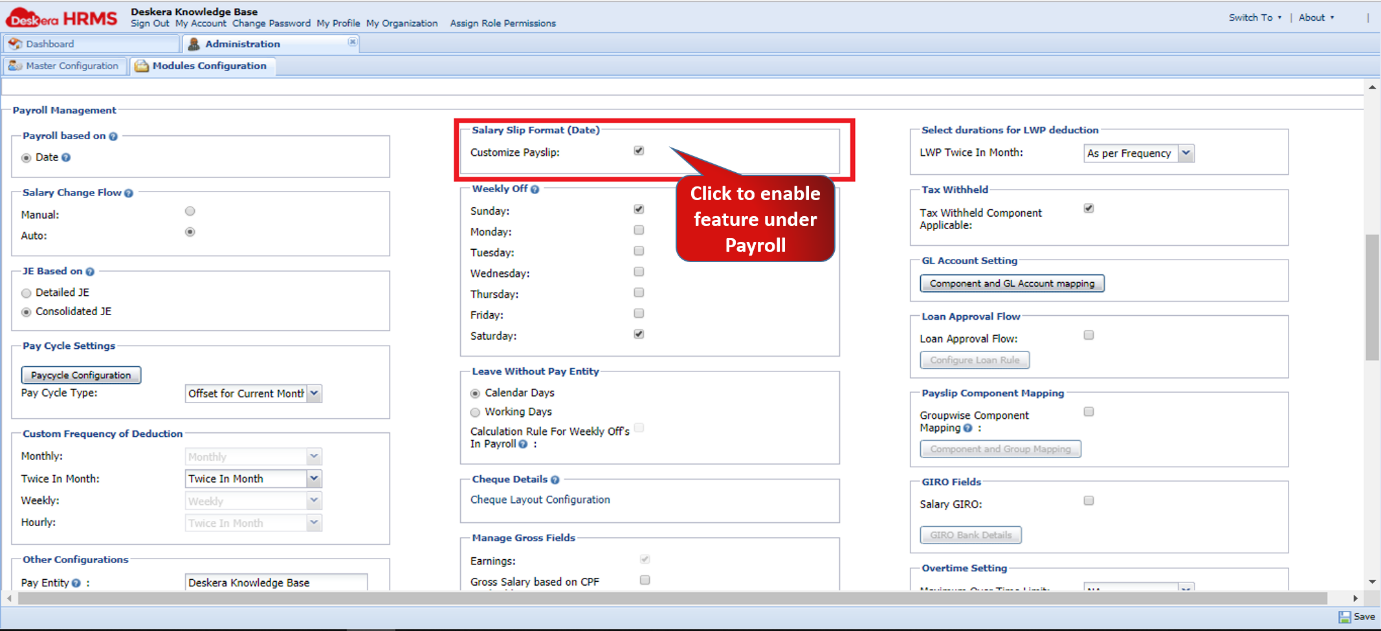
Fig. 2.2.3.3.4 Salary Slip Format (Date)

Fig. 2.2.3.3.5 Customize Payslip
LWP Twice In Month: It contains two sub-options:
- LWP Monthly: If this is selected, the payroll component that has LWP applicable will be deducted based on the following formulae for twice month:
For existing users:
- Per day amount for employee = (component value*2) / working days (of whole month) from (eLeave / HRMS)
- Amount to be deducted= Per day amount * absent days (including No. of leaves from (eLeave / HRMS))
For terminated users:
- Amount to be deducted = Per day amount * present days (including No. of leaves from (eLeave / HRMS))
For users having joining date in mid:
- Amount to be deducted= Per day amount * present days (including No. of leaves from (eLeave / HRMS))
If this is selected, the payroll component that has LWP applicable will be deducted based on the following formulae for monthly:
For existing users:
- Per day amount for employee=component value / working days from (eLeave / HRMS)
- Amount to be deducted= Per day amount * absent days (including No. of leaves from (eLeave / HRMS))
For terminated users;
- Amount to be deducted= Per day amount * present days (including No. of leaves from (eLeave / HRMS))
For users having joining date in mid:
- Amount to be deducted= Per day amount * present days (including No. of leaves from (eLeave / HRMS))
- As per Frequency: If this is selected, the payroll component that has LWP applicable will be deducted based on the following formulae:
For existing users:
- Per day amount for employee=component value / working days from (eLeave / HRMS)
- Amount to be deducted= Per day amount * absent days (including No. of leaves from (eLeave / HRMS))
For terminated users:
- Amount to be deducted = Per day amount * present days (including No. of leaves from (eLeave / HRMS))

Fig. 2.2.3.3.6 Select duration for LWP deduction
Salary Change Flow: This functionality is used when employee's salary is changed in the middle of the month. The system then calculates the salary of that user as per effective date if Auto salary change flow is used. This has been explained in detail under Article 2.1.9 Salary Settings

Fig. 2.2.3.3.7 Salary Change Flow
- Weekly Off: For the employees whose salary source has been selected as HRMS, this section allows to set the Weekly Off days for those employees.

Fig. 2.2.3.3.8 Weekly Off
Tax Withheld: This allows the user to make the component applicable for Tax Withheld i.e. the tax applicable will be deducted by the payer for that particular component before it is disbursed to the payee.
- Activate Tax Withheld Component Applicable

Fig. 2.2.3.3.9 Tax Withheld
- Navigate to User List under User Administration. Select Assign Tax Withheld under Assign Payroll Settings. Tax Withheld Window will appear.

Fig. 2.2.3.3.10 Assign Tax Withheld

Fig. 2.2.3.3.11 Tax Withheld
- While generating payroll, if tax withheld component is assigned to the user then it will appear under deductions field under Review Details window of the employee.

Fig. 2.2.3.3.12 Tax Withheld under Review Details
Pay Cycle Configuration: This setting allows the user to create new Paycycle.

Fig. 2.2.3.3.13 Pay Cycle Configuration
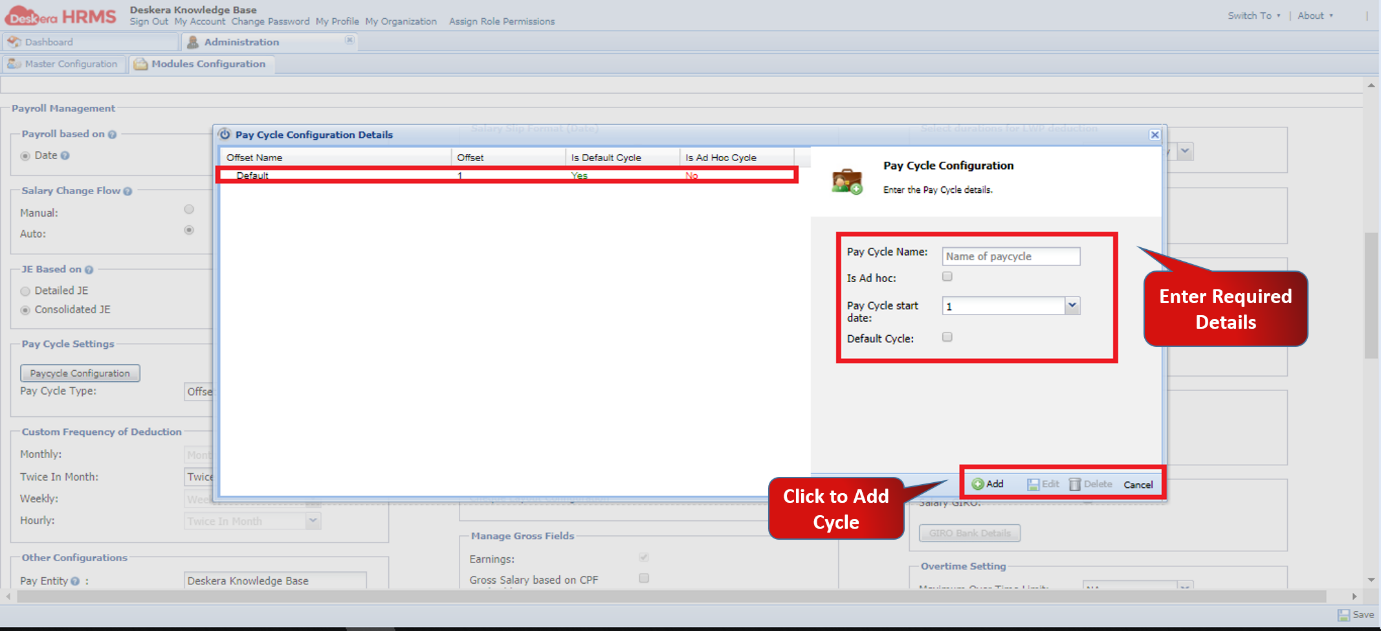
Fig. 2.2.3.3.14 Pay Cycle Configuration Details
Custom Frequency of Deduction: This setting allows the user to define the frequency of a component which is of deduction type in to monthly, twice a month, weekly and hourly.

Fig. 2.2.3.3.15 Custom Frequency of Deduction
Loan Approval Flow: This setting allows the user to configure an approval flow when request of loan is raised. A rule for the same can be configured as is shown in below:

Fig. 2.2.3.3.16 Loan Approval Flow

Fig. 2.2.3.3.17 Configure Loan Rule
Leave Without Pay Entity: This setting allows the user to configure LWP based on Calendar Days or Working Days.

Fig. 2.2.3.3.18 Leave without Pay Entity
GIRO Fields: Under this field, the Salary GIRO setting allows user to configure and generate GIRO files with different Banks’ file formats.

Fig. 2.2.3.3.19 GIRO Fields

Fig. 2.2.3.3.20 GIRO Bank Details
Payslip Component Mapping: Component-wise mapping is used in payslip so that a particular group can be easily mapped in a given payslip. Under Component and Group Mapping, the user can map components to groups created in Master Type.

Fig. 2.2.3.3.21 Component Group

Fig. 2.2.3.3.22 Component and Group Mapping
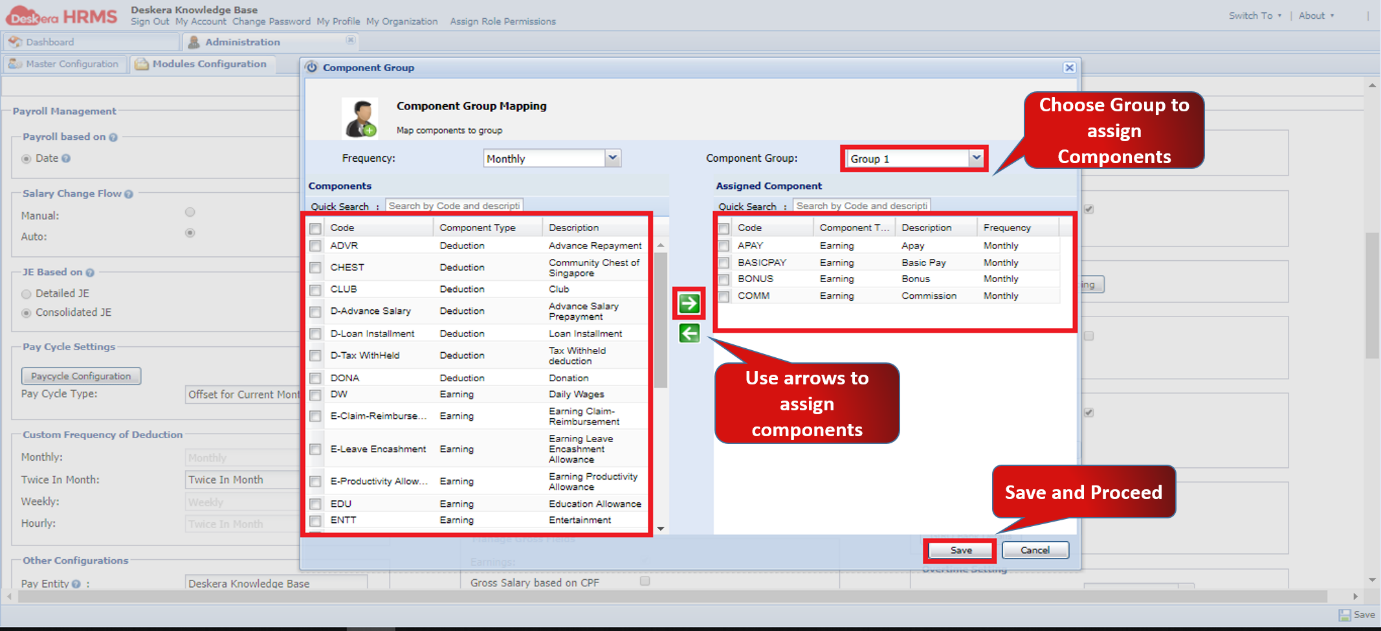
Fig. 2.2.3.3.23 Component Group Mapping

Fig. 2.2.3.3.24 Component Group Mapping

Fig. 2.2.3.3.25 Component Group
Other Configurations: The configurations under the Other Configurations tab are as follows:
- Rounding Calculation: Rounding Off can be defined at both Company Level and Component Level.
- Negative Salary: If enabled then system allows to process negative salaries. If it is disabled then system shows alert while processing negative salary.
- Roster Configuration: If enabled then it fetches IN-OUT timing of employee from eLeave.
- Daily Varying Hourly Wages: Using this functionality, the user can define separate wage rate for each day, and this rate will be used as hours * rate calculation (used for hourly frequency users). We can define different wage rate for Public holiday and Weekly-Off separately.
- Consolidated Payroll Emails - This check allows the user to get a combined email notification after processing payroll of a set of employees.
- The system asks for a confirmation while calculating payroll of users >> If the user clicks on Yes then mail notification will not be sent at that time for selected users (It will send the list of all users in a mail notification when last payroll processing is done).
- The system asks for a confirmation while calculating payroll of users >> If the user clicks on NO then mail notification will be sent at that time for selected users.
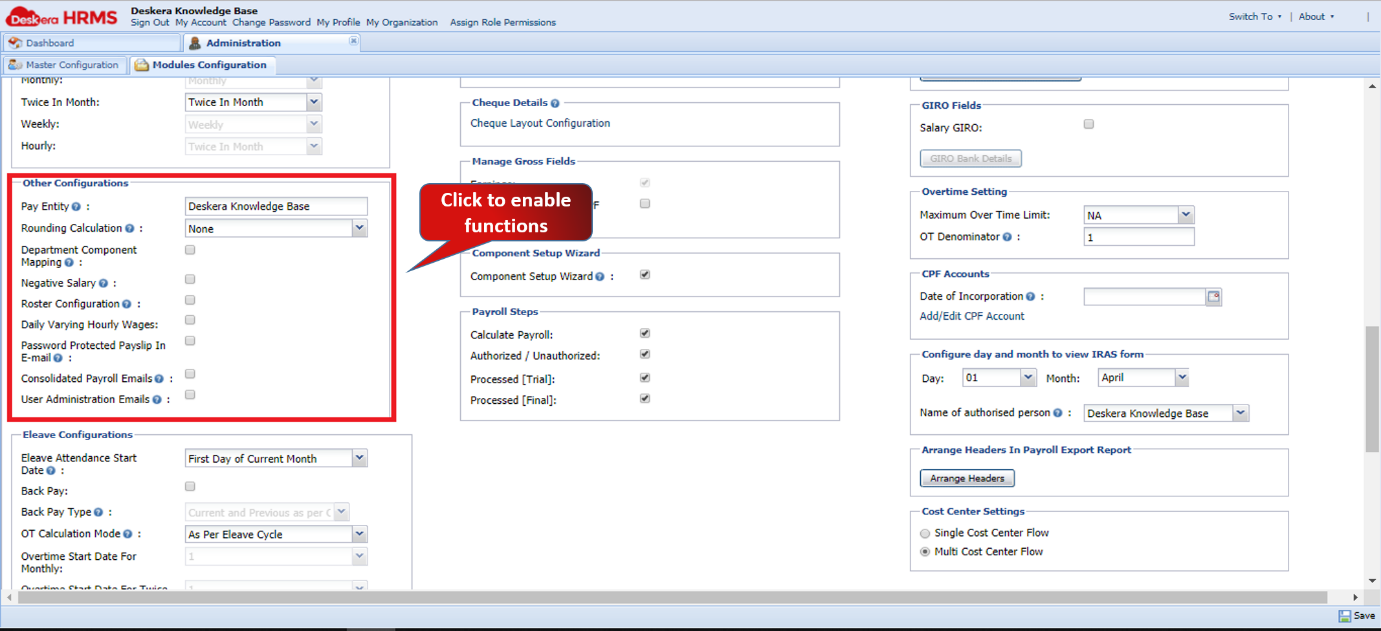
Fig. 2.2.3.3.26 Other Configurations
- Assign Payroll Permissions: This allows the user to limit payroll permissions by mapping designations to users so that other users can access limited payroll information.

Fig. 2.2.3.3.27 Assign Payroll Permissions
Comments
0 comments
Please sign in to leave a comment.